Note Type
approvedby koishiiko
Assign type to your notes and quickly switch between them. - This plugin has not been manually reviewed by Obsidian staff.
Obsidian Note Type
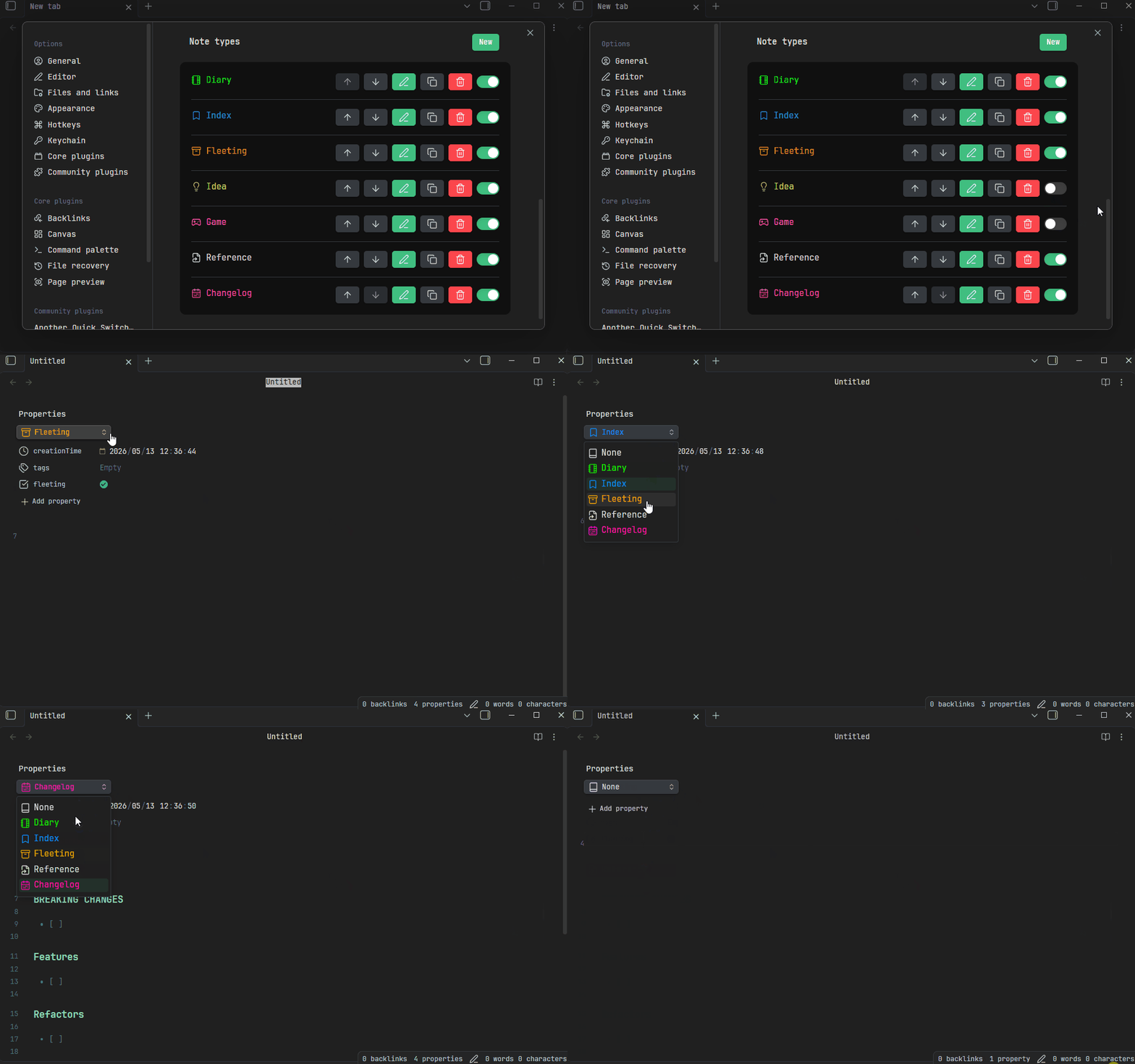
Features
- Adds a Note Type dropdown in the Properties editor to change the current note's type.
- Switching a note type populates properties and content from a template (supports built-in syntax and Templater).
- Default note type: automatically apply a note type to new files.
This plugin is heavily inspired by the latest update of Octarine (v0.42). Essentially, it just changes the Templater/QuickAdd template-filling workflow (Run command -> Choose template) into a dropdown-based switcher, but in my personal opinion, it greatly improves the user experience. Huge thanks to Octarine for the idea!
Getting Started
- Install the plugin.
- Add your Note Types (see configuration details below).
- Open any note — use the dropdown at the top of the Properties editor to switch note types.
How It Works
The plugin does not introduce new note syntax, just binds a configurable property key (default: noteType) to represent the note type. A dropdown is displayed in the Properties editor listing all predefined note types. When a type is selected, the corresponding template is formatted and applied, both properties (frontmatter) and body content are populated.
Configuration
Base Settings
| Setting | Description |
|---|---|
| Property key | The frontmatter property key used to identify the note type (default: noteType). |
| Hide note type property | When enabled, the raw property input is hidden — only the styled dropdown is shown. |
Note Types
Define your note types here. Each note type has the following options:
| Field | Description |
|---|---|
| Key | Unique identifier written to the configured property key. |
| Name | Display name shown in the dropdown. |
| Icon | Icon from Lucide displayed alongside the name. |
| Color | Color applied to the icon and name in the dropdown. |
| Folder | If not empty, current note will be moved to the specify folder, support built-in format syntax. |
| Template | Path to the template file used when this note type is selected. |
| Formatter | The engine used to process the template (see below). |
Formatters
Default (Built-in)
Uses {{ variable }} or {{ date:format }} syntax with variable. The following variables are available:
- now / date: Alias for
moment().format(). see: https://momentjs.com/docs{{ now }} // default: YYYY-MM-DD hh:mm:ss {{ now:YYYY-MM-DD }} - ctime / mtime: create time / modify time of current note
{{ ctime }} // default: YYYY-MM-DD hh:mm:ss {{ mtime:YYYY-MM-DD }} - name / ext / fullname: name of current note.
{{ fullname }} // foo.md
{{ name }} // name
{{ ext }} // md
Templater
More complex templates can be implemented using the Templater plugin, see: Templater document
Type folder
You can using the Built-in syntax to format the target folder path, or keeping it empty and using Templater (see: this)
Overwrite Behavior
When a note already has content, you can control how templates are applied. If Show conflict modal is enabled, you will be prompted to choose the behavior each time a conflict occurs. Otherwise, the default settings are used.
Property Behavior
| Option | Description |
|---|---|
| Replace | Replace all properties with the template's properties. |
| Keep | Keep existing properties, skip conflicting ones from the template. |
| Overwrite | Keep existing properties, but overwrite those that conflict with the template. |
Content Behavior
| Option | Description |
|---|---|
| Replace | Replace with the template's content. |
| Keep | Preserve the existing note content (do not replace). |
Default Note Type
| Setting | Description |
|---|---|
| Enable default note type | When a file without a note type is opened, automatically assign the default note type and apply its template. |
| Default note type | The note type to use as the default. |
| Empty note only | Only apply the note type to empty files. |
For plugin developers
Search results and similarity scores are powered by semantic analysis of your plugin's README. If your plugin isn't appearing for searches you'd expect, try updating your README to clearly describe your plugin's purpose, features, and use cases.