by Alex
Write by hand with a stylus in pressure-sensitive notebooks saved as vector files in your vault. Designed for Android tablets with a pen.




Handwrite in Obsidian — like a real notebook, with your S Pen.
Pressure-sensitive ink, PDFs, equations and a beautiful library, saved as plain files in your vault.
Built first for Android tablets with a stylus, and at home on Windows too. Free, open source, local-first.


Already in Obsidian? Open obsidian://show-plugin?id=notebook from your browser, or search for Notebook in Settings → Community plugins → Browse.
Gallery · Features · Quick start · FAQ · Live roadmap · Changelog
Why Notebook
Handwriting that feels naturalVector ink that follows your pen's pressure, painted as the pen moves and never reshaped when you lift it. Palm rejection, a radial menu next to the pen, the S Pen side button as an eraser, and ink that stays sharp at any zoom. |
Local-first, yours for goodEvery notebook is a file in your vault. No account, no cloud, no telemetry, no AI. Sync it with what you already use: Obsidian Sync, Google Drive, OneDrive or any folder-sync app. |
Made for studyingWrite on PDFs and scans, typeset equations, draw function graphs, cut a figure into your notes with an anchor back to its source, mark what to review, and practise with your answers hidden. |
A library you'll enjoy openingA home dashboard and a library of subject folders, smart collections and covers, decorated with line art generated on your device from each subject's name and colour. |
Gallery
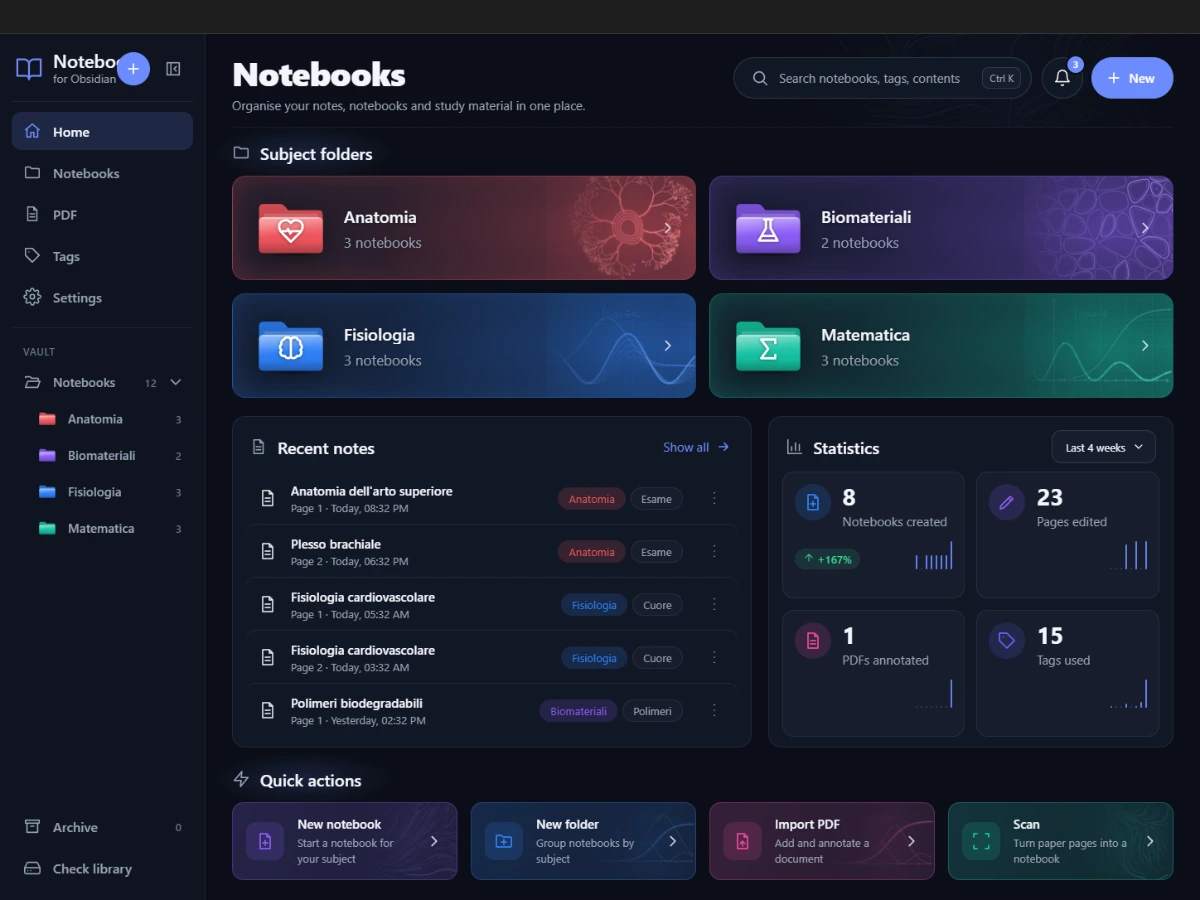
Home. Subject folders, the pages you edited last, statistics computed on your device, quick actions.
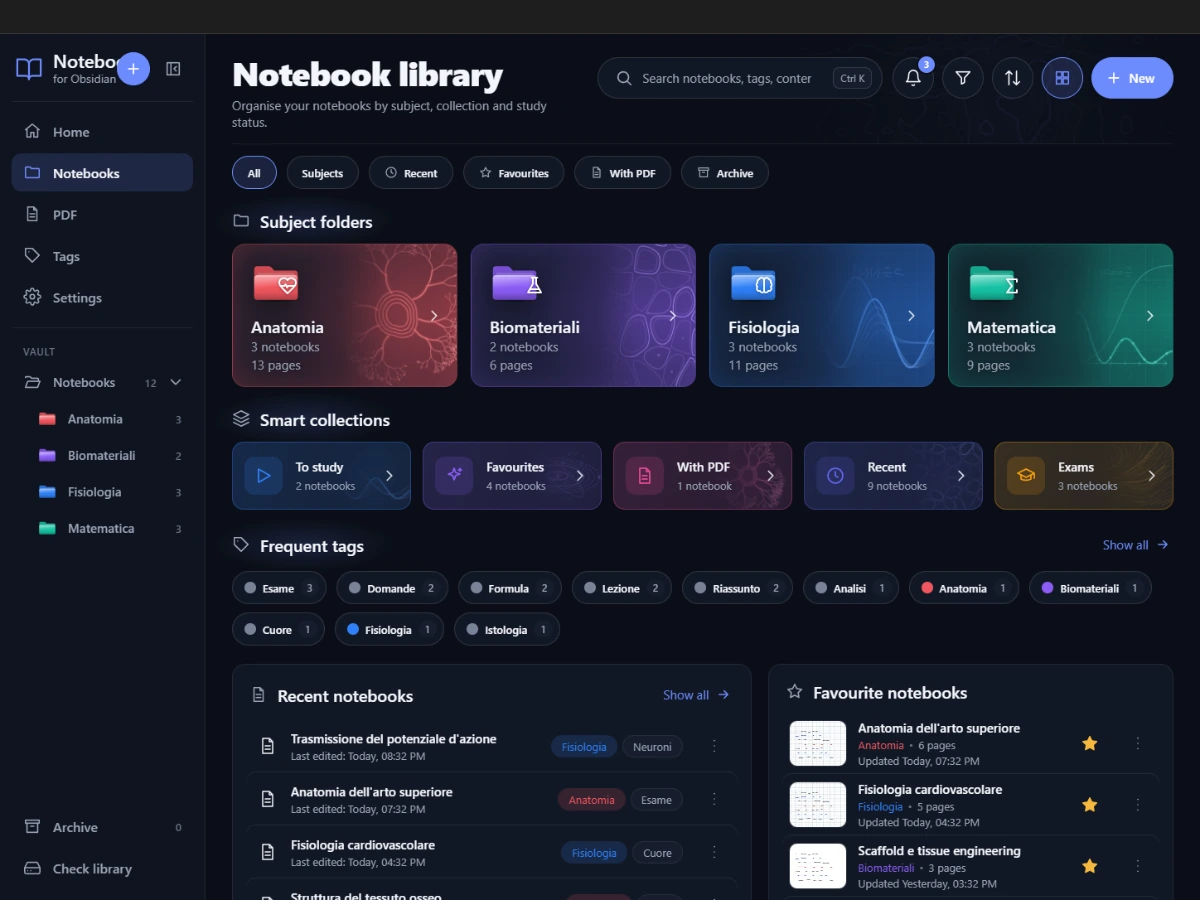
Library. Filter chips, smart collections, frequent tags, recent and favourite notebooks with page thumbnails.
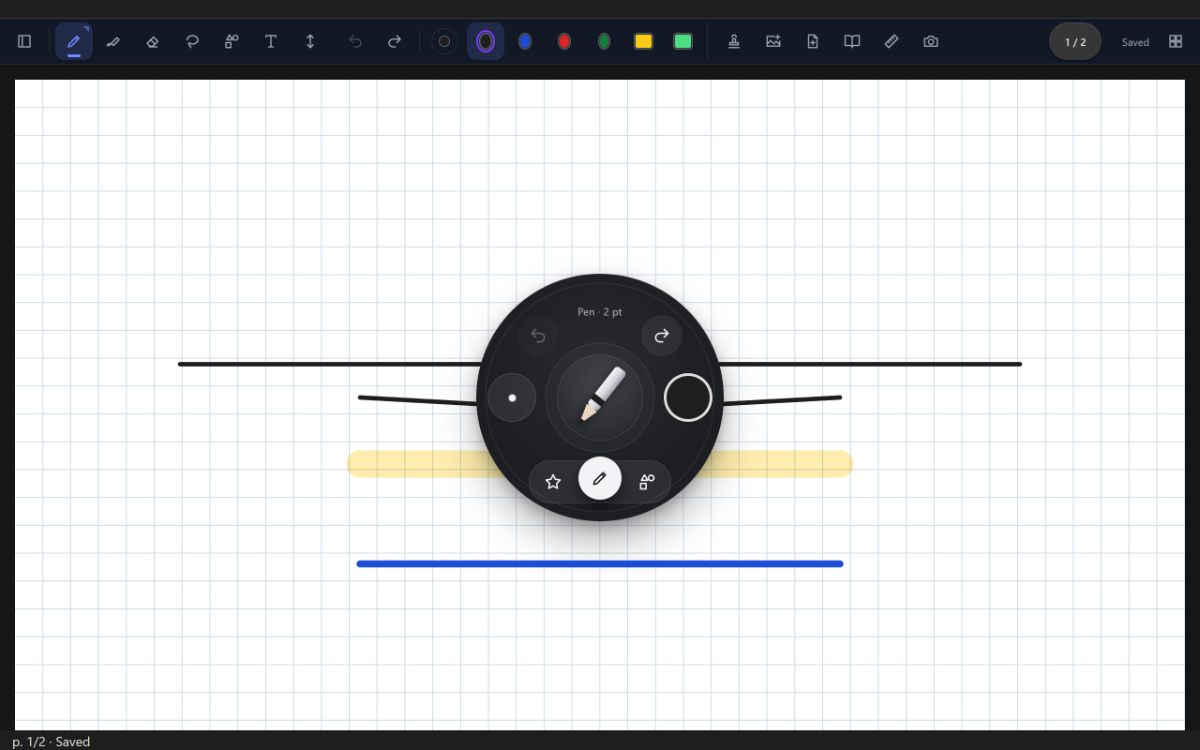
Writing. The toolbar and the radial menu: undo, redo, width, colour and tools, one tap from the pen.
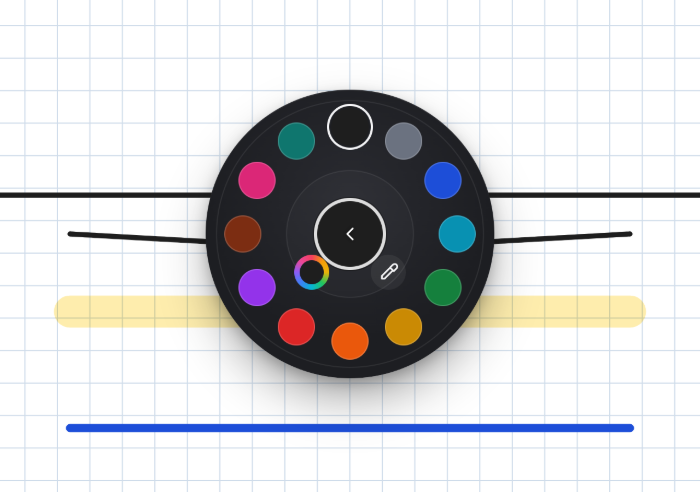
Colour, at the pen. Twelve colours, a custom colour and an eyedropper, without leaving the page. |
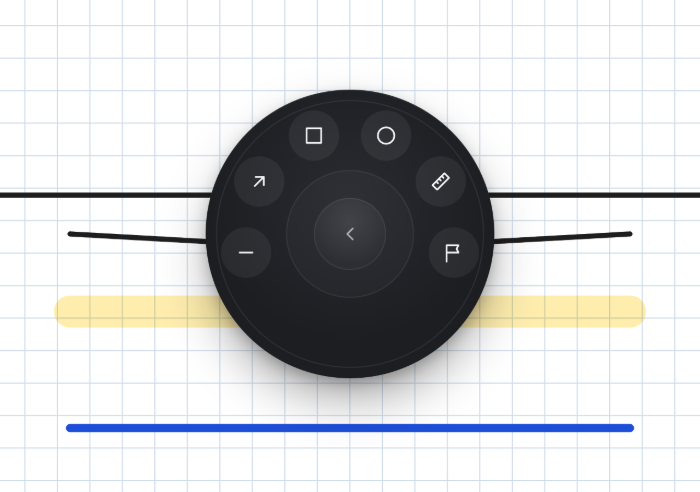
Shapes and tools. Lines, arrows, rectangles, ellipses and the ruler from the same dial. |
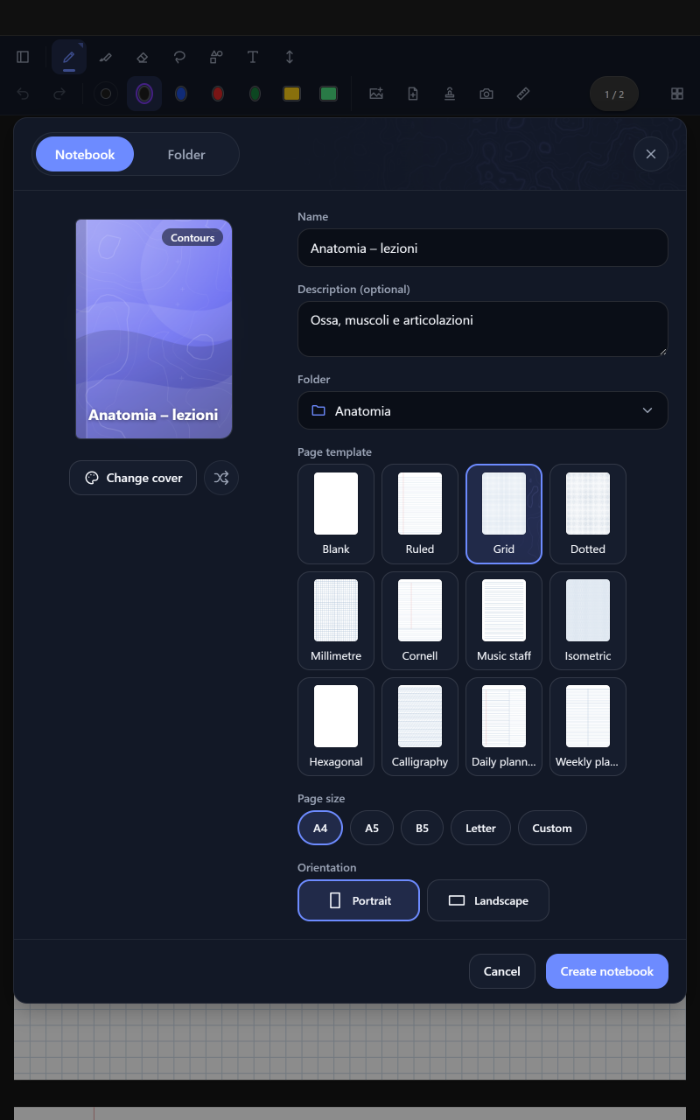
New notebook. A generated cover, real paper previews, A4 · A5 · B5 · Letter · custom. |
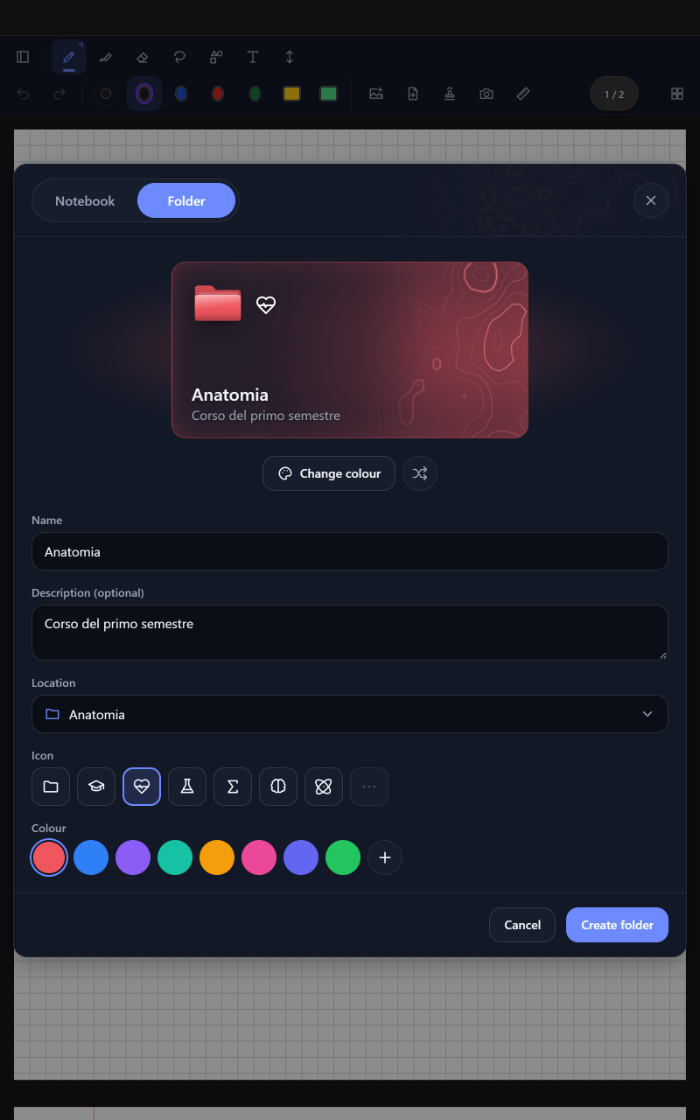
New folder. A subject with its own icon, colour and line art. |
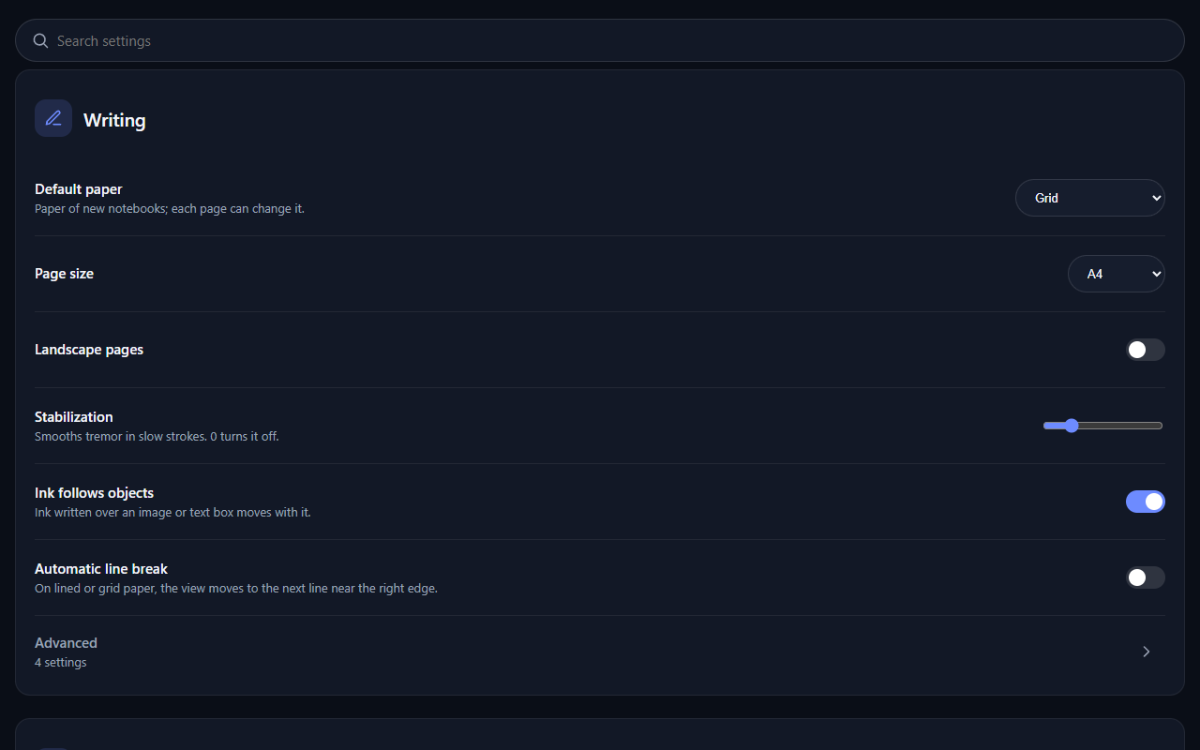
Settings. Organised by task, most-used options first, with search in English and Italian.
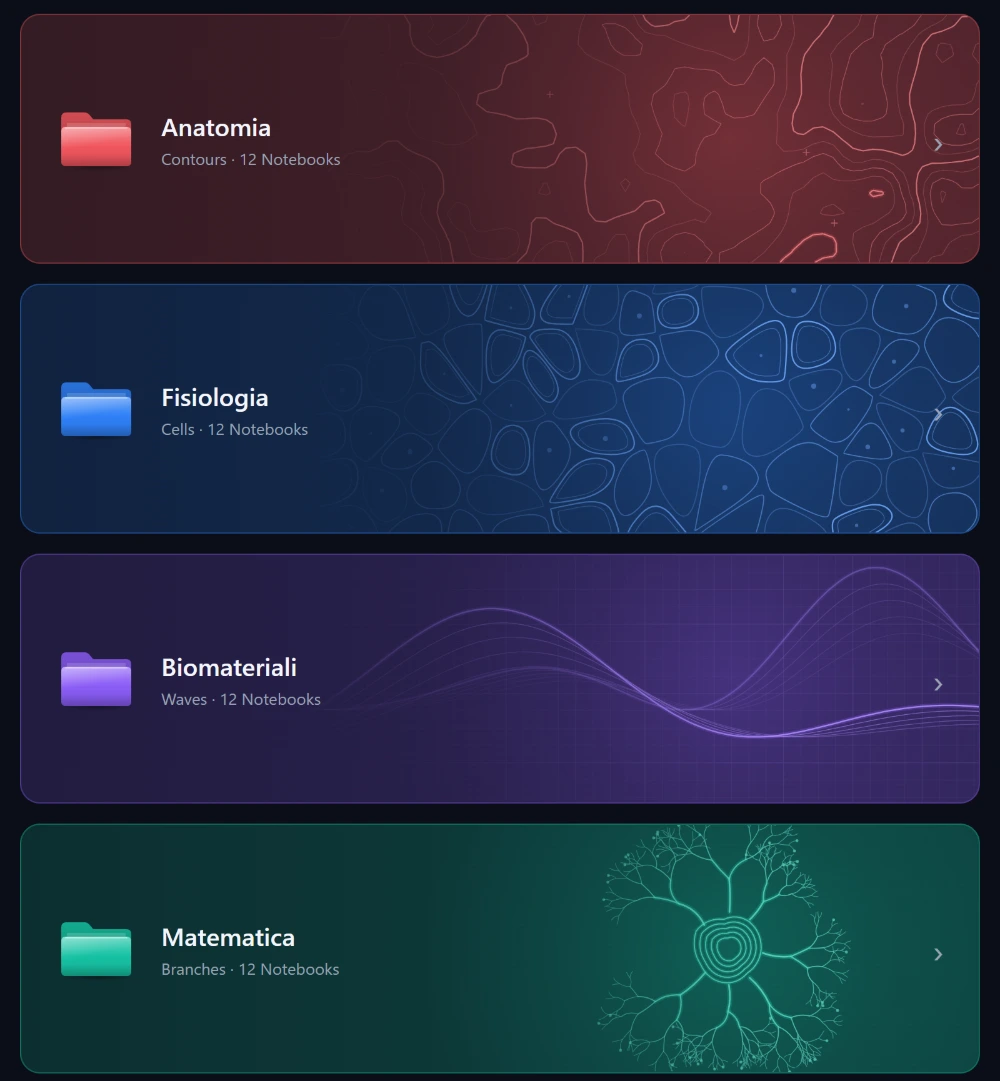
Generated art. Four of the seven line-art families (contours, cells, waves, branches; also flow, orbits and grid), drawn on the device from a subject's name and colour.
Screenshots are taken in the project's browser test harness (npm run harness:check) with a demo vault, not on a device.
Features at a glance
The highlights are below; the complete guide, with every setting, is in docs/features.md.
Writing
Ink that feels like paper and stays sharp at any zoom, because every stroke is stored as vector points with pressure.
- Pen, a highlighter that darkens what is under it instead of covering it, and an eraser for whole strokes, segments or an outlined area.
- Lasso to move, resize and rotate; shapes that turn clean when you hold still at the end; text boxes, images, a ruler and stamps.
- Radial menu next to the pen, favourite pens, palm rejection, two- and three-finger taps for undo and redo.
- Equations typeset with Obsidian's maths engine and function graphs (cartesian, parametric, polar, implicit), both kept as vectors.
- Papers: blank, ruled, grid, dotted, millimetre, Cornell, music, isometric, hexagonal, planners, and infinite pages.
Study
Tools for lectures and revision, all computed on your device.
- Markers for gaps, questions, importance and homework (homework becomes Obsidian tasks), with an End of lecture panel.
- Invisible ink for answers and Redo the exercise: a practice copy with your ink hidden, a peek at the solution and a timer.
- Pen gestures: circle to select, scribble to delete, "^" to insert space, a star to bookmark.
- A class timetable that opens the right notebook on a new dated page, and New lecture from slides.
- A Zettelkasten made from handwriting: cards from a lasso selection or a page, with an inbox to process.
Annotate slides and papers without losing the clean original.
- Import a PDF as a notebook, insert PDF pages or a scan (camera, corner detection, document and whiteboard filters).
- Search the PDF text, a highlighter that snaps to text lines, hide your annotations or dim the page, widen margins to write beside a slide.
- Open a PDF side by side with your notes, and update to a new version of the slides while your notes stay on their slides.
- Anchored excerpts: cut a figure onto another page, then tap its badge to jump back to the exact place it came from.
- Export highlights and text boxes to a Markdown note.
Organisation
Find any page in seconds, even in a big vault.
- Home dashboard and a library with subject folders, smart collections (To study, Favourites, With PDF, Recent, Exams), tags, pins and an archive.
- Search across titles, tags and typed text (handwriting is not searched: there is no OCR).
- Pages panel with thumbnails, drag to reorder, a coloured outline of bookmarks, page tags and a Go to page switcher across notebooks.
- Export to PDF, SVG, PNG or Markdown with page images; print on desktop.
Obsidian integration
Notebooks behave like part of your vault.
- Link or embed a single page:
[[Physics.notebook#p3]],![[Physics.notebook#p3]]or anotebookcode block;obsidian://notebooklinks for other apps. - Optional companion notes so Obsidian search, the graph, tags and Dataview see your notebooks.
- Obsidian tags, Obsidian bookmarks to a page, commands for the mobile toolbar, a public API for Templater, QuickAdd and Dataview.
- A documented file format with a JSON Schema, so other tools can read notebooks.
- Interface in English and Italian.
Privacy & safety
Your notes are files you own, and the plugin works hard never to lose them.
- A
.notebookfile is versioned JSON in your vault; PDFs and images are stored once in_assets. No account, no cloud, no telemetry, no AI. - Automatic saving plus an instant save journal that restores the last changes after a crash.
- Version history, Restore a single page, Repair damaged notebook. Unreadable files are never overwritten and a backup is kept.
- Sync safety for folder-sync apps: conflicted copies can be merged, an Open on another device banner, and an integrity check that spots stale copies.
Quick start
- Install. In Obsidian open Settings → Community plugins → Browse, search for Notebook, then Install and Enable (or open the community page). Prefer the newest build, or a pre-release? Use BRAT.
- Create your first notebook. Tap the ribbon icon to open Notebook home, then New notebook. The creation dialog has two tabs: Notebook (cover, name, folder, paper, page size and orientation) and Folder (a subject with its own icon and colour). Choose, then Create.
- Write. The pen writes; one finger scrolls and two fingers zoom (turn on Draw with finger in the settings to write with a finger). Click the S Pen side button while the pen hovers, or hold the pen still for a moment, to open the radial menu; hold the button while you write to erase.
- S Pen tips. What the side button can and cannot do inside Obsidian on Android, and how to map the pen's remote button to a key, is in S Pen on Android.
- Sync. Notebooks are ordinary files: a Google Drive or OneDrive folder-sync app, Syncthing or Obsidian Sync (turn on Other types) all work. Sync the
_assetsand_backupfolders too. Details in the FAQ and in Versions and recovery.
Install with BRAT
BRAT installs the latest GitHub release, pre-releases included, and keeps it updated:
- Settings → Community plugins → Browse, search for BRAT (Obsidian42 - BRAT), install and enable it.
- Command palette → BRAT: Add a beta plugin for testing → enter
https://github.com/Plagemes/Obsidian-Notebook→ choose the latest version → Add plugin. - Enable Notebook in Settings → Community plugins.
Manual install (Windows and Android) and debugging on Android are in docs/install.md.
FAQ
Is it free?
Yes. Notebook is free and open source under the MIT licence. There is no paid tier, no account and no ads.
Where are my notes?
In your vault, as .notebook files (by default in the Notebooks/ folder). PDFs and images live once in Notebooks/_assets/, backups and version snapshots in Notebooks/_backup/. Uninstalling the plugin leaves every file where it is. The format is documented in docs/features.md and docs/architecture.md.
Does it work on Android, iPad and Windows?
It is designed first for Android tablets with a stylus (S Pen) and also for Windows. It uses no desktop-only code, so it also loads on macOS, Linux and iPad, but those are not a focus and have not been tested. On Android, Obsidian does not pass pen hover to plugins, which limits what the S Pen side button can do (see the next question).
What does the S Pen button do?
A click while the pen hovers opens the radial menu (or, if you choose, makes the next stroke erase). Holding the button while the nib touches the page erases, and pressing it mid-stroke erases the rest of that stroke. Because Obsidian for Android does not pass hover to plugins, anything that needs hover (a cursor preview, choosing by releasing over an action) cannot work. The full explanation, the timing settings and an optional key-mapping setup are in S Pen on Android.
Does it use AI or the cloud?
No AI, and no cloud unless you turn it on. Everything, including the generated art and the statistics, is computed by ordinary code on your device: no account, no server of ours, no telemetry. Syncing is up to you: the tools you already use (Syncthing, Obsidian Sync, a synced folder) work as before, and the optional cloud sync built in since 0.22 talks only to your own Google Drive or OneDrive, with your own OAuth client, and only after you turn it on and sign in. Optional AI features are only an idea for much later on the roadmap, after writing and saving are proven stable, and would be local first with any cloud use as an explicit opt-in.
Roadmap

As of 0.30.0 the roadmap has 268 features shipped, 0 in progress and 170 to do (plus 5 deferred and 30 dropped). The live page is rebuilt from docs/roadmap.md on every change, with filters, search and the most requested features.


Contributing
- Want something? Request a feature, or 👍 an existing request: the roadmap page ranks them by votes. Loose ideas are welcome in Discussions → Ideas.
- Found a bug? Report it. Reports from Android tablets with a pen help most.
- Want to code? Read CONTRIBUTING.md and docs/development.md. Please follow the Code of Conduct; security issues go through SECURITY.md.
Status: v0.30.0 (document format 28), early development. The automated tests and the browser harness pass, but Notebook has not been verified on Android hardware yet; what is verified, and how to test it, is in docs/testing.md.
Licence
MIT, see LICENSE. Third-party code: perfect-freehand (MIT). PDFs are rendered with the pdf.js that Obsidian provides. No code was copied from the other projects studied in docs/research.md.
For plugin developers
Search results and similarity scores are powered by semantic analysis of your plugin's README. If your plugin isn't appearing for searches you'd expect, try updating your README to clearly describe your plugin's purpose, features, and use cases.