Related Notes Finder
approvedby lifegems
Add extra features for finding related notes.
★ 35 stars↓ 8,001 downloadsUpdated 5y ago
Related Notes Finder
An Obsidian Plugin
How to Use
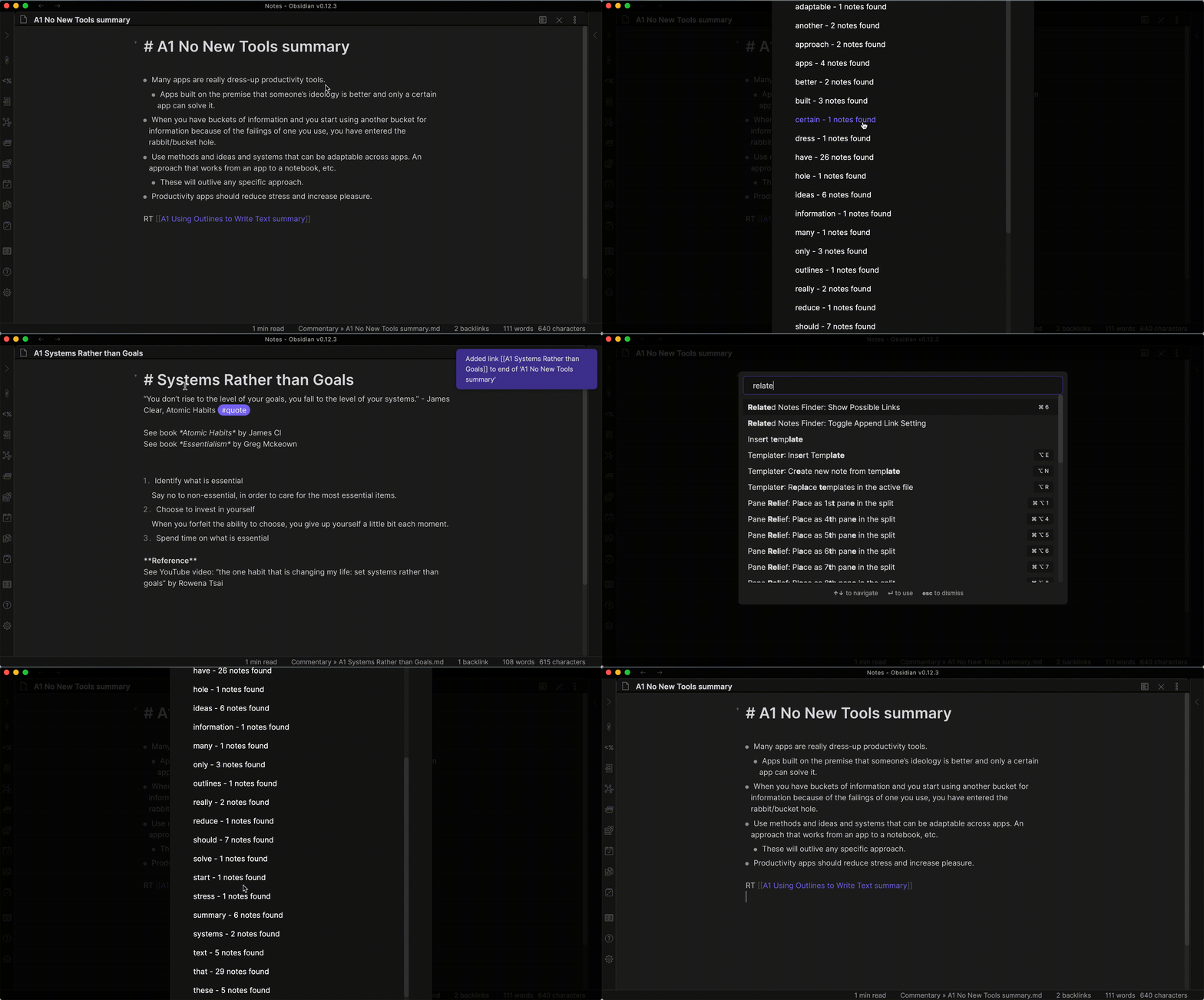
Features
Command: Show Possible Links Search for all notes in the vault whose title includes any word in the active note.
- Search words with more than X number of characters. (Default: 3 characters)
- Ignore Dailies path. (Default: disabled)
- Ignore words as specified in settings. (Default: 'the,and,but,not,then,they,will,not,your,from,them,was,with,what,who,why,where,this,over,than')
- A link to the related note is appended to the active note. (Default: enabled)
Default Hotkey: <CMD>+6
Command: Toggle Append Link Setting Toggle the setting to append the related note to the active note.
- When using the Show Possible Links command, a link to the related note is appended to the active note. (Default: enabled)
Settings
-
Append Link
- When using the Show Possible Links command, a link to the related note is appended to the active note. (Default: enabled)
- See the GIF above to see an example.
-
Minimum Letters
- Search words with more than X number of characters. (Default: 3 characters)
- For example, the word "for" contains 3 characters, so "for" will not be a term used when searching for related notes.
-
Ignore Dailies Path
- Ignore Dailies path. (Default: disabled)
- If it is preferred to ignore all notes in a specific directory, the folder relative to the vault root can be entered here.
- If you have a "dailies" folder in your vault root, enter
dailiesinto this setting to ignore all notes inside when using the Show Possible Links command.
- If you have a "dailies" folder in your vault root, enter
-
Filtered Words
- Ignore words as specified in settings. (Default: 'the,and,but,not,then,they,will,not,your,from,them,was,with,what,who,why,where,this,over,than')
- When using the Show Possible Links command, ignore any words listed. Simple separate them by comma. Case is ignored.
Support

For plugin developers
Search results and similarity scores are powered by semantic analysis of your plugin's README. If your plugin isn't appearing for searches you'd expect, try updating your README to clearly describe your plugin's purpose, features, and use cases.