by Priyanshu Mallick
Open files and folders in external code editors like VS Code, Cursor, Zed, and more.
Open in Editor
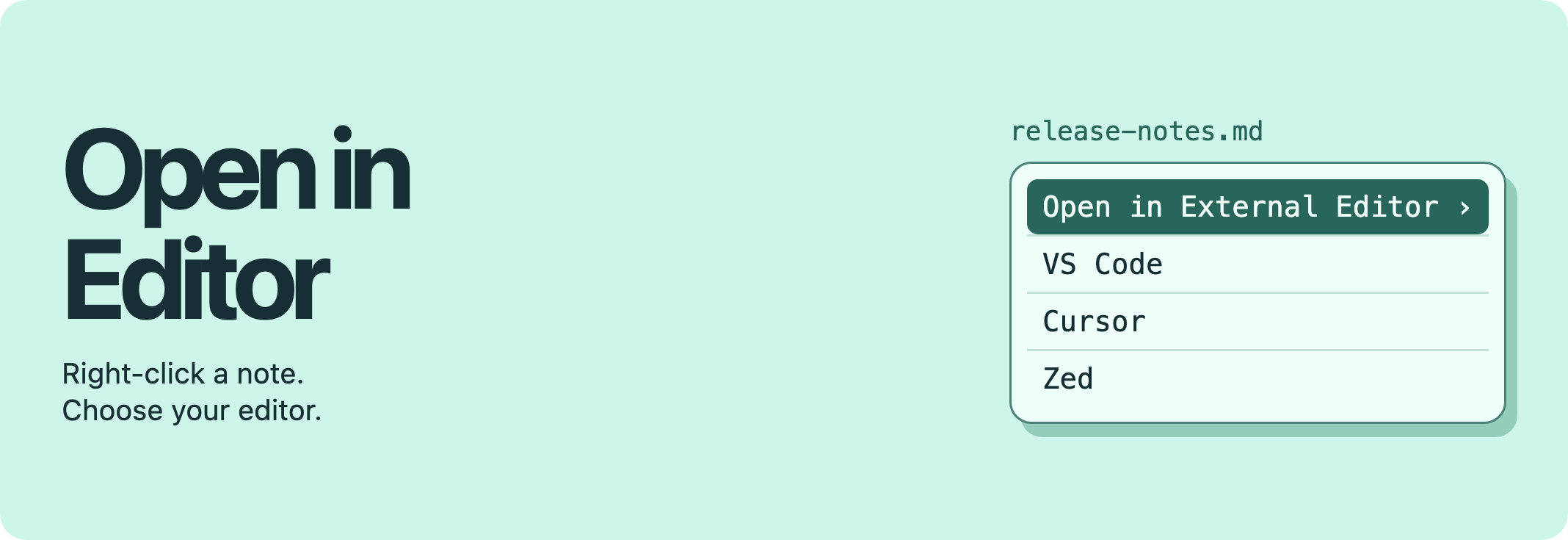
Open notes and folders from Obsidian in VS Code, Cursor, Zed, Windsurf, or Antigravity. You can also add your own editor.
Obsidian desktop · macOS, Windows, and Linux
Install
- In Obsidian, go to Settings → Community plugins → Browse.
- Search for Open in Editor.
- Select Install, then Enable.
Open a note or folder
- Go to Settings → Open in Editor and enable the editors you use.
- Right-click a note or folder in the file explorer, or an open note’s tab.
- Choose Open in followed by the editor name.
Enable Group to put an editor under Open in External Editor. To open the current note from the command palette, search for Open current file in. Reload the plugin after enabling an editor to refresh its palette commands.
Add a custom editor
Choose Add Custom Editor in the plugin settings. Enter the application name on macOS, the path to its .exe on Windows, or its executable command on Linux. Then enable the editor.
Manual install and development · Report an issue · MIT license
For plugin developers
Search results and similarity scores are powered by semantic analysis of your plugin's README. If your plugin isn't appearing for searches you'd expect, try updating your README to clearly describe your plugin's purpose, features, and use cases.