by nathanstorm689
Forked from Outlook Meeting Notes
Create notes from Outlook .msg files — supports meetings, appointments, and recurring events.
Outlook Event Notes

An Obsidian plugin that creates notes from Microsoft Outlook meetings, appointments, and recurring events by dragging and dropping Outlook .msg files or exported .ics files onto a ribbon icon.
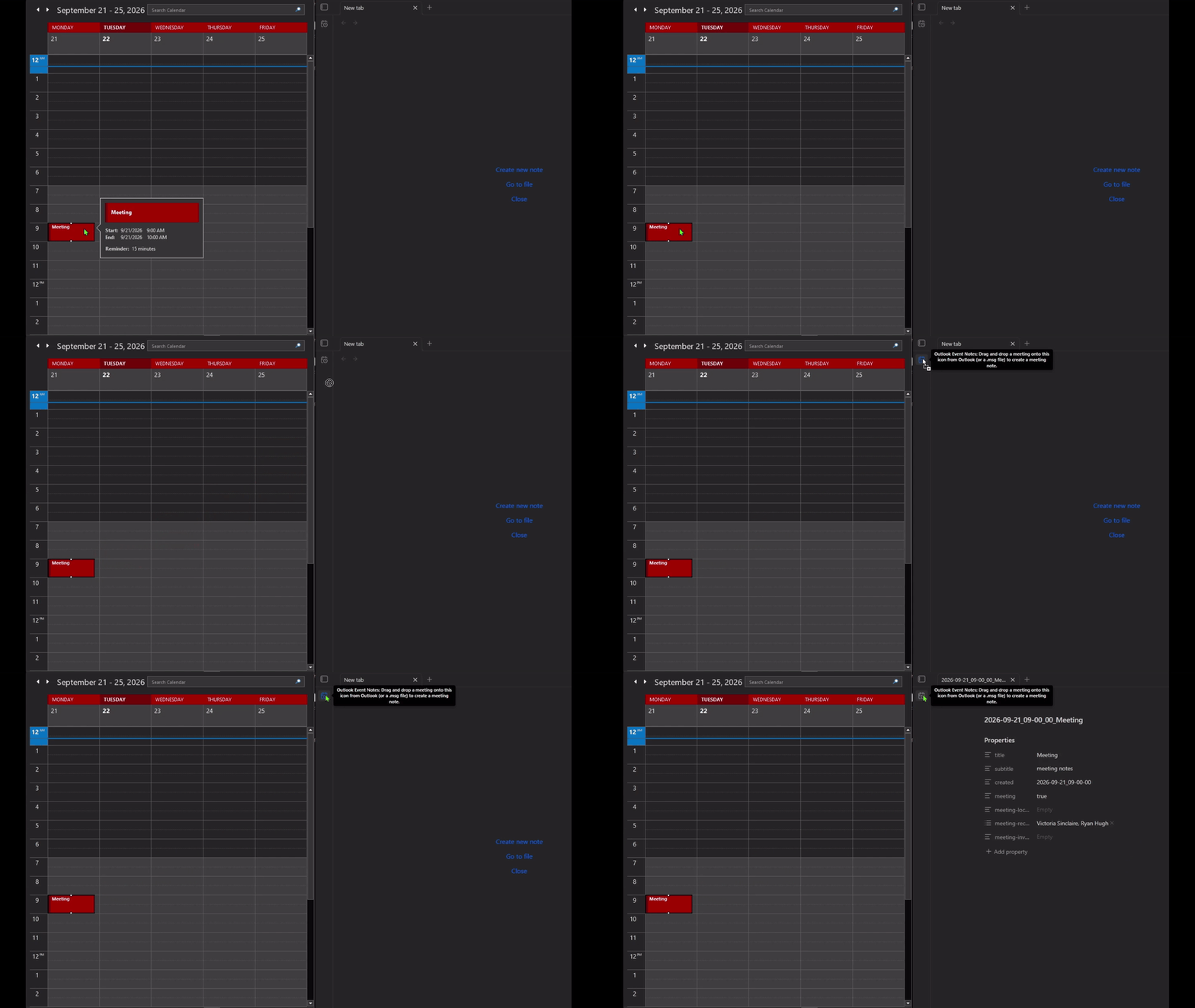
Based on Outlook Meeting Notes by David Ingerslev. This fork adds support for recurring events, opening existing notes, and other improvements.
Features
- Drag & drop a meeting or appointment from Outlook Classic onto the ribbon icon → a note is instantly created (or opened if it already exists)
- Recurring events — uses the occurrence date supplied by Outlook when available, or asks you to confirm a suggested date
- Fully customisable filename pattern and note template using Mustache syntax
- No Microsoft 365 / Graph API dependency — processes
.msgand.icsfiles locally - Safe note properties — quotes and escapes imported text so punctuation and multiline invitations remain valid YAML
Installation
Community Plugins
Search for Outlook Event Notes in Obsidian → Settings → Community Plugins.
Manual installation
- Download
main.js,manifest.json, andstyles.cssfrom the latest release - Copy them into your vault at
.obsidian/plugins/outlook-event-notes/ - Enable the plugin in Obsidian → Settings → Community Plugins
Usage
Drag and drop a meeting or appointment from the Outlook Classic desktop calendar onto the plugin ribbon icon. The plugin will:
- Parse the
.msgfile - For recurring events, use the supplied occurrence date or ask you to confirm the nearest calculated occurrence
- Create a new note — or open the existing one if a note for that event already exists
You can also save a calendar appointment or meeting as a .msg or .ics file and drop it onto the icon. A .msg email or invitation message is not a calendar appointment; open the event in your calendar before saving it. Import one file containing one event at a time.
Recurring events
For recurring .msg files, the plugin first looks for the occurrence date in the file and the drag text. If neither provides a usable date, a dialog suggests the nearest valid occurrence from the recurrence pattern. Confirm or correct that date, or cancel to stop importing.
A recurring .ics series without an explicit occurrence asks you to enter the date. Unsupported recurrence patterns, including Hijri patterns, can also require manual date selection. Always use the date shown in your calendar.
Settings
The settings page includes the installed version, author, compatibility details, documentation and support links, and a Buy me a coffee button. Your existing settings are kept when you update.
Folder location
The folder where new notes are created. Created automatically if it does not exist (supports subfolders like Meetings/2026).
Filename pattern
Uses Mustache syntax. Default:
{{#helper_dateFormat}}{{apptStartWhole}}|YYYY-MM-DD_HH-mm-ss{{/helper_dateFormat}} {{subject}}
Produces filenames like 2026-07-30_18-20-05 Réunion d'équipe.
Use Folder location to choose subfolders. Slashes in the filename pattern are treated as invalid filename characters.
Invalid character substitute
Characters that are invalid in filenames (/ * " \ < > : | ?) are replaced with this value. Blank = remove them.
Template
Fully customisable Mustache template. All .msg fields are available, plus the helper fields and functions below.
Imported values in YAML properties are quoted and escaped automatically, preserving punctuation, leading blank lines, and multiline invitation text. Existing notes are opened without being rewritten; this update does not repair older notes automatically.
Default template
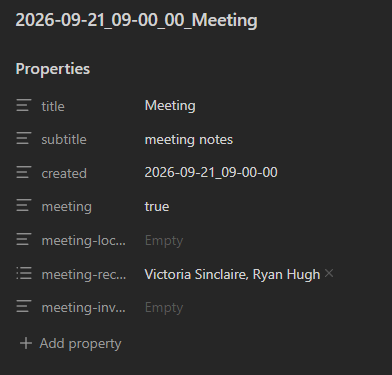
---
title: {{subject}}
subtitle: meeting notes
created: {{#helper_dateFormat}}{{apptStartWhole}}|YYYY-MM-DD_HH-mm-ss{{/helper_dateFormat}}
meeting: 'true'
meeting-location: {{apptLocation}}
meeting-recipients:
{{#recipients}}
  - {{name}}
{{/recipients}}
meeting-invite: {{body}}
---
Template helpers
Helper fields
| Field | Description |
|---|---|
{{helper_currentDT}} | Date/time the file was dropped, in ISO format (e.g. 2026-03-11T19:00:00-05:00) |
Use helper_dateFormat to reformat it:
{{#helper_dateFormat}}{{helper_currentDT}}|YYYY-MM-DD_HH-mm-ss{{/helper_dateFormat}}
Helper functions
helper_dateFormat
Formats a date using moment.js. Separate the field and format with |.
{{#helper_dateFormat}}{{apptStartWhole}}|YYYY-MM-DD_HH-mm-ss{{/helper_dateFormat}}
produces 2026-03-11_19-00-00
{{#helper_dateFormat}}{{apptStartWhole}}|L LT{{/helper_dateFormat}}
Uses Obsidian's display language locale (e.g. 11/03/2026 19:00 in English GB, 03/11/2026 7:00 PM in English US).
helper_firstWord
Returns only the first word of a field — useful for recording first names only:
meeting-recipients:
{{#recipients}}
  - {{#helper_firstWord}}{{name}}{{/helper_firstWord}}
{{/recipients}}
Credits
- Original plugin: Outlook Meeting Notes by David Ingerslev
- msgreader —
.msgfile parsing - mustache.js — template rendering
- mustache-validator — template validation
- ical.js — iCalendar parsing
- windows-iana — Windows time-zone name mapping
See THIRD_PARTY_NOTICES.txt for additional library notices.
License
0BSD — see LICENSE.
For plugin developers
Search results and similarity scores are powered by semantic analysis of your plugin's README. If your plugin isn't appearing for searches you'd expect, try updating your README to clearly describe your plugin's purpose, features, and use cases.