by theluckystrike
Press Enter once to start a new paragraph, and use Shift-Enter for a line break.
Paragraph Enter
Paragraph Enter makes one Enter start a new paragraph in Obsidian, the way Word, Scrivener, Typora and Roam work. In plain Markdown, a new paragraph needs a blank line, so writers press Enter twice. With this plugin, you press Enter once and the plugin adds the blank line for you. Shift+Enter makes a line break inside the same paragraph.
Lists, tasks, quotes, callouts, tables, code, math, front matter, comments and headings keep the normal Obsidian Enter. The plugin works the same in Live Preview and Source mode. It is free, it needs no account, and it makes no network requests.
The mode is on after install. To turn it off in one step, select the paragraph mark (¶) in the status bar.
Features
Enter for paragraphs
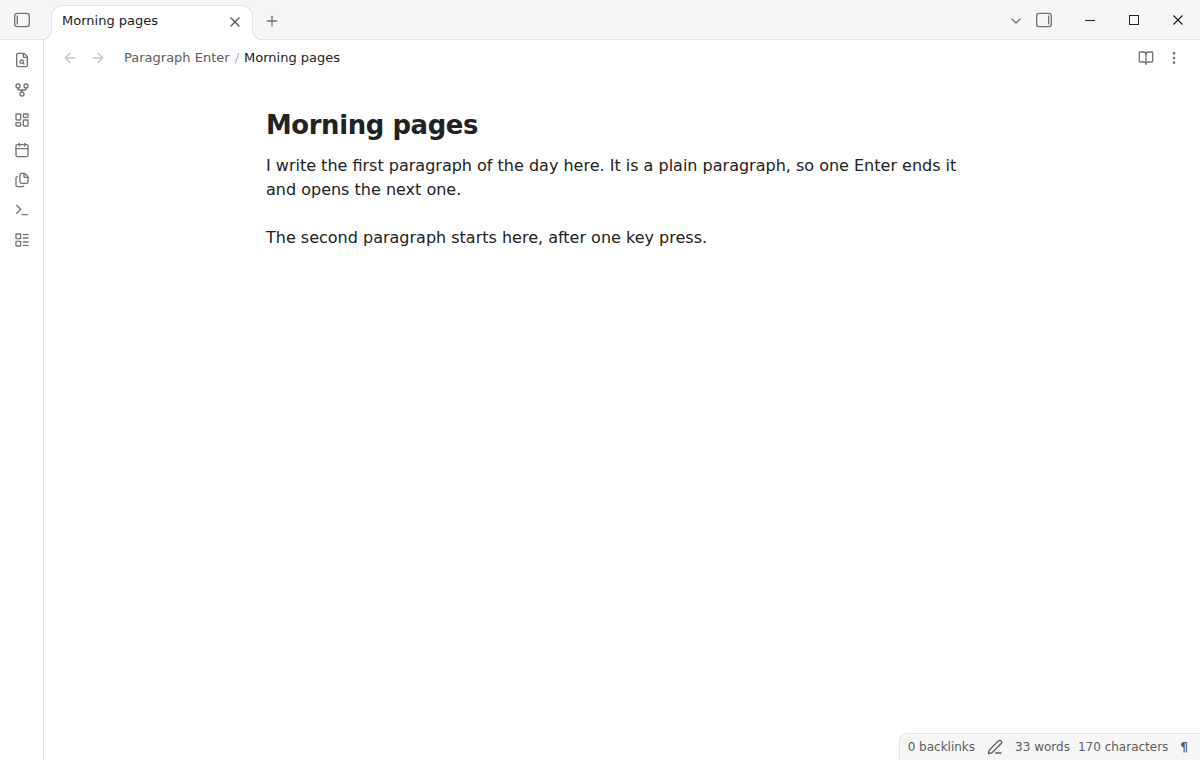
Put the cursor at the end of a plain paragraph and press Enter. The plugin inserts two line breaks and puts the cursor on the new empty line. Your note now holds a blank line between the two paragraphs, so Reading view, exports and other Markdown tools show two separate paragraphs.
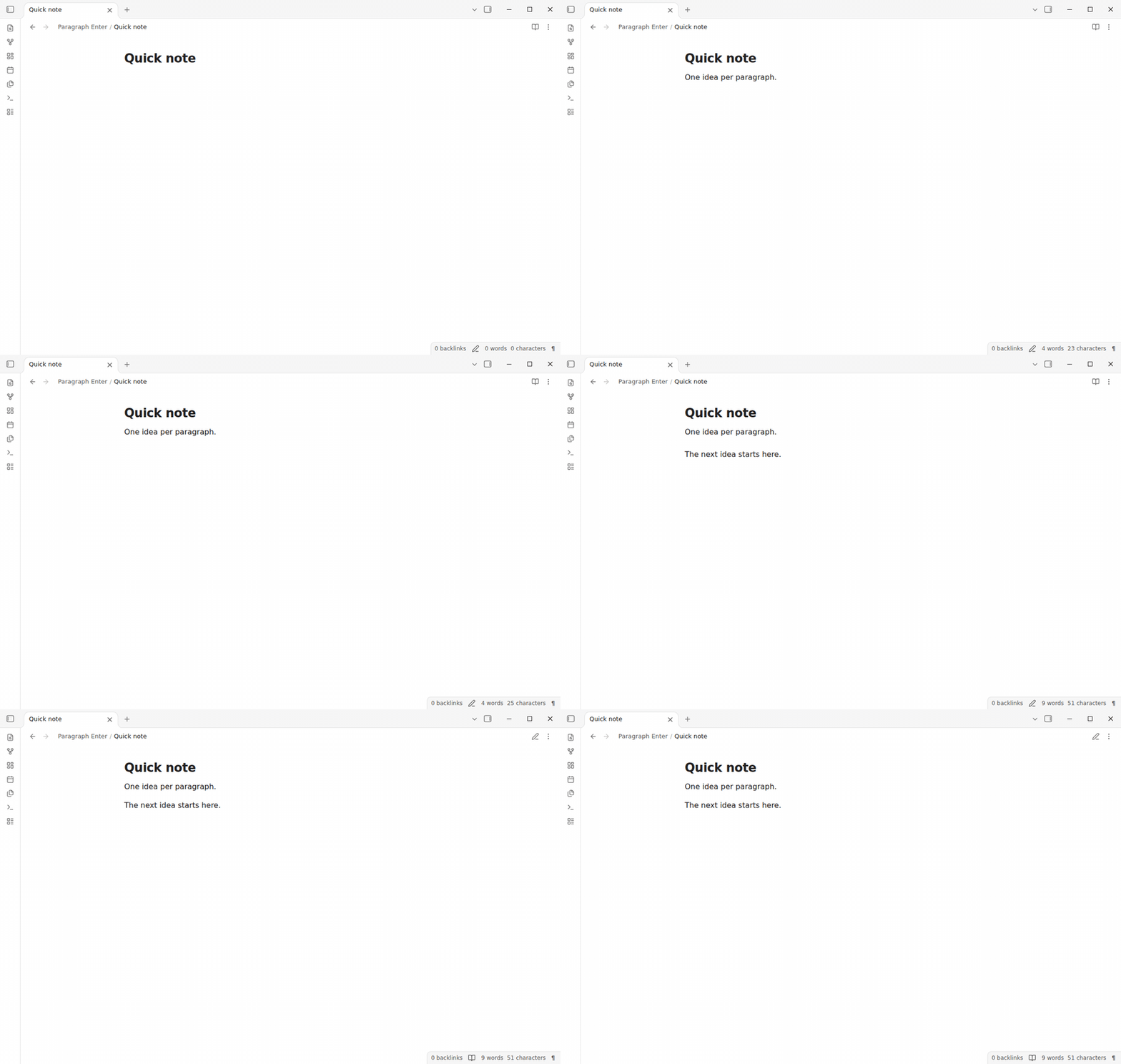
The cursor always lands on an empty line with a blank line above it. When more text follows, there is also a blank line below it, so the words that you type form their own paragraph and never join the paragraph above or below. When enough empty lines are already there, the plugin only moves the cursor and writes nothing.
Shift+Enter writes one of three line break styles. Choose the style in the settings.
| Style | Shift+Enter writes | Use it when |
|---|---|---|
| Line break (default) | a line break | Strict line breaks is off in Obsidian, which is the default. Reading view shows the break. |
| Two spaces | two spaces and a line break | You turned on strict line breaks, or you export to tools that follow CommonMark. |
| HTML | <br> and a line break | You want a break that every Markdown renderer shows, and you do not mind the tag in the source. |
Split a paragraph in the middle
Press Enter in the middle of a paragraph, even in the middle of a word, and the plugin splits it into two paragraphs. The text after the cursor moves to the new paragraph. Spaces right after the cursor are removed, so the new paragraph does not start with a space.
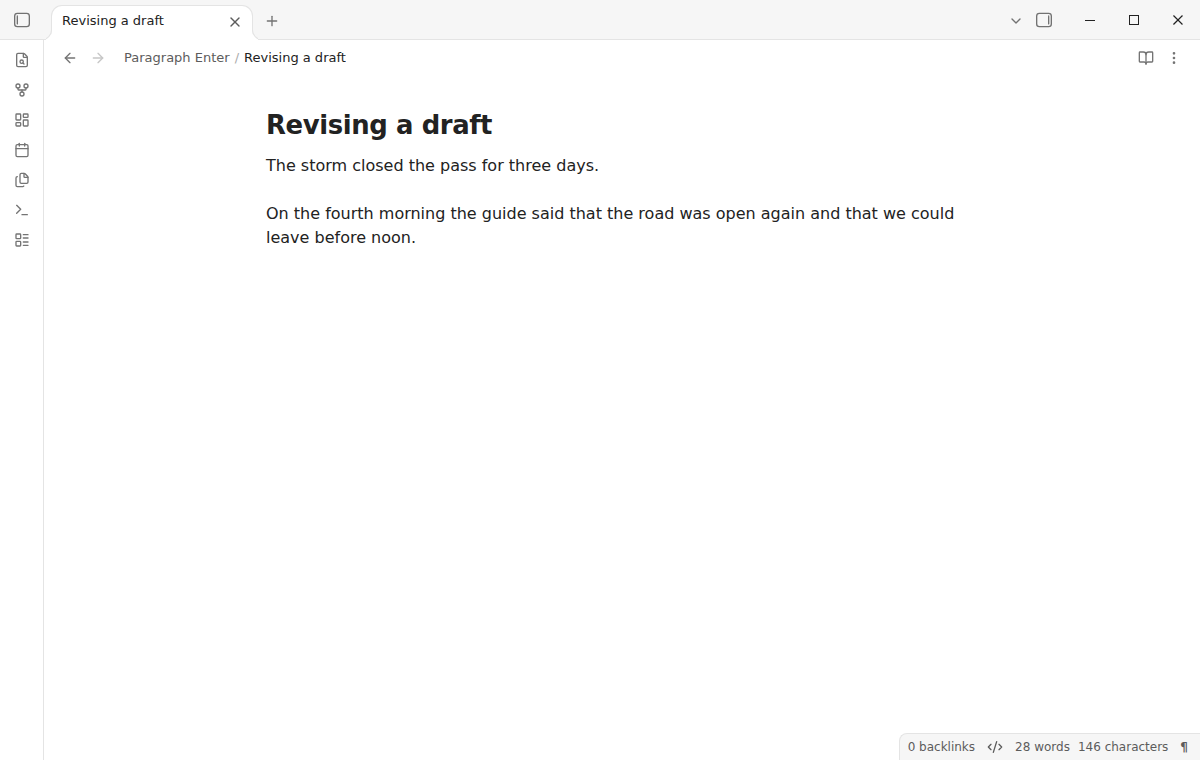
A paragraph can hold single line breaks (soft breaks). Enter at the end of such a line splits the paragraph there too: the next line becomes the start of the new paragraph. At the start of a line, Enter keeps its normal behavior and adds one line above the text.
Shift+Enter for a line break
Shift+Enter stays in the same paragraph. Use it for poems, addresses, song lyrics and other text where each line matters. The "Insert line break" command writes the same text, so you can give it a different hotkey.
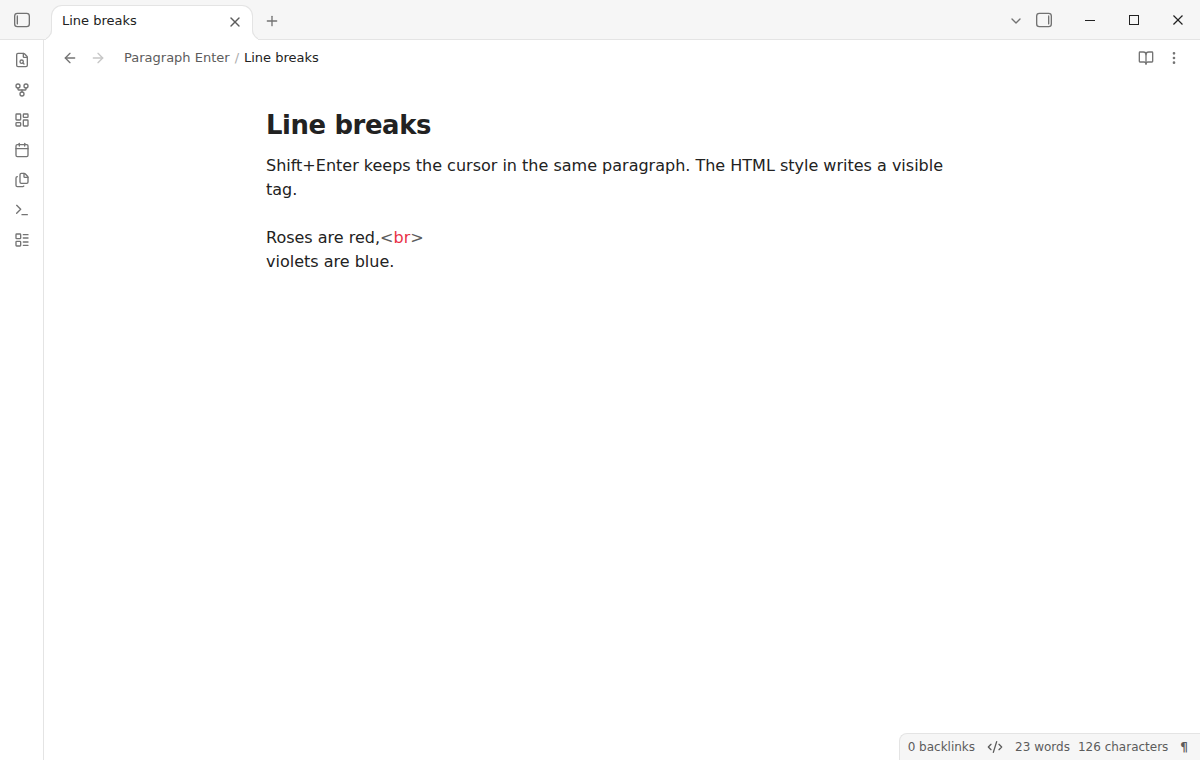
With the "Two spaces" style, spaces before the cursor are replaced, so the line ends with exactly two spaces.
Lists, code and other blocks keep the default
The plugin acts only in a plain paragraph line. It reads the Markdown context from the Obsidian syntax tree and from the lines near the cursor. Vim mode, open suggestion popups and table cell editors are checked on the editor elements. In these places, Enter does what core Obsidian does:
- List items and tasks, where Enter continues the list.
- Blockquotes and callouts.
- Tables, including tables without outer pipes. In a Live Preview table cell, Enter moves to the next row.
- Fenced code blocks, indented code and math blocks.
- Front matter, comments, headings, HTML blocks and lines that hold only an embed.
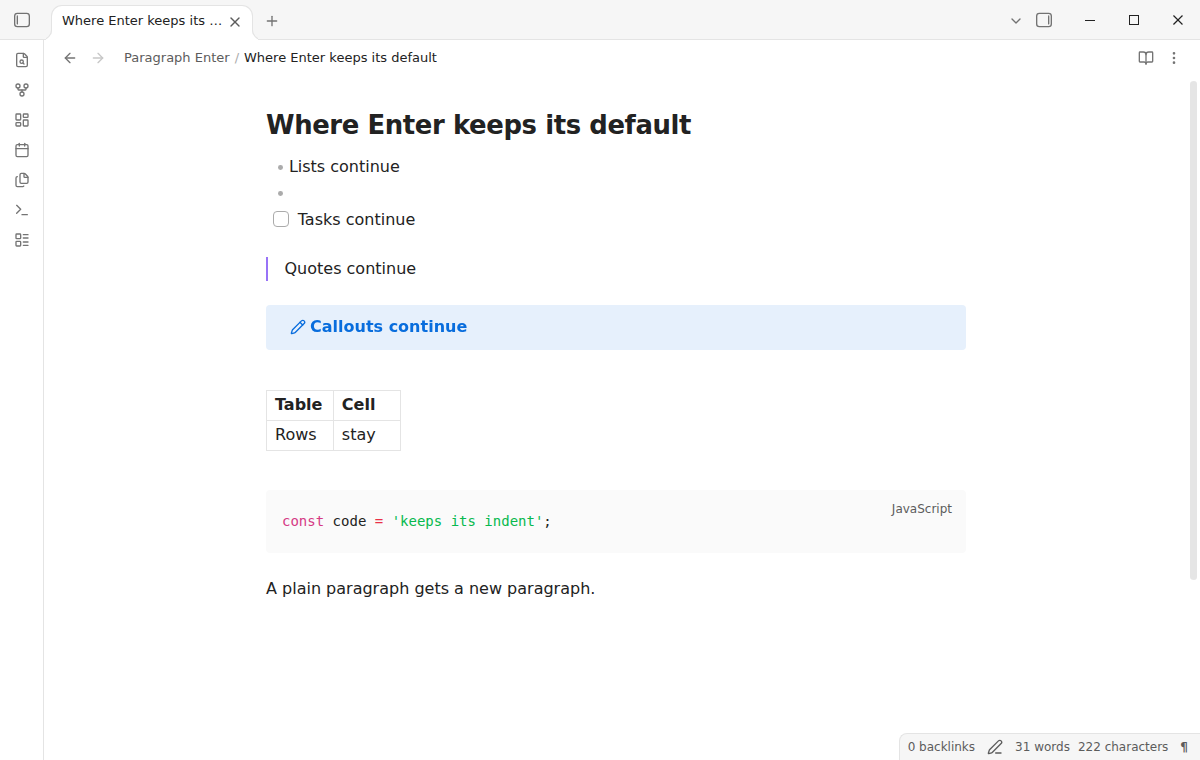
Enter also keeps the default when a suggestion popup is open, such as the link or tag suggestion. It does the same during IME composition (Chinese, Japanese and Korean input), when text is selected, and when you have more than one cursor. In Vim mode, the plugin acts only in insert mode.
Toggle from the status bar or a command
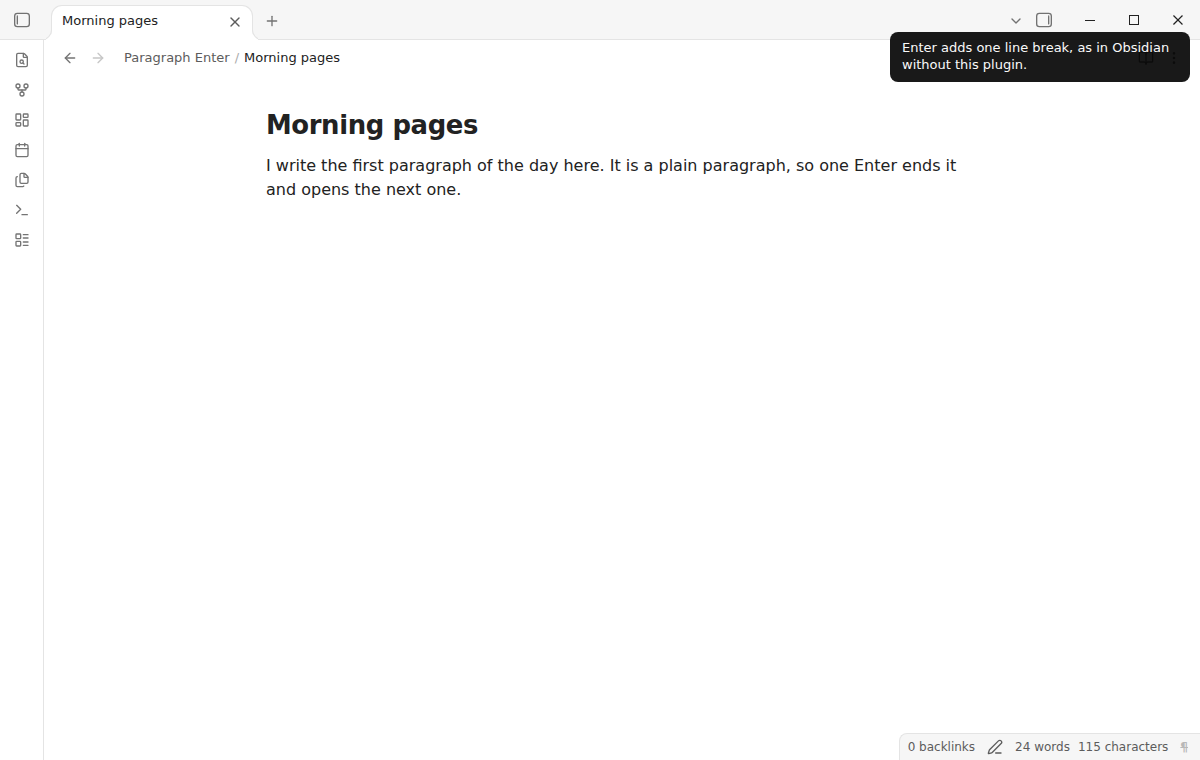
The status bar shows a paragraph mark (¶). Select it to switch the mode. When the mode is off, the mark is crossed out and Enter adds one line break, as in Obsidian without the plugin. The command "Toggle paragraph Enter" does the same. Both commands have no default hotkey, so they never take a key that you already use.
Each Enter is one undo step. Undo removes the paragraph break and puts the cursor back where it was. It does not remove the words that you typed before or after the break.
Install
When Paragraph Enter is listed in the community directory, open Settings, then Community plugins, then Browse, and search for "Paragraph Enter". Select Install, then Enable.
To install by hand, download main.js, manifest.json and styles.css from the latest release. Put the three files in <vault>/.obsidian/plugins/paragraph-enter/. Restart Obsidian or reload the list of community plugins, then turn on Paragraph Enter. The plugin needs Obsidian 1.13.4 or later.
The mode is on after install, because installing the plugin is the choice to use it. A notice tells you this. To turn the mode off in one step, select the paragraph mark (¶) in the status bar, or run "Toggle paragraph Enter".
Usage
- Open a note in Live Preview or Source mode.
- Write a sentence and press Enter. The cursor goes to a new paragraph.
- Press Shift+Enter when you want a new line in the same paragraph.
- In a list, a quote or a code block, keep typing as before.
You can give hotkeys to "Toggle paragraph Enter" and "Insert line break" in Settings, then Hotkeys.
Settings
After a minor or major update, this plugin opens one What's new tab in the background. The tab and settings card suggest other NoteMods plugins and Zovo Chat and link to notemods.com for feedback (privacy). The tab sends no data. Turn the tab off in Settings.
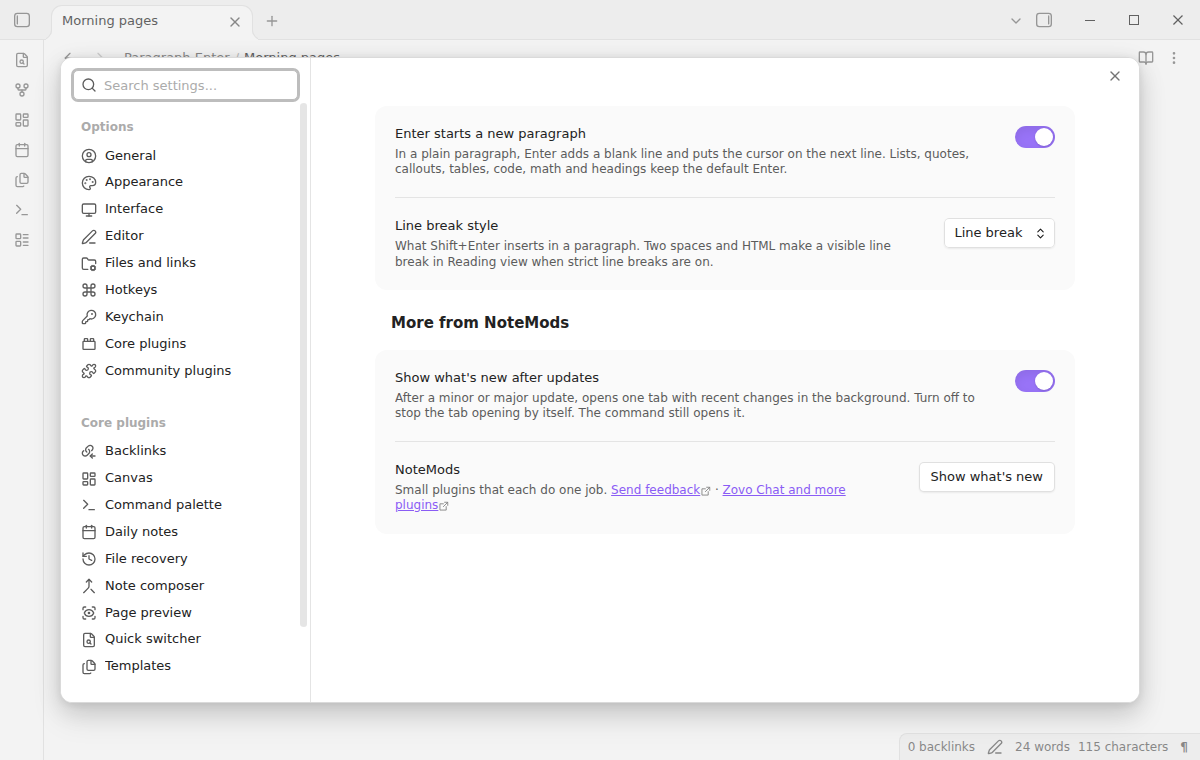
"Enter starts a new paragraph" is on by default. Turn it off to get the Obsidian Enter everywhere. The status bar mark and the toggle command use the same saved value.
"Line break style" sets what Shift+Enter and "Insert line break" write. The choices are Line break (the default), Two spaces and HTML.
FAQ
Does it change how Reading view draws my notes?
No. The plugin only changes which characters Enter and Shift+Enter write in the editor. Reading view draws the note as before. The strict line breaks setting of Obsidian still decides how a single line break looks in Reading view.
Why does Enter sometimes write three line breaks?
When text follows the paragraph, the new paragraph needs a blank line above it and a blank line below it. Otherwise the words that you type would join the next paragraph. When those empty lines are already there, the plugin only moves the cursor.
Does it work with other plugins that use Enter?
Plugins that handle Enter in lists, such as outliners, keep working, because Paragraph Enter does nothing in a list. Suggestion popups from other plugins keep Enter while they are open. If another plugin also changes Enter in plain paragraphs, turn one of them off.
Does it work on phones and tablets?
The manifest allows mobile, because the plugin uses only the editor API. Obsidian has no status bar on phones, so use the toggle command there. Some phone keyboards, such as many Android keyboards, keep the current word in composition until you press Enter or a space. Enter right after such a word then runs the default Enter and gives one line break, while Enter after a space gives a new paragraph. The plugin never changes text during a composition. This was not tested on a physical phone or tablet.
What was tested?
Unit tests run every rule against 50 golden cases and against a real CodeMirror editor with history. End-to-end tests type in a real Obsidian, versions 1.13.4 and 1.14.5, in Live Preview and Source mode. They check two paragraphs in Reading view, link suggestions, lists, tasks, quotes, headings, code, a Live Preview table, composition events, Shift+Enter, Undo and the toggle. Real input method editors and real Vim keys were not tested. Canvas cards and the Properties editor are outside the scope of this version.
Payment, account and network
Paragraph Enter is free. It takes no payment and needs no account. The code makes no network requests and has no telemetry. It sends no note text, file names or other vault data anywhere. The only links are in the What's new tab and the settings card, and they open notemods.com in your browser only when you select them.
Support
Report a bug or ask for a feature in the issue tracker of this repository. Include your Obsidian version, the editor mode, a short sample of the text and the key that you pressed. To support the work, use GitHub Sponsors.
npm ci
npm run build
npm test
License
MIT
For plugin developers
Search results and similarity scores are powered by semantic analysis of your plugin's README. If your plugin isn't appearing for searches you'd expect, try updating your README to clearly describe your plugin's purpose, features, and use cases.