Paste transform
approvedby rekby
Modify text from the clipboard by regexp rules
Paste transform plugin
This is a Paste transform plugin for Obsidian (https://obsidian.md).
The plugin handle paste event, check if pasted simple text, then handle pasted text by regexp or script.
I use it for short links for issues/prs and expand issues to internal issue tracker.
For example: ASD-123 -> [ASD-123](https://internal.tracker/ASD-123)
Usage
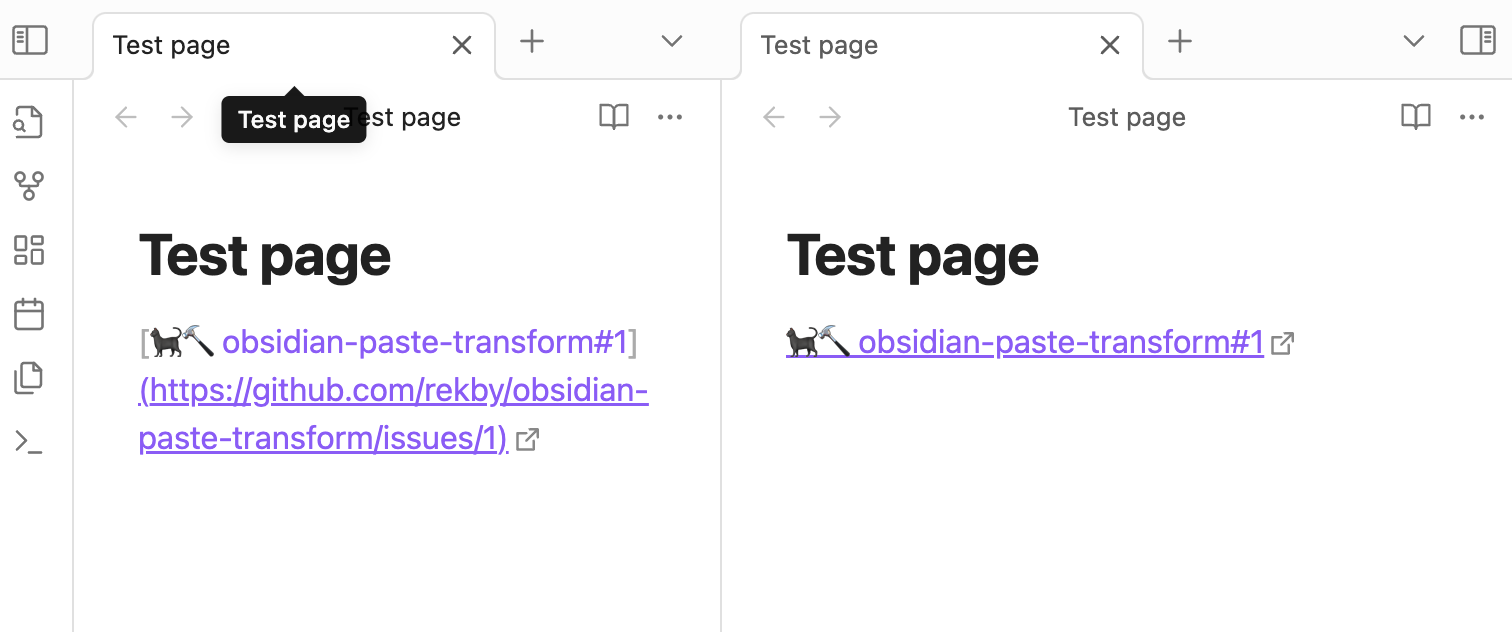
Simple paste text/link from clipboard. For example try to copy and paste link for example issue
and paste them to a page.
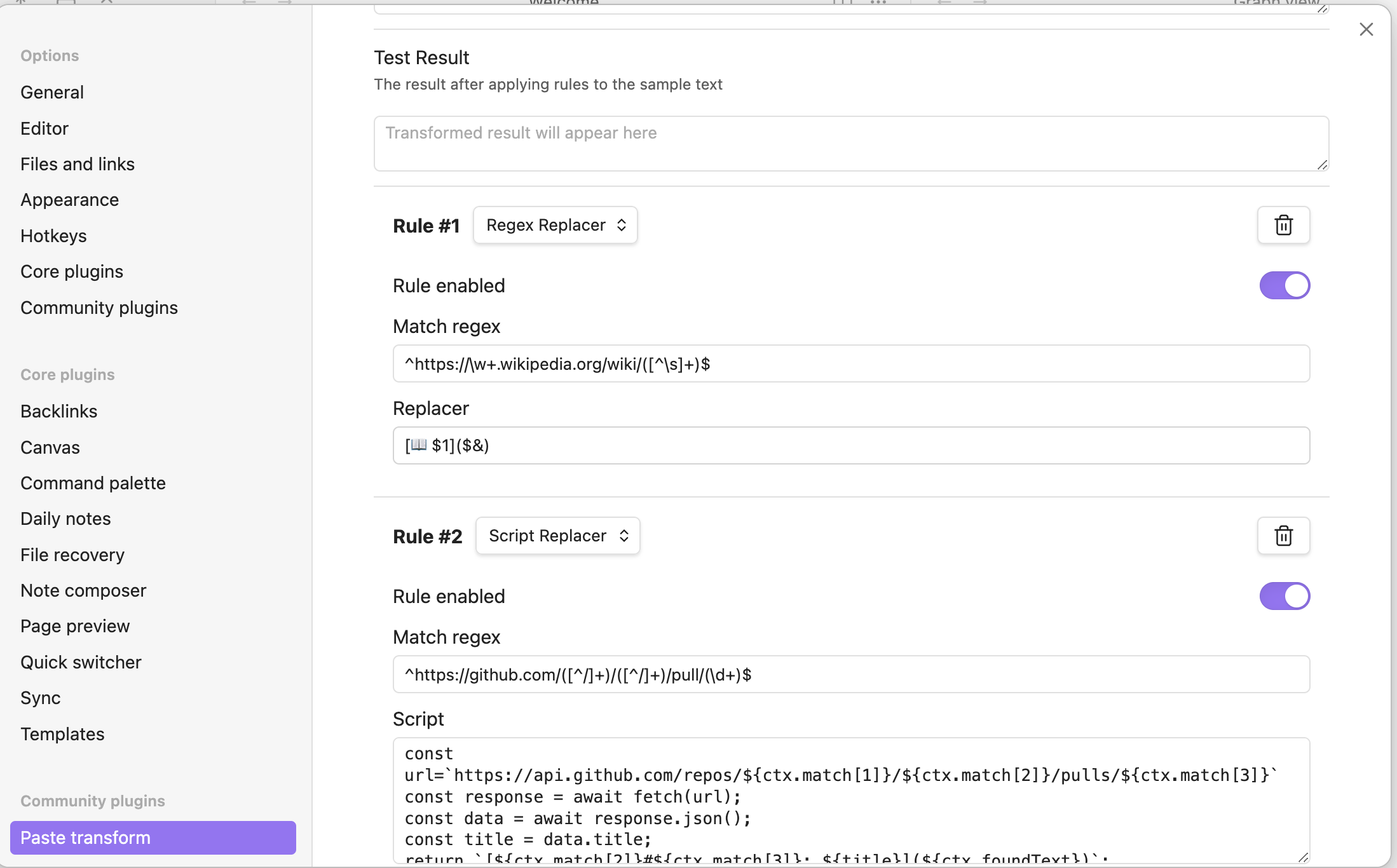
Settings
Paste transform enabled
You can globally enable/disable automatic paste transformation with the Paste Transform Enabled toggle in plugin settings.
The plugin also provides 3 commands for Command Palette/hotkeys:
Paste Transform: Enable paste transformPaste Transform: Disable paste transformPaste Transform: Toggle paste transform
Transform rules
Each rule contains of regex to match and replacer. Replacer can be either regex replacer or a script. Use regex replacer for simple tasks.
You can read more about regexp at javascript documentation. You can read more about replacement string at javascript documentation.
The plugin contains some default rules for GitHub and Wikipedia as example.
Rules are applied sequentially: the output of one rule is passed as input to the next.
Replacer (with selection)
Each regex rule has an optional second replacer field: "Replacer (with selection)". When this field is non-empty and the editor has text selected at the time of paste, this replacer is used instead of the regular one. If the field is empty, the regular replacer is always used regardless of selection.
This makes it easy to handle two common cases with one rule -- for example, auto-generate a link title from the URL when nothing is selected, but use the selected text as the link title when something is selected:
- Replacer:
[🐈⬛ $1]($&)-- used when nothing is selected - Replacer (with selection):
[$SEL]($&)-- used when text is selected
$SEL placeholder
In both replacer fields, you can use the $SEL placeholder. It will be replaced with the text currently selected in the editor at the time of paste. If nothing is selected, it is replaced with an empty string.
Example: with the replacer [$SEL]($&), pasting a URL while having "My Link" selected produces [My Link](https://example.com).
JavaScript execution rules
You can also create rules that execute JavaScript code. To do this, select "Script Replacer" from the dropdown menu when creating a new rule.
The JavaScript code will receive a ctx object with the following properties:
ctx.foundText- the matched substring (convenient for simple cases)ctx.match- the full match object with capture groups (result ofstring.match(regexp))ctx.selectedText- the text currently selected in the editor (empty string if nothing is selected)ctx.debug- boolean flag indicating if debug mode is enabled (useful for conditional logging)
The full definition of the ctx object (class ScriptContext) is in script-context.ts.
The code should return the replacement string.
The code can be asynchronous (using await) and can make HTTP requests (using fetch). You don't need to manually wrap your code in an async function - the plugin will automatically handle this for you.
Example of a simple script using the matched text:
// Simple string manipulation using the matched text
return ctx.foundText.toUpperCase();
Example using capture groups:
// Access capture groups from the regex
return ctx.match[1].toUpperCase();
Example of an async script rule with HTTP request:
// Example of an async HTTP request
const url = 'https://httpbin.org/get?input=' + encodeURIComponent(ctx.match[1]);
const response = await fetch(url);
const data = await response.json();
return data.url;
Example using debug mode for conditional logging:
// Use debug flag to conditionally log information
if (ctx.debug) {
    console.log('Processing match:', ctx.foundText);
    console.log('Capture groups:', ctx.match);
}
const result = ctx.match[1].toUpperCase();
if (ctx.debug) {
    console.log('Result:', result);
}
return result;
Try result
You can write test text into "Try source" text area and see result in "Try destination". If you make a mistake in regexp - error will output to "Try destination"
Resize text area
Text areas can be small by default. You can resize them by drag at right down corner.
Installation
Install from Obsidian Community Plugins: https://obsidian.md/plugins?id=paste-transform
Manual Installation
- Download the
.zipfile from the latest release. - Unzip into:
{VaultFolder}/.obsidian/plugins/ - Reload obsidian
Versioning
Current version system is 0.X.Y, where X changed when update contains some incompatible changes (see in release notes). Y changes for updates without incompatible changes (bug fix, add new features, etc.).
For plugin developers
Search results and similarity scores are powered by semantic analysis of your plugin's README. If your plugin isn't appearing for searches you'd expect, try updating your README to clearly describe your plugin's purpose, features, and use cases.