by theluckystrike
Shows the first page, or a chosen page, of the PDF linked from each note as the card cover in a Bases view.
PDF Cover Cards
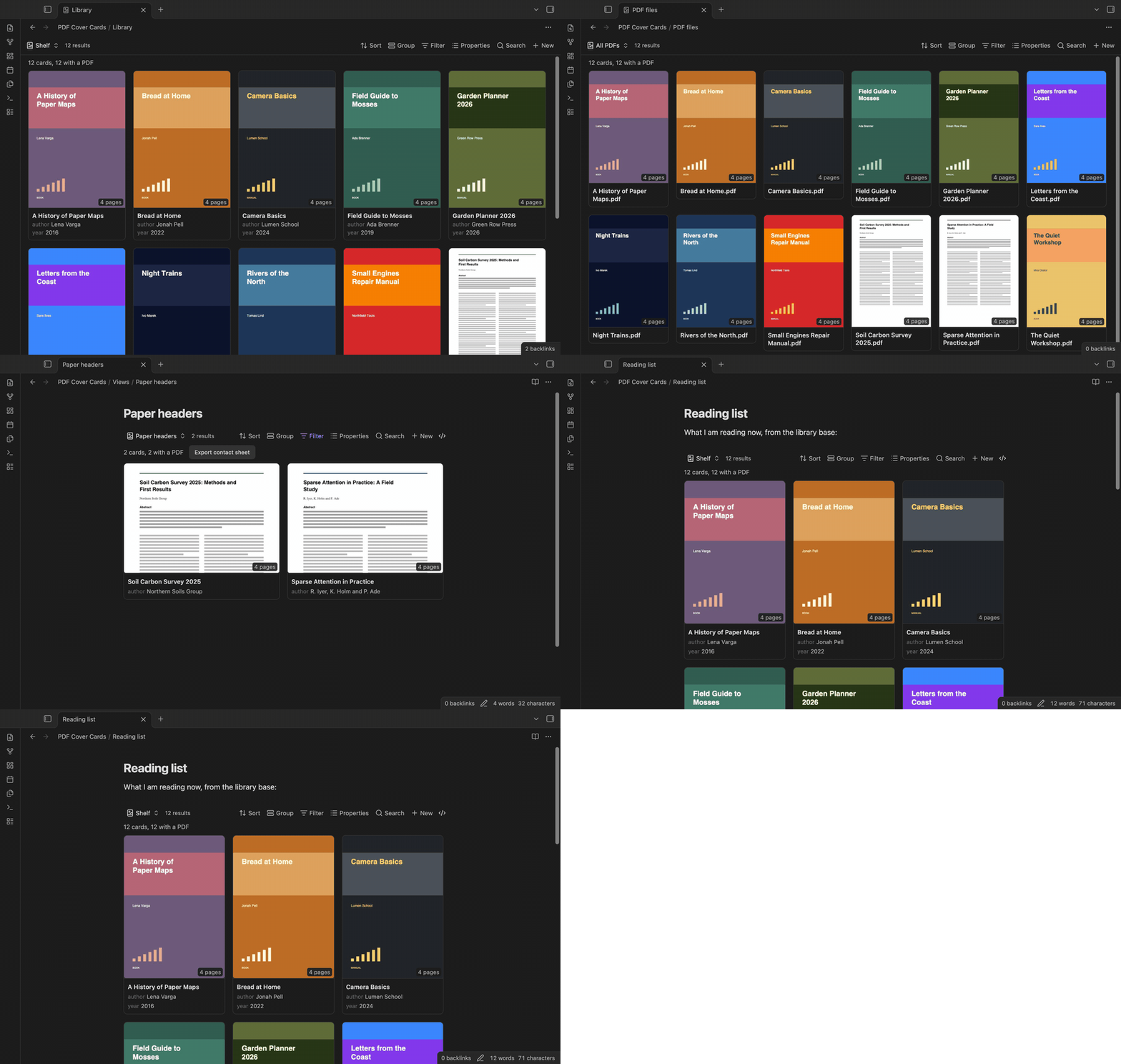
PDF Cover Cards shows a PDF page on a Bases card. Keep one note for each document, with a PDF link. The plugin draws page 1 as its cover. Pick another page with #page=N.
It uses core Bases to select, filter and sort notes, and the PDF reader of Obsidian to draw pages.
Pro costs $15 one time or $5 a month: Sponsor or $15 one-time offer.
Quick start
Link a PDF of your vault in a note:
Source: [[Report.pdf]]
Create a base, or open one. Select the view menu in the base toolbar and add a view of the type "PDF covers". The plugin draws page 1 as its cover.
Features
Page 1 of the linked PDF on each card
Choose a property that links to the PDF, for example pdf: "[[Field Guide to Mosses.pdf]]". Each card shows page 1 of that file, the note name, the properties of the view and the page count. Click a card to open the note. Ctrl-click (Cmd-click on macOS) opens it in a new tab.
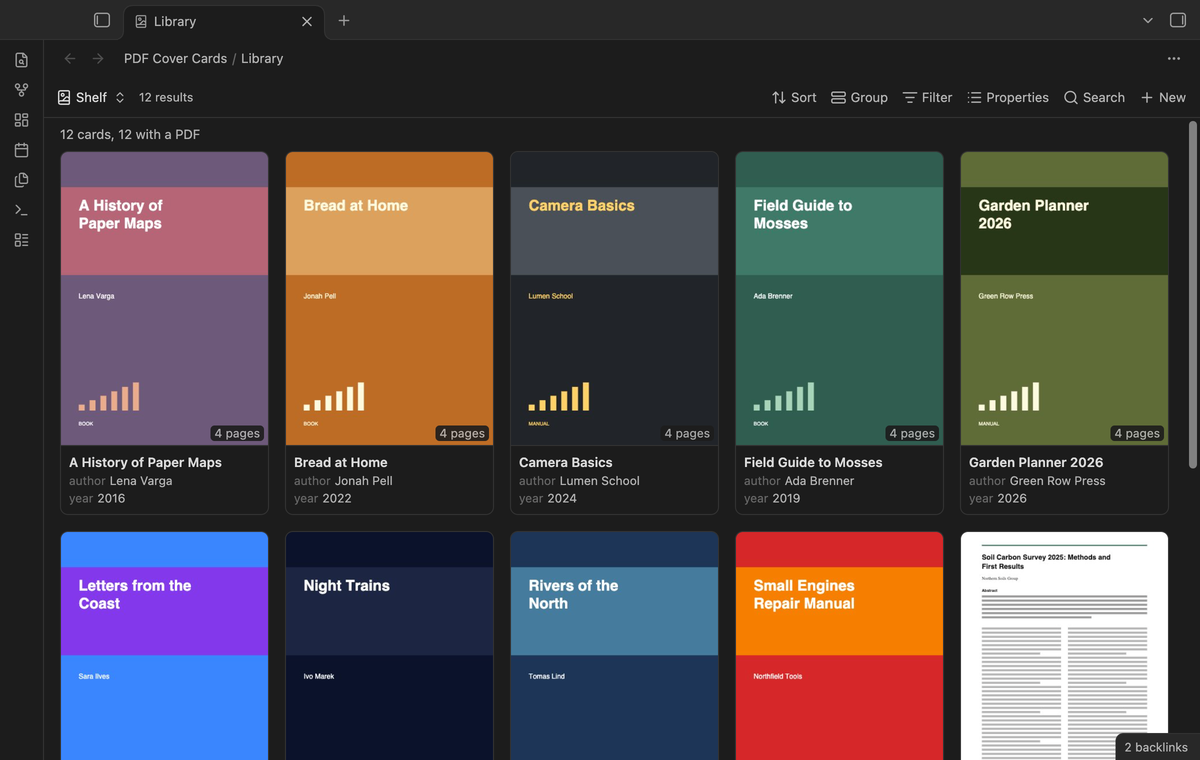
How the plugin finds the PDF and the page
The order: a PDF file in the base is its own cover, then the PDF property of the view (one link or a list), then the first PDF that the note links to or embeds.
Add #page=N to a link to show another page, for example [[Manual.pdf#page=3]].
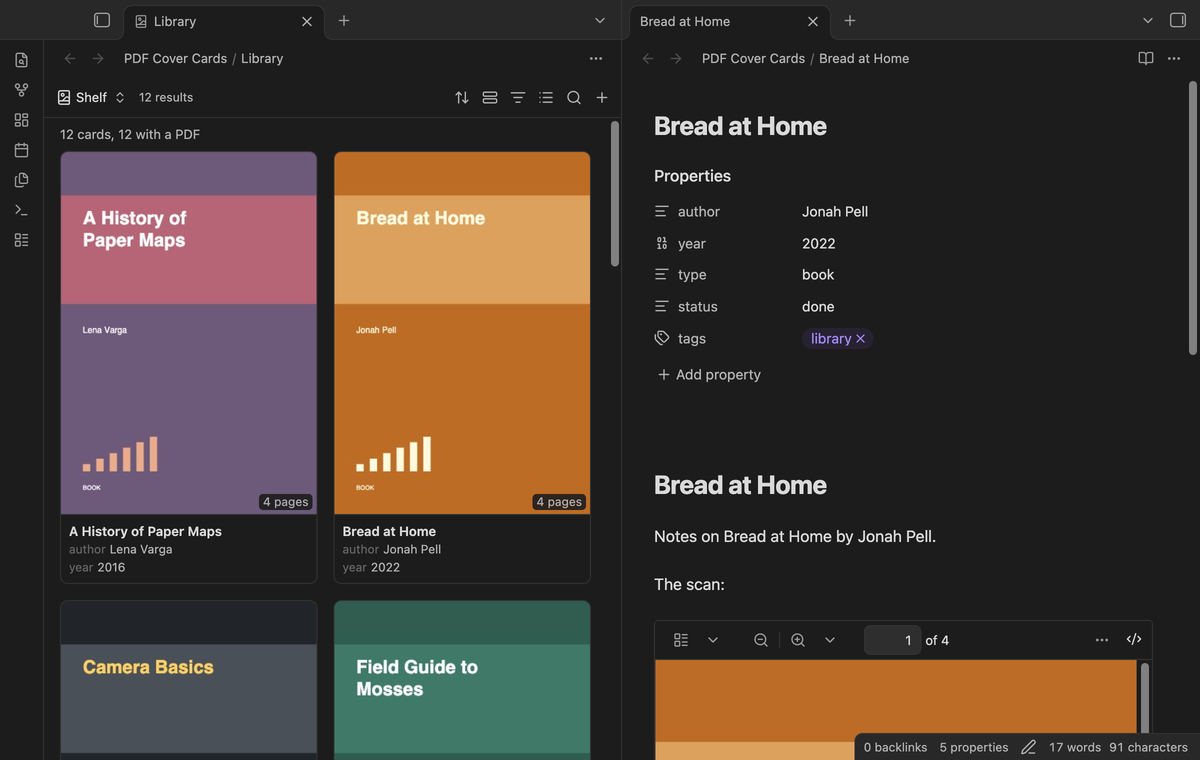
Open the PDF at the cover page
Each card with a PDF has an "Open at page N" button that opens the PDF at the page that the card shows. Ctrl-click (Cmd-click on macOS) the button to open the PDF in a new tab.
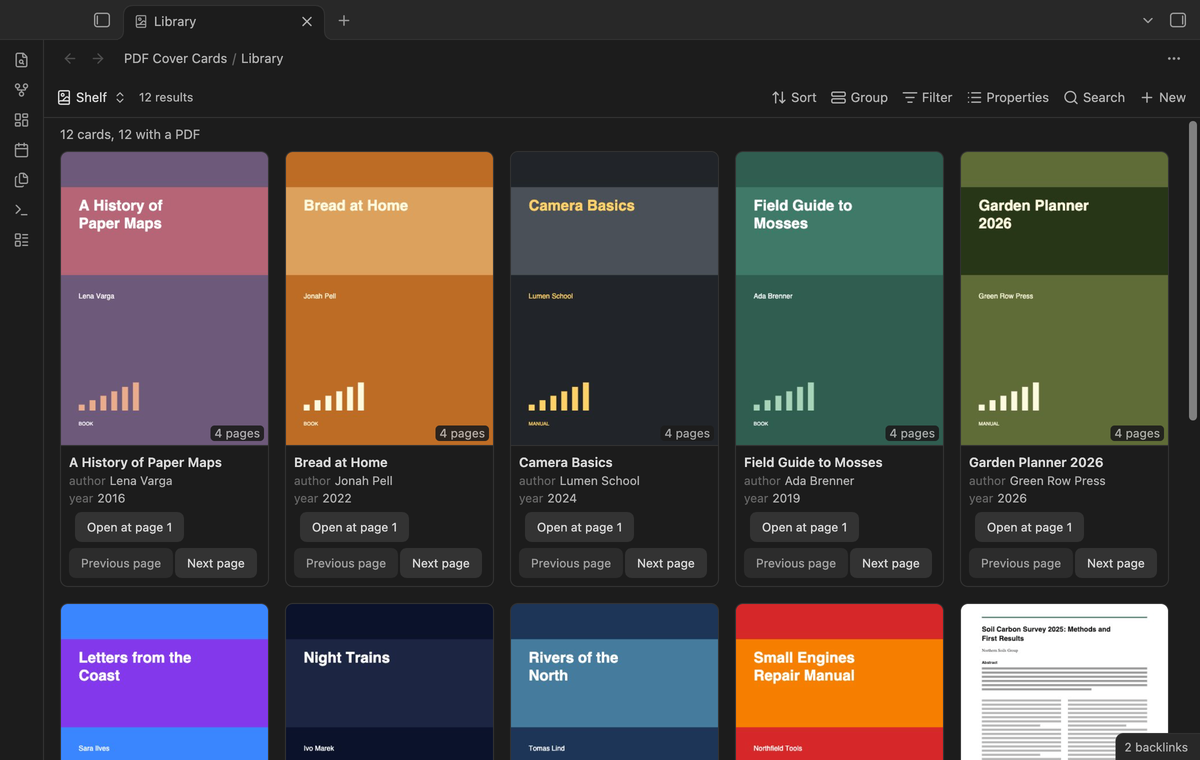
Browse PDF pages on a card
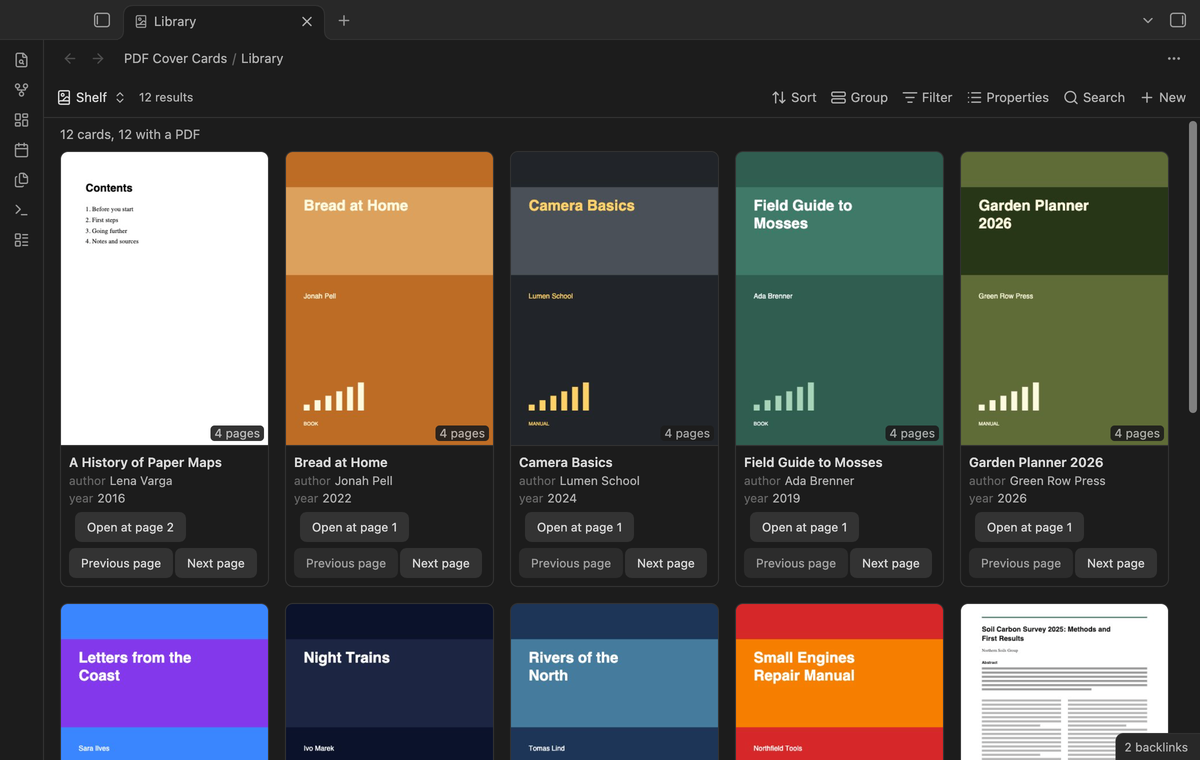
Use "Previous page" or "Next page" to preview another page. The open button follows the preview. Controls appear on drawn PDFs with two or more pages and stop at the first and last pages.
Browsing changes no file. A refresh restores the page from the link.
Turn pages with the scroll wheel
Turn on the view option "Turn pages with the scroll wheel", then scroll sideways on a cover or use Shift and the wheel. One scroll gesture turns one page. Pause for a moment to turn the next page. A vertical scroll scrolls the base.
PDF files as cards
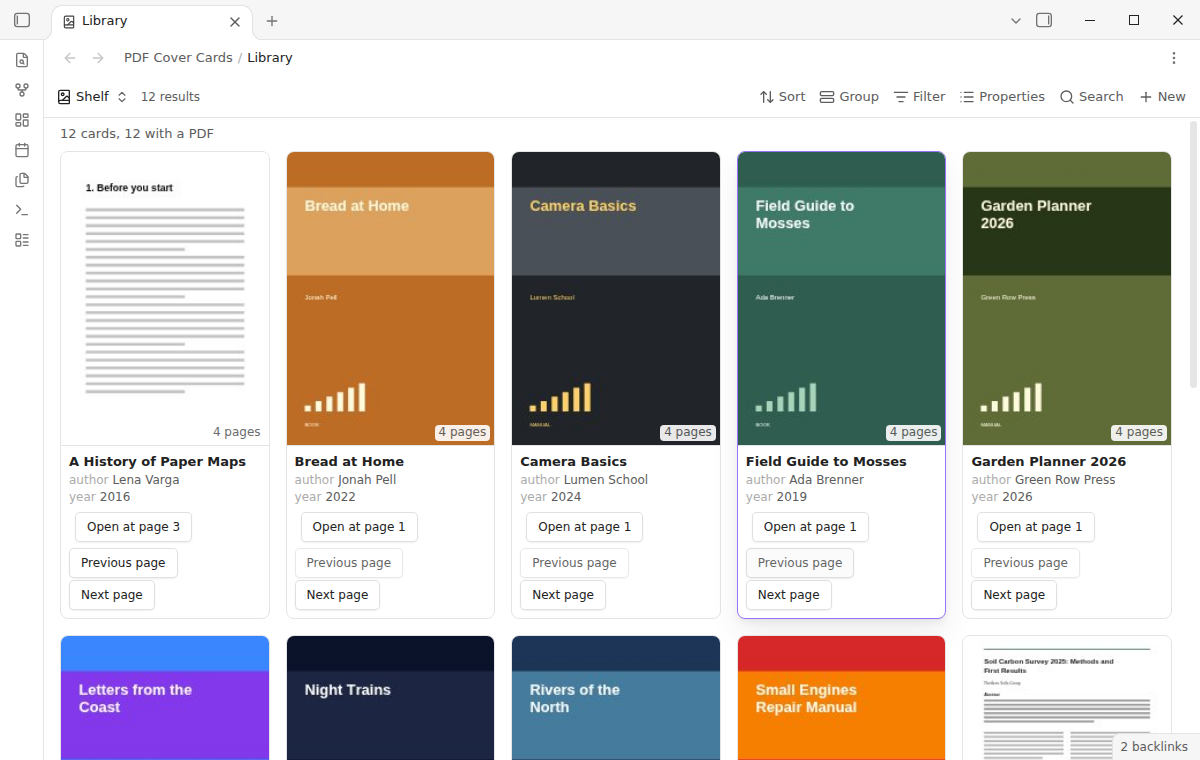
A base can select the PDF files themselves, for example with the filter file.ext == "pdf". Then each PDF is a card with its own cover.
Images on cards without a PDF
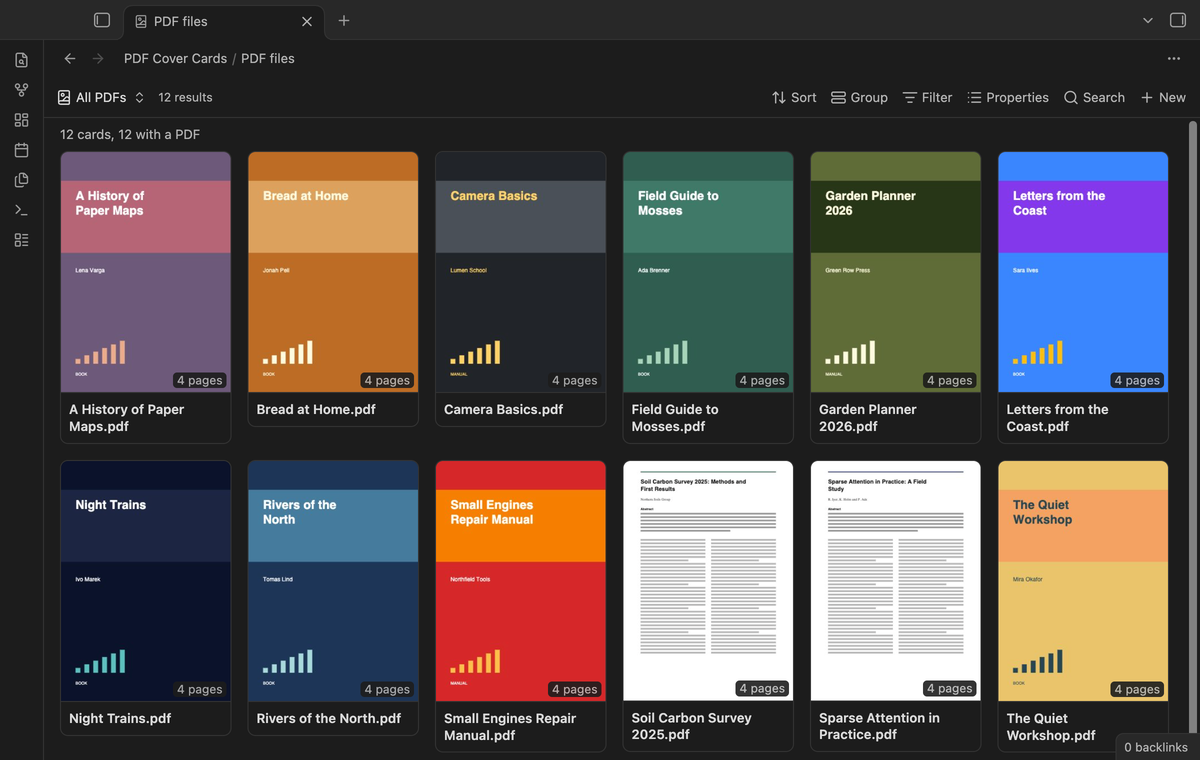
A card without a PDF shows an image: the entry itself when it is an image, then an image in the PDF property, then the first image that the note links to or embeds (with the link option on). PNG, JPG, GIF, WebP, AVIF, BMP and SVG files work. A PDF always wins. Image covers do not use the 30 free covers.
Embeds and live update
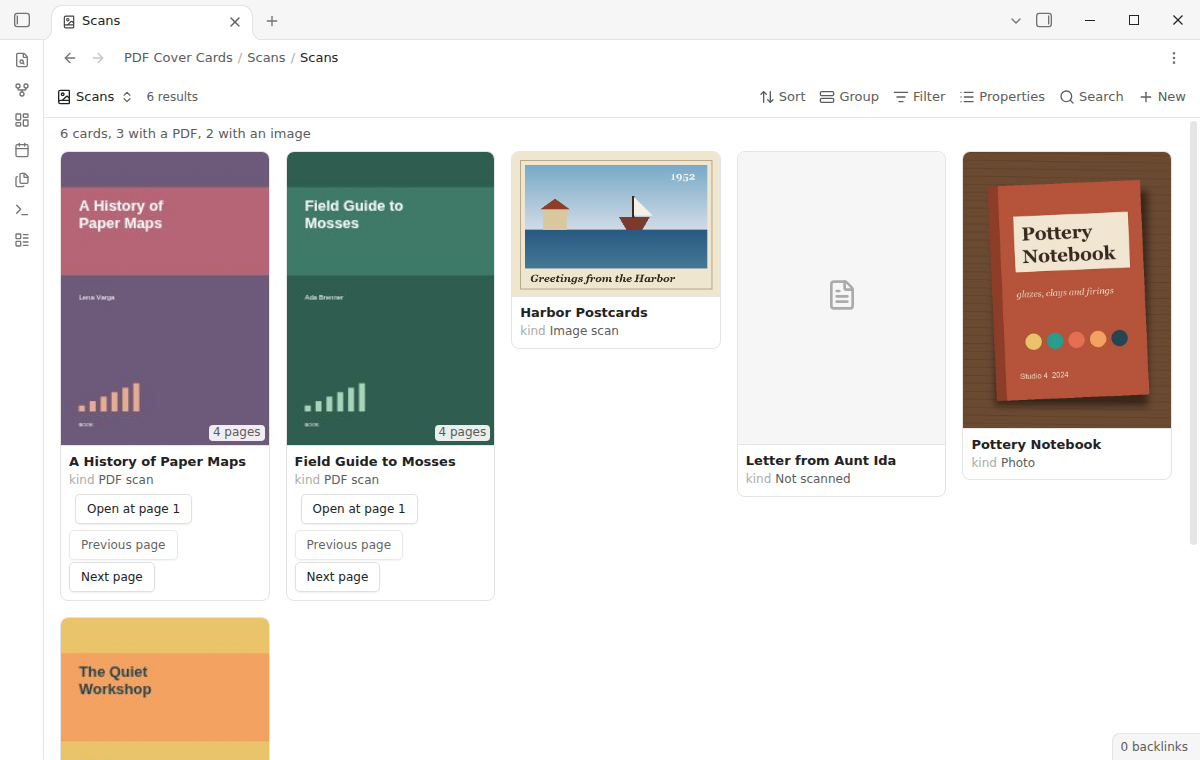
Embed the layout in any note with ![[Library.base#Shelf]]. When a PDF changes, its cover draws again.
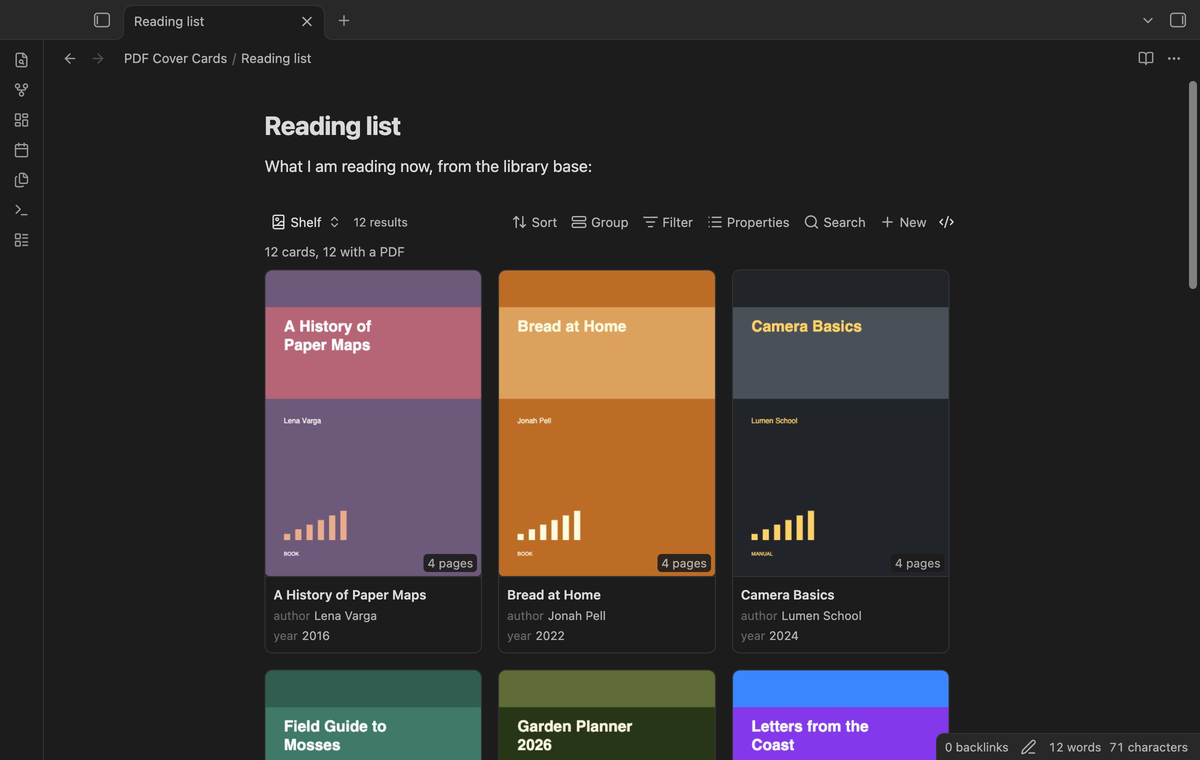
Cover crop (Pro)
Show only the top half or the top third of the page or image. Then the title and abstract of a paper or report are large enough to read on the card.
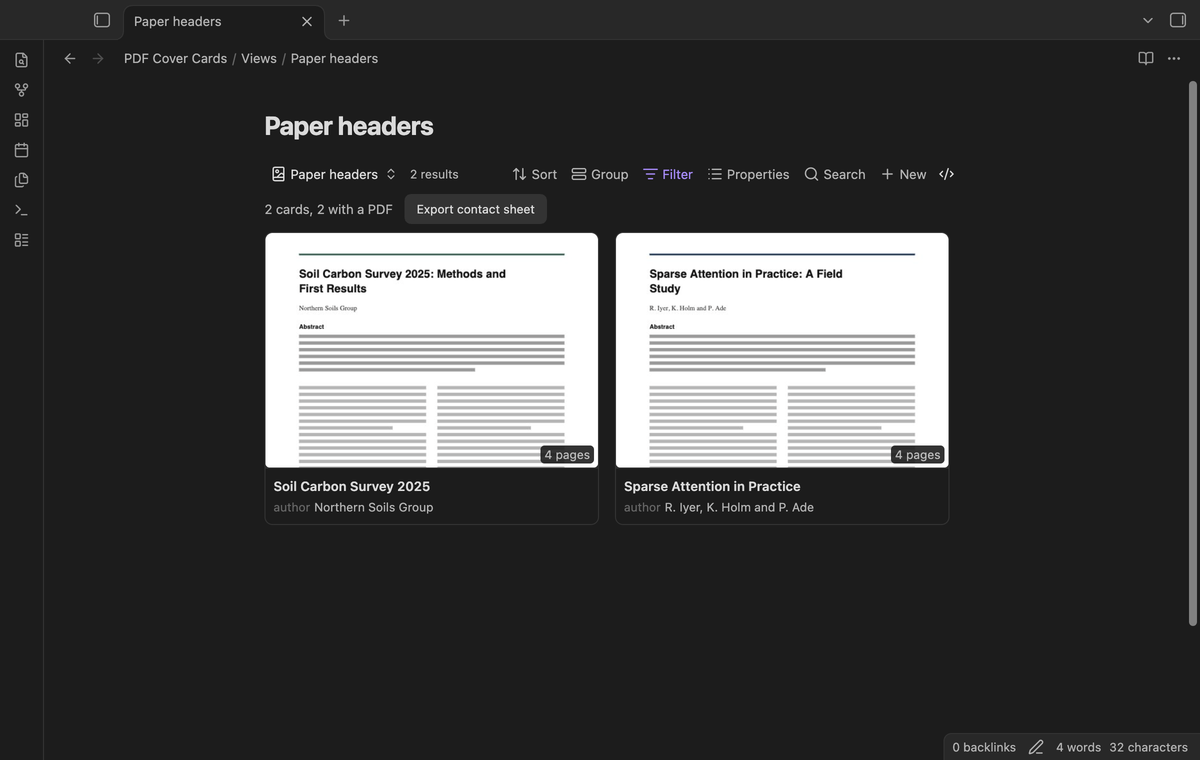
Contact sheet export (Pro)
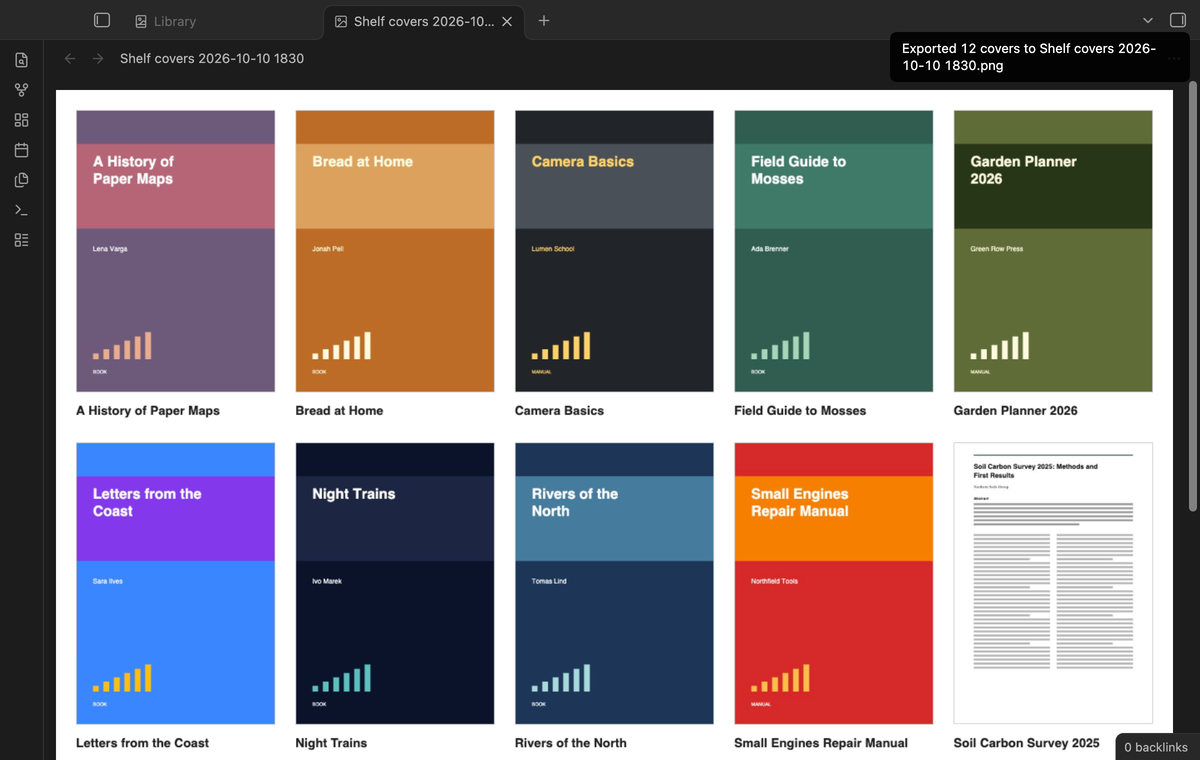
Export the drawn covers of the view, image covers too, to a PNG image with the note names. More than about 150 covers go on more than one image. The images go into the folder for new files. Use the button above the cards or the command "Export the covers of this view as a contact sheet".
Install
- Open "Settings → Community plugins" and turn off restricted mode.
- Select "Browse", search for "PDF Cover Cards", then select "Install" and "Enable".
- Make sure that the core plugin "Bases" is on ("Settings → Core plugins").
Usage
- Create a base, or open one. Set its filters so that it selects your document notes, for example a folder or a tag.
- Select the view menu in the base toolbar and add a view of the type "PDF covers".
- Open the view options. In "PDF property", choose the property that holds the link to the PDF.
- Use "Properties" in the base toolbar to choose the properties that show under the title.
Pro
The free version draws the first 30 PDF covers in a view. Image covers, #page=N, embeds and live updates are free.
Pro draws PDF covers on every card, crops covers to the top, saves drawn covers so large bases open fast, and exports PNG contact sheets. To get it:
- Sponsor through GitHub Sponsors. A total payment of $15 meets the payment requirement for Pro without further payment. Sign-in and the checks below still apply.
- In Obsidian, open the settings of PDF Cover Cards and select "Sign in with GitHub".
- The plugin copies a code and opens github.com/login/device. Paste the code there and approve.
The status line then shows your GitHub login and the tier.
Settings
After a minor or major update, this plugin opens one What's new tab in the background. The tab and settings card suggest other NoteMods plugins and Zovo Chat and link to notemods.com for feedback (privacy). The tab sends no data. Turn the tab off in Settings.
Bases saves the view options with each view in the base file.
| Option | What it does |
|---|---|
| PDF property | The property that links to the PDF. It can hold one link or a list. |
| Use the first PDF link in the note | When the property gives no PDF, use the first PDF that the note links to or embeds. On by default. |
| Show images when there is no PDF | Shows an image on a card without a PDF. On by default. |
| Card width | From 120 to 400 pixels. |
| Show properties | Shows the properties of the view under the title. |
| Turn pages with the scroll wheel | Off by default. |
| Cover crop (Pro) | Whole page, top half or top third. |
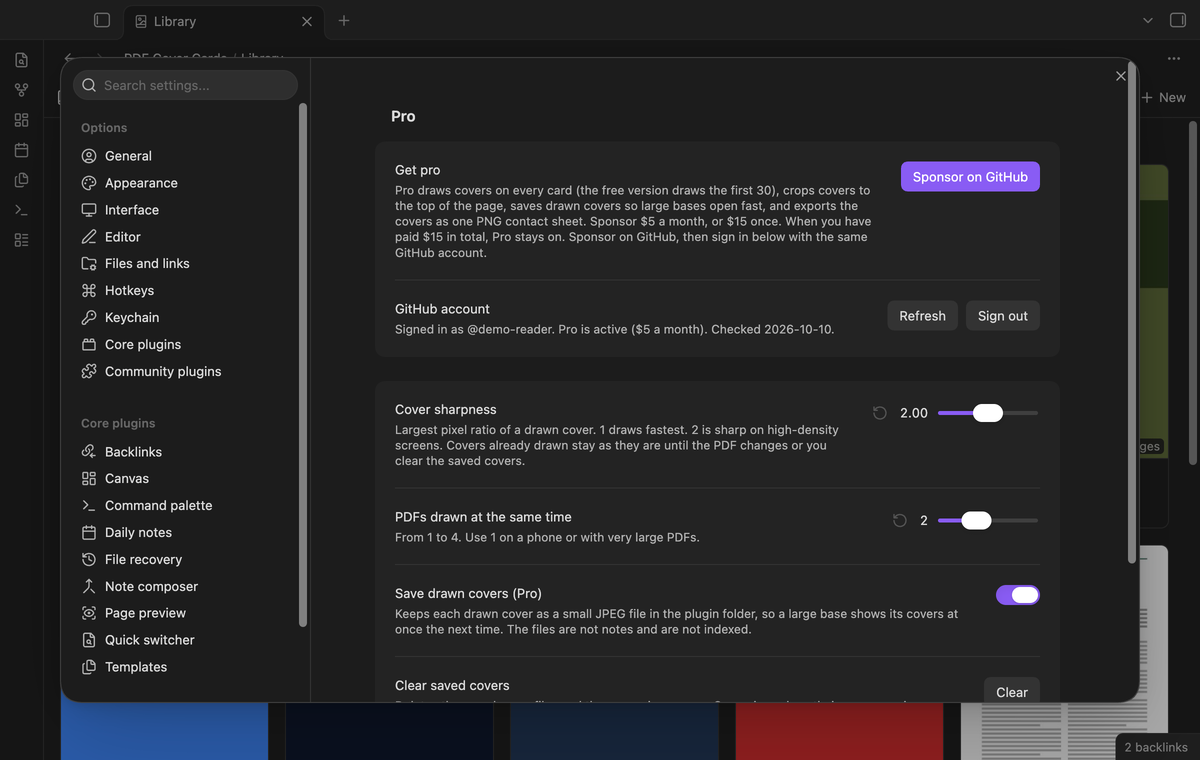
The plugin settings tab has the Pro section and these settings:
- "Cover sharpness" is from 1 (fastest) to 3. The default, 2, is sharp on high-density screens.
- "PDFs drawn at the same time" is from 1 to 4, default 2.
- "Save drawn covers (Pro)" keeps PDF covers in the plugin folder. On by default.
- "Clear saved covers" deletes them.
FAQ
Does PDF Cover Cards change my notes or my PDFs?
No. It only reads them. The contact sheet export makes new PNG files. Saved covers go into the plugin folder.
How is this different from the core Cards layout?
The core Cards layout shows nothing for a PDF link. This plugin draws the PDF page, and it shows an image on cards without a PDF.
How fast is it?
It draws only covers near the screen, with two PDFs at a time by default. The first open after app start is slower, as Obsidian loads its PDF reader.
Which PDFs work?
Each PDF that the Obsidian PDF viewer opens. A damaged or locked PDF shows a short message on its card.
Payment, account and network
The core features are free. Pro features need a GitHub Sponsors sponsorship of theluckystrike: $5 a month or more, or $15 once. A total payment of $15 meets the payment requirement for Pro without further payment. Sign-in and the checks below still apply. Your notes stay readable and editable with or without Pro.
One payment turns on Pro in every NoteMods plugin.
GitHub handles the payment. Sponsor at https://github.com/sponsors/theluckystrike?frequency=one-time&metadata_source=pdf-cover-cards. You need no account for the free features. Pro needs the GitHub account that sponsors.
Until you select "Sign in with GitHub" in the settings, PDF Cover Cards makes no network requests. Sign in uses the GitHub device flow. PDF Cover Cards sends its public client ID and the scope read:user to https://github.com/login/device/code and shows you a code. While you enter the code at https://github.com/login/device, it asks https://github.com/login/oauth/access_token every few seconds to check the sign-in status. The scope permits profile reads only. GitHub needs this access to show the sponsorship tier. It grants no repository scope and no write access.
After sign in, PDF Cover Cards sends one query to https://api.github.com/graphql. It checks if the signed-in account sponsors theluckystrike. It asks for the tier and the total payment to theluckystrike. The plugin reuses a successful check for 7 days. Failed checks can retry after 6 hours. Select Refresh to request an earlier check. It sends no note content, file names or other vault data, and it has no telemetry.
After a successful check, Pro can work offline for up to 14 days. Sign out or a negative sponsorship answer turns Pro off. The plugin stores the GitHub token through the secret storage API of Obsidian. It does not put the token in its saved settings or its local sponsorship data. The local storage of this device keeps your GitHub login, the tier and the time of the last check. Sign out clears the token. You can also revoke the access in your GitHub settings, under Applications.
Support
Plugin page: pdf-cover-cards.
Report bugs and feature requests in this repository's GitHub issues.
Community
Questions, bugs or plugin ideas? Talk to me and other Obsidian users in Zovo Chat on Telegram. It has a topic for these plugins. You can also open an issue here.
For plugin developers
Search results and similarity scores are powered by semantic analysis of your plugin's README. If your plugin isn't appearing for searches you'd expect, try updating your README to clearly describe your plugin's purpose, features, and use cases.