PDF Font Rewriter
approvedby Alexander Tian
Live-refont PDFs as you scroll, or export safely rewritten pages in a chosen font with local processing and backups. - This plugin has not been manually reviewed by Obsidian staff.
PDF Font Rewriter
Change the font inside a PDF from Obsidian without retyping it.
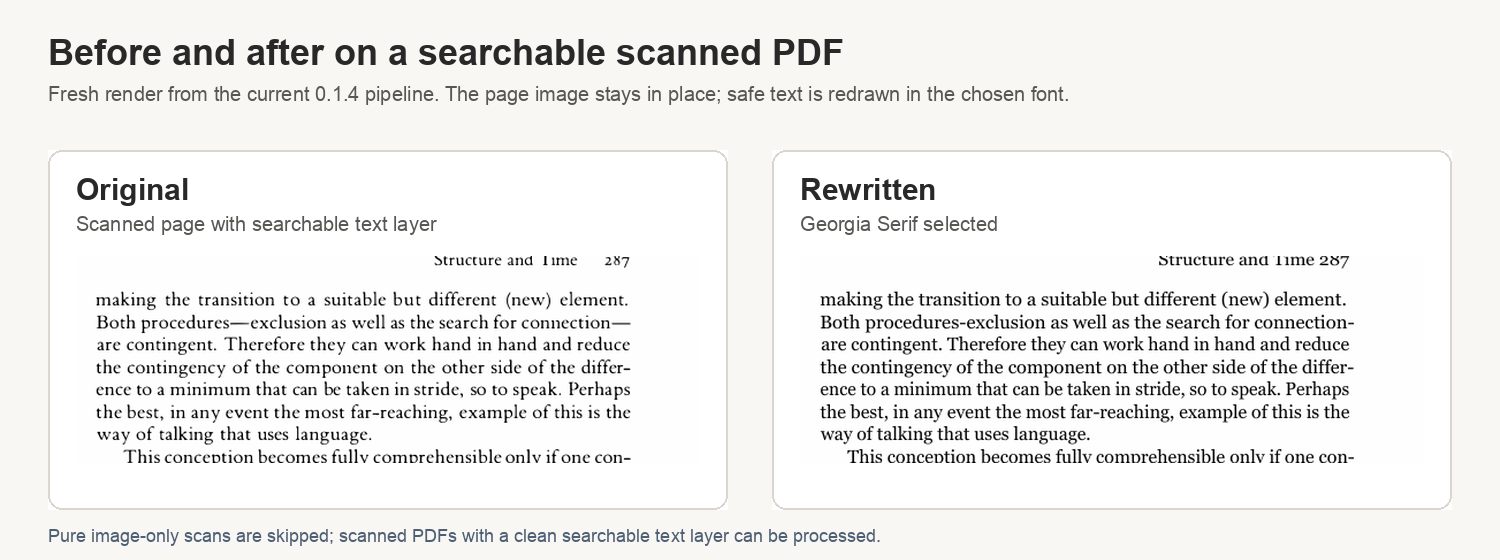
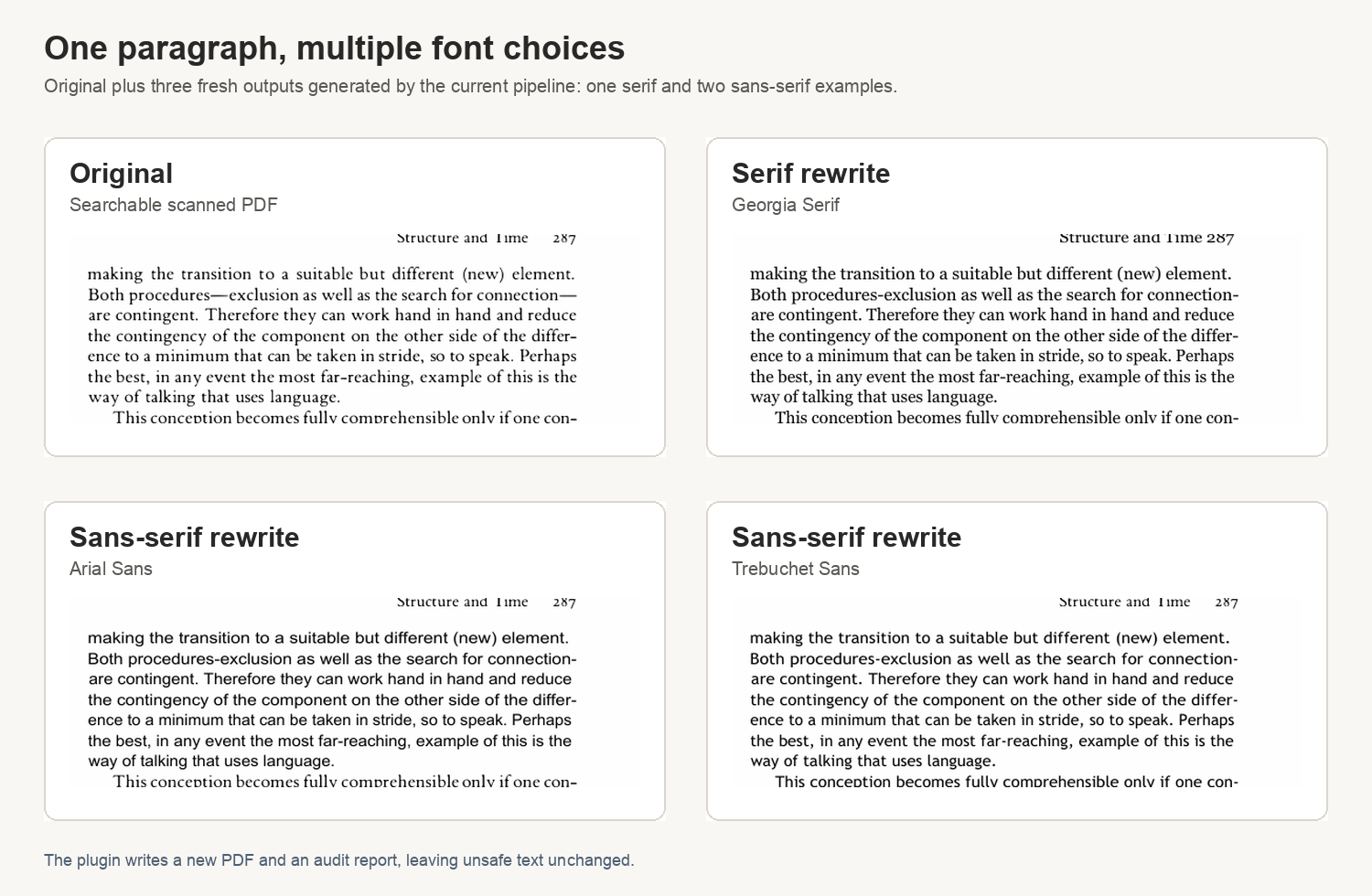
PDF Font Rewriter redraws safely replaceable PDF text in the font you choose. It is useful for papers, handouts, exported documents, and scanned PDFs that still have a searchable text layer.
By default it writes a new PDF next to the original. You can also choose Replace current PDF if you want the same file path to be updated after a successful rewrite.
For smoother reading, the plugin also includes an experimental Live Refont View. It opens a PDF in the plugin's own PDF.js view, plans each visible page with the local helper, erases approved original text pixels using a hidden textless render, and draws replacement text as you scroll. The original PDF remains the source of truth; exporting a rewritten PDF is still a separate action.
It does not try to guess everything. If a page is image-only, rotated, too uncertain, or unsafe to redraw cleanly, the plugin leaves that part unchanged.
How To Use It
- Install PDF Font Rewriter from Obsidian Community plugins.
- Open a PDF in Obsidian.
- For normal reading, click the PDF Font Rewriter ribbon icon, right-click the PDF and choose Open in Live Refont View, or run PDF Font Rewriter: Open active PDF in Live Refont View from the command palette.
- In Live Refont View, use the compact Font dropdown in the top toolbar to switch between Original PDF and built-in target fonts. Original PDF restores native PDF rendering; choosing any other font rerenders the visible pages without changing the original PDF file.
- To use your own font, click Import beside the font dropdown and choose a local
.ttfor.otffile. The plugin copies it into local app-data, selects it as the target font, and uses it for both live reading and export. - To export a rewritten PDF instead, run PDF Font Rewriter: Export active PDF with refonted text from the command palette.
- For export, leave the scope on Visible page + nearby pages for normal reading, then click Rewrite visible pages. It rewrites the PDF sheet Obsidian is showing, plus the nearby sheets you choose, without using the printed page label inside the book.
When text is changed, the plugin either writes a rewritten PDF next to the original PDF or replaces the current PDF, depending on the save option you chose. In replace mode, it first saves a restore copy outside the vault, then overwrites the same PDF path only after conversion succeeds. If the selected pages cannot be changed safely, it does not keep an unchanged output PDF.
Obsidian users do not need Python or Python dependencies. The plugin installs its packaged desktop helper automatically.
Built-in fonts include Charis SIL, XCharter, TeX Gyre Pagella, EB Garamond, Inter, Noto Sans, Open Sans, Lato, Atkinson Hyperlegible, Andika, and OpenDyslexic. The small Obsidian plugin bundle contains only font metadata; on desktop activation the plugin downloads the font assets from this repository's GitHub Releases, verifies SHA-256 checksums, and stores them in local app-data.
You can also choose fonts from Settings -> PDF Font Rewriter -> Target font or from the export dialog. Selecting Custom font path still works if you prefer to paste an absolute path manually; clicking Import .ttf/.otf is safer because the plugin keeps a local copy of the font.
What It Works Best On
- PDFs with selectable text
- scanned PDFs where the text is still searchable/selectable
- documents where you want the words preserved but the typeface changed
- conservative partial conversion, where uncertain text should be left alone
What It Does Not Do
- It is not a full OCR app.
- It does not rewrite pure image-only scans.
- It skips text when the replacement would not fit safely.
- It skips unsupported, rotated, vertical, RTL, form-field, or missing-glyph text.
Privacy And Files
PDF Font Rewriter runs locally on your computer. It reads the selected PDF and selected font, then writes the rewritten PDF into your vault or replaces the selected PDF if you choose that mode. Technical audit reports are stored in the plugin's local app-data folder, not next to your PDF.
When Replace current PDF is used, the plugin keeps the first restore copy for that PDF outside the vault so the original file can be restored from the command palette or the rewrite dialog.
The plugin does not upload PDFs, fonts, or audit reports to any remote service.
Network use is limited to downloading or updating built-in font assets and the desktop helper from this repository's GitHub Releases. Downloads are selected from release manifests and verified with SHA-256 before installation.
PDF Font Rewriter is desktop-only. It does not support Obsidian mobile.
For People Who Are Technical
Current Boundaries
- Native PDFs and searchable-scan hybrid PDFs are supported when they contain a clean visible text layer.
- On hybrid scanned pages, the tool can validate and correct narrow high-confidence text-layer confusions, such as bracket/digit citation errors, against the scanned pixels before font replacement.
- Conservative skip behavior applies to image-only scanned, RTL, vertical, rotated, widget, missing-glyph, bad-Unicode, unresolved suspicious OCR, or bad-fit content.
- The classic rewrite engine processes selected pages and saves the PDF at the end. Replace mode writes to a temporary file first and overwrites the current PDF only after a successful conversion.
- Live Refont View is a separate custom PDF.js view. It does not mutate the source PDF while reading; it renders refonted pages in place and leaves export as a separate action.
- The normal Obsidian workflow targets the visible PDF sheet plus nearby sheets. Manual sheet ranges and whole-PDF rewrites are still available for technical use.
- Browser preview is accepted as a CLI flag but not implemented yet.
- Bold/italic matching and form-field text rewriting are out of scope for v1.
Helper Install Location
- macOS:
~/Library/Application Support/pdf-font-rewriter/bin/refont-helper - Windows:
%APPDATA%\pdf-font-rewriter\bin\refont-helper.exe - Linux:
~/.local/share/pdf-font-rewriter/bin/refont-helper
Built-In Font Location
The plugin writes verified built-in fonts into:
- macOS:
~/Library/Application Support/pdf-font-rewriter/fonts - Windows:
%APPDATA%\pdf-font-rewriter\fonts - Linux:
~/.local/share/pdf-font-rewriter/fonts
Imported Custom Font Location
Fonts imported from the Live Refont toolbar, settings page, or export dialog are copied into:
- macOS:
~/Library/Application Support/pdf-font-rewriter/custom-fonts - Windows:
%APPDATA%\pdf-font-rewriter\custom-fonts - Linux:
~/.local/share/pdf-font-rewriter/custom-fonts
The plugin stores the copied font path in its settings. Imported fonts stay local and are not uploaded.
Python CLI
The same engine can be run directly as a Python CLI for development and advanced local use.
python3 -m venv .venv
. .venv/bin/activate
pip install -r requirements.txt
python -m refont INPUT.pdf --font /path/to/Font.ttf
python -m refont INPUT.pdf --font /path/to/Font.ttf --dry-run
python -m refont INPUT.pdf --font /path/to/Font.ttf --pages 1-10,15 --verbose
CLI outputs default to INPUT_refonted.pdf and INPUT_refonted_audit.json.
For Chinese PDFs, pass a fallback explicitly when possible:
python -m refont chinese.pdf \
  --font /path/to/LatinFont.ttf \
  --cjk-fallback /path/to/NotoSansCJKsc-Regular.otf
On macOS the CLI also tries common system CJK fonts if --cjk-fallback is omitted.
Safety modes and mixed-style text
--mode conservative (the default) refuses to flatten styled text: lines
that mix fonts or styles within one script — italic or bold phrases inside a
roman sentence, superscript footnote markers — are skipped, and to avoid a
paragraph set in two different typefaces, the surrounding paragraph is
skipped with them. On scholarly books that italicize terms in most
paragraphs, this can leave a large share of the text unconverted; the audit
report lists every skipped line with its reason.
--mode normal keeps those paragraphs convertible and retains much more
coverage, at the cost of style flattening: italic and bold phrases are
redrawn in the single regular target face. Lines that mix text colors (for
example, links inside black text) are skipped in both modes.
Obsidian Packaging
The Obsidian plugin is a desktop UI shell in obsidian-plugin/. It calls a packaged helper binary built from this Python engine.
Build the local helper:
uv sync --extra package
uv run python packaging/build_helper.py --clean
uv run python packaging/install_local_helper.py
Prepare helper and font release assets:
uv run python packaging/prepare_helper_release.py --clean
Build the Obsidian plugin:
cd obsidian-plugin
npm install
npm run build
Release artifacts are separated:
- Obsidian marketplace/plugin assets:
obsidian-plugin/main.js,obsidian-plugin/manifest.json,obsidian-plugin/styles.css - Helper and font release assets:
release/helper/helper-manifest.json,release/helper/refont-helper-<platform>,release/helper/font-manifest.json,release/helper/builtin-font-<name>
GitHub tag releases are handled by .github/workflows/release.yml. A release tag builds:
refont-helper-macos-arm64refont-helper-macos-x64refont-helper-windows-x64.exerefont-helper-linux-x64helper-manifest.jsonfont-manifest.jsonbuiltin-font-<name>- Obsidian
main.js,manifest.json, andstyles.css
License
Apache-2.0. See LICENSE.
Bundled fonts are open-license fonts. Source and license details are in obsidian-plugin/fonts/README.md and obsidian-plugin/fonts/licenses/.
For plugin developers
Search results and similarity scores are powered by semantic analysis of your plugin's README. If your plugin isn't appearing for searches you'd expect, try updating your README to clearly describe your plugin's purpose, features, and use cases.