Document Presentation Mode
pendingby AuroraLHL
Present a Markdown note as a fullscreen document with adaptive width and presentation-friendly typography.
Document Presentation Mode
Present a regular Obsidian note as a wide, fullscreen, document-style canvas.
Instead of converting Markdown into slides, Document Presentation Mode keeps your note intact and optimizes the layout for walkthroughs, demos, reviews, and large-screen reading.
Why this plugin exists
Some notes are meant to be explained, not redesigned.
When a long-form note is shown on a monitor or projector, the default reading layout often feels too narrow and too editor-oriented. This plugin turns the current note into a presentation-friendly document by widening the content area, increasing typography scale, and hiding surrounding UI noise.
At a glance
- Keep one continuous Markdown document
- Expand the reading width for large displays
- Increase heading and body text scale
- Hide sidebars, tab headers, and status bar while presenting
- Preview the same layout without entering fullscreen
Visual comparison
| Regular note | Presentation mode |
|---|---|
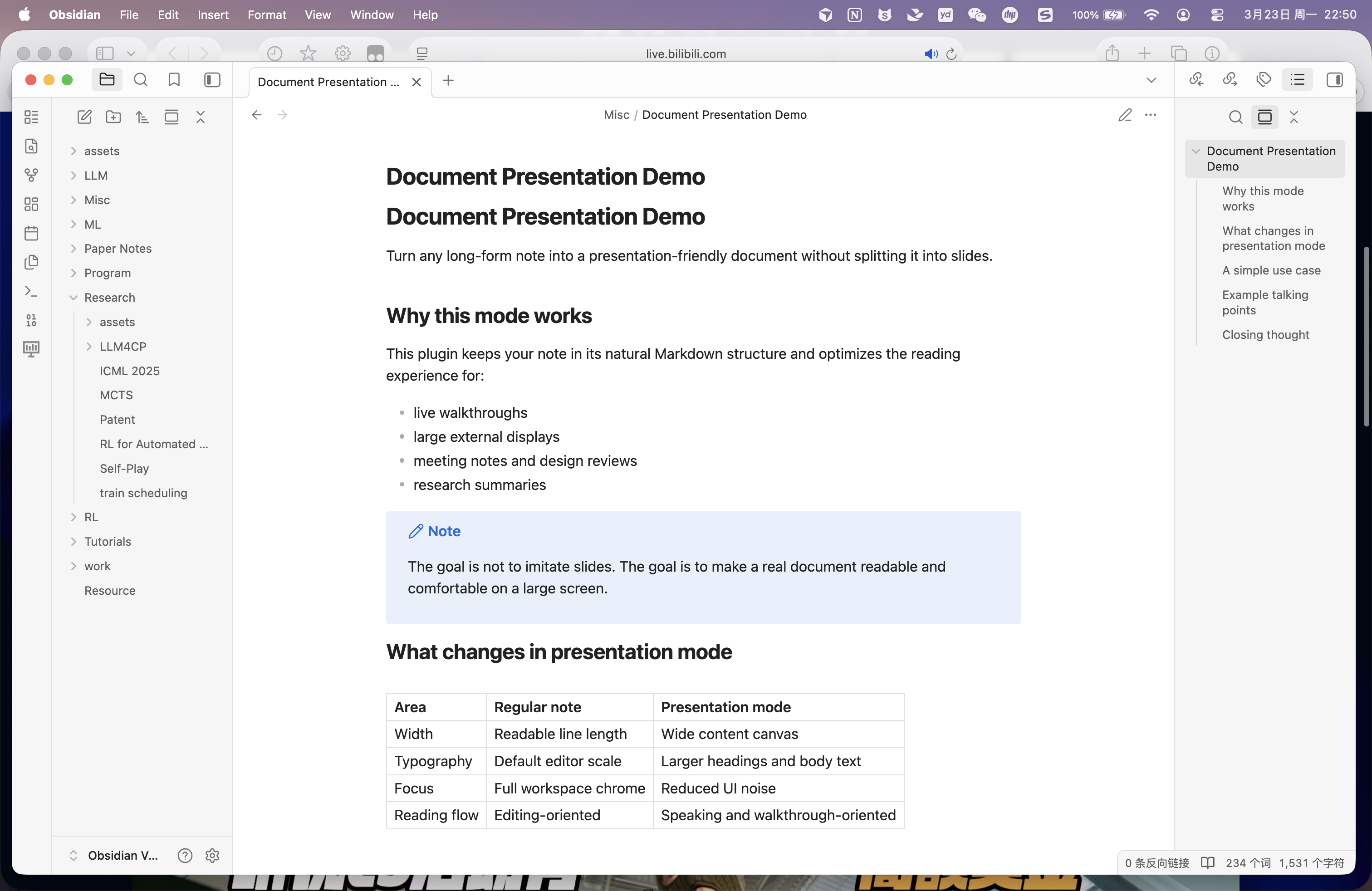 | 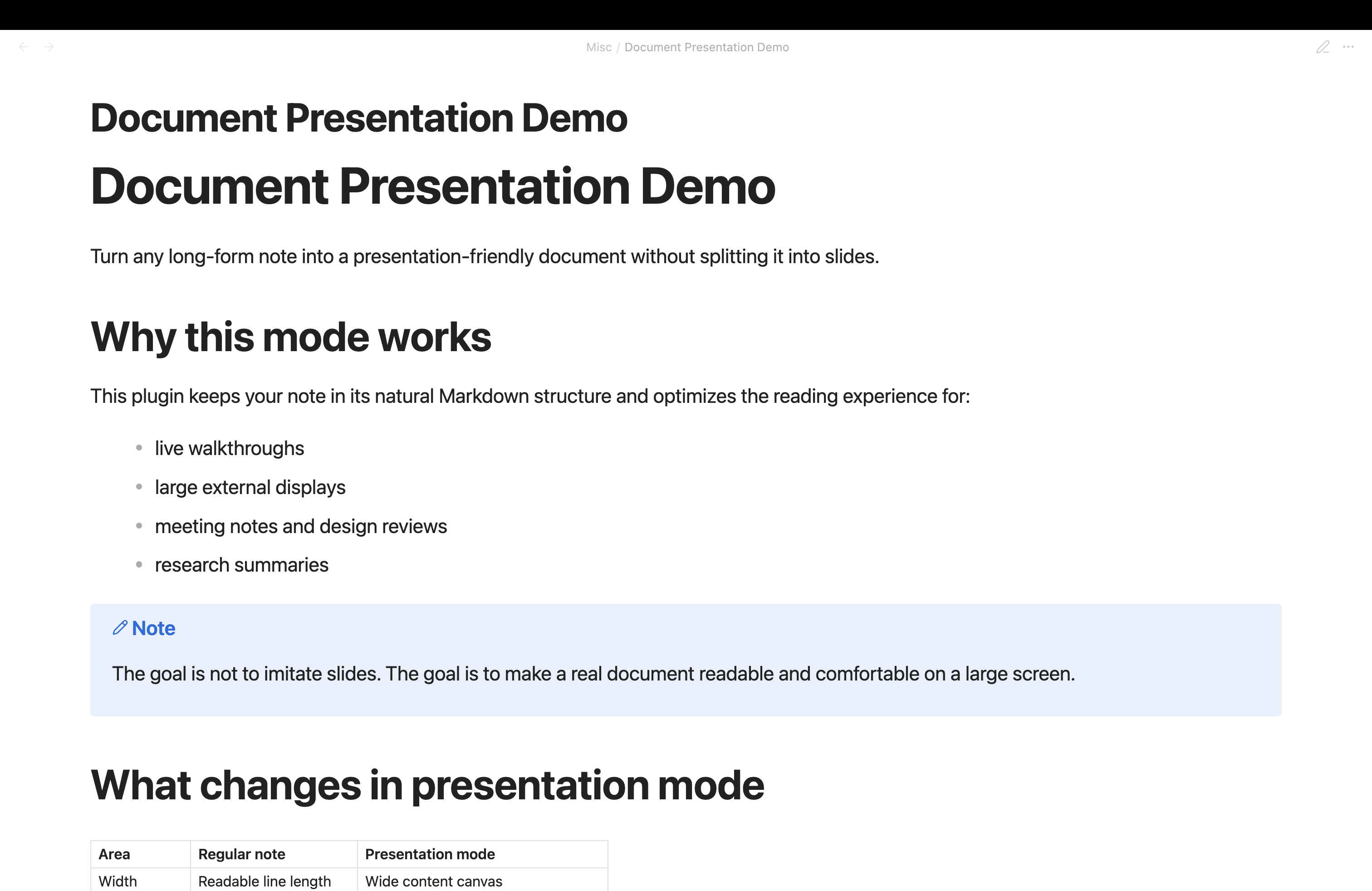 |
How it works
flowchart LR
    A["Regular Markdown note"] --> B["Toggle presentation mode"]
    B --> C["Expand content width"]
    B --> D["Scale headings and body text"]
    B --> E["Reduce UI chrome"]
    C --> F["Presentation-friendly document"]
    D --> F
    E --> F
What changes in presentation mode
| Area | Default reading experience | Presentation mode |
|---|---|---|
| Structure | Standard note layout | Same note, unchanged content |
| Width | Readable-line-length style column | Wide document canvas |
| Typography | Default note scale | Larger headings and body text |
| Focus | Full workspace chrome | Reduced UI distractions |
| Usage | Editing and browsing | Presenting and live walkthroughs |
Commands
Enter document presentation fullscreenToggle document presentation layoutExit document presentation
Settings
Reading view onlyAuto-enter reading viewContent width (%)Base font size (px)Line heightTitle scaleHorizontal padding (px)Center contentHide sidebarsHide status barHide tab header
Typical use cases
- Research note walkthroughs
- Design review documents
- Meeting agendas and decision logs
- Product demos based on Markdown notes
- Teaching or speaking from a single note instead of slides
Installation for development
- Clone this repository.
- Run
npm install. - Run
npm run build. - Copy
main.js,manifest.json, andstyles.cssinto:
.obsidian/plugins/document-presentation
- Reload Obsidian or restart the app.
Development
npm install
npm run build
For iterative development:
npm run dev
Migration note
Community release builds use the plugin id document-presentation.
If you previously installed an earlier compatibility build under obsidian-fullscreen-plugin, obsidian-document-presentation-plugin, or document-presentation-plugin, remove the old plugin folder and install the current build into:
.obsidian/plugins/document-presentation
Acknowledgements
This project is based on the original obsidian-fullscreen-plugin by Razumihin.
The current plugin keeps the fullscreen entry point idea and extends it into a document-oriented presentation experience.
For plugin developers
Search results and similarity scores are powered by semantic analysis of your plugin's README. If your plugin isn't appearing for searches you'd expect, try updating your README to clearly describe your plugin's purpose, features, and use cases.