Active Note
pendingby David Szp
Writes the active note path and selection to a JSON pointer file for external tool integration (e.g. Claude Code, Gemini CLI etc.).
Active Note
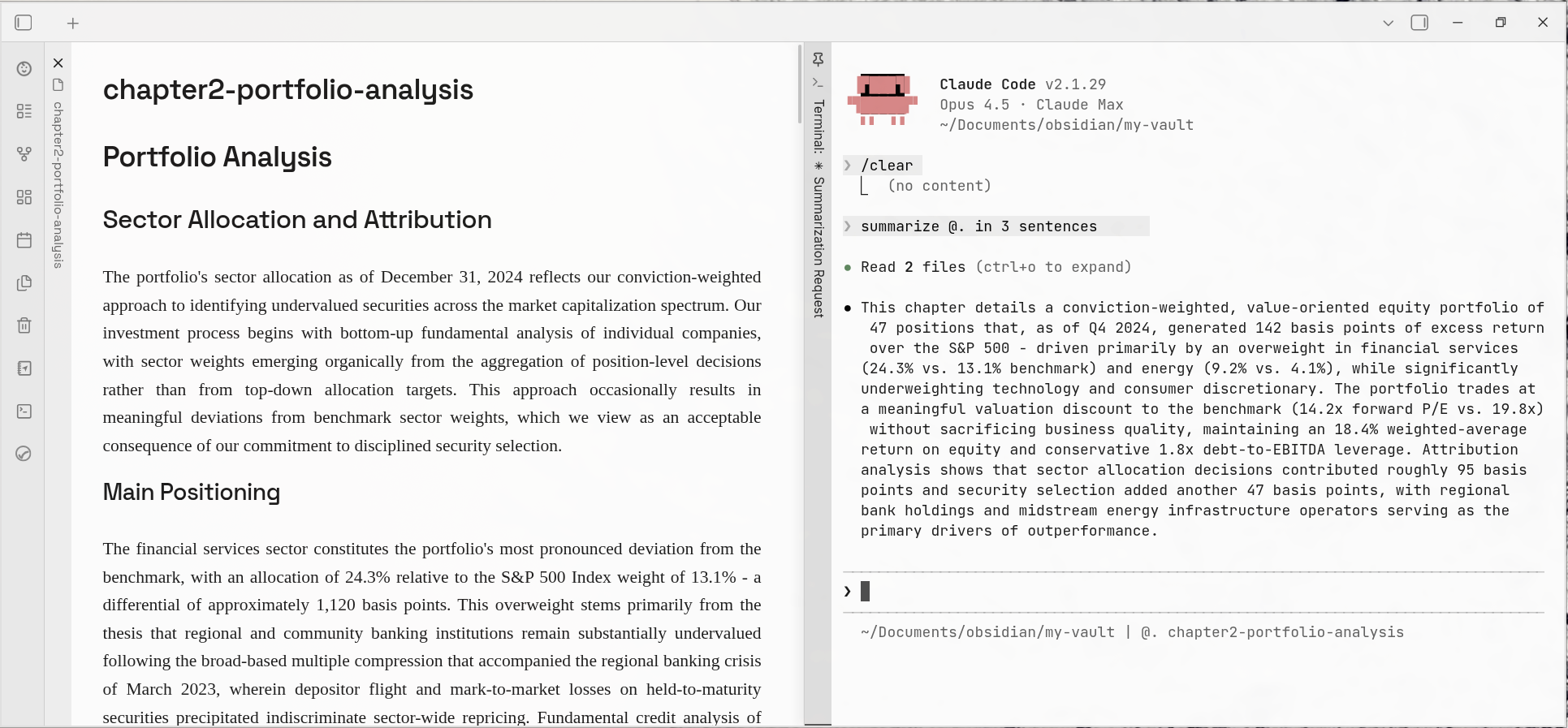
An Obsidian plugin that externalizes the "currently active note" state for use by external tools.
The Problem
The currently open note in Obsidian is UI state — invisible to external tools like CLI assistants, scripts, or automation. There's no way for an external process to know which note you're looking at.
The Solution
This plugin writes the active note path and any text selection to a JSON pointer file. External tools can read this file to understand your current context.
Pointer File
By default, the plugin writes to:
.obsidian/active-note.json
Format
When no text is selected:
{"path":"projects/my-project/notes.md"}
When text is selected:
{"path":"projects/my-project/notes.md","selection":{"text":"GDP grew 3.1% in Q4","startLine":42,"endLine":42}}
path— vault-relative path to the active note (always present)selection— only present when text is selected:text— the selected textstartLine/endLine— 1-indexed line range of the selection
Usage with Claude Code
Run Claude Code from your vault root. Two pieces of configuration bring the pointer file into Claude's awareness: instructions in CLAUDE.md and an optional status bar.
Both snippets are available as copy-pasteable text in the plugin settings (Settings → Active Note → Claude Code Integration).
1. CLAUDE.md Instructions
Add the following to your vault's CLAUDE.md so Claude knows how to resolve @. references:
## Active Note Context

The Obsidian plugin "Active Note" writes the currently open note and any selected text to `.obsidian/active-note.json`.

When I reference a file with `@.` — read `.obsidian/active-note.json` to resolve which note I mean.

Format (JSON):
- `path` — vault-relative path to the active note (always present)
- `selection` — only present when text is selected:
  - `text` — the selected text
  - `startLine` / `endLine` — 1-indexed line range

When a selection is present and I refer to "this", "this part", or "the highlighted text", use the selection text and line numbers as context.
Then you can talk to Claude Code naturally:
- "Summarize @." — Claude reads the pointer file, opens the active note, and summarizes it.
- "Fix the grammar in @." — Claude edits the note you're looking at.
- Highlight a paragraph, then ask "Rewrite this part of @." — Claude uses the selection range to know exactly which lines to change.
- "Add a YAML frontmatter to @." — Claude modifies the active note without you typing the path.
The @. shorthand eliminates the need to copy-paste file paths between Obsidian and the terminal.
2. Status Bar (Optional)
You can display the active note and selection state directly in Claude Code's status bar by adding a statusLine command to ~/.claude/settings.json:
{
  "statusLine": {
    "type": "command",
    "command": "input=$(cat); dir=$(echo \"$input\" | jq -r '.workspace.current_dir'); cd \"$dir\" 2>/dev/null && branch=$(git rev-parse --abbrev-ref HEAD 2>/dev/null); note=''; anf=\"$dir/.obsidian/active-note.json\"; if [ -f \"$anf\" ]; then p=$(jq -r '.path // empty' \"$anf\" 2>/dev/null); if [ -n \"$p\" ]; then fn=\"${p##*/}\"; fn=\"${fn%.md}\"; if [ ${#fn} -gt 40 ]; then fn=\"${fn:0:37}...\"; fi; sel=$(jq -r '.selection.text // empty' \"$anf\" 2>/dev/null); if [ -n \"$sel\" ]; then note=\"@. $fn | ●\"; else note=\"@. $fn\"; fi; fi; fi; out=$(echo \"$dir\" | sed \"s|^$HOME|~|\"); if [ -n \"$branch\" ]; then out=\"$out (git: $branch)\"; fi; if [ -n \"$note\" ]; then out=\"$out | $note\"; fi; echo -e \"$out\""
  }
}
Note: If the
$HOMEsubstitution does not work in your shell environment, replace$HOMEin thesedcommand with your literal home directory path (e.g.,s|^/home/youruser|~|).
This displays the active note filename (without .md) and a ● indicator when text is selected. Filenames longer than 40 characters are truncated with ....
Examples:
No active note (or not in a vault):
~/Documents/obsidian/my-vault (git: main)
Active note, no selection:
~/Documents/obsidian/my-vault (git: main) | @. Lifecycle Investment Advice
Active note with text selected:
~/Documents/obsidian/my-vault (git: main) | @. Lifecycle Investment Advice | ●
Long filename, truncated:
~/Documents/obsidian/my-vault (git: main) | @. chapter2-portfolio-analysis-supplem...
Other Use Cases
Any external tool can use the pointer file as a bridge to Obsidian's UI state:
- Shell scripts that operate on the current note (
jq -r .path .obsidian/active-note.json) - Linters or formatters targeting the active file
- Cross-application workflows and automation
Settings
Configurable in Settings → Active Note:
- Pointer file path — where the JSON state is written (default:
.obsidian/active-note.json) - Debounce interval — delay in ms before writing selection changes (default: 300)
Installation
Using BRAT (recommended)
- Install the BRAT plugin if you haven't already
- Open Settings → BRAT → Add Beta Plugin
- Enter
davidszp/obsidian-active-note - Enable "Active Note" in Settings → Community plugins
BRAT will handle updates automatically.
Manual
- Download
main.jsandmanifest.jsonfrom the latest release - Copy them to your vault's
.obsidian/plugins/active-note/folder - Enable "Active Note" in Settings → Community plugins
Performance
The plugin is event-driven — it writes to the pointer file when you switch notes or change your selection. Selection changes are debounced (300ms) to avoid excessive writes.
For plugin developers
Search results and similarity scores are powered by semantic analysis of your plugin's README. If your plugin isn't appearing for searches you'd expect, try updating your README to clearly describe your plugin's purpose, features, and use cases.