AI Notes
pendingby Gabriele De Rosa
Record audio, transcribe it, and enrich your written notes with AI-powered insights.
AI Notes - Obsidian Plugin
An Obsidian plugin to record audio, transcribe it, and enrich your written notes with AI-powered insights.
Features
- 🎙️ Audio recording — Record directly from your microphone while editing a note
- ✍️ Transcription — Convert recordings to text using whisper.cpp or any OpenAI-compatible endpoint
- 🤖 AI enrichment — Combine your notes and transcriptions, then summarize and structure them with an LLM
- 📂 Organized storage — Recordings are saved in per-note folders inside a configurable vault directory
- 🔌 Flexible backends — Works with local models (Ollama, whisper.cpp, llama.cpp) or cloud APIs (OpenAI, etc.)
Commands
| Command | Description |
|---|---|
Start/Stop recording | Toggle microphone recording — audio is embedded in the active note |
Transcribe recordings | Transcribe all embedded audio files in the current note |
Enrich note | Generate an AI-powered summary combining your notes and transcriptions |
All commands are available via the Obsidian command palette (Ctrl/Cmd + P).
Installation
- Open Settings → Community Plugins → Browse
- Search for AI Notes
- Click Install, then Enable
Manual installation
- Download the latest release from GitHub Releases
- Extract
main.js,manifest.json, andstyles.cssinto your vault at.obsidian/plugins/ai-notes/ - Reload Obsidian and enable the plugin in Settings → Community Plugins
Configuration
Open Settings → AI Notes to configure the plugin.
Recording
| Setting | Description | Default |
|---|---|---|
Recordings folder | Vault folder where audio files are saved | recordings |
Transcription (Whisper)
| Setting | Description | Default |
|---|---|---|
Whisper endpoint URL | whisper.cpp server (http://host:port) or OpenAI-compatible (http://host:port/v1) | http://localhost:8080 |
Whisper model | Model name (only for OpenAI-compatible endpoints) | whisper-1 |
Whisper API key | Optional API key (only for OpenAI-compatible endpoints) | — |
Enrichment (LLM)
| Setting | Description | Default |
|---|---|---|
LLM endpoint URL | OpenAI-compatible API base URL | http://localhost:11434/v1 |
LLM API key | Optional API key for the endpoint | — |
LLM model | Model name to use for enrichment | llama3 |
Usage
1. Record
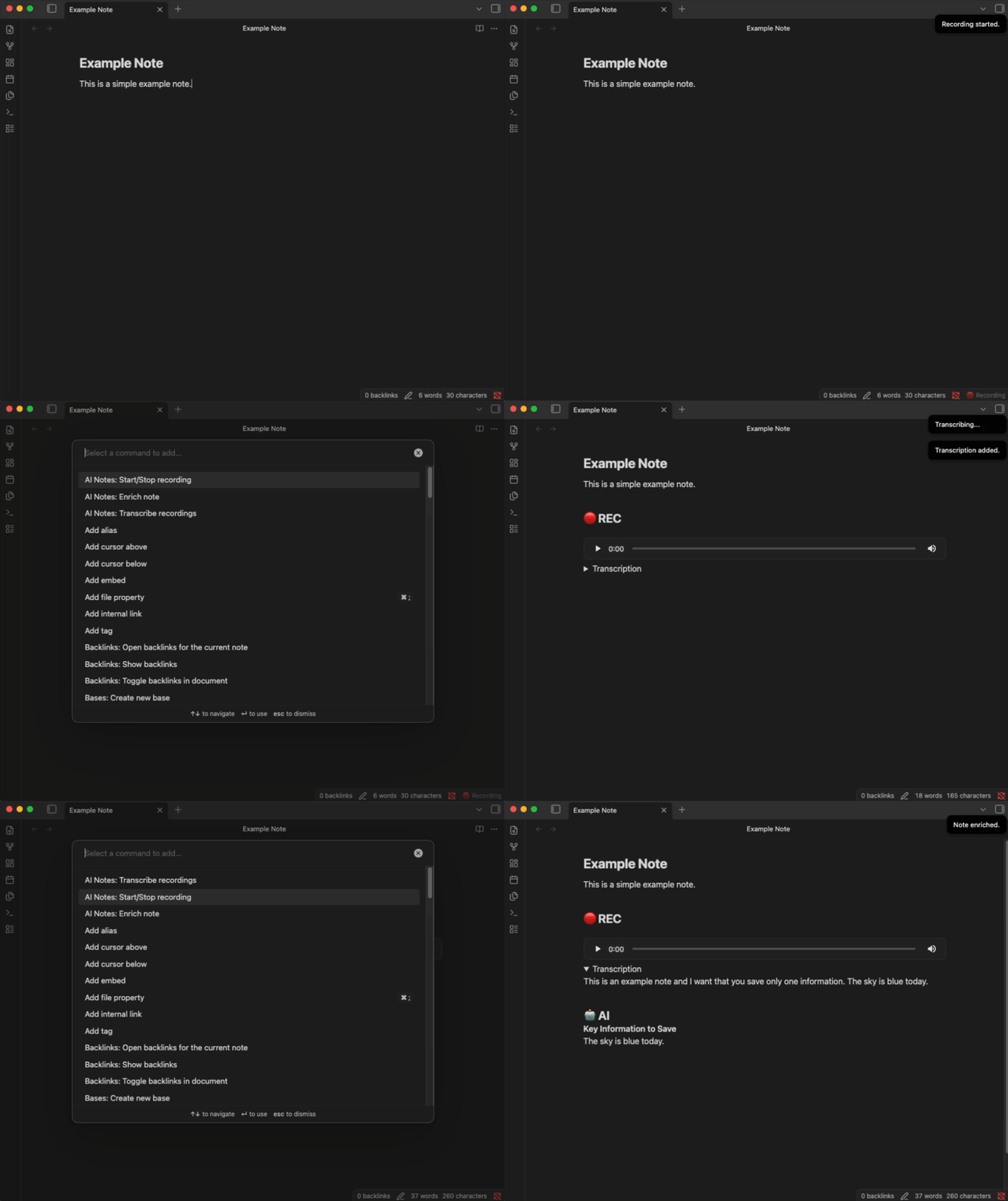
Open a note and run Start/Stop recording from the command palette. The status bar shows 🔴 while recording. Run the command again to stop — the audio file is automatically embedded in your note.
2. Transcribe
Run Transcribe recordings to convert all embedded audio files in the current note to text. Transcriptions appear in collapsible blocks below each recording.
3. Enrich
Run Enrich note to send your written notes and transcriptions to an LLM. The AI-generated summary is appended to your note.
Note structure
The plugin organizes your note like this:
Your written notes here...

## 🔴 REC
![[recording-file.webm]]
<details>
<summary>Transcription</summary>
Transcribed text...
</details>

## 🤖 AI
AI-generated enrichment...
Privacy First
This plugin does not connect to any external service out of the box. All endpoints are user-configured — nothing is sent anywhere until you explicitly set up and point the plugin to your own services.
Works great with local AI! Use llama.cpp, LM Studio, Ollama, whisper.cpp — or any OpenAI-compatible endpoint — to keep your data entirely on your machine.
- Transcription: Audio recordings are sent to the Whisper-compatible endpoint you configure.
- Enrichment: Note content and transcriptions are sent to the LLM endpoint you configure.
You are in full control of where your data goes.
Credits
AI Notes is made with ♥ by derogab and it's released under the GPL-3.0 license.
Contributors
Tip
If you like this project or directly benefit from it, please consider buying me a coffee:
🔗 bc1qd0qatgz8h62uvnr74utwncc6j5ckfz2v2g4lef
⚡️ derogab@sats.mobi
💶 Sponsor on GitHub
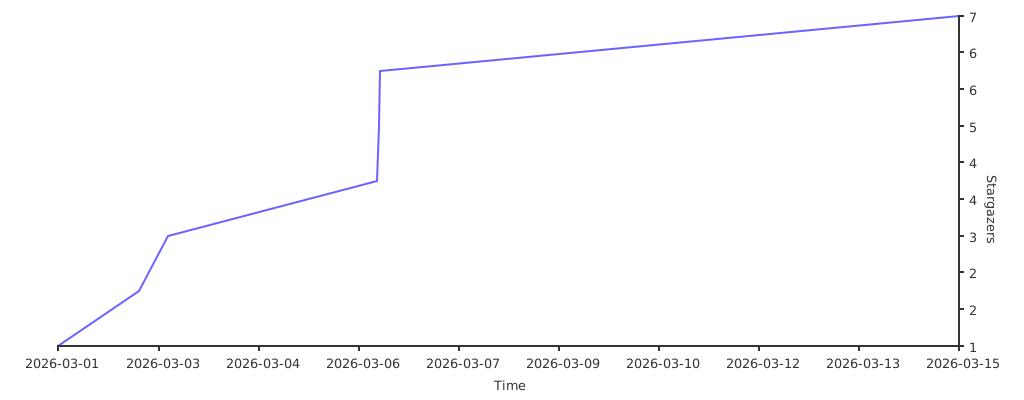
Stargazers over time
For plugin developers
Search results and similarity scores are powered by semantic analysis of your plugin's README. If your plugin isn't appearing for searches you'd expect, try updating your README to clearly describe your plugin's purpose, features, and use cases.