Daily notes sorter
pendingby Nick
Automatically sort daily notes and files by date in the file explorer. Supports multiple date formats (YYYY-MM-DD, DD.MM.YYYY, DD.MM.YY, MM/DD/YYYY) and flexible folder configuration.
Daily Notes Sorter
An Obsidian plugin that allows you to automatically sort daily notes by date in the file explorer.
Description
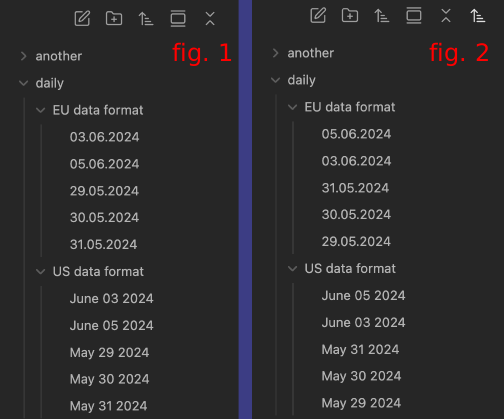
Tired of your daily notes jumping out of order? When your note names consist of a date (for example, 15.01.2024, 01/15/2024), Obsidian’s file explorer often can’t sort them chronologically. Daily Notes Sorter understands popular regional date formats and keeps your notes exactly where you expect them—newest first or oldest first, on demand.
Demo
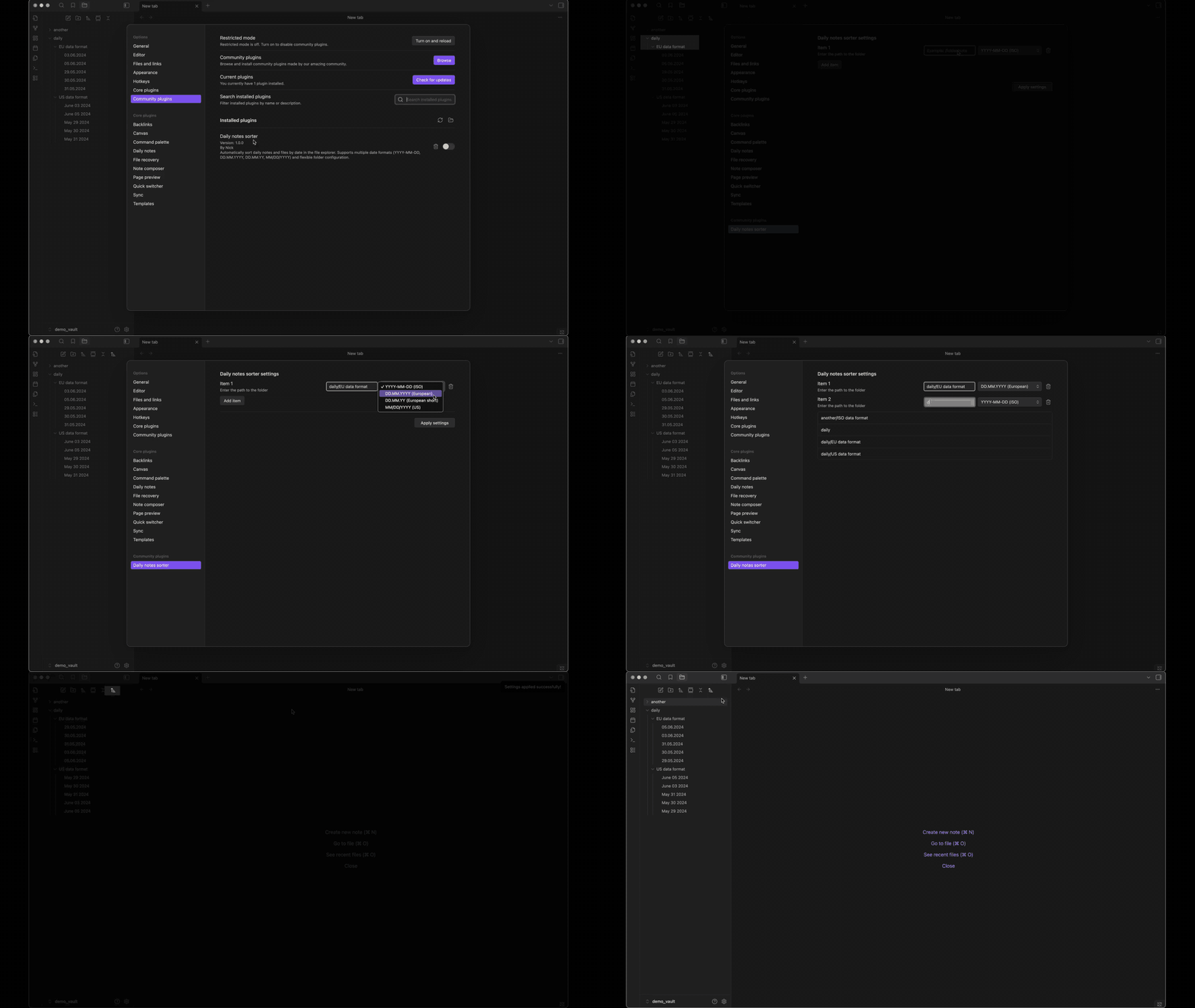
Curious how it works in practice? In this short clip, you’ll see how to add a folder, pick the date format, and toggle the sort to instantly re-order your daily notes:
Features
📁 Date Sorting
- Automatic sorting of files in specified folders by date
- Support for multiple date formats:
YYYY-MM-DD(ISO format, e.g.: 2024-01-15)DD.MM.YYYY(European format, e.g.: 15.01.2024)DD.MM.YY(European short format, e.g.: 15.01.24)MM/DD/YYYY(US format, e.g.: 01/15/2024)- For numeric formats, the separator must be a single, uniform character that is not a letter or digit (space, dot, dash, underscore, etc.); only the order matters. Examples:
DD-MM-YYYY,DD MM YYYY,YYYY.MM.DD,MM-DD-YYYY. Multiple or mixed separators (e.g.,15--01--2024,15-01_2024) will not match. Textual formats remain unchanged (e.g.,Aug 15 2024).
🔄 Sort Direction
- Ascending sort (from old to new)
- Descending sort (from new to old)
- Toggle sort direction via button in file explorer interface
⚙️ Flexible Configuration
- Configure individual folders with custom date formats
- Autocomplete folder paths when configuring
- Real-time path validation
- Settings persistence between sessions
🔔 Notifications
- Automatic notifications about files that don't match the specified date format
- Files without dates are placed at the beginning (descending) or end (ascending) of the list
Usage
Installation
Via Community Plugins (Recommended)
- Open Obsidian Settings
- Go to Community plugins
- Make sure Safe mode is off
- Click Browse and search for "Daily notes sorter"
- Click Install and then Enable
Manual Installation (without working with the repository)
- Download the latest release from the Releases page:
https://github.com/Reifat/daily-notes-sorter/releases/latest
- In the release assets, download and unzip “Source code (zip)”.
- From the unpacked archive, move
scripts/install/env-example/install-config.envinto the root of the plugin folder (next toREADME.md). - Open
install-config.envand set:DEST_DIR— absolute path to your vault’s plugin folder, e.g./path/to/YourVault/.obsidian/plugins/daily-notes-sorterRELEASE_TAG— the release tag you want to install (e.g.1.0.0)
- Run the installer for your platform:
- macOS:
bash scripts/install/install.sh(make executable if needed:chmod +x scripts/install/install.sh scripts/install/install.command) - Windows:
scripts\install\install.bat - macOS (double-click):
scripts/install/install.command
- macOS:
Notes:
- On macOS, if blocked by Gatekeeper, run:
xattr -r -d com.apple.quarantine scripts/install - Windows
.batfiles do not require execution permissions; ensure the file isn’t blocked in Properties if SmartScreen warns.
Configuration
- Open plugin settings (Settings → Daily notes sorter settings)
- Click "Add item" to add a new folder
- Enter folder path (you can use autocomplete)
- Select date format from dropdown
- Click "Apply settings" to apply changes
Using in File Explorer
- After configuring folders, sorting is applied automatically
- A button for toggling sort direction will appear in the file explorer header
- Click the button to toggle between ascending and descending sort
For developers: Technical documentation, including plugin architecture, technical details, development instructions, and implementation details, can be found in
src/README.md.
Known Limitations
-
Date format at the beginning of file name: The plugin only searches for dates at the beginning of file names. If the date is in the middle or end of the name, it will not be recognized.
-
Files only: The plugin sorts only files (TFile), folders remain in their places.
-
FileExplorer dependency: The plugin requires the built-in "Files" (FileExplorer) plugin to be enabled.
-
One format per folder: Each folder can have only one date format. If a folder contains files with different date formats, they may be sorted incorrectly.
Future Improvements
- Support for additional date formats
- Search for date anywhere in file name
- Sort folders by date
- Group files by months/years
- Export/import settings
License
MIT
Author
Nick (GitHub: @Reifat)
Support
If you found a bug or have a suggestion for improvement, please create an issue in the project repository.
For plugin developers
Search results and similarity scores are powered by semantic analysis of your plugin's README. If your plugin isn't appearing for searches you'd expect, try updating your README to clearly describe your plugin's purpose, features, and use cases.