Folder Guard
pendingby Rob Felice
Secure folder and file encryption using AES-256-GCM. Encrypt entire folders or individual .md files while keeping your vault accessible.
Folder Guard
Secure encryption for Obsidian markdown files and folders. Encrypt entire folders or individual .md files with AES-256-GCM encryption while keeping your vault accessible.
Features
✨ Folder-Level Encryption
- Right-click encrypt/decrypt entire folders
- Maintains folder structure and file relationships
- Batch operations with progress feedback
🔐 Individual File Encryption
- Lock/unlock individual markdown files (.md)
- Encrypted files stored as
.encryptedformat - Works seamlessly with your Obsidian workflow
🛡️ Military-Grade Security
- AES-256-GCM authenticated encryption
- PBKDF2 key derivation (100,000 iterations - OWASP standard)
- Unique random salt and IV for each file
- Detects corrupted or tampered files before decryption
⚙️ Configurable Password Security
- Adjustable minimum password length (6-32 characters, default: 12)
- Optional complexity requirements (uppercase, lowercase, numbers, symbols)
- Password strength warnings with override options
- Passwords are derived at runtime and never stored on disk
⚡ Performance
- Single file encryption/decryption: <100ms
- Bulk operations: <5 seconds for 100 files
- UI remains responsive during all operations
- Memory-efficient (no unnecessary buffering)
🔄 Seamless Integration
- Context menu options for quick access
- Command palette commands for file operations
- Settings panel for configuration
- Works exclusively with markdown files (.md)
Installation
Community Plugin
Folder Guard will be available in the Obsidian Community Plugins directory soon.
Manual Installation
- Download the latest release
- Extract files to
.obsidian/plugins/folder-guard/ - Enable the plugin in Obsidian settings
- Restart Obsidian
Usage
Encrypting a Folder
- Right-click a folder in the file explorer
- Select "Lock Folder (Folder Guard)"
- Enter a strong password (12+ characters recommended)
- Review the password strength warning if needed
- Folder is now encrypted! Files are renamed to
.encrypted

Decrypting a Folder
- Right-click an encrypted folder
- Select "Unlock Folder (Folder Guard)"
- Enter the decryption password
- Files are decrypted and renamed back to
.md
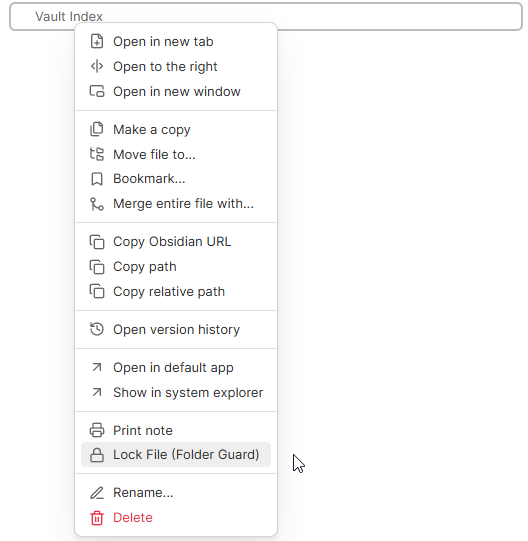
Encrypting Individual Files
- Right-click a markdown file (
.md) - Select "Lock File (Folder Guard)"
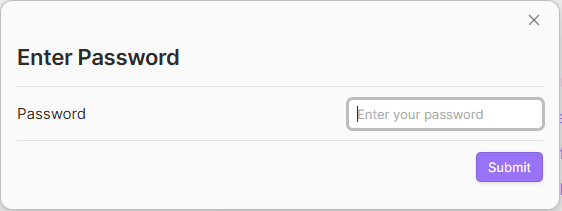
- Enter encryption password
- File is encrypted to
.encryptedformat
Decrypting Individual Files
- Right-click an encrypted file (
.encrypted) - Select "Unlock File (Folder Guard)"
- Enter decryption password
- File is decrypted back to
.mdformat
Using Command Palette
- Encrypt current file: Open command palette, search "Folder Guard: Encrypt"
- Decrypt current file: Open command palette, search "Folder Guard: Decrypt"
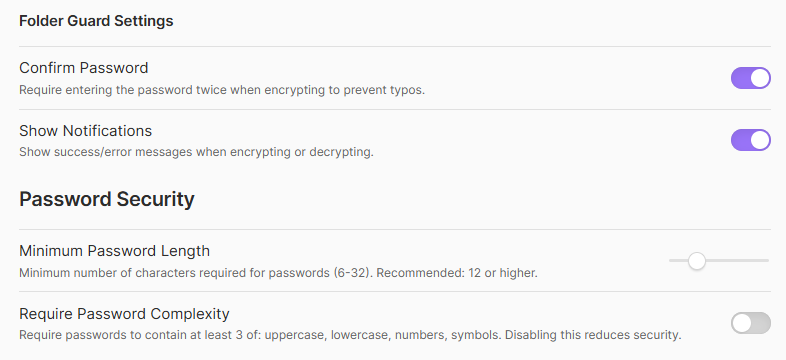
Configuring Password Security
- Open Obsidian Settings
- Navigate to "Folder Guard"
- Configure under "Password Security":
- Minimum Password Length: Adjust slider (6-32 chars)
- Require Password Complexity: Toggle to enforce mixed character types
Security Model
How It Works
- Your password is used to derive an encryption key (PBKDF2, 100,000 iterations)
- Each file is encrypted with AES-256-GCM using a unique random salt and IV
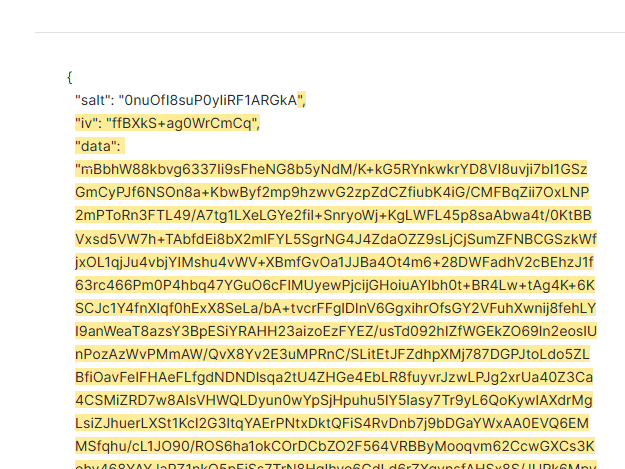
- Encrypted data is stored in a JSON file with
.encryptedextension - Your password is never stored anywhere - it's only used during encryption/decryption
Password Storage
- Passwords are not stored on disk or in memory longer than necessary
- Each encryption/decryption requires you to enter the password
- No password recovery possible if forgotten (use a password manager)
- Passwords are derived at runtime using PBKDF2-HMAC-SHA256
Security Properties
- Authentication: AES-GCM provides authenticated encryption (detects tampering)
- Key Derivation: PBKDF2 with 100,000 iterations makes brute-force attacks computationally expensive
- Randomness: Unique salt/IV per file prevents pattern attacks
- Data Integrity: Corrupted or tampered files detected before decryption
Best Practices
- Use passwords 12+ characters with mixed character types
- Store passwords in a password manager
- Keep regular backups of important data
- Test decryption regularly to ensure password recovery
- Disable complexity requirements only if needed for accessibility
Supported File Types
Folder Guard encrypts markdown files only (.md extension):
- ✅ Works with markdown files
- ❌ Does not encrypt other file types (.pdf, .txt, images, etc.)
- ❌ Does not encrypt non-text files in encrypted folders
Error Handling
Folder Guard provides clear, actionable error messages:
| Error | Solution |
|---|---|
| "Wrong password for file.md" | Enter the correct password |
| "file.md is corrupted or tampered" | File may be corrupted; restore from backup if available |
| "Cannot modify file.md - permission denied" | Check file/folder permissions |
| "file.md not found" | File may have been moved or deleted |
| "Not enough disk space" | Free up storage space and try again |
| "file.md is already being processed" | Wait for current operation to complete |
Platform Support
- ✅ Windows (10/11)
- ✅ macOS (Intel & Apple Silicon)
- ✅ Linux (all distributions)
- ✅ Web (via Obsidian Web)
Tested on Windows 10/11. macOS and Linux supported through architecture review.
Troubleshooting
Files won't encrypt
- Ensure you have write permissions to the folder
- Check that the file isn't open in another application
- Verify sufficient disk space is available
Decryption fails
- Confirm you're using the correct password
- Check that the encrypted file hasn't been corrupted
- Try decrypting a backup copy if available
Performance is slow
- Close other Obsidian plugins temporarily
- Check system disk usage
- Try encrypting fewer files at once
"Change Password" button doesn't work
- Make sure you're using a different password
- Update to the latest version (fixed in v1.0.0+)
Contributing
Contributions welcome! To contribute:
- Fork the repository
- Create a feature branch
- Make your changes
- Submit a pull request
License
This project is licensed under the MIT License - see LICENSE file for details.
Changelog
See CHANGELOG.md for version history and release notes.
Support
Version: 1.0.0 Last Updated: 08/01/2026 Author: Rob Felice License: MIT
For plugin developers
Search results and similarity scores are powered by semantic analysis of your plugin's README. If your plugin isn't appearing for searches you'd expect, try updating your README to clearly describe your plugin's purpose, features, and use cases.