Bring to Front
pendingby rockbenben
Automatically brings the window to front when modals or notices appear in the background.
Bring to Front


English | 中文
Description
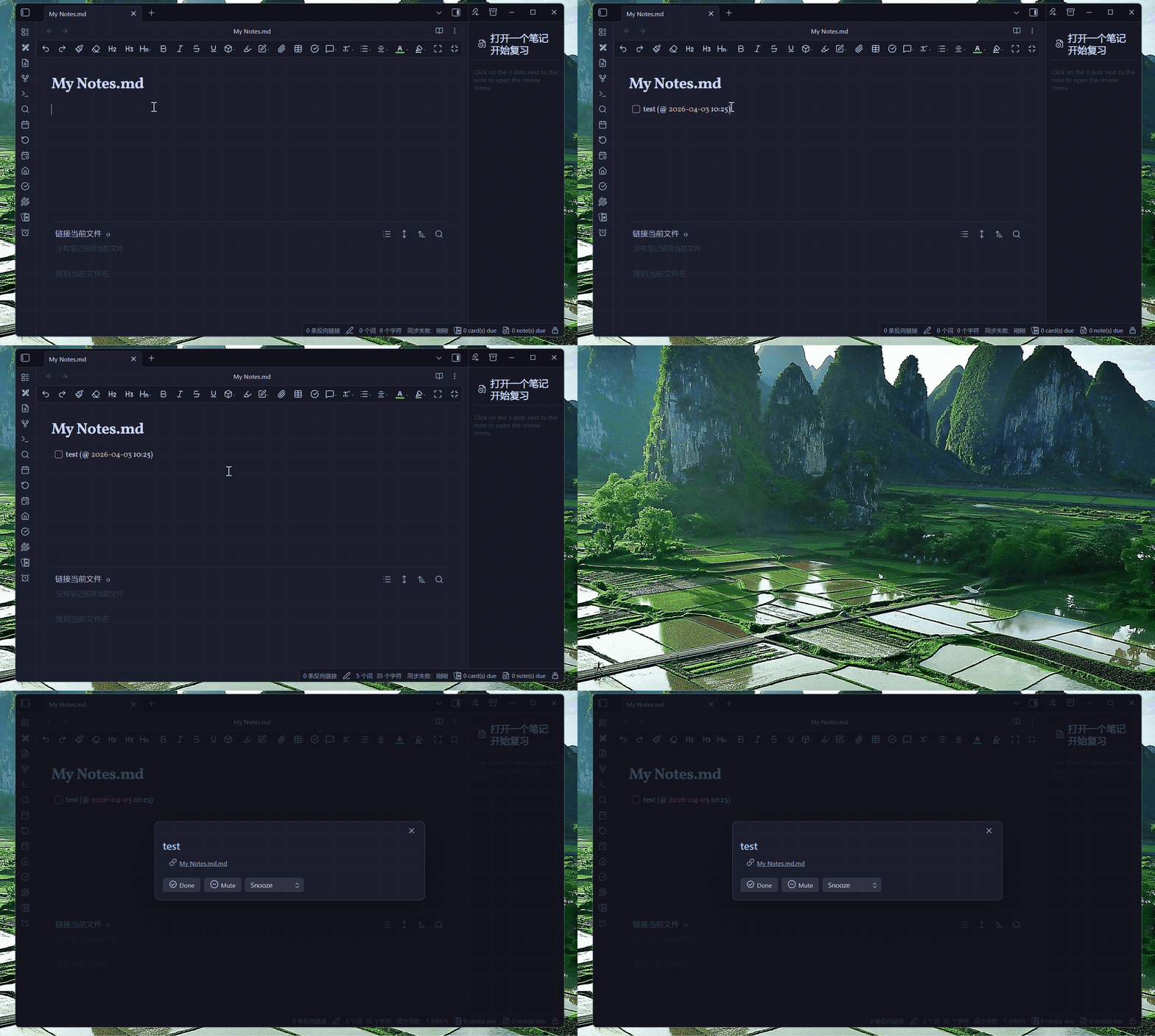
When Obsidian is in the background and a modal or notice appears, this plugin automatically brings the window to the foreground. Zero configuration needed — install, enable, and it just works. Optionally filter by keywords and watch scope to trigger only on specific content.
Desktop only (Windows / macOS / Linux). Requires Electron APIs for window management.
Key Features
- Auto bring-to-front: When Obsidian is in the background, automatically brings the window to front on new modals or notices
- Keyword filtering: Optional comma-separated keywords to trigger only on specific content
- Flexible watch scope: Monitor modals, notices, both, or custom CSS selectors
- Cooldown protection: Configurable minimum focus interval to avoid focus thrashing
- Bilingual UI: Full English/Chinese support with auto detection
Installation
Method 1: Manual Installation
-
Download the latest release from GitHub Releases
-
Extract the downloaded files
-
Copy the plugin folder to your vault's plugins directory:
YourVault/.obsidian/plugins/bring-to-front/ -
Restart Obsidian or reload plugins
-
Enable the plugin in Settings -> Community Plugins
Method 2: Using BRAT (Beta Reviewers Auto-update Tool)
- Install the BRAT plugin
- Open BRAT settings and click Add Beta Plugin
- Enter the repository: rockbenben/bring-obsidian-to-front
- Click Add Plugin and enable it
Configuration
Open Settings -> Community Plugins -> Bring to Front.
Settings
| Setting | Description | Default | Range |
|---|---|---|---|
| Language | Interface language | Auto-detect | Auto / English / 中文 |
| Keywords | Comma-separated keywords to filter triggers, case-insensitive (empty = match all) | Empty | Any text |
| Watch scope | Which DOM elements to monitor | Modals & Notices | Modals / Notices / Both / Custom |
| Custom CSS selector | Custom selector (only when scope = Custom) | Empty | Valid CSS selector |
| Focus cooldown | Minimum seconds between focus actions (0 = no cooldown) | 5 seconds | >= 0 |
| Debug mode | Log matching details to console | Disabled | On / Off |
Usage Examples
| Use Case | Keywords | Watch Scope |
|---|---|---|
| Any modal/notice | (leave empty) | Both |
| Reminder popup | Snooze, Done | Modals |
| Error alerts | error, failed | Notices |
| Specific plugin | (leave empty) | Custom: [data-type="my-plugin"] |
Tips
- Shorter focus cooldown (1-30 s) = for frequent triggers
- Longer focus cooldown (>= 120 s) = less intrusive
How It Works
- MutationObserver: Watches the DOM in real time for new elements matching the configured scope
- Keyword matching: If keywords are configured, the element's text content is checked against them
- Cooldown check: Ensures minimum interval between consecutive focus actions
- Bring to front: Raises the Obsidian window via Electron APIs (restore, show, alwaysOnTop trick, focus)
Troubleshooting
| Issue | Possible Cause | Solution |
|---|---|---|
| Too frequent focusing | Focus cooldown too short | Increase focus cooldown |
| Not detecting | Wrong scope or keywords | Check settings; try empty keywords with "Both" scope |
| Language not switching | Cache/reload issue | Restart Obsidian after changing language |
Debug Steps
- Enable debug mode in settings
- Open devtools console (Ctrl+Shift+I)
- Trigger the condition you expect to match
- Check console for
[Bring to Front]log messages - Verify the CSS selector matches by running
document.querySelector("your-selector")in console
Development
git clone https://github.com/rockbenben/bring-obsidian-to-front.git
cd bring-obsidian-to-front
npm install
npm run dev    # Dev build with hot reload
npm run build  # Production build
License
MIT
Support
If you encounter any issues or have suggestions, please open an issue on GitHub.
For plugin developers
Search results and similarity scores are powered by semantic analysis of your plugin's README. If your plugin isn't appearing for searches you'd expect, try updating your README to clearly describe your plugin's purpose, features, and use cases.