Open in New Tab
pendingby saltyfireball
Forces files to open in new tabs instead of replacing the current tab. Covers all opening methods including Quick Switcher, command palette, bookmarks, search, backlinks, and graph view.
Open in New Tab










An Obsidian plugin that forces files to open in new tabs instead of replacing the current tab.
Features
- Universal coverage: Works with Quick Switcher, command palette, bookmarks, search results, backlinks, graph view, sidebar clicks, and markdown links
- Focus existing tab: If a file is already open in another tab, focuses that tab instead of opening a duplicate
- Same-file navigation: Clicking heading/block links within the same file stays in the current tab
- Split preview mode: Automatic side-by-side split with an edit pane and a reading view pane that stay in sync
- Non-invasive: Only changes the default "reuse current tab" behavior; all other Obsidian navigation (splits, popout windows) passes through unchanged
- Toggleable: Enable/disable via settings, command palette, or Note Toolbar helpers button
How It Works
Monkey-patches Workspace.getLeaf() to intercept calls that would reuse the current tab (getLeaf() or getLeaf(false)) and forces them to open a new tab instead (getLeaf('tab')). Calls that already request a new tab, split, or window pass through unchanged.
Also patches openLinkText() to handle same-file heading navigation (stays in current tab) and already-open file detection (focuses existing tab).
Split Preview Mode
When enabled, automatically creates a split view:
- Left/top pane: Edit mode (source mode or live preview, configurable)
- Right/bottom pane: Reading view (always)
- Synced navigation: Switching files in either pane updates the other to show the same file
- Split direction: Configurable as right (vertical) or down (horizontal), defaults to right
Toggle via:
- Settings > Split preview mode > Enable split preview
- Command palette: "Open in New Tab: Toggle split preview mode"
- Note Toolbar helpers button (if obsidian-note-toolbar is installed)
Installation
Obsidian Community Plugin (pending)
This plugin has been submitted for review to the Obsidian community plugin directory. Once approved, you will be able to install it directly from Settings > Community plugins > Browse by searching for "Open in New Tab".
Using BRAT
You can install this plugin right now using the BRAT plugin:
-
Install BRAT from Settings > Community plugins > Browse (search for "BRAT" by TfTHacker)
-
Open the BRAT settings
-
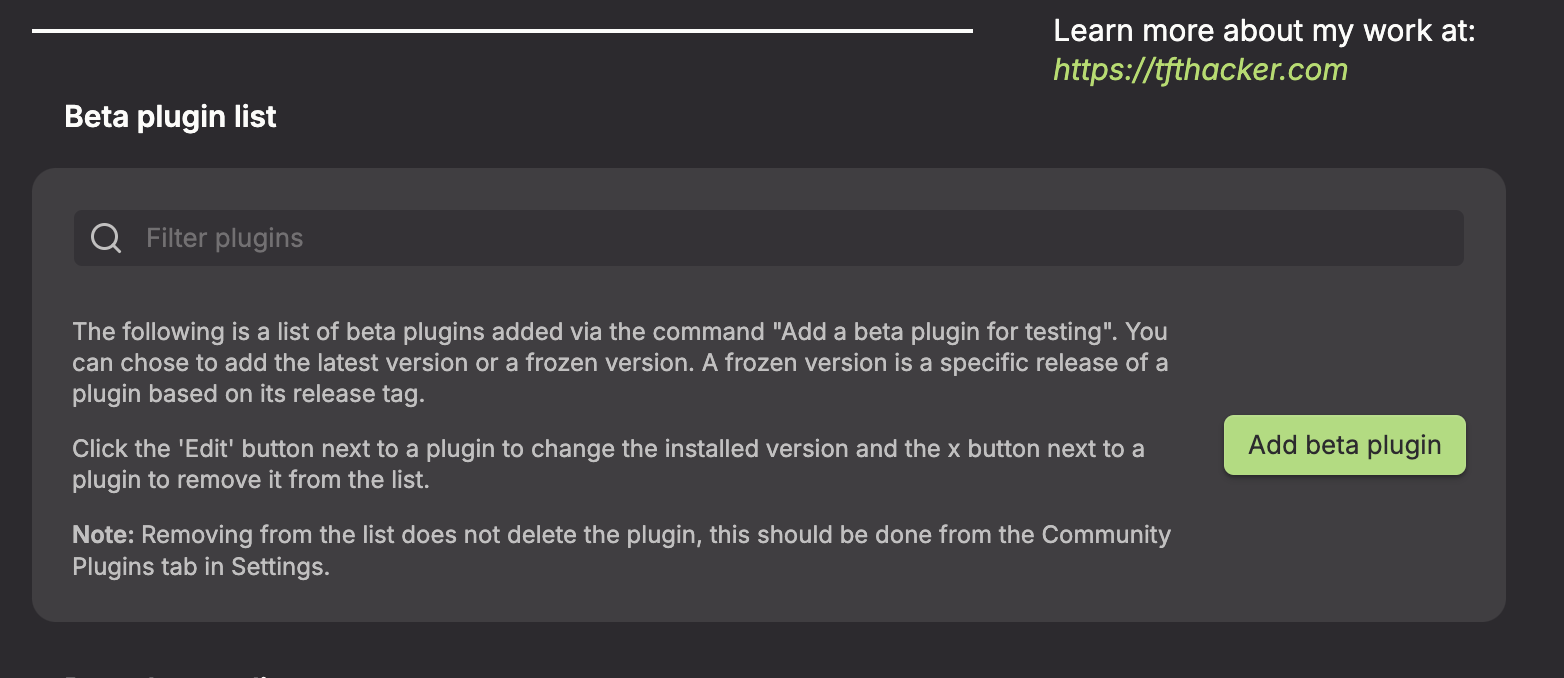
Under the Beta plugins section, click Add beta plugin
-
In the overlay, enter this plugin's repository:
https://github.com/saltyfireball/obsidian-sfb-open-in-new-tab(or justsaltyfireball/obsidian-sfb-open-in-new-tab)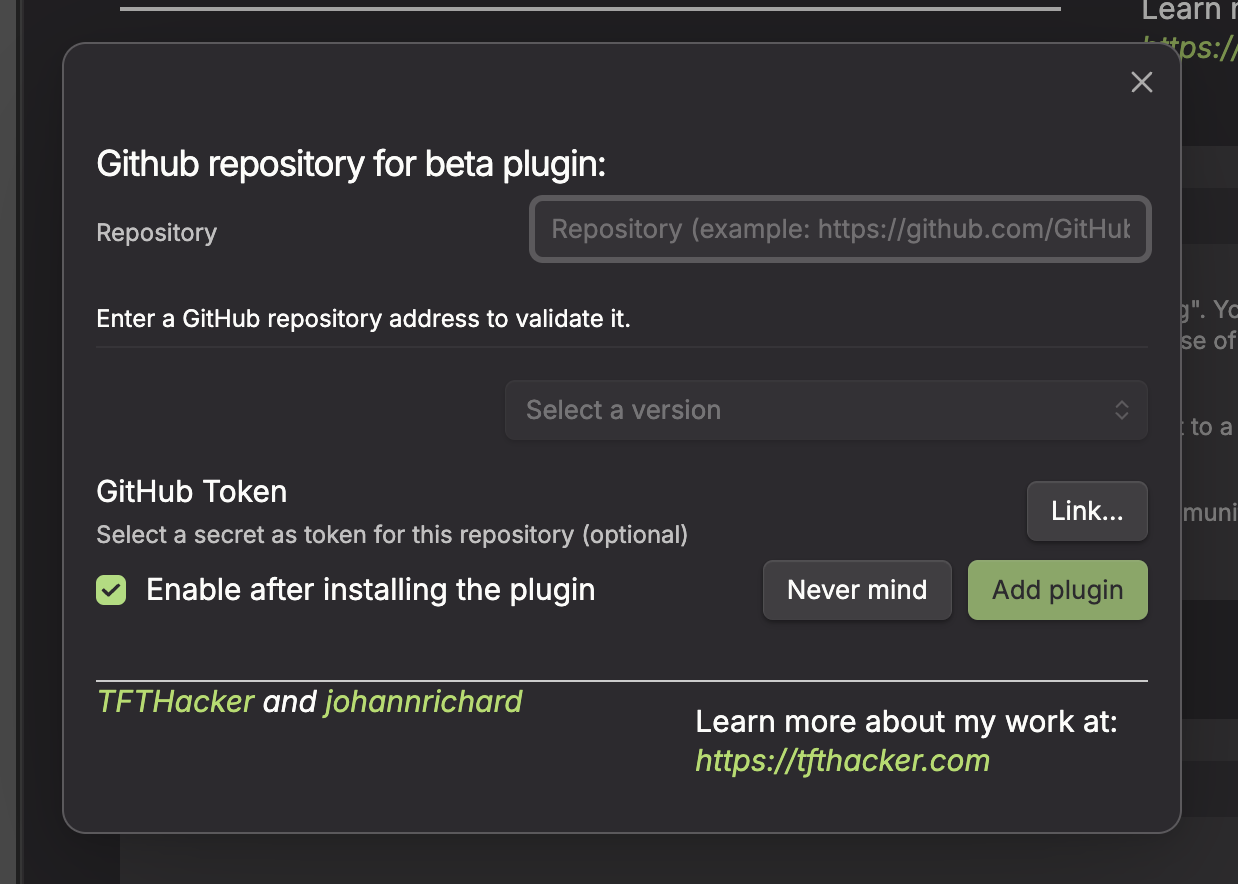
-
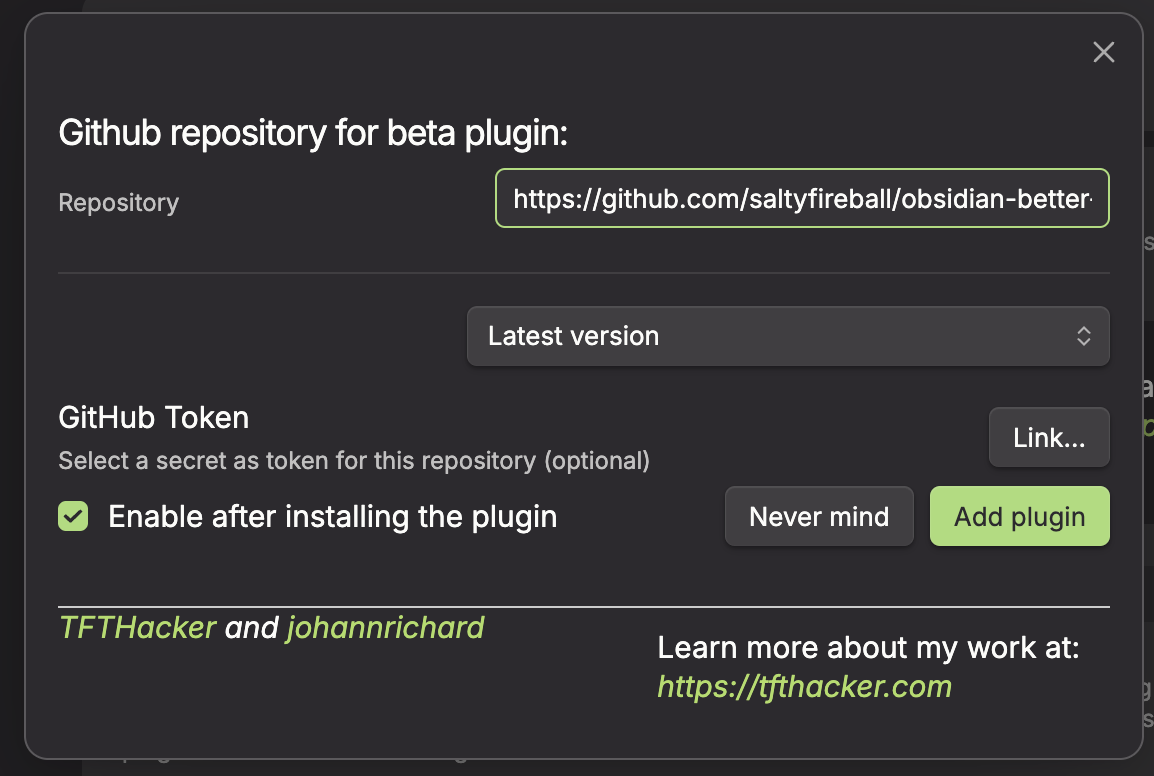
Leave the version set to latest
-
Click Add plugin
Manual
- Download the latest release from the Releases page
- Copy
main.jsandmanifest.jsoninto your vault's.obsidian/plugins/sfb-open-in-new-tab/directory - Enable the plugin in Settings > Community plugins
Settings
- Enable open in new tab: Toggle the new-tab behavior on/off
- Focus existing tab: Focus an already-open tab instead of opening a duplicate
- Enable split preview: Auto-create a synced edit + reading view split
- Split direction: Right (vertical) or down (horizontal)
- Edit pane mode: Source mode or live preview for the edit pane
Cross-Plugin API
Exposes window.openInNewTabAPI for other plugins:
isSplitPreviewActive(): Returns whether split preview mode is ontoggleSplitPreview(): Toggles split preview mode on/off
License
MIT
For plugin developers
Search results and similarity scores are powered by semantic analysis of your plugin's README. If your plugin isn't appearing for searches you'd expect, try updating your README to clearly describe your plugin's purpose, features, and use cases.