Things3 Workflow
pendingby Sean Humbarger
Import your things3 tasks into your notes.
things3-workflow
An Obsidian plugin for importing tasks from a Things3 SQLite database into Obsidian notes. It supports configurable filters for tags, projects, and areas, and tracks imported items in a local cache to prevent duplicate imports.


Installation
You can install the Things3 Workflow plugin directly from within Obsidian using the Community Plugins feature:
- Open Obsidian.
- Go to Settings (the gear icon in the lower left).
- Click on Community plugins in the sidebar.
- Click Browse and search for
Things3 Workflow. - Click Install next to the plugin.
- After installation, click Enable to activate the plugin.
Configuration Settings
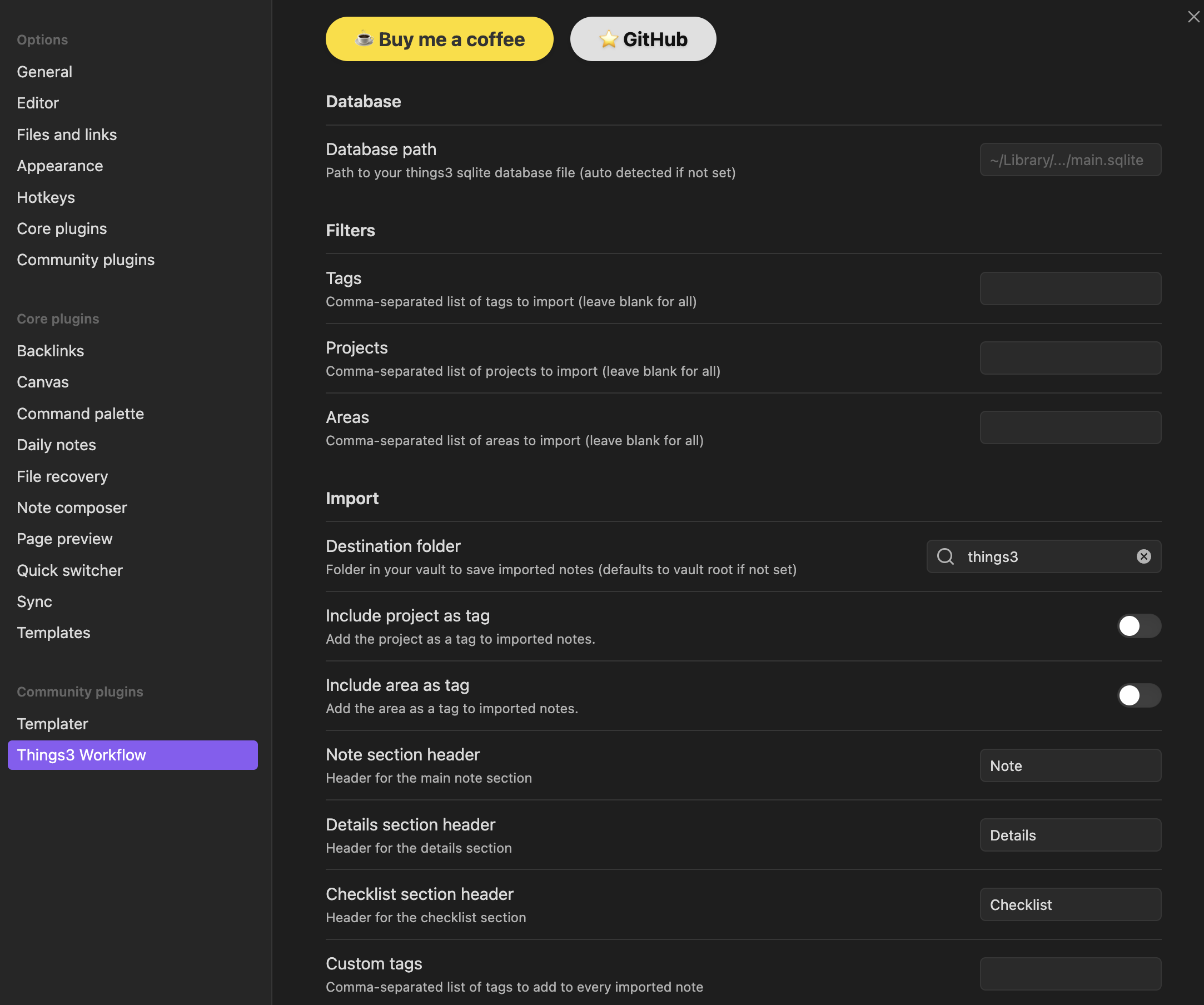
| Setting Name | Description | Possible Values / Format |
|---|---|---|
| Things3 Database Path | Path to Things3 SQLite database | File path (auto-detected on macOS) |
| Tag Filters | Filter tasks by tags | Comma-separated list (e.g. tag1,tag2) |
| Project Filters | Filter tasks by projects | Comma-separated list (e.g. proj1,proj2) |
| Area Filters | Filter tasks by areas | Comma-separated list (e.g. area1,area2) |
| Custom Tags | Add custom tags to imported notes | Comma-separated list |
| Note Headers | Customize section headers (Note, Detail, Checklist) | Text |
| Add Project/Area as Tags | Add project and area as tags on import | Boolean (true/false) |
| Overwrite Handling | Overwrite notes if deleted but cache is missing | Boolean (true/false) |
How Tag, Project, and Area Filters Work Together
- You can specify one or more values for each filter (comma-separated).
- A task must match all specified filters to be imported (logical AND).
- For example, if you set Tag Filters to
work,urgent, Project Filters toWebsite, and Area Filters toMarketing, only tasks that have at least one of the specified tags and belong to theWebsiteproject and are in theMarketingarea will be imported.
Example:
| Task Name | Tags | Project | Area |
|---|---|---|---|
| Update site | work,urgent | Website | Marketing |
| Write blog | writing | Blog | Marketing |
| Fix bug | work | Website | Dev |
With filters:
- Tag Filters:
work,urgent - Project Filters:
Website - Area Filters:
Marketing
Only "Update site" will be imported, because it matches all three filters.
Description
This plugin bridges Things3 and Obsidian by querying the Things3 SQLite database to fetch tasks, applying user-defined filters, and importing them into Obsidian notes. Imported tasks are tracked in a local cache to prevent duplicate imports.
The plugin is designed for desktop use only (macOS, Windows, Linux) and adheres to best practices for Obsidian plugin development, including TypeScript, ESLint for code quality, and esbuild for bundling.
Features
- Database Querying: Connects to the Things3 SQLite database (located at
~/Library/Group Containers/JLMPQHK86H.com.culturedcode.ThingsMac/ThingsData-*/Things.sqlite3on macOS) to retrieve tasks, ignoring those already imported (tracked in the local cache). Uses sql.js for browser/Electron compatibility. - Configurable Filters: Filter tasks by tags (none, one, or multiple), projects (none, one, or multiple), and areas (none, one, or multiple) via plugin settings.
- Default Note Structure: Imported notes use a clean, consistent Markdown structure with frontmatter and sections for note, detail, and checklist.
- Custom Note Headers: Change section headers (Note, Detail, Checklist) in plugin settings.
- Custom Tags: Optionally add custom tags to imported notes, with de-duplication.
- Project/Area as Tags: Optionally add project and area as tags on import.
- Checklist & Body Support: Imports checklist items and task body/notes if present.
- Date Metadata: Adds created date, start date, deadline, and status to note frontmatter.
- Link Back to Things3: Adds a direct link to the original Things3 task in the note frontmatter.
- Plugin Cache: Prevents duplicate imports and allows clearing or rebuilding the cache from the command palette.
- Overwrite Handling: If a note is deleted but the cache is missing, the plugin will overwrite the file on next import.
- Desktop-Only: Optimized for Obsidian's desktop app, with no mobile support.
Usage
-
Configure Settings:
- Open Obsidian Settings.
- Navigate to Community plugins > Things3 Workflow > Options.
- Set the path to your Things3 SQLite database (default auto-detected on macOS).
- Define filters for tags, projects, and areas (comma-separated for multiples).
- Optionally configure custom tags, note headers, and whether to add project/area as tags.
-
Import Tasks:
- Use the command palette (Cmd/Ctrl + P) and search for "Import from Things3".
- The plugin will query the database, apply filters, and import matching tasks as notes in your vault.
-
Other Commands:
- Clear Things3 Workflow Cache: Removes all cached imported tasks (useful for troubleshooting or re-importing).
- Rebuild Things3 Workflow Cache (without importing): Re-populates the cache from the database without creating notes (prevents duplicate imports if cache is lost).
Example Imported Note (Default Structure):
---
tags: [imported, project, area, custom]
t3_created_date: 2025-12-12
t3_status: open
t3_deadline: 2025-12-15
---

# Note
Task title here

# Detail
Task notes/body here

# Checklist
- [ ] Subtask 1
- [x] Subtask 2
Troubleshooting
- To view log messages or errors, open the developer console in Obsidian:
- Press
Cmd+Opt+I(on macOS) orCtrl+Shift+I(on Windows/Linux) to open the developer tools. - Click the Console tab to see plugin log output and error messages.
- Press
- If you see errors or missing notes, check your database path and filters.
- If you delete a note but not the cache, the plugin will not re-import it unless you clear or rebuild the cache.
- For more help, see the documentation site: https://seanhumbarger.github.io/things3-workflow/
License
MIT. See LICENSE.
For plugin developers
Search results and similarity scores are powered by semantic analysis of your plugin's README. If your plugin isn't appearing for searches you'd expect, try updating your README to clearly describe your plugin's purpose, features, and use cases.