AtPath
pendingby sergio
Autocomplete and navigate @path/to/file references.
AtPath
Reference any file in your vault with @path/to/file or [[wikilinks]] — bridging AI coding tools and Obsidian's native link graph.
Autocomplete, click-to-open, token counting, one-click publish to the web, and cross-repo support.


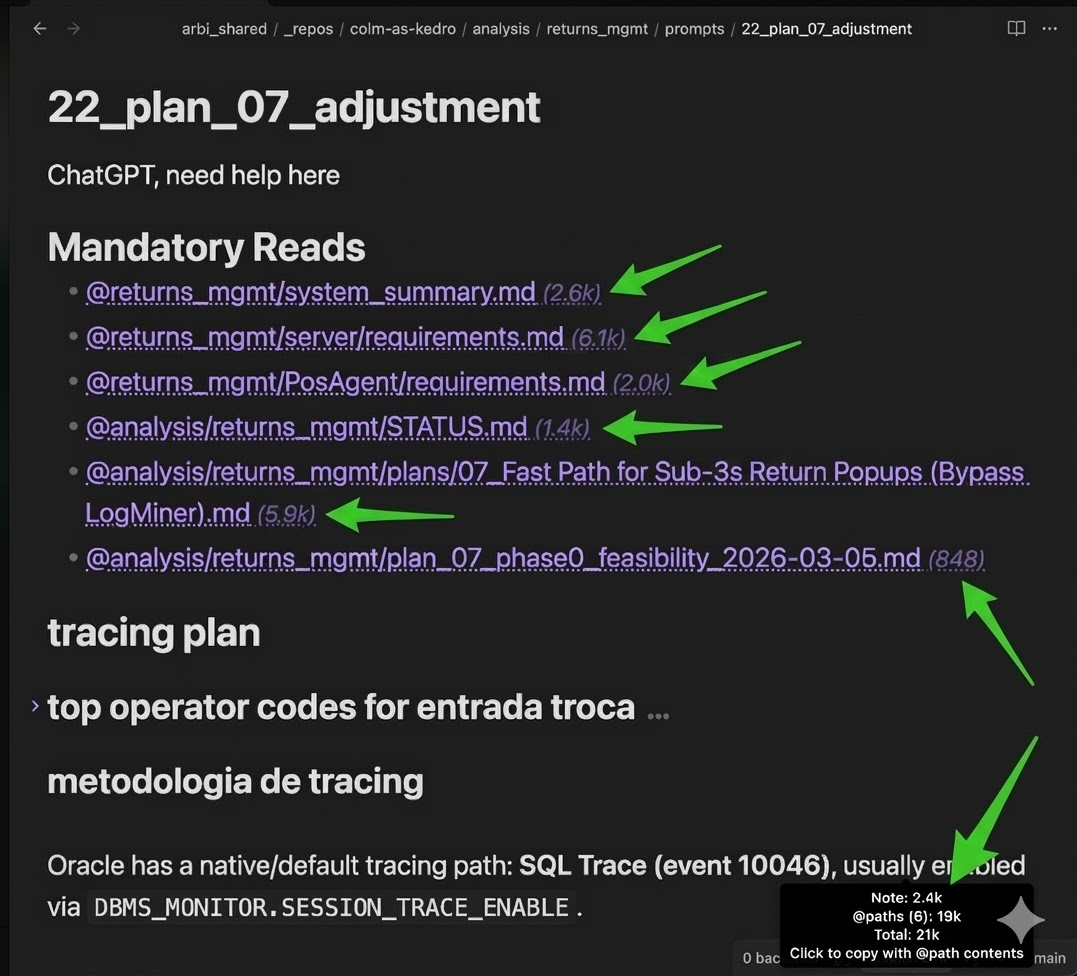
Features
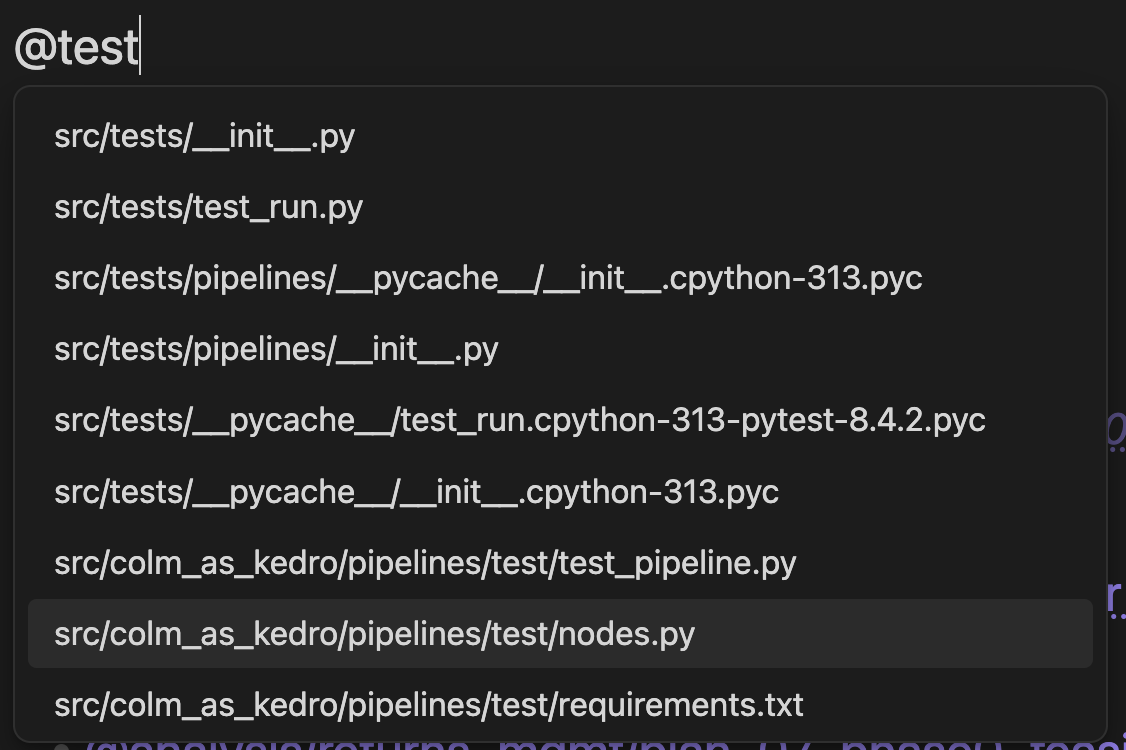
@ Autocomplete
Type @ and pick any file. Works across repos — files from the current repo appear first, then cross-repo matches (@other-repo/src/file.py), then loose vault files.
Wikilink format
The plugin optionally wraps references as [[path|@display]], giving you full integration with Obsidian's graph view, backlinks, and automatic rename tracking while keeping the @ visual style. The link path respects your "New link format" vault setting (shortest path when possible, relative, or absolute). A settings toggle lets you choose between legacy @path (agent-friendly, plain text) and the wikilink format. Both formats work everywhere: Live Preview, Reading mode, token counts, copy to clipboard, and publish. Migration commands let you convert existing @path references to wikilinks in bulk.
Clickable Links
Click any @path in Live Preview or Reading mode to open the file inside Obsidian. Right-click to open in your default external app.
Token Counts
See how many tokens each @path reference adds — inline badges and a status bar total. Uses the GPT-4o tokenizer as an estimate. Click the status bar to copy everything to clipboard.

Copy Note + @path Contents
One command (or click the status bar) to copy the current note with all referenced file contents appended — ready to paste into any web LLM. Each file appears under a ## @path header in fenced code blocks.
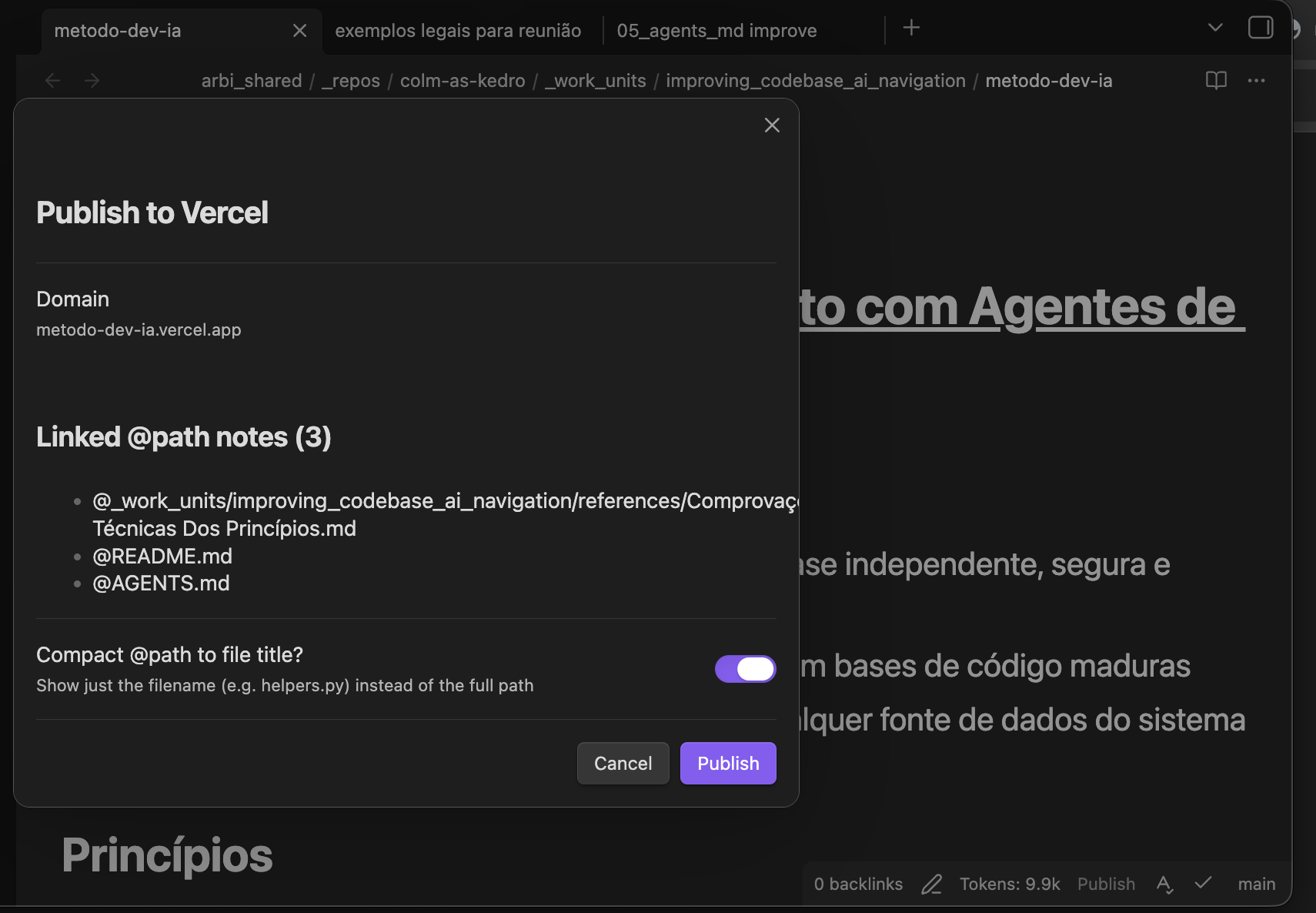
Publish to Vercel
Deploy notes and standalone HTML apps to Vercel with one click. Notes can publish linked @path content, while .html files in the File Explorer can publish either as a single-file app or as a whole folder-based static site.
Private publishing is supported through Clerk, and the publish flow also stores a reusable site icon so your deployed pages can show a favicon in browser tabs without asking every time.
Before publishing, the confirmation modal shows the target domain, current publish state, linked @path notes when relevant, and the main publish options for that content type.
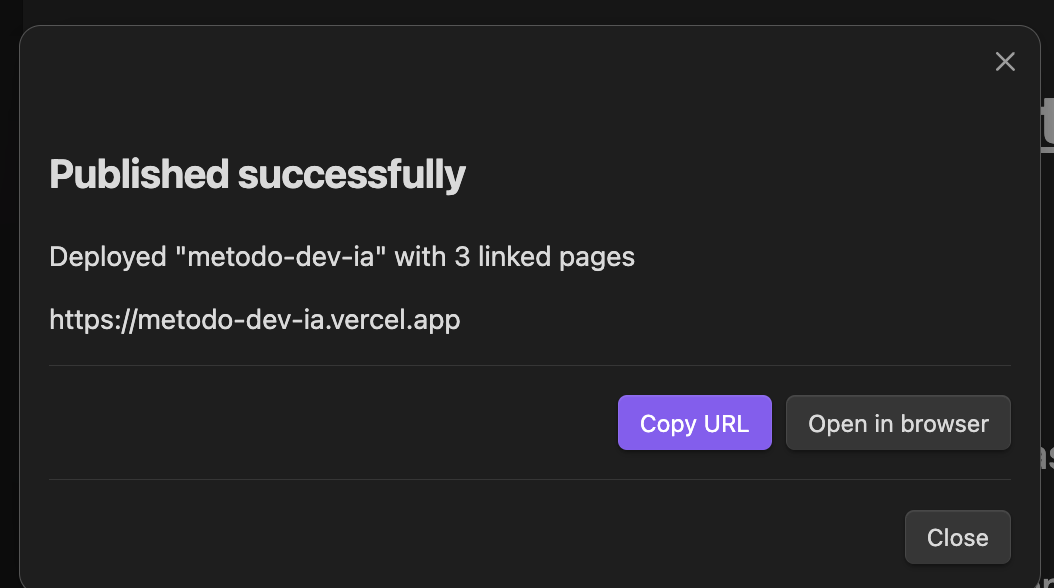
After deploying, a result modal gives you the URL with Copy and Open in browser buttons.
Published pages include collapsible sections, foldable bold list items, inlined local images, a download button, and a configurable contact button.
Cross-Repo References
Reference files across different repos with @reponame/path/to/file.ext. Renames propagate automatically. Inside _repos/, paths are repo-relative; the first segment of a cross-repo path is matched against known repo names.
Auto-Update References
Rename or move a file and all @path references across the vault update automatically — same-repo, cross-repo, and vault-relative formats.
Settings
| Setting | Default | Description |
|---|---|---|
| Show token counts | On | Inline badges + status bar total |
| Max file size (MB) | 5 | Skip token counting above this |
| Vercel API token | — | For one-click publishing |
| Contact URL | — | Button link on published pages |
| Preferred insert format | Legacy @path | Wikilink ([[path|@display]]) or legacy @path |
| Contact button label | Entre em contato | Button text |
| Clerk publishable key | — | Required for private publishing |
| Clerk secret key | — | Required for private publishing |
| Publisher email | — | Used in private access requests |
| Site icon | — | Reusable favicon for published notes and HTML apps |
Install
- Community Plugins — not listed in the official Obsidian Community Plugins catalog as of April 2, 2026
- BRAT — install
BRATfrom Obsidian Community Plugins, openSettings->BRAT, chooseAdd beta plugin, enterhttps://github.com/sergiogportela/obsidian-atpath, then enableAtPath - Release zip — download
atpath-x.y.z.zipfrom the latest release, extract it into.obsidian/plugins/so it creates.obsidian/plugins/atpath/, then enable or reload the plugin - Manual — copy
main.js,manifest.json,styles.cssto.obsidian/plugins/atpath/, then enable or reload the plugin
Contributing
Contributions are welcome! Feel free to open issues or submit pull requests.
License
MIT
For plugin developers
Search results and similarity scores are powered by semantic analysis of your plugin's README. If your plugin isn't appearing for searches you'd expect, try updating your README to clearly describe your plugin's purpose, features, and use cases.