Custom Icon
pendingby t1seo
Add custom uploaded image icons to files and folders in the explorer, tabs, and note titles.
Obsidian Custom Icon



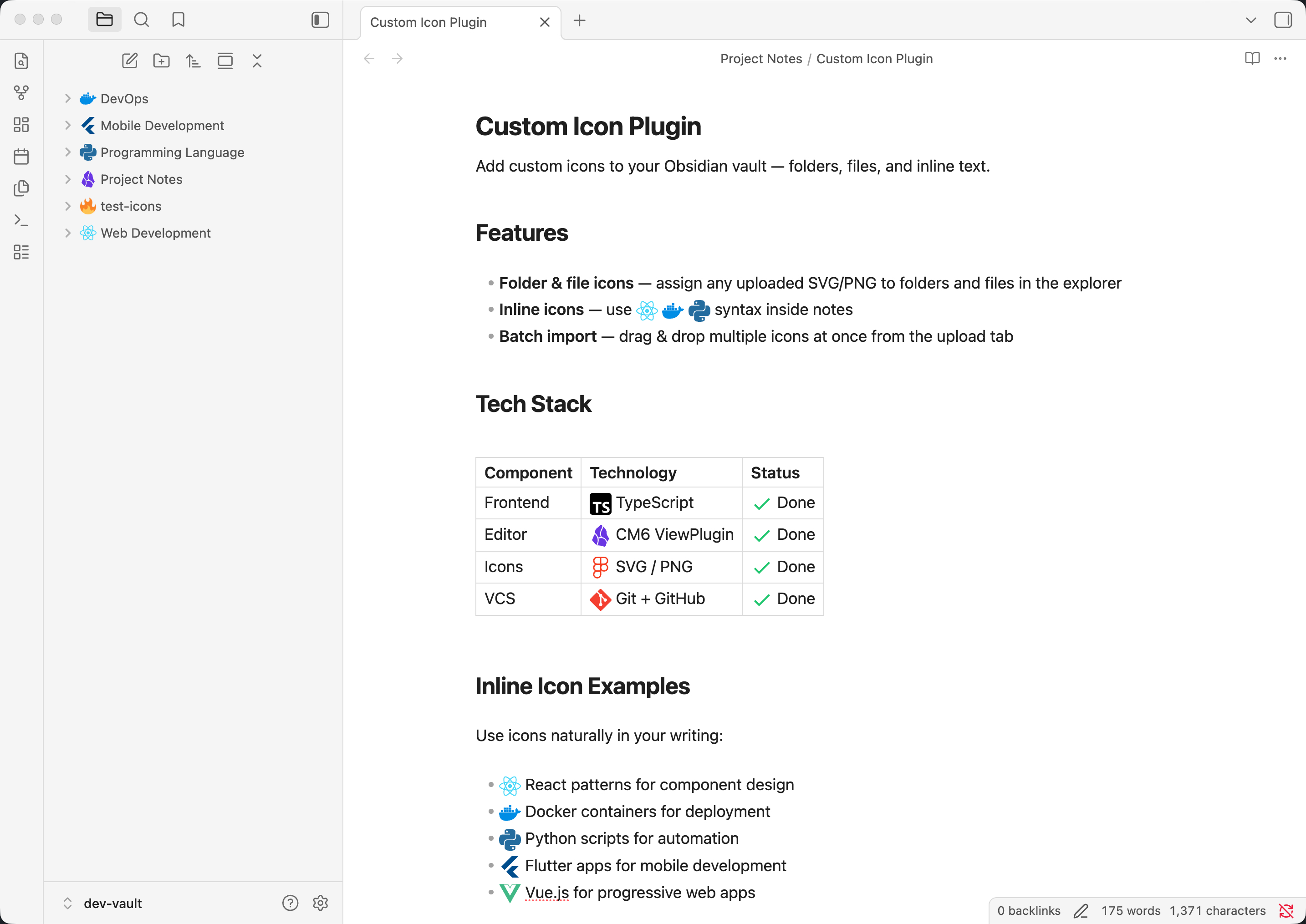
Add custom image icons to files and folders in Obsidian. Upload your own PNG, JPG, or SVG images and use them across the file explorer, tab headers, note titles, and inline text.
Features
Explorer Icons
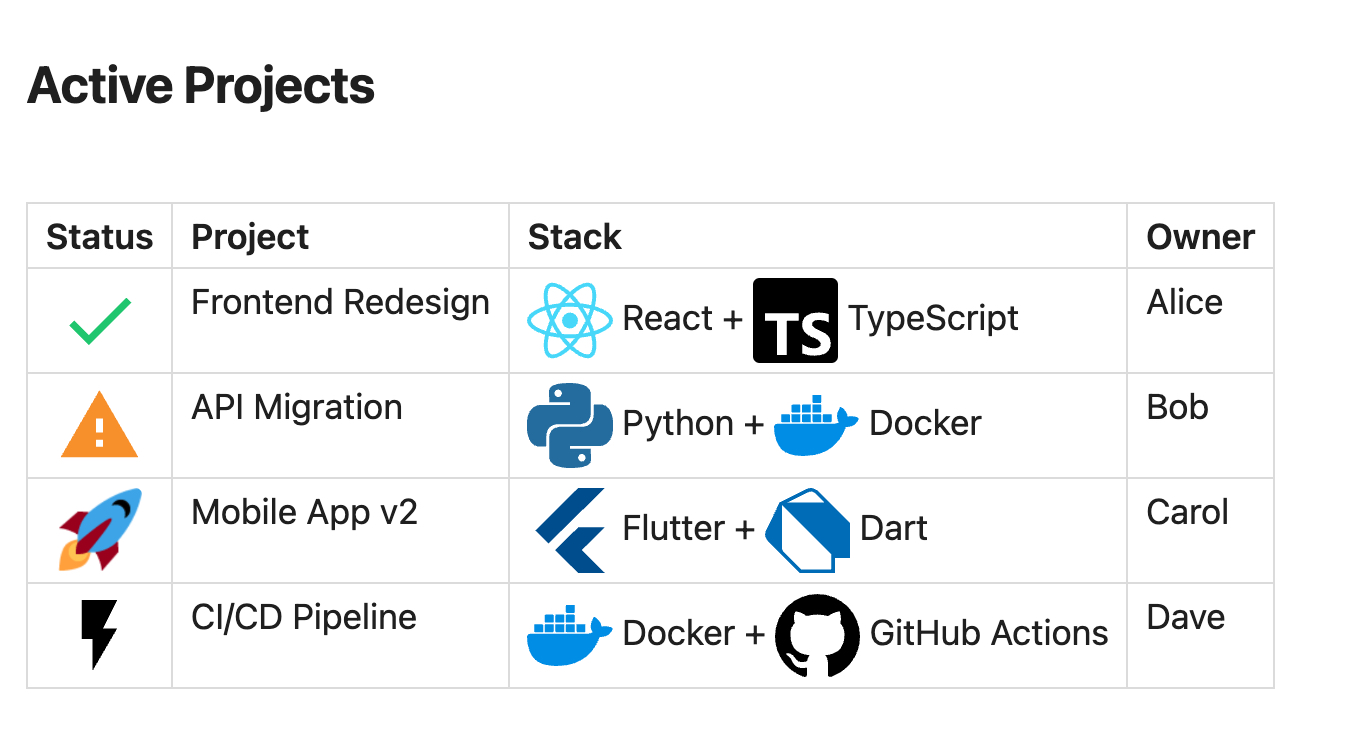
Assign uploaded icons to any file or folder. Icons appear in the file explorer, tab headers, and as a large Notion-style icon above the note title. Works seamlessly in both light and dark themes with full transparency support.


Icon Picker & Rename
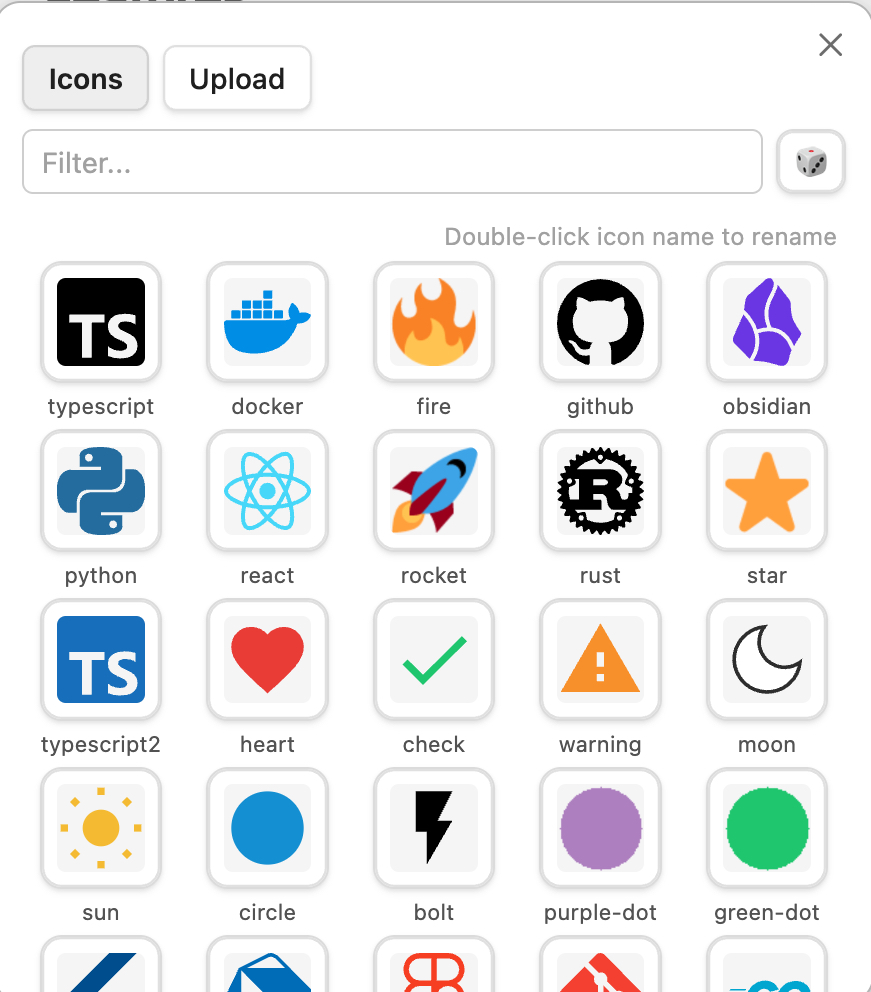
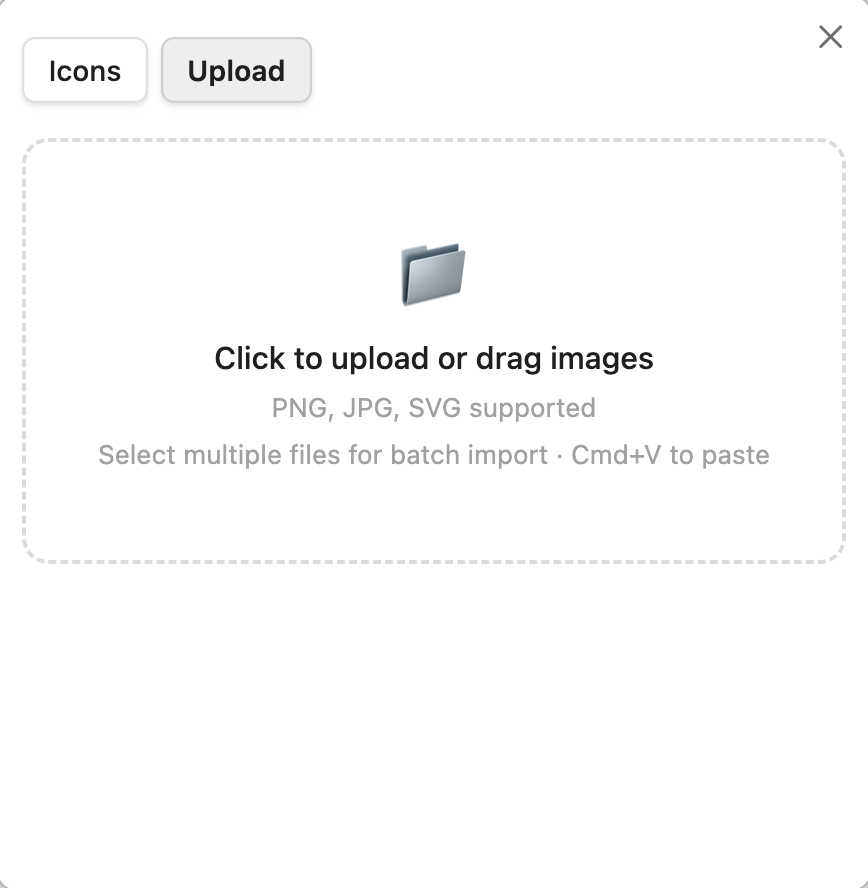
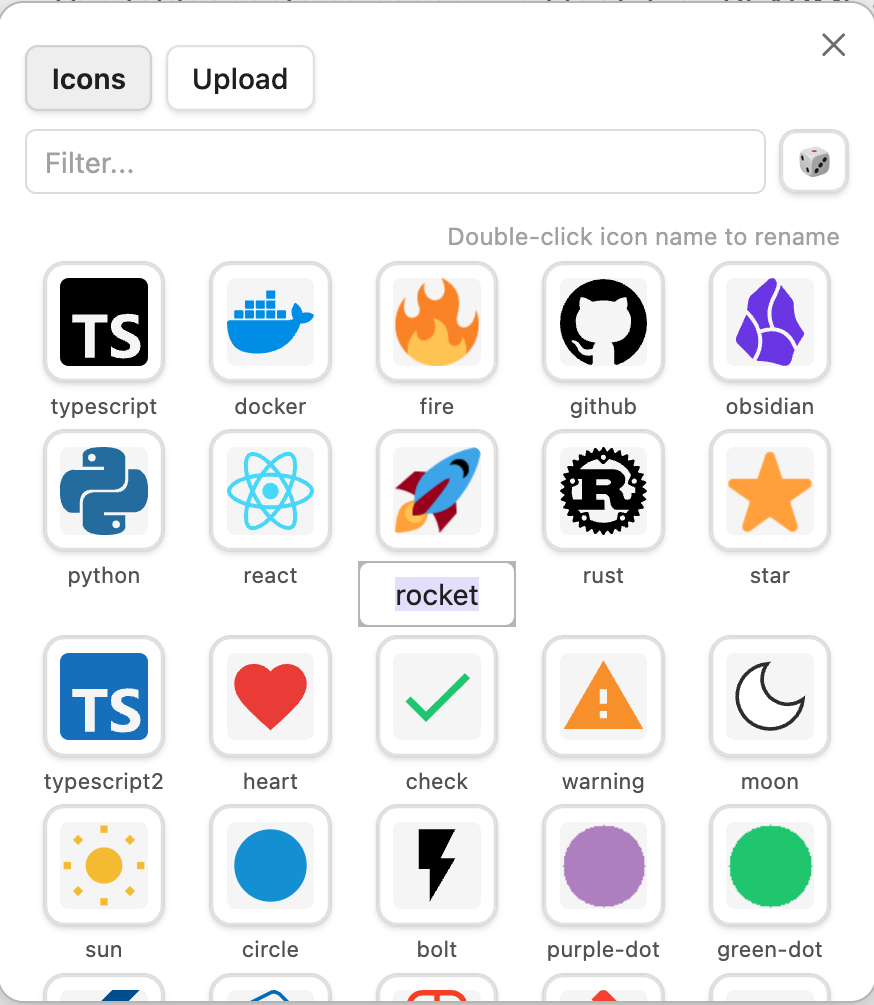
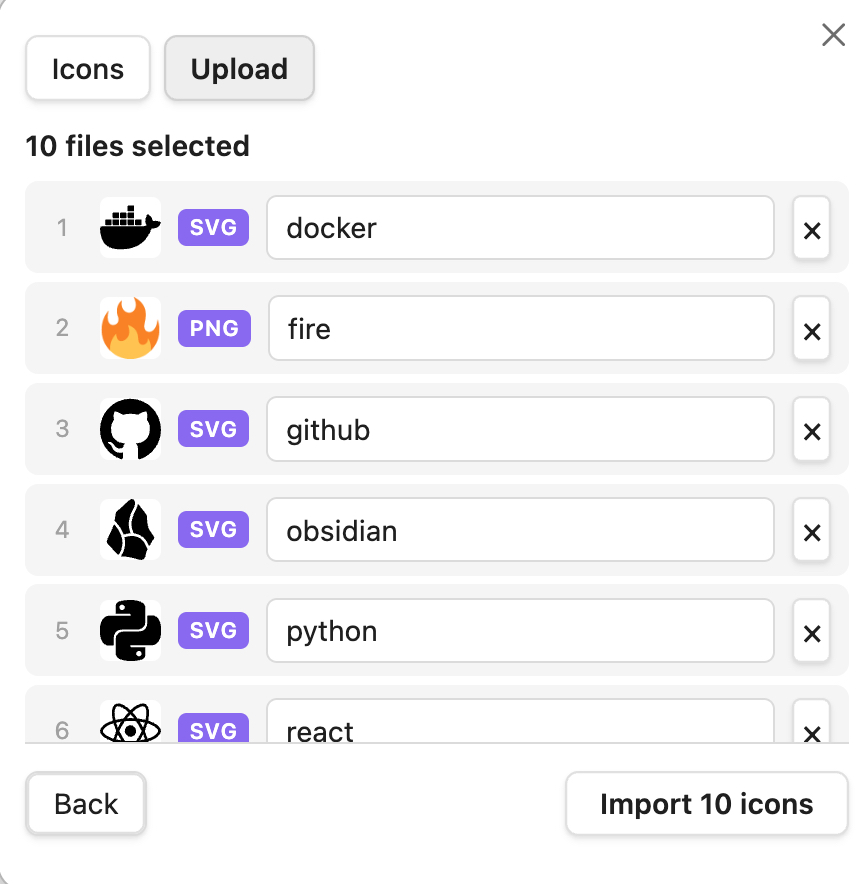
Browse and manage your icon library. Upload new icons via drag & drop, file picker, or clipboard paste. Double-click an icon's name to rename it instantly.
Batch Import & SVG Support
Select multiple files at once to batch import. SVG files are stored natively (no rasterization), preserving vector quality and transparency. Review and rename icons before importing.
Inline Icons
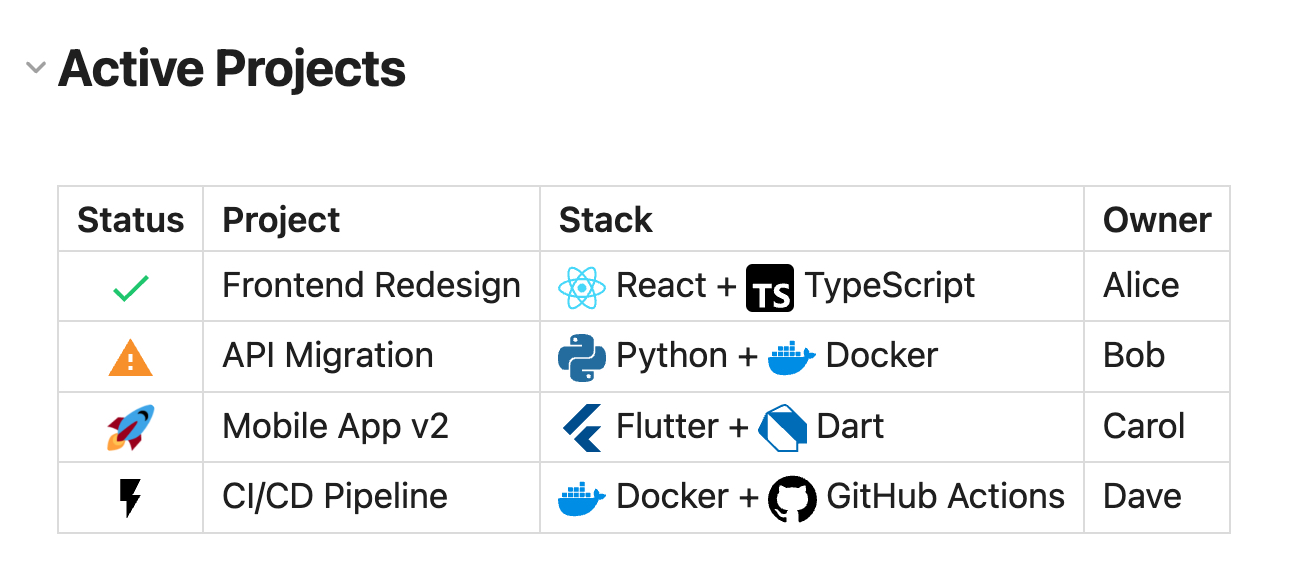
Use :ci-NAME: shortcodes to embed icons directly in your notes. Works in both editing and reading mode.
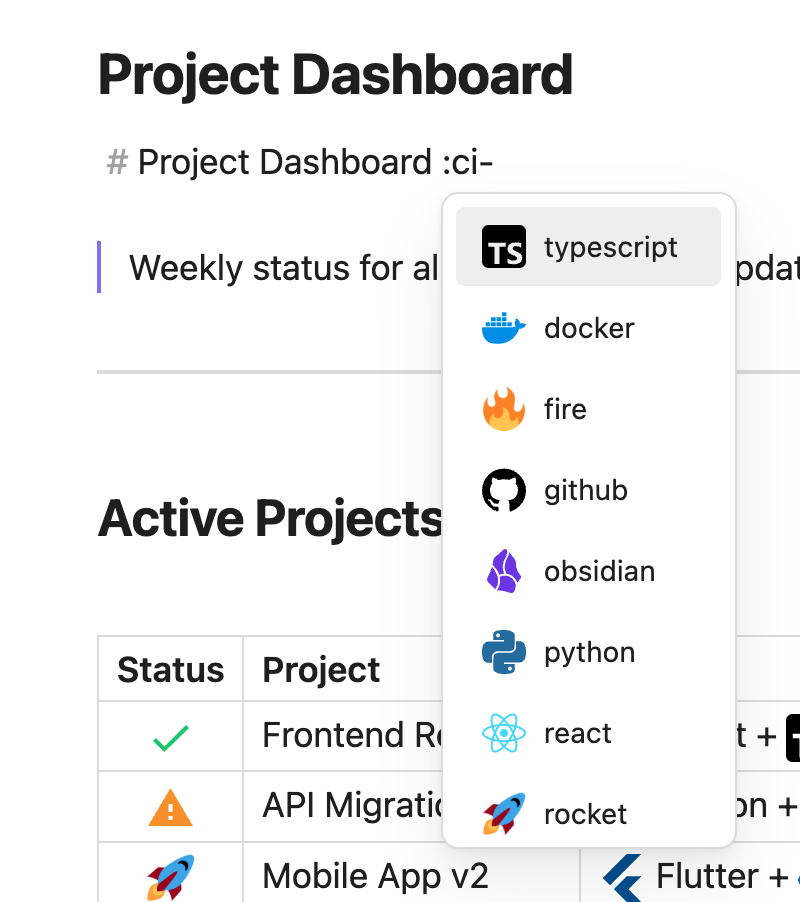
- Autocomplete — Type
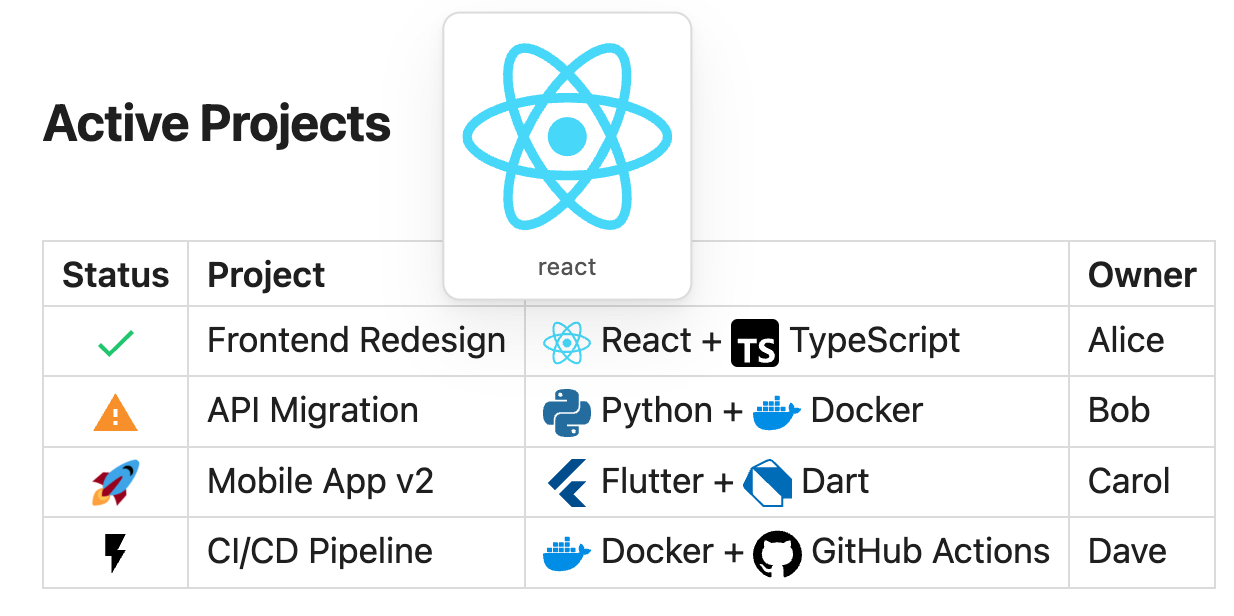
:ci-and get IDE-style suggestions with icon previews - Hover preview — Mouse over any inline icon to see a large preview with its name
- Configurable size — Adjust icon size (12-64px) with instant preview
- Custom prefix — Change the shortcode prefix to anything you like (e.g.
:my-NAME:) - Command palette — Insert icons via
Cmd/Ctrl+P→ "Insert inline icon"
Context Menu & Commands
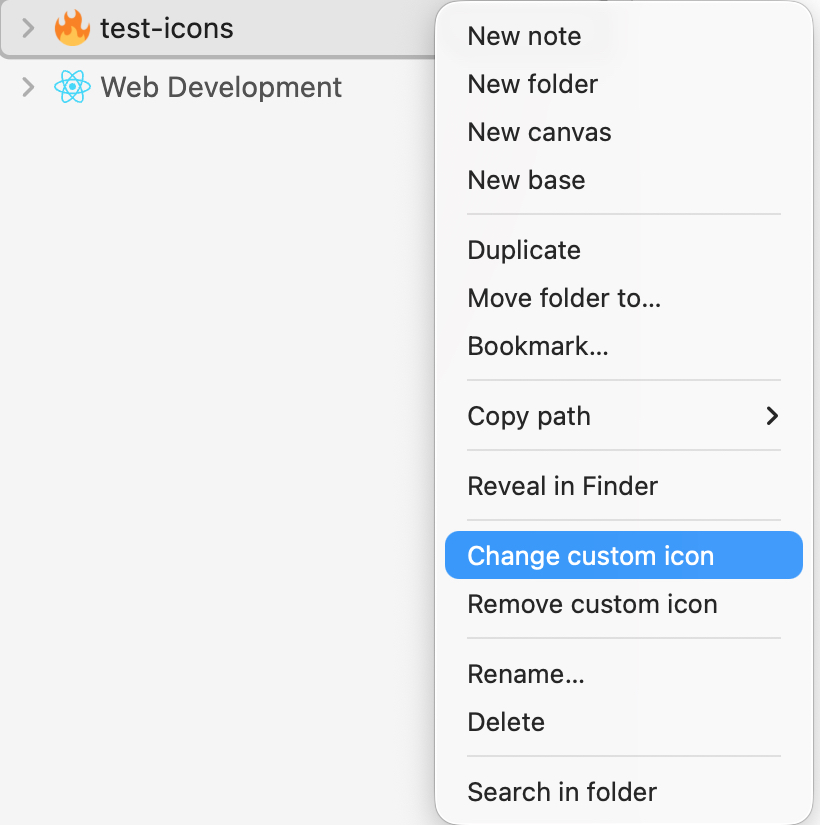
Right-click any file or folder to change or remove its custom icon. Three commands are available in the command palette:
- Change icon for current file — Open the icon picker for the active note
- Remove icon from current file — Remove the assigned icon
- Insert inline icon at cursor — Pick and insert an inline icon shortcode

Settings
| Setting | Description | Default |
|---|---|---|
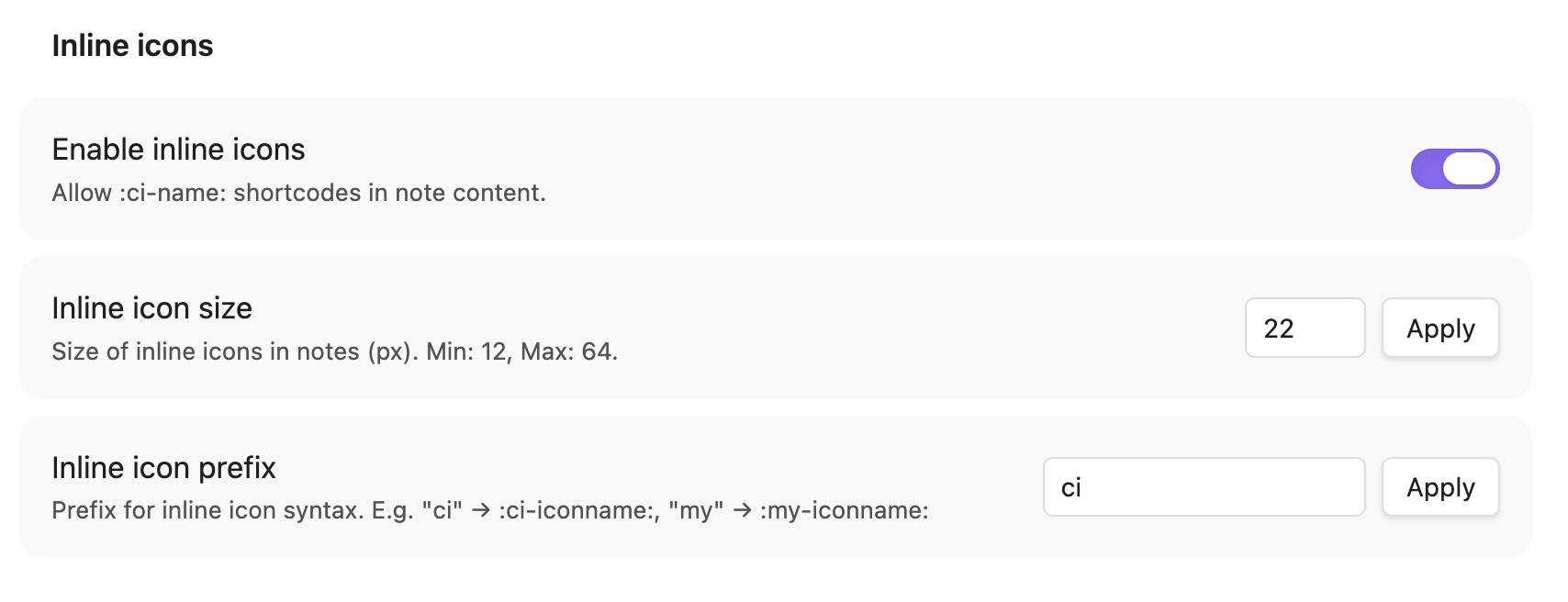
| Enable inline icons | Toggle :ci-NAME: shortcodes in notes | Off |
| Inline icon size | Icon size in pixels (12-64) | 20px |
| Inline icon prefix | Shortcode prefix (e.g. ci, my, icon) | ci |
Installation
From Obsidian Community Plugins (coming soon)
- Open Settings > Community plugins > Browse
- Search for "Custom Icon"
- Click Install, then Enable
Manual Installation
- Download the latest release from Releases
- Extract
main.js,manifest.json, andstyles.cssinto:<vault>/.obsidian/plugins/custom-icon/ - Enable the plugin in Settings > Community plugins
Usage
- Upload icons — Open the icon picker and go to the Upload tab. Drag & drop, click to browse, or paste from clipboard.
- Batch import — Select multiple files to import them all at once. Review names before importing.
- Assign icons — Right-click a file or folder in the explorer and select Change custom icon.
- Rename icons — In the icon picker, double-click an icon's name to rename it.
- Inline icons — Enable in settings, then type
:ci-NAME:in your notes (whereNAMEis the icon name or ID). - Autocomplete — Type
:ci-in the editor and select from the suggestion popup. Filter by typing more characters. - Insert via command — Press
Cmd/Ctrl+P, search "Insert inline icon", and pick from your library.
Support
If you encounter any issues or have feature requests, please open an issue.
If you find this plugin useful, consider buying me a coffee!

License
For plugin developers
Search results and similarity scores are powered by semantic analysis of your plugin's README. If your plugin isn't appearing for searches you'd expect, try updating your README to clearly describe your plugin's purpose, features, and use cases.