Screen Time Tracker
pendingby tomoyanakano
Track macOS Screen Time data from knowledgeC.db and insert into daily notes.
Screen Time Tracker for Obsidian
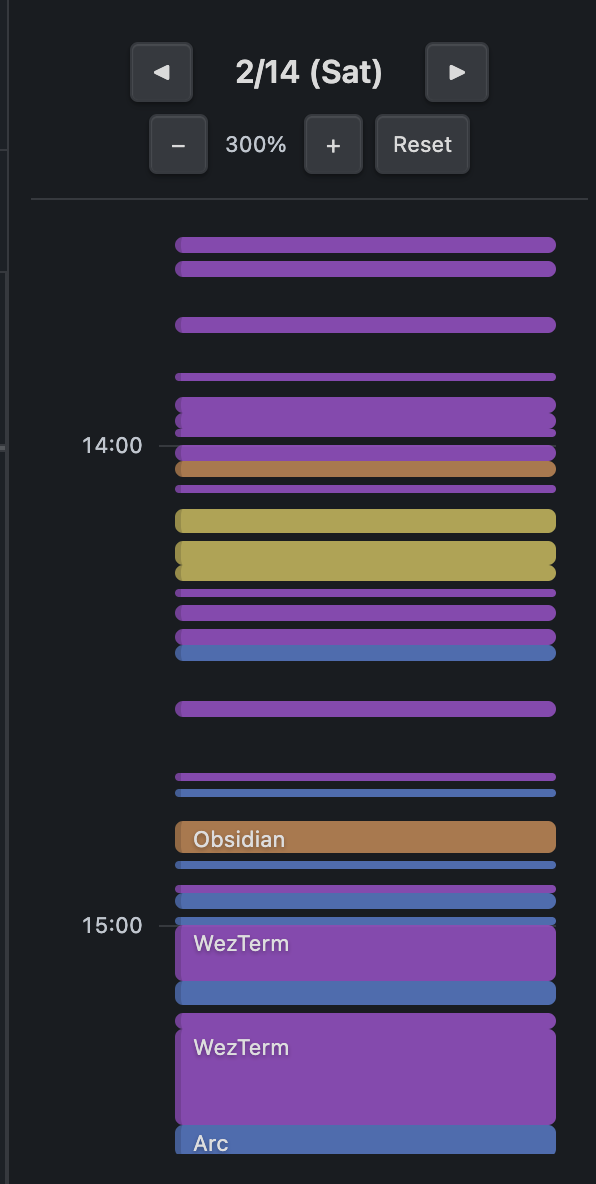
Track your macOS Screen Time usage directly inside Obsidian. This plugin reads the local knowledgeC.db database and lets you view app usage as an interactive timeline or insert it into your daily notes.
macOS only — This plugin uses macOS-specific APIs (
knowledgeC.db,mdfind,mdls) and does not work on Windows or Linux.
Screenshots
Features
- Timeline View — Visual timeline of app usage with zoom and day navigation
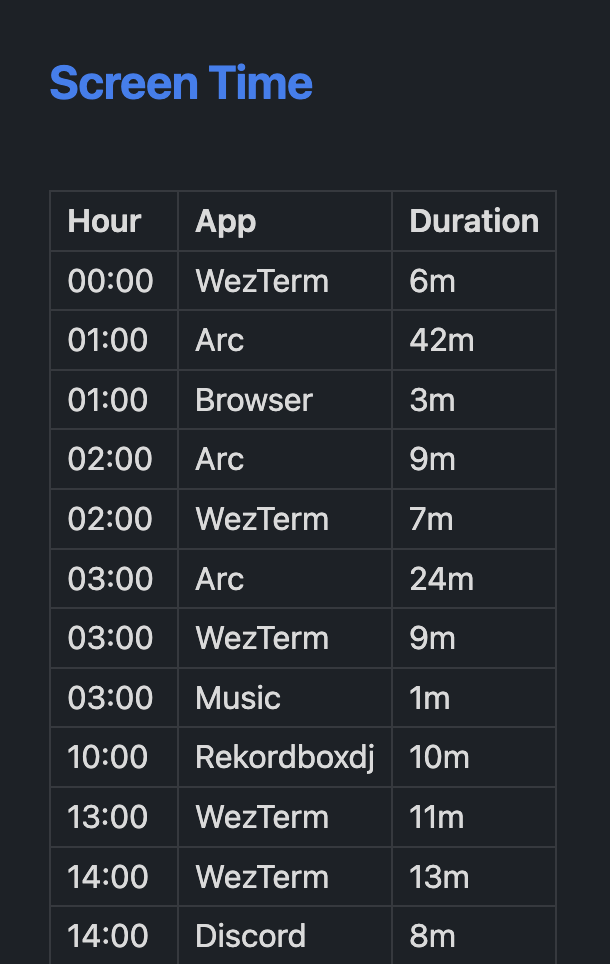
- Daily Note Integration — Insert a Screen Time summary table into your daily note
- App Name Resolution — Automatically resolves bundle IDs to human-readable app names
- Configurable — Set minimum duration filter, daily note folder, and custom database path
Installation
From Community Plugins (recommended)
- Open Settings → Community plugins → Browse
- Search for Screen Time Tracker
- Click Install, then Enable
Manual
- Download
main.js,manifest.json, andstyles.cssfrom the latest release - Create a folder
<vault>/.obsidian/plugins/screentime-tracker/ - Copy the three files into that folder
- Reload Obsidian and enable the plugin in Settings → Community plugins
Usage
Timeline View
Open the command palette and run Screen Time Tracker: Open Screen Time Timeline.
A sidebar panel shows app usage blocks on a timeline. Use the arrow buttons to navigate between days and zoom controls (or Ctrl/Cmd + Scroll) to adjust the scale.
Insert into Daily Note
Run one of these commands from the command palette:
- Screen Time Tracker: Insert Screen Time (today)
- Screen Time Tracker: Insert Screen Time (yesterday)
The plugin inserts a markdown table under a ## Screen Time heading in the corresponding daily note.
Settings
| Setting | Description | Default |
|---|---|---|
| Daily note folder | Path to your daily notes folder | life/daily |
| Minimum duration | Ignore entries shorter than this (seconds) | 60 |
| knowledgeC.db path | Custom path to the database | System default |
Daily notes are expected at <folder>/<year>/<month>/<YYYY-MM-DD>.md.
Requirements
- macOS (any version with Screen Time enabled)
- Obsidian 0.15.0+
- Full Disk Access may be required in System Settings → Privacy & Security for Obsidian to read
knowledgeC.db
License
For plugin developers
Search results and similarity scores are powered by semantic analysis of your plugin's README. If your plugin isn't appearing for searches you'd expect, try updating your README to clearly describe your plugin's purpose, features, and use cases.