Viwoods Sync
pendingby tuannvm
Import and sync Viwoods .note files. Converts handwritten notes to PNG, extracts audio recordings, and supports auto-sync for real-time updates.
Viwoods Obsidian





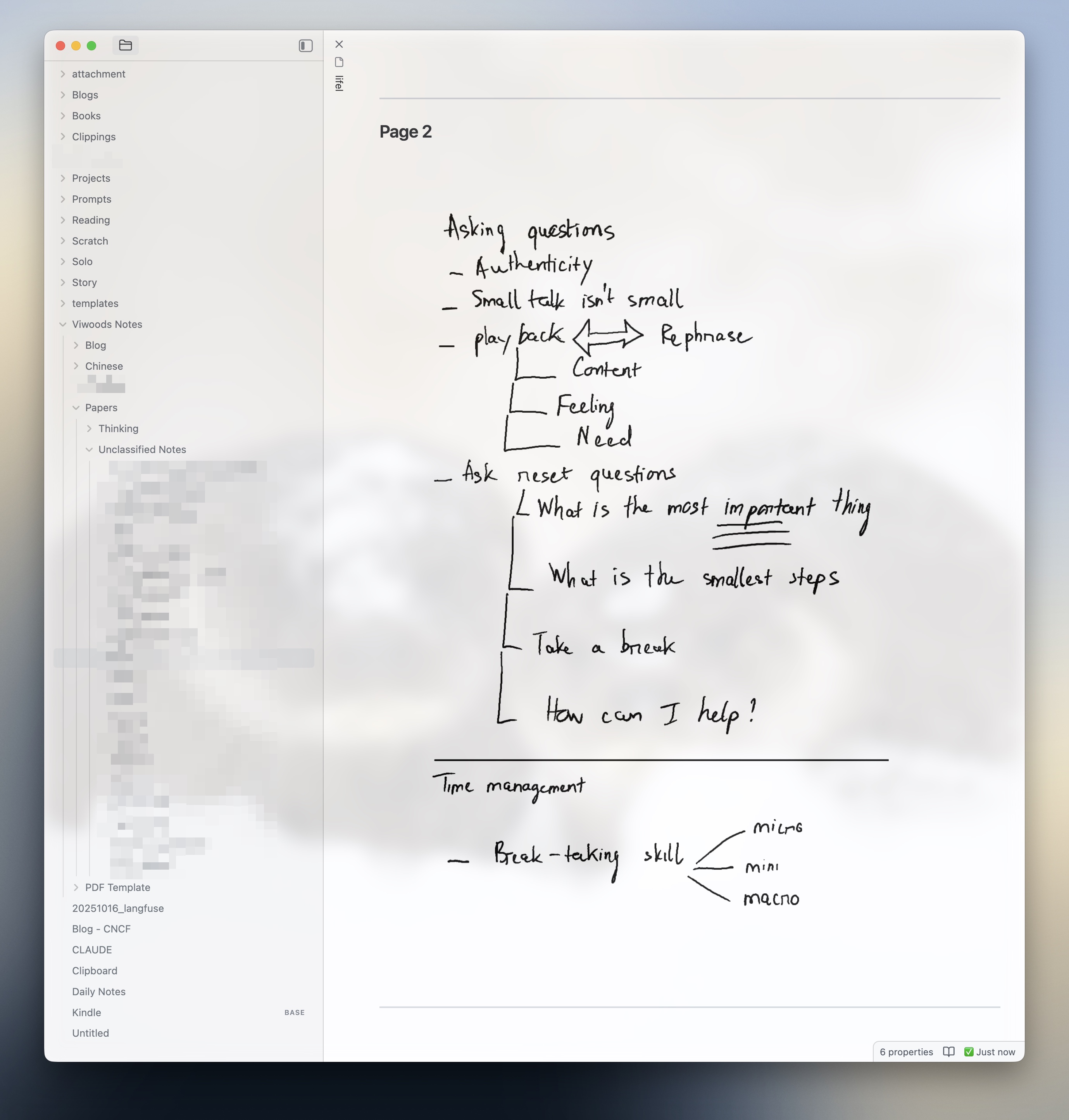
An Obsidian plugin that syncs Viwoods .note files into your vault. Converts handwritten strokes to SVG, extracts audio recordings, and includes auto-sync for real-time updates.
Features
- Auto-sync - Watch Viwoods export folder for changes and auto-import to Obsidian (desktop only)
- Handwritten notes - Converts Viwoods stroke data to clean SVG for viewing/editing
- Audio recordings - Extracts and embeds audio recordings from notes
- Change detection - Smart image hashing detects modified pages for selective updates
- One-to-one mapping - Preserves Viwoods folder structure in your vault
- Drag & drop - Import individual
.notefiles by dropping them into Obsidian - Cross-platform viewing - Imported notes (Markdown, SVG, PNG, MP3) work on all platforms including mobile
Screenshots
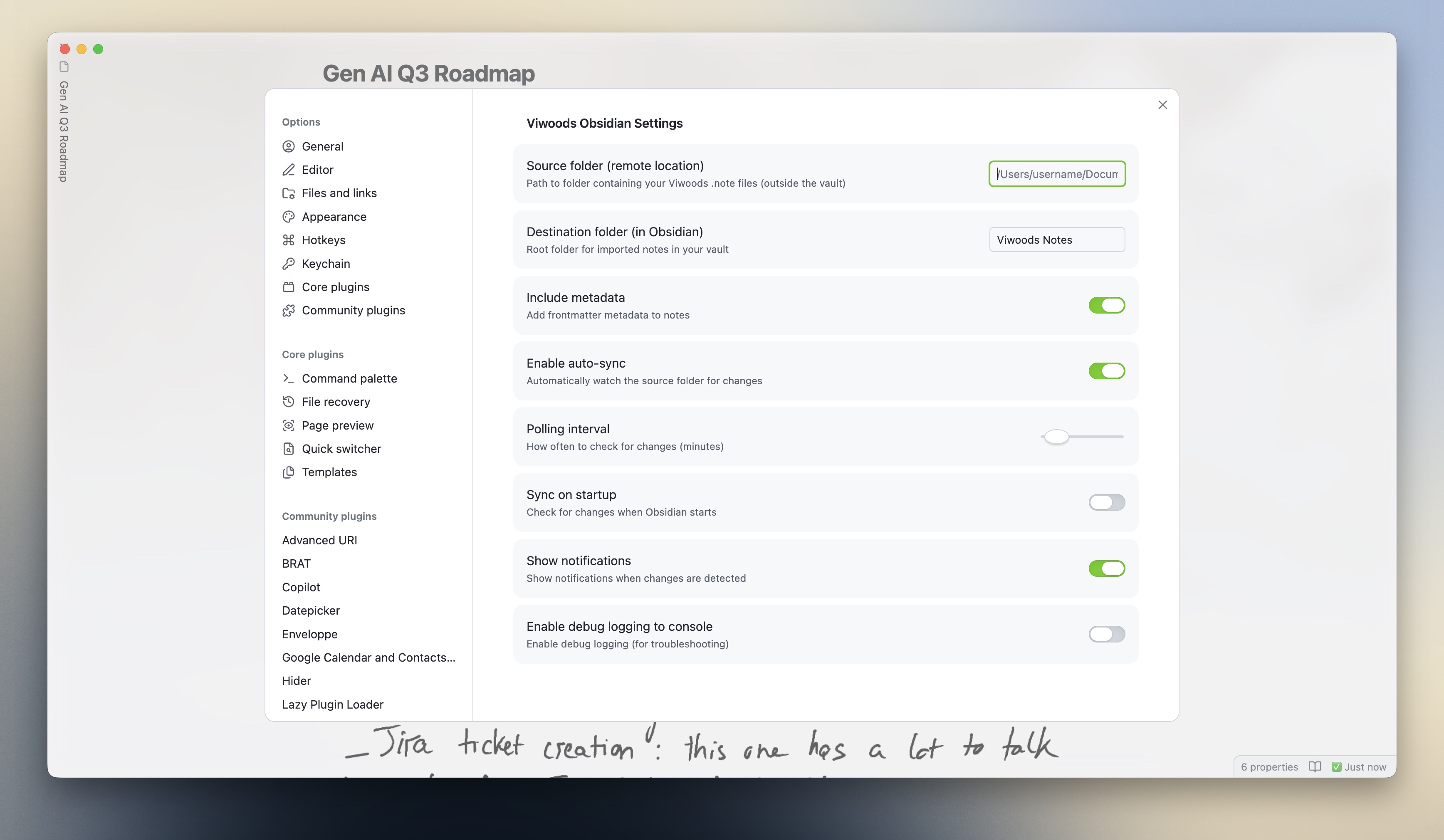
Plugin Settings
Imported Note (with handwriting and audio)
Command Palette
Quick Start
Installation
Option 1: Manual Installation
- Download the latest release from GitHub Releases
- Extract
main.js,manifest.json, andstyles.cssto:<Vault>/.obsidian/plugins/viwoods-obsidian/ - Enable the plugin in Settings → Community plugins
Option 2: BRAT (Beta Auto-update)
BRAT allows you to install beta versions directly from GitHub and get automatic updates.
- Install BRAT from Settings → Community plugins → Browse (search for "BRAT")
- Enable BRAT
- Open Command Palette (Ctrl/Cmd + P) and run: "BRAT: Add a beta plugin for testing"
- Paste this repository URL:
https://github.com/tuannvm/viwoods-obsidian - The plugin will be installed and kept up-to-date automatically
To check for updates: run "BRAT: Check for updates to all beta plugins" in the Command Palette.
Usage
Two ways to import notes:
- Drag & Drop - Drop individual
.notefiles anywhere into Obsidian - Auto-Sync - Enable in settings to automatically watch a folder for changes
Configuration
Configure sync behavior in Settings → Viwoods Obsidian:
Basic Settings
| Setting | Description |
|---|---|
| Source folder | Path to folder containing your Viwoods .note files (outside the vault) |
| Destination folder | Root folder for imported notes in your vault |
| Include metadata | Add frontmatter metadata to notes (YAML frontmatter with timestamps and book info) |
Auto-Sync (Desktop Only)
| Setting | Description |
|---|---|
| Enable auto-sync | Automatically watch the source folder for changes |
| Polling interval | How often to check for changes (1-60 minutes) |
| Sync on startup | Check for changes when Obsidian starts |
| Show notifications | Show notifications when changes are detected |
Debug
| Setting | Description |
|---|---|
| Enable debug logging | Enable debug logging to console (for troubleshooting) |
Note: Auto-sync requires desktop Obsidian. Imported notes can be viewed on any platform (desktop/mobile).
Cloud Sync Integration
Google Drive
Viwoods can export notes to Google Drive, making them accessible across devices. To sync with Obsidian:
-
Install Google Drive Desktop (Google Drive for desktop)
- Download from https://www.google.com/drive/download/
- Sign in and sync your Viwoods folder to your local filesystem
-
Configure Viwoods Export
- In Viwoods app, set the export location to your Google Drive folder
- Typical path:
~/Google Drive/My Drive/Viwoods/or similar
-
Set Up Obsidian Auto-Sync
- Source folder path: Point to your local Google Drive sync folder
- Example:
/Users/<username>/Google Drive/My Drive/Viwoods/
- Example:
- Enable auto-sync: Turn on to watch for changes
- Polling interval: Set to 1-5 minutes for near real-time sync
- Source folder path: Point to your local Google Drive sync folder
-
How It Works
- When Viwoods exports notes to Google Drive → Google Drive desktop syncs locally
- Obsidian plugin detects changes → Auto-imports to your vault
- Works bidirectionally: changes on any device sync through Google Drive
Viwoods Cloud Backup
Viwoods (v3.6+) supports built-in sync to Google Drive, OneDrive, and Dropbox. See the official sync guide and this community tutorial.
Quick Setup with Obsidian
-
Enable Viwoods Cloud Sync
- Viwoods Settings → Cloud Sync → Link account (Google Drive/OneDrive/Dropbox)
- Select notebooks to sync, enable auto-sync
-
Install Desktop Sync Client
-
Configure Plugin Auto-Sync
- Source folder path: Point to your local cloud sync folder
- Google Drive:
~/Google Drive/My Drive/Viwoods/ - OneDrive:
~/OneDrive/Viwoods/(macOS) orC:\Users\<user>\OneDrive\Viwoods\(Windows) - Dropbox:
~/Dropbox/Apps/Viwoods/
- Google Drive:
- Enable auto-sync: ON
- Polling interval: 1-5 minutes
- Source folder path: Point to your local cloud sync folder
Platform Support
| Platform | Auto-Sync | Viewing |
|---|---|---|
| Windows/macOS/Linux | Full support | Full |
| iOS/Android | N/A | View imported notes |
Troubleshooting Cloud Sync
- Sync delays: Google Drive desktop may take 30-60 seconds to sync files after Viwoods export
- Path issues: Use absolute paths (e.g.,
/Users/...on macOS,C:\Users\...on Windows) - Permissions: Ensure Obsidian has read access to the cloud sync folder
- Network issues: Auto-sync requires internet connection for cloud providers to sync locally
Documentation
- Architecture - Plugin architecture and data structures
- Development - Build system, coding conventions, and testing
- Contributing - Contribution guidelines
- Releases - Release process and versioning
Roadmap
Status: Beta 🧪
This plugin is currently in beta development. Use BRAT for easy installation and automatic updates.
Upcoming Milestones
- Stable Release - Core functionality testing and bug fixes
- Community Plugin Submission - Submit to Obsidian plugin directory
- Marketplace Availability - Once approved, the plugin will be searchable in Settings → Community plugins → Browse
Post-Marketplace Goals
- Additional file format support
- Enhanced synchronization options
- Performance optimizations for large note collections
Get Notified
- Watch this repo on GitHub for release notifications
- Use BRAT for automatic beta updates
- Check the Releases page for changelogs
Acknowledgments
This project is a fork of the original viwoods-import-notes by Francois Prowse. The codebase has been significantly rewritten and diverged from the original to add new features, improve architecture, and align with modern Obsidian plugin development practices.
License
MIT License
For plugin developers
Search results and similarity scores are powered by semantic analysis of your plugin's README. If your plugin isn't appearing for searches you'd expect, try updating your README to clearly describe your plugin's purpose, features, and use cases.