ABCs of Control
pendingby AbdulWahid
Organize and create notes using alphabetical templates from C/Templates directory.
ABCs of Control


A powerful Obsidian plugin that implements the ABCs framework for knowledge management and productivity. Organize your vault into distinct zones (A, B, C, D, E) with intelligent templates, automated workflows, and seamless content insertion.
✨ Features
📁 Intelligent Folder Organization
- A (Permanent Notes): Evergreen knowledge, contacts, prompts, quotes
- B (Literature Notes): Articles, books, videos, meeting notes
- C (Templates): Reusable templates for creation and content insertion
- D (Active Work): Projects, exams, current work in progress
- E (Archive): Completed work with auto-archiving capabilities
🎯 Two Types of Templates
Creation Templates
Create new notes instantly with structured frontmatter and sections:
- A-Inbox-Ideas: Capture new ideas with context
- A-Contacts: Store contact information
- A-Permanent Notes: Evergreen knowledge notes
- B-Literature Notes: Articles and video summaries
- And more...
Insertion Templates
Insert content from your vault notes into structured project files:
- Content-to-D-Projects-[Project Name]: Organize project content with hierarchical headings
- Tips-to-E-Exams-[Exam Name]: Collect exam preparation materials
- Supports numbered headings (1, 1.1, 1.1.1) for automatic ordering
🚀 Key Capabilities
- Template Examples Auto-Creation: 11+ example templates created automatically in
C/Templates/Templates Examples/ - Smart Content Insertion: Link vault notes and add custom text to target files
- Note Search: Find and insert notes from anywhere in your vault
- Archive Management: Auto-archive notes by age or #archived tag
- Multi-Language Support: English and Arabic with RTL support
- Customizable Pipelines: Configure your own template prefixes and workflows
- Text Highlighting: Context menu for quick highlighting and quote extraction
📸 Screenshots
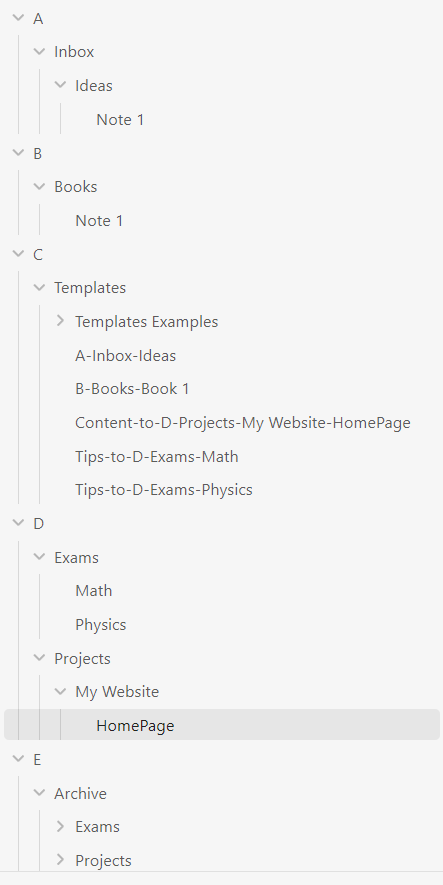
ABCs folder structure. Templates live in C/Templates/; Active work in D; Archives in E.
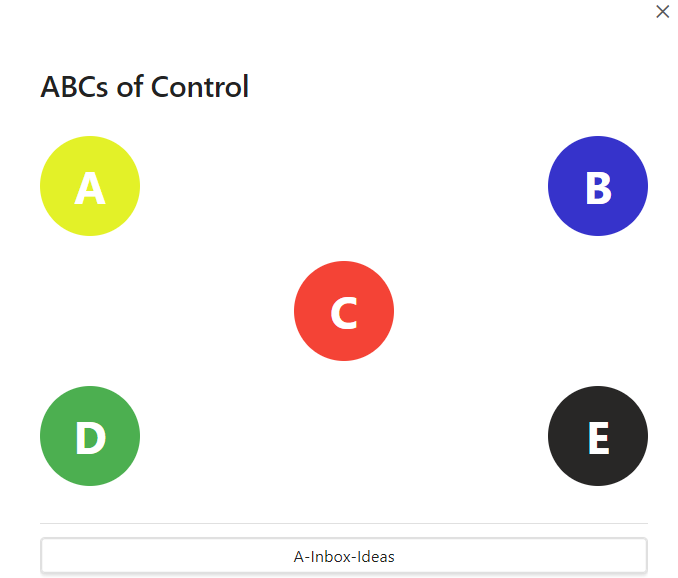
Create A notes from templates. Launch creation templates like A-Inbox-Ideas to quickly capture structured notes.
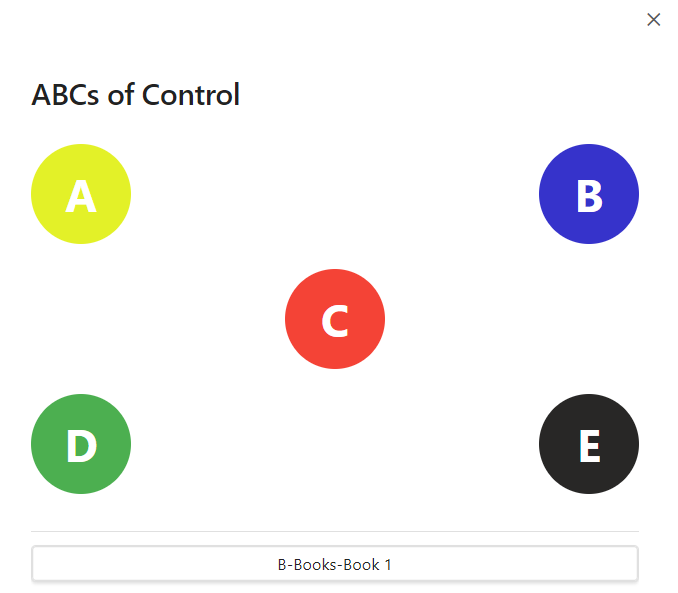
Create B literature notes. Example: B-Books-Book 1 for reading notes.
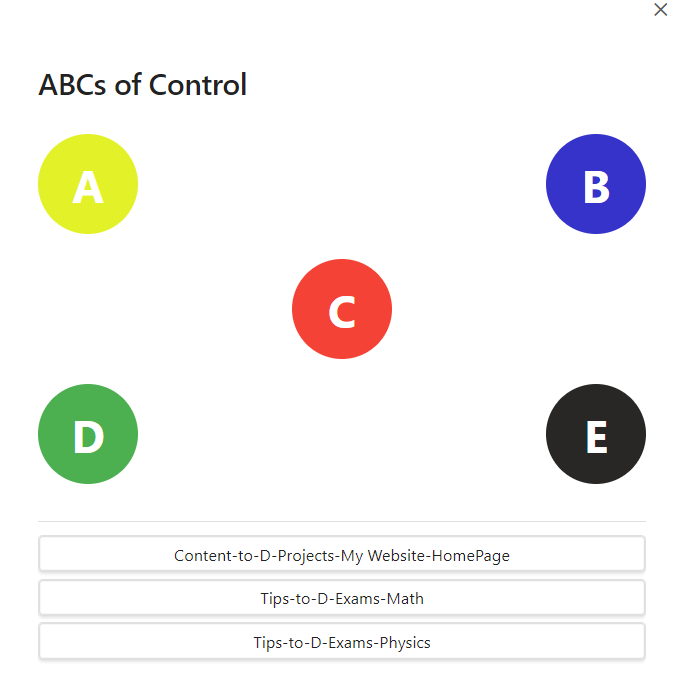
Insertion templates. Use Content-to-… or Tips-to-… to insert notes under numbered headings.
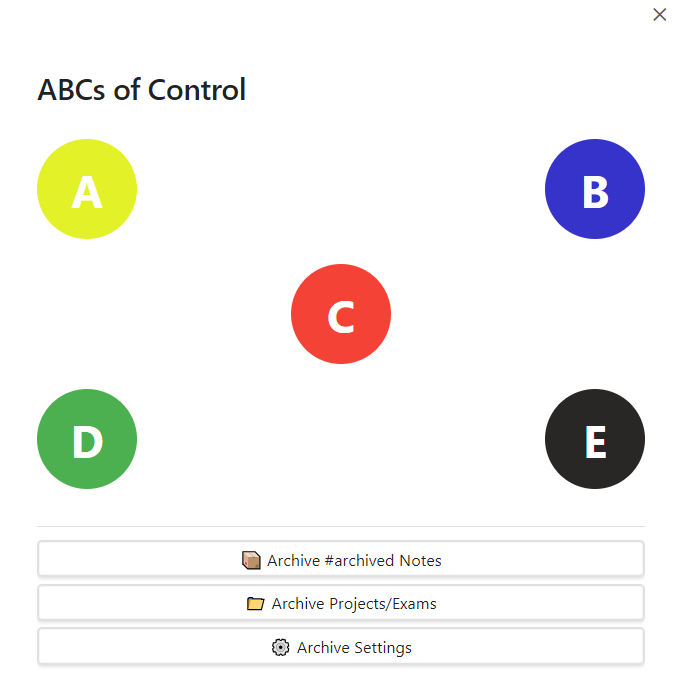
Archive tools (E). One-click archiving by tag or by age, with preview and selection controls.
📦 Installation
From Obsidian Community Plugins (Recommended)
- Open Obsidian Settings
- Go to Community Plugins → Browse
- Search for "ABCs of Control"
- Click Install, then Enable
### Manual Installation
- Download the latest release from GitHub Releases
- Extract
main.js,manifest.json, andstyles.cssto your vault's.obsidian/plugins/abcs-of-control/folder - Reload Obsidian
- Enable "ABCs of Control" in Settings → Community Plugins
First Run
On first activation, the plugin automatically:
- Creates
C/Templates/folder - Populates
C/Templates/Templates Examples/with 11 example templates - Sets up default pipelines for content insertion
Using the Plugin
- Open ABCs Modal: Click the ABCs logo ribbon icon (A/B/C/D/E) or use command palette → "Start ABCs of Control"
- Browse Templates: Navigate through letters A, B, C, D, E
- Select a Template: Click to activate creation or insertion workflow
Template Workflow
Creation Templates (A, B folders)
- Select a creation template (e.g., "A-Inbox-Ideas")
- Fill in the prompted values (e.g., tags, title, description)
- Note is created in the corresponding folder automatically
Example: A-Inbox-Ideas creates notes in A/Inbox/Ideas/
Insertion Templates (Content-to-D, Tips-to-E)
- Select an insertion template (e.g., "Content-to-D-Projects-WebDev")
- Choose target heading from the project blueprint
- Search and add notes from your vault OR write custom text
- Click "Insert" - content appears under the selected heading
Example: Content-to-D-Projects-WebDev-Content inserts into D/Projects/WebDev/Content.md
Template Naming Convention
Creation Templates: [Letter]-[Folder]-[Subfolder]
- Example:
A-Inbox-Ideas,B-Literature Notes-Articles
Insertion Templates: [Prefix]-[Folder]-[Subfolder]-[Filename]
- Example:
Content-to-D-Projects-MyProject,Tips-to-E-Exams-Math101 - Default prefix:
Content-to-(customizable in settings)
⚙️ Configuration
Access settings via Settings → ABCs of Control
Role Folder Mapping
Configure which folders correspond to each ABC role:
- A Folders: Permanent notes locations (default:
A) - B Folders: Literature notes locations (default:
B) - C/Templates: Fixed location for templates (cannot be changed)
- D Folder: Root for active work (sub-folders managed by pipelines)
- E/Archive: Fixed location for archived notes
Pipeline Configuration
Customize content insertion workflows:
- Template Prefix: Set custom prefix (e.g.,
Content-to-,Notes-to-) - Target Path: Automatically derived from template name
- Include Archive: Toggle archived notes in search results
- Add New Pipeline: Create custom pipelines for your workflows
Archive Settings
- Archive Now: Move all notes tagged with
#archivedto E/Archive - Archive Settings: Configure auto-archiving based on note age
- Preview before archiving: Review and select which notes to archive
Other Settings
- Default Highlight Color: Choose from Yellow, Green, Red, Blue, Gray
- Default Language: English or Arabic (with RTL support)
📚 Creating Custom Templates
Step 1: Copy Examples
Copy any template from C/Templates/Templates Examples/ to C/Templates/ to activate it.
Step 2: Customize Structure
For Creation Templates (A, B):
---
type: your-type
status:
tags:
  - {{VALUE:tag prompt}}
---

## Section Name:
{{VALUE:Prompt for user input}}
For Insertion Templates (Content-to, Tips-to):
---
type: project
---
# 1 Phase One
## 1.1 Sub-phase One
## 1.2 Sub-phase Two

# 2 Phase Two
## 2.1 Sub-phase One
Step 3: Use {{VALUE:}} Syntax
Any text following {{VALUE:}} will prompt the user for input:
{{VALUE:Enter project name}}→ Prompts: "Enter project name"{{VALUE:tags}}→ Prompts: "tags"
🎨 Use Cases
Knowledge Management
- Capture permanent notes with structured templates
- Link literature notes to projects
- Build interconnected knowledge graphs
Project Organization
- Break down projects into hierarchical phases
- Collect relevant notes under each phase
- Track progress with structured content files
Exam Preparation
- Create exam blueprints with topic hierarchy
- Gather study materials under each topic
- Review notes organized by exam sections
Content Creation
- Plan YouTube videos or blog posts
- Organize research and references
- Build content outlines with linked notes
🛠️ Development
Building from Source
# Clone the repository
git clone https://github.com/waheed11/ABCs-of-control.git
cd ABCs-of-control

# Install dependencies
npm install

# Build for production
npm run build

# Build and deploy to test vault
npm run build:deploy
Project Structure
src/
├── main.ts              # Plugin entry point
├── types.ts             # TypeScript interfaces
├── constants.ts         # Configuration constants
├── settings.ts          # Settings tab
├── templateExamples.ts  # Template definitions
├── utils.ts             # Utility functions
├── modals/              # Modal windows
└── handlers/            # Feature handlers
📄 License
MIT License - see LICENSE file for details
🙏 Acknowledgments
Built with the Obsidian Plugin API. Inspired by the ABCs method for knowledge organization and productivity.
❤️ Support
If this plugin saves you time, consider supporting development:
- GitHub Sponsors: https://github.com/sponsors/waheed11
- Buy Me a Coffee: https://buymeacoffee.com/waheed11
📞 Support & Feedback
- Issues: GitHub Issues
- Discussions: GitHub Discussions
For plugin developers
Search results and similarity scores are powered by semantic analysis of your plugin's README. If your plugin isn't appearing for searches you'd expect, try updating your README to clearly describe your plugin's purpose, features, and use cases.