Zotero Direct
pendingby Wenzhi Ding
Forked from stefanopagliari/bibnotes
Plugin to import and format metadata from Zotero.
Zotero Direct
中文文档 | English
This is a personalized fork based on stefanopagliari/bibnotes.
Design Philosophy
The goal of this version is to simplify the original plugin, reduce configuration complexity, and let users focus more on the content itself:
- Simplified Logic: Removed complex highlight/annotation import features, keeping only metadata import
- Reduced Configuration: No need to install or configure Zotero plugins; directly reads the Zotero database
- Human in the loop: Encourages users to actively read and think, manually organize notes rather than auto-importing all annotations
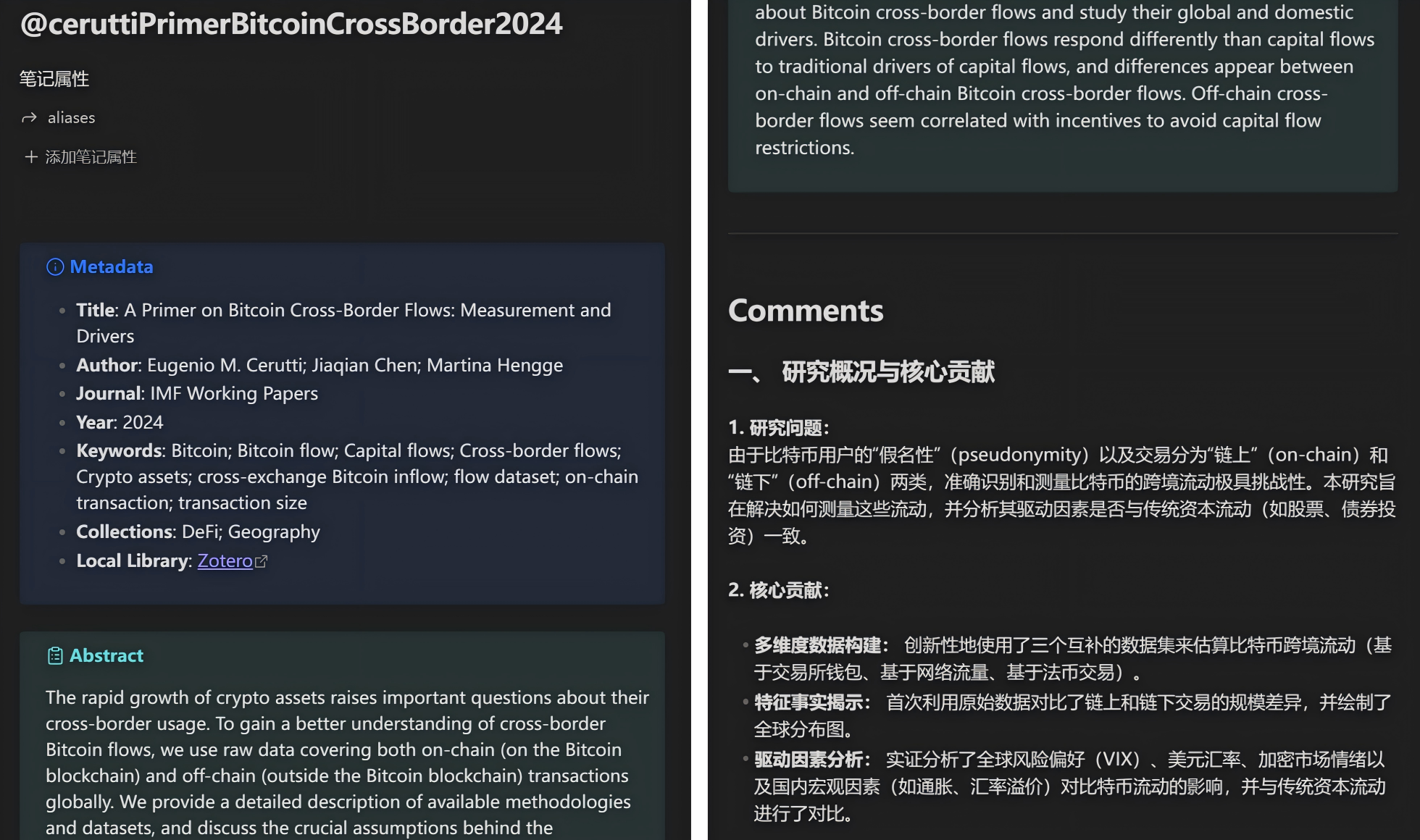
This plugin generates literature notes from your Zotero library, importing only metadata (title, author, abstract, etc.), excluding PDF highlights, annotations, or images.
Installation
This plugin is published on Obsidian Community Plugins. You can install it directly in Obsidian:
- Open Obsidian Settings → Community Plugins
- Browse community plugins, search for "Zotero Direct"
- Click Install and Enable
Or manually install: Download the latest release, extract to your vault's .obsidian/plugins/ directory, then enable in Obsidian settings.
Importing your Zotero Library
This plugin reads the Zotero database directly, no need to export JSON files or install Zotero plugins.
Configuration Steps
-
The plugin will automatically detect the Zotero database in the default location first.
- Common defaults include:
- Windows:
C:\Users\<username>\Zotero\zotero.sqlite - macOS:
~/Library/Application Support/Zotero/Profiles/<random>/zotero.sqlite - Linux:
~/.zotero/zotero/<random>/zotero.sqlite
- Windows:
- Only if the database cannot be found in the default location will the settings page ask you to configure a manual Zotero database path.
- Common defaults include:
-
Set the Export Path for literature notes: specify a folder in your Obsidian vault (e.g.,
Literature Notes) -
(Optional) Configure other template and formatting options
Tip: The plugin checks for Zotero database changes whenever you open the search dialog, and will refresh cached data automatically when it detects updates. The Update Library and Update Current Note commands follow the same path-resolution logic: they use your manual path if you set one, otherwise they fall back to the detected default database location.
Commands
The plugin provides two commands:
- Create/Update Literature Note: After selecting this command, you can choose a reference from your Zotero library. When the search dialog opens, the plugin first checks whether the Zotero database has changed and refreshes the cache if needed, so the search results stay up to date. If the reference hasn't been imported yet, a new note will be generated; if it already exists, the note content will be updated (without overwriting annotations you manually added in Obsidian).

- Update Library: After selecting this command, the plugin will use your manual Zotero database path if one is configured; otherwise it will use the automatically detected default database location. It then generates/updates all notes that have been modified in Zotero since the last time this command was run.
Creating Literature Notes
This version only exports reference metadata, excluding the following:
- PDF highlights and annotations ({{PDFNotes}}, {{Yellow}}, {{Red}}, etc.)
- Manually created notes in Zotero ({{UserNotes}})
- Images extracted from PDF ({{Images}})
Why remove these features?
This aligns with the "Human in the loop" philosophy:
- Avoid Information Overload: Auto-importing all highlights often produces large amounts of low-value information
- Active Reading: We encourage you to actively read and think, manually organize what truly matters
- Stay Simple: Simpler plugin logic, easier configuration, more focused usage
If you need full annotation import features, we recommend using the original stefanopagliari/bibnotes.
Available Configuration Options:
-
Export Path: In plugin settings, add the relative folder path within your Obsidian vault where literature notes will be stored. If left empty, notes will be exported to the main folder.
-
Note Title: In plugin settings, you can specify the format of the note title. Possible values include:
- {{citeKey}}
- {{title}}
- {{author}}
- {{year}}
-
Template: You can choose between two existing templates (one presenting metadata as a simple list, the other wrapping information in boxes using the Admonition plugin) or provide a custom template (see below).
-
Fields: You can include all fields found in the Zotero database in your custom template, as well as additional ones created by the plugin. These include:
- {{title}}
- {{shortTitle}}
- {{citeKey}} or {{citationKey}}
- {{itemType}}
- {{author}}
- {{editor}}
- {{creator}}: all individuals listed as creators, including authors, editors, etc.
- {{translator}}
- {{publisher}}
- {{place}}
- {{series}}
- {{seriesNumber}}
- {{publicationTitle}}
- {{volume}}
- {{issue}}
- {{pages}}
- {{year}}
- {{dateAdded}}
- {{dateModified}}
- {{DOI}}
- {{ISBN}}
- {{ISSN}}
- {{abstractNote}}
- {{url}}
- {{uri}}: link to the entry on the Zotero website
- {{eprint}}
- {{file}}: local path of the file attached to the entry
- {{filePath}}: links to attachments associated with this entry within Zotero (without opening the reader)
- {{zoteroReaderLink}}: links to open the specific attachment within the Zotero reader. This is different from {{file}} which opens the attachment in an external reader
- {{localLibrary}}: link to the entry in the Zotero app
- {{select}}: link to the attachment in the Zotero app
- {{keywordsZotero}}: tags found in the entry metadata
- {{keywordsPDF}}: tags extracted from the PDF
- {{keywords}}, {{keywordsAll}}: both tags found in entry metadata and tags extracted from PDF
- {{collections}}: collections/folders where the entry is located
- {{collectionsParent}}: collections/folders where the entry is located, plus parent folders
-
You can also wrap placeholders in [[ ]] to create notes or preface them with a tag (#). You can also preface a field with :: to create Dataview fields.
-
Missing Fields: Fields present in the template but missing in the entry are deleted by default. This can be changed in settings.
Updating Existing Notes
If updating an existing note, you can decide in plugin settings:
- Overwrite the existing note completely ("Overwrite Entire Note")
- Preserve the existing note and only add new sentences not included ("Save Entire Note")
- Preserve the existing note and add non-overlapping sentences only in a specific section, while overwriting the rest ("Select Section"). When "Select Section" is chosen, the plugin will ask for a string identifying the beginning and/or end of the section to be updated (rather than overwritten). If the "start" field is left empty, existing text is preserved from the beginning of the note. If the "end" field is left empty, existing text is preserved until the end of the note. For example, to overwrite metadata but preserve manual changes to notes, set the start of the section to be preserved to the unique title used before the metadata in your template.
For plugin developers
Search results and similarity scores are powered by semantic analysis of your plugin's README. If your plugin isn't appearing for searches you'd expect, try updating your README to clearly describe your plugin's purpose, features, and use cases.