Embed Editor
pendingby xMisio72
Notion-style synced blocks. Click any transclusion (![[note]]) to edit its source in a floating panel — edit embeds in place.
Embed Editor for Obsidian
Notion-style synced blocks for Obsidian. Click any transcluded embed (![[]]) to edit its source content in a floating panel — no more navigating away from your current note.
Obsidian's transclusion (![[note]], ![[note#heading]], ![[note#^block]]) lets you display content from other notes inline. But editing that content requires navigating to the source file first. Embed Editor closes that gap: click the embed, edit in place, save — the source file and all embeds update instantly.
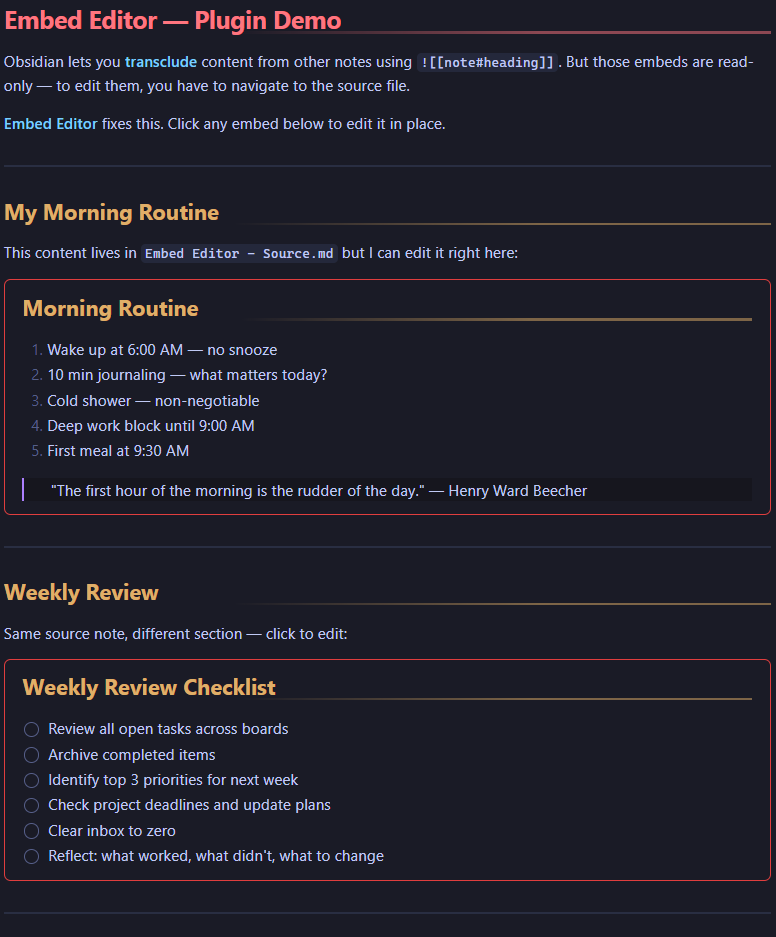
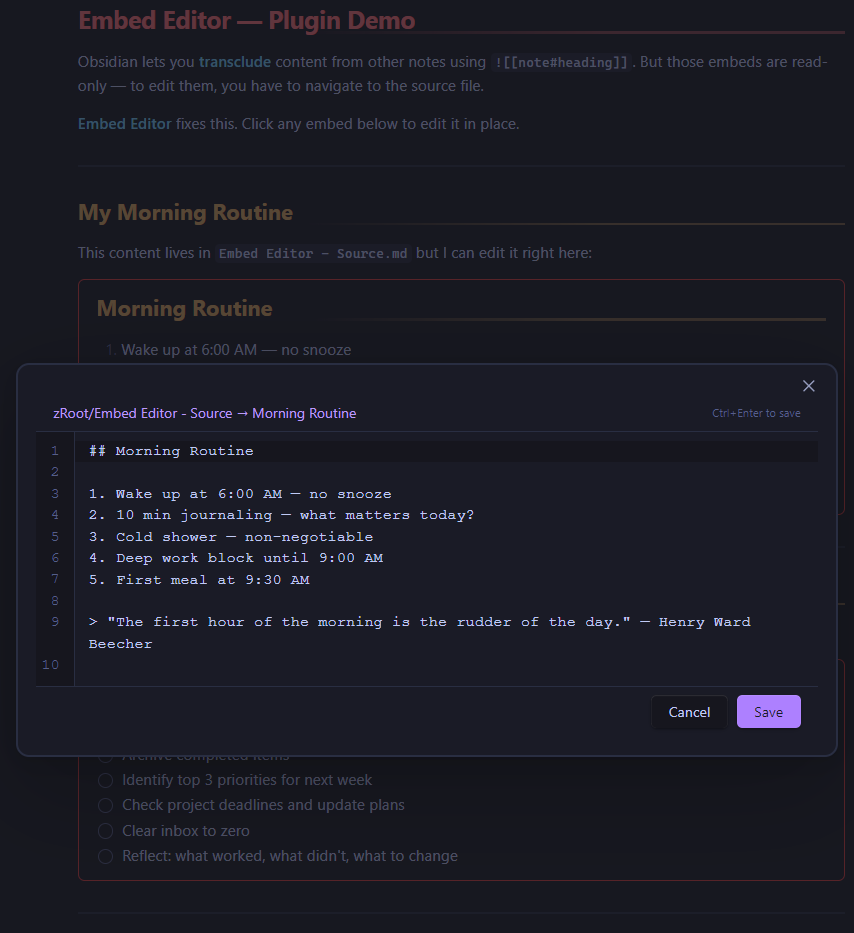
Click any embed to open the floating editor:
Features
- Click-to-edit — Click any transcluded embed to open a floating editor panel
- All transclusion types — Works with full notes (
![[note]]), heading sections (![[note#heading]]), and block references (![[note#^blockid]]) - Source-view editor — Line numbers, monospace font, tab support — styled to match Obsidian's native editor
- Keyboard shortcuts —
Ctrl/Cmd+Enterto save,Escapeto cancel - Unsaved changes indicator — Blue dot appears when you've made edits
- Click source link — Header shows the source file path; click it to navigate to the source note
- Hover hints — Embeds show a subtle outline on hover so you know they're clickable
- Theme-aware — Inherits all colors from your current Obsidian theme
- Canvas-safe — Does not affect Canvas card styling
Bonus: Seamless Embeds CSS Snippet
The repo includes seamless-embeds.css — a CSS snippet that makes transclusions look like native content instead of boxed embeds:
- Removes the default embed border, title bar, link icon, and scroll container
- Adds a clean red border frame (similar to Notion's synced blocks)
- Scoped to markdown views only — does not affect Canvas
Installation
Manual Install
- Download
main.js,manifest.json, andstyles.cssfrom the latest release - Create a folder called
embed-editorin your vault's.obsidian/plugins/directory - Copy the three files into that folder
- Open Obsidian → Settings → Community plugins → Reload → Enable "Embed Editor"
CSS Snippet (optional)
- Download
seamless-embeds.cssfrom the latest release - Copy it to your vault's
.obsidian/snippets/directory - Open Obsidian → Settings → Appearance → CSS Snippets → Refresh → Enable "seamless-embeds"
Usage
- Add a transclusion anywhere in your notes:
![[Some Note#Some Heading]] - In Reading View or Live Preview, click the embedded content
- A floating editor opens with the source text
- Edit the content, then press Ctrl+Enter to save (or click the Save button)
- The source file updates and the embed refreshes automatically
Keyboard Shortcuts
| Shortcut | Action |
|---|---|
Ctrl/Cmd + Enter | Save and close |
Escape | Cancel and close |
Tab | Insert tab character |
How It Works
Embed Editor registers a click handler on embed elements. When you click:
- It resolves the embed's source file and subpath (heading or block reference)
- Reads the source file and extracts the relevant lines
- Opens a modal with an editor pre-filled with that content
- On save, it splices your edits back into the exact line range in the source file
- Obsidian's built-in reactivity re-renders the embed with the updated content
The plugin uses Obsidian's metadata cache for heading lookups and the Vault API for file reads/writes — no external dependencies.
Compatibility
- Obsidian v1.0.0+
- Desktop and mobile
- Works with any Obsidian theme (inherits CSS variables)
- Does not conflict with Canvas views
License
For plugin developers
Search results and similarity scores are powered by semantic analysis of your plugin's README. If your plugin isn't appearing for searches you'd expect, try updating your README to clearly describe your plugin's purpose, features, and use cases.