by DesynchVT
Create set notes and automatically insert metadata of games with RetroAchievements support
Obsidian RA Search plugin
This plugin is not officially supported or endorsed by the RetroAchievements team. It is independently developed by DesynchVT.
Description
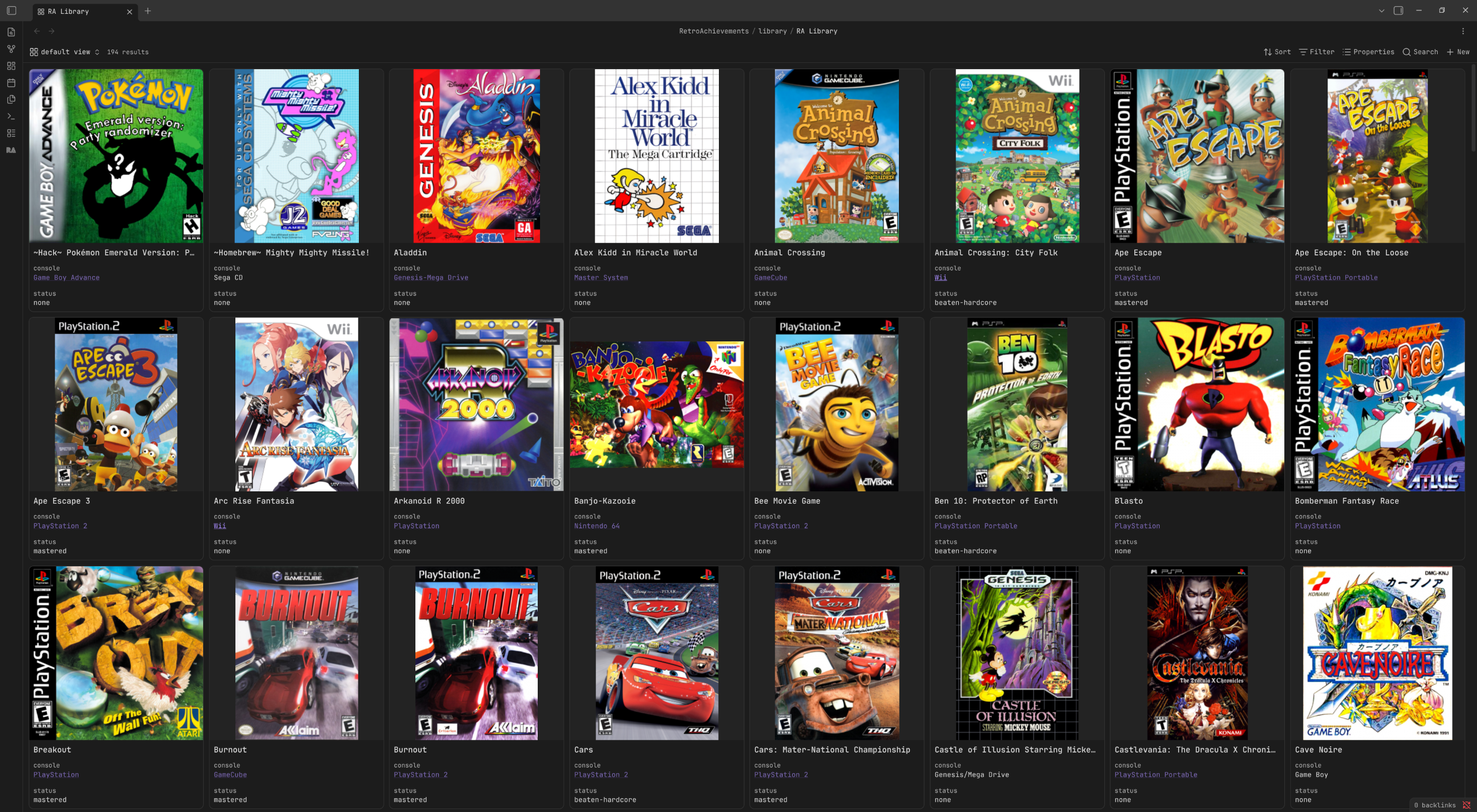
Easily import your RetroAchievements library with various metadata to discover connections and themes between your games.
Usage
The plugin ships with just 3 easy-to-use commands. Before you can use any of them, you must set up your own RetroAchievements username and web API key in the settings. You can find your API key under your RA user settings.
Auto import RA library
Requires an RA account
As the name suggests, it imports every single game listed on your RA account. Choose to also import subsets in the settings! Skips already imported games.
You can choose to cancel the import by running Cancel auto import. Games added during the import before cancellation will remain in your vault.
Add game
Requires an RA account
Add any game or subset to your notes, whether or not you've played it before!
Create base
Automatically create a base within Obsidian, automatically showing files in your configured RA notes library. You can customize it from here yourself, it's just to get you going. As a side note, the boxart images used in the base are hosted on RetroAchievements official media host: https://media.retroachievements.org.
Settings
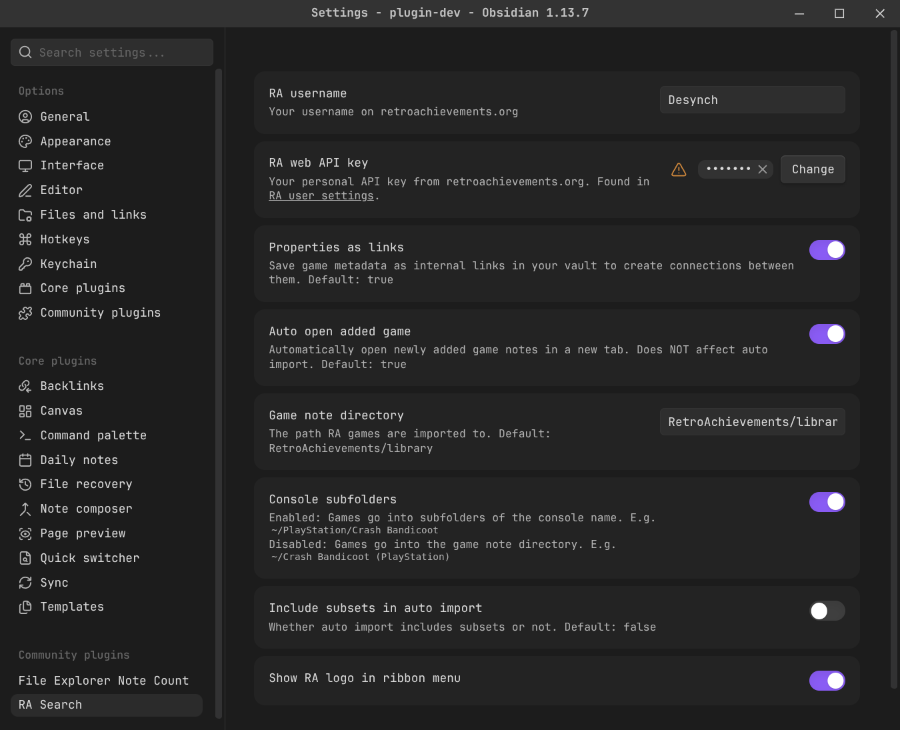
RA username
self explanatory.
RA web API key
Necessary to communicate with the RetroAchievements servers. Found under your RA user settings.
Properties as links
Save game metadata as internal links in your vault to create connections between them.
Auto open added game
Automatically open newly added game notes in a new tab. Does NOT affect auto import.
Game note directory
The path RA games are imported to.
Console subfolders
Enabled: Games go into subfolders of the console name (~/PlayStation/Crash Bandicoot)
Disabled: Games go into the root game note directory. (~/Crash Bandicoot (PlayStation))
Include subsets in auto import
Whether auto import includes subsets or not.
Show RA logo in ribbon menu
Toggle RA logo in ribbon menu. Clicking it runs the Add game command.
Installation
Click the link to install the RA Search plugin: https://community.obsidian.md/plugins/ra-search.
Or, search in the Obsidian Community tab in the settings of the Obsidian app and install it from there.
Manual installation
Option A: Install from a release
- Go to the releases page and download the latest release's
main.js,manifest.json, andstyles.css. - In your vault, open (or create) the folder
<vault>/.obsidian/plugins/ra-search/. The folder names must match exactly. - Copy the three downloaded files into that folder.
- In Obsidian, open
Settings -> Community pluginsand selectReload(or fully restart Obsidian). - Find RA Search in the list and toggle it on.
Obsidian requires
Settings -> Community plugins -> Turn off safe modebefore any manually installed plugin can be enabled. Only install plugins from authors you trust.
Option B: Build from source
Requires Node.js (https://nodejs.org/) 18+ and npm.
-
git clone https://github.com/DesynchVT/obsidian-ra-search-plugin.git
-
cd obsidian-ra-search-plugin
-
npm install
-
npm run build
-
Copy
main.js,manifest.json, andstyles.cssinto<vault>/.obsidian/plugins/ra-search/and enable the plugin as in steps 4–5 from Option A.
For plugin developers
Search results and similarity scores are powered by semantic analysis of your plugin's README. If your plugin isn't appearing for searches you'd expect, try updating your README to clearly describe your plugin's purpose, features, and use cases.