Tagged Sync for reMarkable
approvedby Thomas Hochbichler
Sync tagged reMarkable notebooks, PDFs and EPUBs as searchable Markdown, routed by tag. Handwriting transcribed locally — no uploads, no subscription. Unofficial; not affiliated with reMarkable AS. - This plugin has not been manually reviewed by Obsidian staff.
Tagged Sync for reMarkable
taggedsync.com — the short version, in pictures.


Disclaimer: Tagged Sync for reMarkable is an unofficial, community-built plugin. It is not affiliated with, endorsed by, or supported by reMarkable AS. "reMarkable" is a trademark of reMarkable AS, used only to describe compatibility.
Tag a notebook or a PDF on your reMarkable, and it lands in the vault folder you mapped — your handwriting transcribed, your highlights quoted.
Your handwriting never leaves your machine. Rendering and transcription run on your own computer — no upload, no account with us. The plugin is free; Pro is an optional add-on for €24 once, no subscription.
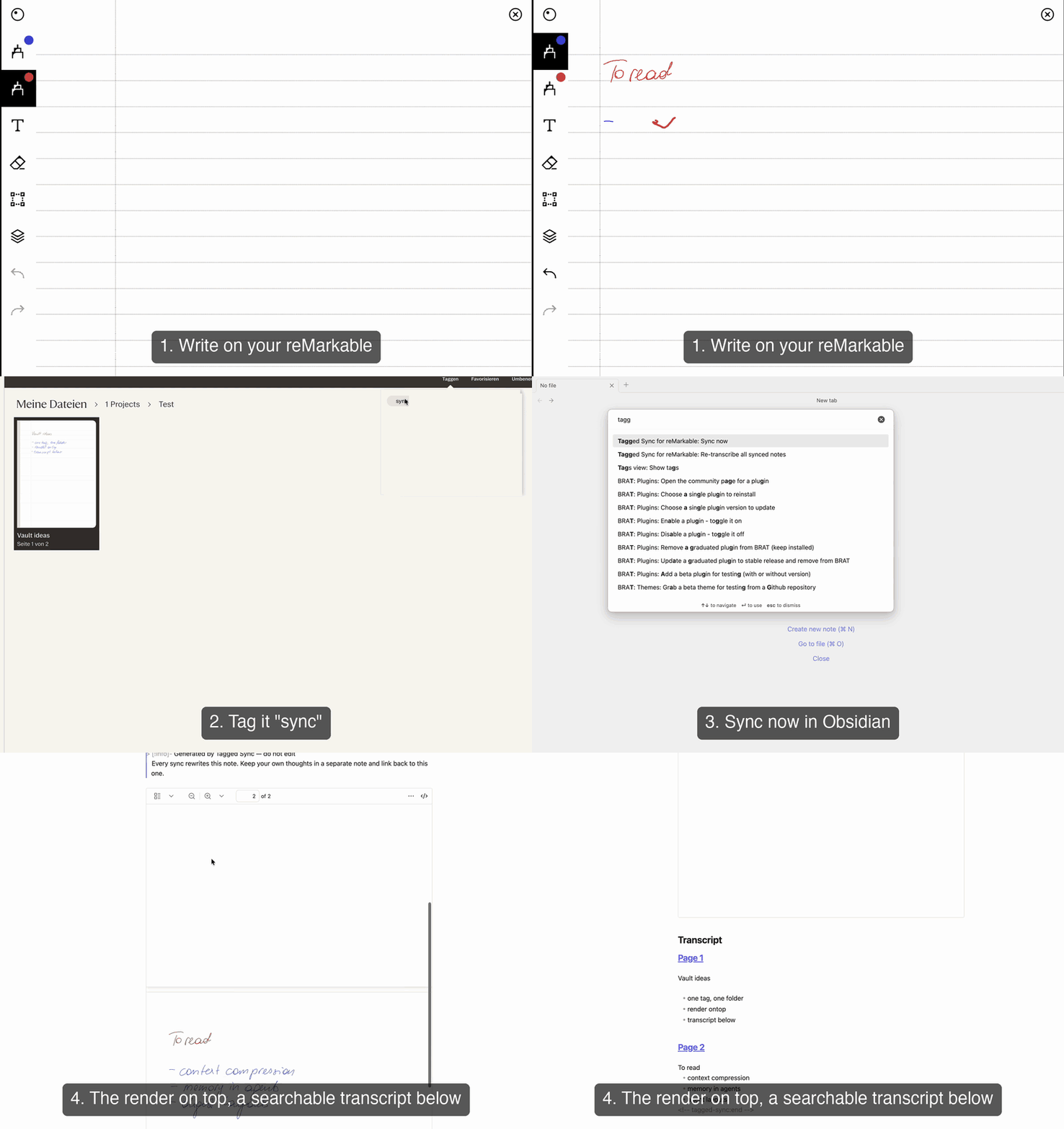
A notebook you wrote in
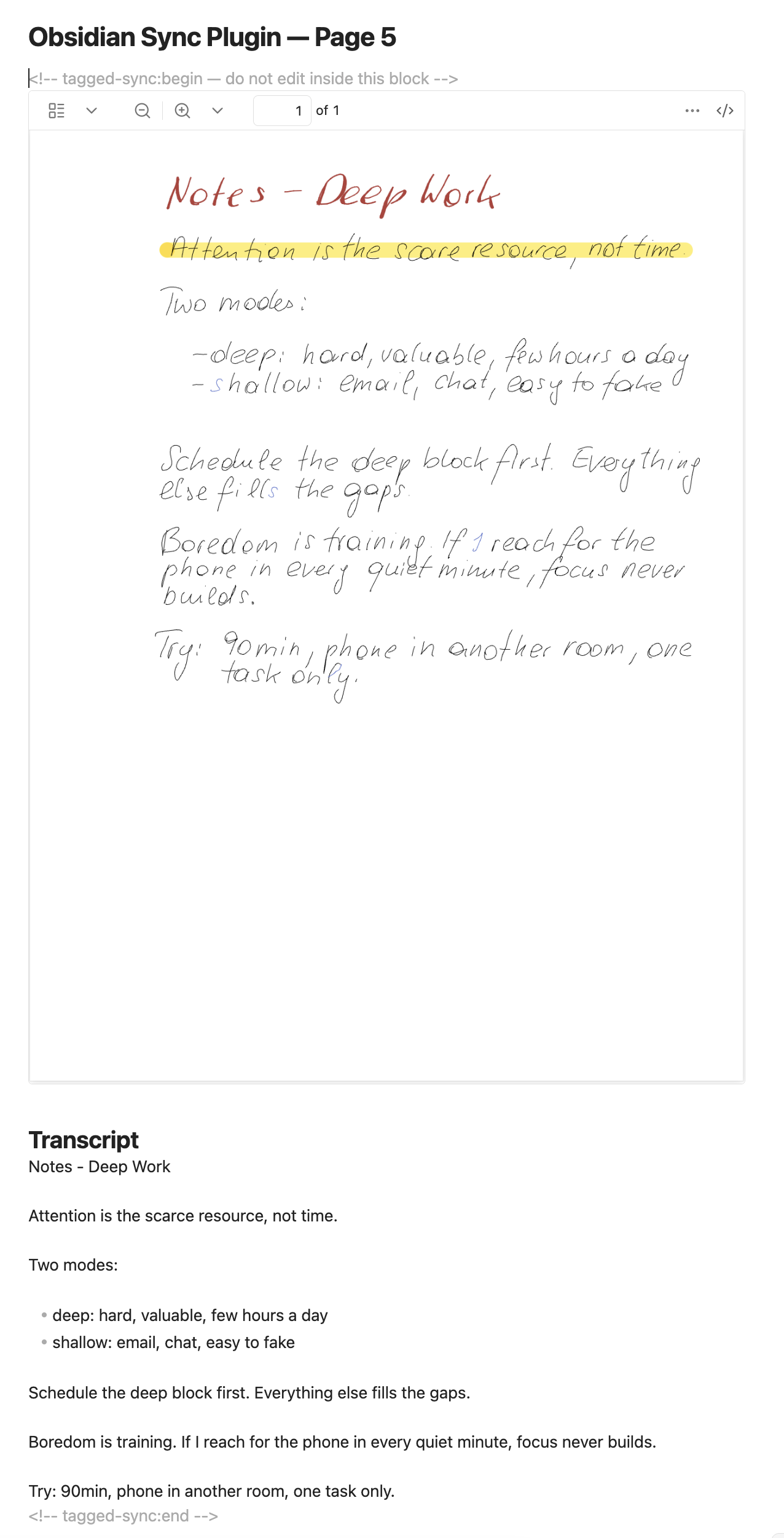
The pages as you drew them, embedded in the note, plus a searchable transcript underneath — split by page, so a long notebook stays navigable.
A PDF you marked up
Every passage you highlighted or underlined, quoted with the sentence around it and filed under the section it came from. Each quote carries a block ID, so you can link a single passage from anywhere in your vault. None of it goes through transcription, so this works the same on Windows and Linux as it does on a Mac.
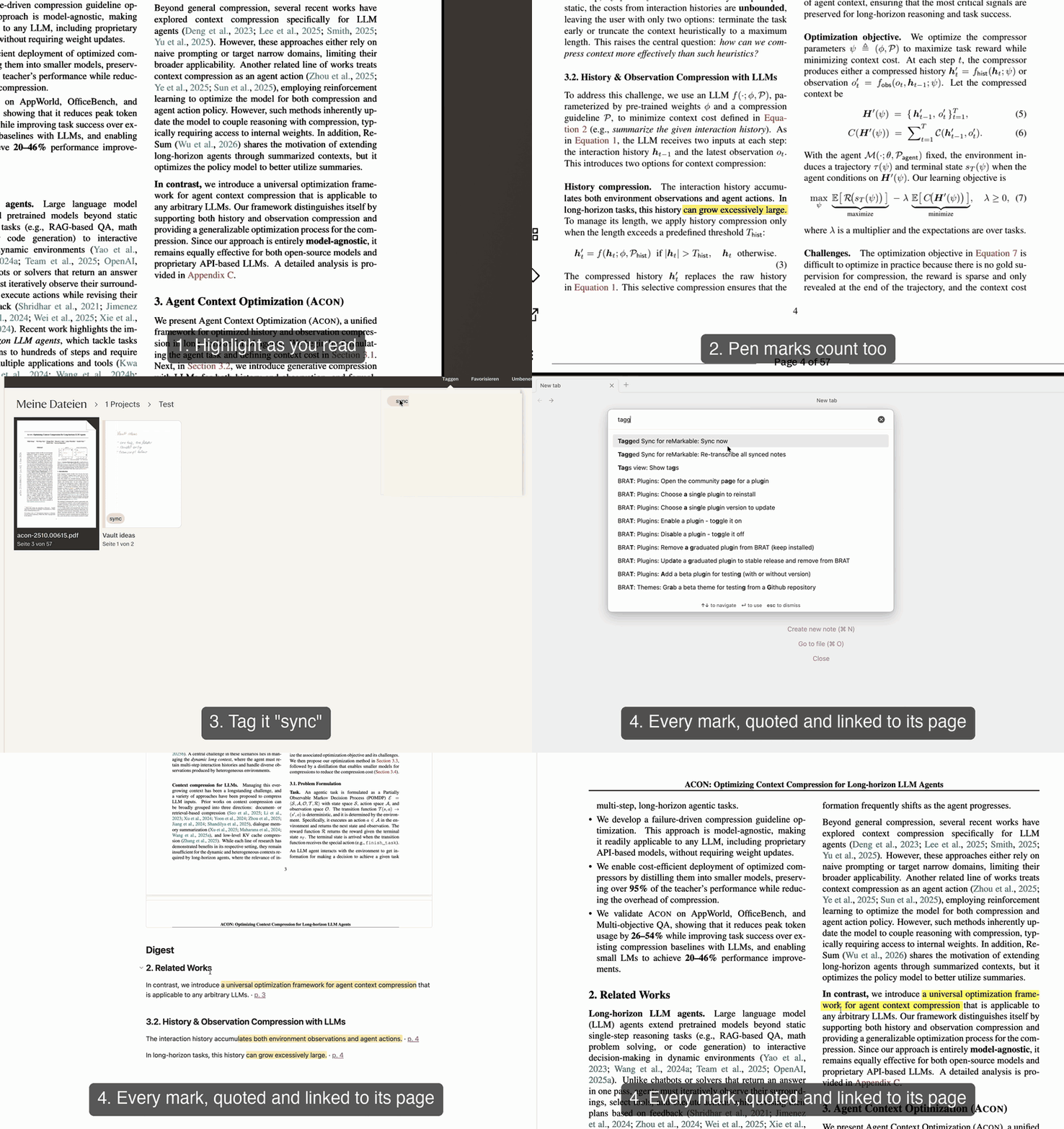
PDF shown: Kang et al., ACON: Optimizing Context Compression for Long-horizon LLM Agents, CC BY 4.0.
Desktop only · one-way (reMarkable → Obsidian) · never writes back to your tablet.
What makes it different
Every feature at a glance, Free against Pro. Most rows link to the section that explains them.
Pro is €24, once — no subscription. See Tagged Sync Pro.
Works with
| Device / accessory | Status |
|---|---|
| reMarkable 2 | ✓ |
| reMarkable 1 | ✓ |
| reMarkable Paper Pro | ✓ — its larger canvas, its colour palette, and the shader highlighter are all handled; the fixes came from Paper Pro users' own files |
| reMarkable Paper Pure | ✓ |
| Type Folio (typed text) | ✓ — taken from the file exactly as you typed it, never transcribed |
| "Read on reMarkable" browser extension | ✓ — a sent article counts as a document to mark up |
| EPUB books | ✓ — read as the book the device made of them, not as ink on blank pages |
Obsidian itself must be the desktop app — see Limitations.
Contents
- Before you install
- How it works
- Install and set up
- Handwriting transcription
- Typed text and the Type Folio
- Tagged Sync Pro
- Syncing without the cloud
- Annotated PDFs
- What gets synced
- Limitations
- Privacy and permissions
- Support
- Reporting a problem
- Requesting a feature
Before you install
Two limits, so you know them up front:
- The plugin syncs one tag. You map one reMarkable tag to one vault folder. You can change or remove that mapping at any time. Syncing more than one tag is what Tagged Sync Pro is for — €24 once, with a 14-day trial. Everything else in this README works without payment, cloud transcription aside.
- Text transcription is built in on macOS 13 or later. Everywhere else — Windows, Linux, older Macs — you can transcribe by pointing the plugin at a local AI server you run yourself (Ollama, LM Studio, or any OpenAI-compatible server), or by using the optional managed local model where your machine qualifies. With none of those set up, your notes still sync with the full handwriting render embedded — but there is no transcript. Marked-up PDFs and typed documents are unaffected: both are read from the file itself and need no transcription at all, so they work everywhere.
How it works
- Tag a notebook, a PDF, a single page, or a whole folder on your reMarkable — e.g.
sync. - It syncs to the reMarkable cloud as usual — or, with Pro, the plugin reads it straight off the tablet and the cloud never comes into it.
- In Obsidian, map that tag to a vault folder in the plugin settings.
- Run Sync now (or let automatic sync do it).
- You get a Markdown note with the render embedded, and either a searchable transcript or a digest of your marks below it.
Install and set up
You need Obsidian 1.5.7 or later on desktop (Windows, macOS, or Linux — Obsidian on mobile is unsupported), and a reMarkable account with cloud sync switched on — unless you sync straight from the tablet, which needs no account at all.
- In Obsidian, open Settings → Community plugins → Browse, search for Tagged Sync for reMarkable, and click Install, then Enable.
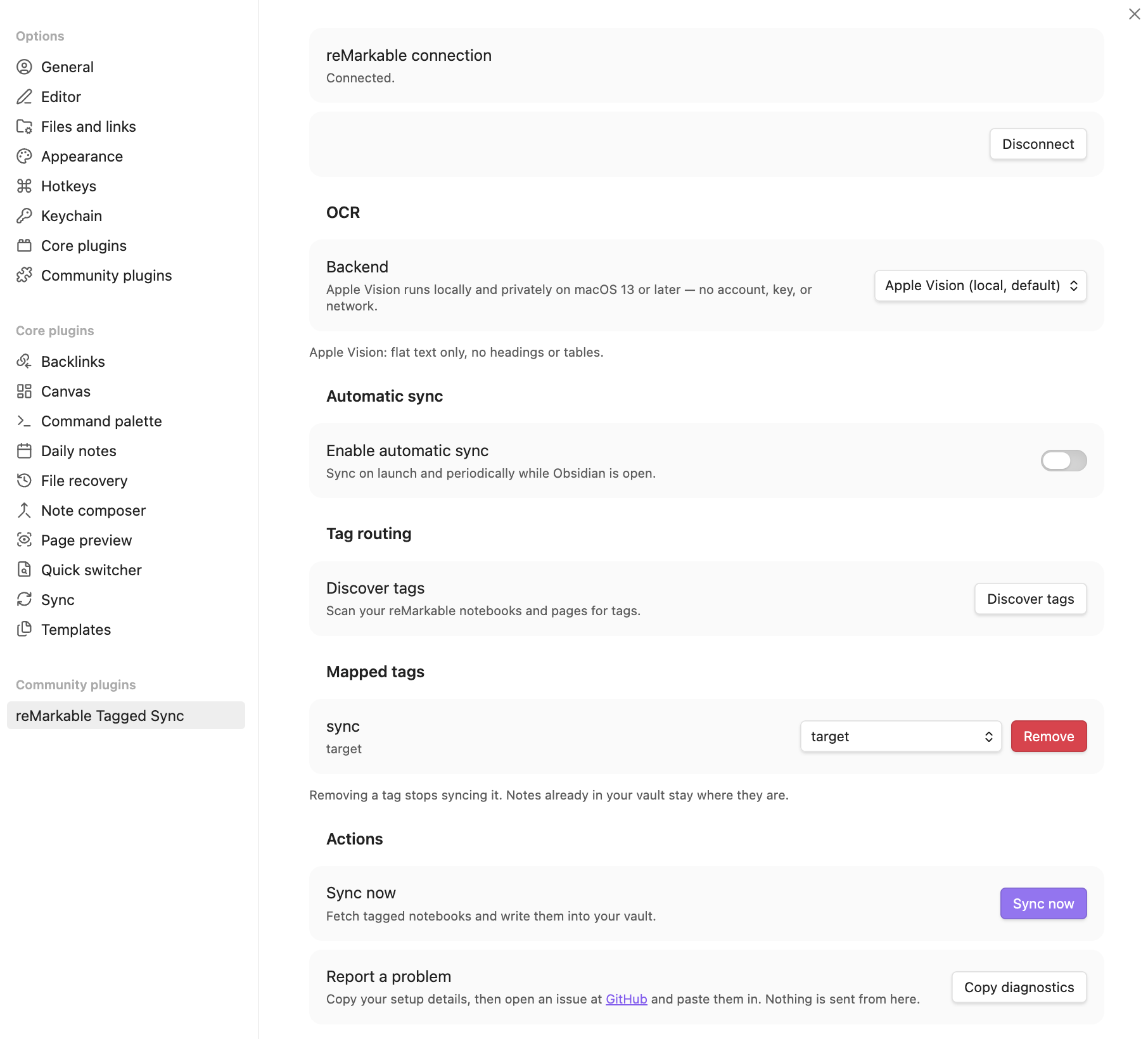
- Open Settings → Tagged Sync for reMarkable, and follow the "Connect" link to
my.remarkable.com/device/browser/connectto get a one-time code. Enter it and click Connect. Codes expire after a few minutes, so get a fresh one if it is refused. - Click Discover tags to scan your reMarkable notebooks, pages and folders for tags, then map the tag you want to sync to a vault folder. Only a mapped tag is synced — an unmapped tag is simply not selected, not lost.
- Click Sync now.
Sync is also available from Obsidian's command palette (Ctrl/Cmd + P) as Tagged Sync for
reMarkable: Sync now.
Stopping a sync
While a sync is running, the status bar shows a turning icon. Click it and confirm, or run Tagged Sync for reMarkable: Stop sync from the command palette. This works for an automatic sync and for re-transcribing too.
Stopping is safe rather than instant: the note being transcribed right now is finished first, so it
can take a moment — the status bar says stopping… meanwhile. Everything already written is kept,
and the next sync carries on from where it left off.
Automatic sync
Off by default. Under Automatic sync you can turn on a sync when Obsidian launches, plus an interval backstop while it stays open. A manual sync pushes the next automatic one out rather than triggering a redundant run.
Re-transcribing
Two commands, depending on how much you want re-read.
Tagged Sync for reMarkable: Re-transcribe this note re-reads just the note you have open. Use it to repair a single garbled transcript: on a paid backend it tells you how many pages that notebook is before it sends any of them, and if you have corrected that note by hand it asks first, because re-transcribing replaces what you wrote there. It says no in three cases — the open note was never synced from reMarkable, its notebook is no longer on your tablet, or it is a PDF whose margin notes are kept as a digest rather than as a transcript.
Tagged Sync for reMarkable: Re-transcribe all synced notes does the same for every synced note in the vault. That is the one to run after switching backends. It asks for confirmation first.
Both re-fetch the notebook and rewrite only the transcript region, leaving your own notes and the embedded render untouched.
Re-transcribing is also the way to fill in a transcript that never arrived — a note synced while the local model was still downloading, or while its engine was missing, keeps its render and no text, and nothing refills it on its own. Re-transcribing does. With the local model selected, the whole-vault confirmation tells you how long the run will take on your machine, measured from your own pages.
Handwriting transcription
Three backends can read your handwriting entirely on your own machine — no account, no API key,
no page image or text ever leaving the device. They are free, and they are the default. Whichever
you pick, each page is rendered to a temporary PNG under your OS temp directory (os.tmpdir()) and
deleted as soon as it has been read.
| Backend | Where it runs | Set-up |
|---|---|---|
| Apple Vision | macOS 13 or later | none, it is the default there |
| A local server you run yourself | everywhere | install Ollama or LM Studio |
| Managed local model | Apple Silicon, Windows on ARM | one opt-in click, a 1.6 to 6.2 GB download depending on the model |
Four cloud backends are also available, with Tagged Sync Pro. Those are the one case where a page image leaves your device: you choose them, they use your own API key, and they are off unless you turn them on.
Apple Vision aside, you name the model yourself. The Model field starts empty on every backend, local and cloud alike, and the plugin suggests nothing: a model id shipped inside a plugin goes stale the day its provider retires it, and the error you then get reads like a problem with your API key rather than what it is. Take a current name from your provider's own list. Until you do, settings says so, and a sync reports "No model is set for this OCR backend" rather than quietly producing no transcript.
On Windows and Linux nothing transcribes by default: notes sync with the handwriting render
embedded and no ## Transcript text, until you set up one of the other two local backends. You can
also set the backend to Off on purpose if you only want the render.
Apple Vision (macOS)
The default on macOS 13 or later, and nothing to configure. It auto-detects language and reads cursive well, but produces flat text — no headings, lists, task lists, or tables. Its structured API is macOS Swift-only and unavailable here. It can also misread; see Writing your own notes.
For transparency: the page PNGs are transcribed by invoking the built-in /usr/bin/osascript
binary, which drives Apple's Vision framework. This runs on your machine with no network
egress.
A local server you run yourself
If you already run — or are willing to install — a local AI server, the plugin can send each page to it and get the text back. Nothing leaves your machine, and there is no account or key. This is the one route that works everywhere, including Windows on x64 and Linux.
- Install and start Ollama, LM Studio, or any other server that speaks the OpenAI
/chat/completionsAPI, and load a vision model into it. - In the plugin settings, set Backend to that server and enter the model's name. The address is pre-filled for Ollama and LM Studio; change it only if yours runs elsewhere.
Which model you use is your choice. For what it is worth: I measured Qwen2.5-VL-7B at 7.6 % character error — about three times more accurate than Apple Vision on the same pages — but I measured it running the model directly, not through one of these servers, so treat it as a starting point rather than a promise. That number is the 7B build: a smaller variant of the same family is a different model, and I have measured none of them. Issue #116 carries a user's own measurements of the smaller ones, with the caveats they put on them.
Two things settings will tell you about the model you name, where the server can be asked. A
text-only model cannot read a page image at all. And a model that reasons before answering
transcribes far more slowly and can lose a page: the answer runs past what the model may return, and
that page is left out rather than saved half-read. If that happens, the sync says so at the end —
switch to a model that does not reason (often the -instruct build of the same family) and run
Re-transcribe all synced notes, because a later sync will not pick those pages up on its own.
The reasoning hint needs Ollama, OpenRouter, or LM Studio 0.4.0 or newer; other servers expose nothing to read it from, and then settings says nothing rather than guessing.
If the server is not running, settings says so, and a sync that hits it leaves the notes with their render and reports it at the end rather than failing quietly.
Local model (optional, opt-in)
On some machines you can switch the backend to a local AI model instead. It reads handwriting about three times more accurately than Apple Vision and keeps headings and lists, and like Vision it runs entirely on your machine. It is never a default: a fresh install downloads nothing, and Apple Vision stays the default on macOS.
Choosing it downloads 1.6 to 6.2 GB of model files plus a 12 MB program, after an explicit opt-in in settings — three models ship, and settings offers the ones your machine can run, with the most accurate marked as the default. Both files are checked against a SHA-256 published in the plugin before anything runs. It is slow compared with Vision — roughly 15 seconds a page on a fast Mac against Vision's 0.4 — and it holds between 3 and 9 GB of memory while it runs, depending on the model.
Offered only on:
| Requirement | |
|---|---|
| macOS | Apple Silicon, 8 GB of memory or more; 16 GB for the most accurate model |
| Windows | ARM (Snapdragon X and similar), 16 GB of memory or more; 24 GB for the most accurate model |
Intel Macs, Windows on x64 and Linux do not get the option, and settings says why on the machine
itself. Windows x64 is excluded because Windows Defender quarantines the engine — the
llama.cpp builds for x64 have been flagged as Trojan:Win32/Wacatac.B!ml for years, the builds
are unsigned, and nothing this plugin does to its own download changes what a malware scanner
decides about someone else's binary. Windows on ARM uses a different build, which is not flagged.
Like any transcription it misreads sometimes, and it misreads differently: Vision's mistakes usually look broken on the page, while this model writes its mistakes as fluent text. Check anything that matters against the handwriting.
Typed text and the Type Folio
Not everything on a reMarkable is ink. Text you type with the Type Folio — or send over with the "Read on reMarkable" browser extension — is stored inside the notebook as text, not as strokes. The plugin treats it accordingly:
- Typed text is never transcribed. It is taken from the file exactly as you typed it, so no typed word can come out misspelled.
- Where it lands in a transcript depends on the backend. Apple Vision reads one page at a time and knows where each line sits, so your typed text stays where it is on the page, between the handwriting around it — a typed heading over handwritten notes stays a heading over those notes. The other backends transcribe without those positions, so typed text is added at the end of its own page instead.
- A typed page you marked up is a document. A page whose typed text reads like a document — an article sent from the browser, prose you typed with the Type Folio — is treated like a PDF: what you highlight or underline on it arrives as a digest, quotes, sections, block IDs and all. A typed line or two inside a handwritten page stays part of the transcript instead; the plugin tells the two apart by how the text is set, not by guessing.
- Page by page, not notebook by notebook. One such page does not make the whole notebook a
document. Its handwritten pages are still transcribed, and the note then carries a
## Digestand a## Transcripttogether. A typed page the digest has nothing to show for is named in the transcript — Page 4 is typed text — see the embedded page. — rather than read back by a transcription backend, since its words are already legible in the embedded page above. - Such a page needs no transcription at all. Its digest is read from the file, exactly as a marked-up PDF's is, so it arrives on Windows and Linux with no transcription backend set up.
- Highlights on typed text reach your vault like any other highlight.
Tagged Sync Pro
Everything described above is free and stays free. Two things are paid:
- Cloud transcription — Anthropic, OpenAI, Google and OpenRouter as transcription backends, with your own API key and a model you name yourself.
- Unlimited tag mappings. The plugin syncs one tag; Pro syncs as many as you like.
- Syncing without the reMarkable cloud — the plugin reads your tablet directly over USB or Wi-Fi.
- Frontmatter properties — each synced note carries its reMarkable tags and metadata as Obsidian properties, for Dataview and Bases queries.
€24, once. No subscription, no renewal, no expiry. The licence is for one person, on up to 50 devices, at home and at work.
Every future Tagged Sync Pro feature is included — no upgrade fee, ever.
Try it for 14 days — one click in the plugin settings, no key and no email needed. Nothing is sent anywhere to start a trial.
Buy a licence — you get your key on the page straight after paying, and by email as a backup. Paste it into the plugin settings.
14 days, no questions asked — just write to me. One person, up to 50 devices.
The licence is granted by me; the sale itself is handled by Polar, who are the seller. See LICENSE-COMMERCIAL.md, PRIVACY.md and IMPRESSUM.md.
What I do not control
This plugin talks to the reMarkable cloud. I do not work for reMarkable. I have no contract with them and no advance warning of their plans. They can change or switch off their cloud at any time. This already happened: in April 2026 a format change broke every tool in this space.
If it happens again:
- I will work on a fix as fast as I can. I cannot promise a date.
- Your notes are safe. Everything already synced is plain Markdown and PDF in your own vault. It stays there. Nothing is deleted.
- I do not refund for the days the sync is broken, because the cause is not mine.
- If reMarkable shuts the cloud down for good, or changes it so that no fix is possible, I will say so in public and stop selling licences. I will not take money for something that cannot work.
The same applies to the transcription providers (Anthropic, OpenAI, Google, OpenRouter, Ollama, LM Studio). They set their own models, prices and rules. I do not control those either.
Updates come through the Obsidian plugin store, to everyone, for as long as the plugin is sold. What I promise is effort, not dates.
None of this changes your rights as a consumer under EU law.
Syncing without the cloud
Everything above goes through the reMarkable cloud, which works well and has one weakness worth being honest about: the interface it uses is not documented or promised by reMarkable. It has been worked out by reading what the official apps do. That is how every tool of this kind talks to a reMarkable account, and it means a change on their side can break syncing for everybody at once.
So Pro can skip it. The plugin connects to the tablet itself — over the USB cable, or over your Wi-Fi — and reads the notes off it. Nothing in between: no reMarkable account, no server of mine, no internet connection needed at all. On a slow line it is also simply faster, because the notes travel across your desk instead of twice across the world.
Switching costs nothing. The plugin works out the same fingerprints for your notes as the cloud does, so a vault that has been syncing through the cloud for a year can switch to the cable and carry straight on. Nothing is re-rendered, nothing is transcribed again, and no cloud API bill is run up doing it. You can also switch back whenever you like.
You can set a second source as a fallback: sync from your tablet and fall back to the cloud when it is asleep, or the other way round when your internet is out. A background sync checks whether the tablet is awake before it starts, so a device in a drawer is a quiet skip and not a failure.
What your tablet needs
reMarkable 1 and reMarkable 2 — nothing to turn on. They accept these connections as they come out of the box.
reMarkable Paper Pro and Paper Pure — read this before you buy Pro for this feature. These devices only allow the connection in Developer Mode, and turning Developer Mode on erases the tablet. Your notes come back from the reMarkable cloud afterwards, and the tablet shows a warning screen every time it starts from then on. That is reMarkable's decision, not something this plugin can work around. If that trade is not worth it to you, the cloud sync works exactly as before — and the plugin says all of this in the settings, before it asks you for anything.
Pairing asks for the root password, which is on the tablet under Settings → Help → About → Copyrights and licenses, at the end of the GPLv3 section. It is used for that one connection, to install a key for your vault, and is never stored.
The tablet identifies itself, and the plugin remembers it. Before anything is installed, pairing shows you the tablet's own key fingerprint and pins it to this vault. If a device at that address ever answers with a different key, the sync stops and says so, instead of handing your notes to whatever picked the address up.
Whether you need the cable depends on the firmware. Newer reMarkables keep Wi-Fi access switched off until something turns it on, so the first pairing goes over USB; the plugin then offers to switch it on for you, and after that the cable is never needed again. It asks first, and saying no keeps the tablet cable-only. Older reMarkables accept Wi-Fi straight away, and the plugin uses whichever address answers.
Windows note: recent Windows versions have been dropping support for the driver the USB connection uses, so Wi-Fi is the more reliable route there.
Annotated PDFs
A PDF you marked up gets a ## Digest in place of the transcript: your marks, quoted with the
sentence around them, grouped under the section of the document they came from.
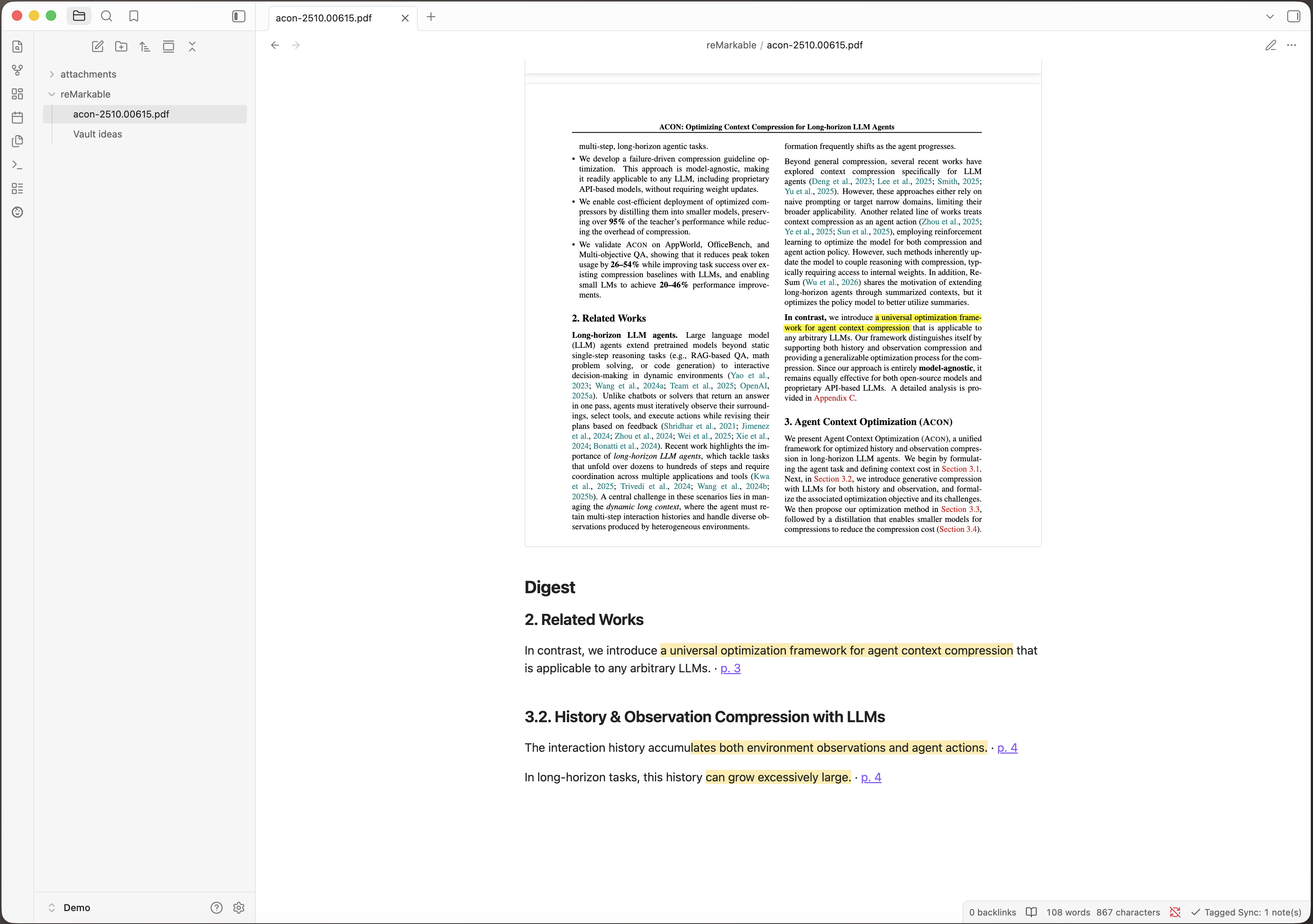
Both the highlighter and the pen count. A passage you marked with the highlighter — or with the Paper Pro's shader — and one you underlined or circled with the pen arrive the same way: a quote with its surrounding sentence, the section it sits under, and a link to the page. Marking with the pen used to reach your vault as nothing at all.
None of this goes through transcription. The words come from the PDF's own text, not from a picture of it, so the digest works the same on Windows and Linux as it does on a Mac — and no marked word can come out misspelled.
Every quote is linkable on its own. Each entry ends with a block ID — Obsidian's anchor for
one single block of text — so an annotation can be embedded anywhere in your vault:
![[My Book^hl-d449a3]] pulls in that one quote and nothing else. The IDs are stable across syncs.
The document's note is its digest. There is no separate digest note collecting every document — the marks live in the note of the document they belong to, in the folder you mapped.
Books you read as EPUB
A book you tagged arrives as the book, with everything above true of it. A reMarkable has no EPUB reader: it converts the book to a PDF on the tablet and reads that. Tagged Sync reads the same PDF, so a highlight in a book comes through as the quote it is, under the chapter it sits in — the chapter named the way the book's own table of contents names it.
One thing to know before you start, and it is the device's doing rather than the plugin's. Changing a book's font, its size, or its margins makes the reMarkable lay the whole book out again and rebuild that PDF. Measured on a real tablet: every mark survived that — and every mark kept its exact position while the text moved out from under it. A highlight that had covered one sentence covered a different one after the change.
Tagged Sync mirrors what the device holds, so it cannot put those marks back where they belong. What it does is tell you it happened: a book whose page count has changed since its notes were written is reported after the sync, and so is a note that comes back with fewer highlights than it had. Nothing else would ever flag it — a quote you never marked reads exactly like one you did.
So: settle the font before you start annotating, which is the advice reMarkable readers give each other anyway.
The notes you write in the margin
Switch them on under Settings → Handwritten notes, and what you wrote beside the text arrives with what you marked. They are off until you say otherwise: transcribing handwriting is work your machine does per note, and it needs a transcription backend — the same one a handwritten notebook uses.
Each note is printed where you wrote it: under the section heading it sits in, or beside the sentence it points at, with a link to its page. And you can look at the handwriting itself. The eye in the corner of an entry draws the strip of page the note sits on, cut out of the PDF the note already embeds — it appears when you press it and not before, and no image is ever written to your vault.
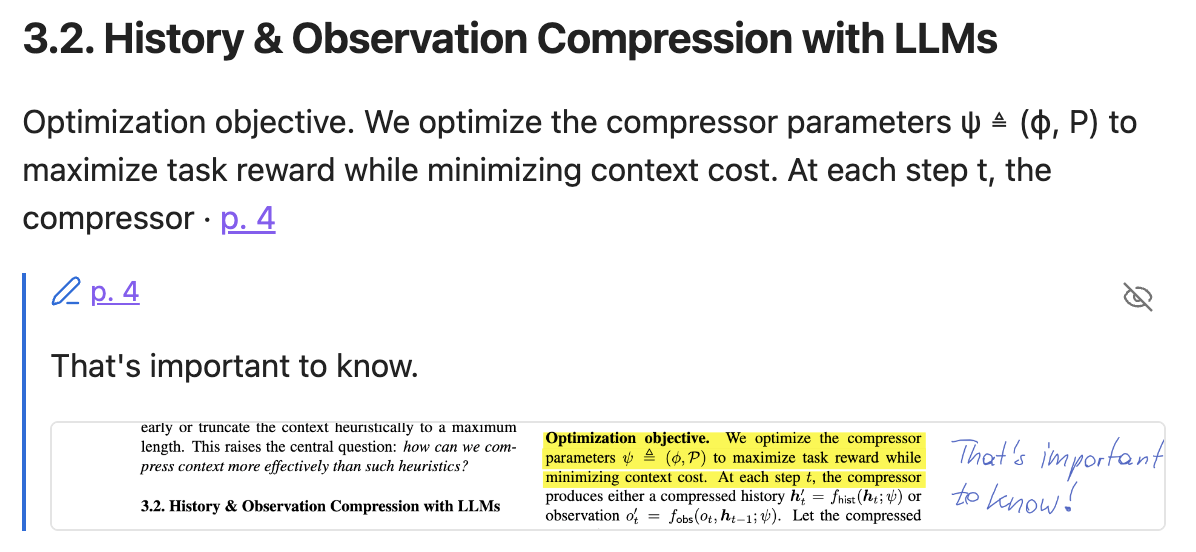
A note whose handwriting could not be transcribed says so rather than standing empty, and keeps its anchor and its page link.
Three things worth knowing before you rely on it:
- Without margin notes switched on, the digest is built from what you marked, not from what you wrote. Handwriting then stays in the render where you wrote it — no text is extracted from it, and a PDF you only wrote on syncs with the render and no text at all.
- It reads the PDF's own text layer. A scanned page without one gives less: highlights arrive as the words your tablet recorded, and pen marks are not recognised as marks at all.
- Marker colour is not carried over. Every mark reads the same in the note; the colours stay in the embedded render.
Section headings come from the PDF's own outline where it has one, and from a font-size guess where it does not — so a document without bookmarks can file a quote under the wrong heading.
What gets synced
- A notebook tagged with a mapped tag syncs as one note for the whole notebook.
- An individual page tagged with a mapped tag syncs as its own note, independent of any notebook-level tag.
- A folder tagged with a mapped tag hands that tag to everything inside it — every notebook and PDF, and the ones in folders nested below as well. Each of them then syncs exactly as if you had tagged it yourself. One tag can therefore bring in a great deal at once, so look at how much sits under a folder before you tag it — with a cloud backend, transcribing all of it costs money.
- A handwritten notebook's note has the rendered PDF embedded, then a
## Highlightssection (one quote callout per page, if you highlighted anything on the tablet), then the## Transcript. If transcription is off, fails, or finds nothing, the note is still created with the render and no## Transcriptsection — the render is never lost. An annotated PDF gets a## Digestinstead, and a notebook with typed pages among handwritten ones can carry both. - Typed text is taken from the file, never transcribed, and joins the transcript of the page it is on — at the position it sits at with Apple Vision, at the end of the page with the other backends. A typed page that reads like a document gets the digest treatment instead, like a PDF.
- The transcript is split by page. Each page that produced text gets its own heading linking into that page of the embedded PDF, so a long notebook stays navigable. Pages with nothing to read are named once at the end instead of taking a heading each, and a page transcription could not read says so where it happened. Notes synced before this keep the transcript they have — run Re-transcribe all synced notes to bring them over.
- A synced note carries no frontmatter by default — no YAML block at the top. Everything the
sync needs to track lives in the plugin's own
data.json, not in your notes. If you want your notes queryable, Frontmatter properties (Pro) writes the device's tags and metadata into each note's properties — opt-in, and your own frontmatter lines are never touched. - Removed or untagged units are never deleted. The plugin stops updating them and leaves the note exactly where it is, so nothing you already have can disappear.
- A page note is named after the page's position in the document at the time it was written. Insert a page on the tablet and everything after it moves down one — but a note whose own page did not change is not rewritten, so it keeps the name it had. Its contents stay right: the links inside it address the page of the source PDF, which insertion does not renumber. Only the file name can go stale, and only until that page changes and the note is written again. A note that would land on a name already taken gets a suffix rather than overwriting anything.
- A book laid out again on the tablet is reported. Its page count changes when its font, size or margins do, and marks made before that keep their place while the text moves — so their quotes may no longer be the sentences you marked. Said once per book, when the sync first sees the new count.
- A note that comes back with fewer highlights than it had is reported. The sync mirrors the device, so a mark you removed on the tablet leaves the note too — but a mark that went missing without you removing it is worth hearing about while a backup of the note is still recent. The notice says how many notes; Copy diagnostics in settings says which.
Frontmatter properties (Pro)
Turn on Frontmatter properties in the plugin settings (under Vault output) and every synced note gets a small block of Obsidian properties, straight from the device:
---
tags:
  - remarkable/projekt-x
remarkable-modified: 2026-08-25T16:20
remarkable-synced: 2026-08-25T17:02
remarkable-folder: Work/Projekt X
remarkable-type: notebook
remarkable-pages: 12
remarkable-pinned: true
remarkable-uuid: aaaa0002-0000-0000-0000-000000000000
remarkable-note-id: 3f9a1c04-0000-0000-0000-000000000000
---
remarkable-pages is how many pages this note covers, which is also what it costs to
transcribe: a backend is asked once per page. Sorting by it before a large sync tells you which
notebooks are the expensive ones. A note made from a page tag covers one page, and says which one:
remarkable-pages: 1
remarkable-page: 7
A note made from a notebook tag covers pages 1 to n and so carries no remarkable-page at all —
which makes the key itself the filter for "page notes only".
Every document tag — the sync tag included — arrives namespaced under remarkable/, so each synced
note answers FROM #remarkable. With Dataview,
your latest five synced notes are:
```dataview
TABLE remarkable-synced AS "Synced", remarkable-folder AS "Device folder"
FROM #remarkable
SORT remarkable-synced DESC
LIMIT 5
```
The same fields drive tag filters (FROM #remarkable/meeting), favourites
(WHERE remarkable-pinned = true), grouping by source type, or a "synced this week" view — and
Obsidian's built-in Bases can query them too.
The plugin manages only its own lines: frontmatter you write yourself is preserved byte-for-byte, and the plugin's keys mirror the device (hand edits to them are overwritten on the next sync). Turning the setting on writes the properties into every already-synced note, so views are complete from day one; turning it off removes exactly what the plugin added and leaves your own frontmatter alone. When a plugin update adds a property, one sync brings your existing notes up to date — you do not have to toggle anything.
Identity: what you can key automation on
Two of these fields are meant to be relied on by scripts, so here is exactly what they promise.
remarkable-uuidis the document on your reMarkable. Several notes can carry the same one: a document routed by two mapped tags produces two notes, and a page note carries its notebook's id. It is the document's identity, not the note's.remarkable-note-idis this one note. No two notes share it.
While Frontmatter properties is on, every note the plugin writes carries both. Neither is ever changed or regenerated for a note that already has one — not when the document is synced again, not when you rename the mapped tag, and not when you move the note somewhere else in your vault.
One limit, so it does not surprise you: a note whose tag mapping you removed is no longer written by the plugin, and keeps whatever it had at its last write. It is not given the keys after the fact. Automation that looks for them will pass such a note by — which is the safe direction to fail in.
Writing your own notes
A synced note belongs to the plugin: every sync rewrites it from scratch. Each note says so at the top, in a collapsed callout. So keep your own writing in a note of your own, and link back to the synced one.
If you do edit a synced note — for example to fix a misread word — the plugin notices and refuses to overwrite it, telling you how many notes it skipped. Your edit is never silently erased; that note simply stops updating until you undo the change.
Notes synced by earlier versions had a free area below the sync block. Anything you wrote there stays where it is and is still preserved on every sync — new notes just no longer offer it.
Limitations
- Desktop only. Obsidian on mobile is unsupported.
- One-way sync: reMarkable → Obsidian only. Nothing is ever written back to your tablet.
- One tag → folder mapping.
- Transcription with Apple Vision requires macOS 13 or later, and its transcripts are flat text — no headings, lists, task lists, or tables.
- The optional local model keeps headings and lists, but needs Apple Silicon with 8 GB of memory or Windows on ARM with 16 GB, and a download of 1.6 to 6.2 GB depending on the model. Tables come out as plain lines.
- Windows on x64 and Linux get the render and no handwriting transcript out of the box — a local server you run yourself is the only route there. The digest of a marked-up PDF and of a typed document are unaffected and work everywhere: both are read from the file, not transcribed. Typed text on a handwritten page needs a backend like any other transcript, since it is the transcript it joins.
- A PDF you only wrote on syncs with the render and no text. The digest quotes what you marked; handwriting on the page is not read.
- The reMarkable cloud API used here (via
rmapi-js) is reverse-engineered and unversioned; firmware changes on reMarkable's side can break sync. See below. Syncing straight from the tablet avoids that interface entirely, and is what Pro buys you as a way out — on a Paper Pro or Paper Pure at the cost of a factory reset.
What I do not control
This plugin talks to the reMarkable cloud. I do not work for reMarkable. I have no contract with them and no advance warning of their plans. They can change or switch off their cloud at any time. This already happened: in April 2026 a format change broke every tool in this space.
If it happens again:
- I will work on a fix as fast as I can. I cannot promise a date.
- Syncing without the cloud does not go through any of this. It reads the tablet on your own network, so a change to their cloud cannot stop it.
- Your notes are safe. Everything already synced is plain Markdown and PDF in your own vault. It stays there. Nothing is deleted.
Privacy and permissions
Network use
This plugin makes network requests to exactly one place by default:
- reMarkable cloud (required) — the plugin authenticates to
my.remarkable.comvia a one-time device code, then reads your notebook/page list, tags, and content over the reMarkable cloud API to sync it into your vault. This is read-only; nothing is written back to your reMarkable account.
Your tablet, over your own network — only if you set it up (Syncing without the cloud, Tagged Sync Pro):
-
An SSH connection to your reMarkable, at the address you pair with — the USB address (
10.11.99.1) or the tablet's address on your Wi-Fi. The plugin reads the notes directory over SFTP and runs two commands on the device: one to list the files with their sizes and times, andsha256sumto hash them so it can tell what changed. It is read-only apart from pairing, which appends one public key to/home/root/.ssh/authorized_keys, and — only if you agree when asked — runsrm-ssh-over-wlan onso the tablet keeps accepting connections over Wi-Fi.This connection stays on your network. It goes to your tablet and nowhere else; no server of mine and none of reMarkable's is involved, and with it configured a sync needs no internet connection at all. The root password you type while pairing is used for that one connection and is never stored.
A transcription backend you choose yourself. Which of these is contacted, if any, depends entirely on the backend selected in settings:
- Apple Vision and a local server you run yourself — nothing leaves your machine.
- A cloud backend (Anthropic, OpenAI, Google, OpenRouter — Tagged Sync Pro) — the page image is sent to that provider, using your own API key, and the transcript comes back. This is the one case where a page image leaves your device. You choose it, you pay for it, and it is off unless you turn it on. The provider's own terms apply.
Two more hosts are contacted only if you opt in to the local model (see above), once, to download it — never during a sync, and never again once the files are on disk:
huggingface.co— the two model files, fromQwen/Qwen3-VL-8B-Instruct-GGUF,Qwen/Qwen3-VL-2B-Instruct-GGUForggml-org/Qwen2.5-VL-7B-Instruct-GGUF, each pinned to one commit.github.com— thellama.cppengine, from releaseb10295ofggml-org/llama.cpp(11–12 MB depending on platform).
Nothing is uploaded to either.
The licence check — polar.sh, and only if you own or are trialling
Tagged Sync Pro. It is called only when you use a paid feature, and at
most once every 7 days; a valid answer is remembered in between. It carries your licence key, the
activation id of this vault and the plugin's public organization id — no email address, no vault
name, no note content. A free user never causes this call. Details in PRIVACY.md.
No telemetry or analytics of any kind are collected or sent by this plugin.
Accessing files outside of Obsidian vaults
Two things, both only on the paths your OS reserves for exactly this:
-
Page images during transcription. Each page is written as a temporary PNG under your OS temp directory (
os.tmpdir()) — never under Documents/Desktop/Downloads/iCloud — and deleted as soon as the page has been read. -
The local model, if you opt in to it. The model files (1.6 to 6.2 GB) and the engine are written to the standard per-application data directory —
~/Library/Application Support/remarkable-tagged-sync/on macOS,%LOCALAPPDATA%\remarkable-tagged-sync\on Windows — and read from there when you transcribe.They live outside your vault on purpose: inside it they would go through Obsidian Sync and every vault backup, once per vault, and several gigabytes is not something to put in someone's backup without saying so. The price is that uninstalling the plugin does not delete them. The Delete the model button in settings does, and settings names the exact size before you agree to download anything.
Other permissions this plugin uses
Two behaviours show up in Obsidian's automated plugin review, so they are spelled out here:
- Clipboard — write only. The Copy diagnostics button in settings writes your plugin version, Obsidian version, platform, selected OCR backend, number of mapped tags, and last sync time to the clipboard, so you can paste them into a bug report. The plugin never reads your clipboard, and nothing is sent anywhere — you choose where to paste it.
- Vault folder list. The tag-routing settings read the list of folders in your vault to fill the "map this tag to a folder" dropdown. Only folder paths are read; note contents are never scanned for this, and the list never leaves your machine.
Support
- Found a bug or have a question? Open a GitHub issue. I read every issue.
- This is a one-person project. I answer as time allows, and I promise effort, not dates.
- Payment, invoices and refunds are handled by Polar.
- If your licence key did not arrive, or your report contains private data, email me at support@hochbichler.com.
Support is the same whether you paid or not. The money buys the feature, nothing else.
Reporting a problem
Open an issue at github.com/thomas-hochbichler/obsidian-remarkable-tagged-sync/issues.
Before you write it, press Copy diagnostics in the plugin settings and paste the result into the issue. It contains your plugin and Obsidian versions, your OS, whether Apple Vision is available, and the last error — nothing is sent anywhere by pressing it.
Requesting a feature
Suggest a feature by opening a feature request. Vote on existing requests with a 👍 reaction — the most-wanted features rise to the top.
Development
npm install
npm run dev      # watch build
npm run build    # typecheck + production build
npm test         # vitest
License
Apache-2.0 for the plugin, except pro/, which is under the PolyForm Strict License 1.0.0
(noncommercial purposes only) — see LICENSE and pro/LICENSE. Paid
commercial use is granted by LICENSE-COMMERCIAL.md. Third-party notices
are in NOTICE.
For plugin developers
Search results and similarity scores are powered by semantic analysis of your plugin's README. If your plugin isn't appearing for searches you'd expect, try updating your README to clearly describe your plugin's purpose, features, and use cases.