Scoped Snippets
approvedby SAN-SchX
Choose a CSS snippet per Obsidian .base or .md file, and apply it only to that Base or Markdown view. - This plugin has not been manually reviewed by Obsidian staff.
Scoped Snippets
Scoped Snippets is an Obsidian plugin that lets you apply CSS snippets to individual Markdown (.md) and Base (.base) files instead of enabling them globally across your entire vault. It also includes a built-in editor for creating and editing your CSS snippets directly in Obsidian.
⚠️ IMPORTANT: Disable CSS snippets in Obsidian first
For this plugin to work as intended, the CSS snippets you want to control per file must be disabled in Obsidian’s built-in Settings → Appearance → CSS snippets section.
If a snippet is enabled there, Obsidian will apply it globally across the entire vault, and Scoped Snippets will not be able to limit it to a single .md or .base file.
Installation
Manual Installation:
Download the latest release from the GitHub releases page. Extract the downloaded ZIP file. Copy the plugin folder into:
YourVault/.obsidian/plugins/
Restart Obsidian. Go to Settings → Community plugins. Enable Scoped Snippets.
From Obsidian Community Plugins:
- Open Settings → Community plugins.
- Click Browse and search for "Scoped Snippets".
- Click Install, then Enable.
Usage
Add your CSS snippets to:
.obsidian/snippets/
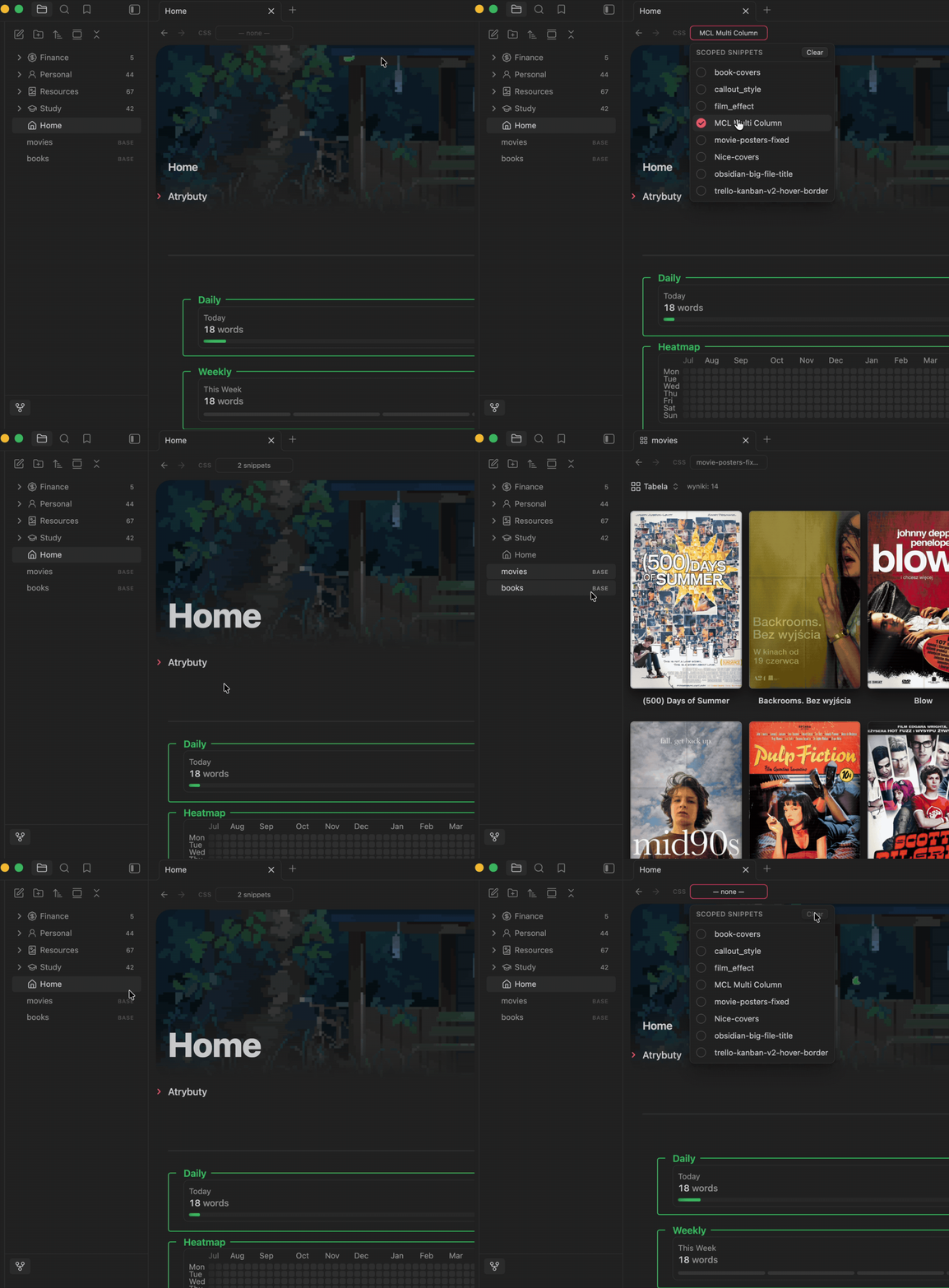
Open a Markdown .md or Base .base file then use the picker in the file view header. Tick one or more CSS snippets to apply them to that specific file. The button shows the current selection (— none —, the snippet name, or N snippets).
To remove a snippets from a file, click "Clear" button
Editing snippets in Obsidian
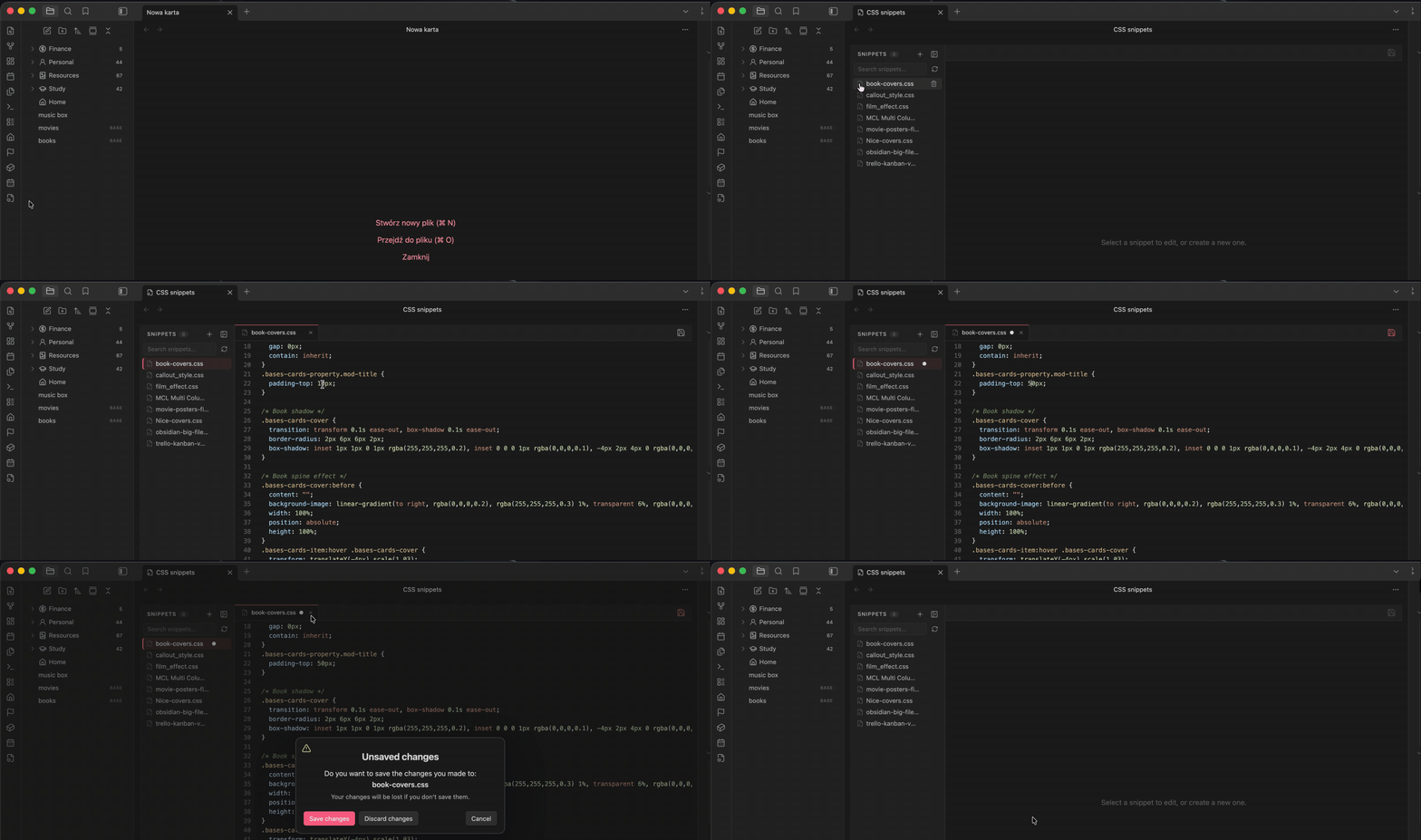
Click the Scoped Snippets ribbon icon to open the built-in CSS editor. It lists every file in your .obsidian/snippets/ folder, select one to open and edit its contents, or create a new snippet file from scratch. Save your changes by clicking icon in the right corner or by trying to close a tab. You can edit multiple CSS Snippets at the same time and they take effect immediately, no external text editor required.
⚙️ Settings
You can customize the plugin in:
Settings → Community plugins → Scoped Snippets
Available settings:
- Show or hide the snippet selector in supported file views.
- Dropdown position:
- Left
- Right
Hiding the selector does not disable already assigned snippets. It only hides the selector UI.
- Select a preset or chose your own editor colors.
Limitations
Scoped Snippets is designed to scope regular CSS selectors to a specific file view. Some very complex CSS snippets, especially those using global selectors, advanced at-rules, or theme-wide variables, may require small adjustments to work perfectly when scoped.
🟢 changelog
v0.6.4
- Built-in snippet editor (IDE), accessible from the ribbon icon create and edit CSS snippet files directly inside Obsidian, no external editor needed.
v0.5.0
- Replaced the dropdown component with a picker for improved usability.
- Removed the "center" position option for the selector.
License
This project is licensed under the MIT License.
For plugin developers
Search results and similarity scores are powered by semantic analysis of your plugin's README. If your plugin isn't appearing for searches you'd expect, try updating your README to clearly describe your plugin's purpose, features, and use cases.