Screenshot Selection
approvedby HWY1dot0
Capture the currently selected content as a PNG and copy it to the clipboard. - This plugin has not been manually reviewed by Obsidian staff.
English | 简体中文
Screenshot Selection
Capture note content in Obsidian as a PNG. On desktop, selected rendered content is copied to the system clipboard. On mobile, selected text or the current markdown block is copied to the clipboard when possible, with a vault file fallback.
The image inherits your current Obsidian theme (fonts, colors, callouts, code highlighting), so the output looks the way the note looks on screen.
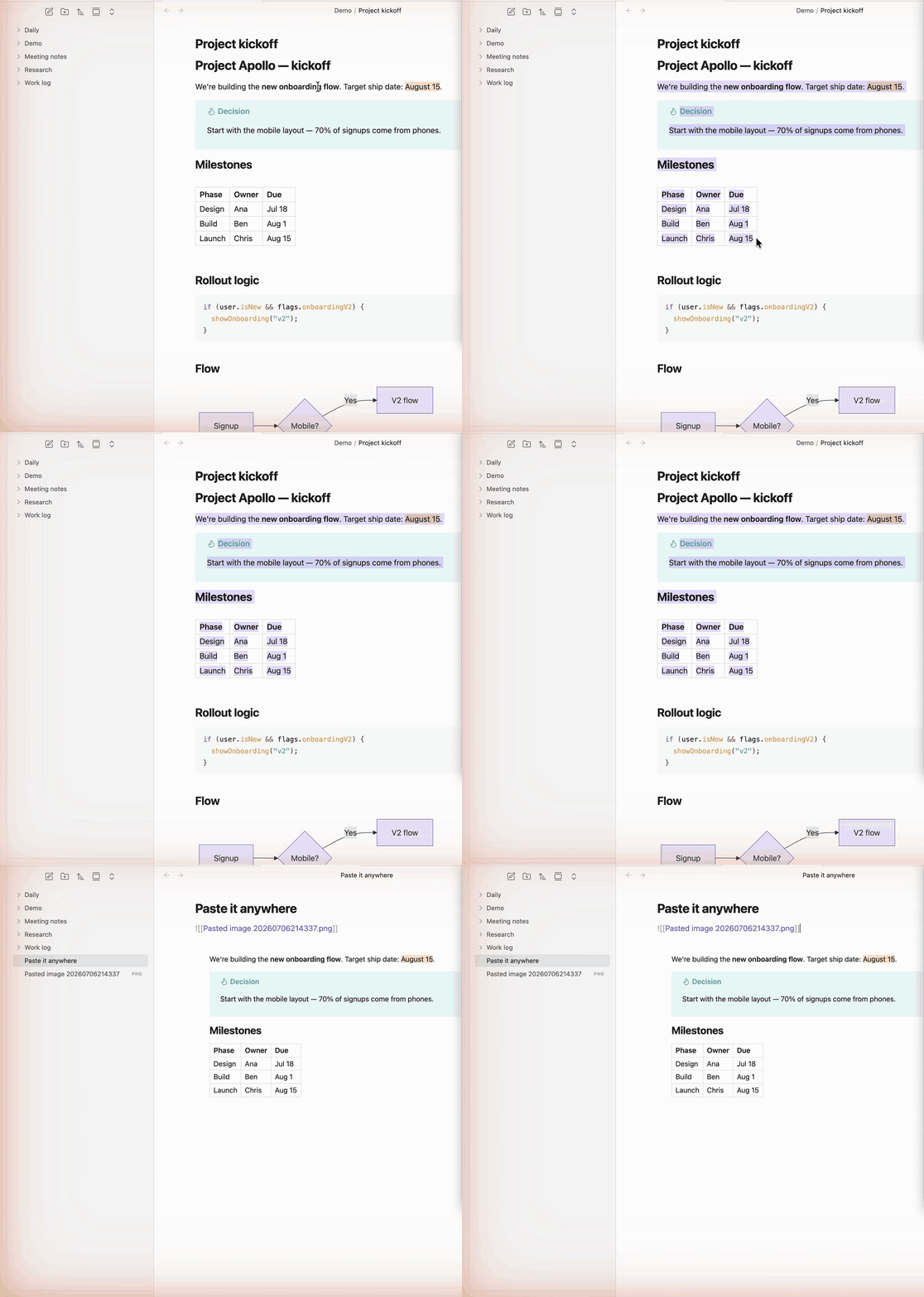
Features
- Works in Reading View and Live Preview
- Preserves your theme — dark / light, fonts, callouts, code highlighting
- Captures the full selection, even if it scrolls beyond the screen
- Desktop: copies straight to the system clipboard — no save dialog or file management
- Mobile: copies to the clipboard, or saves to
Attachments/Screenshots/if iOS blocks image writing; can also capture the current block without a precise touch selection - Capture from the camera ribbon icon or the editor context menu
- Optional watermark — a corner label or a diagonal tiled overlay
Install
From the Community Plugins browser
- Settings → Community plugins → Browse
- Search for "Screenshot Selection"
- Install and enable
Manual install
- Download
main.js,manifest.json, andstyles.cssfrom the latest release - Drop them into
<your-vault>/.obsidian/plugins/screenshot-selection/ - Settings → Community plugins → reload and enable "Screenshot Selection"
Usage
Desktop
- Open a note, switch to Reading View or Live Preview
- Select the content you want to capture (drag-select with the mouse)
- Open the command palette (
Cmd-P/Ctrl-P) and run Capture selection to clipboard - Paste (
Cmd-V/Ctrl-V) into any app that accepts images
Assign a hotkey via Settings → Hotkeys for one-keystroke capture.
Mobile
- Open a note — Reading View gives the most faithful result
- Select the text you want to capture (or, in the editor, place the cursor inside a block to capture the whole block)
- Tap the camera ribbon action, use the editor menu item, or run Capture selection or block to file
- If clipboard writing succeeds, paste the PNG into another app
- If iOS rejects clipboard writing, the PNG is saved under
Attachments/Screenshots/; when possible, an image embed is inserted below the captured block
Watermark (optional)
Off by default. To brand or protect your screenshots, enable a watermark in Settings → Screenshot Selection:
- Style — Corner label (a short line in the corner you choose) or Diagonal tiled (repeated text across the whole image)
- Text — any string, e.g. your handle
- Opacity —
0–1; a corner label looks good around0.5, a tiled overlay around0.1 - Font size, and color (leave blank to use the theme's muted text color)
The watermark is drawn onto the image at capture time, so it stays on the PNG you paste or save.
Known limits
- Desktop clipboard capture expects a rendered selection — switch to Live Preview or Reading View
- Mobile is most faithful in Reading View; Live Preview clones the editor DOM and may look different. If iOS can't rasterize the selection, the capture falls back to a plainer text render
- Mobile clipboard image write may still be rejected by iOS; the plugin falls back to saving a vault file
- Cross-origin embeds (iframes, external PDFs) are hidden in the captured image
- Very tall selections are rejected — split into smaller captures
Build from source
git clone https://github.com/HWY1dot0/obsidian-screenshot-selection
cd obsidian-screenshot-selection
npm install
OBSIDIAN_VAULT=~/path/to/your/vault npm run build
The build copies main.js, manifest.json, and styles.css to <OBSIDIAN_VAULT>/.obsidian/plugins/screenshot-selection/. Use npm run dev for watch mode.
Network usage
This plugin makes no network requests of its own. It uses the modern-screenshot library, which — when rendering a selection that contains externally-hosted images (e.g. <img src="https://...">) — may have your browser fetch those images so they can be embedded in the capture. No data is sent to any third-party server by the plugin.
More plugins by HWY1dot0
- Calendar Hub — one calendar that surfaces every note from a given day, in any folder.
- Copy for Email — copy notes as rich text that survives pasting into Gmail, Outlook and Apple Mail.
If this plugin helps your workflow, you can buy me a coffee.
License
MIT — see LICENSE.
For plugin developers
Search results and similarity scores are powered by semantic analysis of your plugin's README. If your plugin isn't appearing for searches you'd expect, try updating your README to clearly describe your plugin's purpose, features, and use cases.