Export Selection to Word (RTF)
approvedby Keith Pieper
Export a selected Markdown passage or whole note as a Word-readable RTF while preserving common formatting. - This plugin has not been manually reviewed by Obsidian staff.
Export Selection to Word (RTF)
Export the current Markdown selection—or the whole note when no text is selected—to a Word-readable Rich Text Format (RTF) file. The plugin converts common Markdown structure into portable document formatting without external tools.
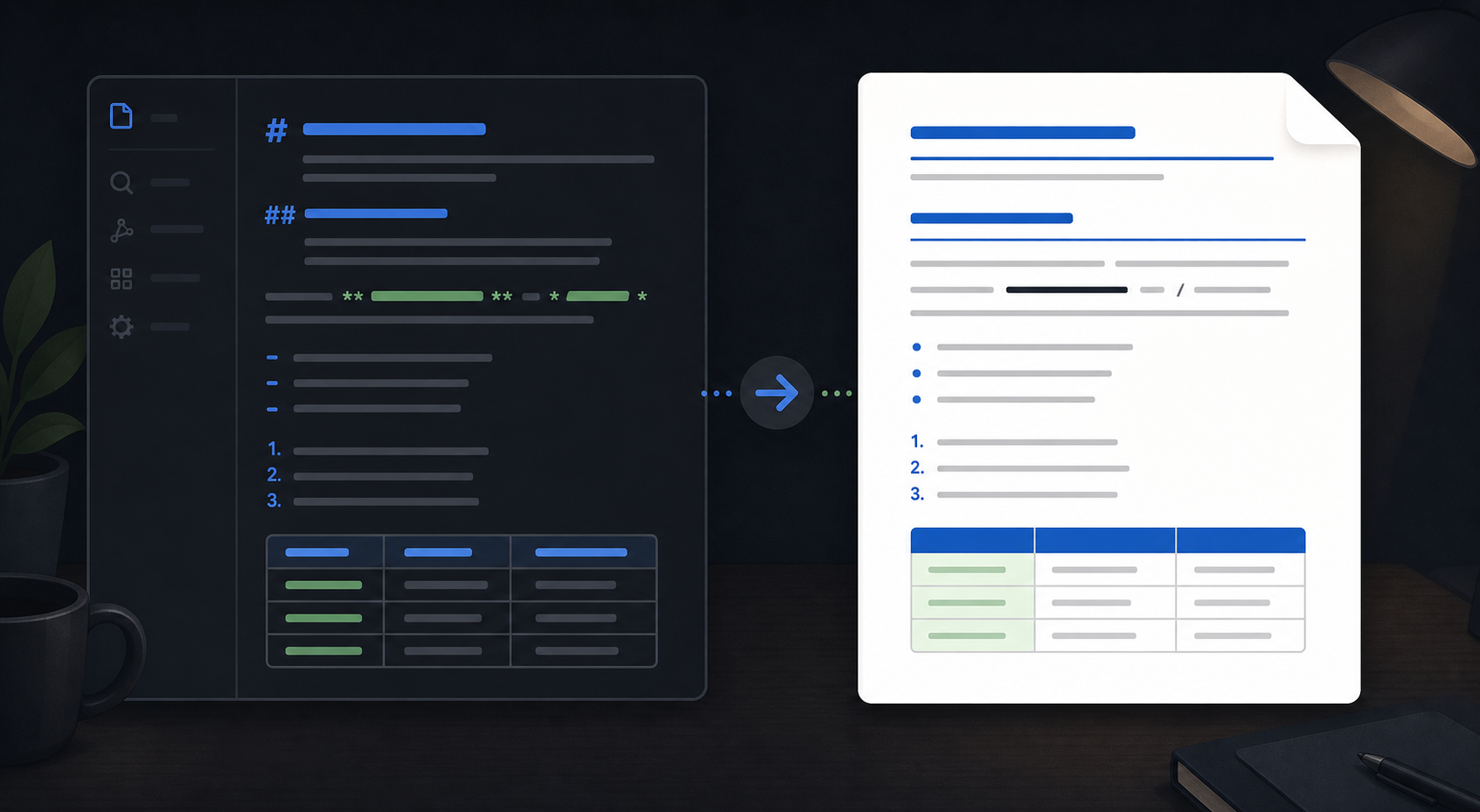
The image is an illustrative example of the workflow, not a screenshot of the plugin.
Features
- Exports the current selection or the entire active Markdown note.
- Preserves headings, bold, italics, underline, strikethrough, inline code, lists, and tables.
- Optionally strips Markdown links, wikilinks, and visible URLs.
- Lets you choose whether to keep inline formatting.
- Writes beside the source note by default, or into a vault folder you specify.
- Provides controls for list indentation and table width.
Install
- Copy this folder to /.obsidian/plugins/selection-to-word-rtf/.
- Open Settings → Community plugins.
- Enable Export Selection to Word (RTF).
The included main.js is prebuilt. This plugin is desktop-only because it writes a local RTF file through Obsidian's adapter.
Usage
- Open a Markdown note.
- Select the passage to export, or leave the selection empty to export the whole note.
- Open Command Palette and run Export selection to Word (RTF)….
- Choose the export options and click Export.
- Open the generated Note name (export).rtf in Word or another RTF-compatible editor.
By default the file is created in the source note's folder. Set Export folder to a vault-relative folder such as Exports.
Limitations
- RTF is a compatibility format, not a full Word document model.
- Complex Markdown extensions and embedded media are not reproduced as native Word objects.
- Exporting again overwrites the same target path.
License
MIT. See LICENSE.
For plugin developers
Search results and similarity scores are powered by semantic analysis of your plugin's README. If your plugin isn't appearing for searches you'd expect, try updating your README to clearly describe your plugin's purpose, features, and use cases.