by theluckystrike
Load TeX commands from one vault file and use them in math notes on phones and tablets.
Shared TeX Preamble
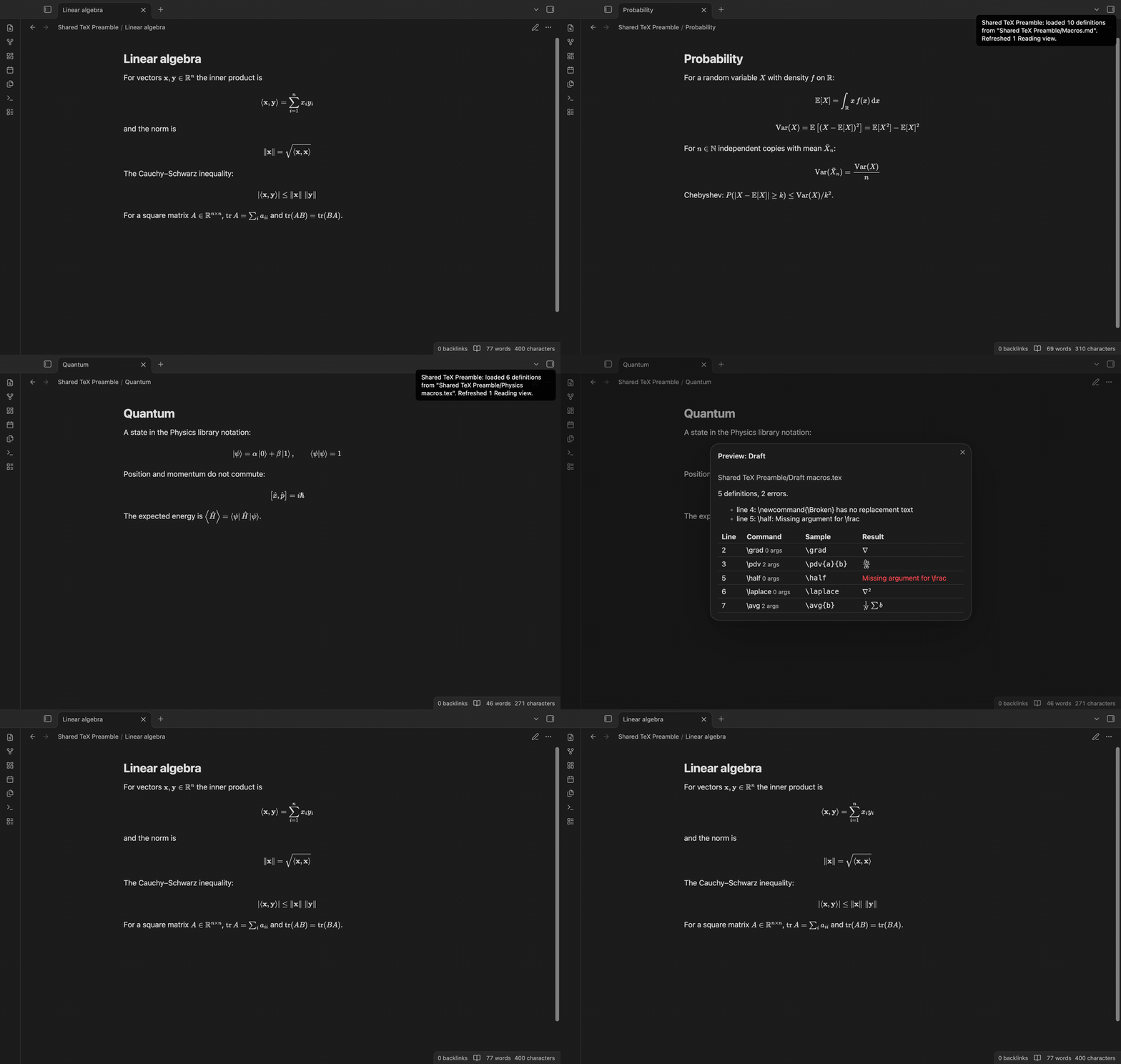
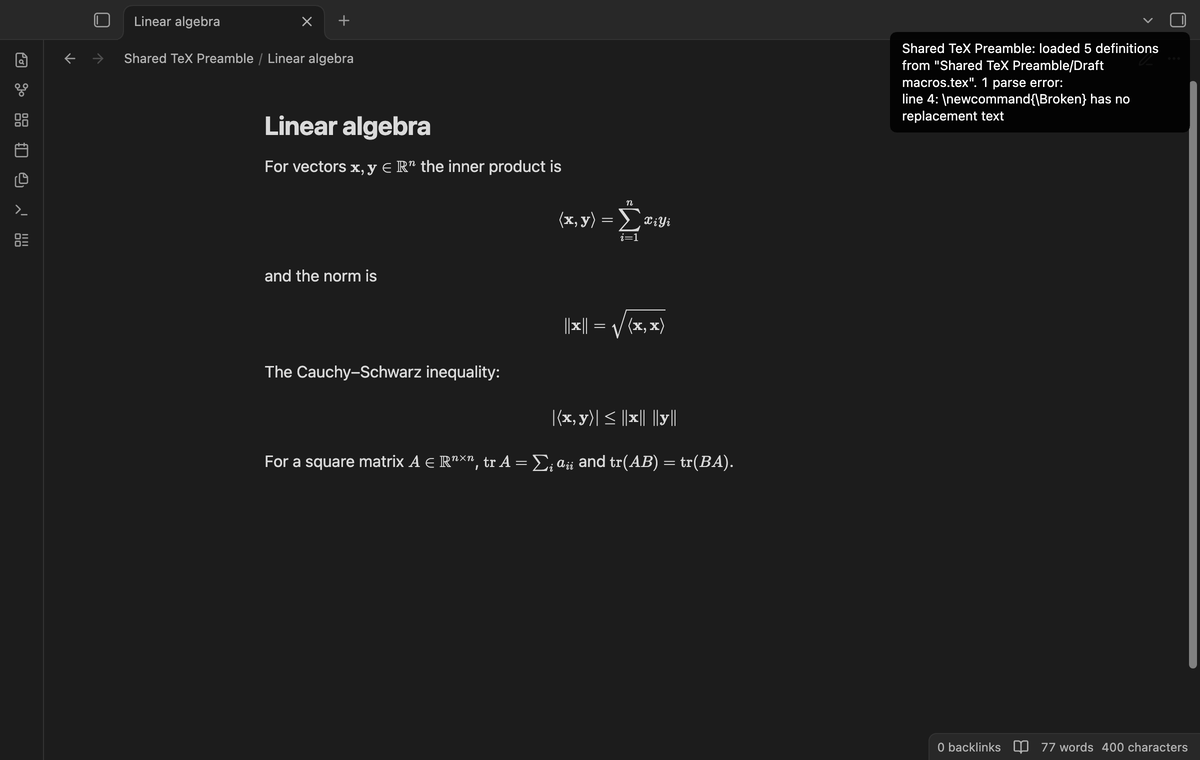
Shared TeX Preamble loads TeX commands from one file in your vault into the math engine of Obsidian. Write \newcommand{\R}{\mathbb{R}} one time, and each note can use \R in $...$ and $$...$$ math. The plugin uses only the public Obsidian API (loadMathJax and renderMath) and no Node or Electron API, so it can load on Obsidian for phones and tablets too. The end-to-end tests ran in an emulated phone window on desktop. A real phone or tablet was not tested.
Features
One macro file for the whole vault
Select one Markdown, .tex or .sty file in the settings. The plugin reads these definitions: \newcommand, \renewcommand, \providecommand, \def and \DeclareMathOperator. In a Markdown file, put the definitions in a $$ block or in a code block marked tex or latex. A Markdown file without such a block is read as TeX after its front matter. \providecommand defines a command only when the math engine does not have it yet. A % starts a comment, and \% is a percent sign.
The plugin loads the file once at startup, after the math engine of Obsidian is ready. Then it draws each open Reading view again. You do not have to open the macro file first.
The same commands in each note
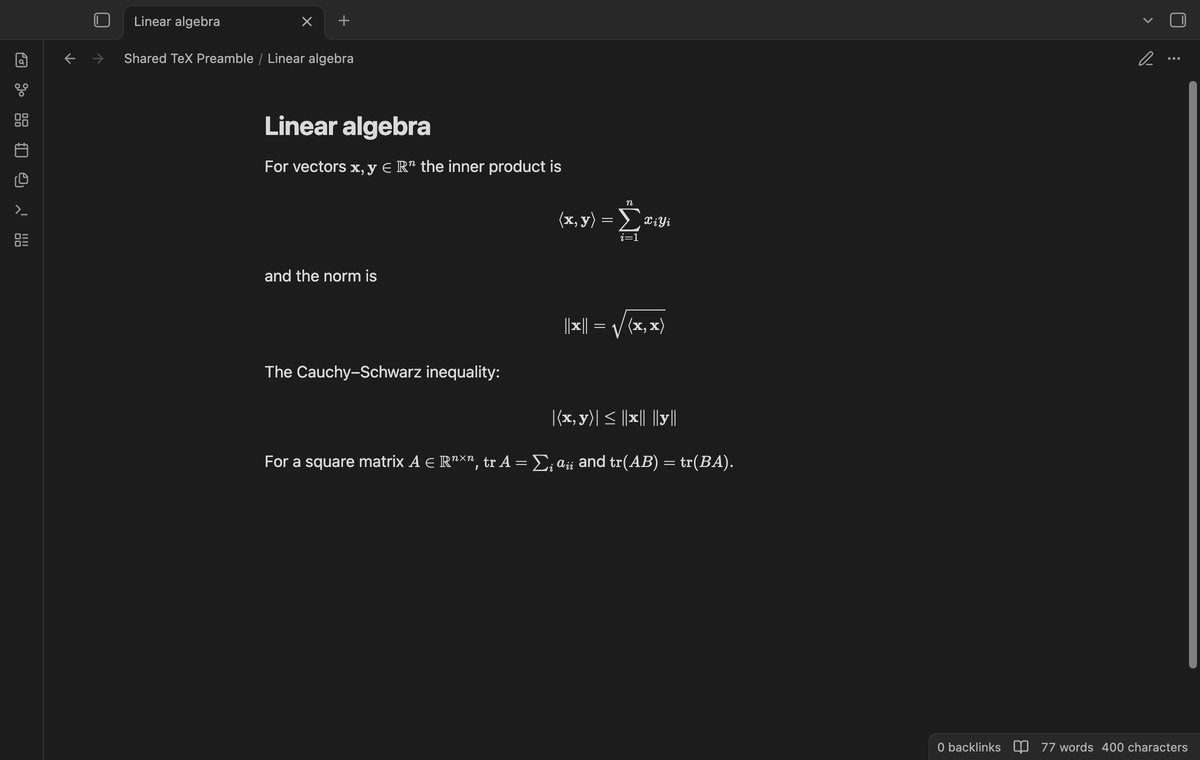
The definitions go to the math engine, not into your notes. Two notes that use \E or \Var get the same output, and neither note changes. If you share a note, the other person also needs the macro file, or the commands show as red text.
Reload with a command
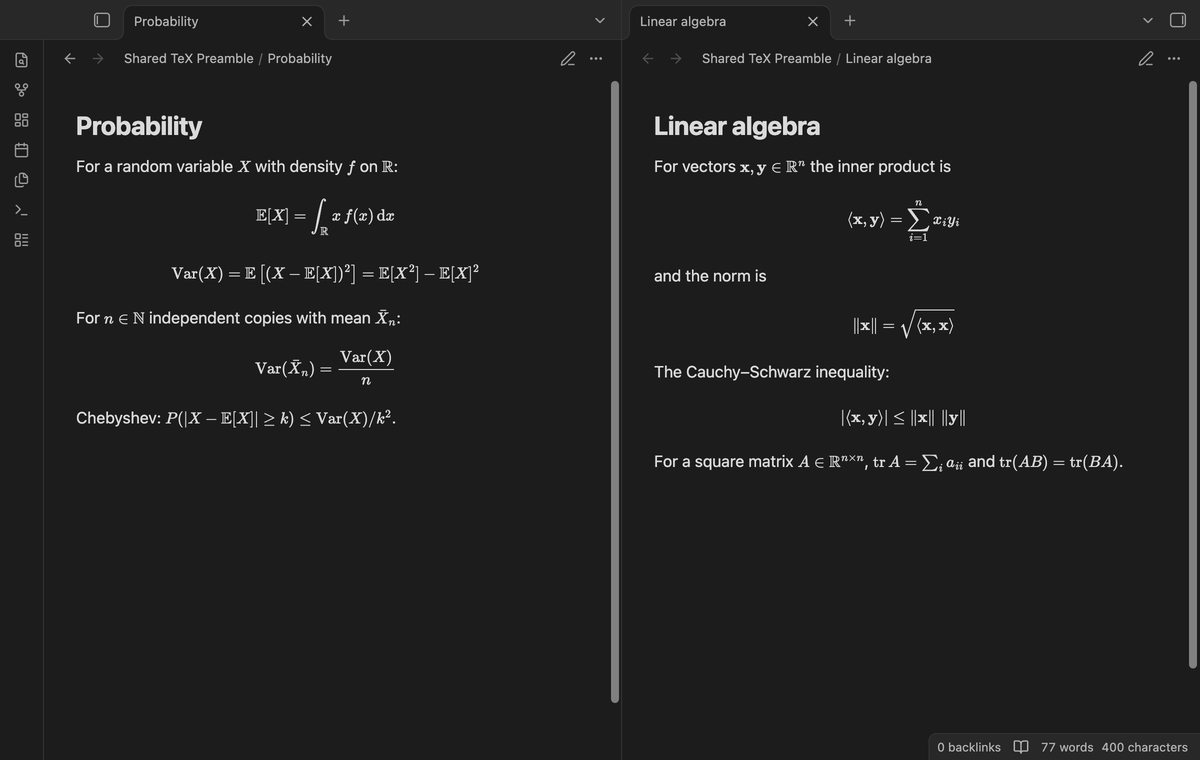
After you edit the macro file, run "Shared TeX Preamble: Reload the macro file" from the command palette, or select "Reload the macros" in the settings. The plugin reads the file again, gives the definitions to the engine and draws each open Reading view again. A notice tells you how many definitions loaded and how many Reading views it refreshed.
Notices for problems
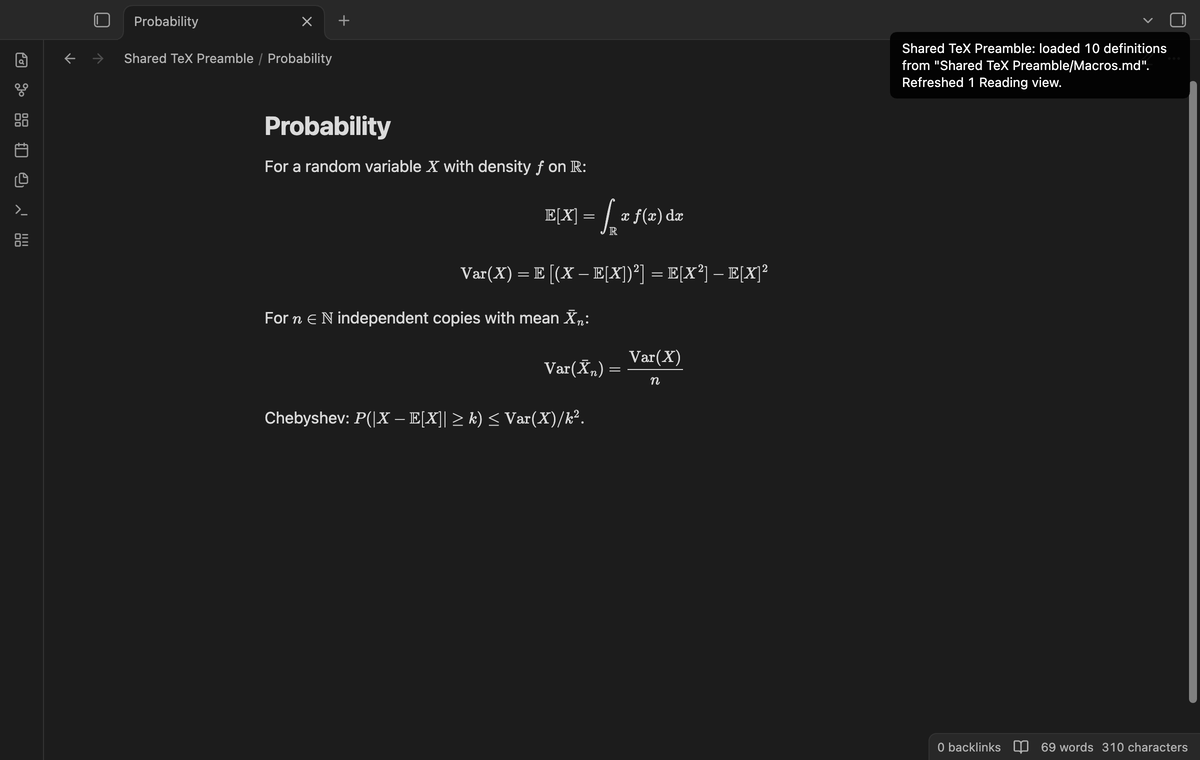
A notice names the problem and the line:
- The file does not exist. The notice gives the path. The plugin creates no file.
- The file has no definitions.
- A definition has no replacement text, a brace that does not close, or uses
#2with one argument. The other definitions in the file still load. - The engine rejects a definition.
Package commands are not loaded. If the file has \require, \usepackage, \RequirePackage, \input or \include, the plugin rejects the whole file before the engine sees it. No definition from that file loads, and no package is downloaded.
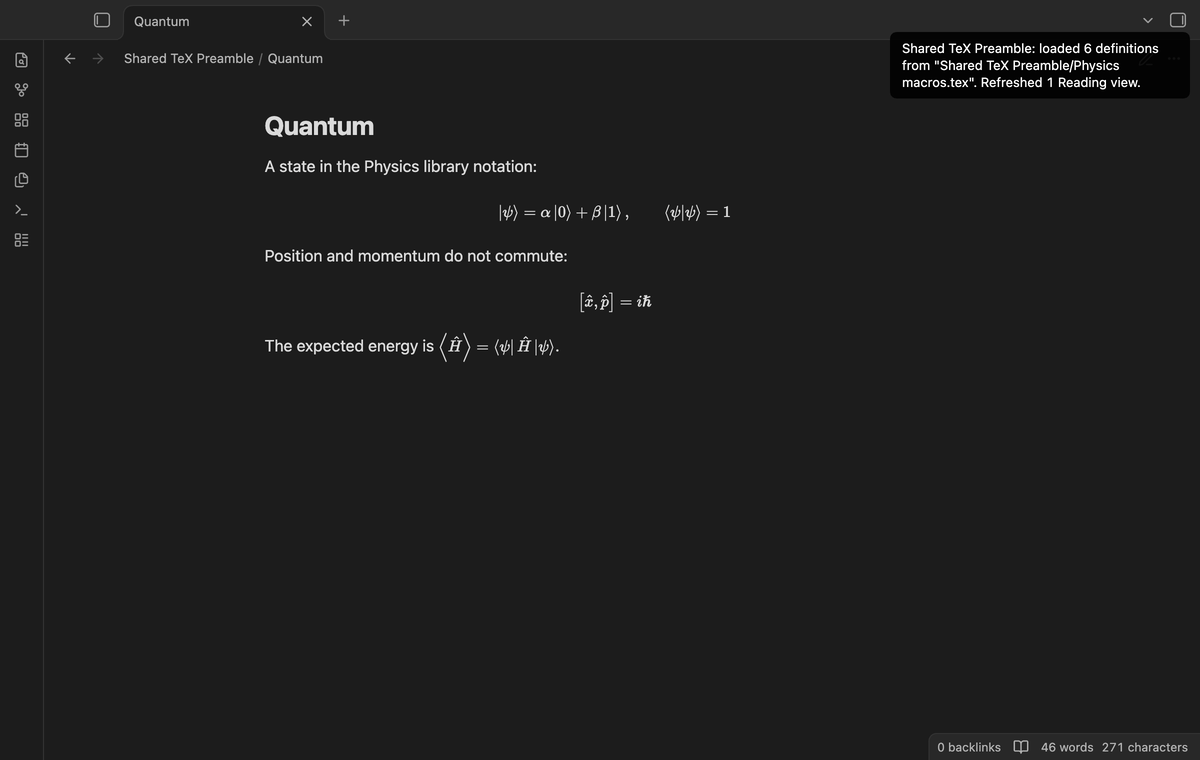
Named macro libraries (Pro)
Add libraries in the settings, each with a name and a file, for example "Physics" for bra-ket notation and "Course" for a class. Select the active library in the settings or with "Shared TeX Preamble: Select a macro library". The plugin loads the library at once. At startup it loads the active library while Pro is on. Select "Macro file" to go back to the free file.
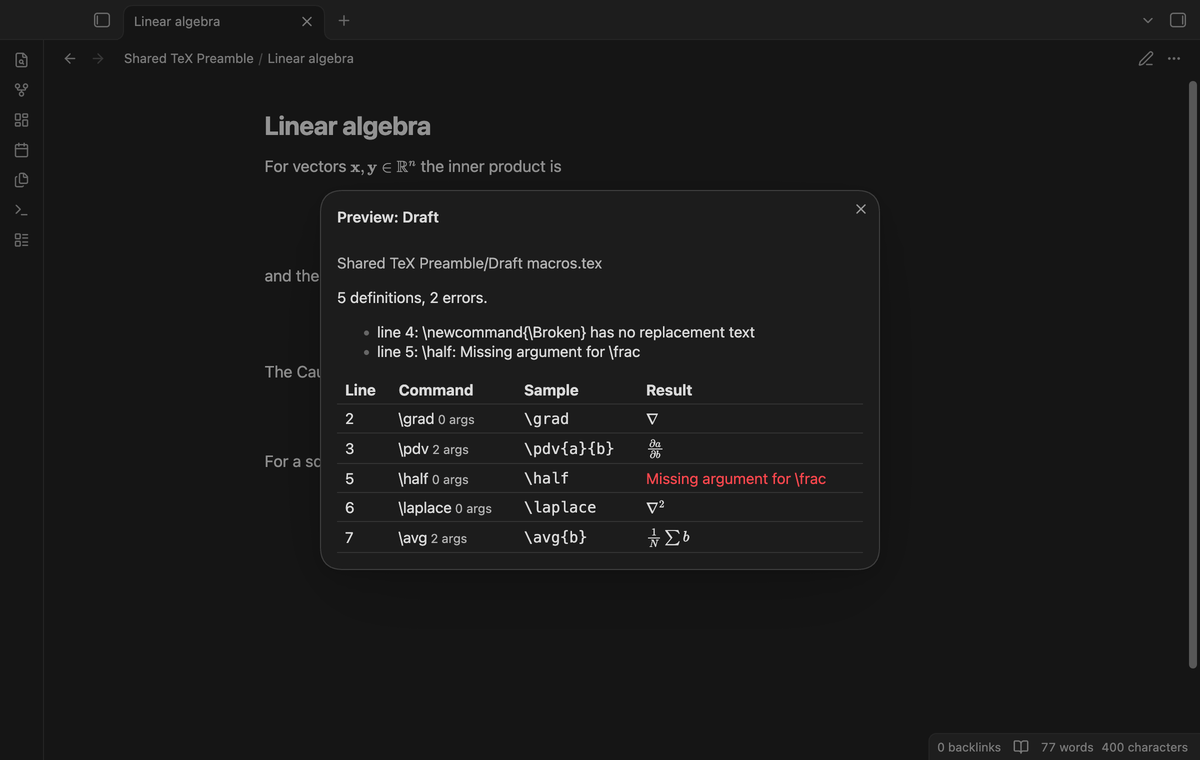
Library preview with errors (Pro)
Run "Shared TeX Preamble: Preview a macro library" and select a library. A table shows each definition with its line, its argument count, a sample call and the result. Problems show above the table. The plugin expands each sample with its own expander and sends only the expanded math to the engine. So the preview adds no command to the engine, and a library that is not active stays inactive.
Install
- Open "Settings → Community plugins", select "Browse" and search for "Shared TeX Preamble".
- Select "Install" and then "Enable".
For a manual install, copy main.js, manifest.json and styles.css from the release into <vault>/.obsidian/plugins/shared-tex-preamble/ and enable the plugin. You need Obsidian 1.13.4 or later.
Usage
-
Create a note named
Macros.mdwith a$$block of definitions:$$ \newcommand{\R}{\mathbb{R}} \newcommand{\norm}[1]{\left\lVert #1 \right\rVert} \DeclareMathOperator{\tr}{tr} $$ -
Open "Settings → Shared TeX Preamble" and select the file in "Macro file". The plugin loads it at once.
-
Write
$\norm{x} \in \R$in a note. The note shows the norm and the set of real numbers. -
After a change to the macro file, run "Reload the macro file".
An optional first argument works as in LaTeX: \newcommand{\avg}[2][N]{\frac{1}{#1} \sum #2} gives \avg{x} with N and \avg[M]{x} with M.
Settings
| Setting | What it does |
|---|---|
| Macro file | The vault file with your definitions: .md, .tex or .sty. |
| Reload the macros | Loads the file again. The description shows the result of the last load. |
| Removed definitions | A note that explains the limit below. |
| Named libraries (Pro) | A list of libraries, each with a name and a file. |
| Active library (Pro) | The library to load in place of the macro file. |
| Preview a library (Pro) | Opens the preview for a library. |
| Pro | The GitHub Sponsors sign in and status. |
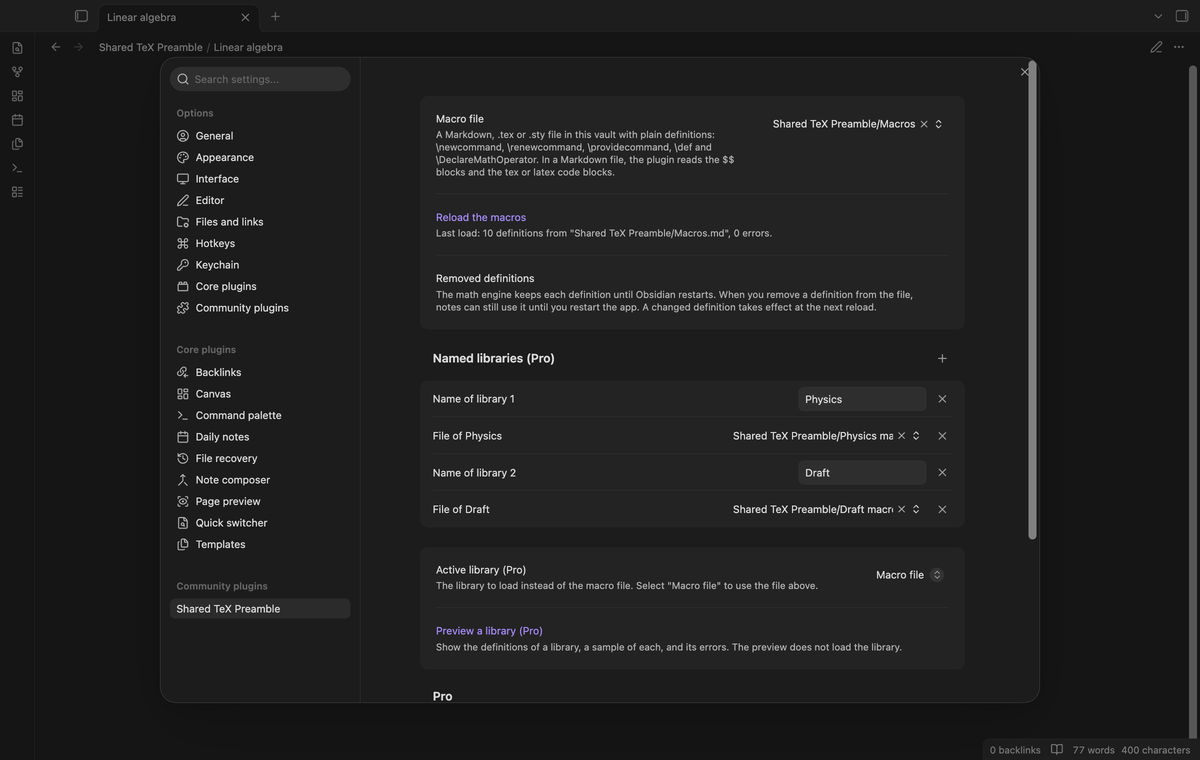
The math engine keeps each definition until Obsidian restarts. When you remove a definition from the file, notes can still use it until you restart the app. A changed definition takes effect at the next reload. When you switch libraries, commands of the old library stay usable until a restart, unless the new library defines the same name.
FAQ
Does the plugin change my notes?
No. It reads one file and writes no file. The tests check that the note text is the same after a load and after a reload.
Which Obsidian versions did you test?
The end-to-end tests ran on Obsidian 1.13.4 (MathJax 3) and 1.14.4 (MathJax 4), each in a desktop window and in an emulated phone window of 390 by 844 pixels.
Does Live Preview update?
Not by itself. Reload draws only Reading views again. Live Preview was not tested. A formula there can keep its old drawing until Obsidian draws it again.
Does it reload when I save the macro file?
No. Run the reload command after an edit.
Why is my \usepackage line rejected?
In MathJax, \require asks the engine to load an extension. The plugin loads no extension or package, so it rejects a file with a package command and keeps math loading inside your vault.
What did you not test?
- A real phone or tablet. Only the emulated phone window on desktop ran.
- Obsidian versions other than 1.13.4 and 1.14.4.
- Large macro files. The sample macro file has ten definitions.
- Other plugins that change the math engine, such as other preamble plugins.
- Live Preview refresh.
Payment, account and network
The core features are free. Pro features need a GitHub Sponsors sponsorship of theluckystrike: $5 a month or more, or $15 once. A total payment of $15 meets the payment requirement for Pro without further payment. Sign-in and the checks below still apply. Your notes stay readable and editable with or without Pro.
GitHub handles the payment. Sponsor at https://github.com/sponsors/theluckystrike. You need no account for the free features. Pro needs the GitHub account that sponsors.
Until you select "Sign in with GitHub" in the settings, Shared TeX Preamble makes no network requests. Sign in uses the GitHub device flow. Shared TeX Preamble sends its public client ID and the scope read:user to https://github.com/login/device/code and shows you a code. While you enter the code at https://github.com/login/device, it asks https://github.com/login/oauth/access_token every few seconds to check the sign-in status. The scope permits profile reads only. GitHub needs this access to show the sponsorship tier. It grants no repository scope and no write access.
After sign in, Shared TeX Preamble sends one query to https://api.github.com/graphql. It checks if the signed-in account sponsors theluckystrike. It asks for the tier and the total payment to theluckystrike. The plugin reuses a successful check for 7 days. Failed checks can retry after 6 hours. Select Refresh to request an earlier check. It sends no note content, file names or other vault data, and it has no telemetry.
After a successful check, Pro can work offline for up to 14 days. Sign out or a negative sponsorship answer turns Pro off. The plugin stores the GitHub token through the secret storage API of Obsidian. It does not put the token in its saved settings or its local sponsorship data. The local storage of this device keeps your GitHub login, the tier and the time of the last check. Sign out clears the token. You can also revoke the access in your GitHub settings, under Applications.
Support
Report bugs and feature requests in this repository's issues. Add your Obsidian version, the device and a small macro file that shows the problem.
For plugin developers
Search results and similarity scores are powered by semantic analysis of your plugin's README. If your plugin isn't appearing for searches you'd expect, try updating your README to clearly describe your plugin's purpose, features, and use cases.