stardew-valley-pals
approvedby miaowuduck
Bring Stardew Valley characters and pets into your Obsidian vault. - This plugin has not been manually reviewed by Obsidian staff.
🐾 Stardew Valley Pals


Bring the charming world of Stardew Valley into your Obsidian vault. Adopt adorable pets, befriend iconic NPCs, and let them keep you company while you work on your notes — they'll even chat with you using AI-powered speech bubbles.
📸 Demo
Pets and in Action
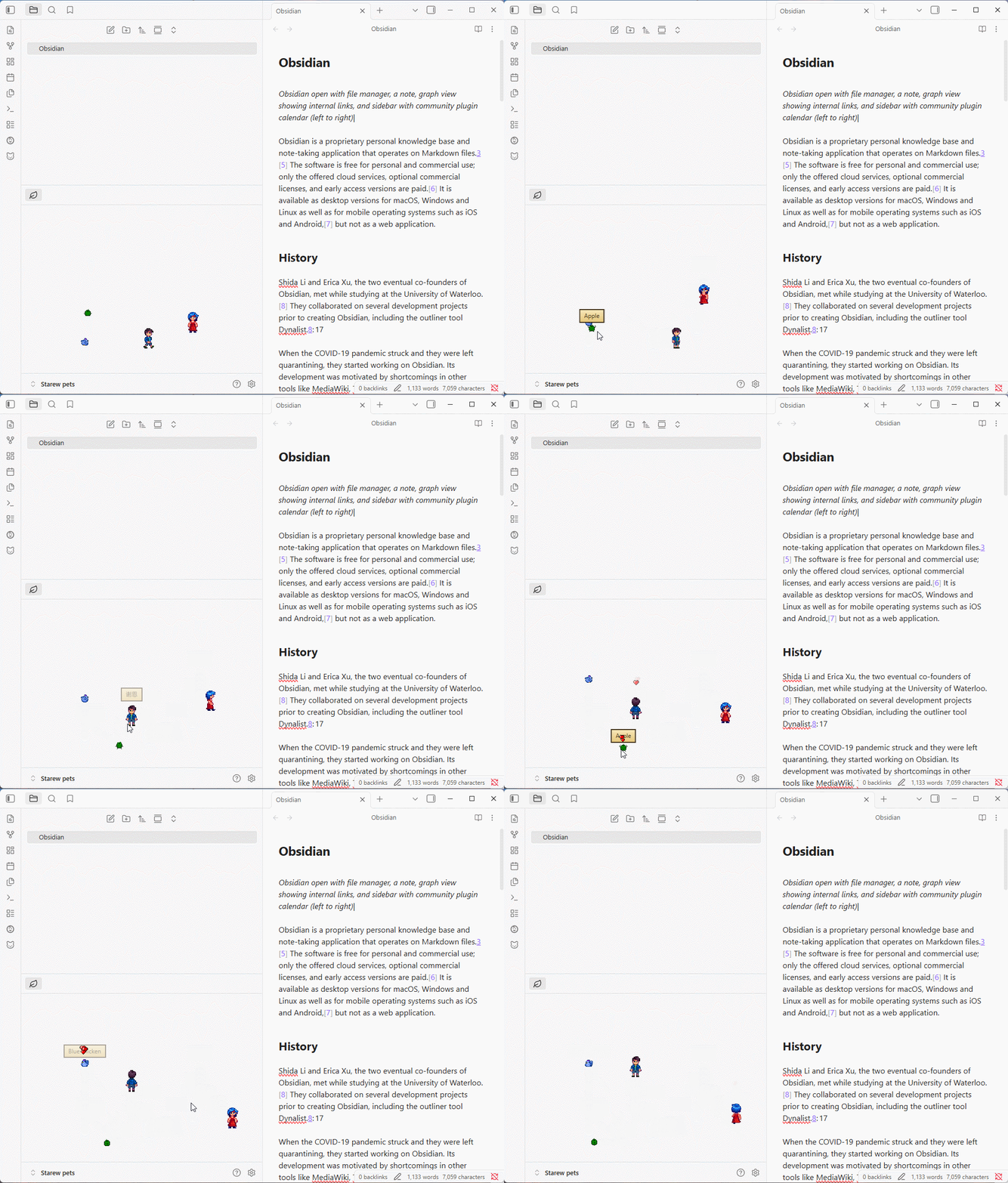
① Pets wandering around, idling, and sleeping in your vault.
② Stardew Valley NPCs walking and interacting with your notes.
AI Speech Bubbles
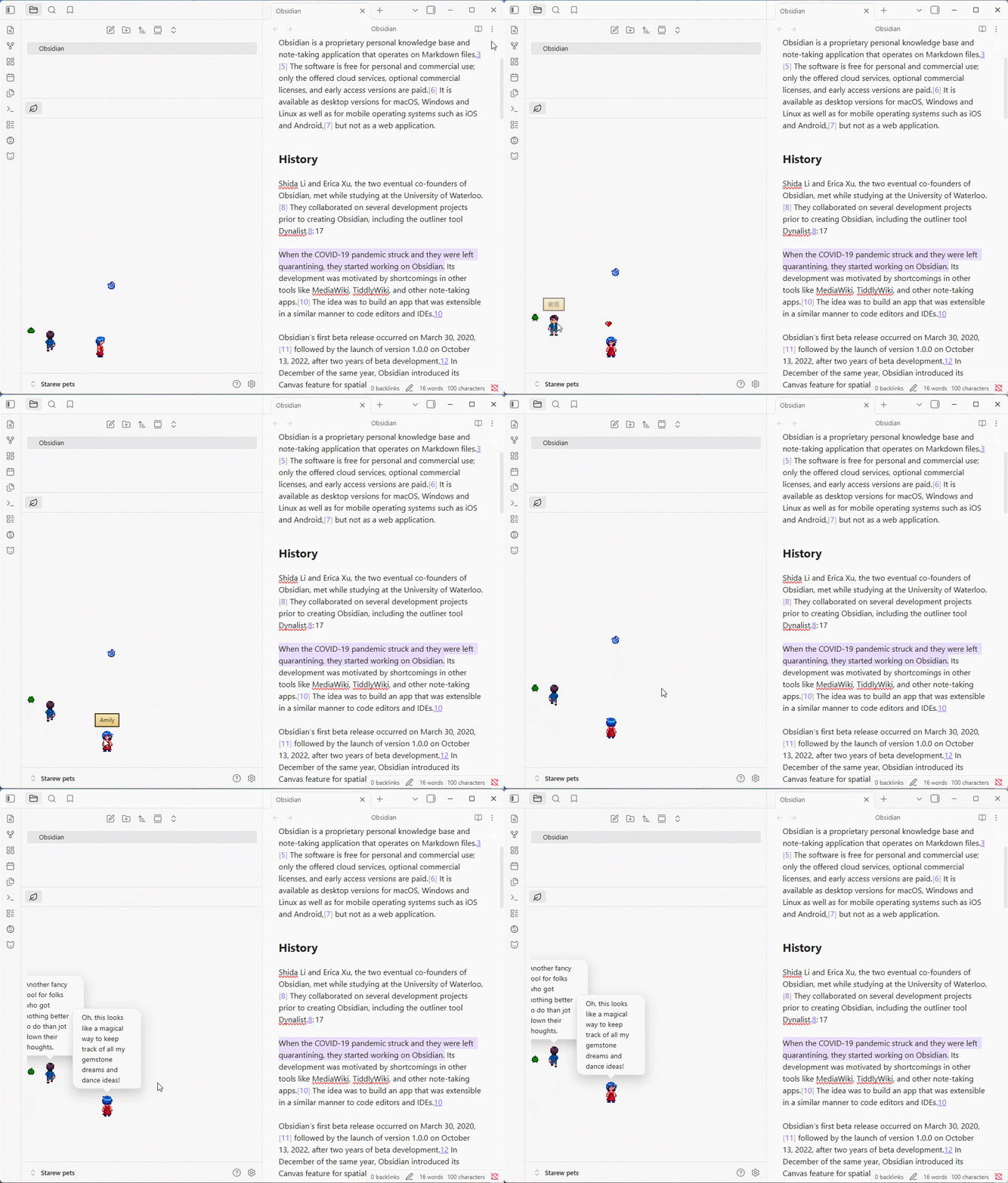
③ Right-click a character to get a contextual comment about your current note.
Overlay Mode
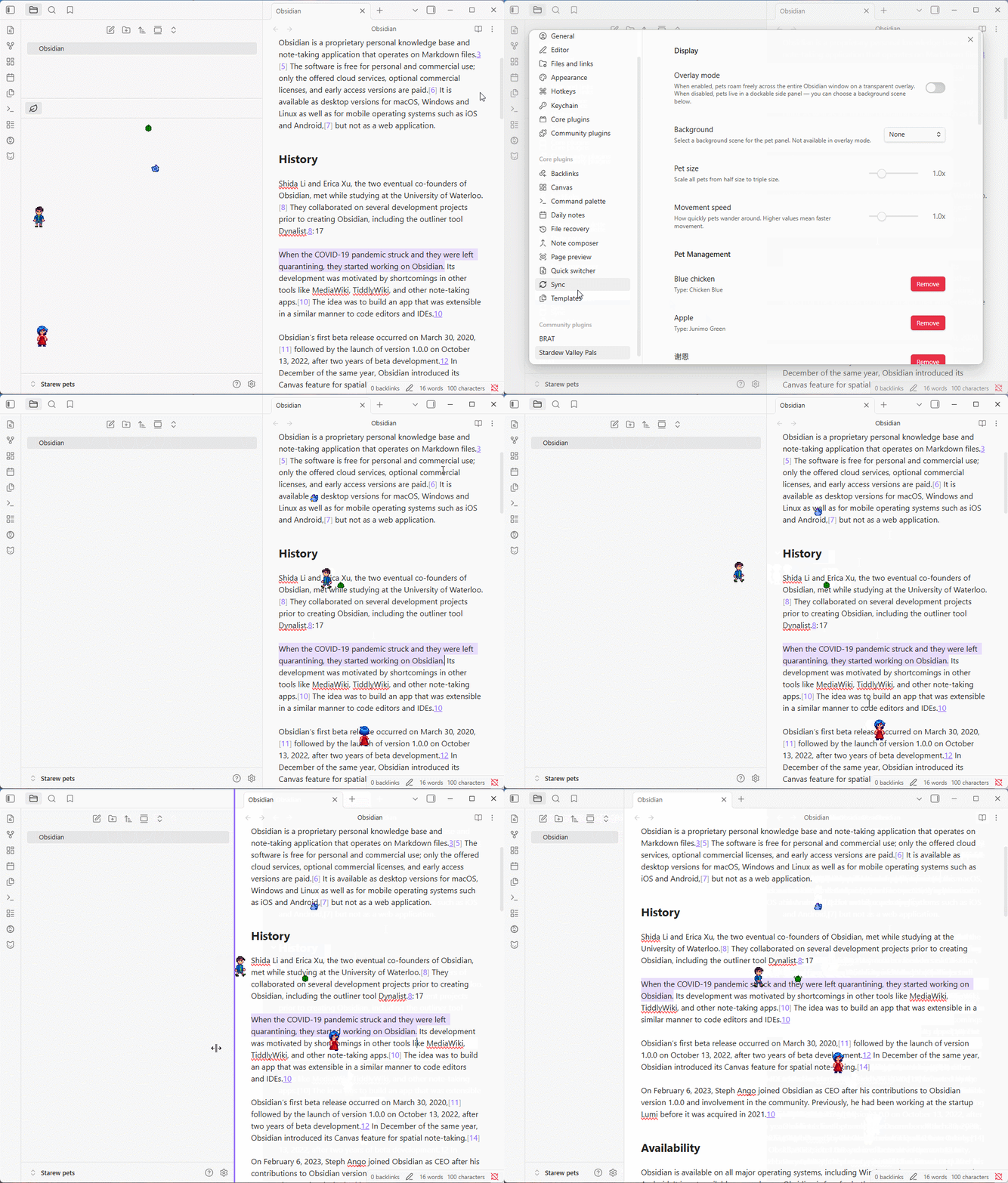
④ Pets roaming freely across your entire Obsidian window.
✨ Features
🐱 Pets & 👥 NPCs
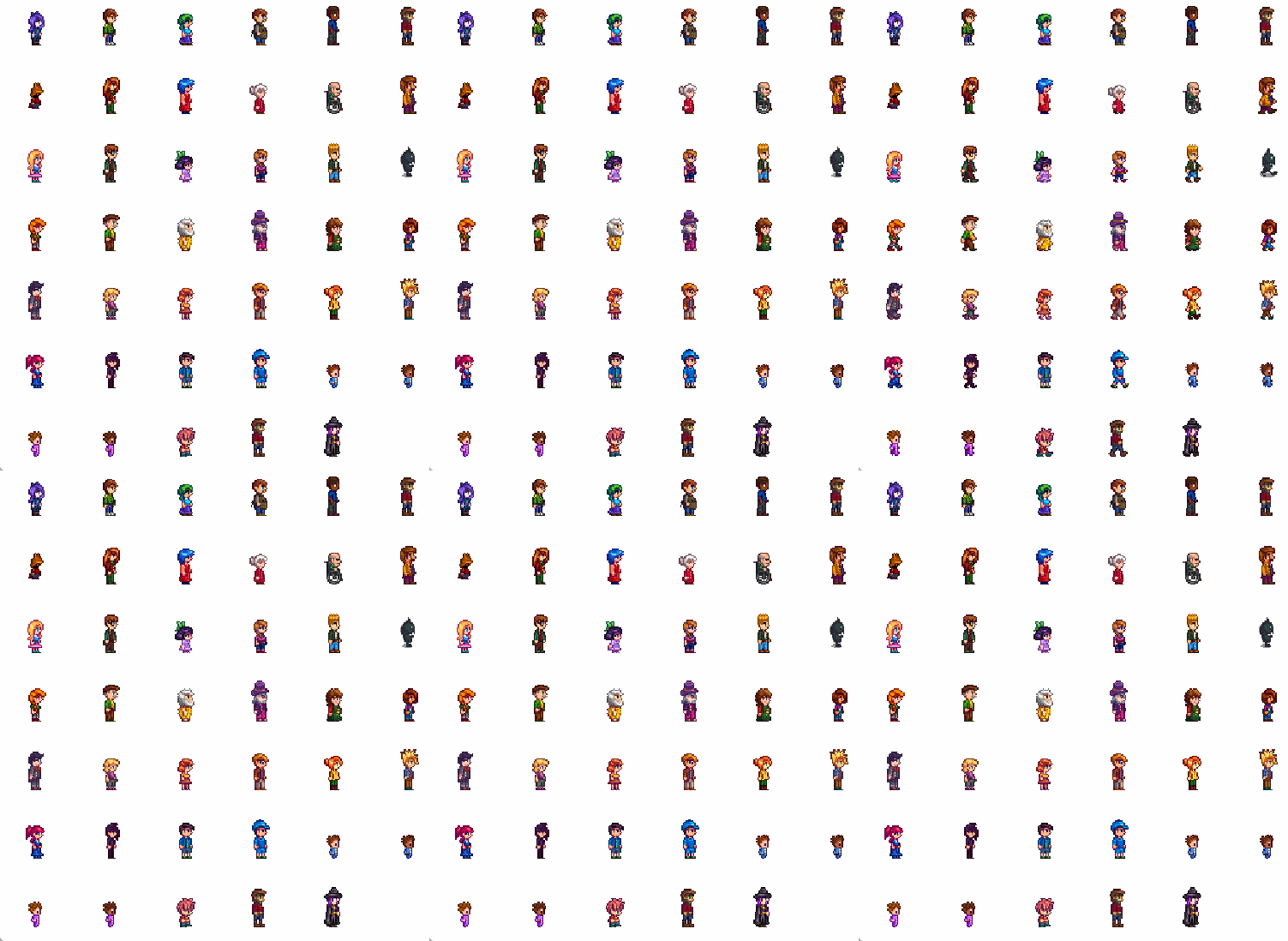
| Category | Details |
|---|---|
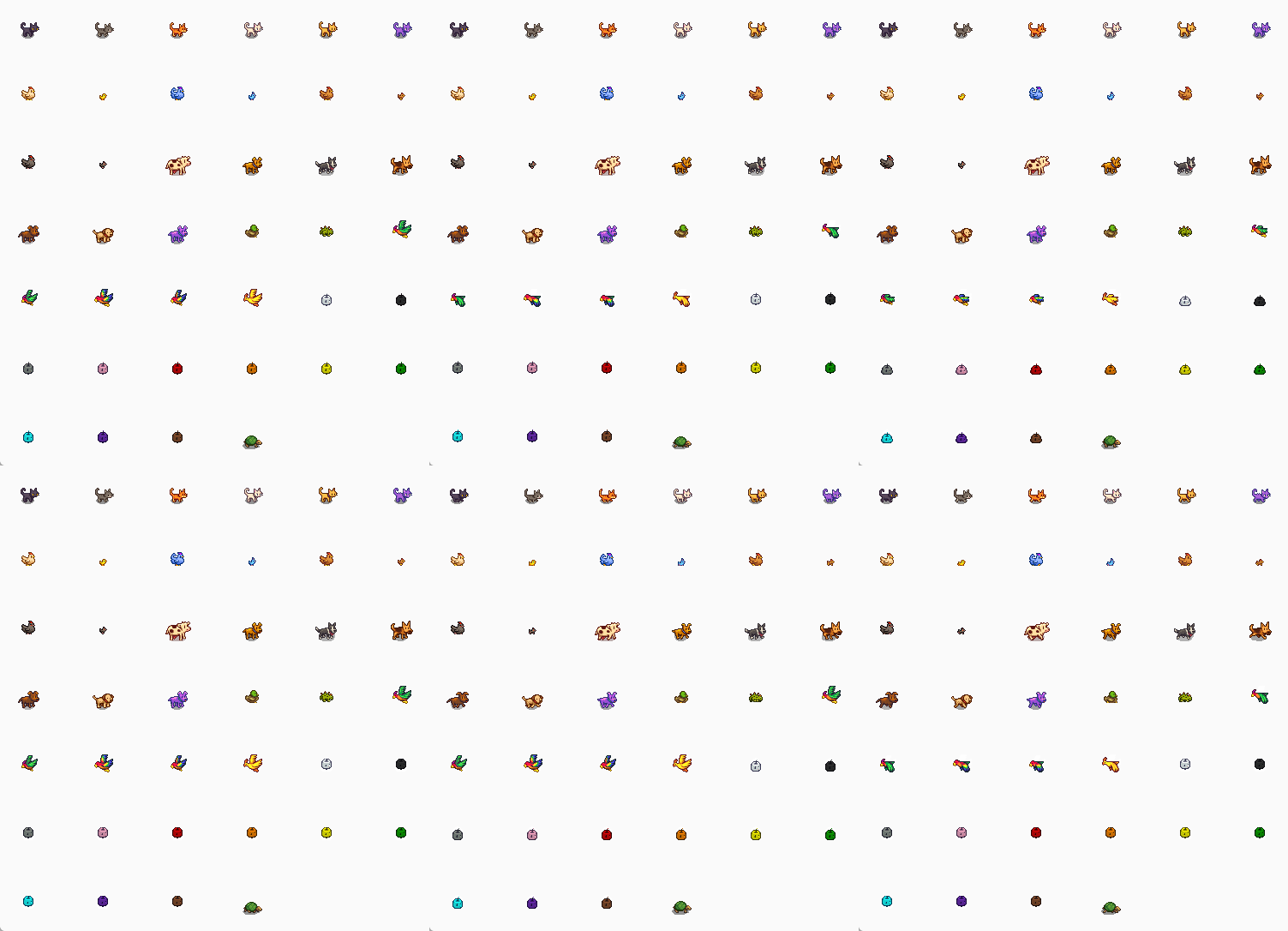
| Pets | 15 pet species with 55+ color variants — cats, dogs, chickens, cows, ducks, rabbits, dinosaurs, parrots, junimos, turtles, goats, sheep, pigs, ostriches, and raccoons |
| NPCs | 35+ Stardew Valley characters — Abigail, Sebastian, Lewis, Robin, Emily, Shane, and many more |
| Animations | Each character has idle, walk, special, and sleep animation frames |
| Art Style | All sprites use authentic Stardew Valley pixel art |
🖥️ Display Modes
- Panel mode: Pets live in a resizable side panel dockable anywhere in your workspace
- Overlay mode: Pets roam freely across your entire Obsidian window as a transparent overlay
- Interaction: Click a pet to see a heart ❤️, right-click to trigger an AI speech bubble
- Drag & Drop: Reposition pets manually or let them wander on their own
🤖 AI-Powered Speech Bubbles
Pets and NPCs can comment on your notes using AI, with configurable persona-based responses:
- Right-click a pet to get a contextual comment about your current note
- Auto-rant mode: Pets periodically speak up on their own at random intervals
- Supports any OpenAI-compatible API (OpenAI, Google Gemini, DeepSeek, and more)
- Each species and NPC has a unique personality that shapes their dialogue
- Optional Chinese-language prompt mode for all AI interactions
🌾 Backgrounds
10 themed backgrounds inspired by Stardew Valley seasons and locations:
| Background | Style |
|---|---|
| None | Clean, no background |
| Dirt | Farm soil |
| Grass | Lush green field |
| Grass (Fall) | Autumn grassland |
| Sand | Beach / desert |
| Snow | Winter landscape |
| Wood (Broken) | Weathered planks (tiled) |
| Wood (Dark) | Dark timber (tiled) |
| Wood (Light) | Light planks (tiled) |
| Wood (Orange) | Warm wood (tiled) |
📦 Installation
Method 1: Community Plugins (Recommended)
- Open Obsidian and go to Settings → Community Plugins
- Ensure Restricted Mode is turned off
- Click Browse and search for "Stardew Valley Pals"
- Click Install, then Enable
- You're all set! Use the "Add a pet" command to get started
Method 2: BRAT (Beta Reviewer's Auto-update Tester)
BRAT lets you install plugins that are not yet in the community plugin store, and automatically checks for updates.
- Install the BRAT plugin from the Community Plugins store
- Open Settings → BRAT → Beta Plugin List
- Click Add Beta Plugin
- Enter the repository URL:
https://github.com/miaowuduck/stardew-valley-pals - BRAT will install the plugin — go to Settings → Community Plugins and enable Stardew Valley Pals
- To update, run the BRAT: Update all plugins and themes command
Method 3: Manual Installation
- Download the latest release from the Releases page
- Extract the folder into your vault's
.obsidian/plugins/directory - Restart Obsidian (or go to Settings → Community Plugins and click Reload plugins)
- Enable Stardew Valley Pals
🚀 Getting Started
- Enable the plugin — a welcome notice will guide you on first launch
- Use the "Add a pet" command, the
+button in the pet panel, or the Pet Management section in settings to choose a species/NPC and give it a name - The pet panel opens automatically — your new friend will start wandering around
- Use "Choose pet view background" to set the scene
- Manage your pets anytime in Settings → Pet Management — add, view, or remove pets from one place
- (Optional) Configure AI speech in Settings to let your pets talk
Click the 🐱 ribbon icon in the left sidebar to toggle the pet view on and off.
⌨️ Commands
| Command | Description |
|---|---|
Add a pet | Choose a species/NPC and name it |
Remove a specific pet | Pick a pet to remove from the list |
Remove all pets | Clear all pets at once |
Choose pet view background | Change the background scene |
⚙️ Settings
Display
| Setting | Description | Default |
|---|---|---|
| Overlay mode | Full-window transparent overlay vs side panel | Off |
| Background | Scene behind pets (panel mode only) | None |
| Pet size | Scale pets from 0.5x to 3.0x | 1.0x |
| Movement speed | How fast pets wander (0.5x to 3.0x) | 1.0x |
Pet Management
| Setting | Description |
|---|---|
| Current pets | View all your pets with their names and species, remove any pet with one click |
| Add a new pet | Opens the pet selector to choose from 15+ species and 35+ NPCs |
AI Configuration
| Setting | Description | Default |
|---|---|---|
| API key | OpenAI-compatible API key (masked in UI) | — |
| API endpoint | Base URL for the AI provider | https://api.openai.com/v1 |
| Model | Model name (e.g. gpt-4o-mini, gemini-2.5-flash) | gpt-5-mini |
| Chinese prompt | Use Chinese-language AI prompts | Off |
| Test connection | Verify API credentials with a minimal request | — |
Speech Bubbles
| Setting | Description | Default |
|---|---|---|
| Pet speech bubbles | Enable speech for regular pets | On |
| NPC speech bubbles | Enable speech for NPCs | On |
Random Page Rant
| Setting | Description | Default |
|---|---|---|
| Random page rants | Enable periodic auto-speech | Off |
| Only rant when focused | Suppress rants when Obsidian is in the background | On |
| Rant interval (min) | Minimum time between rants | 5 min |
| Rant interval (max) | Maximum time between rants | 20 min |
| Page context length | Characters of note content sent as AI context | 1200 chars |
A Reset to defaults button is available at the bottom of the settings tab.
🔧 AI Setup
To enable speech bubbles, configure an API provider in settings:
- Get an API key from your preferred provider:
- Set the API endpoint (e.g.
https://api.openai.com/v1for OpenAI, orhttps://generativelanguage.googleapis.com/v1beta/openai/for Gemini) - Enter the model name for your provider
- Click Test connection to verify everything works
- Enable pet/NPC speech bubbles and optionally random page rants
Pets will now comment in-character on your notes based on their species personality.
🙏 Credits
Origin Projects
- stardew-pet-farm — Original Stardew Valley pet concept and sprites
- obsidian-pets — Original Obsidian plugin implementation
Art Assets
All pet sprites, NPC character sprites, and background images are sourced from StardewValley-Assets by Huu-Yuu, which provides extracted Stardew Valley game assets.
Inspiration
- vscode-pets — The original VSCode pets extension
📄 License
MIT — see LICENSE for details.
💬 Feedback
Found a bug or have a suggestion? Open an issue on GitHub.
Made with ❤️ for Stardew Valley fans and Obsidian users alike.
For plugin developers
Search results and similarity scores are powered by semantic analysis of your plugin's README. If your plugin isn't appearing for searches you'd expect, try updating your README to clearly describe your plugin's purpose, features, and use cases.