Kanban Studio
English | 中文
A clean, modern kanban board for Obsidian. Your board is a plain Markdown file: each ## heading is a column and each - [ ] task is a card. Uninstalling the plugin never loses anything — it's still just Markdown. The interface is available in English and Chinese and follows Obsidian's language by default.
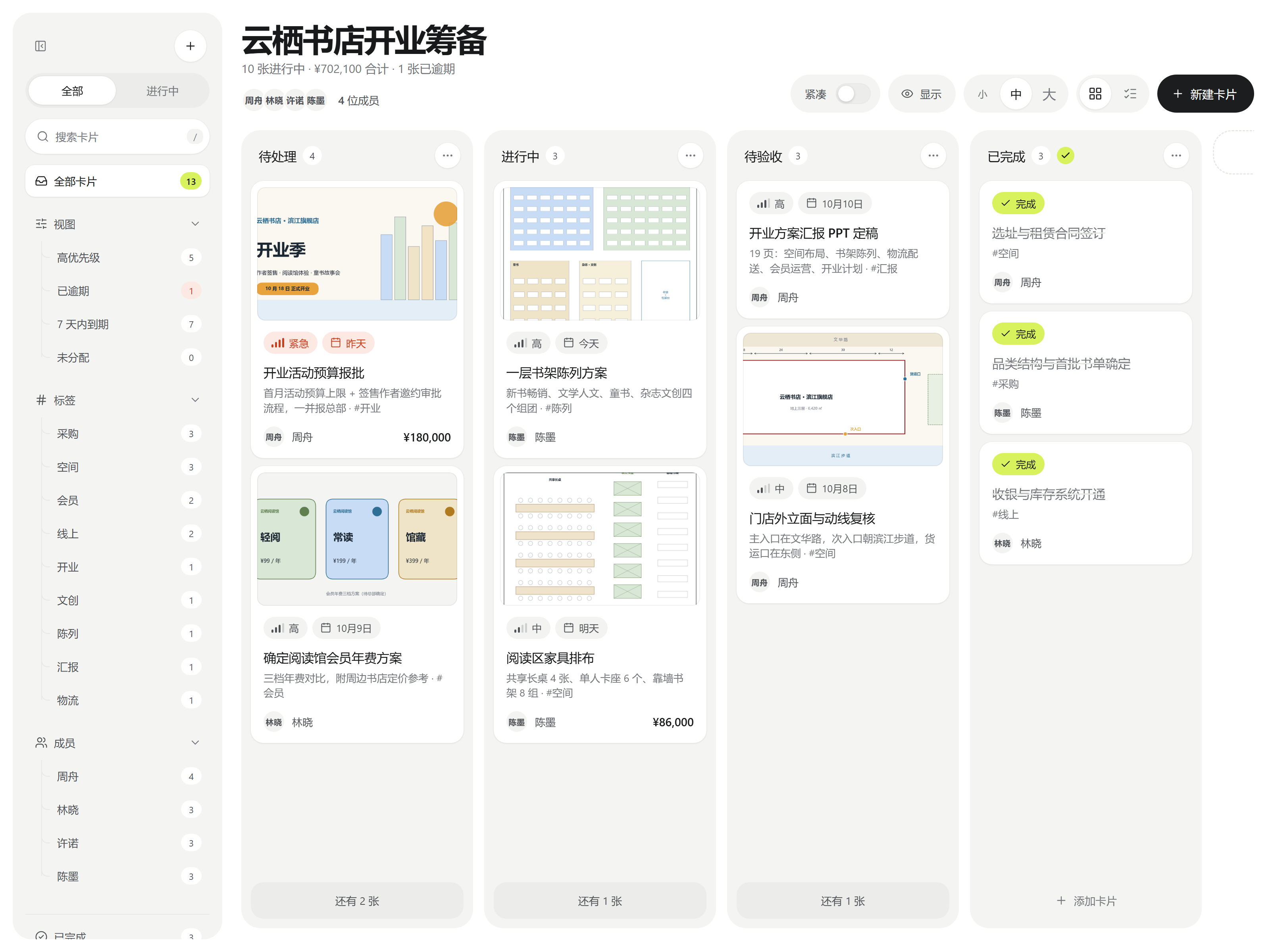
| Dark mode · thumbnails on the right | List view | English UI |
|---|---|---|
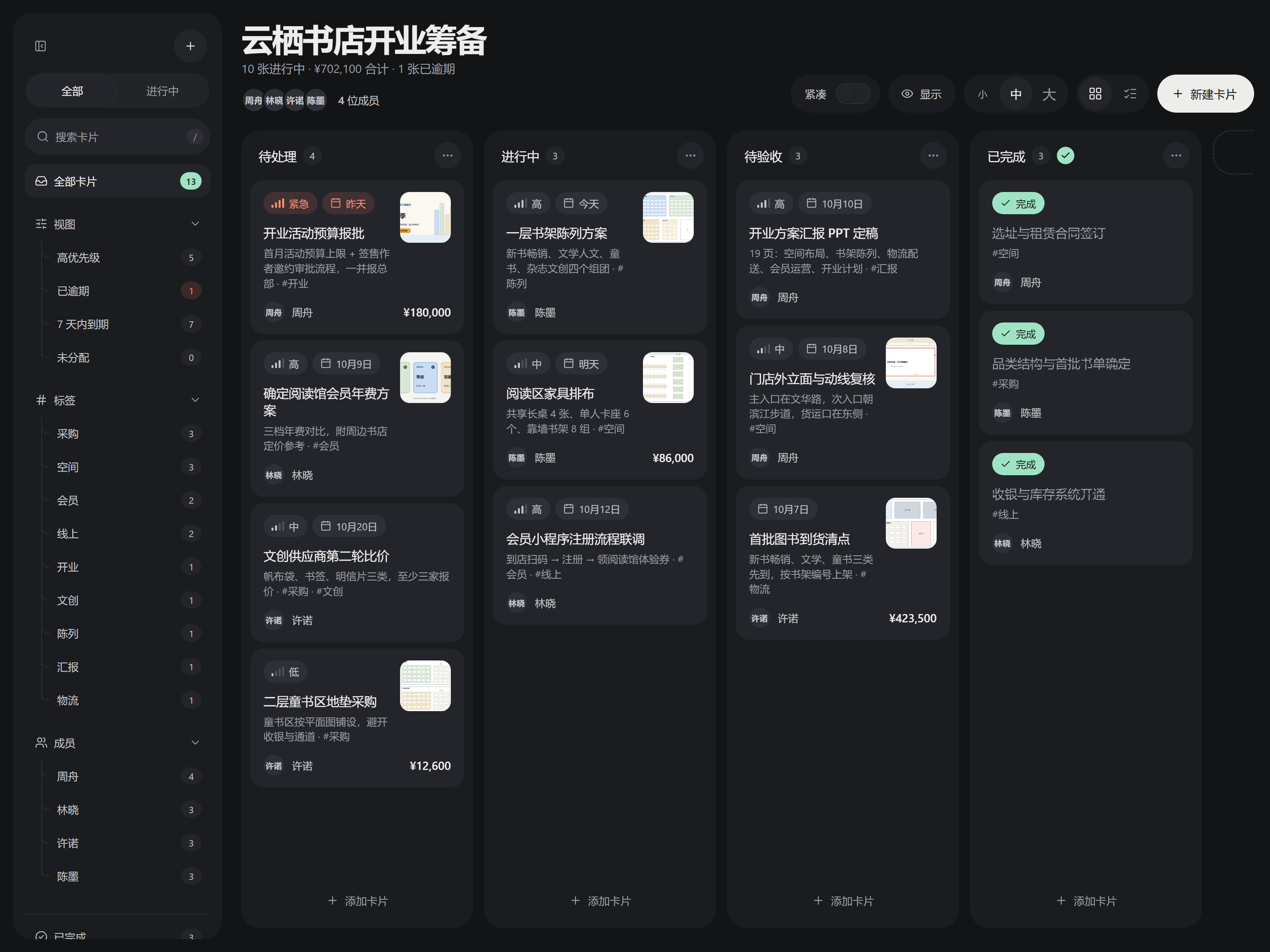 | 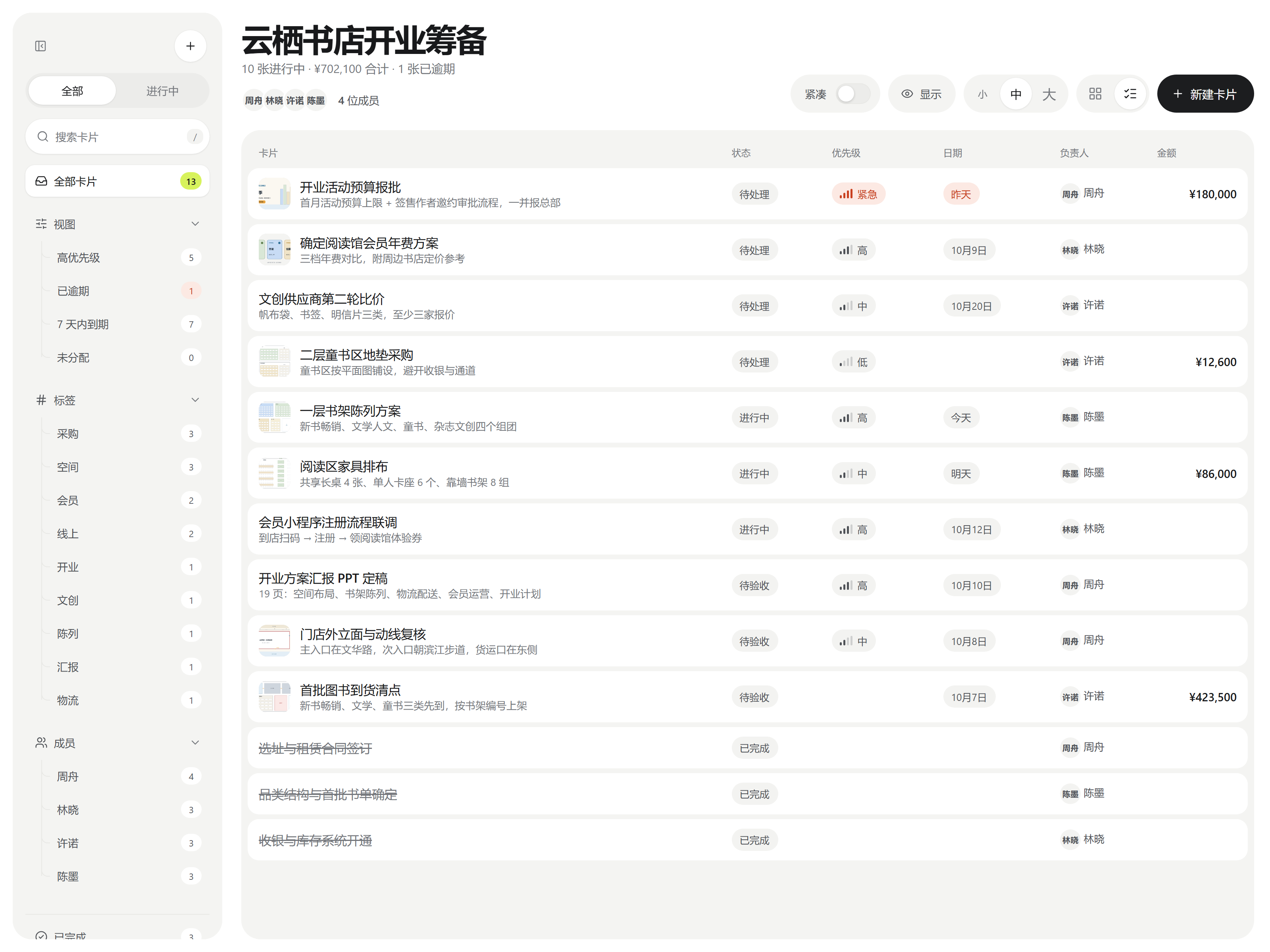 | 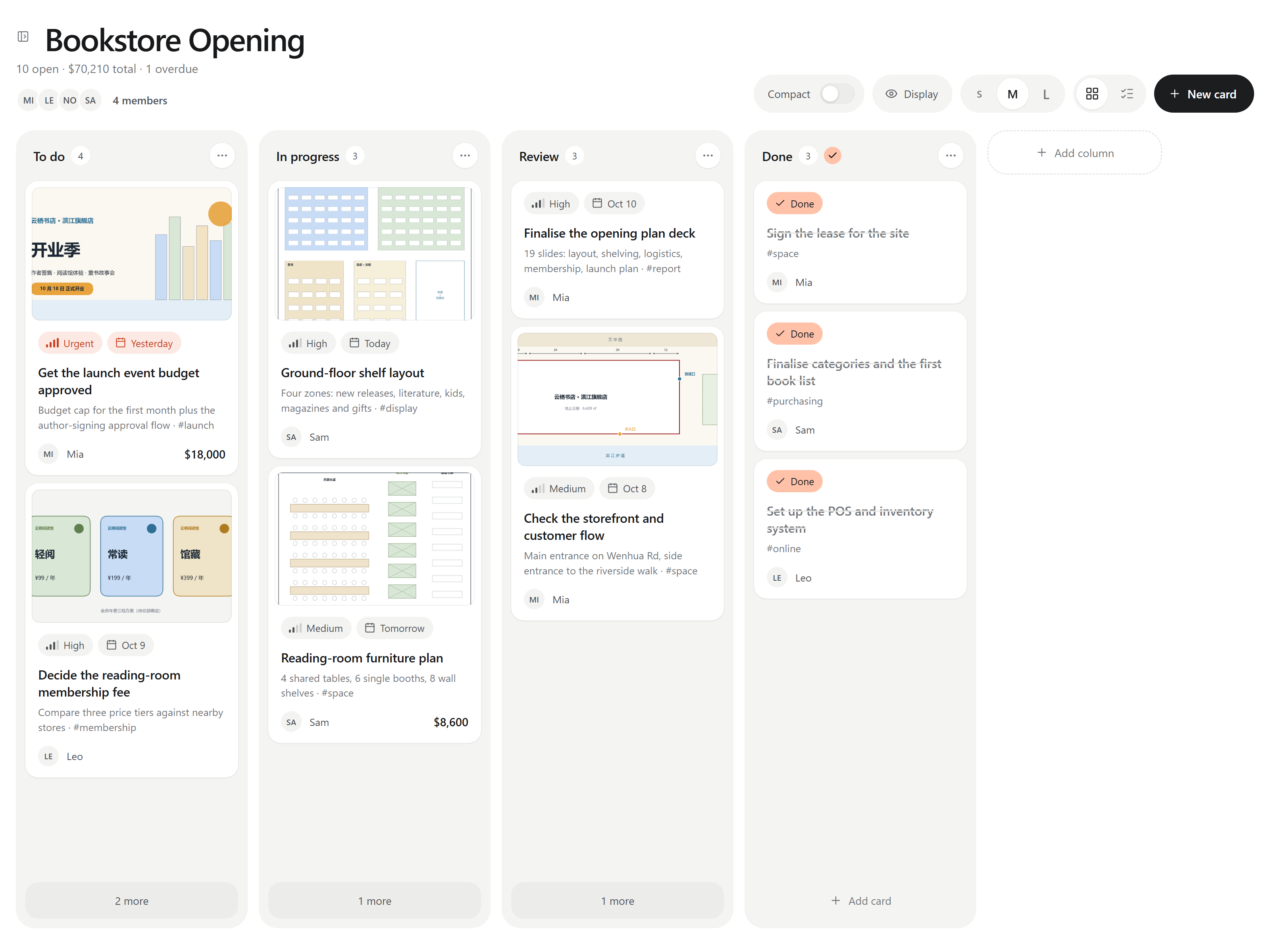 |
The board in the screenshots is examples/云栖书店-旗舰店开业筹备.md (a fictional bookstore opening). Copy it into your vault together with examples/云栖书店-附件/ to open it.
Installation
From Community plugins (once listed): Settings → Community plugins → Browse, search for Kanban Studio, install and enable it.
Manually: download main.js, manifest.json and styles.css from the latest release, put them in <vault>/.obsidian/plugins/studio-kanban/, then enable Kanban Studio under Settings → Community plugins.
Usage
- Create a board from the ribbon icon, the command palette (New board) or a folder's context menu.
- Notes with the
studio-kanban: boardproperty open as a board automatically. - Switch to the Markdown source with the document icon at the top right, Markdown source in the sidebar, or the command Toggle between board and Markdown.
- Click the board title to rename it. Enter or clicking elsewhere saves, Esc cancels. If the frontmatter has a
title:, that is changed; otherwise the file is renamed. - Drag cards to reorder them or move them between columns. Click a card to edit it; right-click for quick move / done / delete. Deleted cards can be restored with Undo for a few seconds.
- Each column's … menu: add card, rename, sort by date (oldest or newest first), set as done column, move left / right, delete. Sorting only changes what you see — the order in the file stays the same. Dragging a card into a sorted column switches it back to manual order.
- Long columns collapse into N more only when the cards don't fit on screen (you can change this in settings).
- The sidebar filters by view (high priority / overdue / due in 7 days / unassigned), tag and member. Hide it with the button at its top; when hidden, an expand button appears next to the board title. The Show / hide board sidebar command (hotkey assignable) and a setting do the same.
- Compact switch, and board / list views.
- Display button and plugin settings: choose what cards show (priority, date, assignee, amount, description, tags, images), plus the stats line, member avatars and sidebar groups. Hidden fields are only hidden — the data stays in the file.
- Images: drop, paste or pick from the vault while editing a card, or drop image files straight onto a card on the board. The first image is the cover; click an image to open a full-size preview (← → to browse).
- Image layout: cover on top or thumbnail on the right; cover height short / medium / tall; crop to fill or fit the whole image (better for drawings and screenshots).
- Text size S / M / L, from the top-right of the board or in settings.
- Segmented buttons (All / Open, S / M / L, board / list) can be clicked or dragged.
- Interface language: Settings → Language: follow Obsidian / 中文 / English.
Horizontal scrolling with a mouse
- Mice with a thumb wheel or tilt wheel scroll the board sideways; Shift + wheel works too.
- Logitech MX Master + Logi Options+: if sideways scrolling only works some of the time, add an app-specific setting for Obsidian in Options+ and turn off smooth scrolling for the thumb wheel. In smooth mode, the horizontal scrolling that Options+ simulates sometimes reaches Obsidian without a direction.
- Still stuck? Run the command Start / stop logging mouse scrolling (for troubleshooting); the log is written to
wheel-log.txtin the plugin folder.
Markdown format
---
studio-kanban: board
title: Board title (optional, defaults to the file name)
---

## Column name

- [ ] Card title !high @2026-10-05 ~Alex $1280 #site
	This line is the description; its first line is shown as the subtitle
| Marker | Meaning |
|---|---|
!critical !high !medium !low (or !紧急 !高 !中 !低) | Priority |
@2026-10-05 or 📅 2026-10-05 | Date (turns red when overdue) |
~Alex / ~"Nate Coleman" | Assignee |
¥1280 $310 €90 | Amount (summed at the top) |
#tag | Tag |
- [x] | Done |
A description line that is only ![[photo.jpg]] or  | Card image (the first one is the cover) |
If you type these markers into a card's title in the editor, they are moved into the matching fields when you save. New images are saved according to Obsidian's Default location for new attachments setting.
Colors
The light-mode variables are in .sk-root { … } at the top of styles.css, the dark-mode ones in .theme-dark .sk-root { … }. The accent color has 10 presets in settings plus a custom picker; text on the accent switches between black and white automatically. The three text-size multipliers are in .sk-size-s / -m / -l (0.9 / 1 / 1.14).
Development
npm install
npm run dev      # rebuild on changes in src/
npm run build    # type-check and build main.js
npm test         # vitest unit tests
npm run lint     # Obsidian community plugin review rules (eslint-plugin-obsidianmd)
studio-kanban/
├── src/          TypeScript source (see docs/IMPLEMENTATION.md §1)
├── styles.css
├── manifest.json
├── tests/        vitest tests
├── docs/         design spec and implementation notes (Chinese)
├── examples/     example board (fictional bookstore) and images
└── CHANGELOG.md
License
For plugin developers
Search results and similarity scores are powered by semantic analysis of your plugin's README. If your plugin isn't appearing for searches you'd expect, try updating your README to clearly describe your plugin's purpose, features, and use cases.