Sync Settings for Windows
approvedby loah8
This plugin has not been manually reviewed by Obsidian staff. Share settings across vaults using profiles.
↓ 28 downloadsUpdated 1mo agoMIT
Sync Settings for Windows
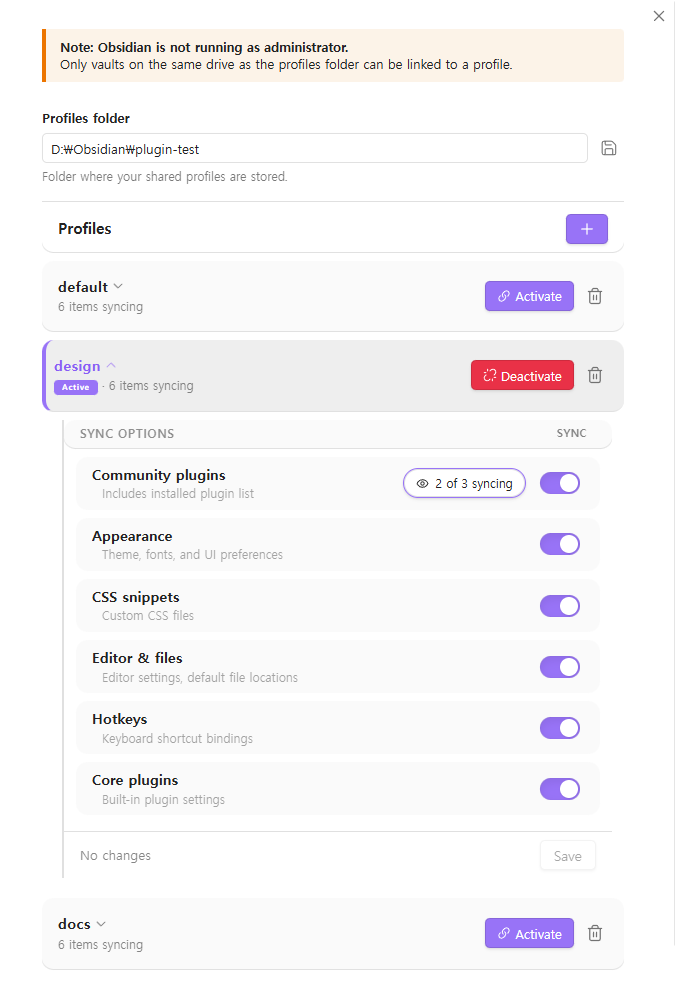
An Obsidian plugin that shares settings (plugins, themes, snippets, hotkeys, etc.) across multiple vaults using profiles.
Features
- Profile management — Create named profiles (e.g.
default,work,mobile) in a central folder - One-click apply — Apply a profile to any vault with a single click
- Selective sync — Choose which settings to share per profile. Keeps workspace and graph settings local per vault
- Windows native — Built for Windows
How it works
- Set a profiles folder (e.g.
D:\Obsidian\settings\) - Create or select a profile — each profile is a subfolder containing shared settings
- Apply the profile to your vault — the plugin links your vault's settings to the profile
Multiple vaults pointing to the same profile will always stay in sync.
Shared items
| Item | Type |
|---|---|
plugins/ | Folder |
themes/ | Folder |
snippets/ | Folder |
appearance.json | File |
app.json | File |
hotkeys.json | File |
community-plugins.json | File |
core-plugins.json | File |
Local-only items (not shared)
workspace.jsonworkspace-mobile.jsongraph.json
Important notes
- Run Obsidian as Administrator for best results. This removes all drive restrictions.
- Without Administrator, only vaults on the same drive as the profiles folder can be linked.
- After applying or changing a profile, Obsidian may not pick up the new settings immediately due to caching.
- The settings tab may also show stale values until you restart.
- Restarting Obsidian will always load the latest settings.
Installation
From Obsidian Community Plugins (coming soon)
- Open Settings → Community Plugins → Browse
- Search for "Sync Settings for Windows"
- Install and enable
Manual
- Download
main.js,manifest.json, andstyles.cssfrom the latest release - Create a folder
<vault>/.obsidian/plugins/sync-settings-for-windows/ - Copy the three files into that folder
- Restart Obsidian and enable the plugin in Settings → Community Plugins
Requirements
- Windows 10 or later
- Obsidian 1.5.0+
License
For plugin developers
Search results and similarity scores are powered by semantic analysis of your plugin's README. If your plugin isn't appearing for searches you'd expect, try updating your README to clearly describe your plugin's purpose, features, and use cases.