Terminalogue
approvedby Yuichi Mizutani
Turns termlogue code blocks into animated terminal sessions. Commands are never executed. - This plugin has not been manually reviewed by Obsidian staff.
Terminalogue
Terminalogue turns Markdown code blocks into animated terminal sessions. Write commands and sample output as plain text; Terminalogue makes them look like a real terminal demonstration.
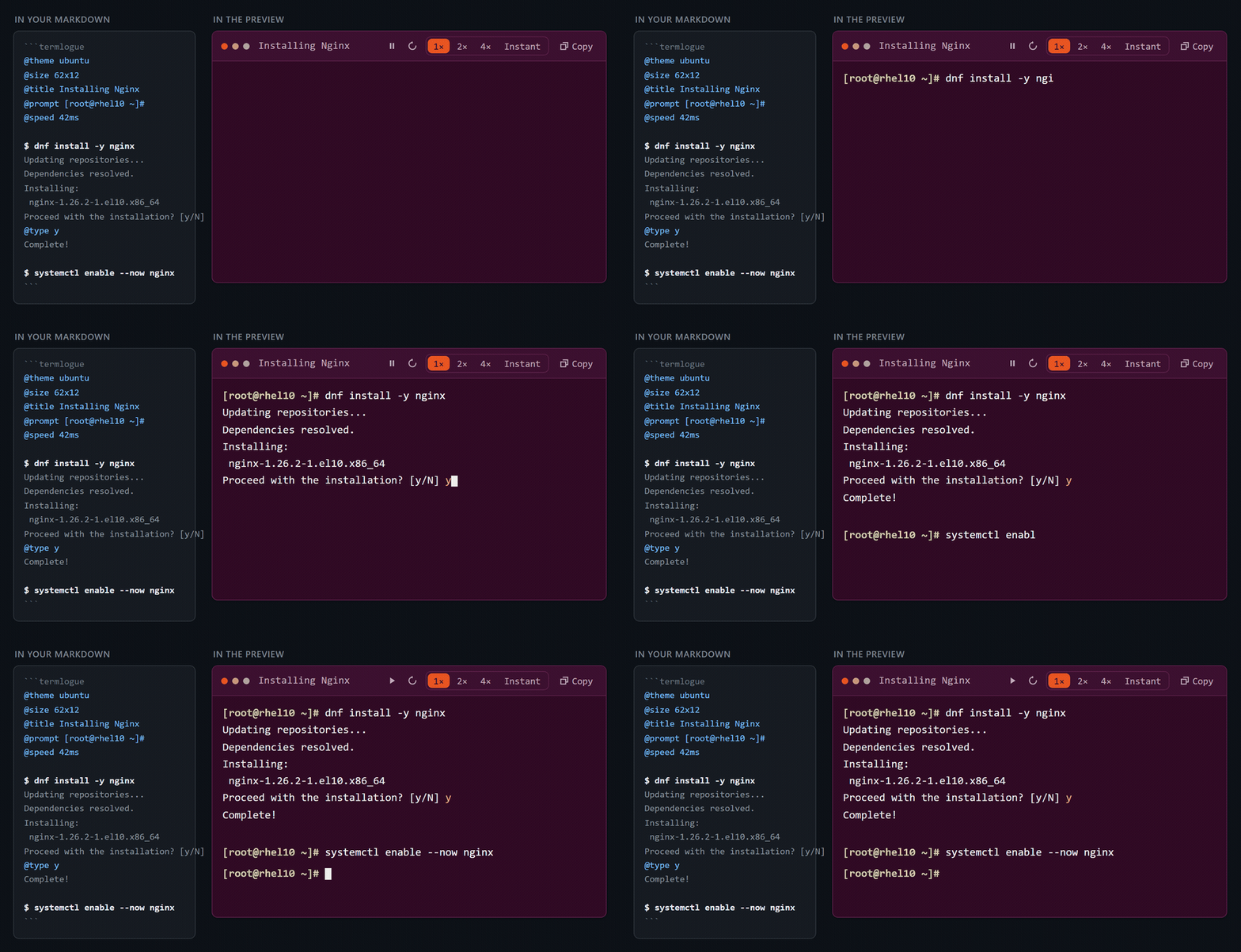
Write a termlogue fenced code block:
```termlogue
@title Installing Nginx on RHEL 10
@prompt [root@rhel10 ~]#

$ dnf install -y nginx
Updating repositories...
Dependencies resolved.
@wait 800ms
Complete!

$ systemctl enable --now nginx
```
…and the preview shows a terminal window in which the command is typed one character at a
time, with a little human-looking jitter, followed by its output appearing line by line.
The reader can play, pause, restart, pick a playback speed of 1× / 2× / 4× / Instant,
and copy the block's commands to the clipboard. One line — @theme ubuntu — repaints the
block as any of five built-in terminals, and another — @size 80x24 — gives it a fixed
terminal viewport that is there before the first character is typed.
Terminalogue targets three hosts, and deliberately shares almost everything between them:
| Host | Integration | Status |
|---|---|---|
| Visual Studio Code | Built-in Markdown preview (markdown-it plugin + preview script) | Supported |
| Obsidian | registerMarkdownCodeBlockProcessor("termlogue", …) | Reading View supported; full Live Preview support is future work |
| Marp | Marp CLI engine (markdown-it plugin + injected browser runtime) | Supported for HTML presentations |
All three run the same parser, the same renderer and the same stylesheet, so a block looks and animates the same way in any of them. In Marp that means a slide deck whose terminals type themselves, one slide at a time — and an Obsidian companion plugin, Terminalogue Presenter, that turns the note you are looking at into one.
Commands are never executed. See Security.
Contents
- Install
- DSL
- Themes
- Terminal size
- Controls
- Marp support
- Terminalogue Presenter
- Example
- Repository layout
- Development
- Accessibility
- Security
- Not in v0.6
Install
VS Code
Terminalogue extends the built-in Markdown preview; there is no custom preview or
webview to open. Install the extension, then press Ctrl+Shift+V (Cmd+Shift+V on macOS)
on any Markdown file containing a termlogue block.
From source:
pnpm install && pnpm build
Then either press F5 in VS Code (the Run Terminalogue VS Code extension
launch configuration opens an Extension Development Host on examples/nginx.md and
examples/themes.md), or
package and install a .vsix:
cd apps/vscode && npx @vscode/vsce package --no-dependencies
--no-dependencies is required: vsce walks node_modules with npm by default, which
cannot read pnpm's layout. Nothing is lost by skipping it — esbuild has already bundled
both shared packages into dist/extension.js and media/terminalogue-preview.js.
Obsidian
Until Terminalogue is in the community plugin browser, install it manually. Build it, then
copy main.js, manifest.json and styles.css into
<vault>/.obsidian/plugins/terminalogue/:
pnpm install && pnpm build
pnpm --filter terminalogue-obsidian deploy -- "/path/to/your/vault"
Reload Obsidian and enable Terminalogue under Settings → Community plugins. Open a
note with a termlogue block in Reading View.
Live Preview renders the block as an ordinary code fence. Reading View is supported; full Live Preview support is future work.
Marp
Terminalogue plugs into Marp CLI as an engine. See Marp support for the configuration, and Terminalogue Presenter for the Obsidian companion plugin that runs it for you.
DSL
The DSL is intentionally tiny. Every line in a termlogue block is one of four things.
$ command — a typed command
$ dnf install -y nginx
The current prompt is printed, then the command is typed one character at a time. A command
line starts with $ followed by a space (a bare $ is an empty command line). The $ is
DSL syntax, not part of what is displayed — with @prompt [root@rhel10 ~]# the line above
renders as [root@rhel10 ~]# dnf install -y nginx.
Ordinary text — terminal output
Any other line is output. Output appears a whole line at a time, never character by
character. Blank lines are blank output lines. Whitespace is preserved exactly, leading
and trailing — a trailing space is what separates an interactive question from the
answer @type writes onto the same line.
@directive — a directive
| Directive | Effect |
|---|---|
@title <text> | Sets the terminal window title. |
@theme <name> | Visual theme of the whole block: light, dark, ubuntu, powershell or cmd. Defaults to dark. |
@size <columns>x<rows> | Fixes the terminal body at that many character columns and rows. Omit it for automatic sizing. |
@prompt <text> | Prompt used by every command after this line. Defaults to $. |
@type <text> | Types text onto the end of the line already on screen. |
@wait <duration> | Waits for a fixed time before continuing. |
@pause [label] | Stops playback until the reader presses Play. The label is optional. |
@speed <duration> | Base per-character typing speed for the typing after this line. Defaults to 55ms. |
@typo <probability> | Chance that any one typed character is mistyped and corrected, from 0 to 1. Defaults to 0. |
@clear | Clears the terminal screen. |
Durations are a number followed by ms or s: 800ms, 1.5s, 0.25s. The unit is
required, so @wait 500 is an error rather than a guess.
Directive names are matched case-insensitively. @prompt, @speed and @typo apply from
their own line onwards; @title applies to the whole block, and the last one wins. @theme and
@size apply to the whole block too, but the first one wins — see Themes and
Terminal size.
@type — answering an interactive prompt
$ command models a fresh shell prompt, which is the wrong shape for the questions a
session asks along the way. @type types its text onto the end of whatever is currently
the last line on screen, one character at a time:
$ ssh server01
The authenticity of host 'server01' can't be established.
Are you sure you want to continue connecting (yes/no/[fingerprint])?
@type yes
plays as the question growing an answer, and ends as a single line:
Are you sure you want to continue connecting (yes/no/[fingerprint])? yes
@type starts no line and prints no prompt of its own, so the spacing is yours to control
from the output line above it. Password: followed by @type secret gives
Password:secret; Password: — with a trailing space — gives Password: secret.
It uses the same typing engine as $ command, jitter and all, so @speed applies to it
too. A bare @type with nothing to type is a diagnostic rather than a silent no-op.
@pause — a playback breakpoint
@pause stops playback where a presenter would stop to explain something. The reader
presses Play to continue from that point:
$ dnf install -y nginx
Updating repositories...
Dependencies resolved.
@pause Dependencies resolved

Installing:
 nginx
Complete!
The label is optional (@pause on its own is fine); when present it is shown in the title
bar for as long as the breakpoint holds playback. @pause is a control event rather than a
duration, so playback speed does not shorten it, and Instant stops at it just the same.
Restart replays from the beginning and stops at the same breakpoints again.
@typo — simulated typing mistakes
Real hands miss. @typo sets the probability that any one typed character is struck
wrong, noticed and corrected:
@typo 0.02

$ dnf install -y nginx
Dependencies resolved.
Complete!
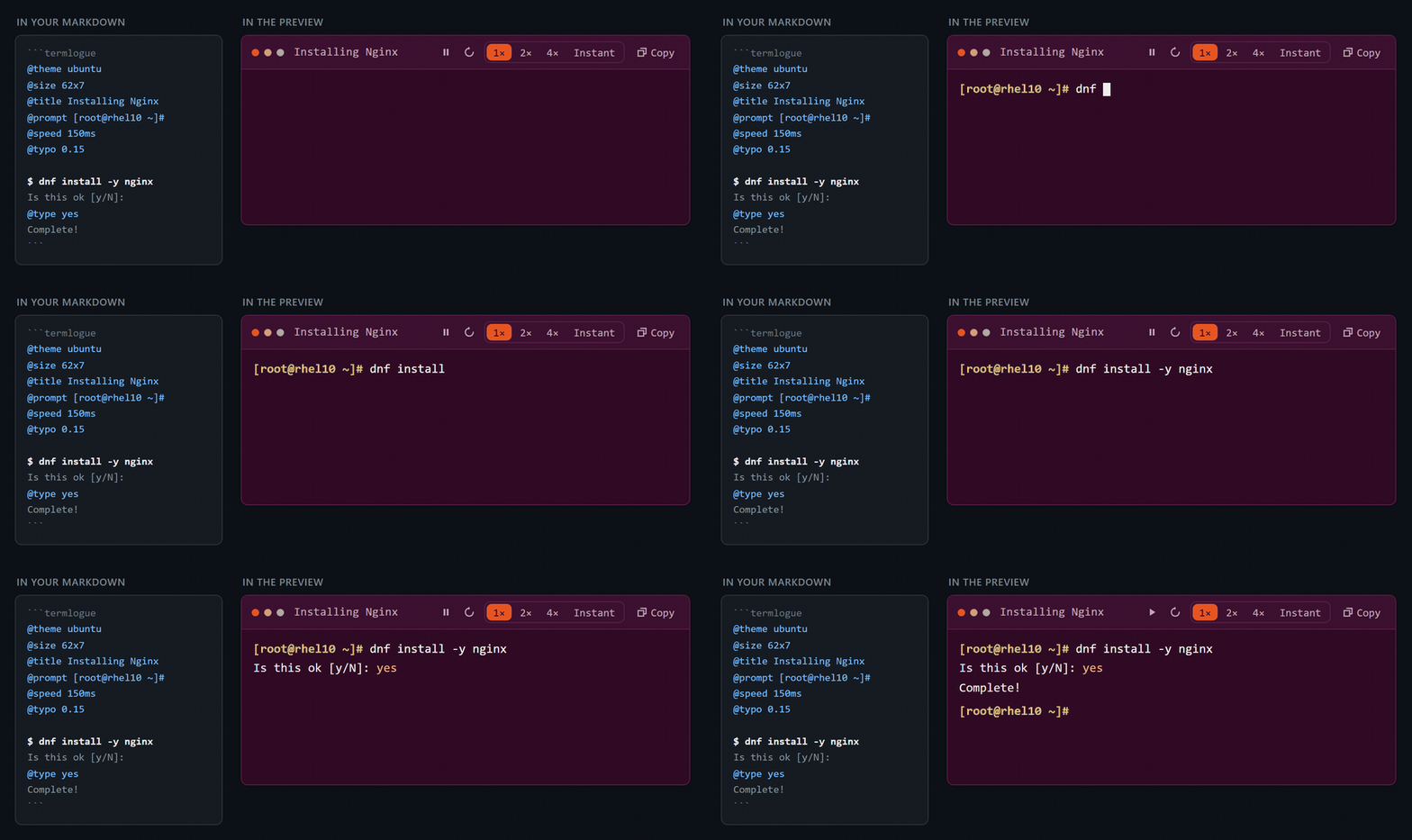
The recording above is slowed to @speed 150ms and exaggerated to @typo 0.15 so the
corrections are easy to follow: f struck as g, - as 0, and the y of the answer as
u. Each one is backspaced away and typed again, and the finished session is the one that
was written.
@typo 0.02 means a 2% chance per eligible character — an independent decision for
each one, not a quota. A 20-character command does not owe you 0.4 mistakes; it simply
rolls twenty times. Sensible values are small: 0.01 to 0.02 reads as a human at a
keyboard, and anything much higher reads as a broken one.
When a character slips, the finger lands on the key immediately to its left or right on the same QWERTY row, and playback shows what a real correction looks like:
ng          the command so far
ngo         the wrong key — `o` sits next to `i`
ng          Backspace takes it away
ngi         and the intended character is typed
There is no \b and no <Backspace> on screen: the wrong character is simply removed,
the way a terminal removes it. The command that ends up on screen is always the one you
wrote.
- What it applies to. Anything a person types:
$ commandlines and@typeinput, through the same typing engine. Terminal output is not typed, so it never slips. - Which characters can slip. Those on the QWERTY rows
1234567890-=,qwertyuiop[],asdfghjkl;'andzxcvbnm,./, plus their uppercase letters —Gslips toForH, never to a lowercaseh. A key at the end of a row has one neighbour, soqcan only slip tow. Everything else — spaces, shifted symbols like!and$, Japanese, emoji — is typed correctly. - Timing. The slip is measured in typing beats rather than fixed milliseconds, so
@speedscales it and the 1× / 2× / 4× buttons scale it again. - When it is not shown. Instant and
prefers-reduced-motionshow no typing animation, so they show no typos either — just the finished command. - Restart. Where the slips fall is drawn once, when the block is built, so Restart replays the same session rather than a new one — the same reason jitter is drawn once.
- What it never touches. The AST, the accessible transcript and Copy commands. A
block with
@typo 1still copiesdnf install nginx; typos are a playback effect and live nowhere else.
@typo 0 turns it off again for the typing after that line, so one block can mistype the
command it wants to draw attention to and type the rest cleanly:
@typo 0.15
$ systemctl enable --now nginx
@typo 0
$ systemctl is-enabled nginx
enabled
\ — escapes
A leading backslash makes the rest of the line plain output, so lines that really do start
with $ or @ can be shown:
| Written | Displayed as output |
|---|---|
\$ not a command | $ not a command |
\@title | @title |
\\@title | \@title |
A backslash that is not followed by $, @ or \ is just a backslash: \path\to\file
needs no escaping.
Diagnostics
Unknown directives, malformed durations and unknown theme names are not ignored. They produce a diagnostic with a line number, rendered inside the block, and the rest of the block still plays:
Line 2: Unknown directive "@bogus". Supported directives are @title, @theme, @size, @prompt, @type, @wait, @pause, @speed, @typo and @clear.
Line 3: @wait: invalid duration "soon" (expected a number followed by "ms" or "s", e.g. 500ms or 1.5s).
Line 4: @type expects the text to type, e.g. "@type yes"; a bare "@type" would type nothing at all.
Line 5: Unknown theme "solarized". Supported themes are light, dark, ubuntu, powershell and cmd.
Line 6: @size: invalid size "80" (expected <columns>x<rows>, e.g. 80x24).
Line 7: @typo: typo probability "2" is out of range (must be between 0 and 1, e.g. 0.02).
A malformed block never throws, and never takes down the preview or the plugin.
Themes
@theme sets the visual appearance of one block:
@theme ubuntu

$ lsb_release -d
Description:    Ubuntu 24.04.1 LTS
| Theme | Looks like |
|---|---|
dark | A modern developer terminal. The default, and what every Terminalogue block looked like before v0.3. |
light | The light counterpart of dark: a white screen with near-black text, for light documents and printed pages. |
ubuntu | Ubuntu's terminal: deep aubergine screen, warm orange accent. |
powershell | Classic Windows PowerShell: solid blue console, console-yellow prompt. |
cmd | The classic Windows Command Prompt: black screen, silver text, no ornament. |
dark, light and ubuntu wear the three window dots in the title bar. powershell and
cmd wear a small console mark instead — >_ and C:\ — because the terminals they
stand for have no such dots. The mark is drawn in the terminal's own monospace font from a
CSS content glyph: there is no image, no icon font and no vendor logo anywhere in
Terminalogue. Both decorations are built for every theme and both are aria-hidden, so the
DOM stays the same in all five and the stylesheet alone decides which one shows.
Theme names are matched case-insensitively, so @theme Ubuntu and @theme PowerShell are
fine.
A theme is presentation and nothing else
A theme changes colours. It never changes what a block says or how it plays. In particular it does not touch the prompt:
@theme powershell

$ Get-Process
still renders a $ prompt, because a prompt is what @prompt says it is. Pair the two
when you want both:
@theme powershell
@prompt PS C:\Users\Administrator>

$ Get-Service WinRM
Status   Name
------   ----
Running  WinRM
The same goes for typing speed, playback speed, @wait, @pause, @type, @clear, Copy
commands, autoplay and every control: they behave identically in all five themes. There is
one DOM structure, one animation engine and one set of controls; a theme is a different set
of values for the CSS custom properties on .tlg, selected by a data-theme attribute —
the window decoration included.
Defaults and compatibility
A block with no @theme is dark, and dark is the palette v0.1 and v0.2 always used, so
every document written before themes existed looks exactly as it did. These two blocks are
the same block:
```termlogue
$ echo hello
hello
```

```termlogue
@theme dark

$ echo hello
hello
```
Diagnostics
The five names above are the whole vocabulary. Anything else is a diagnostic with a line number, rendered inside the block, and the block still plays with the default theme:
Line 1: Unknown theme "solarized". Supported themes are light, dark, ubuntu, powershell and cmd.
A block has one theme, so a second @theme is a diagnostic too. The first one wins;
Terminalogue does not switch theme part-way through an animation:
Line 2: Duplicate @theme directive. A block has one theme: "ubuntu" from line 1 is kept and "dark" here is ignored.
There is no way to write a colour, a URL or a stylesheet into @theme. See
Security.
Terminal size
@size fixes the terminal at a given number of character columns and rows, the way a real
terminal is 80 by 24:
```termlogue
@theme ubuntu
@size 72x16
@prompt user@server:~$

$ sudo dnf install nginx
Dependencies resolved.
Installing:
 nginx
Complete!
```
- The first number is columns, the second is rows:
@size 80x24is eighty characters wide and twenty-four lines tall. - The size applies to the terminal body — the area the session is drawn in. The title bar and the controls sit outside it and are not counted in the rows.
- Both numbers are integers, written with a lowercase
xand nothing else between them. - Omitting
@sizemeans automatic sizing: the terminal is as tall as its content, which is what every block did before v0.5.
Why fix a size
Without @size a terminal grows line by line as the session plays, and everything below it
moves down with it. In a note that is fine; on a slide it is distracting, because the whole
layout shifts while the audience is reading it.
A fixed terminal is laid out before playback starts: an empty @size 72x16 block
already occupies its final area, so nothing moves when the first character is typed. This
is the main reason the directive exists, and Marp is where it matters most.
Overflow, scrolling and wrapping
Output longer than rows scrolls inside the terminal, exactly as it does in a real one:
the window keeps its size and the newest line stays in view. While a block is playing the
terminal follows the latest output; once it is finished or paused you can scroll it by hand.
Nothing is thrown away — the whole session is still there to scroll back through.
rows counts visual lines, not directives. A line too long for the terminal wraps, and
each wrapped part takes up a row of its own, which is what makes a fixed viewport behave
like a terminal rather than a list of events.
Wrapping itself is unchanged: long lines wrap as they always have. There is no
horizontal-scrolling mode and no @wrap directive.
Width and the container
A terminal never spills out of the note, the preview or the slide around it. If @size
asks for more columns than there is room for, the terminal stops at the container's width
and the text wraps — the font is never shrunk to keep the column count. On the platforms
whose scrollbars take up space, a visible scrollbar comes out of the text area, exactly as
it does in a terminal emulator.
The size never changes while a block plays
@size is presentation metadata for the whole block, not a playback event:
@clearclears the screen and keeps the viewport: an empty fixed terminal is the same size as a full one.- Restart replays into the same viewport, which is reserved again from the first frame.
- Pause and
@pausechange nothing about the layout. - 1× / 2× / 4× / Instant all use the same viewport. After Instant the terminal is scrolled to the last line.
- All five themes share the same terminal metrics, so
@size 80x24is the same eighty by twenty-four in every one of them.
There is no way to resize a terminal part-way through a block, and a second @size is a
diagnostic rather than a resize.
Limits and diagnostics
| Minimum | Maximum | |
|---|---|---|
| Columns | 20 | 240 |
| Rows | 5 | 100 |
An unusable size is a diagnostic with a line number, rendered inside the block; the block still plays, automatically sized, as if the directive had not been written:
Line 3: @size: invalid size "80" (expected <columns>x<rows>, e.g. 80x24).
Line 4: @size: terminal size "10x24" is out of range (columns must be between 20 and 240, rows between 5 and 100).
Line 5: Duplicate @size directive. A block has one terminal size: "80x24" from line 1 is kept and "100x30" here is ignored.
@size 80, @size x24, @size 80x, @size 80X24, @size 80*24, @size 80,24,
@size -80x24 and @size 80x0 are all rejected: the separator is a lowercase x and both
numbers are plain digits. Nothing else can be written into @size, and the two validated
numbers are all that ever reaches the stylesheet — see Security.
Controls
▶ ↻ 1× 2× 4× Instant Copy
Playback
Blocks start playing when they first scroll into view, not when the document opens, so a long page does not fire off every animation at once. A block that has finished is not replayed by scrolling away and back. Play/Pause resumes where it left off; Restart plays from the beginning. Every block on a page has entirely independent state, playback speed included.
Pressing Pause and reaching an @pause put the block in the same paused state; they
differ only in a reason (manual or directive) that the block exposes as
data-pause-reason. Play resumes from wherever playback stopped either way.
Playback speed
| Speed | Effect |
|---|---|
1× | The document's own timings. |
2× | Every delay halved. |
4× | Every delay quartered. |
Instant | No delays at all. |
The multiplier divides every delay the document asks for — typing speed and its jitter,
output line delays, the pause before a command is submitted, and @wait:
effectiveDelay = documentDelay / multiplier // and 0 for Instant
So @speed 80ms played at 2× types a character every 40ms. A simulated typo is scaled
along with the typing it interrupts. @pause is the exception,
because it is a control event and not a duration.
Instant ignores time, not control flow. @pause still stops playback, @clear still
clears the screen, and pressing Play jumps to the next breakpoint rather than to the
end. Speed can be changed at any time, including mid-animation and while paused; the new
speed applies from the next step onwards, and survives Restart.
Copy commands
Copy puts the block's $ command lines on the clipboard, one per line:
dnf install -y nginx
systemctl enable --now nginx
curl http://localhost/
Prompts, terminal output, @type input and every other directive are demonstration
material rather than something to paste into a shell, so none of it is included. The button
shows Copied for a moment, and is disabled for a block that contains no commands.
Copying uses the standard asynchronous Clipboard API, which both hosts provide. A host that
needs its own clipboard can inject one instead — mountTerminalogue(…, { clipboard }) — so
the renderer stays host-agnostic.
The controls are the same controls in every theme: same layout, same behaviour, same accessible names. A theme only re-colours their background, foreground, border, hover, active and focus states.
Terminalogue never executes commands. Copy puts a string on the clipboard and stops there; what happens to it afterwards is entirely up to the reader.
Marp support
Terminalogue can be used in Marp HTML presentations. Write an ordinary
Marp deck, put termlogue blocks in it, and Marp CLI converts it into a presentation whose
terminals type themselves.
packages/marp is a Marp CLI engine: it extends the Marp Core instance Marp CLI already
prepared, rather than replacing it. Everything about the deck stays the deck's business —
theme, paginate, header, footer, backgrounds, maths, Shiki highlighting, a custom
theme CSS, every Marp directive. Terminalogue only claims the ```termlogue fence.
Using it
With @terminalogue/marp installed in your project:
// marp.config.mjs
export default { engine: '@terminalogue/marp' };
marp deck.md -o deck.html
Or point --engine straight at the self-contained module the package ships:
marp --engine ./node_modules/@terminalogue/marp/dist/terminalogue-marp-engine.mjs deck.md -o deck.html
This repository has a marp.config.mjs of its own for its examples, so after pnpm build:
npx marp examples/marp-nginx.md -o marp-nginx.html
What ends up in the HTML
Markdown
   ↓
Marp / markdown-it
   ↓
termlogue fence detected
   ↓
@terminalogue/core parser          (at conversion time, in Node)
   ↓
inert placeholder + Terminalogue CSS + Terminalogue browser runtime
   ↓
@terminalogue/renderer             (in the browser, on the slide)
The generated HTML is self-contained: the stylesheet and the runtime are inlined, so a
presentation needs no CDN, no node_modules and no internet connection. It is also inert
until a browser runs it — a block reaches the page as a percent-encoded data attribute, and
Marp never sees any markup that a termlogue block could have contributed.
Everything the other two hosts do works here:
| DSL | $ command, output, @title, @prompt, @type, @wait, @pause, @speed, @typo, @clear, @theme, \ escapes |
| Controls | Play, Pause, Restart, Copy commands, 1× / 2× / 4× / Instant |
| Themes | light, dark, ubuntu, powershell, cmd |
| Accessibility | the transcript, the aria-labels, role="status" for @pause, prefers-reduced-motion |
| Diagnostics | a DSL error is shown inside its own block, with a line number |
Marp themes and Terminalogue themes
They are different things and they coexist. A Marp theme styles the slide; @theme styles
the terminal on it:
---
marp: true
theme: gaia
---

```termlogue
@theme ubuntu
$ dnf install -y nginx
```
Terminalogue's stylesheet is namespaced entirely under .tlg, so it never touches
section, body, pre or code. It is contributed through Marpit's own style pipeline,
which scopes it to the slide containers and orders it after the deck's theme — so a Marp
theme cannot outrank Terminalogue inside the terminal, and Terminalogue cannot leak out of
it. The only Marp-specific rule Terminalogue adds is the terminal's font size: a slide is a
fixed 1280×720 canvas, so the editor-sized 13px becomes 18px there. Nothing else about a
block's appearance differs from VS Code or Obsidian.
Playback and slides
A Marp deck keeps every slide in the DOM at once, so a viewport test cannot tell which one
the reader is looking at. Terminalogue watches the slide's own state instead — Bespoke's
bespoke-marp-active class — and falls back to an IntersectionObserver for the bare
template, where slides really do lay out down the page.
A block starts when its slide first comes on screen, and only then. Going back to a slide does not replay it; Restart is the only thing that does, exactly as in the other two hosts.
Slide layout and @size
A slide is a fixed canvas, so a terminal that grows as it types drags the rest of the slide
around while the audience is reading it. @size is the answer:
```termlogue
@theme ubuntu
@size 72x16
@prompt [root@rhel10 ~]#

$ dnf install -y nginx
Complete!
```
The terminal occupies its seventy-two by sixteen characters from the moment the slide is drawn, and holds them for the whole animation — output longer than sixteen rows scrolls inside it. Columns and rows are measured in the slide's own terminal font, which the Marp stylesheet sizes for a 1280×720 canvas rather than for an editor pane, and a size wider than the slide's content area is capped at it rather than overflowing the slide.
Terminalogue Presenter
Terminalogue Presenter is a second, separate Obsidian plugin. It runs Marp CLI on the note you are looking at and opens the result in your default browser.
| Plugin | What it does | Platforms |
|---|---|---|
| Terminalogue | Renders termlogue blocks in Markdown | Desktop and mobile |
| Terminalogue Presenter | Marp presentation integration | Desktop only |
They are separate plugins on purpose. Running Marp CLI means starting a process, which
needs Node and Electron APIs, which are unavailable on Obsidian Mobile — putting that in
the renderer plugin would have forced isDesktopOnly: true on it and taken Terminalogue
off mobile entirely. So the renderer plugin stays exactly as it was, and everything that
needs a process lives here.
Requirements
- Obsidian Desktop
- Marp CLI —
npm i -g @marp-team/marp-cli, or a standalone binary
Install
pnpm install && pnpm build
node apps/obsidian-presenter/scripts/deploy.mjs "/path/to/your/vault"
Reload Obsidian and enable Terminalogue Presenter under Settings → Community plugins.
Usage
1. Open a Marp Markdown note
2. Open the Command Palette
3. Run "Present current note"
4. The presentation opens in the default browser
| Command | What it does |
|---|---|
| Present current note | Saves the note, converts it into a temporary HTML, opens it in the default browser |
| Present current note with watch | The same, but keeps Marp CLI running: editing the note reconverts it and Marp reloads the page that is already open |
| Export current note to HTML | Writes a permanent <note>.html beside the note in the vault, asking first if one is already there |
| Stop presentation | Ends the watch process. Says so when there was nothing to stop, rather than failing |
Present writes into the operating system's temporary directory, under
terminalogue-presenter/<session id>/, so it never leaves a file in your vault.
Export is the one that produces a file that stays. Temporary sessions are cleaned up
when the next presentation starts, when the plugin unloads, and — for anything an earlier
Obsidian session left behind — on load. Only directories the plugin itself created are ever
removed.
Watch mode opens the browser once. Every later conversion reaches the page that is already open, through Marp CLI's own reload channel; no update opens a new tab, and no update shows a Notice.
Settings
| Setting | Default | |
|---|---|---|
| Marp executable | empty | Path to Marp CLI. Empty means "find marp on PATH". |
| Test Marp | Runs marp --version and reports Marp CLI detected: x.y.z, or that it was not found. | |
| Open browser automatically | on | Open the presentation once it has been generated. |
Obsidian is usually started from a launcher rather than from a shell, so its PATH can be
much shorter than the one marp works from in a terminal. If Test Marp cannot find it,
set the full path:
/usr/local/bin/marp                        macOS / Linux
C:\Users\you\AppData\Roaming\npm\marp.cmd  Windows, npm global install
C:\Tools\marp\marp.exe                     Windows, standalone binary
Nothing about the deck is imposed. Terminalogue Presenter passes Marp CLI an input, an
output and --engine, and runs it in the note's own folder, so a marp.config.* you keep
beside your deck is found exactly as it would be from a terminal.
Processes and paths
Terminalogue Presenter starts exactly one program: the Marp CLI in the setting. It never builds a shell command out of a path.
spawnwithshell: false, always, and the executable and its arguments kept separate.- The one exception is a Windows
.cmd/.batlauncher, which Node has refused to spawn directly since the April 2024 security releases. Those go throughcmd.exe /d /s /cwith a command line built by rules that are unit-tested per platform: every token individually quoted, a trailing backslash run doubled so it cannot escape its closing quote, and a path containing a", a newline or a NUL refused rather than escaped. A vault path full of&,;,$,',|,>,^and!is passed through literally. - Marp CLI is given nothing on stdin, and the browser is opened by handing the desktop shell
one
file:URL — never by running a command. - A
termlogueblock is still, here as everywhere, text. Terminalogue Presenter does not read it, does not parse it for the purpose of running anything, and cannot execute it.
Example
See examples/nginx.md for a full demonstration: an SSH-and-Nginx
session exercising @type, @pause, Copy commands and all four speeds, plus a second
independent block, escapes, hostile-looking output and a block with deliberate parse
errors.
examples/themes.md is the visual comparison page: the same session
rendered in all five themes so only the palette differs, the same session with no @theme
at all to show it is identical to dark, each theme paired with the prompt you would
expect beside it, and the unknown-theme and duplicate-theme diagnostics.
examples/sizes.md is the size comparison page: the same session
automatically sized and at @size 80x24 and @size 50x10, a small terminal overflowing and
scrolling inside itself, @clear and Restart keeping the viewport, long lines wrapping in a
narrow one, a terminal asking for more columns than its container has, @size 60x9 in all
five themes, and the size diagnostics.
examples/marp-nginx.md is the same material as a Marp deck: one
block per slide, all five themes, @type, @pause, escapes, hostile-looking output and a
block with deliberate parse errors, over a plain theme: default deck with paginate: true.
Two of its slides use @size — a 72x16 terminal that holds its place on the slide from
the first frame, and a 72x10 one that scrolls inside itself.
Open the first three in the VS Code Markdown preview and in Obsidian's Reading View, and convert the fourth with Marp CLI — the terminal should look and behave the same in all three:
pnpm build
npx marp examples/marp-nginx.md -o marp-nginx.html
Or open it in Obsidian and run Present current note.
Repository layout
terminalogue/
  packages/
    core/                @terminalogue/core     — DSL parser, AST, durations, diagnostics
    renderer/            @terminalogue/renderer — DOM rendering, animation, the stylesheet
    marp/                @terminalogue/marp     — Marp CLI engine + browser runtime
  apps/
    vscode/              markdown-it plugin + Markdown preview script
    obsidian/            registerMarkdownCodeBlockProcessor adapter (desktop + mobile)
    obsidian-presenter/  Marp CLI integration, Terminalogue Presenter (desktop only)
  examples/
packages/core is pure TypeScript: no DOM, no VS Code, no Obsidian. Its entry point is
parseTerminalogue(source: string): TerminalogueDocument
packages/renderer turns that document into DOM and animates it. It depends on the DOM but
on neither host:
const instance = mountTerminalogue(container, document, options);
instance.play();
instance.pause();
instance.restart();
instance.setSpeed(4); // 1 | 2 | 4 | 'instant'
await instance.copyCommands();
instance.destroy();

instance.state; // 'idle' | 'playing' | 'paused' | 'finished' | 'destroyed'
instance.pauseReason; // 'manual' | 'directive' | null
instance.speed;
RendererOptions covers timing (typingSpeed, outputLineDelay, commandSubmitDelay,
startDelay), jitter (jitterMin, jitterMax, and an injectable random so animation is
testable and reproducible), autoplay / autoplayOnVisible, the initial speed,
copyFeedbackDelay, an injectable clipboard, reducedMotion, controls and labels.
Both new directives stay inside the shared packages. @type and @pause become
TypeStep and PauseStep in the core AST; the renderer turns a TypeStep into frames
from the same typing engine $ command uses, and a PauseStep into a frame the one
player treats as a breakpoint. toCommands(document) — also in core — is what Copy
commands copies. Neither host adapter reimplements any of it.
@theme is smaller still, because it produces no step at all. The parser resolves it to
one theme field on the document — a TerminalogueTheme, checked against a five-name
allowlist — and the renderer's only job is a data-theme attribute on the root element:
<div class="tlg" data-state="idle" data-theme="ubuntu">
Everything else is CSS. packages/renderer/src/terminalogue.css declares the palette as
custom properties (--tlg-bg, --tlg-fg, --tlg-prompt, --tlg-accent, --tlg-cursor,
the control tokens, and the window-decoration tokens --tlg-dot-* and --tlg-mark*) on
.tlg, and each theme is one block of
overrides keyed off .tlg[data-theme='…']. dark needs no block at all: it is the base
palette, which is why an untouched pre-v0.3 document looks untouched. No theme adds,
removes or restyles an element, so there is exactly one DOM to reason about — and there is
no theme code in either host adapter (a test asserts that too).
packages/marp is the third adapter, and it is as thin as the other two. It is a
markdown-it plugin and a Marp CLI functional engine, in about two hundred lines: the fence
rule runs parseTerminalogue and writes the resulting document into an inert placeholder,
and one core rule appends the stylesheet and a browser runtime whose only job is to call
the same mountTerminalogue. There is no terminal DOM, no animation and no playback logic
anywhere in it.
export const terminalogueEngine = ({ marp }) => marp.use(terminaloguePlugin);
The split is deliberate: the parser runs once, in Node, while Marp is converting, and the
renderer runs in the browser, on the slide. What crosses between them is a
TerminalogueDocument as JSON, percent-encoded into a data attribute — never markup.
The host adapters are thin, and none of them reimplements any terminal DOM, CSS or
animation: the VS Code preview script, the Obsidian code block processor and the Marp
browser runtime all call the same mountTerminalogue, and all three ship a byte-identical
copy of packages/renderer/src/terminalogue.css (tests assert this).
Development
Requires Node 20+ and pnpm.
pnpm install
pnpm build      # builds core, renderer and marp, then the three apps
pnpm test       # vitest for the shared packages, node:test for the host adapters
pnpm lint
pnpm check      # build + lint + typecheck + test

pnpm lint:obsidian   # what Obsidian's plugin review says about this repository
pnpm lint:obsidian is a second, slower pass with
eslint-plugin-obsidianmd — the same rules
the community directory's review runs, including the type-aware ones. It is deliberately
not part of pnpm check: eslint.config.js says what this repository has decided, and
eslint.obsidian.config.mjs says what Obsidian will say about it, which is a question worth
asking before a submission rather than on every commit. It reads the root manifest.json
the way the reviewer does, so isDesktopOnly: false there holds every file in the
workspace — Terminalogue Presenter's included — to the mobile rules.
The shared packages are TypeScript project references, which is what lets that pass, and an
editor, resolve @terminalogue/core in a fresh clone before anything has been built. Import
a workspace package from a new one and add it to that package's references too, or its
types silently become any.
Watch mode for the hosts:
pnpm --filter terminalogue-vscode watch
pnpm --filter terminalogue-obsidian watch
pnpm --filter terminalogue-obsidian-presenter watch
Deploy either Obsidian plugin into a vault for manual testing. Call the script directly —
pnpm --filter … deploy collides with pnpm's own reserved deploy command:
node apps/obsidian/scripts/deploy.mjs "/path/to/your/vault"
node apps/obsidian-presenter/scripts/deploy.mjs "/path/to/your/vault"
Two files are generated at build time and are not in the repository:
packages/marp/src/generated/assets.ts (the shared stylesheet and the bundled browser
runtime, as string constants) and apps/obsidian-presenter/src/generated/engine-source.ts
(the bundled Marp engine). Both are produced by their package's build script, which
pnpm build, pnpm typecheck and pnpm test all run first.
Publishing the VS Code extension
apps/vscode carries everything the Marketplace listing needs: icon.png, LICENSE,
its own README.md (the listing body) and CHANGELOG.md (the Changelog tab), plus the
publisher, repository, homepage and bugs fields. Packaging reports no warnings.
cd apps/vscode
npx @vscode/vsce login <publisher>   # once, with a Personal Access Token
npx @vscode/vsce publish --no-dependencies
"private": true stays in apps/vscode/package.json on purpose: vsce ignores it, while
it keeps the package from ever being published to npm by accident.
Regenerating the README animations
Both GIFs under docs/images are recordings of the real thing: the shared parser, the
shared renderer and the shared stylesheet. Each one is driven by a block in
scripts/demo, and both scripts take the demo's name:
| GIF | Block | Name |
|---|---|---|
terminalogue.gif | demo.termlogue | demo (the default) |
terminalogue-typo.gif | typo.termlogue | typo |
They are worth regenerating when the terminal's appearance changes, and worth nothing at all if they drift into showing a version of the terminal that no longer exists.
pnpm build
npx playwright install chromium
node scripts/demo/build-page.mjs typo
node scripts/demo/record.mjs typo
Playwright is deliberately not a dependency of this repository — it is fetched for the rare
occasion this is done — and the pages and frames land in the ignored dist-demo/. Each
frame records when it was taken, and frames.txt carries those durations, so the GIF plays
back at the speed the animation actually ran rather than at a nominal frame rate:
ffmpeg -y -f concat -safe 0 -i dist-demo/frames/typo/frames.txt -filter_complex "[0:v] fps=12,scale=900:-1:flags=lanczos,split [a][b];[a] palettegen=stats_mode=diff [p];[b][p] paletteuse=dither=bayer:bayer_scale=3:diff_mode=rectangle" -loop 0 docs/images/terminalogue-typo.gif
A recording is reproducible rather than lucky. Jitter is pinned by jitterMin === jitterMax
and the renderer's randomness comes from a seeded generator in the recording page, with the
seed for each demo named in build-page.mjs — so where @typo puts its mistakes is a
choice, and the only thing that changes a recording is the block it plays.
One thing to know before adjusting typo.termlogue: the recorder manages a frame roughly
every 100ms, and a wrong character is only on screen for one typo beat. That block runs at
@speed 150ms precisely so the beat is 270ms and each mistake spans three frames. At a
brisk typing speed the slip is captured once, if at all, and the GIF shows a flicker rather
than a correction. The arithmetic is one line: the beat is the typing speed times 1.8.
Publishing the Obsidian plugin
Obsidian's community directory installs a plugin from a GitHub repository, and it looks in
two fixed places: manifest.json at the HEAD of the default branch tells it which
version is current, and the GitHub release tagged exactly that version — 0.5.1, never
v0.5.1 — carries manifest.json, main.js and styles.css as individual assets.
versions.json in the root maps each published version to the Obsidian version it needs, so
an older app can still find a release it can run.
That is why this repository has a root manifest.json and versions.json at all, and why
pnpm build also copies the built main.js and styles.css there: a plugin repository is
expected to have all four at its root, and Obsidian's review tooling looks for them. The
copies are build output and are ignored by git. They belong to apps/obsidian, which stays
the plugin's real home:
pnpm release:obsidian:sync
regenerates both from apps/obsidian/manifest.json, then verifies the release and collects
it into dist-release/obsidian/. It refuses to collect anything it cannot vouch for — a root
manifest that has drifted, a missing versions.json entry, a workspace version that
disagrees with the plugin's, a styles.css that is not the shared stylesheet byte for byte,
or a main.js older than the sources it was built from. That last pair matters more than it
looks: nothing about a stale bundle looks wrong in a release, and vsce and gh will both
happily ship one. The Obsidian test suite fails on the same drift, so pnpm test catches it
before the release script does.
pnpm release:obsidian runs the same checks without touching the root files, which is what
you want in CI or before a release you have not changed anything for. Editing the plugin's
manifest — the author, say — and then running it is the one way to see it refuse: it names
the field that moved and asks for --sync.
It publishes nothing: it prints the gh release create command and stops.
Submission itself happens once, at community.obsidian.md — sign in with an Obsidian account, connect GitHub so the directory can verify the repository is yours, claim it, then Plugins > New plugin with the repository URL. Every release after that is found from the manifest and the tag alone, with no further submission. Review feedback is answered by publishing a new release at a higher version, never by moving a tag onto the same one.
One repository advertises one plugin, because there is only one root manifest.json. This
one is Terminalogue; Terminalogue Presenter needs a repository of its own before it can
be submitted.
The test suite covers the parser (commands, output, all eight directives, escapes, unknown
directives, malformed durations, preserved trailing whitespace, blank lines, CRLF,
transcript and command extraction, plus every theme name, case-insensitive matching, the
dark default, unknown themes and duplicate @theme), the renderer under fake timers
(typing progression for both $ command and @type, pause/resume mid-frame, restart,
@wait, @pause at every speed, the 1× / 2× / 4× / Instant multipliers, clipboard copying
through an injected adapter, and that destroy() leaves behind no timer — animation or
copy-feedback — and no observer), the markdown-it plugin, and both Markdown host adapters
running their real built bundles in jsdom — including that re-rendering a document does not
stack a second animation.
The Marp adapter is tested against a real Marp Core instance as well as a bare markdown-it:
that the fence is detected and every other fence is left alone, that the core parser is what
produced the payload, that themes, @type, @pause, @wait, @clear, @speed and
@typo all
survive the conversion, that multiple blocks stay independent, that the runtime is injected
once and only into a deck that has a block, that the stylesheet lands in Marp's own <style>
and every selector in it is namespaced under .tlg, that Marp's directives and its own code
highlighting are untouched, and that <script>alert(1)</script> in a block cannot reach the
slide as markup — with Marp's html option off or on. Its browser half is tested in jsdom
against the DOM Marp really produces: a block on an inactive slide stays idle, starts when
its slide becomes active, and does not replay when the reader comes back to it.
Terminalogue Presenter is tested through its real built bundle with Obsidian, Electron,
node:fs and node:child_process replaced: the command palette entries, each eligibility
failure, that the note is saved before it is converted, that the browser opens after a
successful conversion and never after a failed one, that watch mode opens exactly one
window and passes --watch, that a second watch replaces the first, that Stop and unload
end the process, and that Export writes into the vault while Present does not — and that
loading the plugin with Platform.isDesktop false loads no Node module at all, which is
what makes the guard in src/platform.ts a guarantee rather than an intention. The
process-execution rules have their own per-platform suites, including that a path full of
shell punctuation is passed through literally on POSIX and quoted correctly through
cmd.exe on Windows.
Themes are tested as the presentation-only feature they are: that every theme produces the
same DOM shape, the same controls with the same accessible names, the same timeline under
fake timers and the same prompt, and that only an allowlisted name ever reaches
data-theme.
The architecture is enforced by lint rules, not just convention: packages/core may not
reference window/document, none of the three shared packages may import vscode or
obsidian, and innerHTML/outerHTML/insertAdjacentHTML are banned outright.
Importing child_process is banned outright, in every file: Terminalogue Presenter, the
one plugin that starts a process at all, loads it through the Platform.isDesktop guard in
apps/obsidian-presenter/src/platform.ts, which is the only place in the repository that
reaches for Node — and the only place that can start a process.
Accessibility
- When
prefers-reduced-motion: reduceis set, nothing autoplays and the finished terminal state is shown immediately. The reader can still start the animation explicitly. - The animated screen is
aria-hidden. Assistive technology reads a separate, complete transcript instead, so typing never produces a stream of per-character announcements. - Every control is a real
<button>, so all of them — Play/Pause, Restart, the four speeds and Copy — are reachable by keyboard and activate on Enter and Space with no extra wiring. - Controls carry
aria-labels, and the Play/Pause and Copy labels track the current state. The speed buttons are onerole="group"labelled Playback speed, and the selected speed is marked witharia-pressed="true"rather than by colour alone. - The label of an
@pausecurrently holding playback is announced through arole="status"region, so a reader who cannot see the title bar still learns why playback stopped. - A fixed
@sizeviewport changes none of that. The screen it scrolls is the samearia-hiddenelement it always was, and the transcript assistive technology reads is the whole session regardless of how many rows are on screen, so nothing is hidden from a reader by a terminal being ten rows tall. It adds no tab stop of its own: the controls are still the only focusable things in a block. - The stylesheet sets every visual property on Terminalogue's own elements, and falls back
across
ui-monospace, SFMono-Regular, Menlo, Monaco, Consolas, monospacerather than depending on one platform's font. No theme changes that:powershellandcmdneed no Windows-only font, so nothing breaks on macOS or Linux. - All five themes clear WCAG AA for terminal text, the window title, the controls, the selected speed and the diagnostics box, and clear the 3:1 non-text threshold for the focus outline and the cursor. Playback state, the selected speed and a copy result are each carried by an attribute or a word as well as by colour, in every theme.
Security
Terminalogue never executes anything. It is a display-only Markdown extension: a
termlogue block is prose that happens to look like a shell session.
-
No shell, no
child_process, no terminal API, no VS Code task or terminal integration. -
No
eval, nonew Function. -
No network requests. Terminalogue is entirely client-side and works offline.
-
Copy commands only ever writes a string to the clipboard. It does not read the clipboard, and nothing in Terminalogue runs what it copied.
-
A theme is a name from a five-word allowlist, never a colour, a URL or a stylesheet.
@theme #ffffff,@theme url(…)and@theme <style>…</style>are diagnostics, not styling. Nothing in the DSL generates astyleattribute or a stylesheet, and the only value a document contributes to a CSS selector isdata-theme— which the renderer re-checks against the allowlist before writing it. -
A size is two integers and nothing else.
@sizeaccepts<digits>x<digits>within documented limits and rejects everything else, so@size 80x24; background:url(…)is a diagnostic rather than a declaration. The renderer re-validates the pair it is handed and writes the two numbers into CSS custom properties; the arithmetic that turns them into a width and a height lives in the stylesheet, so no document text ever reaches a style. A block with no@sizegets nostyleattribute at all. -
Block content is never treated as trusted HTML. Text reaches the DOM through
textContent; the VS Code placeholder carries the block source percent-encoded in a data attribute, so<script>alert(1)</script>and<img src=x onerror=alert(1)>render as literal terminal text — from an output line, a title, a prompt or an@typealike. There are tests for exactly this, and the markup sinks are banned by lint. -
Terminalogue Presenter starts exactly one program: the Marp CLI its setting names. It does that with
spawnandshell: false, with the executable and its arguments kept separate, and it never builds a shell command out of a path — see Processes and paths. Atermlogueblock is not an input to it: Terminalogue Presenter converts the file, and what Marp does with atermlogueblock is render it, exactly as VS Code and Obsidian do. -
A generated Marp presentation makes no network request either. The stylesheet and the runtime are inlined into the HTML, so a presentation works offline, on a plane, from a USB stick.
If you are looking for a tool that runs the commands in your document, Terminalogue is deliberately not it.
Not in v0.6
v0.6 adds @typo and nothing else, and a typo is deliberately one thing: the key
immediately to the left or right on the same QWERTY row, a Backspace, the intended
character. Everything around that is left out — vertical neighbours, key geometry and
physical distance, AZERTY, QWERTZ, Dvorak, Colemak and Japanese layouts, a configurable
layout at all, Shift and Caps Lock simulation, doubled, dropped or transposed characters,
stray or repeated Backspaces, typo dictionaries, AI-generated or statistically modelled
mistakes, per-key probabilities, typo sounds, an on-screen keyboard, typo history, and any
mark on the finished transcript saying a typo happened. No dependency was added for it, and
no speculative abstraction either.
v0.5's exclusions still stand. It added @size <columns>x<rows> and nothing else, leaving
out @cols, @rows, @width, @height, pixel and percentage sizes, @wrap, a
horizontal-scrolling mode, terminal resize animation, a runtime resize handle, a GUI size
editor, auto-fitting or responsive font scaling, per-theme size overrides, a
presentation-specific size syntax, size inference from the content, and any way to change
the size during playback.
v0.4's exclusions still stand: PDF, PPTX, PNG, GIF and MP4 export, static (non-animated) rendering for print, Marp for VS Code preview integration, an embedded Marp editor, a custom presentation window, Docker-based or remote Marp execution, cloud export, automatic installation of Marp CLI, and any AI feature at all.
v0.3's exclusions still stand too: user-defined themes, arbitrary colours, arbitrary CSS, a theme editor, a runtime theme selector, theme-switching animation, theme auto-detection from the OS or from VS Code's or Obsidian's own theme, further palettes (Solarized, Dracula, Nord, Gruvbox, macOS Terminal, Git Bash, Windows Terminal), background images, transparency, configurable fonts and a font-size directive, and logos or vendor icons of any kind.
Still left out from before: real shell execution, terminal recording, asciinema/VHS import,
syntax highlighting, fullscreen, masked passwords and @type --masked, mouse animation,
key simulation such as @key, Ctrl+C, arrow keys or Tab completion, marker navigation
over @pause labels, a seek bar, timeline, progress bar or spinner, an Obsidian-specific
editor UI, and a custom VS Code webview.
Nothing is tightly coupled in a way that would prevent adding any of them later.
License
MIT. See LICENSE.
For plugin developers
Search results and similarity scores are powered by semantic analysis of your plugin's README. If your plugin isn't appearing for searches you'd expect, try updating your README to clearly describe your plugin's purpose, features, and use cases.