TLP Classification
approvedby Rafael Santos
Classify documents using the Traffic Light Protocol (TLP). Visual selector in the properties panel, status bar indicator, and automatic PDF header/footer badge generation for Better Export PDF. - This plugin has not been manually reviewed by Obsidian staff.
TLP Classification
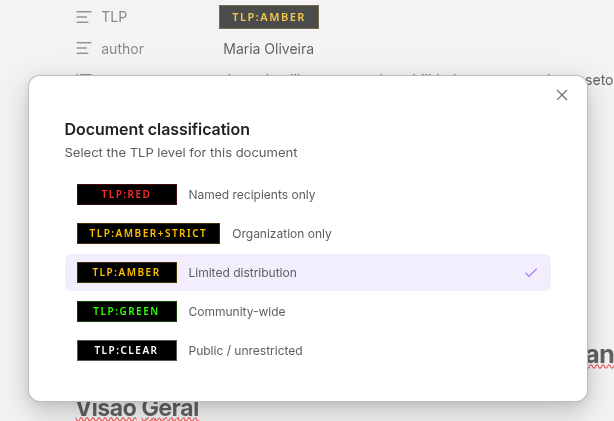
Classify your Obsidian documents using the Traffic Light Protocol (TLP) standard. Select the classification level from a visual picker, and automatically generate PDF header badges when exporting with Better Export PDF.
Features
- Visual TLP selector — A dropdown widget replaces the native text input in the Properties panel. Click the badge to pick a classification level with colored indicators and descriptions.
- Command palette —
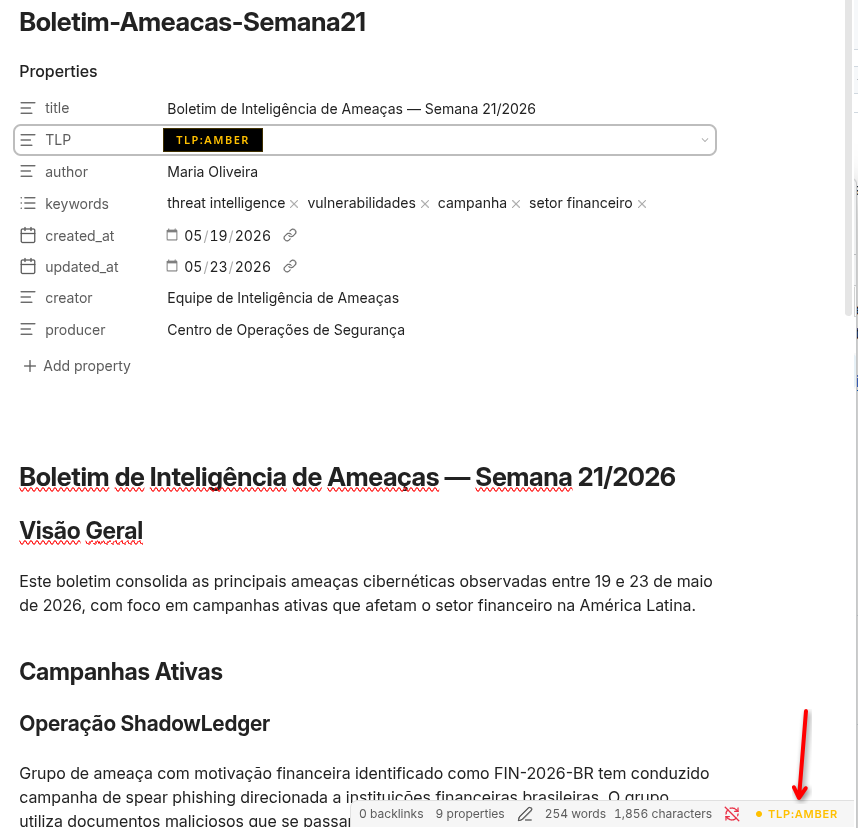
Set TLP classificationopens a keyboard-navigable modal (Ctrl/Cmd + P). Arrow keys to move, Enter to select. - Status bar indicator — Displays the current document's TLP level at the bottom of the editor. Click to change it.
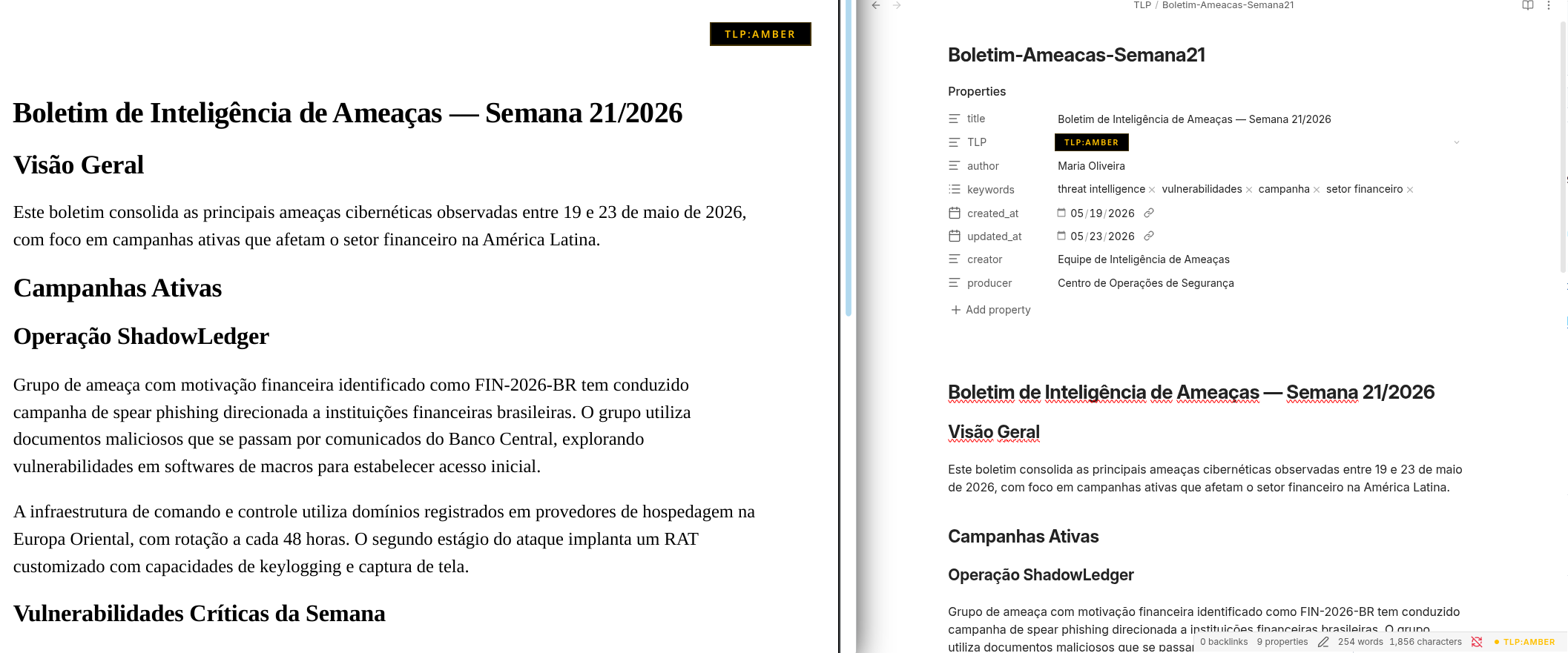
- Automatic PDF badges — Generates the
headerTemplateorfooterTemplatefrontmatter property for Better Export PDF. The badge follows the official TLP color specification with black background and colored text. - Sync on manual edit — If you change the
TLPproperty directly in the frontmatter or source view, the template regenerates automatically. - Custom levels — Define organization-specific classification levels in a markdown file within your vault.
- Official TLP 2.0 colors — Built-in levels follow the FIRST.org specification:
TLP:RED,TLP:AMBER+STRICT,TLP:AMBER,TLP:GREEN,TLP:CLEAR.
Installation
From community plugins
- Open Settings → Community plugins → Browse
- Search for TLP Classification
- Click Install, then Enable
Manual installation
- Download
main.js,manifest.json, andstyles.cssfrom the latest release - Create
.obsidian/plugins/tlp-classification/in your vault - Copy the three files into that folder
- Enable the plugin in Settings → Community plugins
Usage
Setting a classification
Open a document and use any of the following:
- Properties panel — Click the TLP badge in the properties to open the visual selector
- Command palette —
Ctrl/Cmd + P→ Set TLP classification - Status bar — Click the TLP indicator at the bottom-right of the editor
The plugin writes the TLP value and the corresponding headerTemplate to the frontmatter. The template property is hidden from the Properties panel to keep it clean.
Exporting to PDF
Export your document using Better Export PDF as usual. The TLP badge will appear on every page of the exported PDF, following the official color specification.
Changing or removing the classification
Run the selector again to change the level — the frontmatter updates in place. To remove the classification entirely, use Ctrl/Cmd + P → Remove TLP classification.
Settings
| Setting | Default | Description |
|---|---|---|
| Badge position | Right | Left, center, or right alignment in the PDF header/footer |
| Template target | Header | Write the badge to headerTemplate or footerTemplate |
| Show page number | Off | Include page numbers alongside the badge in the PDF |
| Status bar indicator | On | Show/hide the TLP display in the status bar |
| Editor banner | On | Show a colored stripe at the top of the editor |
| Require classification | Off | Warn on export if no TLP is set |
| Frontmatter property | TLP | The property name used in the frontmatter |
| Custom levels file | (empty) | Path to a markdown file defining custom levels |
Custom classification levels
To define custom levels, create a markdown file in your vault (e.g. _config/tlp-levels.md) with the following frontmatter:
---
levels:
  - value: RED
    label: "TLP:RED"
    fontColor: "#FF2B2B"
    bgColor: "#000000"
    description: "Named recipients only"
  - value: INTERNAL
    label: "INTERNAL"
    fontColor: "#7B68EE"
    bgColor: "#000000"
    description: "Internal use only"
---
Then set the file path in Settings → TLP Classification → Custom levels file.
See example-tlp-levels.md for a complete reference with all fields documented.
Recommended plugins
This plugin works standalone for document classification. For TLP badges in exported PDFs, install Better Export PDF.
TLP color reference
| Level | Font | Background | Hex font | Hex background |
|---|---|---|---|---|
| TLP:RED | Red | Black | #FF2B2B | #000000 |
| TLP:AMBER+STRICT | Amber | Black | #FFC000 | #000000 |
| TLP:AMBER | Amber | Black | #FFC000 | #000000 |
| TLP:GREEN | Green | Black | #33FF00 | #000000 |
| TLP:CLEAR | White | Black | #FFFFFF | #000000 |
Colors follow the FIRST.org TLP 2.0 specification.
Building from source
git clone https://github.com/rafamss/obsidian-tlp-classification.git
cd obsidian-tlp-classification
npm install
npm run build
Copy main.js, manifest.json, and styles.css to .obsidian/plugins/tlp-classification/ in your vault.
Contributing
Contributions are welcome. Please open an issue first to discuss what you'd like to change.
License
For plugin developers
Search results and similarity scores are powered by semantic analysis of your plugin's README. If your plugin isn't appearing for searches you'd expect, try updating your README to clearly describe your plugin's purpose, features, and use cases.