Tome
approvedby Mohit
Search books across Google Books, Open Library and OpenAlex with automatic fallback, cache covers locally, generate customizable note templates, and track reading status/ratings/progress. - This plugin has not been manually reviewed by Obsidian staff.
Tome
Search books by ISBN or title across Open Library, Google Books, and OpenAlex, download their covers locally, and organize everything as plain Markdown notes — ratings, reading status, and progress included. Fully frontmatter-based, so your book library works seamlessly with Dataview, Obsidian Bases, and any other plugin that reads YAML properties.
Why I built this
I wanted a proper visual library of the books I'm reading inside Obsidian — something like the card-gallery setups you see in Notion or Readwise, but native to my vault. I tried a few existing community plugins for this first, and kept running into the same wall: broken searches, covers that never actually downloaded, or note templates that didn't play nicely with Obsidian's newer Bases feature. Nothing quite worked end-to-end the way I wanted.
So I built Tome — a plugin where the entire flow, from search to a cover you can actually see in a Bases card view, just works, is transparent about its data sources, and stores everything as portable Markdown rather than locking your library into a proprietary format.
Features
- Multi-provider search — queries Open Library, Google Books, and OpenAlex, with configurable provider order and per-provider enable/disable toggles
- Local cover caching — downloads cover images into your vault so your library works offline and stays stable even if a provider changes URLs
- Frontmatter-first — every book note stores metadata (title, authors, ISBN, publisher, subjects, status, rating, progress, and more) as YAML properties, ready for Dataview or Bases
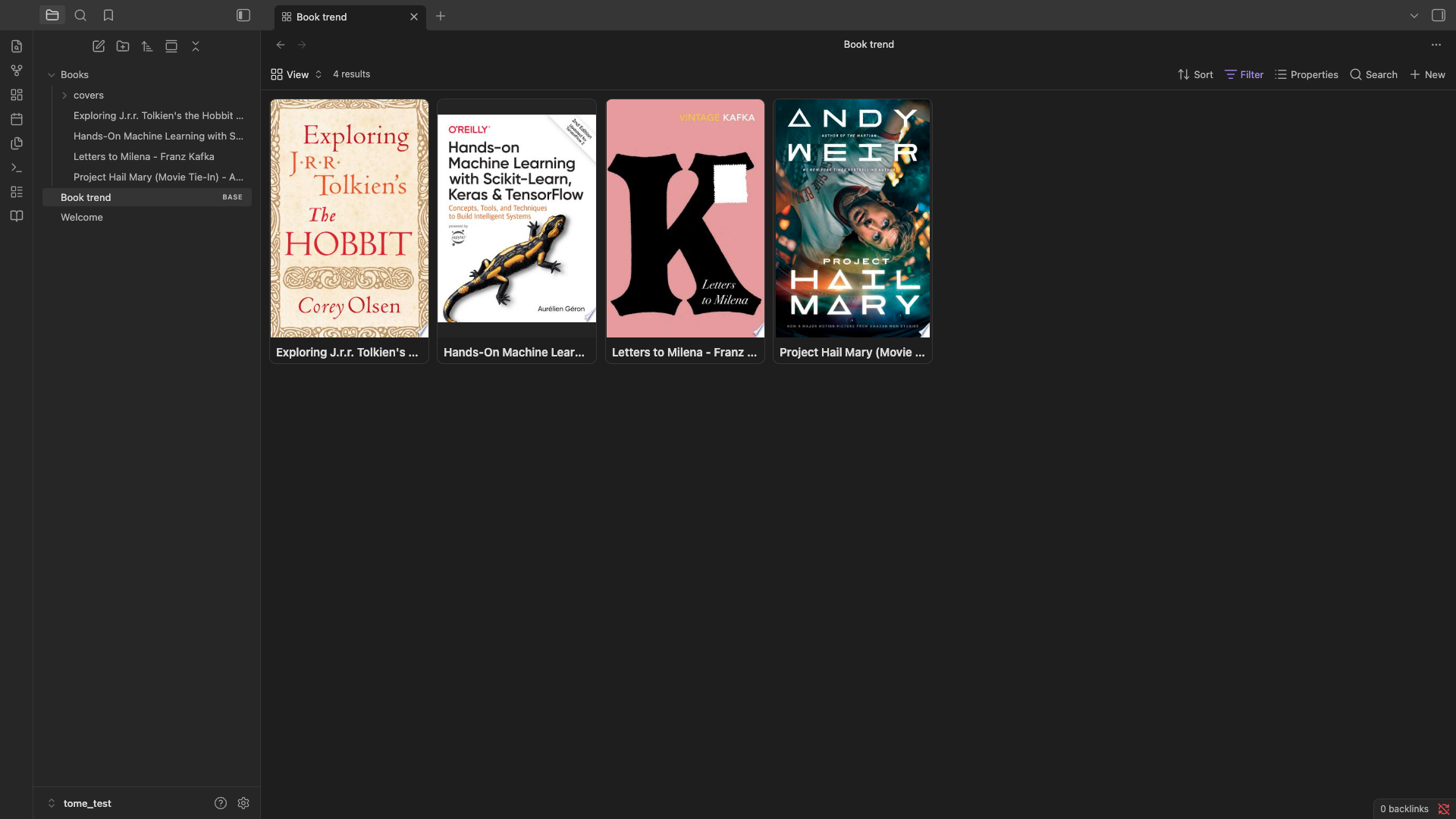
- Built-in gallery view — browse your library as a card grid without any extra setup
- Bases-ready — point an Obsidian Base at your notes folder, switch to Cards view, and covers render automatically from the
coverfrontmatter property - Customizable templates — control the exact frontmatter fields and note body layout to fit your existing vault conventions
- Rate-limit resilient — automatic retry with backoff, and an optional Google Books API key / OpenAlex contact email to raise your quota ceiling
Installation
From the Community Plugins directory
(Once published) Settings → Community plugins → Browse → search "Tome" → Install → Enable.
Manual installation
- Download
main.js,manifest.json, andstyles.cssfrom the latest release. - Create a folder
<your-vault>/.obsidian/plugins/tome/and place the three files inside. - In Obsidian: Settings → Community plugins → enable Tome.
Setup
Open Settings → Tome to configure:
- Providers — enable/disable Open Library, Google Books, and OpenAlex individually.
- Google Books API key (optional but recommended) — raises your daily quota well above the shared unauthenticated limit. Get a free key from Google Cloud Console: enable the Books API under APIs & Services, then generate an API key under Credentials.
- OpenAlex contact email (optional) — puts your requests in OpenAlex's faster "polite pool" rate-limit tier. OpenAlex is primarily a scholarly/academic metadata fallback and rarely returns cover images.
- Notes folder / Covers folder — where new book notes and downloaded cover images are stored.
- Note template — the full frontmatter + body template used for every new note. Supports Templater syntax if you have that plugin installed.
Usage
- Run Tome: Add a book from the command palette.
- Search by title or ISBN.
- Select a result, set your reading status and rating, and create the note.
- Run Tome: Open library gallery to browse your collection as cards, or set up an Obsidian Base pointed at your notes folder for a fully customizable card view.
Using with Obsidian Bases
- Create a new Base (or a new view) filtered to your book notes — e.g.
tags contains "book". - Switch the view to Cards.
- In Card view settings, set Image property to
cover.
That's it — covers render automatically, pulled straight from the frontmatter Tome writes.
Roadmap
- Distinguish "no results found" from "provider temporarily rate-limited" in the search UI
- Additional provider support
Contributing
Issues and pull requests are welcome. Please open an issue first for larger changes so we can discuss the approach.
License
For plugin developers
Search results and similarity scores are powered by semantic analysis of your plugin's README. If your plugin isn't appearing for searches you'd expect, try updating your README to clearly describe your plugin's purpose, features, and use cases.