Habbiter
unlistedby Nourix
Habit and tracker grids that live inside a note — a month calendar of checkboxes, or any grid of rows and columns you name yourself.
Habbiter
Habit trackers and custom grids, directly inside your Obsidian notes.




Habbiter turns a fenced code block into an interactive habit tracker that stays part of your Markdown note. Use a calendar for daily habits or build a custom grid of checkboxes and counters—without adding a separate dashboard or changing the look of your vault.
فارسی · Install · Examples · Development
Install · Examples · Features · Development
See it in action
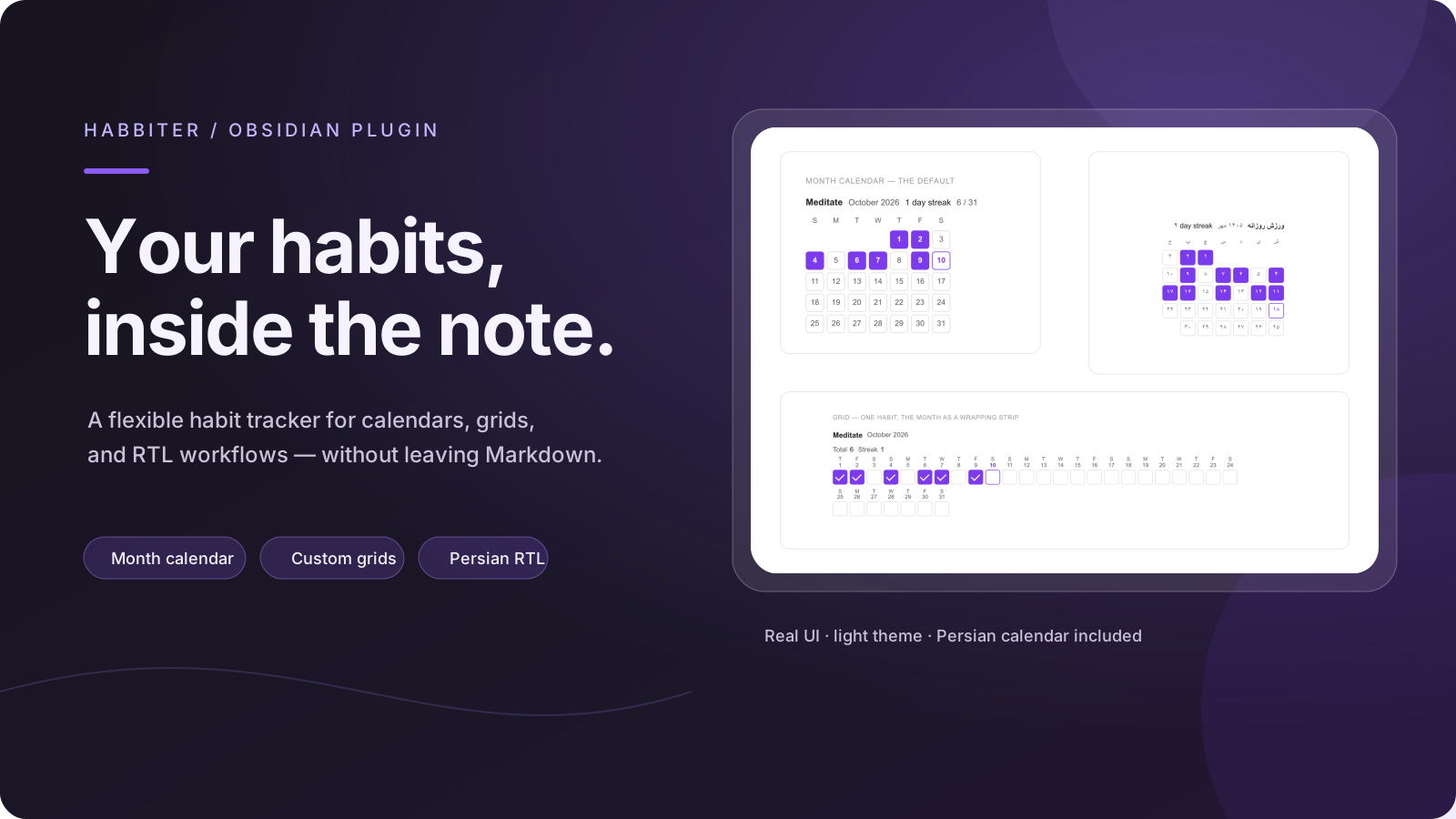
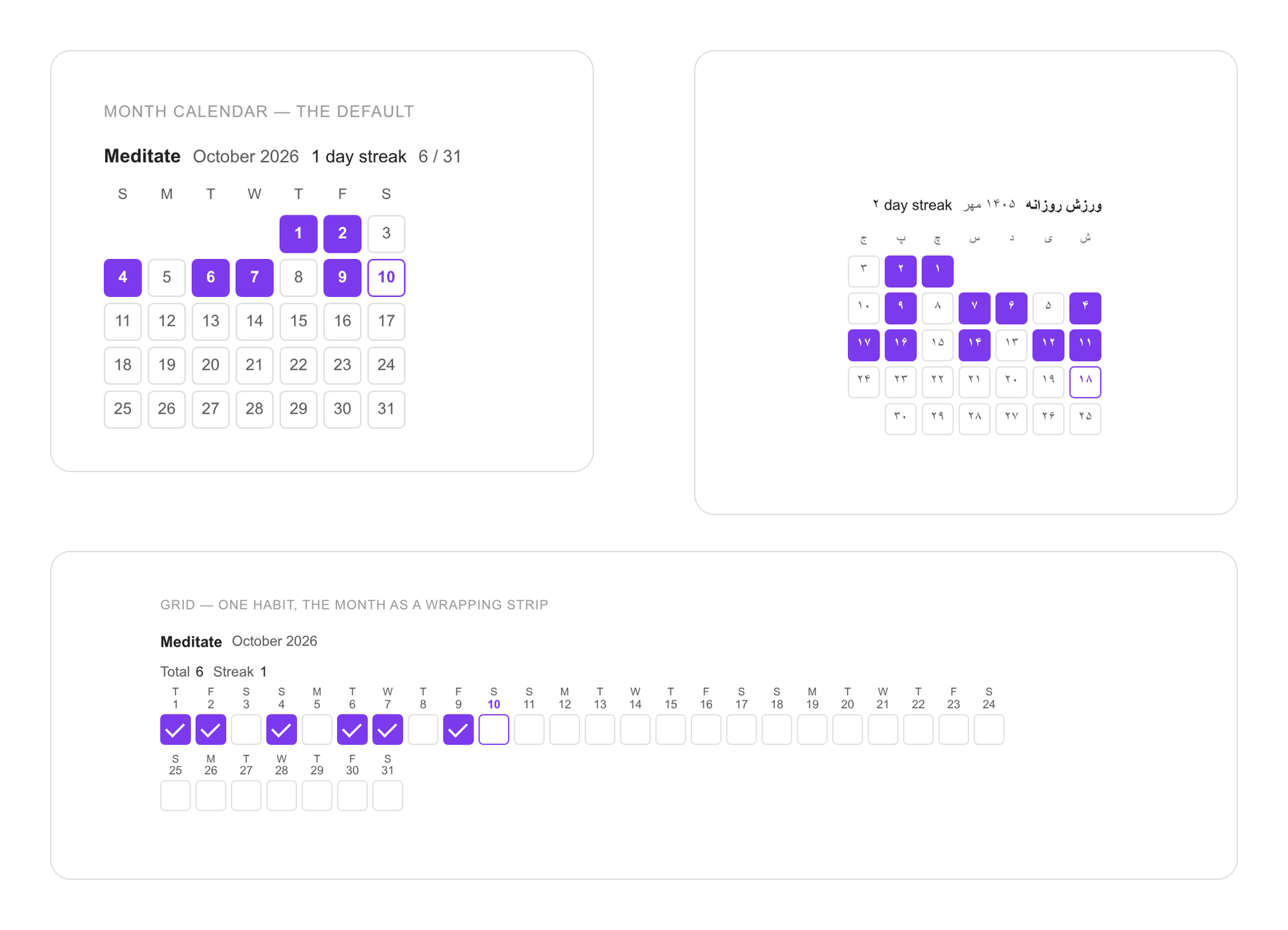
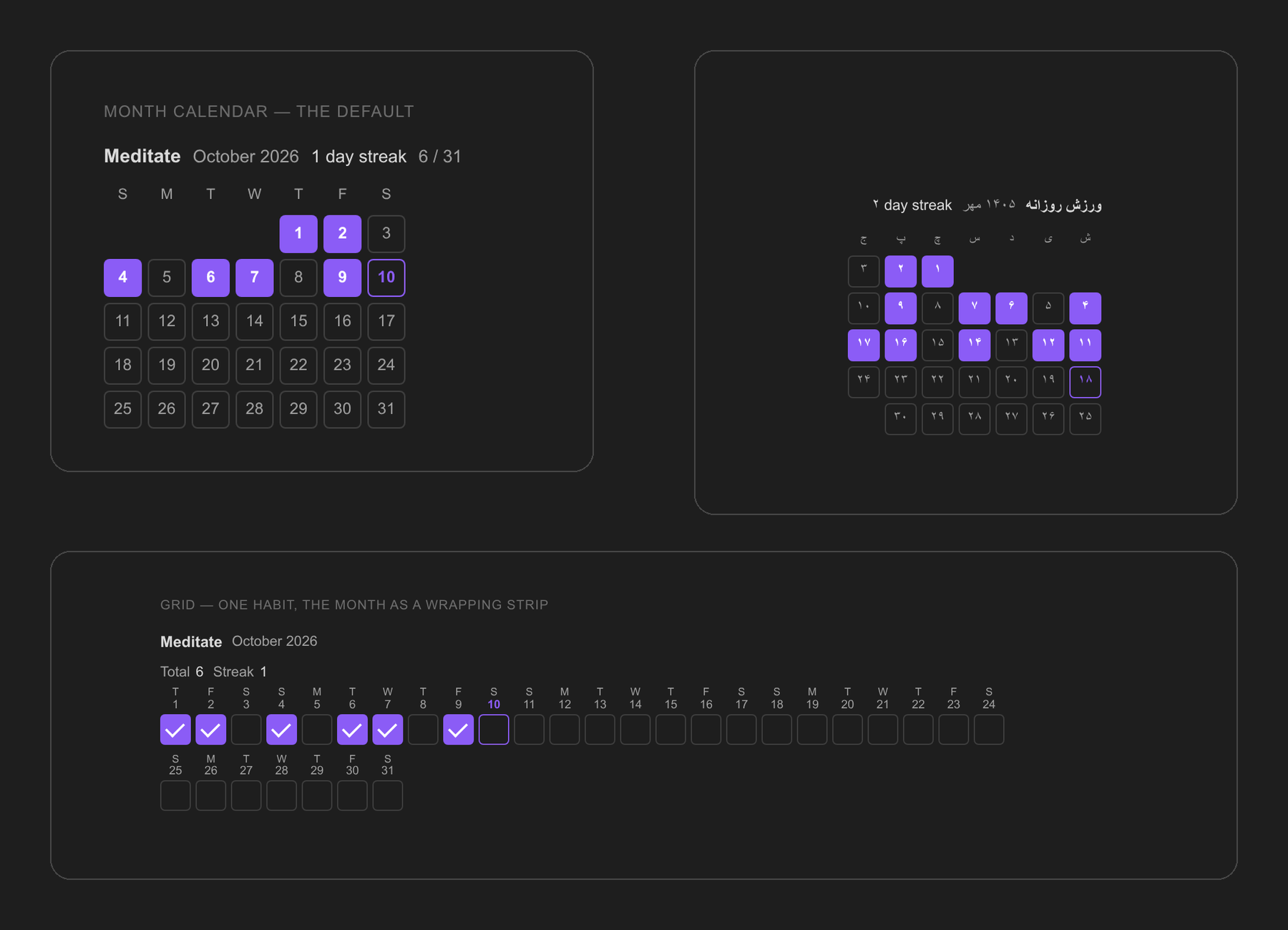
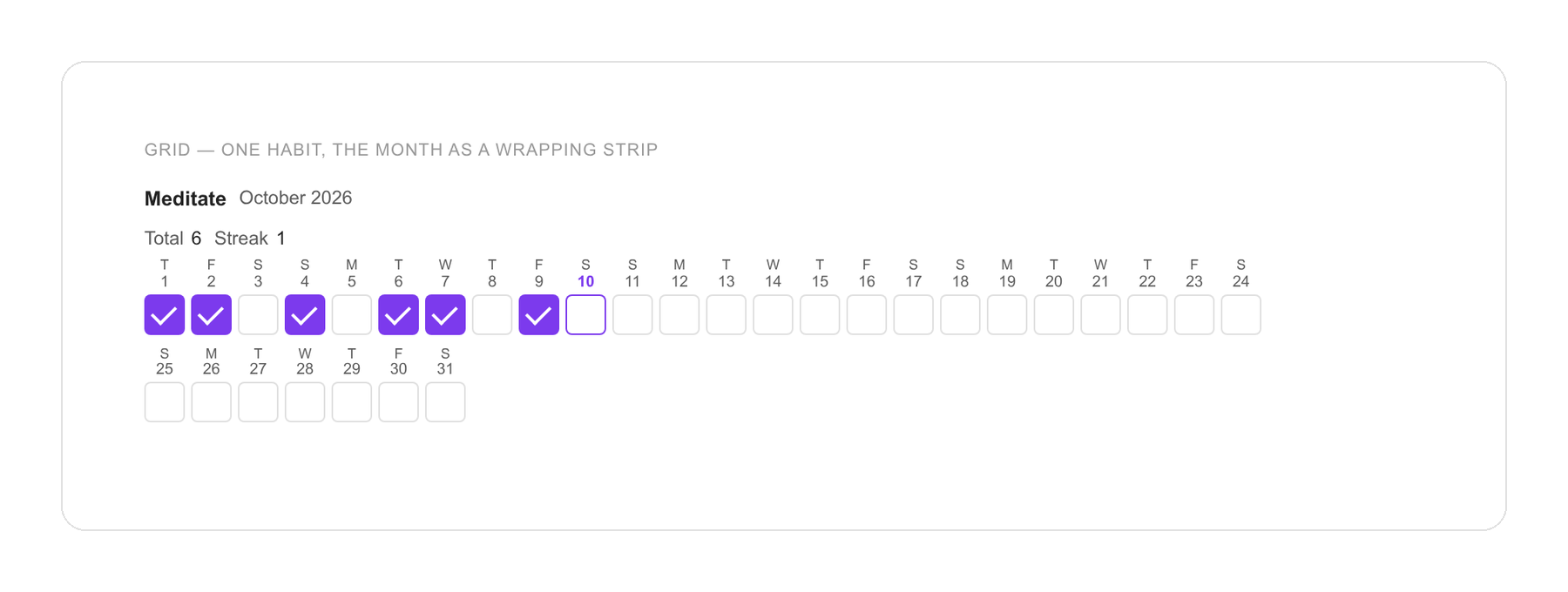
The gallery uses the real tracker renderer from the preview harness. Persian UI text is rendered with Vazirmatn.
Install
Until it is in the community list, copy main.js, manifest.json and
styles.css from this repository into <vault>/.obsidian/plugins/habbiter/,
then enable it in Settings → Community plugins. The built main.js is
committed, so there is nothing to build first.
Making one
Right-click in the editor → Insert habit tracker…, or run Habbiter: Insert tracker from the command palette.
Either opens a form with a live preview of the tracker above it — the real component, not a picture of one, so you can click around in it before you commit. The preview's clicks are thrown away.
The form writes a fenced block into the note, which is the only thing that ends up in your markdown:
```habbiter
id: hb-m8x2q1a4
title: Meditate
```
To change one later, hover it and use ⋯ → Edit tracker… — the same form, opened on what is already there. Renaming a row or a column in the form keeps its ticks; the form matches the old list against the new one by position.
What the block can say
Everything is optional except id. Anything left out follows
Settings → Habbiter, so a block only ever states what you chose.
| Key | What it does |
|---|---|
id | Where the ticks are filed. Written for you; do not reuse one. |
title | The tracker's name. A month tracker with no title is named by its month. |
mode | month — the month as a calendar. grid — rows and columns. |
cell | check for a checkbox, count for a counter. |
goal | Counter only: what a full cell means. Clicking cycles up to it and back to zero. |
rows | Grid only: a list of row names. |
columns | Grid only: a list of names, a plain number, or days for the month. |
band | Day columns: wrap runs the month on to the next line, week breaks it at the weeks, none keeps one scrolling line. |
calendar | gregorian or persian. |
month | current, or a year-month in the block's own calendar: 2026-09. |
weekStart | auto, a weekday name, or 0–6 with 0 as Sunday. |
locale | A tag like fa or en-GB for month and weekday names. Empty follows the app. |
numerals | locale or latin. |
dayNumbers, weekdays, totals, streak | What the tracker shows. |
size | The side of a cell in pixels, 20 to 44. |
wrap | none for a band of its own, or start / end to let text run beside it. left and right are accepted and mean the same. |
trackers | A list, to put several in one block. See below. |
layout | Several in one block: row side by side, or deck stacked with one in front. |
A month that fits
A grid with a column per day is 31 wide, which no note is — flat, it ends in a horizontal scrollbar, and a scrollbar is where a tracker stops being glanced at. So the month runs on to the next line instead, taking whatever width the note has:
Meditate   Total 18   Streak 3
 M  T  W  T  F  S  S  M  T  W  T  F  S  S  M  T  W  T
 1  2  3  4  5  6  7  8  9 10 11 12 13 14 15 16 17 18
 ■  ■  □  ■  □  ■  ■  □  ■  ■  □  ■  □  ■  ■  □  ■  ■
19 20 21 22 23 24 25 26 27 28 29 30
 □  ■  ■  □  ■  □  ■  ■  □  ■  ■  □
Each day carries its own date, in the box that wraps with it — a row of dates above a row of cells would be two things wrapping separately, and they would stop corresponding at the first line break.
band: week breaks the month at the weeks instead, which lines the columns
up down the page and lets the weekday names be written once. It is worth
having for several habits at once, where the calendar cannot help; for one
habit it is another way of drawing the calendar. band: none keeps the
single scrolling line.
A grid of four habits across the month:
```habbiter
id: hb-k1p7w2
title: Morning routine
mode: grid
rows:
  - Meditate
  - Read
  - Walk
columns: days
totals: true
```
A week of counters:
```habbiter
id: hb-r4t9m0
title: Reps
mode: grid
cell: count
goal: 4
rows: [Push-ups, Squats, Plank]
columns: [Mon, Tue, Wed, Thu, Fri]
```
Writing beside one
A block can carry text as well as a tracker, and the two sit side by side:
```habbiter
id: hb-n3f8
title: Meditate
size: 22
side: start
text: |
  Ten minutes, **before** coffee.

  See [[Morning routine]] for the rest of it.
```
The text is ordinary markdown, rendered by Obsidian — links, formatting and
embeds all work, set in the note's own font at the note's own size. side: start puts the tracker where the line starts (the left in English, the right
in Persian) and side: end puts it the other way round.
Beside means beside, at every width. The tracker's grid has a size it cannot go under, so the text column is the part that gives: narrow the pane and the text gets a narrower column rather than dropping underneath.
The easy way to write it is the builder: ⋯ → Edit tracker… has a Text beside it box with the live preview above, and ⋯ on the tracker swaps the sides without opening anything.
Why the text lives in the block. The obvious way to do this is to float the block so the note's own paragraphs run past it, and that does not survive Live Preview: a floated block leaves the flow of the CodeMirror line holding it, the line measures as empty, and the editor comes apart. Inside the block's own container there is no editor to come apart, so what you see in the editor, in reading view, in an export and on a phone is the same thing. It was tried the other way round in 1.2.0 and taken out again.
For a tracker positioned freely on a surface rather than set in a document, Obsidian's canvas is the place, and a tracker works in a canvas card like anything else.
Several side by side
One block can hold a row of trackers. They lay themselves out across the width of the note and wrap, each one as wide as its own grid:
```habbiter
calendar: persian
size: 22
trackers:
- id: hb-k2p9
title: مدیتیشن
- id: hb-m4x1
title: مطالعه
- id: hb-q7v3
title: پیادهروی
```
Anything the row shares is said once at the top and inherited; anything one
tracker does differently sits on its own entry. Each keeps its own id, so
each keeps its own ticks.
The quickest way to build one is ⋯ → Add one beside this… on a tracker
you already have. ⋯ → Take out of the row removes one again — its ticks
are filed under its id, not its position, so they are still there if you
put it back.
Reordering. ⋯ → Move earlier / Move later on any tracker in the row. The order is written into the block, which is the only place a markdown file can keep one — so it survives closing the note, syncing, and anyone else opening it. A pointer drag was tried and taken out again: a tracker in Live Preview lives inside CodeMirror, which has its own claim on pointer events, and a gesture that works in a browser and not in the editor is worse than no gesture at all.
Stacked, one in front
The other way a block can hold several: as a deck, with one card in front and the rest behind it.
⋯ → Add one stacked behind this… on a tracker you already have. That one click does both things — it asks for the new tracker and it stacks the block. On a block that already holds a row, ⋯ → Stack them, one in front puts them into a deck without adding anything, and ⋯ → Lay them out side by side puts them back.
Written out, it is one key:
```habbiter
calendar: persian
layout: deck
trackers:
- id: hb-k2p9
title: مدیتیشن
- id: hb-m4x1
title: مطالعه
- id: hb-q7v3
title: پیادهروی
```
Cards in a deck share one space, so every card is as big as the biggest of them. That means the deck draws every tracker at one cell size — the largest any of them asks for — so a stack of calendars comes out as a stack of matching cards rather than a small one adrift in a box built for a large one. Each tracker keeps its own size in the block, so it is its own size again in a row, in the builder, and if it is taken back out of the stack.
Swipe across the front card to bring the next one up. The swipe is never the only way: the arrows under the deck, the dots between them, and ← → on the dots all do the same job, because a pointer gesture inside CodeMirror is not something to bet the feature on. A tap stays a tap — a drag only starts once the pointer has travelled far enough, and further across than down, so ticking a box never turns into a swipe by accident.
The stack is a ring. Past the last card is the first one, before the first is the last, and neither arrow is ever the one that does nothing — so getting to the card behind the one in front is one press backwards, not a walk all the way round. A card that leaves the front sinks to the bottom of the stack rather than off the side of the deck.
⋯ → Move earlier / Move later moves a card through the stack, and ⋯ → Take out of the stack removes one. Only the front card takes clicks or Tab; the ones behind it are inert until they come forward.
What is not on offer: dragging a tracker to an arbitrary spot on the page. A note is a markdown document, not a canvas: there is nowhere in it to record that something sits 240px from the left, and anything faking it would come apart in reading view, in an export and on a phone. Obsidian's own canvas is the place for free positioning — a tracker works in a canvas card like anything else.
Using one
| Click | Tick, or count up one and wrap back to zero at the goal |
| Shift-click | Count back down |
| Arrows | Move around the grid |
| Space, Enter | Same as a click |
+, - | Count up or down, past the goal if you want |
| Backspace, Delete | Clear the cell |
| Tab | Into and out of the grid in one press |
Every cell is a real button with a label, so a screen reader reads "Meditate — Monday 21 September 2026" and whether it is ticked. Today is marked with a ring as well as a colour, and a ticked cell is a solid block where an empty one is an outline — nothing here is carried by colour alone.
Persian
Set Calendar to Persian — in Settings for the whole vault, in the builder for one tracker, or from ⋯ → Show in the Persian calendar on a tracker in front of you. The months become Farvardin to Esfand, cut at the right days, named in Persian, counted in ۰–۹, and the week starts on Saturday. The calendar brings its own language: Language only needs setting to read a Persian calendar in some other one, and Numerals to count it in 0–9. A tracker in a right-to-left note lays itself out right to left.
Ticks are always filed under the real date, so switching a tracker between calendars re-labels the grid without losing a single one.
In a callout
A tracker works inside a callout, a quote, or a nested one, and editing it
there writes back correctly — the block keeps the > on every line,
including the blank ones, so the callout does not end where the tracker
starts.
> [!tip] Morning
>
> ```habbiter
> id: hb-abc
> title: Meditate
> ```
This is worth saying because it was broken until 1.4.0. Obsidian's section
info points at the section a block belongs to, and inside a callout that is
the callout, not the fence — so an edit looked for a fence where > [!tip]
was standing, found none, and refused to save.
Where the ticks are kept
In the plugin's own data file — .obsidian/plugins/habbiter/data.json —
under each tracker's id. Obsidian Sync carries it like any other plugin
state.
They are deliberately not written back into the note. Saving a value into the fence means editing the file your cursor is sitting in, and the cost of that lands exactly when the plugin is supposed to be invisible: a caret that jumps mid-sentence, a sync conflict between two devices that both ticked today.
The practical consequences are worth knowing. Copying a block to another note
copies its id, so both places show the same tracker — give the copy a new
id if you wanted a separate one. Deleting a note leaves its ticks in
data.json. And a tracker in an exported or read-only note still draws and
still takes clicks, but says out loud that they are not being kept.
Theming
Everything the plugin paints comes from a variable, and every variable falls back through your theme's token, then Obsidian's, then a literal. A snippet can move any of them:
.hb-root {
  --hb-accent: var(--color-green);
  --hb-radius: 50%;
  --hb-cell: 32px;
}
--hb-page is the one worth knowing about. A tracker wider than the note
scrolls sideways under a row-label column that stays put, and the label has to
be opaque or the cells slide through it. CSS cannot read the colour actually
painted behind an element, so --hb-page is what the label sits on, and it
defaults to the page. Set it where a tracker lives on something else —
Bookcloth does this for
callouts, embeds, sidebars and popovers.
Building
npm install
npm run build     # typecheck, test, then bundle to main.js
npm test          # the date arithmetic and the block format
npm run dev       # rebuild on change
The tests cover the two things that are expensive to get wrong: the calendar maths behind the grids, including the Persian leap years, and the block format, which is written back into somebody's note.
preview/ renders the real component in a browser against a stand-in for the
obsidian module, so a change to the renderer or the stylesheet can be
checked in both themes without a vault. See preview/README.md.
Releasing
Obsidian looks a plugin's version up by its release tag, so the tag is the
version and carries no v:
# bump manifest.json, package.json and versions.json together, then
npm run build && git commit -am "1.0.1"
git tag -a 1.0.1 -m "Habbiter 1.0.1"
git push origin main 1.0.1
Pushing the tag runs .github/workflows/release.yml, which refuses to build
if the tag and manifest.json disagree, then publishes a release carrying
main.js, manifest.json and styles.css — downloadable from the tag,
which is the whole point of building them.
The same workflow can also be started from the Actions tab with a version, and will mint the tag itself from the branch it was run on — the path for anywhere a tag cannot be pushed by hand. It refuses a version the manifest does not claim, and refuses to overwrite a release that is already out with its files. A release that did not finish — unpublished, or published with nothing attached — it repairs and completes, and it asserts at the end that all three files really are on the tag.
.github/workflows/ci.yml runs on every push: typecheck, tests, bundle, and
a check that the committed main.js is the one the source builds.
License
GNU General Public License v3.0.
For plugin developers
Search results and similarity scores are powered by semantic analysis of your plugin's README. If your plugin isn't appearing for searches you'd expect, try updating your README to clearly describe your plugin's purpose, features, and use cases.