TaskPro
unlistedby Ali
Task management with your own coloured tags, a Notion-style board and calendar of every task in the vault (plan by the hour in the Gregorian or Jalali calendar, with a note for each day), and per-task capabilities — progress bars, focus timers with desktop notifications, and repeating tasks — plus bi-directional sync, badges, and deadline tracking.
TaskPro




A powerful task management plugin for Obsidian
فارسی · Features · Installation · Development
An Obsidian plugin for task management: interactive chips on every task line, your own coloured tags, a task board that shows every task in the vault in one place (on a phone too), a calendar and a timeline to plan your days on in the Gregorian or the Jalali calendar, subtasks and tasks that wait on each other, bi-directional sync with a central task note, deadlines, priorities, and per-task capabilities you add only where you want them.
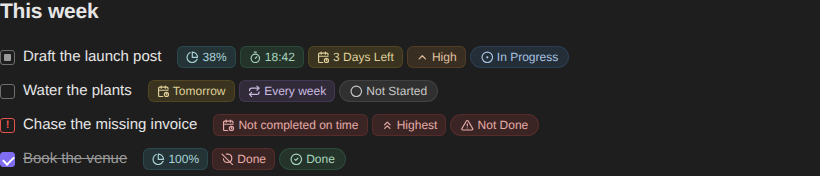
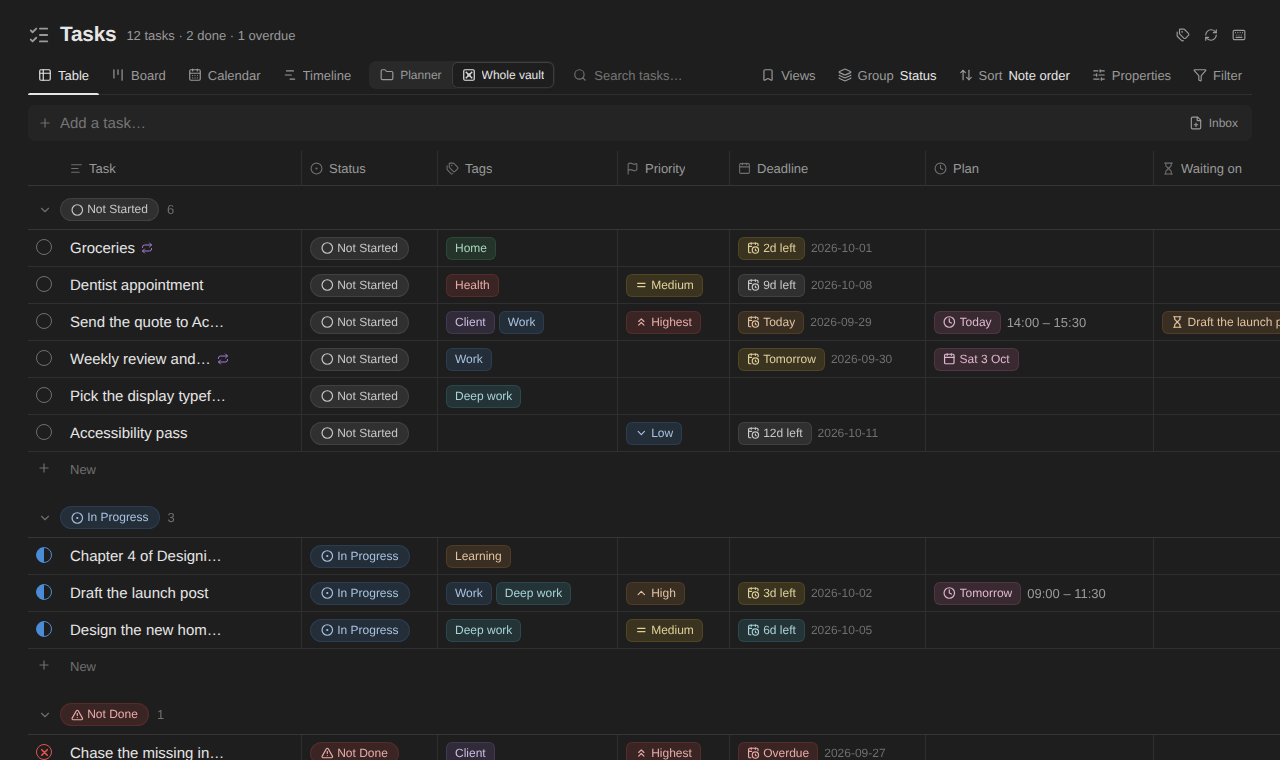
Rendered from the plugin's own code and styles.css over Obsidian's default
theme variables (see Development → Previews), not
screenshots of a live vault.
Contents
- Features
- Tags
- Task board
- Subtasks and waiting
- Timeline
- Calendar
- Per-task capabilities
- Requirements
- Installation
- Setup
- Commands
- Task syntax
- Bi-directional sync
- Reminders
- Telegram bot
- Settings
- How it works
- Development
- Releasing
- License
Features
Interactive chips
Every task line gets a row of chips, rendered through CodeMirror decorations in Live Preview and a post-processor in Reading Mode. Nothing is written into your notes to make them appear, and clicking one opens the menu for that property.
| Chip | Meaning |
|---|---|
Not Started In Progress Done Not Done | Task status; click to change it |
Highest … Lowest | Priority, five levels |
Every week | Recurrence |
Tomorrow 3 Days Left Not completed on time | Deadline, coloured by urgency |
Today, 09:30 – 11:00 | When you plan to work on it |
18:42 | A running focus timer |
38% | Progress through a set number of steps |
2/4 | How many of a parent task's subtasks are done |
Write the copy 2 tasks | Behind an hourglass: the tasks this one is waiting on; click to open one |
Work Client | Your own tags, each in its own colour; click to change them |
Chips that belong to your theme
Every chip is a tint of one accent colour, taken from the theme you are using — nothing in the plugin is a fixed colour. So the same six chips read correctly on Obsidian's defaults, on a light vault, and on a community theme with a palette of its own:
| Obsidian default · dark | Obsidian default · light |
| 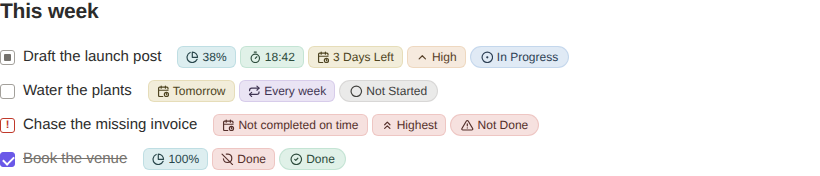 |
| A community theme · dark | A community theme · light |
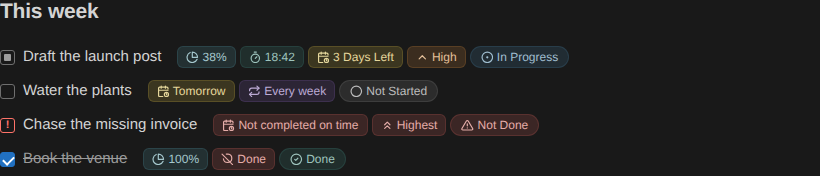 | 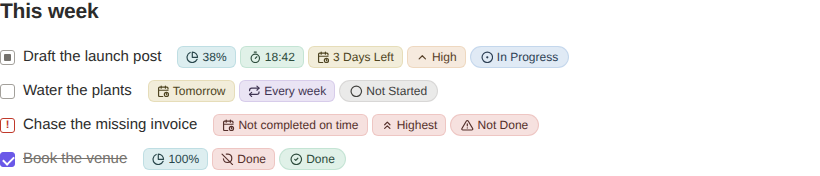 |
Status is the property people read first, so it is the one chip with a shape of its own, a capsule; tags, priorities and dates stay rounded rectangles. The capsule follows the chip radius setting, so squaring the chips squares it too.
A label is also pulled toward the theme's own text colour, which is what keeps
it readable in both modes from one declaration: it lightens on a dark theme and
darkens on a light one, because that is where the theme's text colour is. Every
chip variant is measured against WCAG AA (4.5:1) on each theme by
npm run check:contrast — the current worst case is 4.6:1.
If you want a specific hue anyway, each accent is a Style Settings knob, along with how strongly chips tint themselves.
Custom task statuses
[/] and [!] are drawn so they read at a glance, in Live Preview and Reading
Mode alike:
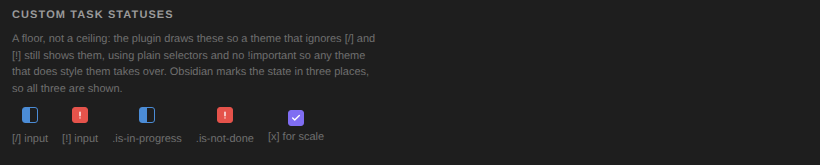
These are a floor, not a ceiling. Styling a checkbox is really a theme's job, so
the plugin uses plain selectors and no !important — a theme that styles these
states takes over with an ordinary rule, and one that ignores them still gets a
sensible default.
Four-state task toggle
Ctrl+T cycles the task under the cursor through all four states:
[ ] → [/] → [x] → [!] → [ ]
[!] means not done — for something that missed its moment rather than
something still open. Overdue tasks are moved into it automatically.
Properties with @
On a task line, type @ and the plugin lists what the task can be given — a
priority, a deadline (today, tomorrow, next week, or a date you pick), a plan,
a repeat rule, a tag, a status — filtered as you type, the way Notion's @
works. @high, @tomorrow, @weekly or a tag's name are enough. Choosing
one writes the marker through the same writers the menus use, so an existing
priority or deadline is replaced rather than doubled, and the @word you
typed is taken out again. Picking a tag the task already has takes it off. It
can be switched off under Settings → TaskPro → Badges.
Task import and bi-directional sync
Import tasks from a central reference note (say Weekly Tasks.md) into any
note, and a status change on either side updates the other.
Global internal tasks
Tasks stored in plugin settings rather than in a note, available in the import modal alongside the reference note's own.
Bilingual, with Jalali dates
Every chip and menu is available in English or Persian (فارسی), with correct right-to-left text, and deadlines can be displayed and picked in either the Gregorian or the Jalali calendar.
Tags
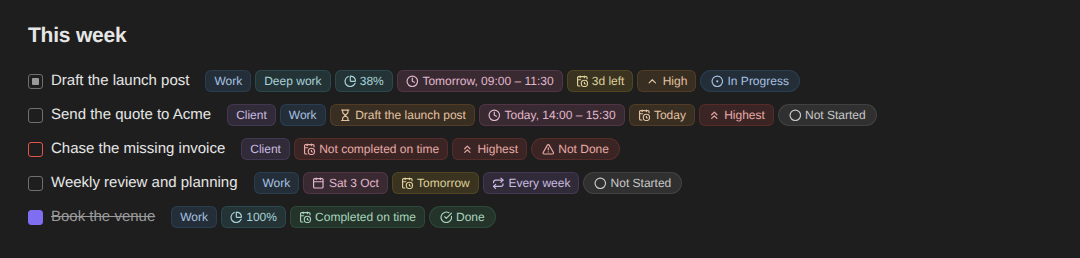
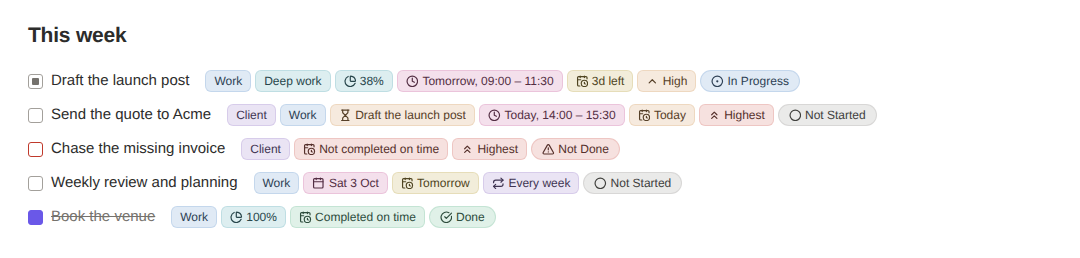
Tags are your own labels for tasks — Work, Client, Deep work, Home — each with a name and a colour you choose, so tasks can be told apart at a glance and pulled apart on the task board.
| Obsidian default · dark | A community theme · light |
 |  |
-
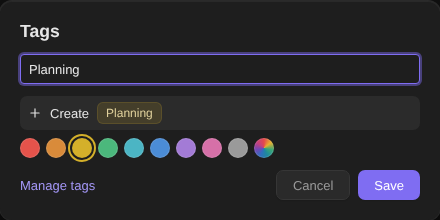
Add tags to a task from its status chip (Add Tags), by clicking a tag chip, with Set Tags on Current Task, or from the task board. The picker works like a Notion multi-select: type to filter,
Enterto toggle, and typing a name that does not exist yet offers to create it on the spot, with a colour.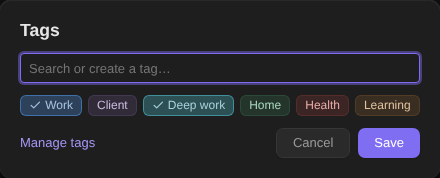
-
Colours come from your theme. The palette is the theme's own red, orange, yellow, green, cyan, blue, purple and pink (plus grey), so a blue tag is your theme's blue in light and dark mode alike; a custom colour is there for anything else. Every palette colour passes WCAG AA as a chip label in both modes on every theme checked.
-
A note stores only the tag's key, as
@tag(work, deep-work), hidden behind the chips while they are on. The name and colour live in the plugin's tag list, so renaming Work to Office or making it green updates every task at once without touching a note. Keys accept any script, so Persian tags (@tag(کار)) work as well as Latin ones. -
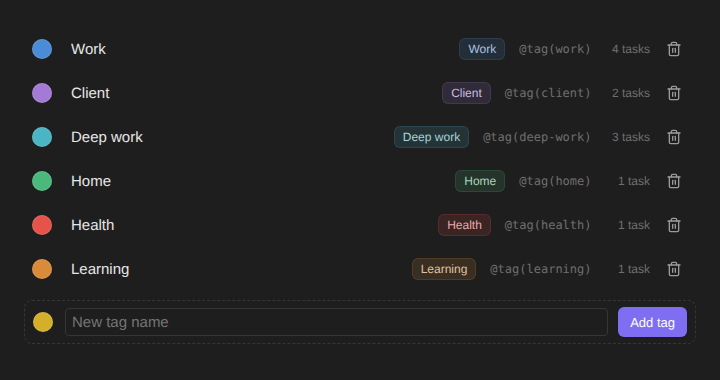
Manage tags under Settings → TaskPro → Tags, from the board, or with Manage Tags: rename, recolour, see how many tasks use each tag, and delete a tag either on its own (tasks keep the marker and show a grey chip until you define it again) or together with its marker in every note.
-
Tags travel with a task: they are copied into an imported task and synced from a linked copy back to its source, like the other markers. Obsidian's own
#tagsare left alone — they are part of the task text and still searchable from the board.
Task board
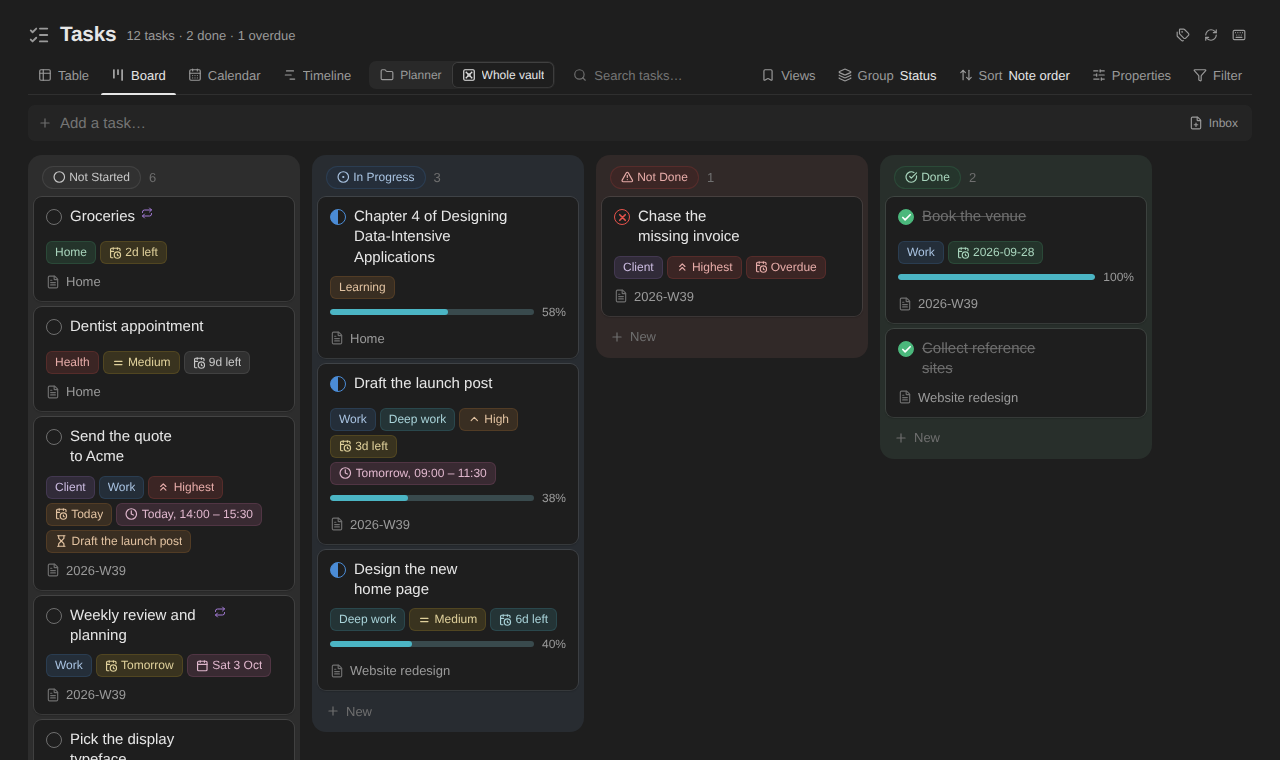
Every task in one place, the way a Notion database shows every row: open it from the ribbon or with Open Task Board, and it opens as a tab of its own.
-
Scope: the whole vault, or only the target folder set under Settings → TaskPro → General. The switch is at the top of the board, beside the tabs, and is there only when a target folder is set.
-
Four layouts, as a row of tabs (the current one marked by a bar on the line under them, the way Notion marks its views): a table with a column per property, a board with a column per group (drag a card to another column to change its status, priority or tag), the timeline and the calendar.
-
Group by status, tag, priority, deadline (Overdue, Today, Next 7 days, Later, Past), plan (Missed, Today, Next 7 days, Later, Past, Not planned) or note, and fold away groups you do not need; a task with two tags appears under both, as in a Notion multi-select.
-
Sub-items: in the table a subtask sits one step in under its parent, whatever the grouping. A parent shows how many subtasks it has after its title, and a click folds them away and brings them back (the fold is kept). Only what is on the screen counts: a subtask whose parent is filtered out or in another group stands at the edge instead of hanging under nothing.
-
Sort by title, status, priority, deadline, plan, progress or note — click a column header once, twice to reverse, a third time for note order.
-
Arrange the columns the way a Notion view's properties are arranged: drag a header to move its column, drag its edge to resize it (double-click the edge for its default width), and right-click it to sort, move or hide it. The + at the end of the header row, or Properties in the toolbar, switches each property on or off and drags them into order; on the board it picks what a card shows. Plan shows the day and the hours (Today · 09:30 – 11:00), and Repeat can be switched on as a column.
-
Arrange the board's columns too: drag a column by its header to move it, drag the edge between two columns to make every column wider or narrower, and use a column's ⋯ (or right-click its header) to hide it. Hidden columns are listed at the end of the board, one click from coming back. Grouped by tag, New tag there adds a column.
-
Waiting on is a column of its own: what each task waits on, and a task that is still waiting shows an hourglass beside its title. The Progress column shows a parent's done subtasks (2/4) when it has no progress bar of its own. See Subtasks and waiting.
-
Filter by status, priority, tag, deadline (Overdue, Today, Next 7 days, Later, Past, None), plan or note from a searchable menu, and search titles, tag names and note names. Active filters show as pills you can click away, and Clear filters takes them all off.
-
Density, wrapped titles and empty columns: Properties → View sets how much room the table's rows and the board's cards take (compact, comfortable or spacious), lets a long title run over as many lines as it needs, and leaves out the board's columns that have nothing in them. A finger keeps its 44px whatever the density.
-
Edit in place: tick a task off, change its status or priority from a menu, set the deadline, pick tags, or click a title to rename it. Every edit is written into the note the task lives in, keeping all of its markers, and a linked copy syncs to its source the same way it does from the chip menu. ↗ opens the note with the cursor on the task.
-
Right-click any task — a row, a card, or a task on the calendar — or press its ⋯ button for the task menu: every property a task can carry, one hover away. Its first row, Open card, opens the same card the calendar does, with a row for each property and the subtasks under them, from the table, the board and the timeline too; a table row's Open button and a card's own space do the same. Its Copy link and Move to note… are described under Moving a task.
-
Add tasks from the row at the top, from a board column's New button, or from the New row that ends each group of the table. A new task goes into the note of your choice and takes on the active filters (or the group it was added to), so it does not vanish from the view the moment it is created.
-
A wide table keeps its place: the check and the title stay in view when the properties are scrolled sideways, and a group's name stays with them. A row's ↗ and a card's ⋯ appear on hover, as small raised buttons.
-
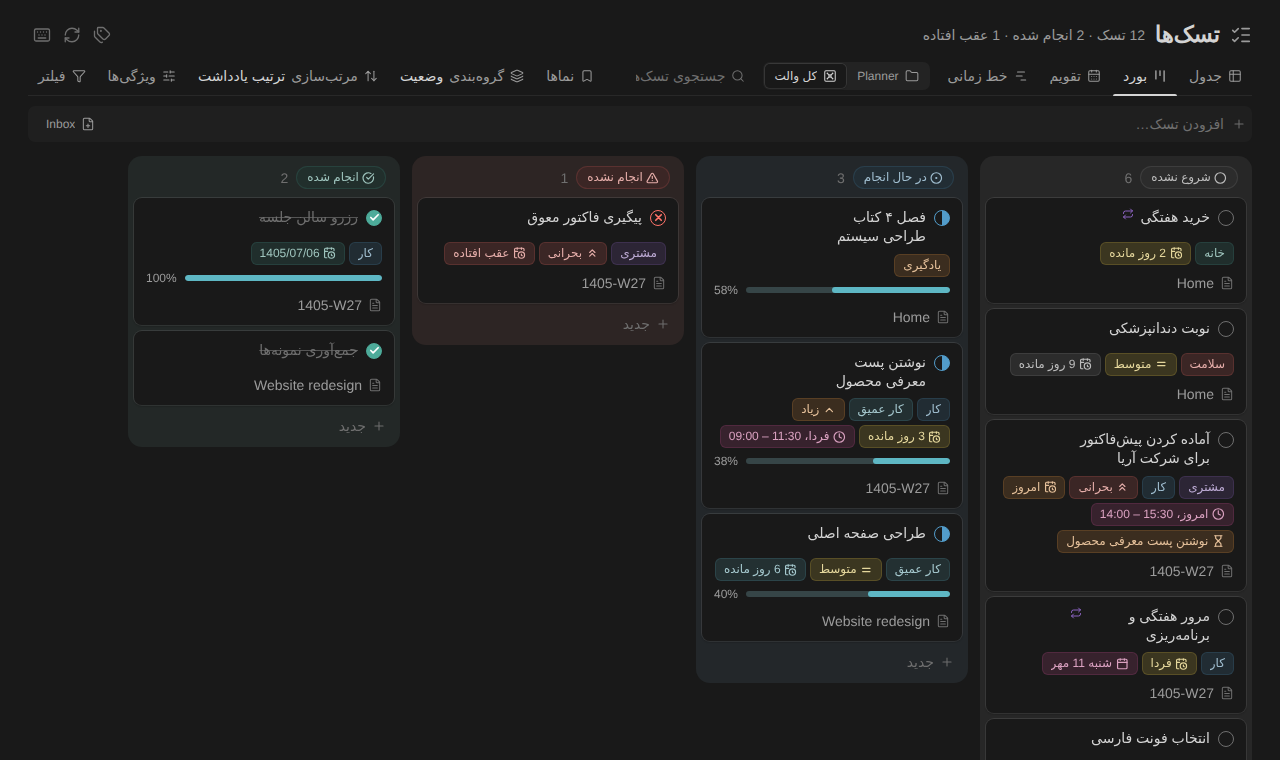
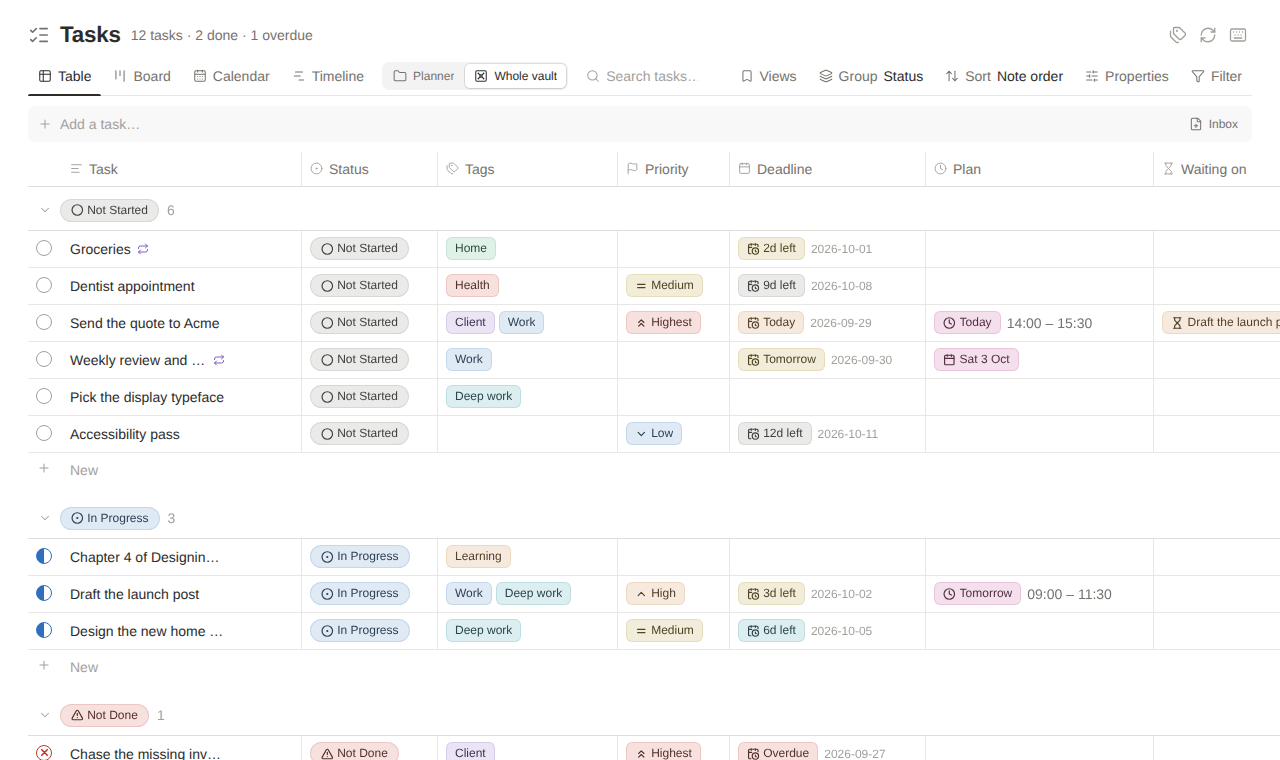
The board remembers its layout, grouping, sort and filters between sessions, follows your notes live, and reads right to left in Persian:
Floating over everything
Press Ctrl+Shift+B (Cmd+Shift+B on macOS), or run Toggle Floating
Task Board, from anywhere — a note, the graph, another plugin's view — and
the board opens as a large floating window over the whole app. The same keys
close it again, as does Esc; the search field has focus as soon as it
appears, so you can start typing to find a task. Open in a tab in its
header sends it back to a workspace tab, and Float over Obsidian on the
tab's header does the reverse.
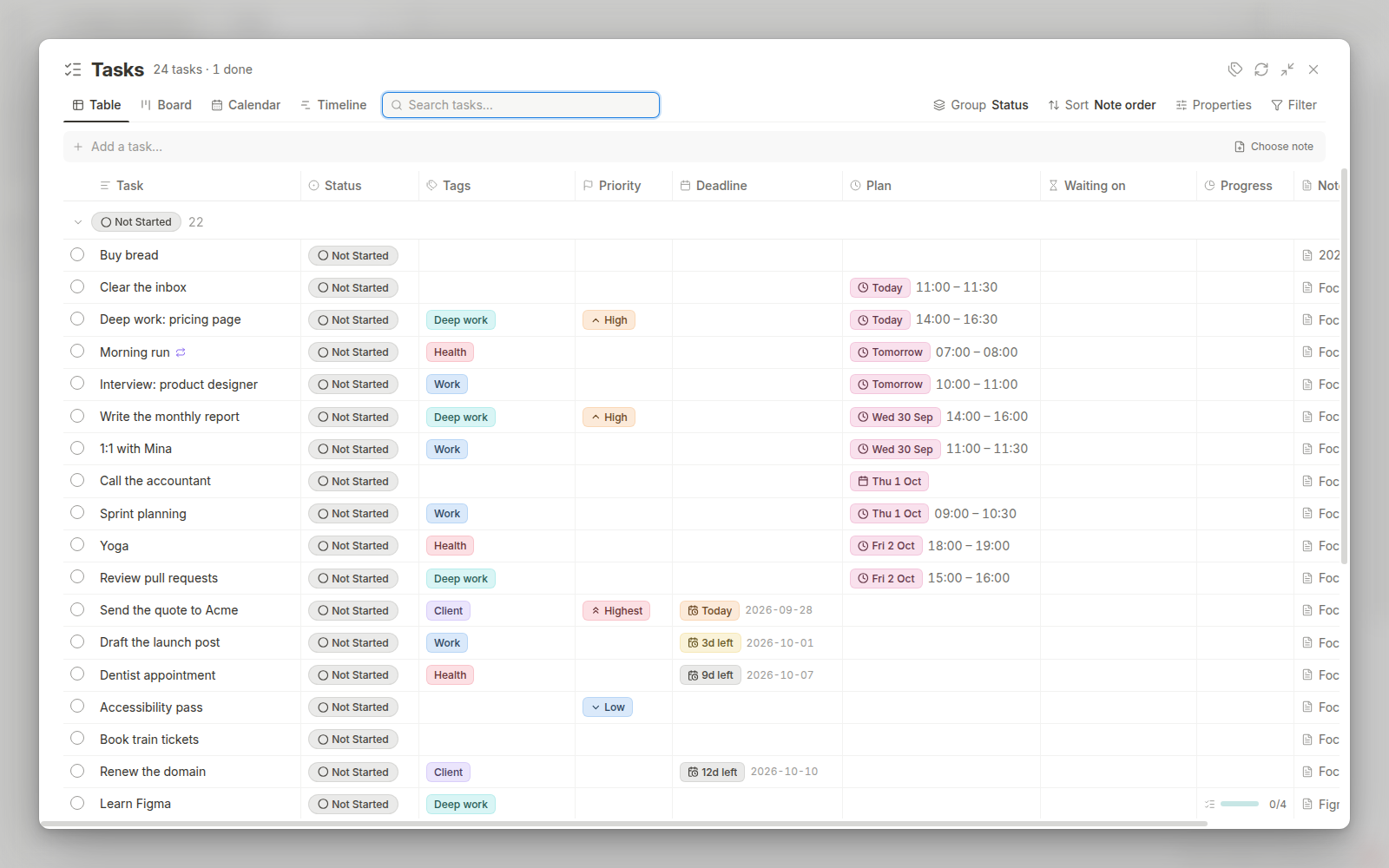
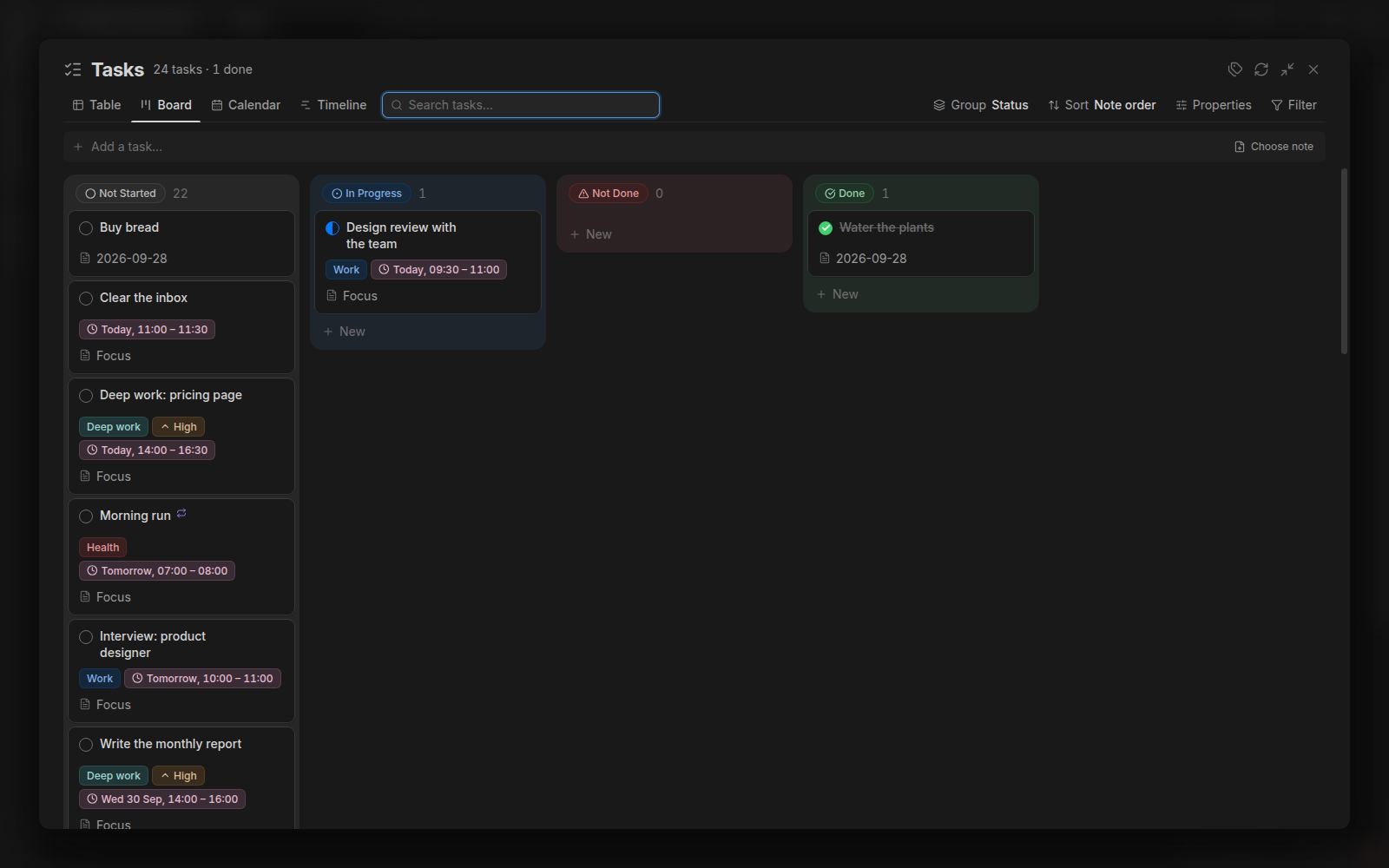
These two are screenshots of Obsidian 1.13.7 itself, with the Bookcloth theme, not harness renders.
The plugin sizes the window and dims what is behind it. The blur belongs to the
theme: while the float is open the plugin puts taskpro-board-is-floating on
<body> and taskpro-board-float on the modal container, and a theme blurs
from those — Bookcloth does, and
exposes the strength as a Style Settings slider. A theme that blurs should put
filter: blur() on body > .app-container (and .titlebar) rather than
backdrop-filter on the modal background: measured in Obsidian with the board
repainting every frame, filter holds 60 fps exactly as no blur does, while
backdrop-filter drops to about 26.
It stays quick on a large vault: notes the metadata cache says hold no tasks are
never read, only the lines Obsidian itself calls task items are parsed (so a
- [ ] in a code block is not a task), a changed note is re-parsed from the
content Obsidian already has in hand, and long groups are drawn 150 rows at a
time.
 |
On a phone
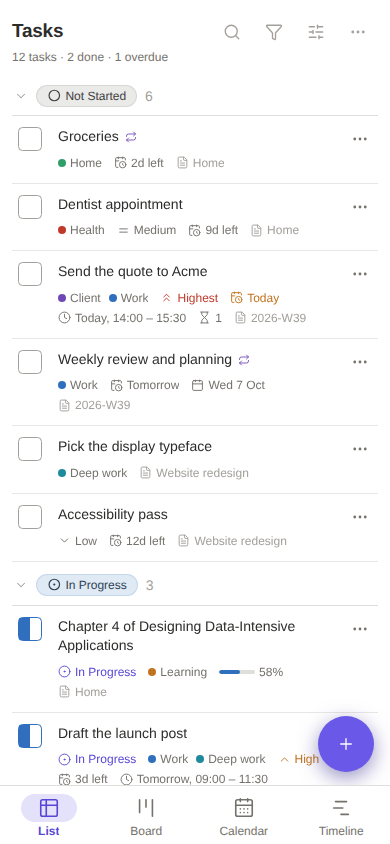
On a phone, or in a pane narrower than 640px, the board is rebuilt for a thumb, and nothing is left out: every setting and action on the desktop is still there, one or two taps in.
The frame. A slim bar on top (the title, search, filters, the view's options and a ⋯ sheet), the layouts as tabs along the bottom (List, Board, Calendar, Timeline, with the arrow keys moving between them), and a round + above them. On the list the top bar and the tab bar step aside while you scroll down and come back at the first scroll up; the list never changes size when they go, so nothing jumps under your finger. The bottom keeps clear of the home indicator and of Obsidian's own floating bar.
Two fingers pulled down, anywhere, open the task board. On a touch screen, from a note or from any other view: put two fingers down together and pull them straight down. Nothing happens while they are down: a pill at the top of the screen follows the pull (Pull down for the Task Board, then Release to open the Task Board with a short buzz once it is far enough), and the board opens when both fingers are lifted. Pulling back up, or lifting early, cancels it, and the list underneath never reacts to the two fingers (no tick, no sheet). It needs a clear move (both fingers, a good way, quickly), so a scroll or a pinch does not set it off. Two-Finger Swipe Opens the Task Board in the settings turns it off.
The phone's back gesture goes back, one step at a time. The board opens in the pane you were in, as a step of that pane's history, so the system back (the Android back button or swipe, Obsidian's two-finger swipe back) closes it and returns to the note you came from. A sheet, a menu or the quick-add field that is open takes the back first and closes; the next back leaves the board.
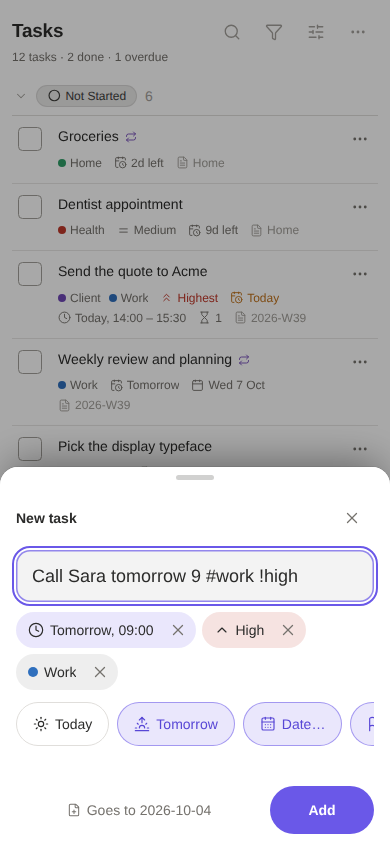
Adding a task is one line of words. The + opens a sheet with a field and
the keyboard. Type call Sara tomorrow 9 #work !high (or
خرید نان فردا ساعت ۹ #کار !بالا) and what was understood shows under it as
chips: a plan for tomorrow at 09:00, high priority, the tag. remind … /
یادآوری … makes a reminder, due … / مهلت … a deadline, in 20 minutes /
۲۰ دقیقه دیگه a reminder from now. A reading you did not mean has a ✕ that
keeps the words in the title. Prefer to tap? Today, Tomorrow, a month to pick a
day from, priority, tags and reminders are buttons under the field that write
the same words into it. A task with a day goes into that day's note (as on the
calendar), the rest into the inbox; Add clears the field and keeps the
keyboard for the next one. It reads the same lines as the Telegram bot does.
Rows are light. A task is its title and one calm line of small text under it (when, how urgent, its tags, how far along); only what is overdue, due today or urgent takes a colour. The chips are one tap in, in the task's sheet, or back for good with Row style › Chips in the board's options. The circle is 24px with a 44px target, a swipe towards the trailing side ticks the task off (the other way opens its sheet), with a buzz when it is far enough to count and dragging back before letting go to cancel it; either way a line at the foot says what happened with Undo. A second finger put down on a row cancels its swipe and its long press, so a two-finger gesture never ticks anything.
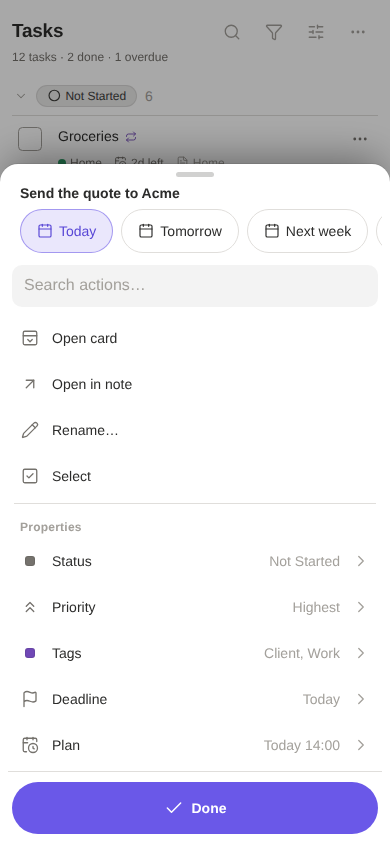
A task's sheet starts with what you most often do: Today, Tomorrow, Next week and Pick a date… to plan it, and Done as a large button at the foot that stays in view while the rows scroll. Menus, cards and pickers all rise from the bottom with a handle to drag them down by; a submenu is a page of its own.
- The table becomes a list, as above. Table style in the board's options brings back the full table, which then scrolls sideways.
- The board shows one column at a time: a swipe sideways moves the strip with the finger and settles on the next column, never past it (a quick flick, or a drag of a fifth of the screen, is enough; a short one comes back), with a short buzz. A tap that ends a swipe is not a tap. Each column scrolls up and down by itself and keeps its place while you visit the others, and a row of tabs above it says where you are and jumps between them. (The strip is moved by the plugin rather than by the browser's own pan: where a column that scrolls vertically sits inside a strip that scrolls sideways, some engines drop the sideways pan.)
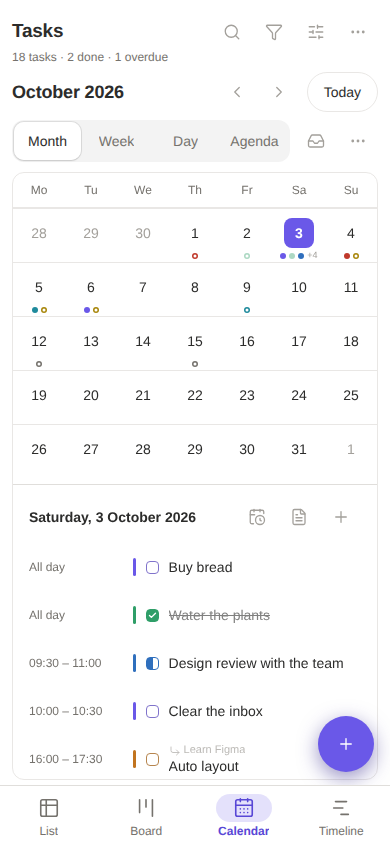
- The calendar's bar is two lines: the period with back, forward and Today, and under it Month, Week, Day, Agenda, the unscheduled tasks and a ⋯ sheet (Gregorian or Jalali, what to show). The month is a grid of dots with the chosen day's tasks under it, and a swipe across it turns the page; the week shows three days from today and scrolls sideways.
- A long press is the right click, and anything that can be dragged, a card, a block or a bar, is picked up by holding it still for a moment, so a finger that moves right away scrolls.
For everyone. Every control has a name a screen reader can say (a checkbox is named for its task and says whether it is ticked), is at least 44px (24px at the smallest, with a bigger touch area made around it), and shows where the keyboard is. A sheet shuts the board behind it away until it is closed, Tab goes round inside it, and Esc or a way out of its own closes it and gives the focus back. What happens is said aloud too: the period on the calendar, a task added, a task ticked off with its Undo. Text can grow with Obsidian's font size (the bars grow with it), more contrast and forced colours are honoured, and nothing needs a gesture that a button does not also do.
 |  |  |  |
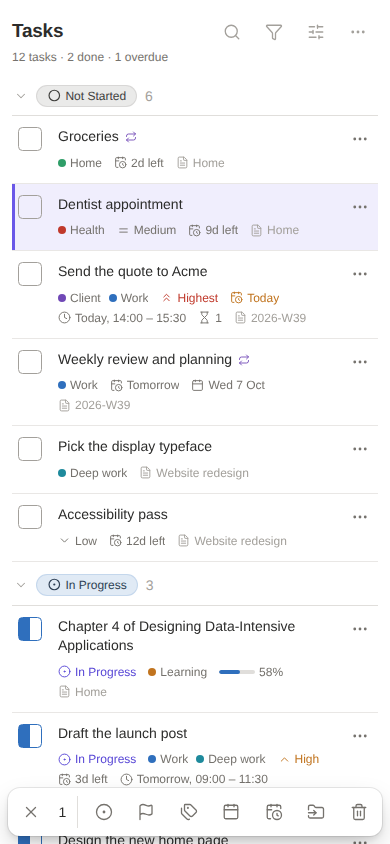
The board uses the phone layout wherever it is narrow, so a sidebar pane on a desktop gets it too, and a touch screen keeps the larger targets at any width.
Keyboard
The table and the board have a cursor that moves through the tasks the way the
eye does, and a key for each thing you do to the task under it. Press ?
(or the keyboard button in the header) for a sheet that lists them all.
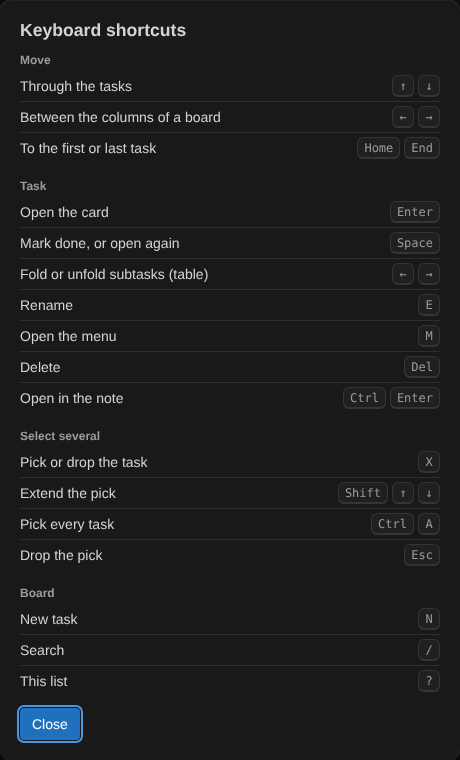
| Key | Does |
|---|---|
↑ ↓ (or K J) | Move through the tasks |
← → | Between a board's columns (mirrored in Persian); in the table, fold and unfold a parent's subtasks, and ← from a subtask steps up to its parent |
Home End | The first and the last task |
Enter | Open the task's card |
Ctrl/⌘ Enter | Open its note, with the cursor on the task |
Space | Tick it off, and back |
E | Rename it |
M | Open its menu |
Delete | Remove it (Undo is offered) |
X, Shift ↑ ↓, Ctrl/⌘ A | Select it, a run of them, all of them |
N | Go to the new-task field |
/ | Go to the search |
Esc | Close the innermost thing open: a menu, a card, the selection, then the board |
Letters are read from the physical key, so they work on a Persian keyboard layout as they do on a Latin one. Menus, cards and inline edits give the focus back when they close, so the keys carry on where they were, and the cursor never slides the table sideways.
Selecting several tasks
A square in a row's margin, and on the corner of a card, picks it. Ctrl or
⌘ with a click picks one more, Shift with a click picks a range, and
Select in the task menu starts a selection (on a phone, taps then carry it
on). Picked tasks are tinted and stay picked while the notes change under them.
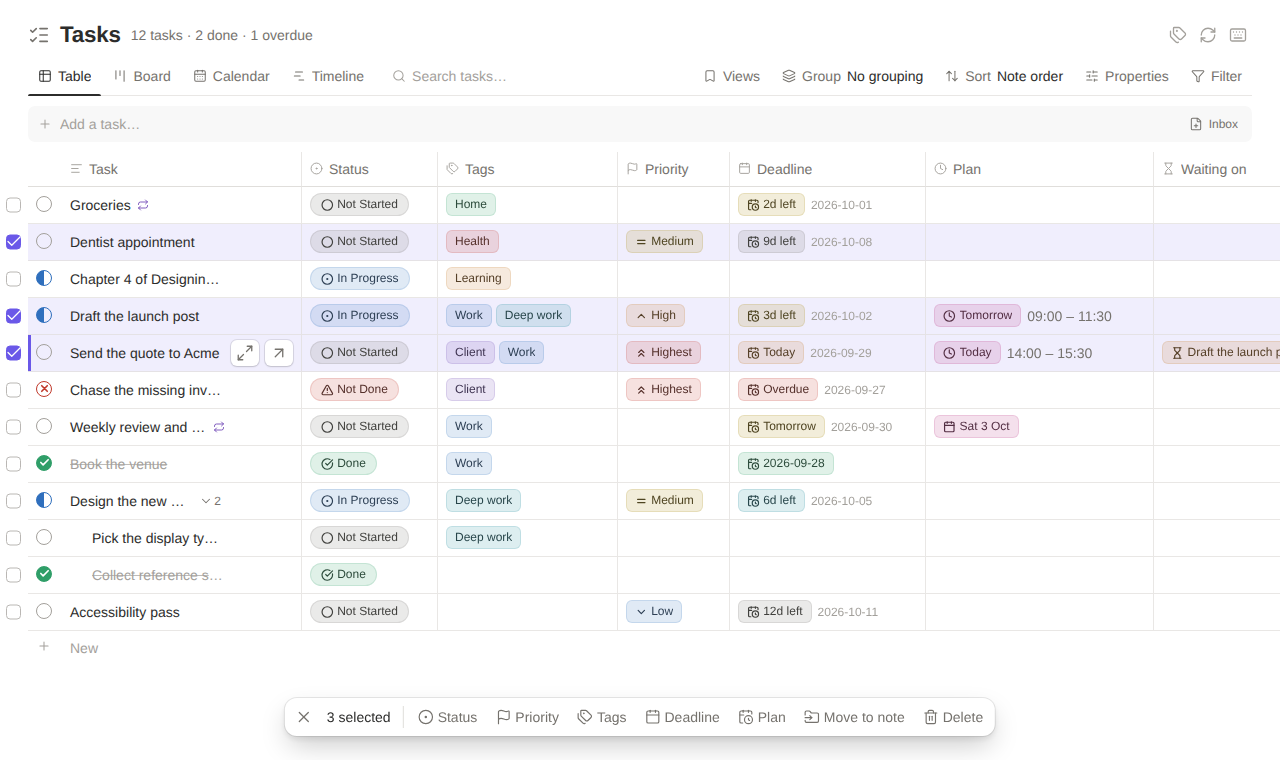
A bar rises over the board with what can be done to all of them at once:
status, priority, tags, deadline, plan, move to a note
and delete. Its menus are the ones a single task has, built from a stand-in
task that has only what all the picked share (a status they all have is
ticked), and each choice is made on every picked task in turn. A move or a
delete takes a parent's subtasks with it once, even when they are picked too,
and deleting several puts up one notice whose Undo puts every one back
where it was. Esc drops the selection before it closes anything under it.
On a phone the bar rises above Obsidian's own floating bar, with icons and the count alone so that every action fits.
Views
Views, in the toolbar (a page of the options sheet on a phone), lists the views you have saved, saves the board as it is now, and puts a saved one back, the way a Notion database keeps its views: This week, Overdue and today, By note.
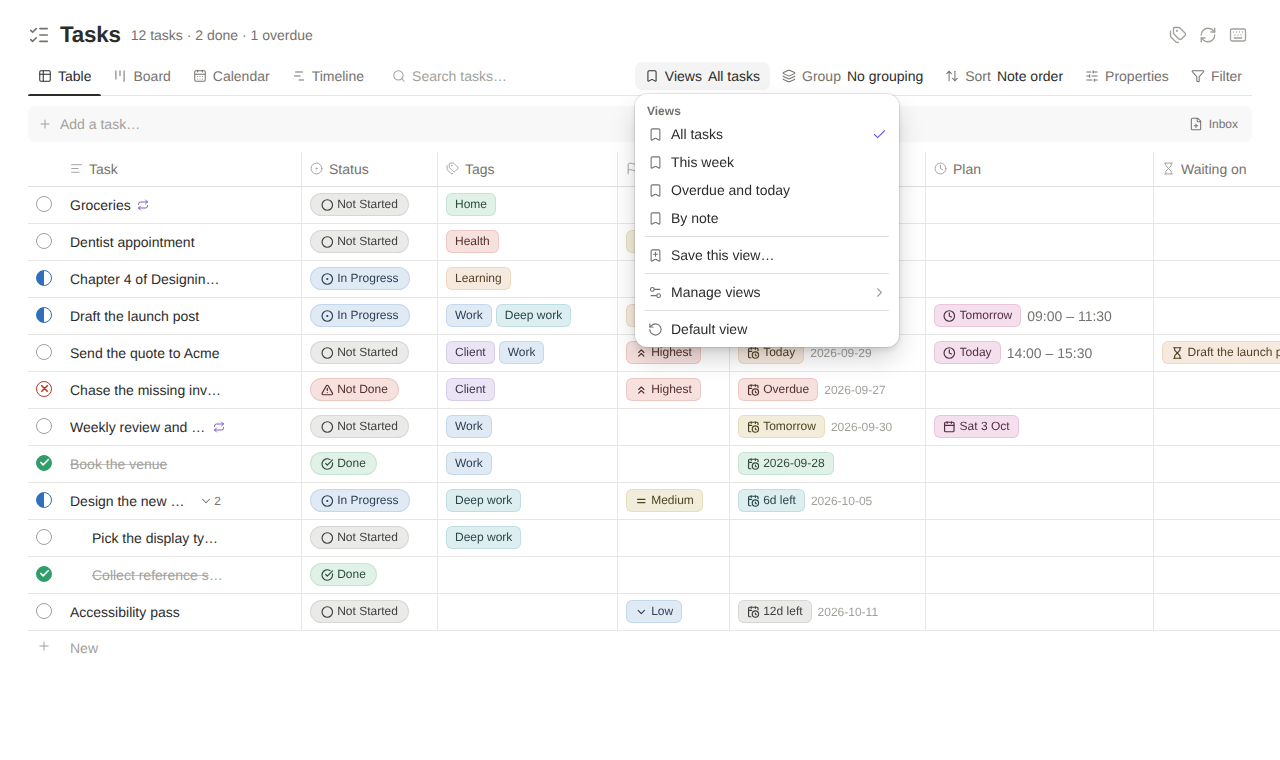
- A view holds what makes the board look as it does: the layout, grouping, sort, filters, properties and density, and the calendar's and the timeline's options. It leaves out the search, the groups and parents you folded, and the note new tasks go into.
- Applying a view sets every one of those to the view's value or to the default, so a view means the same board whatever it was applied over.
- The button shows the view's name, with a dot once the board has been changed since; Update takes the change into the view. Views can be renamed, duplicated and deleted, and Default view puts everything back.
Moving a task
Copy link in the task menu copies a [[Note#^id]] block link to the task,
writing the block ID into the line when it has none. Move to note… lists
every note in the vault in a searchable menu: the inbox first, then the notes
beside the task's own, then the ones that hold tasks.
- The task goes with everything nested under it, and is set down at the left edge of the other note. A block ID the other note already uses is swapped for a new one.
- What TaskPro keeps about a task outside its line goes with it: its progress bar, its timer, and the sync mapping between a copy and its source.
- The links that say a task waits on another are rewritten, both on the tasks that moved and on the tasks elsewhere that wait on them.
- A note that cannot be written to gets the task back exactly where it was.
Subtasks and waiting
A task nested under another in its note is its subtask. A parent task
with no progress bar of its own shows how many of its subtasks are done, as
a 2/4 chip in the note and in the board's Progress column, and the chip
fills in as they are ticked off. Only direct subtasks count; a plain bullet in
between does not break the link. Show Subtask Progress under Badges
switches it off.
Waiting on another task
A task can wait on others: it cannot start until they are done. Choose Waiting on › Wait on a task… in its menu and search for the task; add as many as it needs. The line gets a marker made of links to those tasks:
- [ ] Write the copy ^copy
- [ ] Publish @waiting([[Launch#^copy]], [[Launch#^review]])
A task waited on gets a block ID the first time, so the link survives renames and moves, and Obsidian's own backlinks show who is waiting on it. In the note the marker is shown as a chip with an hourglass that names the task (or says 2 tasks, with the names in its tooltip) and opens it on a click. Once every one of them is done, the hourglass turns into a double tick.
- The menu lists what a task waits on, each with Stop waiting, and also the tasks waiting on this one.
- On the board, a waiting task shows an hourglass, and on the timeline its bar is hatched with an arrow from each task it waits on.
- A task cannot wait on itself or on a task that waits on it, however far round the chain.
Timeline
The board's fourth layout lays tasks out as bars across days, as a Gantt chart does: a bar runs from a task's plan to its deadline, a task with only a deadline is a diamond on that day, and a parent's family is spanned by a thin bracket over its subtasks' bars. The list of titles stays pinned on one side and the scale of days on top.
- Drag a bar to move the task: its plan and its deadline move together, keeping the plan's time of day. Drag its start to change the plan, or its end to change (or set) the deadline. A label follows the pointer with the dates it will get. A click, rather than a drag, opens the task's menu.
- Days, Weeks, Months zoom the scale; Earlier, Later and Today move along it, and Gregorian or Jalali dates come from the same switch as the calendar.
- Arrows join each task to the tasks it is waiting on, red when the one it waits on is planned to end after it starts.
- Today is a red line down the chart that starts with a dot under today's number; weekends are shaded.
- A deadline before the task's plan is flagged on the deadline's day.
- Tasks with no dates are folded away under the chart; open the section and click a day in a task's row to plan it for that day.
- In Persian the chart runs right to left, and dragging to the left is later.
Calendar
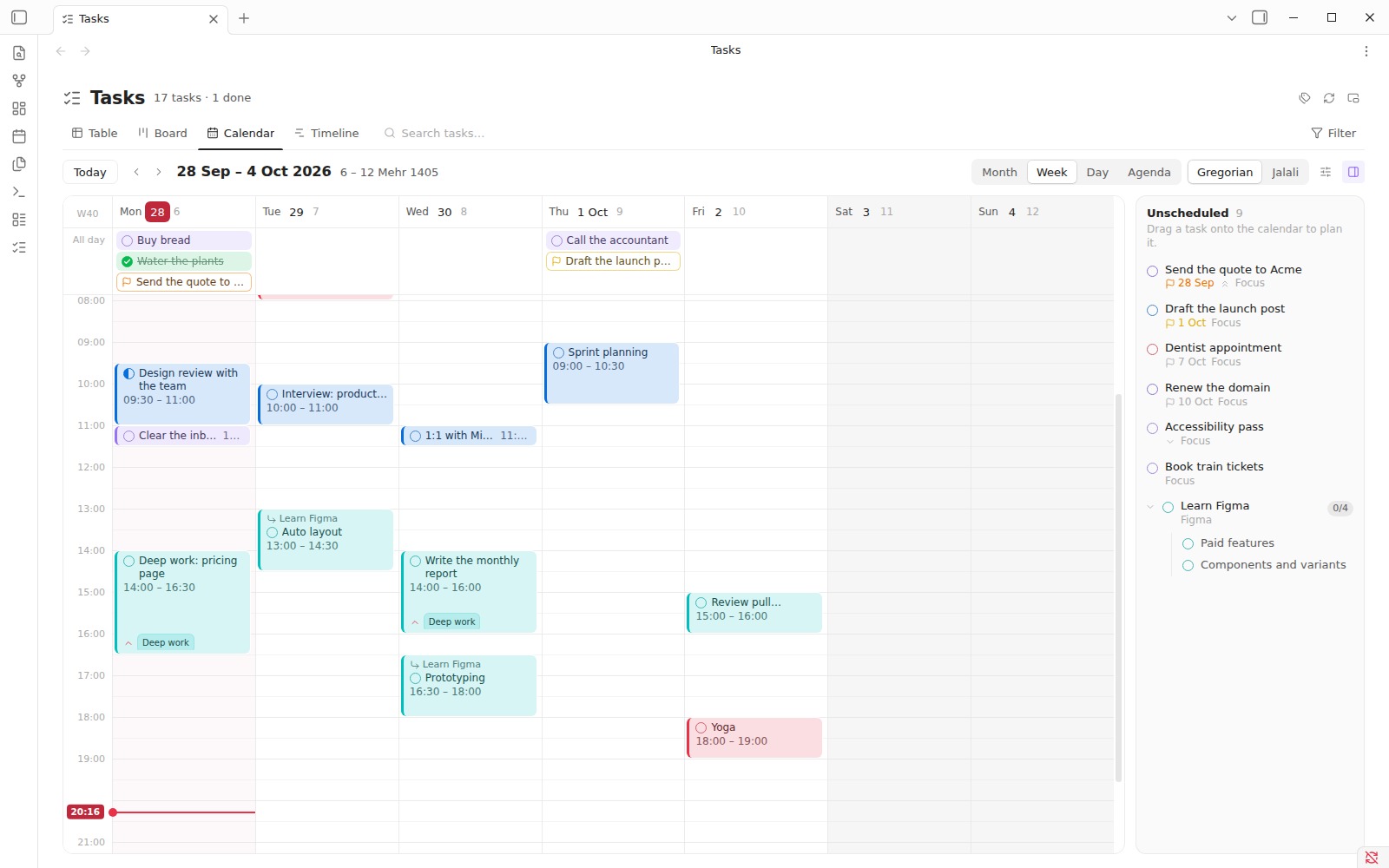
The board's third layout, next to Table and Board (or Open Task Calendar from anywhere). It shows every task that belongs to a day — one you planned for it, one due that day, or one written in that day's note — so you can decide what to work on and when, in the Gregorian or the Jalali calendar.
-
Four views: Month, Week, Day, and Agenda (the next 14 days as a list). With the calendar focused,
MWDAswitch views,Tgoes to today, the arrow keys step back and forward, andNadds a task. The keys go by position on the keyboard, so they work on a Persian layout too. -
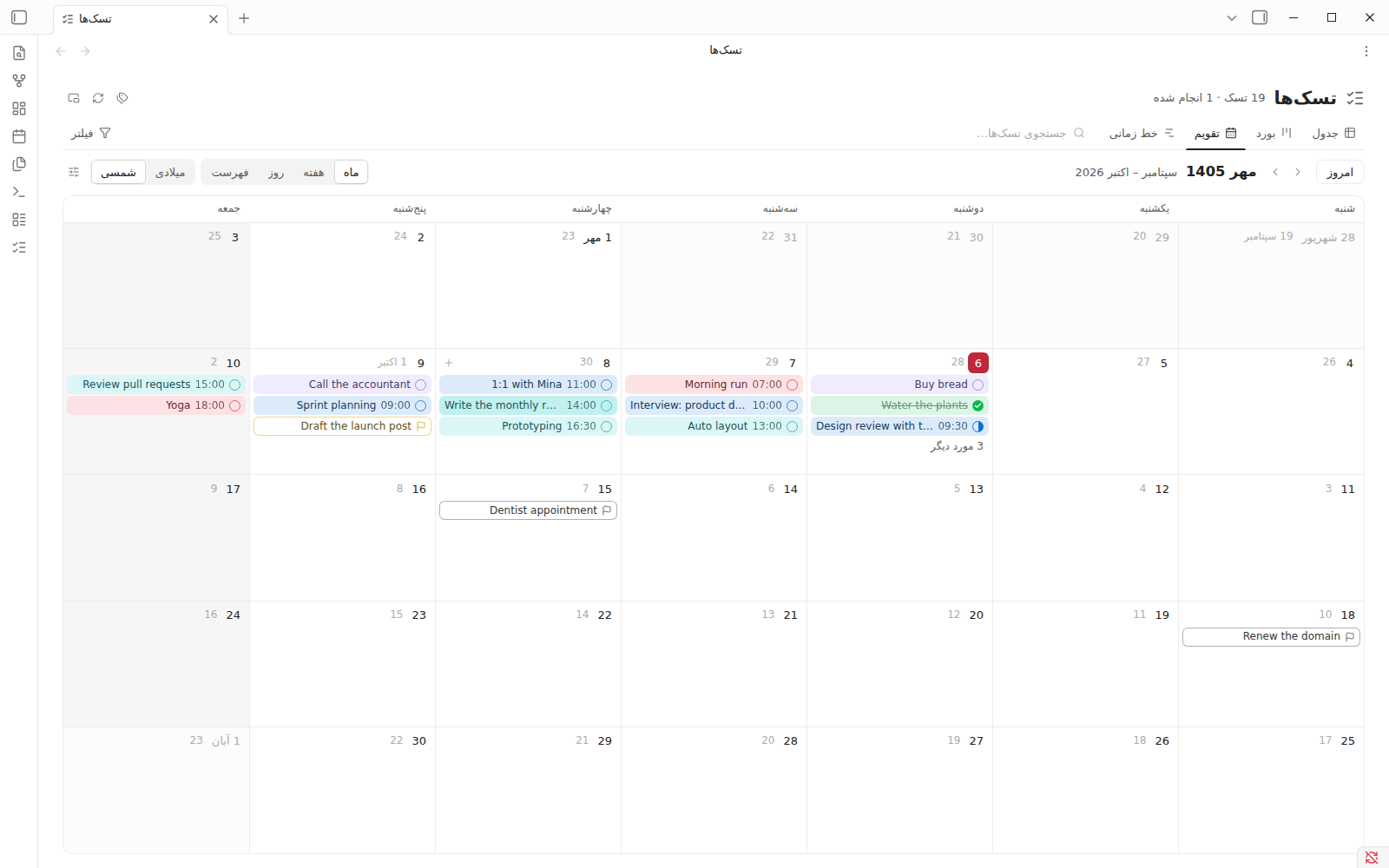
Gregorian or Jalali, switched in the bar at the top. The other calendar's date is shown small beside every day. A Jalali week starts on Saturday with Friday as the weekend, and a Gregorian one starts on Monday (the start can be changed under Week starts on). In Persian the calendar reads right to left.
-
Plan a block of time: drag across the week or day grid. A click on an empty slot only marks it, with a faint dashed block in the slot, the shape of the task that would go there, holding a + and the time at its start, always in the same place, so a stray click never opens anything; click the block to plan there. One panel is open at a time: a card and the task menu replace each other rather than stack. A card opens on the spot: type a title and press
Enterto create a new task there, or choose one of the tasks you already have to plan it for that time. The times are typed, not picked:9,930,2:30 pmand21:30all work, and the arrow keys move a time by one step.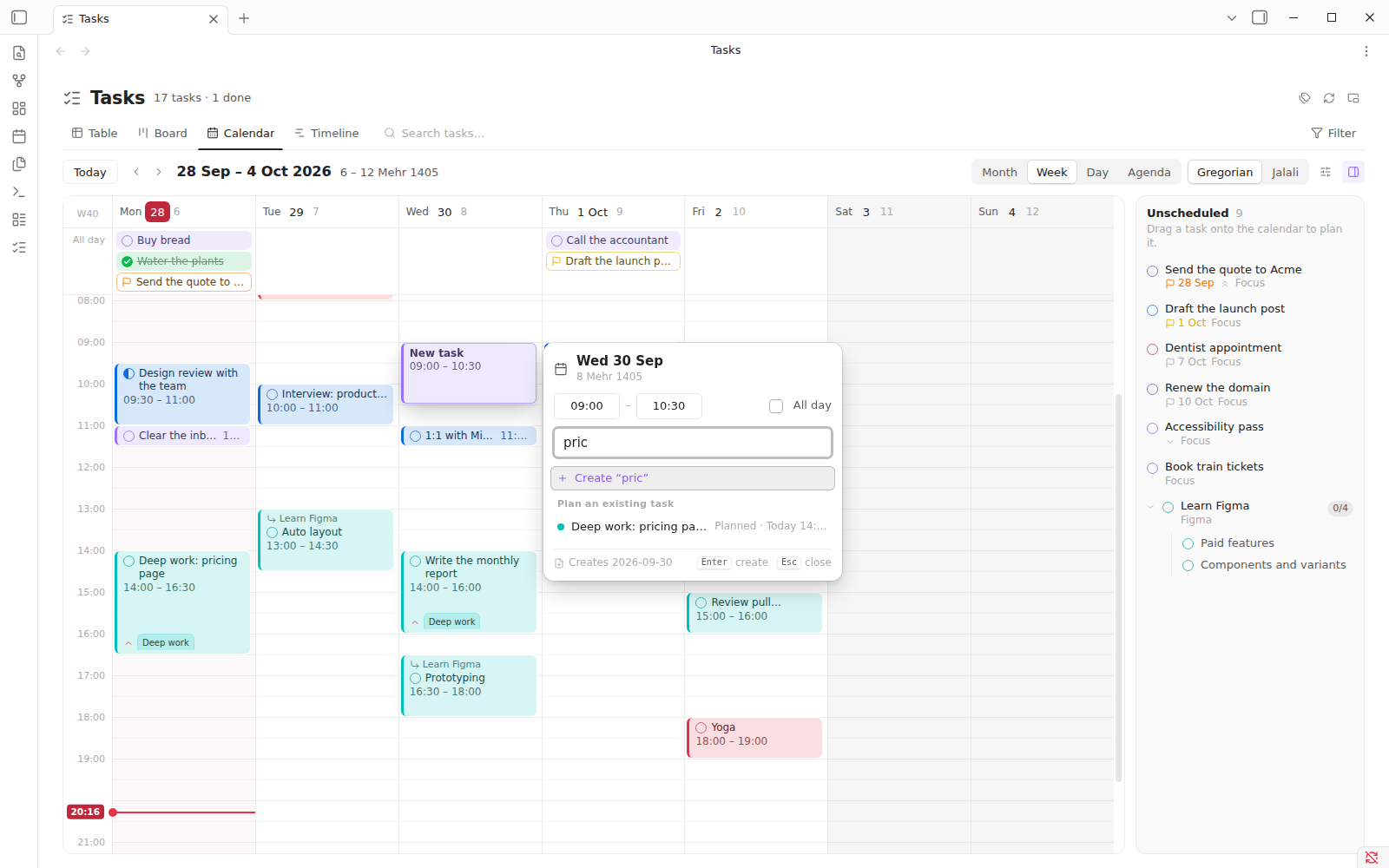
-
Move and resize by dragging: a block to another hour or day, its bottom edge to change how long it lasts, a task onto the all-day row to keep the day but drop the time, and a task onto the sidebar to unplan it.
Esccancels a drag. -
Unscheduled lists the open tasks with no plan yet; drag one onto the calendar to give it a time.
-
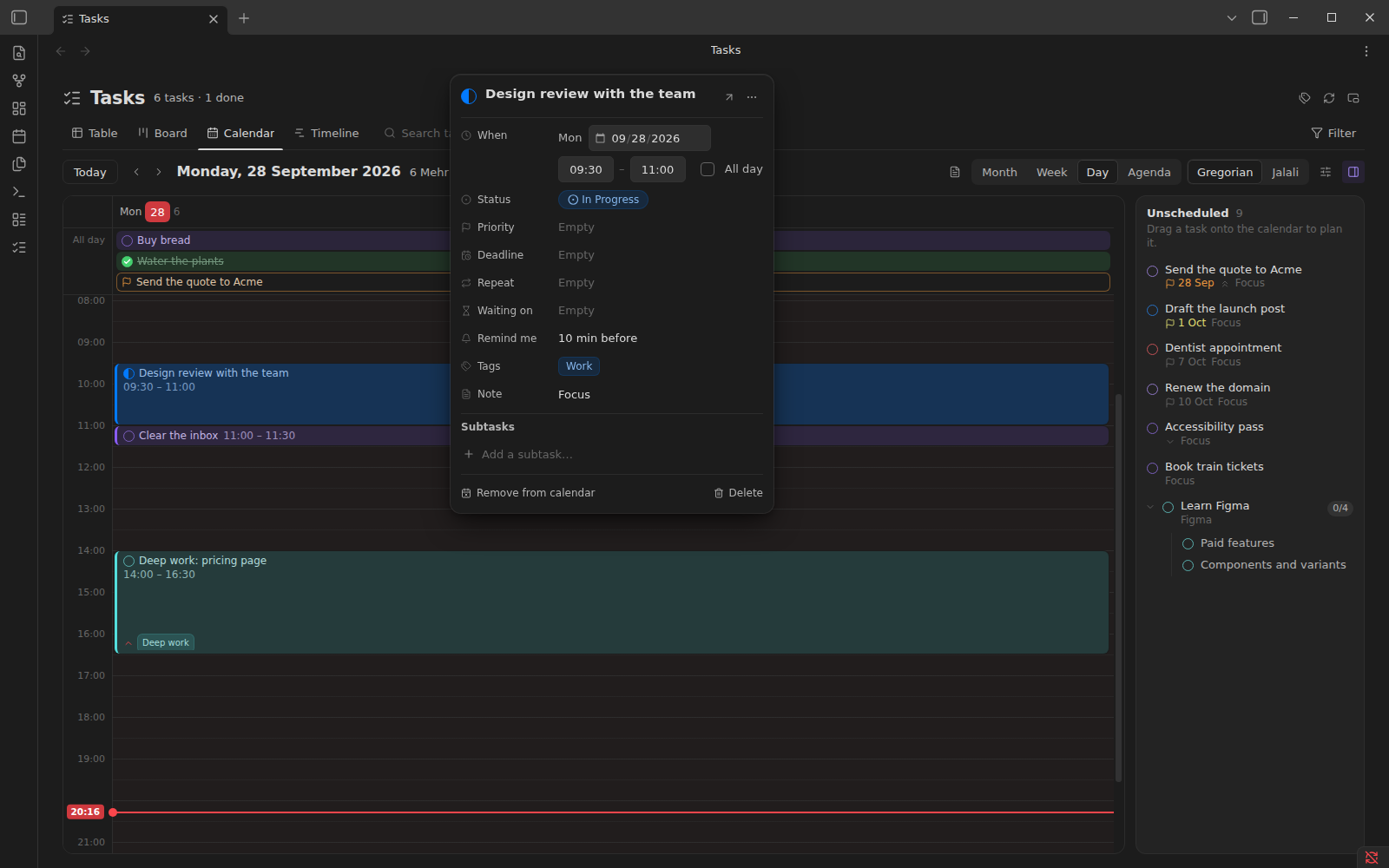
Click a task to open its card, laid out like a Notion page: the task it is part of, the title with its checkbox, then one row per property — when, status, priority, deadline, repeat, tags, note — with the name on one side and the value on the other, then its subtasks. Click a title to rename it, edit the time in place, or click any other value for its choices right under it; an empty one says so, faintly. ⋯ and a right click open the task menu.
-
Deadlines show as outlined flags on the day they fall. Dragging one plans it for that time and leaves the deadline where it is: the plan is when you will do it, the deadline is when it is due.
-
The options button (the sliders next to the calendar switch) turns deadlines, tasks from daily notes, and done tasks on or off.
-
The time it is: in the week and day views a red line crosses today, and a small label in the gutter, level with it, tells the time (in your clock setting); the hour mark it would sit on is hidden while it is there.
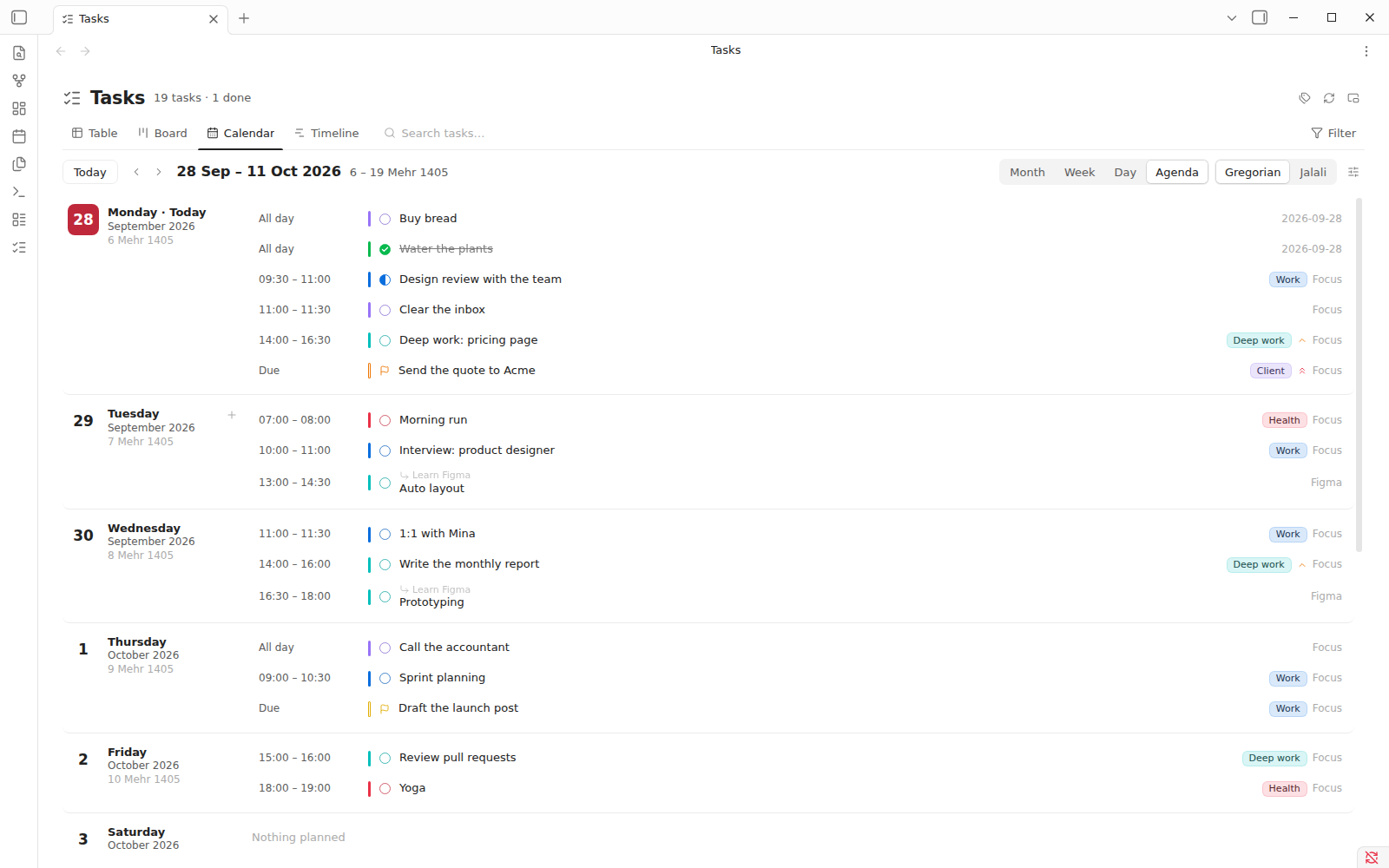
| Month · Gregorian | Week · Jalali, in Persian |
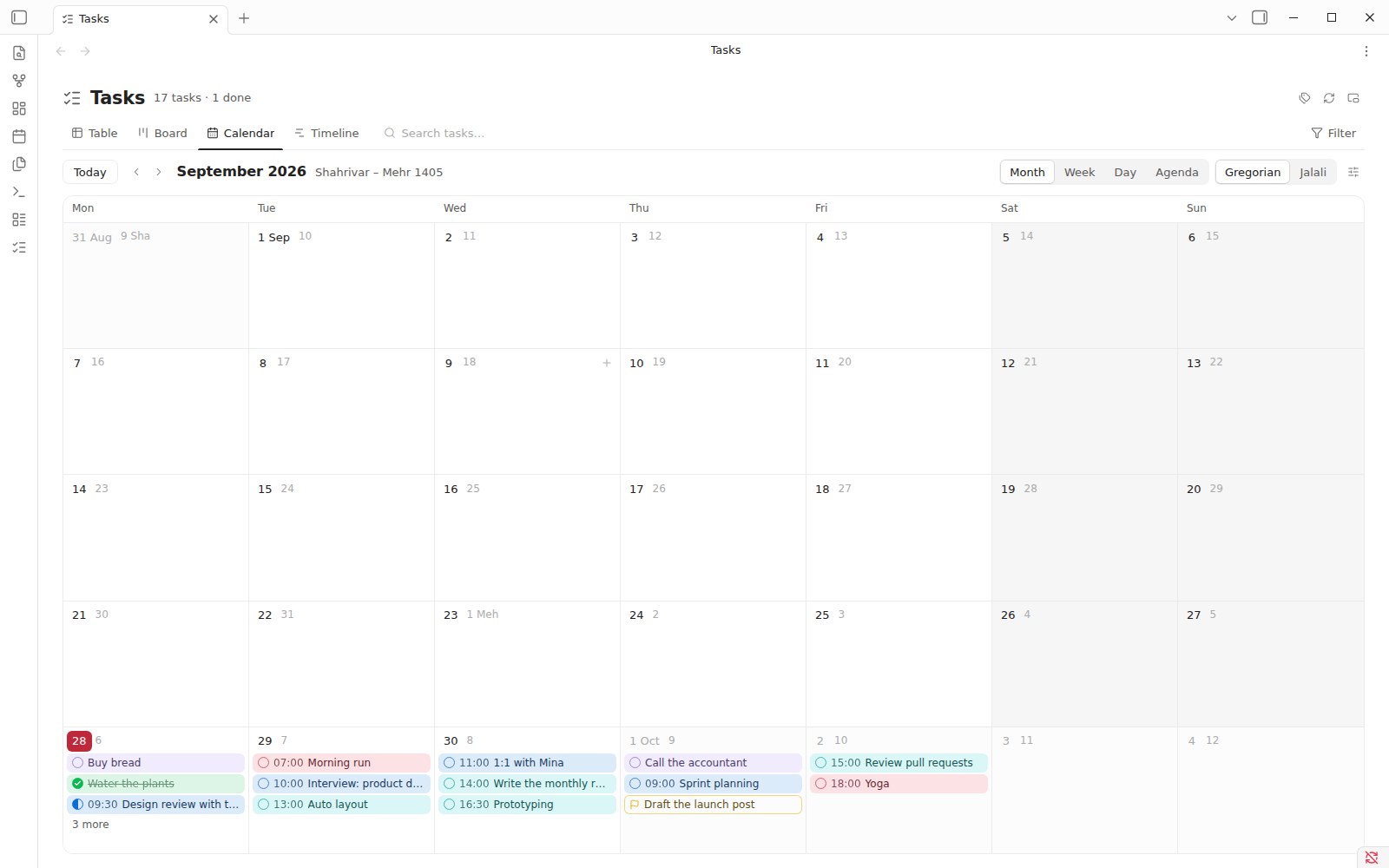 | 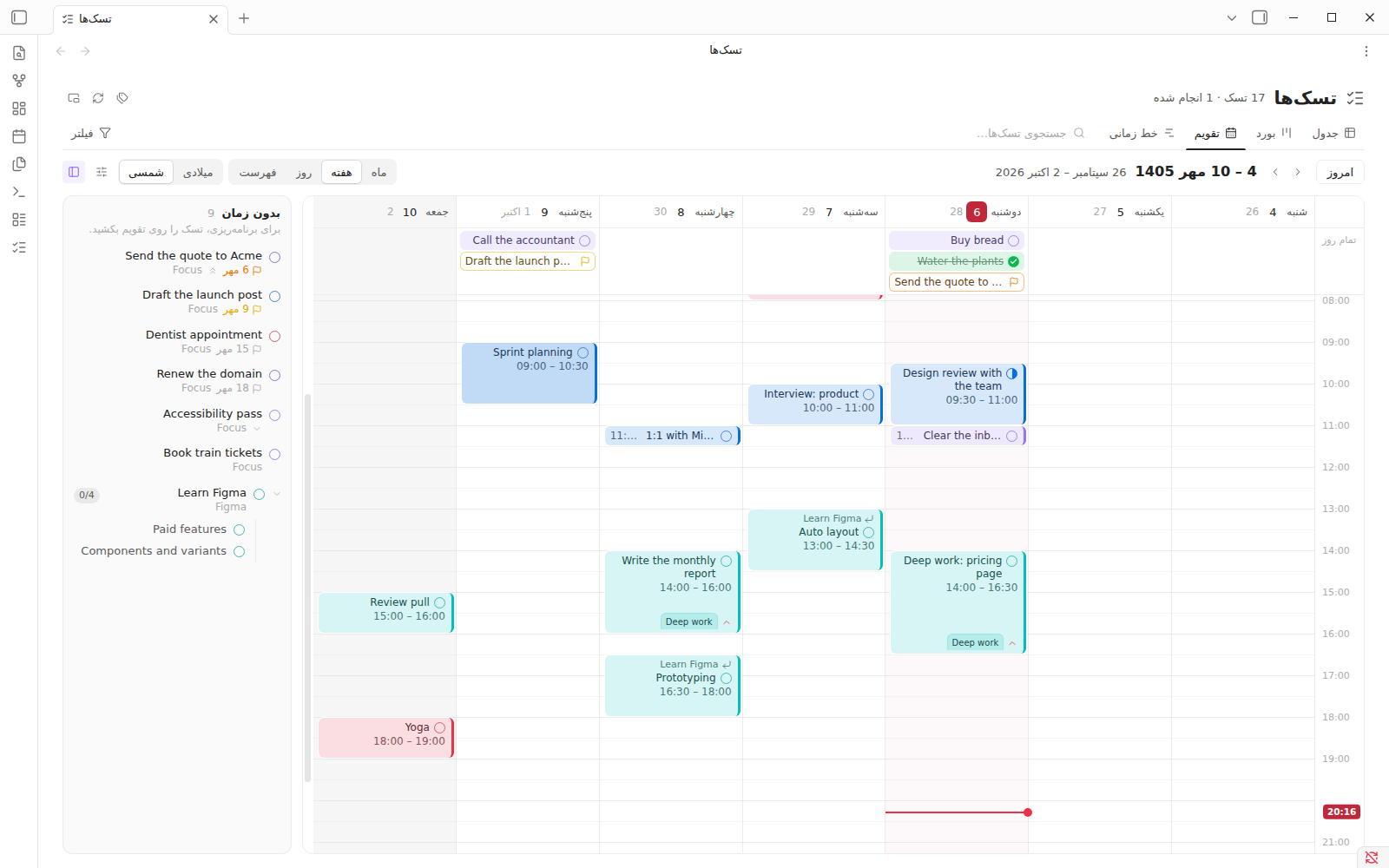 |
The screenshots in this section are of Obsidian 1.13.7 itself, not harness renders.
Subtasks
A task nested under another in its note is its subtask, and the calendar shows the family together while each subtask is still planned on its own:
- A subtask with no tag of its own takes its parent's colour, and a block with room for it names the parent above its title.
- Hovering any member outlines the rest of its family on screen, however far apart they are planned.
- Unscheduled shows a family as a tree, as Notion's sidebar does: the parent with a toggle before it and how many subtasks are done after it, and the subtasks under it on a thin guide line, in note order. A parent that is already planned stays there, muted, to hold its open subtasks.
- A parent's card lists its subtasks with a checkbox and when each is planned, opens any of them with a click, and takes a new one in the Add a subtask field. A subtask's card links back to its parent.
A plain bullet between a task and its subtask, such as a note written under it, does not break the link.
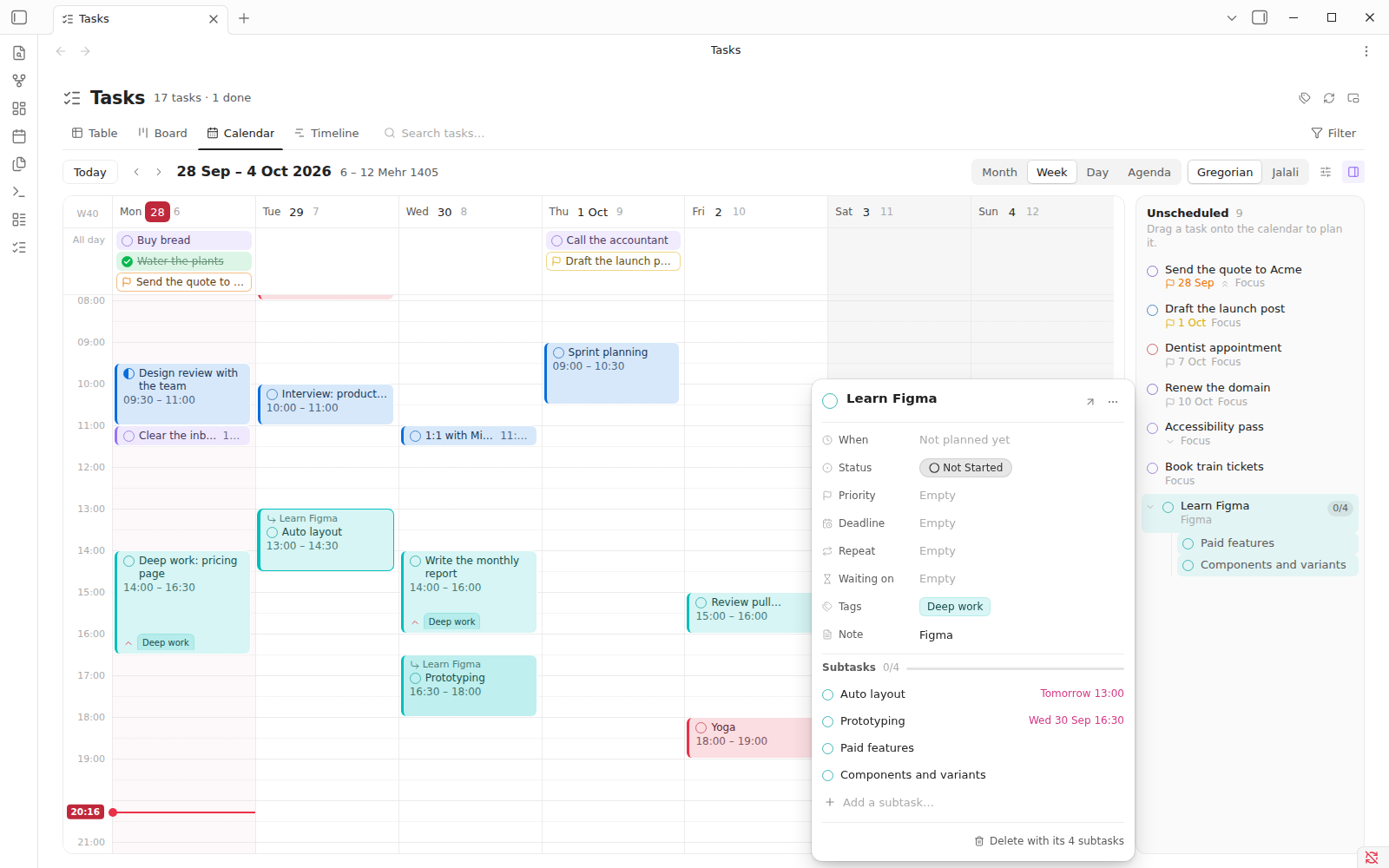
The task menu
Right-click a task on the board or the calendar for a Notion-like menu of everything the task can carry: status, priority, tags, deadline, plan, repeat and progress, each with its current value beside it and its choices in a submenu (Tags lists every tag, ticked when the task has it, and a way to create one). Below them are Add a subtask, Duplicate (the copy goes after the task and its subtasks), the full chip menu for the focus timer and sync, and Delete.
Delete takes the task out of its note, together with everything nested
under it (its subtasks and the notes written beneath it), and says so when
there are subtasks: Delete with its 2 subtasks. A notice then offers
Undo for a few seconds, which puts the lines back exactly as they were.
It is also at the foot of a task's card, and the Delete key does it for a
task that has focus on the calendar. Remove from calendar is different:
it only takes the plan off, and the task stays in its note.
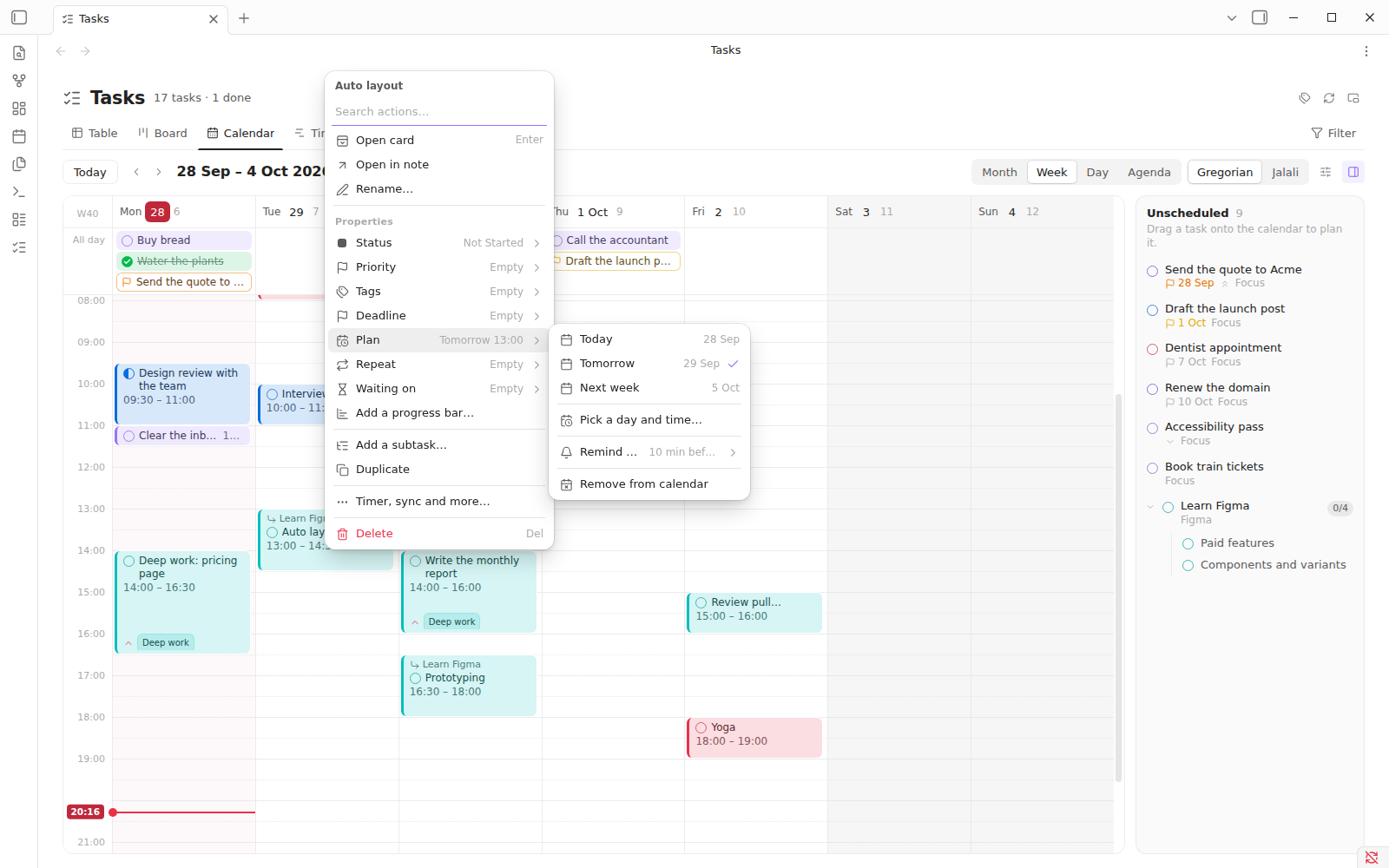
- Type straight away to search:
highfinds Priority › High,weekfinds Repeat › Every week and Plan › Next week. English words work in the Persian menu too. - The arrow keys move through it, the forward arrow opens a submenu and the
back arrow closes it (mirrored in Persian),
Enterchooses, andEsccloses the innermost panel first. - A right click on an empty slot offers a new task at that time, the day's note, or the day on its own.
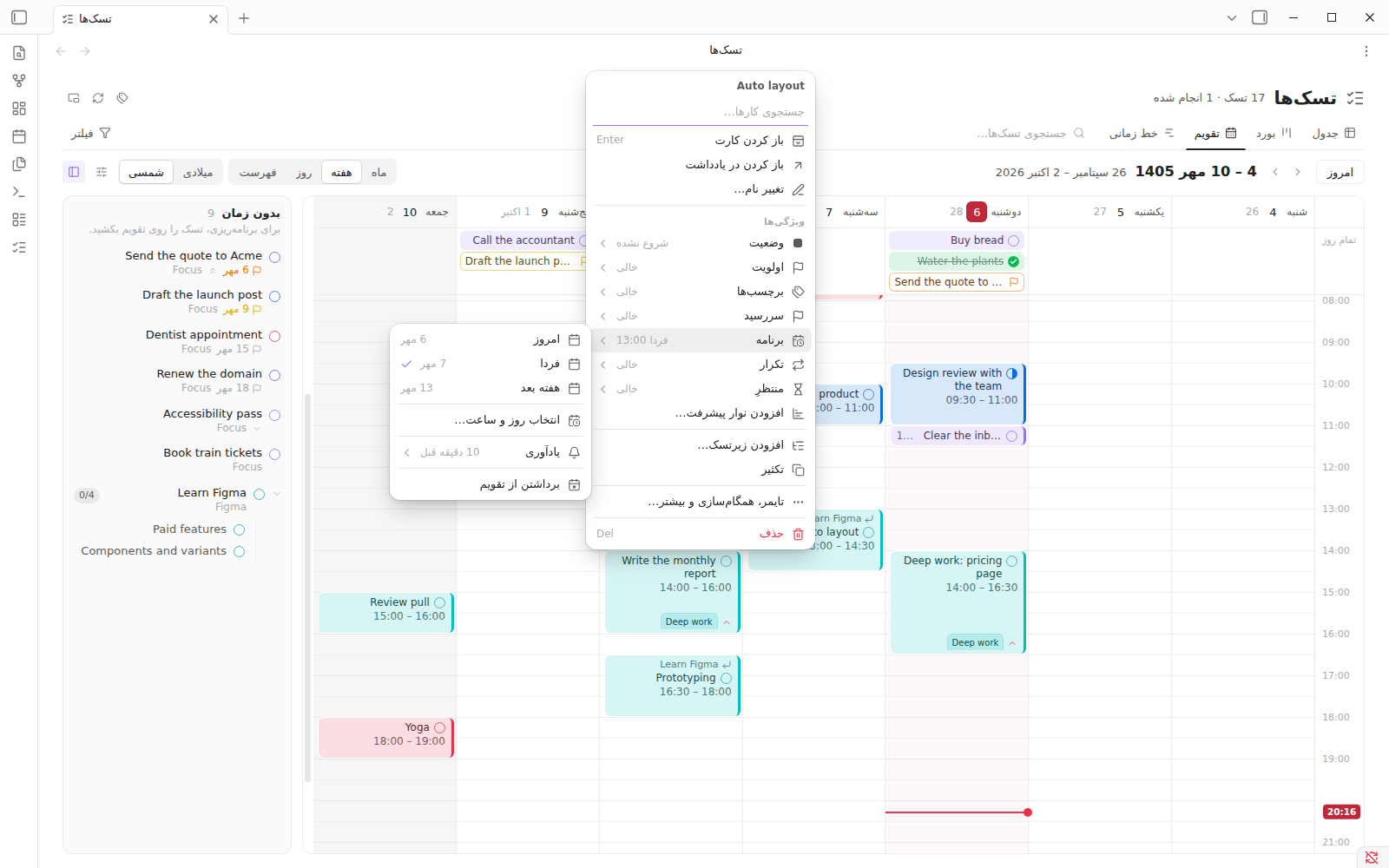
Plans
A plan is written into the task line: @schedule(2026-09-28 09:30-11:00), or
@schedule(2026-09-28) for the whole day. In Live Preview and Reading Mode it
is hidden behind a pink chip such as Today, 09:30 – 11:00, which turns grey
once the day has passed with the task still open. To plan from a note, use
Plan a Time… in the task's menu (click any of its chips) or run Plan
Current Task….
A plan belongs to one copy of a task. It is not synced to a linked source, and importing a task leaves the source's plan behind. A repeating task moves its plan forward along with its deadline and keeps the time of day, so a weekly 09:00 block stays a weekly 09:00 block. A task with a plan and no deadline repeats by the plan and is not given a deadline.
Daily notes
Every day can have a note of its own, named after its date: in English when the Gregorian calendar is showing, and in Persian when the Jalali one is. A task you create on a day goes into that day's note. If the note does not exist yet, it is created from your template, with the task already in it. Any task written in a day's note shows on that day, even without a plan.
Set these up under Settings → TaskPro → Calendar:
| Setting | What it does |
|---|---|
| Folder | Where daily notes are kept (Daily by default) |
| Gregorian name / Jalali name | The name formats: YYYY-MM-DD and jYYYY-jMM-jDD by default |
| Name new notes with | The calendar showing, or always Gregorian, or always Jalali |
| Template | The note a new daily note starts from |
| Put new tasks under | A heading such as ## Tasks, added if the note does not have it yet; leave it empty to add tasks at the end of the note. The note is kept tidy: a blank line between the heading and its list, a new task joining the list already there, and a blank line before the next heading |
| Use Obsidian's Daily notes settings | Copies the folder, format and template from the core Daily notes plugin |
A preview under the name settings shows today's note path in both calendars as you type.
Name formats use these tokens. Text in [brackets] is kept as it is, and a
/ makes subfolders, so YYYY/MM/YYYY-MM-DD files each day under its year and
month:
| Gregorian | Jalali | Gives |
|---|---|---|
YYYY YY | jYYYY jYY | Year: 2026, 26 / 1405, 05 |
MM M | jMM jM | Month number: 09, 9 / 07, 7 |
MMMM MMM | jMMMM jMMM | Month name: September, Sep / مهر |
DD D Do | jDD jD jDo | Day: 28, 28, 28th / 06, 6 |
dddd ddd dd | Weekday name, in the naming calendar's language | |
W WW GGGG | ISO week number and ISO week year |
Templates can use {{title}} (the note's name), {{date}} and
{{date:FORMAT}} (with any token above, Jalali ones included), {{time}},
{{weekday}}, {{gregorian}} and {{jalali}} (the day in each calendar), and
{{yesterday}} and {{tomorrow}} (the names of the notes on either side, so
[[{{yesterday}}]] links back a day). If
Templater is installed, its
commands in the template run as well.
A day never gets two notes. Before a note is created, the day's name in both
calendars is checked, so a note made while the Gregorian calendar was showing
is still found from the Jalali one. If you would rather keep planned tasks in
one place, set Tasks made on a day go into to the board's inbox note; each
task then carries the day in its @schedule marker.
Per-task capabilities
Three capabilities can be attached to any task, in any combination. Click a task's status chip and pick one under Add Capability — nothing is switched on until you ask for it, so a plain task stays a plain task.
| Capability | Chip | Stored in |
|---|---|---|
| Progress bar | 38% | Plugin data, keyed by the task's block ID |
| Focus timer | 18:42 | Plugin data, keyed by the task's block ID |
| Repeat | Every week | The task line itself, as @repeat(1w) |
Focus timer
A countdown attached to one task, for the "I'll give this twenty-five minutes" way of working.
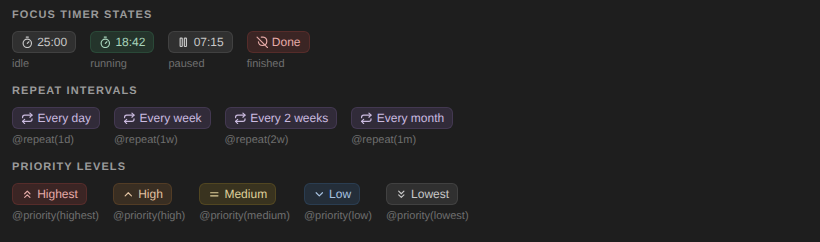
-
Click the chip to start, pause, add 5 or 15 minutes, reset, change the duration, or remove the timer.
-
The running timer also sits in Obsidian's status bar; clicking it opens the note the task lives in.

-
When time is up you get an in-app notice, an optional sound, and a desktop notification naming the task — on Windows that arrives as a system toast and stays in the Action Center, so you see it with Obsidian in the background. Permission is asked for once.
-
Remaining time is read from timestamps rather than counted down in memory, so a timer keeps running while Obsidian is closed and comes back with the right time left — or already finished — when you reopen the vault.
-
Start / Pause Focus Timer on Current Task does the same from the keyboard, creating a timer at the default duration if the task has none.
Defaults live under Settings → TaskPro → Capabilities: duration, desktop notification, sound, and the status-bar readout.
Repeat
What a planner actually needs from a task that comes back.
- Presets for every day, week, two weeks and month, plus a custom interval of any number of days, weeks or months.
- Ticking off a repeating task rolls it forward instead of closing it: the
deadline moves to the next occurrence, the status returns to
[ ], and any progress bar or focus timer on the task resets with it. - The next date is counted from the task's own deadline, so a weekly task keeps its weekday even when you tick it off two days late. A deadline already in the past is advanced until it lands in the future — clearing a month of missed dailies leaves one task due tomorrow, not one due last week.
- Month intervals clamp instead of spilling: a task due on the 31st repeats on the 30th in a 30-day month.
- The rule lives in the task line as
@repeat(1w), so it survives moving, syncing and sharing the note. The marker is hidden behind the chip while that chip is on. - Rolling forward works however the task was completed — the chip menu, the
Reading Mode checkbox,
Ctrl+T, or typing[x]by hand.
Requirements
- Obsidian 1.5.0 or newer (this is the plugin's
minAppVersion). - Desktop or mobile. Two features are desktop-only in practice: the status-bar timer readout and the system notification when a timer ends.
Installation
- From the latest release, download either
taskpro-<version>.zipor the three loose filesmain.js,manifest.json, andstyles.css. - Create
.obsidian/plugins/taskpro/inside your vault. - Unzip the archive into that folder, or copy the three files into it.
- Enable TaskPro under Settings → Community plugins.
Setup
- Open Settings → TaskPro.
- Set the Reference Note Path (for example
Weekly Tasks.md). - Optionally set a Target Folder to restrict the plugin to part of the vault.
- Choose your chip language, size, and calendar system under Badges.
Commands
| Command | Default hotkey |
|---|---|
| Import Task from Reference Note | — |
| Toggle Task Status (4-State) | Ctrl+T |
| Toggle Task Not Done | Ctrl+Shift+X |
| Move Task with Subtasks Up | Alt+Shift+↑ |
| Move Task with Subtasks Down | Alt+Shift+↓ |
| Set/Change Task Deadline | Ctrl+Shift+D |
| Set/Change Task Priority | Ctrl+Shift+P |
| Start / Pause Focus Timer on Current Task | — |
| Toggle Weekly Repeat on Current Task | — |
| Set Tags on Current Task | — |
| Manage Tags | — |
| Open Task Board | — |
| Toggle Floating Task Board | Ctrl+Shift+B |
| Open Task Calendar | — |
| Open Today's Daily Note | — |
| Plan Current Task… | — |
| Show Task Reminders Now | — |
| Toggle Daily Task Reminders | — |
Task syntax
- [ ] Task name
- [/] Task in progress
- [x] Completed task
- [!] Task that was not done
- [ ] Task with a deadline @due(2026-12-31)
- [ ] Task with a priority @priority(high)
- [ ] Task that repeats @repeat(1w)
- [ ] Task with tags @tag(work, deep-work)
- [ ] Task planned for a time @schedule(2026-12-30 09:00-10:30)
- [ ] Task planned for a day @schedule(2026-12-30)
- [ ] Task reminded 15 minutes before its plan @schedule(2026-12-30 09:00-10:30) @remind(15m)
- [ ] Task waiting on two others @waiting([[Launch#^copy]], [[Launch#^review]])
- [ ] Everything at once @priority(high) @due(2026-12-31) @repeat(2w) @tag(client) @schedule(2026-12-30 14:00-16:00)
@due(...), @priority(...), @repeat(...), @tag(...), @schedule(...),
@remind(...) and @waiting(...) are the canonical markers, and each is hidden
behind its chip while that chip is on. @waiting holds ordinary block links,
so Obsidian keeps them up to date when a note is renamed. A tag marker holds tag keys, not names: the name and colour come from your
tag list. A deadline is when a task is due; a
plan is when you mean to work on it. The older ⏳ 2026-12-31,
📅 2026-12-31, [due:: ...], [deadline:: ...], [priority:: ...] and
Obsidian Tasks priority emoji (🔺⏫🔼🔽⏬) are still read, so existing vaults
keep working, and they are rewritten to the canonical form the next time the
task is edited.
Progress bars and focus timers are not written into your notes. They are
keyed by the task's block ID and live in the plugin's data.json; a task
without a block ID gets one the first time you attach one of them.
Bi-directional sync
Importing a task creates a mapping between the imported copy and the source line. A status, deadline, priority, tag or progress change on either side updates the other, and each mapping can be unlinked from the task's own menu without losing the task.
A repeating task that rolls forward advances its linked copy too, rather than telling it about a completion that no longer stands.
Reminders
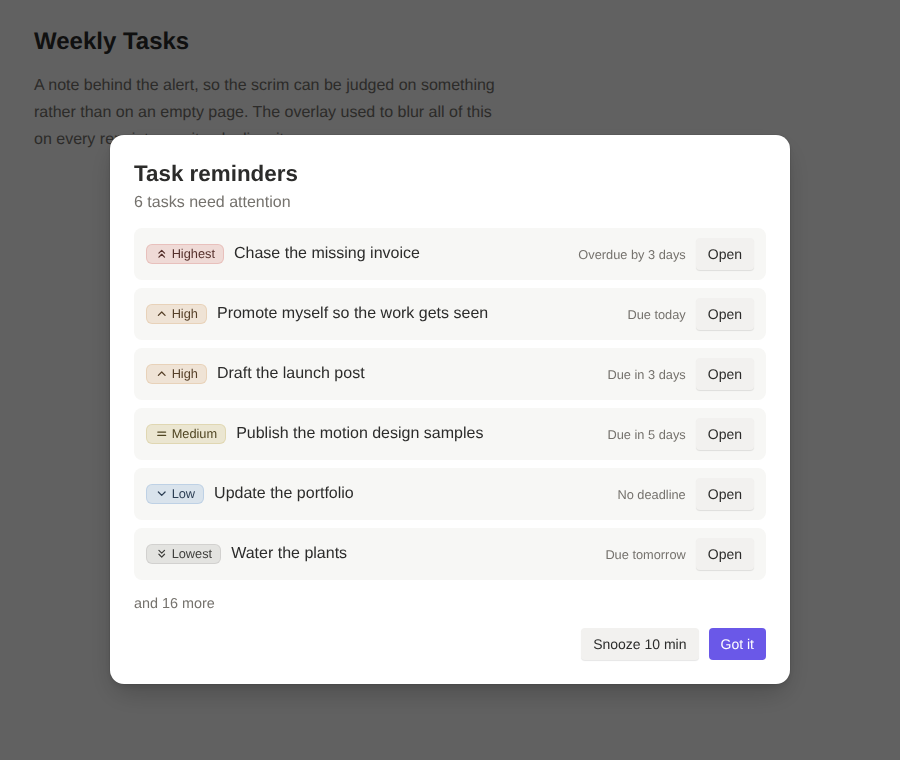 | 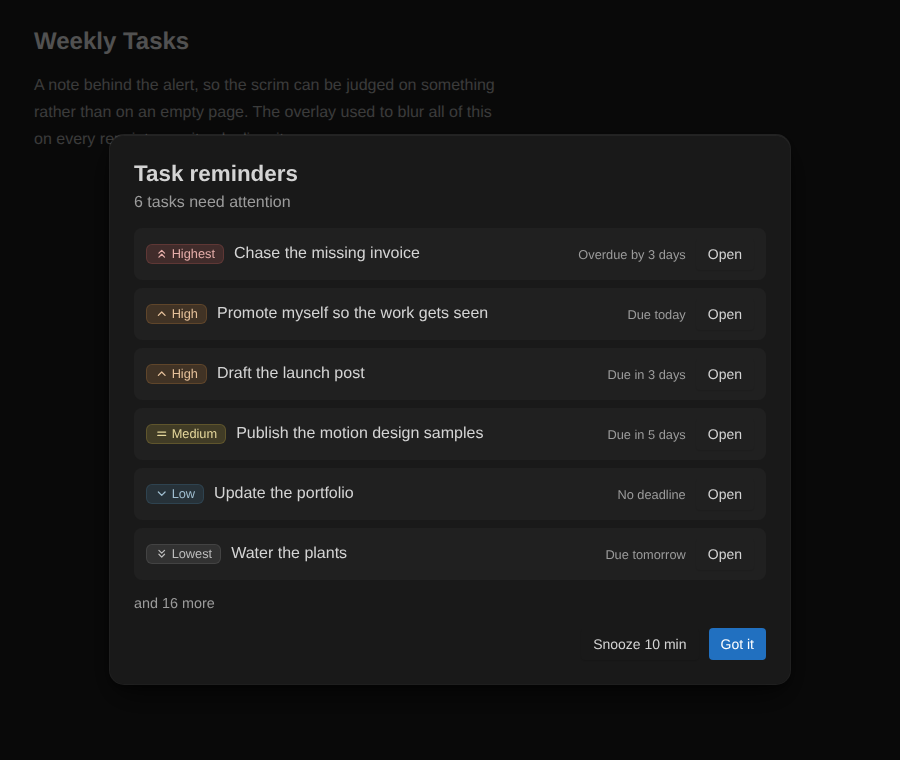 |
Reminders are read from the active note plus any notes you select under Settings → TaskPro → Reminders. Every unfinished task counts; completed ones are skipped.
- Schedule: fixed times of day, plus an optional repeat every N minutes, with quiet hours.
- Per-note intervals: each selected note has its own switch, interval and unit (minutes, hours, days or weeks), so a note can fire independently of the global schedule.
- Filters: by priority, by status, by how close the deadline is, and by how recently the task was first seen — the plugin keeps its own hidden index of when each task appeared, so nothing is guessed from file names.
- Strictness: a toast, a dismissible fullscreen alert, or one that holds for a few seconds before it can be acknowledged. Sound, snooze and system notifications apply to all three.
Before a plan starts
A task planned for a time of day gets a notice shortly before it starts, 10 minutes by default: Starts in 8 minutes, the task, and its plan, with Done, Snooze 5 min and Open (which takes you to the line). A chime and a system notification come with it, each with its own switch under Remind Before a Plan Starts in the Reminders tab, where How Early is set too. Whole-day plans and tasks already done are left out. A plan is still announced up to 10 minutes after its start, so one that came due while Obsidian was closed is not lost, and it is announced once, across restarts.
One task can ask for a different time with Remind me in its menu (at the
start, 5, 10, 15 or 30 minutes or an hour before, no reminder, or as in
settings), which writes @remind(15m), @remind(1h) or @remind(off) into
its line. A small bell on the plan chip shows a time of its own, and a
crossed-out bell no reminder.
On a date… in the same menu asks for a day (in the Gregorian or the Jalali
calendar) and a time, and reminds you at that moment, whether or not the task is
planned: @remind(2026-10-05 09:30). It takes the place of the reminder before
the plan, since a task has one @remind. The notice says Reminder instead of
Starts in…, with the same Done, Snooze 5 min and Open, and shows as
a bell chip with the day and time (Tomorrow, 09:30) on the line, grey once it
has passed. It is announced once, up to 10 minutes late. No reminder replaces
it with @remind(off), and As in settings (under a plan with a time) clears it.
Active notes
Active-note reminders are on by default. Tasks that only appear through an
![[embed]] are not counted as belonging to the note doing the embedding — the
alert resolves the outer note's own file, so a callout like
> ![[Other note#Heading]] does not pull in tasks that are not really there.
Telegram bot
Manage tasks and reminders from Telegram, even while your computer is off. It is optional and off by default. Your notes stay the source of truth: Supabase holds only a snapshot of your open tasks and a queue of what you asked for in Telegram.
- A small app inside the chat.
/startopens a menu (Today, All tasks, New task, Overdue, Status, Settings). Lists come in sections (overdue, today, tomorrow, later, unplanned) set in quotes, eight tasks to a page, with filters; every step edits the same message in place, and the main buttons are coloured. English and Persian, Jalali dates understood. - Tap a task, change anything. A task in a list opens its own screen: its card on top and a button for every setting under it (title, status, priority, deadline, plan, reminder, tags, repeat), each showing its value, with Done and Delete above. Status is open, in progress, done or not done (the four checkbox states of the notes), and the lists have a filter for what is in progress. A tab bar (home, today, all, new, settings) sits under the main screens. Pick a preset or reply with your own ("every 3 days", "friday"). New tasks are written in plain words ("call the bank tomorrow 10"). Reminders arrive as a card with Done and Snooze buttons.
- Telegram's rich messages. Screens go out as rich messages (Bot API 10.1): real headings, tasks as a task list with subtasks nested under their parent, a task's settings as a table, written right to left in Persian. Clients or servers that do not take them get the same screen as a classic message, and Settings → Rich display turns them off. Short messages are held at a full card's width with invisible characters so their buttons are not squeezed, and Settings → Message width tunes how many (or turns it off). Filters sit two to a row, and ratios read "1 از 3", not a slash that turns round.
- Pick a day on a calendar. Reminder, plan, deadline and "New task for a day" open a month drawn as buttons, in the Jalali or the Gregorian calendar (Saturday first in Persian), with today in brackets, the current day ticked and a dot on days that have tasks; then the hour (and, for a plan, how long it lasts).
- A task lands in its day's note. A task made in Telegram is written into the note of the day it is planned, reminded or due on (else today), as one added on the calendar is, using the daily-note settings; with "New tasks go to the inbox" set, it goes there.
- Subtasks, and lists that read in order. Lists number the tasks 1 to the end, a parent is followed by its subtasks (marked ↳, with a count and a bar), and a card shows a parent's open subtasks or whose subtask it is.
- Your tags are listed.
/tags(and the 🏷 button on the menu) lists every tag you have used, plus those defined under Settings → Tags, with how many tasks are open under each; tap one for its tasks or to start a new task with it. When a task's tags or a new task's tags are asked for, the tags you already have are buttons. - MarkdownV2. Screens are sent as Telegram MarkdownV2 — bold labels, underlined headings, quotes, expandable quotes for long lists, code — with every reserved character escaped, and fall back to HTML and then plain text if Telegram refuses one.
- An assistant, on Cloudflare Workers AI (optional, free allowance). Say it in your
own words, or send a voice message, and the assistant puts tasks on the right days:
“call Sara tomorrow at 9 and buy bread in the evening”, “plan my study for Thursday’s
exam”, “move Saturday’s meeting to 5”, “task 12 is done”, “what do I have tomorrow?”.
A model (the same service Agenter uses) works through commands we give it — add a task,
change one, set a status, propose a deletion, look tasks up — and every field it sends is
checked first (a day that is not a day, an hour that cannot be, a reminder in the past,
a wrong year). The card that comes back shows what was made, with its day and hour in
plain words, a button to open each task, and Undo; the next sentence is understood
with what came before (“no, Friday”). Voice goes through Whisper on the same account.
Needs two secrets (
CF_ACCOUNT_ID,CF_API_TOKEN); see the setup guide. Settings → Assistant turns it off, and/ai your wordscalls it by name. - The bot speaks first. A morning summary, an evening review (with a button that moves what
is left to tomorrow), a message the evening before a deadline, and a reminder that comes
again until the task is ticked, each set in Settings → Notifications.
/overviewshows the week day by day (every task of each day, the ones with no hour too, a heading with how many in brackets; no table) and/dayone day; the two are a switch on the same screen. The days and weeks beside the one shown are named by their dates, never «tomorrow» or «last week». - Plan my day, shown first.
/plandayhas the assistant fit what has no hour into the free hours and show the plan; nothing is changed until you tap Apply (always, only for big jobs, or never: your choice). It can also break a task into steps, which the plugin writes as subtasks under it. - Dates that adapt. A task card's plan and reminder are Telegram date entities: your words stay, a tap shows the exact time on your own clock, and a live countdown sits beside them. Page numbers and the blanks of a calendar are disabled buttons, and the assistant answers with a 👀 on your message, Telegram's own «Thinking…» placeholder while it works (gone when the answer arrives) and a reply that hangs from what you wrote. Counts on the buttons sit in brackets: «امروز (۳)».
- Only for you. Set
ALLOWED_USER_ID(your Telegram id;/idtells you) and the bot answers nobody else, not even to say so. - In Obsidian: a background sync (every 2 minutes by default; your edits are sent a few seconds after you stop typing, and on Sync Telegram now) uploads the snapshot, then applies what you asked for in Telegram to your notes: new tasks go to the board's inbox note, the rest edit the task's own line (a rename keeps the task's number in the bot). Each command is acknowledged once, so a dropped connection never applies one twice.
- While Obsidian is closed: reminders still fire from the last snapshot; changes you make in Telegram wait and are applied the next time Obsidian opens.
Set it up once with supabase/README.md (Persian; about ten
minutes: a bot token from BotFather, three secrets, supabase db push, deploy the
three Edge Functions). Updating later is one double-click on update-bot.bat (the
functions bring the database up to date themselves). Then open Settings →
TaskPro → Telegram, turn it on and paste the function address and the sync
token. The tokens live in Supabase secrets and in the plugin's settings file,
never in your notes.
Settings
| Tab | Holds |
|---|---|
| General | Reference note, target folder restriction |
| Badges | Chip language, size, calendar system, embed visibility, a switch per optional chip (subtask progress and waiting included), and the @ suggestions on task lines |
| Capabilities | Focus-timer duration, desktop notification, sound, status-bar readout; a note on how repeat intervals are counted |
| Tags | Tag chips on or off, and the tag list: create, rename, recolour, delete |
| Calendar | Daily notes: folder, name formats, template, heading; planning: where new tasks go, week start, 12- or 24-hour clock, the hour the grid opens at, snap, and new block length |
| Reminders | The reminder before a plan starts (how early, sound, system notification); schedule, note sources, filters, strictness, sound |
| Internal Tasks | Tasks stored in the plugin rather than a note |
Chip colours, padding, radius and opacity are exposed to the Style Settings plugin.
How it works
- CodeMirror 6
ViewPluginfor Live Preview chips;MarkdownPostProcessorfor Reading Mode. - Chips are decorations, so the markers stay out of the rendered line and out of the file's visible text.
- All writes go through
Vault.process(), which re-reads under the vault lock — a concurrent edit is never clobbered. - Focus timers share one interval that only exists while a timer is running, and countdown chips are retargeted in place instead of by rebuilding editor decorations, so a per-second update never fights the cursor.
- Mappings, progress and timers live in
data.json, keyed by block ID, so the markdown stays clean. Tag names and colours live there too; a note holds only the key. - The chip menu, the board and the commands edit a task through one path, which finds the line (by the line number it was read from while that line is unchanged, then by block ID, then by text), rewrites it under the vault lock, and syncs a linked copy. Renaming a task moves its sync mapping with it.
- Obsidian loads a theme's stylesheet after every plugin's, so a theme wins any
specificity tie. The board's controls are scoped one class above a theme's
generic
buttonandinputrules, its checkbox glyphs are CSS masks rather than icons (so a theme's icon-button sizing never reaches them), and coloured button states are background images, which a theme'sbutton:hovercolour paints under rather than over. That is what keeps the board looking the same under any theme. - The task board keeps an index of every task that follows the vault's metadata events. It is built the first time the board (or a tag count) needs it, after Obsidian's layout is ready, and costs nothing until then.
- Chip colour is one recipe — tint a background and a border out of an accent, and mix the label toward the theme's text colour — so a new chip is a single custom-property assignment and inherits the theme adaptivity for free.
- The calendar is drawn from the same task index as the board, plus the tasks
of the daily notes in view, which are found by working each day's note path
out from its date rather than by searching the vault. Dates are kept as
YYYY-MM-DDkeys and counted in UTC, so a daylight-saving change never shifts a day. The Jalali calendar is a way of reading those keys, converted with the same arithmetic the deadline picker uses, so no date library is involved and a note always stores the Gregorian date. - Overlapping blocks share a day's column in lanes, as in a calendar app. Drags are pointer events with a small threshold, so a click still opens a task and a drag works the same with a mouse, a pen or a trackpad; on a touch screen a tap opens the task, so scrolling is left alone. While a drag or a card is open, a note change is held back and redrawn afterwards, so the calendar never redraws under your pointer.
- A task's parent is read from the list structure of its note while the note is parsed: the nearest task among the list items it is nested under, past any plain bullets in between, and a paragraph at the margin ends the list.
- Mixed Persian and Latin text is kept in order with Unicode isolates rather
than by hoping the bidi algorithm guesses right: a note name or a task title
dropped into a sentence is isolated, and a Latin-digit time range is held
left to right, so
09:00 – 10:30never reads10:30 – 09:00in Persian. - A dependency is a block link, resolved the way Obsidian resolves one (the full path, then a path's end, then a note's name), so a task waited on is found wherever its note moved. Cycles are found by walking the links before one is added.
- Reading view hands a post-processor a parent task's
<li>with its subtasks' list inside it, so each task's markers are read from, and hidden in, its own line only, and its chips go before its subtasks. - The phone layout is chosen by the board's own width, not by the device, so
it follows a pane being resized. On a phone Obsidian counts its floating
bar in
--view-bottom-spacing, and the board keeps its last row and its + button above that. Escgoes to the innermost thing open. Obsidian handles keys before the page does, so a card or a drag pushes a keymap scope of its own: the firstEsccloses the card, and only the next one closes the floating board.- Spacing comes from one scale of tokens (
--taskpro-space-1to-8: 2, 4, 6, 8, 10, 12, 16 and 24px) and rings from one halo (--taskpro-halo, 4px). A ring, such as a focus ring or the one around a hovered task's family, is drawn outside its element, so any box that clips its children (overflowother than visible) pads itself by the halo and leans out by as much: the children stand where they did and the clip edge is a halo further out. A box with no room to spare draws its ring inside.test/clip-guard.mjswalks every view and fails on a ring that an ancestor cuts. - Motion is CSS, in one section of the stylesheet that a reduced-motion setting
switches off, and only opacity and transform move.
ui/motion.tsdecides which elements play: the board asks for an entrance when the layout, the grouping or a filter changes, and compares each redraw with the last to find the tasks that just arrived or changed status. A redraw for any other reason plays nothing. - Moving a task cuts its block out of one note (with what is nested under it),
changes the block IDs the other note already uses, sets the block down there,
and then carries what is kept elsewhere: progress and timers in
data.json, the sync mapping, and the@waitinglinks on both sides. If the second note cannot be written, the first gets its lines back untouched. - The bar over a selection builds its menus with the same functions as a single task's menu, given a stand-in task with what all the picked share and a host that applies each change to every picked task in turn (one write at a time, since two writes to one note at once would leave the second reading a note the first had changed).
- No full-screen
backdrop-filter. Blurring the window behind an overlay makes the compositor re-blur everything whenever anything above it repaints, which is why the reminder alert used to feel sluggish with a long task list. The overlays dim instead, andcontainkeeps their repaints local.
Development
npm install
npm run dev     # watch build
npm run build   # typecheck + production build
npm test        # markers, recurrence, timers, board data (the keyboard cursor, nesting, saved views), subtasks and waiting, moving a task between notes, plan reminders, the timeline's model, calendar dates and daily notes, and the plugin's edit paths
npm test includes an integration test (test/plugin-edits.mjs) that loads the
whole plugin against an in-memory vault (test/harness/obsidian-node-mock.mjs)
and drives the same edit path the chip menu and the board use: status,
priority, deadline, tags and renames, tag sync to a source note, the tag list,
removing a tag from every note, plans and how they roll forward, and daily
notes created from a template, and the moves between notes (a block ID that
collides, tasks waiting on the moved one, a note that refuses the write, deleting
several tasks and undoing it). test/calendar.mjs covers the calendar's date
arithmetic in both calendars, name formats, templates and block layout, and
test/relations.mjs the subtask counts, @waiting links and cycles, how a
moved block is rewritten, when a plan's reminder is due, and how the timeline
lays tasks out.
The distributable files are main.js, manifest.json, and styles.css.
Previews
test/ holds offline harnesses that load the real styles.css over Obsidian's
default theme variables (test/obsidian-theme.css) and reproduce the DOM the
plugin builds. Open one in a browser to check a style change without reloading
Obsidian:
| File | Shows | Query flags |
|---|---|---|
test/chips-preview.html | Task lines with every chip, and each chip's states | ?light, ?theme=<name> |
test/reminder-preview.html | The reminder alert | ?light, ?theme=<name>, ?strict |
test/board-preview.html | The task board, calendar, timeline, tag picker, tag manager and tag chips, built by the plugin's own classes | ?light, ?theme=<name>, ?layout=<board|calendar|timeline>, ?mobile=1 (the phone layout), ?cal=<month|week|day|agenda>, ?system=jalali, ?group=<tag|priority|…>, ?lang=fa, ?density=<compact|comfortable|spacious>, ?wrap=on, ?hideempty=on, ?views=demo (with some saved views), ?view=<picker|manager|note|palette> |
board-preview.html loads a bundle of the real board code against a stub host
whose edits land in in-memory notes, so it can be clicked through like the
real thing. Build it with node test/harness/build.mjs (the preview and test
scripts below do this themselves).
?theme=<name> stacks test/themes/<name>.css between Obsidian's defaults and
the plugin's sheet, in the order Obsidian loads them — which is how the
community-theme screenshots above were produced, and how a theme is checked
before claiming the chips adapt to it. Drop any theme's theme.css into
test/themes/ to try it.
npm i --no-save playwright@1.56.1 lucide-static && npx playwright install chromium

npm run previews        # regenerate the images in this README
npm run check:contrast  # measure every chip, board and tag colour against WCAG AA on every theme
npm run test:ui         # click and drag through the board, calendar and timeline, then again with a finger on a phone-sized screen (and an accessibility sweep of every screen of it), the Reading view's chips, and the clip guard (no ring cut by the box around it, in every view)
These need Playwright, and the board harness needs Lucide's icon set (the icons
Obsidian ships). Neither is a dependency — they would pull a browser and an
icon set into every install — so npm test stays independent of them and
covers the logic instead.
Privacy before sharing
See SECURITY.md before publishing this repository, a build, a vault or diagnostics. The Windows updater now requires a locally linked Supabase project (or SUPABASE_PROJECT_REF); it no longer targets a personal project. Raw exceptions are not logged or persisted by sync, and the local token field is masked, but plugin data.json still contains your configured token and must never be shared.
Version 1.6.0
New tasks are planned after three seconds of quiet typing; optional start/end tracking and matching Telegram behavior are included. Long chip rows scroll with the mouse wheel, trackpad, touch and keyboard in either writing direction. Reduced-motion layouts are stable from their first frame, and table focus rings stay visible in clipped cells. Existing board, calendar, timeline, tags, reminders and theme-adaptive checkbox behavior are retained.
Releasing
-
Update the version in
manifest.json,package.jsonandpackage-lock.json. -
Add the version and its minimum Obsidian version to
versions.json. -
Commit and push.
-
Tag the commit with exactly the manifest version, no
vprefix:git tag 1.5.0 git push origin 1.5.0
The workflow checks that the tag, manifest, package, lockfile and
versions.json all agree, runs the tests, builds, and publishes main.js,
manifest.json, styles.css, and taskpro-<version>.zip holding the same
three files.
Releasing without a local tag
The same workflow runs from the Actions tab, which helps when you cannot push a tag from a clone:
| Input | Effect |
|---|---|
| (none) | Builds and uploads the zip and the three loose files as run artifacts. Nothing is tagged or published. |
| publish | Also creates the tag — taken from manifest.json, so the metadata check still has to pass — and the release with all four assets. |
| target | The commit-ish to build and tag. Defaults to the branch the run was started from; set it to main to release from the default branch. |
gh release create refuses to overwrite an existing release, so a version can
only be published once.
See CHANGELOG.md for what changed in each version.
License
Released under the GNU General Public License v3.0.
For plugin developers
Search results and similarity scores are powered by semantic analysis of your plugin's README. If your plugin isn't appearing for searches you'd expect, try updating your README to clearly describe your plugin's purpose, features, and use cases.