Scribe
unlistedby Julius Paetzke
Draw, mark up and write on images and on empty surfaces, right inside your notes.
 Scribe
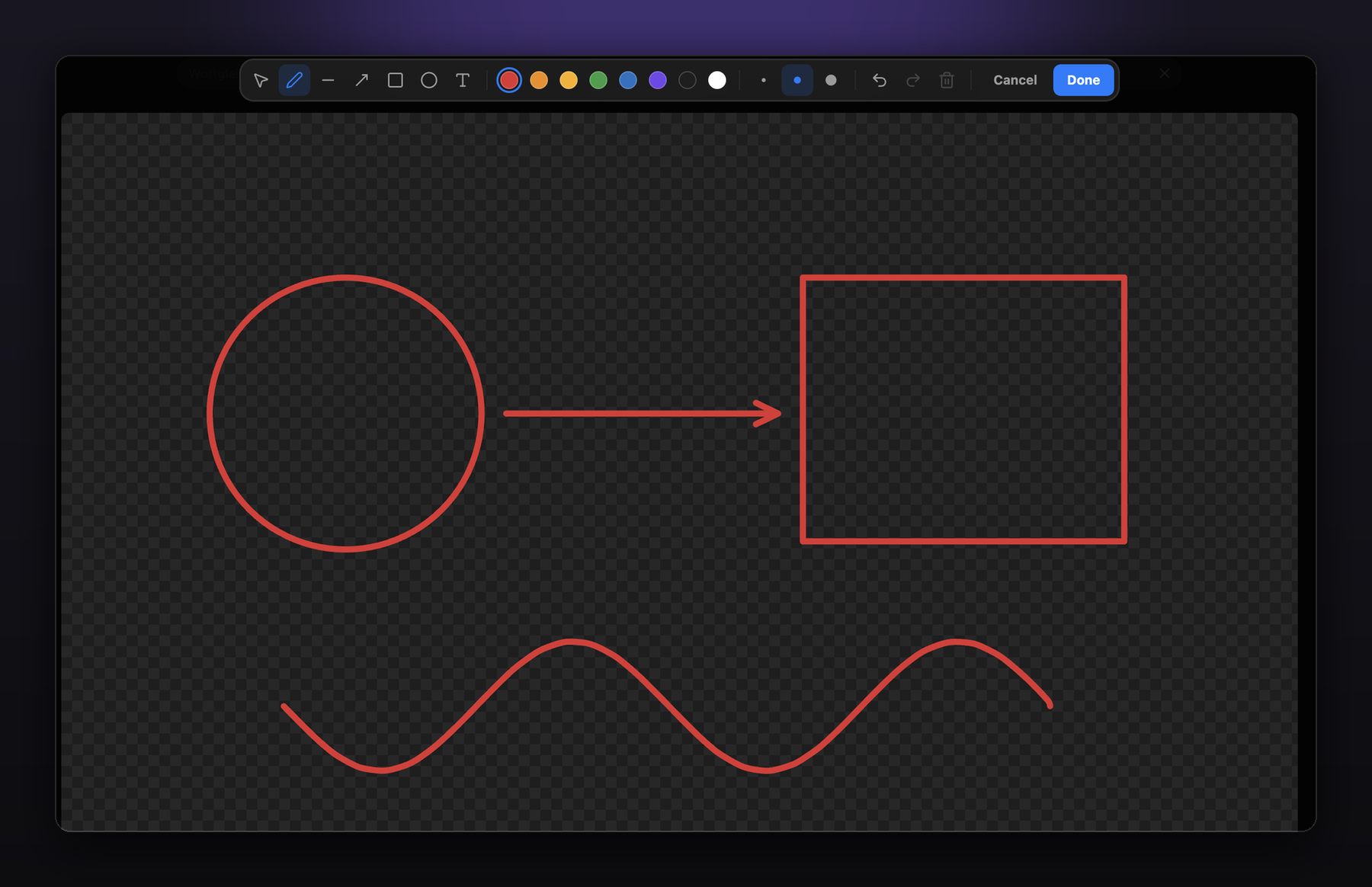
Scribe lets you draw on the images in your notes, and on empty sheets where there is no image at all. It puts a pen next to Obsidian's own image buttons: click it, and the picture opens for freehand strokes, lines, arrows, boxes, ellipses and text.
Everything you draw stays editable. Come back a week later and move the arrow, recolour the circle, or take it all off again — the picture you started from is still underneath.
Get started
Requirements
Scribe runs on Obsidian 1.13 or newer, on the desktop app. It sits in Obsidian's own image action bar and writes to image files, which the mobile apps do not allow in the same way.
Install
Scribe is not in the community plugin list yet.
With BRAT, which keeps it up to date: add apfelFunker/obsidian-scribe under BRAT → Add beta plugin.
By hand:
- Download
main.js,manifest.jsonandstyles.cssfrom the latest release. - Put them in
<your vault>/.obsidian/plugins/scribe/. - Turn on Scribe in Settings → Community plugins.
Draw on your first image
Hover an image in a note and click the pen in the buttons that appear. Draw, then press Done. The drawing is saved into the image file, and the note shows it straight away.
Draw where there is no image
Press Cmd/Ctrl + Ctrl + M. An empty, transparent 16:9 sheet lands at your cursor. Drag its corner into the shape you want — while the sheet is empty, width and height move freely — then open it with the pen and draw.
What you can do
Reach the pen from anywhere an image is shown. In the image action bar next to Zoom in, on images in reading view, and in Obsidian's image viewer.
Keep a sheet's shape once it matters. An empty sheet takes any shape you drag it into. The first stroke settles it: from then on Obsidian's own corner scales the sheet without distorting what you drew.
Draw without fighting the tool. Freehand strokes are smoothed, but sharp corners stay sharp. Lines snap to 45° steps, boxes snap to squares, and edges and centres snap to other objects with guides. Hold Shift to force a snap, Cmd/Ctrl to ignore every one of them.
Pick things up instead of drawing over them. With any tool, a click takes hold of what you hit; only a drag draws. Click a text with the text tool and you are editing it again.
Bring Excalidraw annotations along. A command converts images annotated with the Excalidraw plugin into Scribe drawings.
| Draw on an image | The pen: in the image's action bar, in reading view, or in the image viewer |
| New empty sheet | Cmd/Ctrl + Ctrl + M, or the command Insert drawing surface |
| Resize a sheet | Drag its corner — free while empty, proportional once drawn on |
| Tools | V select · P pen · L line · A arrow · R rectangle · O ellipse · T text |
| Undo / redo | Cmd/Ctrl + Z · Cmd/Ctrl + Shift + Z |
| Delete selection | Backspace |
| Leave | Esc keeps what you drew · Cancel throws it away |
The hotkey is free to change in Settings → Hotkeys.
Where your drawings live
A drawing is written into the image itself, in two private PNG chunks: skDt holds the editable elements, skOr holds the original picture. What comes out is an ordinary PNG — it shows the drawing everywhere: in Obsidian, in Finder, on the web, in an export. Nothing is stored beside your vault, and nothing breaks if the plugin is gone. Remove every element and save, and the original picture is back.
Images that are not PNG become PNG on the first save, and Obsidian updates the links for you.
Scribe writes only to the image you draw on, and only when you press Done.
Building it yourself
npm install
npm test          # unit tests
npx tsc --noEmit  # type check
node esbuild.config.mjs production
Then copy main.js, manifest.json and styles.css into <vault>/.obsidian/plugins/scribe/.
Contributing
Bug reports and ideas are welcome in the issues. If you send a pull request, please keep the tests green: every behaviour in src/ that can be tested without Obsidian has a test in tests/unit/.
Licence
MIT — see LICENSE.
Scribe is a community plugin. It is not made or endorsed by the Obsidian team, and the app icon in the mark above is theirs.
For plugin developers
Search results and similarity scores are powered by semantic analysis of your plugin's README. If your plugin isn't appearing for searches you'd expect, try updating your README to clearly describe your plugin's purpose, features, and use cases.