Canvas Chat
unlistedby Braden Buchanan
Infinite canvas with AI chat nodes. Have multiple LLM conversations with vault files as context.
Canvas Chat
An infinite canvas plugin for Obsidian with AI chat nodes. Create visual workspaces where you can have multiple LLM conversations alongside your notes — with easy drag & drop context management from your vault.
Credits / Based on
Canvas Chat is a fork of bayradion/rabbitmap by @bayradion, the Obsidian plugin originally released alongside rabbitmap.com. Canvas Chat continues that work as an independent, community-focused Obsidian plugin under the same MIT license. See NOTICE.md for details.
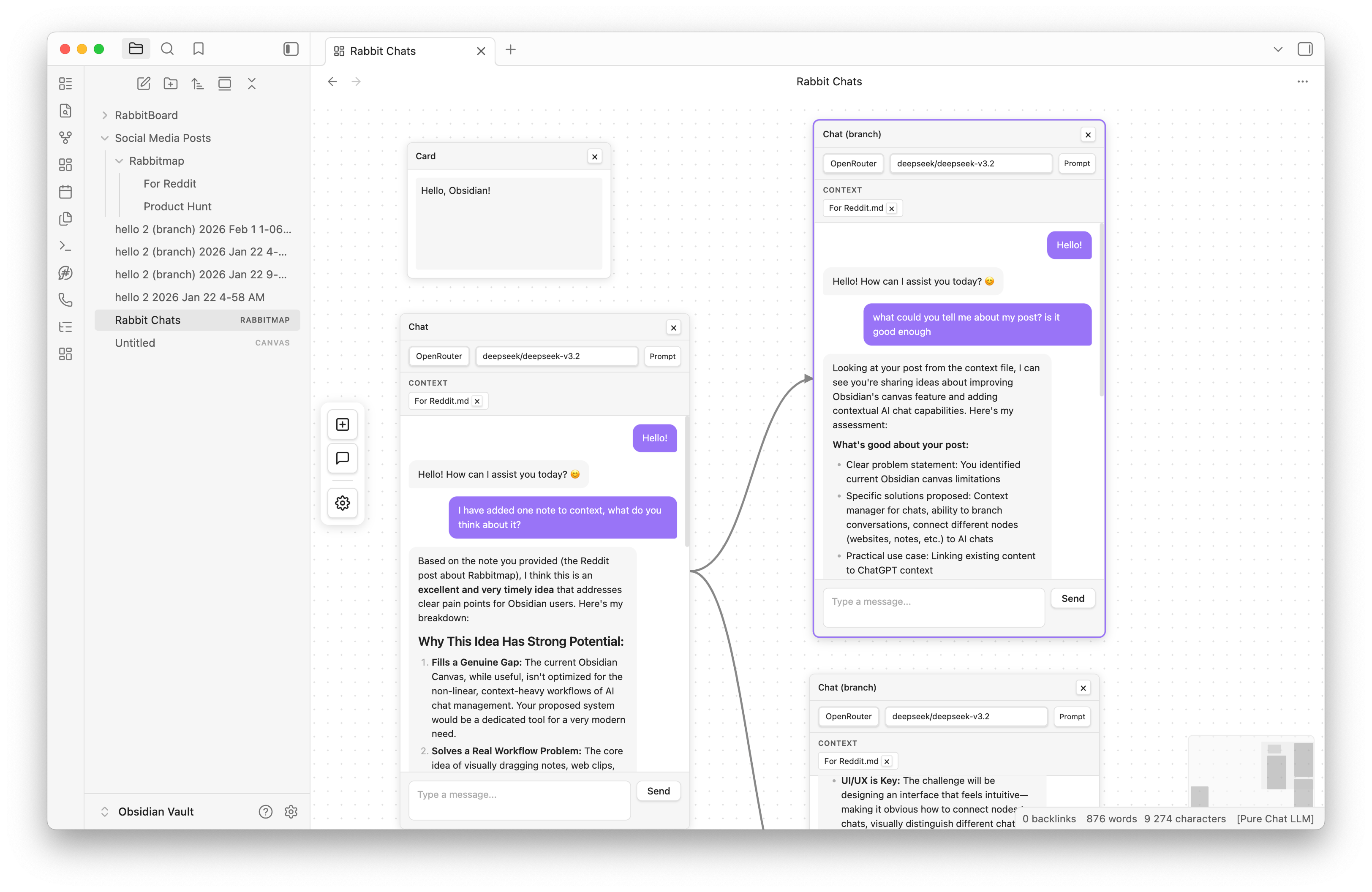
Features
- Infinite Canvas — Pan and zoom with trackpad, mouse wheel, or space+drag
- Chat Nodes — Have AI conversations directly on the canvas
- Card Nodes — Create text notes and organize your thoughts
- Context from Vault — Drag & drop files or folders onto chat nodes to add them as context
- Multiple Providers — Support for OpenAI and OpenRouter APIs
- Custom Models — Configure your own list of models for OpenRouter
- Multi-select — Select multiple nodes with drag box, move them together
- Minimap — Navigate large canvases easily
- Branch Conversations — Right-click on any message to branch or fork the chat
- Export — Export chat history to markdown
Installation
From Obsidian Community Plugins
- Open Obsidian Settings
- Go to Community Plugins and disable Safe Mode
- Click Browse and search for "Canvas Chat"
- Install and enable the plugin
Manual Installation
- Download
main.js,manifest.json, andstyles.cssfrom the latest release - Create a folder
canvas-chatin your vault's.obsidian/plugins/directory - Copy the downloaded files into the folder
- Reload Obsidian and enable the plugin
Usage
- Click the Canvas Chat icon in the ribbon or use the command palette to create a new canvas
- Use the toolbar on the left to add Chat or Card nodes
- Open Settings (gear icon) to configure your API keys
- Start chatting!
Adding Context to Chats
Drag files or folders from the Obsidian file explorer directly onto a chat node. The files will be added as context and sent with your messages.
Keyboard Shortcuts
- Space + Drag — Pan the canvas
- Scroll — Zoom in/out
- Double-click header — Zoom to node
- Click + Drag — Select multiple nodes
Configuration
Open the settings modal (gear icon in toolbar) to configure:
- OpenAI API Key — For GPT models
- OpenRouter API Key — For access to Claude, Gemini, and other models
- Custom Models — Add your preferred OpenRouter models
File Format
Canvas Chat files use the .canvaschat extension and store data in JSON format.
Privacy
This plugin sends your chat messages and any attached vault file content to third-party LLM providers (OpenAI, OpenRouter, or Google depending on your configuration). Your API keys are stored locally in Obsidian's plugin data. No data is sent to the plugin author or any other party.
License
For plugin developers
Search results and similarity scores are powered by semantic analysis of your plugin's README. If your plugin isn't appearing for searches you'd expect, try updating your README to clearly describe your plugin's purpose, features, and use cases.