Vault Syncer
unlistedby c-ardinal
Sync your vault with cloud storage, with three-way merge and file history. Currently supports Google Drive.
Cloud sync plugin for Obsidian




A high-speed, intelligent cloud storage sync plugin for Obsidian. Leveraging cloud storage, it provides robust data consistency and a fast synchronization experience across PC and mobile devices (iOS/Android). It currently supports the cloud storage below. Obsidian 1.11.4 or later is required.
- Google Drive
✨ Key Features
- Intelligent Sync (Index Shortcut):
- Combines MD5 hash computation with Obsidian's built-in file change detection to detect all changes in the vault quickly and efficiently. Dotfile changes are also detected.
- Smart Merge (3-way Merge):
- Even when conflicts arise from simultaneous editing on multiple devices or sync timing differences, the plugin safely protects data via lock control while automatically merging wherever possible.
- Canvas, JSON and Bases files are merged as data, so a merge never leaves them unreadable.
- Revision History & Diff Viewer:
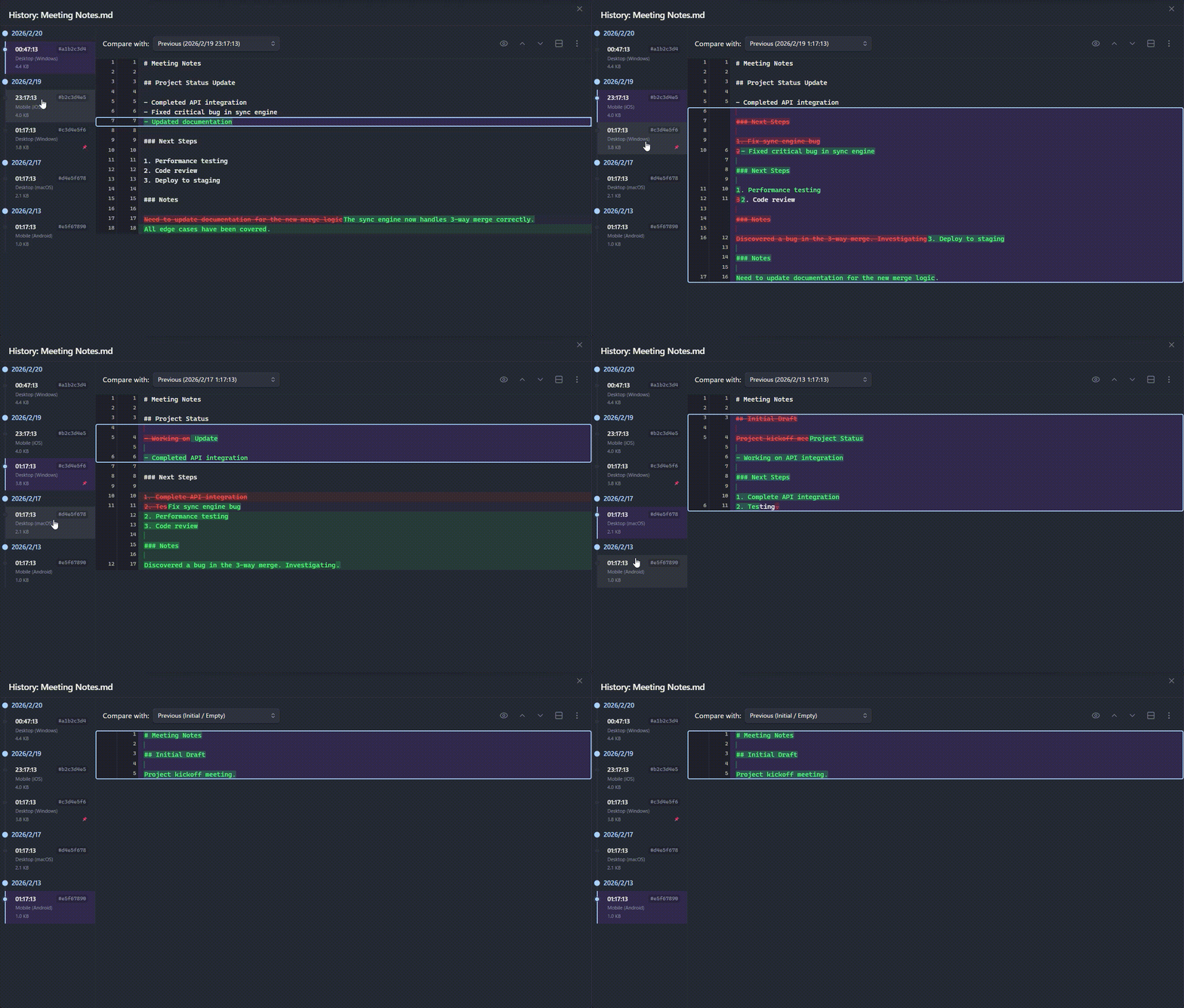
- Retrieves file revisions from cloud storage to display diffs against the local version and restore past versions.
- Mobile Optimized:
- Works on desktop and mobile (iOS/Android) with the same features.
- Features auto-sync on edit-stop or save, and layout change triggers (e.g., when switching tabs). Waiting changes are also sent when the app is hidden or closed.
- Large files can wait for Wi-Fi or for the battery to recover (Android and PCs).
- Granular Sync Settings:
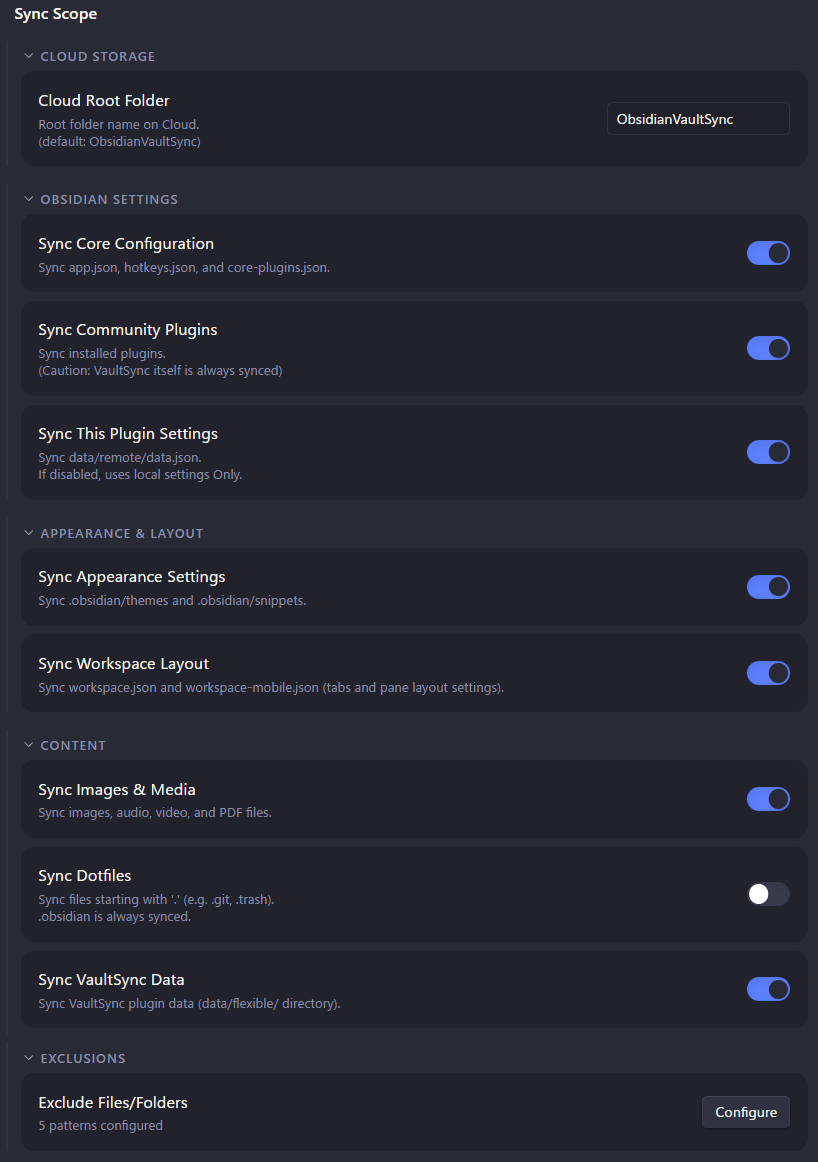
- Selectively sync settings, plugins, themes, and hotkeys within
.obsidian. Cache and temporary files are automatically excluded. - Exclusions, a file size limit and the
.obsidiancategories can also be set separately for PCs and mobile devices.
- Selectively sync settings, plugins, themes, and hotkeys within
- Data Protection and Restore:
- Files deleted from the cloud are kept for a set number of days and can be restored. The vault or a folder can be restored to a past time.
- A sync that would delete many files, or overwrite many files on the cloud, asks for confirmation first.
- Sync Status and Diagnostics:
- Shows the devices that sync the vault and the changes each one sent, checks that this device matches the cloud, and gathers diagnostic info for a support request.
- Secure Authentication & Storage:
- OAuth2 authentication via the built-in auth proxy (no setup required) or your own Client ID/Secret with PKCE.
- Credentials are separated from settings and stored securely via Obsidian's SecretStorage API.
- Background Transfer:
- Large files are uploaded and downloaded in the background without blocking the UI. Configurable thresholds and concurrency limits.
- End-to-End Encryption (E2EE):
- By installing the E2EE Engine separately, vault data can be encrypted. File contents are encrypted before upload and decrypted after download, so they are never stored in the cloud as plaintext. File and folder names are not encrypted.
| Transfer Status | Selective Sync |
|---|---|
 |  |
📖 Usage
Running Synchronization
- Manual Sync:
- Ribbon Icon:
- Click the sync icon in the left toolbar to start a Smart Sync.
- Command Palette:
- Press
Ctrl+P(orCmd+P) and selectVault Syncer: Sync now.
- Press
- Ribbon Icon:
- Auto-Sync:
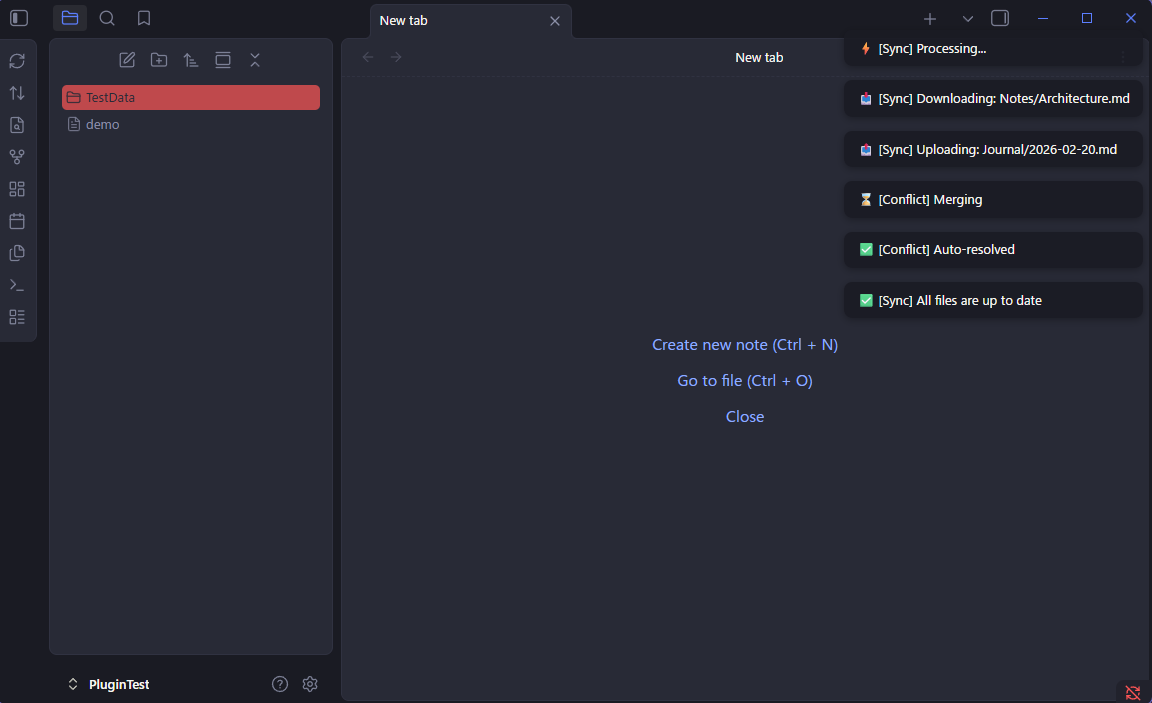
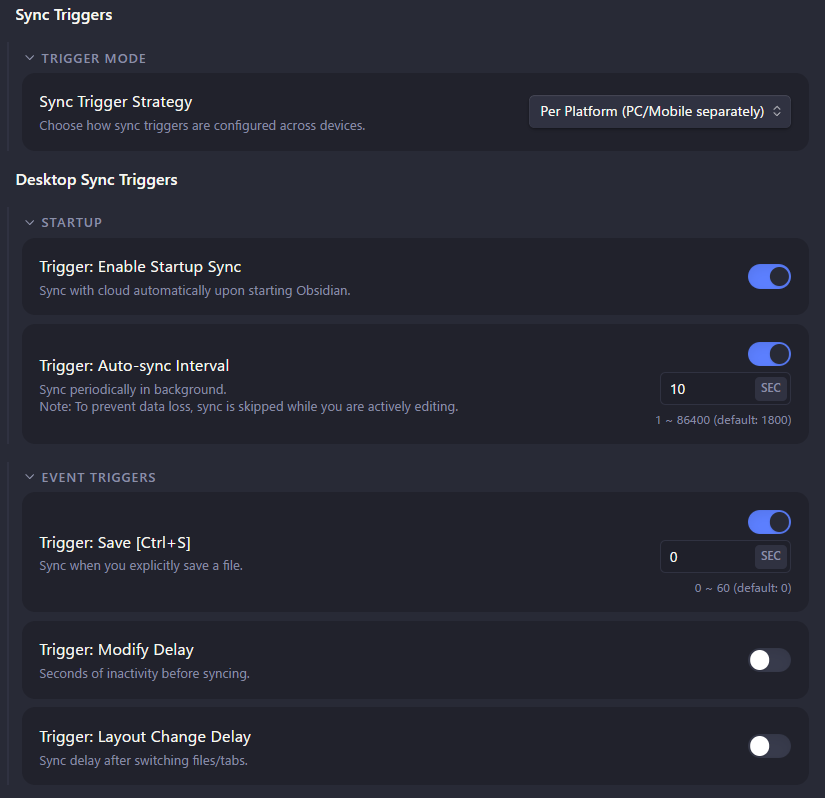
- Depending on your settings, sync triggers on startup, on file save, when you stop editing, on layout changes, or at fixed intervals.
- Other Commands:
- The command palette also offers the screens below.
| Command | What it shows |
|---|---|
Vault Syncer: Show sync status | Sync state, waiting changes and shortcuts to other screens |
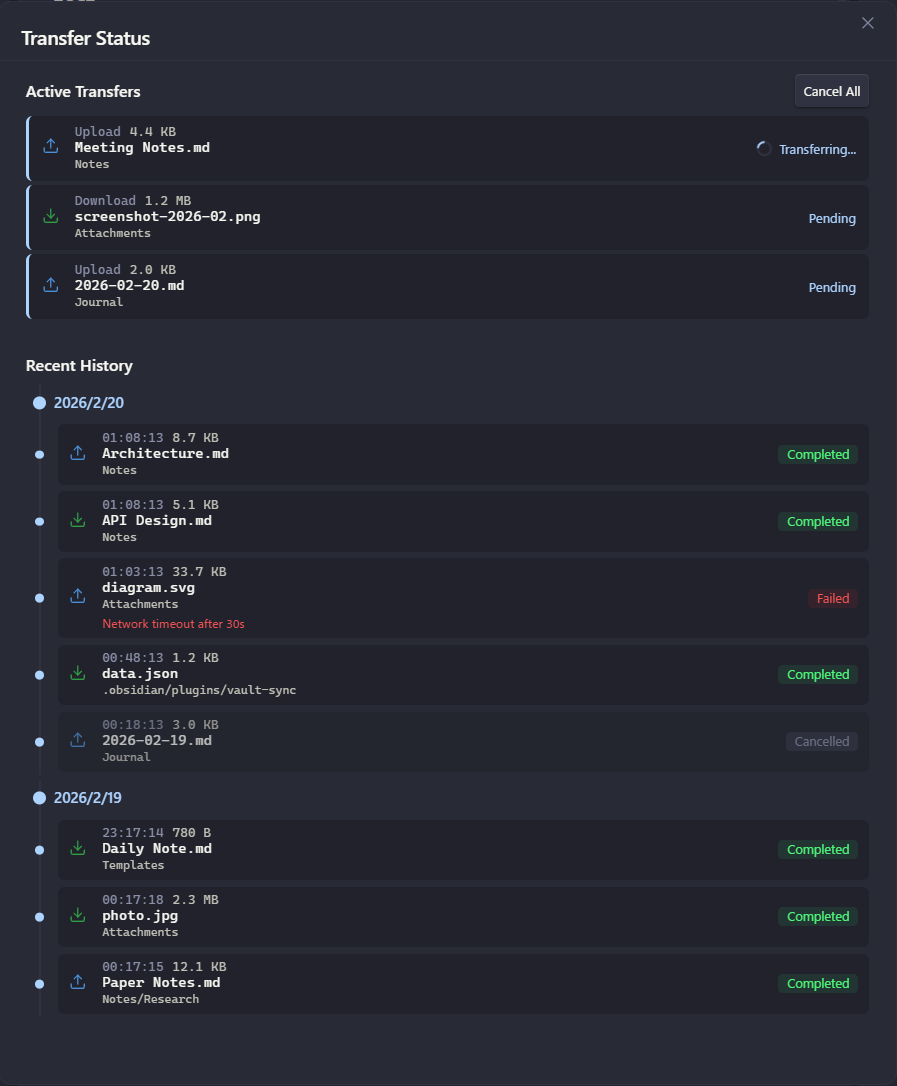
Vault Syncer: Show transfer status | Running and finished uploads and downloads |
Vault Syncer: Show conflict resolution | Conflict copies, to compare and settle them |
Vault Syncer: Show kept deleted files | Deleted files kept in the cloud, to restore them |
Vault Syncer: Show restore to a past time | Restore of the vault to a chosen time |
Vault Syncer: Show devices and changes | Devices that sync the vault and their recent changes |
Vault Syncer: Check that this device matches the cloud | A read-only comparison of this device and the cloud |
Vault Syncer: Fetch a file not synced on this device | One-off download of a file left out on this device |
Vault Syncer: Show diagnostics | Diagnostic info to copy or report |
Vault Syncer: Show add-on install | Add-on install screen |
| Sync Notifications | Sync Triggers |
|---|---|
 |  |
History and Restoration
- File History:
- Right-click a file and select "Show version history (Vault Syncer)" to compare against past revisions on cloud storage.
- Advanced Diff Viewer:
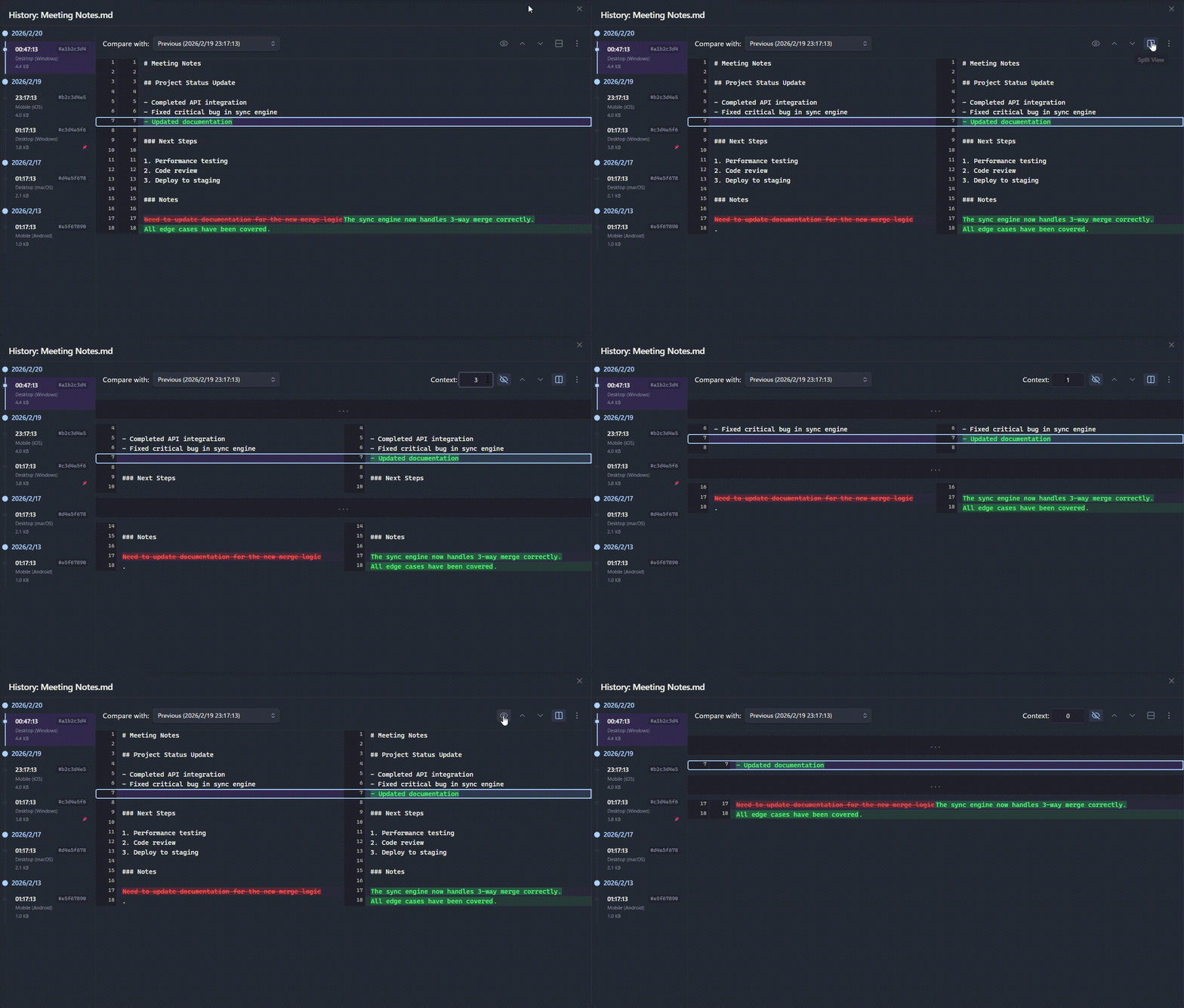
- Provides powerful comparison tools including Unified/Split view toggle, inline character-level highlighting, jump navigation between changes (with looping), and adjustable context lines.
- Full Scan:
- If concerned about consistency, run
Vault Syncer: Run a full scanfrom the command palette to force a sync state check.
- If concerned about consistency, run
| Cloud History | Diff Viewer |
|---|---|
 |  |
📦 Installation
Community Plugin (Recommended)
- Open Obsidian Settings > Community Plugins.
- Click "Browse" in Community Plugins.
- Search for "Vault Syncer" and click "Install".
- Go back to Settings > Community Plugins and enable "Vault Syncer".
Via BRAT
- Install the BRAT plugin from the Obsidian Community Plugins.
- Open BRAT settings and click "Add Beta plugin".
- Enter
c-ardinal/obsidian-vault-sync, selectLatest version, and click "Add Plugin". - Enable "Vault Syncer" in Settings > Community Plugins.
BRAT will automatically check for updates and keep the plugin up to date.
Manual Installation
- Download
main.js,manifest.json, andstyles.cssfrom the latest release. - Create a folder named
cardinal-vault-syncin your vault's.obsidian/plugins/directory. - Place the downloaded files into the folder.
- Enable "Vault Syncer" in Settings > Community Plugins.
Updating from an older version (plugin ID obsidian-vault-sync)
For the community directory the plugin ID changed from obsidian-vault-sync to cardinal-vault-sync, so Obsidian installs it into a new folder.
- Install Vault Syncer from the community browser (or update it with BRAT).
- Turn off the old copy (ID
obsidian-vault-sync) in Settings > Community Plugins and restart the app. While the old copy is on, the new one does not sync, so the two never sync the same vault at once. - On its first start the new copy carries over your settings, sync state and installed add-ons from the old folder. After that you can uninstall the old copy.
Update every device. Until all are updated, devices still on the old copy keep working, but syncs between old and new devices may compare files more slowly.
🚀 Login Instructions
Vault Syncer offers three authentication methods. Choose the one that suits your needs.
Method A: Default (Recommended)
The simplest way to get started. The plugin uses the developer-provided authentication proxy to handle the OAuth login — no Google Cloud setup required.
- Open Obsidian Settings > "Vault Syncer" > "Authentication".
- Ensure the Login method is set to "Default (recommended)".
- Click the "Login" button.
- A browser will open with the Google login screen.
- After successful login, you will be automatically redirected back to Obsidian. Completion is confirmed when the success notification appears.
- If you are not automatically redirected, click the "Open Obsidian" button on the browser screen.
- If it still doesn't return, manually switch back to the Obsidian app.
- The first sync starts right after login. No restart is needed.
Note: The authentication proxy handles OAuth codes and tokens transiently (in-memory only) and discards them after processing. No vault data passes through the proxy. See the Privacy Policy for details.
Method B: Custom Auth Proxy
Use your own authentication proxy server instead of the default one.
- Deploy an authentication proxy compatible with the Vault Syncer API (see the
www/functions/directory for the reference implementation). - Open Obsidian Settings > "Vault Syncer" > "Authentication".
- Set the Login method to "Use custom auth proxy".
- Enter your proxy URL (must use HTTPS).
- Click the "Login" button and complete the Google login flow. The first sync starts right after login.
Method C: Client ID / Secret
For full control, create your own Google Cloud Project and use your own OAuth credentials. In this mode, the callback page on Cloudflare Pages is used only as a redirect relay to pass the authorization code back to Obsidian via the obsidian:// protocol. The plugin then exchanges the code for tokens directly with Google — no credentials or tokens pass through the proxy.
1. Create a Google Cloud Project
- Access the Google Cloud Console.
- Create a new project.
- Search for Google Drive API in "APIs & Services" > "Library" and click "Enable".
2. Configure OAuth Consent Screen
- Create OAuth Consent Screen:
- Go to "APIs & Services" > "OAuth Consent Screen" > "Summary" and click "Get Started".
- Enter the required app information. Select "External" for User Type.
- Once completed, click "Create".
- Add Scopes:
- Under "Data access", select "Add or remove scopes".
- Check
.../auth/drive.file(See, edit, create, and delete only the specific Google Drive files you use with this app). - Click "Update".
- Click "Save" at the bottom.
- Auth Period Persistence: If the project remains in "Testing" state, re-authentication is required every 7 days. To avoid this, the project must be published, but this requires preparing a Terms of Service, Privacy Policy, etc. and passing Google's review. Proceed carefully.
3. Create Credentials (Client ID / Secret)
- Go to "APIs & Services" > "Credentials" > "Create Credentials" > "OAuth Client ID".
- Select "Web Application" as the Application type.
- Under "Authorized redirect URIs", click "Add URI".
- Enter
https://obsidian-vault-sync.pages.dev/api/auth/callback.- This page acts as a redirect relay: it receives the authorization code from Google and forwards it to the Obsidian app via the
obsidian://protocol. No tokens or credentials are stored on this server.
- This page acts as a redirect relay: it receives the authorization code from Google and forwards it to the Obsidian app via the
- Click "Create".
- Copy the generated Client ID and Client Secret.
- Important: The Client Secret is confidential. Never share it with others.
4. Apply to Plugin
- Open Obsidian Settings > "Vault Syncer" > "Authentication".
- Set the Login method to "Use Client ID / Secret".
- Enter the Client ID and Client Secret, then click the "Login" button.
- A browser will open with the Google login screen.
- After successful login, you will be automatically redirected back to Obsidian. Completion is confirmed when the success notification appears.
- If you are not automatically redirected, click the "Open Obsidian" button on the browser screen.
- If it still doesn't return, manually switch back to the Obsidian app.
- The first sync starts right after login. No restart is needed.
📒 Architecture
graph LR
    subgraph "<b>Your Devices</b>"
        A["🖥️ Desktop<br/>Obsidian"]
        B["📱 Mobile<br/>Obsidian"]
    end

    subgraph "<b>ServiceProvider</b>"
        C[("☁️ Cloud Storage")]
        D["🔐 OAuth"]
    end

    E["🌐 Auth Proxy<br/><i>Cloudflare Pages</i>"]

    A <--->|"<b>Vault Data</b><br/>Direct Sync"| C
    B <--->|"<b>Vault Data</b><br/>Direct Sync"| C
    A -.->|"Auth Only"| E
    B -.->|"Auth Only"| E
    E -.->|"OAuth Flow"| D

    style C fill:#4285F4,color:#fff
    style E fill:#F48120,color:#fff
Vault data is always transferred directly between your device and cloud storage. The auth proxy is only used during the initial OAuth login and can be bypassed with your own Client ID.
🔧 Sync Engine Specifications
Smart Sync Flow
flowchart TD
    A(["🔄 Start Sync"]) --> B{"Cloud index<br/>exists?"}
    B -->|No| F["Full Scan<br/><i>Build index from scratch</i>"]
    B -->|Yes| C{"Index changed<br/>since last sync?"}
    C -->|No change| D(["✅ Already in sync<br/><i>Skip</i>"])
    C -->|Changed| E["Diff Detection<br/><i>MD5 hash comparison</i>"]
    F --> E
    E --> G{"Conflicts<br/>detected?"}
    G -->|No| H["Push / Pull<br/>changed files"]
    G -->|Yes| I["3-way Merge"]
    I --> J{"Auto-resolved?"}
    J -->|Yes| H
    J -->|No| K["Create Conflict Fork<br/><code>(Conflict YYYY-MM-DD…)</code>"]
    H --> L(["✅ Sync Complete"])
    K --> L
3-way Merge
When the same file is edited on multiple devices, Vault Syncer resolves conflicts using a three-way merge based on a common ancestor.
graph TD
    A["📄 Common Ancestor<br/><i>Last synced version</i>"]
    A -->|"Local edits"| B["📝 Local Version"]
    A -->|"Remote edits"| C["☁️ Remote Version"]
    B --> D{"🔀 3-way Merge"}
    C --> D
    D -->|"Non-overlapping changes"| E["✅ Merged Result"]
    D -->|"Overlapping edits"| F["⚠️ Conflict Fork"]
Other Specifications
- Conflict Resolution: Choose from the "Smart merge", "Create copies", "Keep this device", or "Keep cloud" strategies. If a conflict cannot be auto-resolved, the local file is kept as a copy named
(Conflict YYYY-MM-DDTHH-mm-ss), which can be settled later from the conflict resolution screen. - Selective Sync: Control synchronization of files within
.obsidian/(plugins, themes, hotkeys, etc.) by category. Device-specific data likeworkspace.jsonandcache/are automatically excluded. - Device Communication: Merge lock control between devices via
communication.jsonprevents overwriting when the same file is edited simultaneously. - Atomic Updates: Individual index entries are updated upon each file transfer. The index is Gzip-compressed for efficient synchronization.
📣 Disclosures
As required by Obsidian's developer policies:
- Account required: A Google account is needed, because your vault is synced to your own Google Drive.
- Network use: The plugin connects only to the services below, and only to sync your vault or sign you in.
- Google Drive API (
www.googleapis.com): uploads, downloads and lists the files of your vault in your own Google Drive. - Google sign-in (
accounts.google.com,oauth2.googleapis.com): OAuth login and token refresh. - Vault Syncer authentication proxy (
obsidian-vault-sync.pages.dev, Cloudflare Pages): completes the OAuth login when the default login method is used. It never sees your vault data. You can avoid it with your own Client ID / Secret (Method C) or your own proxy (Method B). See the Privacy Policy. - GitHub (
github.com): opened in your browser only when you tap "Open download page" while installing an add-on, or "Report on GitHub" on the diagnostics screen. The latter fills the issue form with the diagnostic text shown on that screen, so that text is sent to GitHub in the link when the form opens. It becomes a public issue only when you submit it. The plugin itself never downloads code.
- Google Drive API (
- No telemetry, no ads, no payments: The plugin collects no usage data and shows no ads. It is free and open source (MIT).
🔒 Privacy and Security
- Direct Communication:
- All vault data is synchronized directly between your device and cloud storage. No vault content passes through the authentication proxy or any third-party server.
- Authentication Proxy:
- By default, the plugin uses an authentication proxy hosted on Cloudflare Pages to facilitate the OAuth login flow. This proxy handles OAuth authorization codes and tokens transiently (in-memory only, never persisted). You can bypass this proxy by configuring your own Client ID / Client Secret. See the Privacy Policy for details.
- Auth Protection:
- Sensitive information such as tokens and encryption secrets are stored via Obsidian's SecretStorage API, minimizing the presence of sensitive files within the vault. In environments where SecretStorage is unavailable, the plugin automatically falls back to local file storage encrypted with a device-specific key (AES-GCM) to maintain security.
- Data Location:
- Synced data is stored exclusively in your own cloud storage space (in the root folder you specify).
- File Encryption:
- By default, synced data (Markdown files, etc.) is uploaded to cloud storage in plain text (without encryption). While protected by the cloud storage security model (HTTPS transfer, server-side encryption), data is readable on the server side. If End-to-End Encryption is required, install the Vault Syncer E2EE Engine. See the section below for details.
🔑 End-to-End Encryption (E2EE)
Vault Syncer supports optional End-to-End Encryption through a separate, open-source encryption engine.
flowchart LR
    subgraph "Your Device"
        A["📄 Plaintext"]
        B["🔒 Encrypted"]
        D["🔒 Encrypted"]
        E["📄 Plaintext"]
    end

    subgraph "Cloud Storage"
        C[("☁️ Encrypted<br/>Data Only")]
    end

    A -->|"AES-256-GCM<br/>Encrypt"| B
    B -->|"Upload"| C
    C -->|"Download"| D
    D -->|"Decrypt"| E

    style C fill:#4285F4,color:#fff
When E2EE is enabled:
- All files are encrypted on your device before upload using AES-256-GCM
- Files are decrypted locally after download — your cloud provider never sees file contents
- File and folder names, sizes and modification times are not encrypted
- Files are encrypted with a random master key. A
vault-lock.vaultfile holds that key, protected by a key derived from your password via PBKDF2 - Smart sync features (3-way merge, conflict detection) work seamlessly with encrypted data
- Password can be optionally stored via Obsidian's SecretStorage for auto-unlock
- Password changes without re-encrypting data
- Master key can be exported as a Base64 string, enabling recovery code generation for password loss recovery
- Reduces peak memory for files above the configurable threshold with streaming encryption for large files
The E2EE Engine is a separately distributed add-on with its own terms of use, so that only people who want encryption install it, by their own choice. Installing it takes a few taps, on desktop or mobile, with no need to open the hidden .obsidian folder:
- Open Vault Syncer's settings and tap Install add-on... under "Add-ons" (or run
Vault Syncer: Show add-on installfrom the command palette). - Tap Open download page and download
vault-sync-e2ee-engine.zipfrom the latest release. - Tap Choose file and pick the downloaded zip. Vault Syncer checks every file in it against the approved release (SHA-256).
- Read the add-on's terms of use shown in the dialog, agree, and tap Install. The add-on is active right away, without a restart.
- The add-on's own settings page now appears under "Add-ons" in Vault Syncer's settings. Its operations can be started from there as well as from the command palette.
Vault Syncer itself never downloads add-ons. If the vault already uses the add-on on another device, the install dialog opens on startup and then asks for the password. Copying e2ee-engine.js into .obsidian/plugins/cardinal-vault-sync/ by hand still works too.
For details, available commands, build instructions, and the encryption specification, see the Vault Syncer E2EE Engine repository.
🛠 Development and Build
For running in a development environment or building from source:
Build
npm run build
Build results are output to the dist/cardinal-vault-sync/ directory as follows.
When distributing, copy the contents of this folder to your plugins directory.
main.jsmanifest.jsonstyles.css
⚠️ Disclaimer
Data Loss Risk
While this plugin automates synchronization, it does not completely eliminate the risk of data loss due to network errors or unforeseen conflicts. The author shall not be held liable for any damages (including data loss or corruption of the Vault) arising from the use of this plugin. Ensure you have a full backup before installing this plugin and continue to maintain regular backups thereafter. See the Terms of Service for details.
Multi-User Usage
This plugin's sync/merge functionality is designed for a single user synchronizing their edits across multiple devices. Synchronizing simultaneous edits by multiple users on the same vault is not a supported use case.
❓ FAQ
Q: The sync icon keeps spinning and doesn't stop. A: You might be syncing many files, or the network may be unstable. Check the notification messages or enable logging in the settings for details.
Q: I want to exclude specific folders or files from syncing.
A: Add glob patterns to "Exclude files/folders (all devices)" under "Sync scope" in the settings.
For example, adding secret/** will exclude the secret folder and all files within it from synchronization.
Q: On mobile, I'm not redirected back to the app after authentication. A: Browser security settings may prevent automatic redirection. Once the authentication completion screen appears, manually switch back to the Obsidian app. If authentication still doesn't complete, try a different Login Method (e.g., "Use Client ID / Secret") in the settings.
Q: Sync was working before but suddenly stopped. A: Credentials may have expired. Re-configure authentication from the settings.
Q: Does sync/merge work correctly with E2EE enabled? A: Yes. The E2EE Engine applies 3-way merge algorithms to encrypted data for conflict detection and resolution. Smart sync also works seamlessly with encrypted data.
License
MIT License
For plugin developers
Search results and similarity scores are powered by semantic analysis of your plugin's README. If your plugin isn't appearing for searches you'd expect, try updating your README to clearly describe your plugin's purpose, features, and use cases.