Nuntius: Live Transcription
unlistedby denysk0
Live speech-to-text and translation inside Obsidian. Transcribe microphone, system audio, or imported audio files using cloud (Soniox) or local STT providers. Copy partial text instantly; clean final text is written to your notes.
Nuntius: Live Transcription for Obsidian
Live speech-to-text and translation inside Obsidian.
Transcribe your microphone, system audio, or an audio file using a cloud provider (Soniox) or a local engine (whisper.cpp). You see partial text instantly and can copy it with one command. Clean final text is written into your note.
Desktop only. macOS, Windows, Linux.
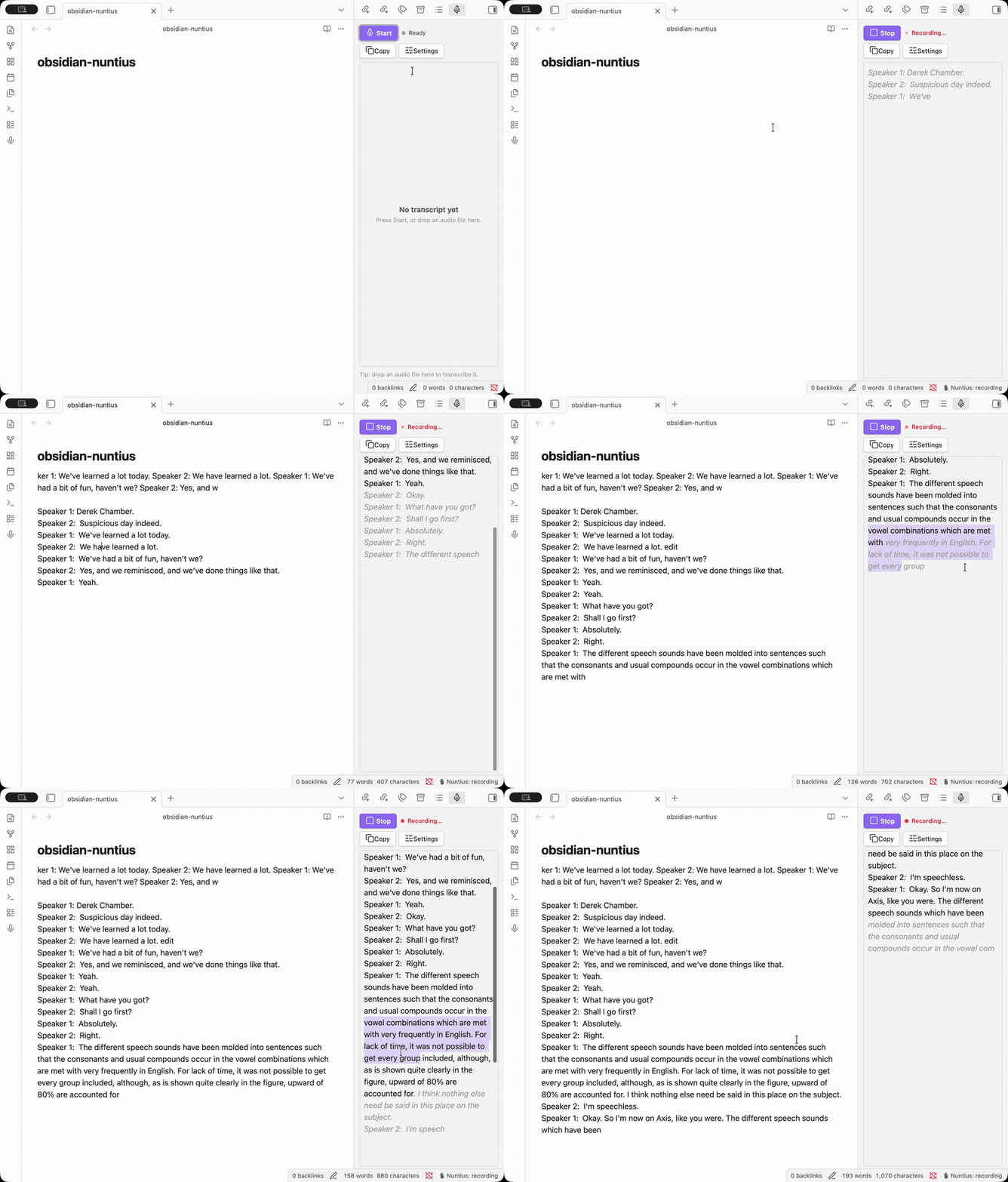
What makes it different
- Copy text before it is final. Partial (non-final) words show up the moment they are recognized, and you can select and copy them right away. The copy box is built to behave like normal text, so grabbing a half-finished sentence just works.
- Keep editing the note while it writes. Final text streams straight into
your
.mdfile, but the note stays fully editable. Fix a typo or jump the cursor mid-session and the live writing keeps going without breaking your edit or the document.
Features
- Live transcription. A side panel shows partial and final text as you speak, with speaker labels, while clean final text goes into the active note.
- Multiple audio sources. Microphone, system audio (via a loopback device like BlackHole), or both.
- File and embed transcription. Import an audio file, or transcribe audio
embedded in a note (
![[recording.m4a]]) with a per-embed Transcript button. - Translation. One-way or two-way, alongside the transcript (depends on the provider).
- Pluggable providers. Soniox (realtime cloud) and local whisper.cpp out of the box. An OpenAI provider is stubbed for a future release.
- Quality modes for the local engine:
live(fast, streaming),full(re-transcribe on Stop for best accuracy), orboth.
Requirements
- Obsidian
1.5.0or newer (desktop). - Soniox provider: a Soniox API key.
- Local provider: a built
whisper.cpp binary
(
whisper-cli). - System audio capture: a loopback audio device (e.g. BlackHole on macOS).
Installation
Manual
- Download
main.js,manifest.json, andstyles.cssfrom the latest release. - Copy them into your vault under
<vault>/.obsidian/plugins/obsidian-nuntius/. - Reload Obsidian and enable Nuntius in Settings, Community plugins.
From source
npm install
npm run build        # type-check + bundle to main.js
Usage
- Open Settings, Nuntius and set your provider (API key for Soniox, or the binary path for local whisper.cpp), audio source, and language.
- Open the note you want to write into.
- Run Nuntius: Start/stop live transcription from the command palette, or click the microphone ribbon icon to open the panel.
Capturing system audio
macOS (and Windows) cannot record system output directly, so you need a virtual
loopback device. On macOS install BlackHole
(brew install blackhole-2ch); on Windows use an equivalent such as VB-CABLE.
- In Audio MIDI Setup, create a Multi-Output Device that includes both your real output (speakers or headphones) and BlackHole 2ch. Set them all to the same sample rate (48000 Hz) and enable Drift Correction on the non-primary devices.
- Set that Multi-Output Device as your system output, so you still hear the audio while a copy is routed into BlackHole.
- In Nuntius settings, set Input to System audio and System device to BlackHole 2ch. Use the Both source if you also want your microphone.
Commands
| Command | What it does |
|---|---|
| Start/stop live transcription | Start or stop a live session into the active note. |
| Copy live transcript to clipboard | Copy the current live transcript text. |
| Set transcript insertion point at cursor | Pin where final text is written. |
| Open live transcript panel | Reveal the side panel. |
| Transcribe audio file | Pick an audio file from disk and transcribe it. |
| Transcribe audio embedded in current note | Transcribe ![[audio]] embeds in the note. |
License
Copyright © 2026 denysk0. All rights reserved.
This project is not open source. No license is granted to use, copy, modify, or distribute the code without prior written permission.
For plugin developers
Search results and similarity scores are powered by semantic analysis of your plugin's README. If your plugin isn't appearing for searches you'd expect, try updating your README to clearly describe your plugin's purpose, features, and use cases.