LLM Tasks
unlistedby John
Dispatch lines of text as tasks to LLM agents directly from your notes.
LLM Tasks
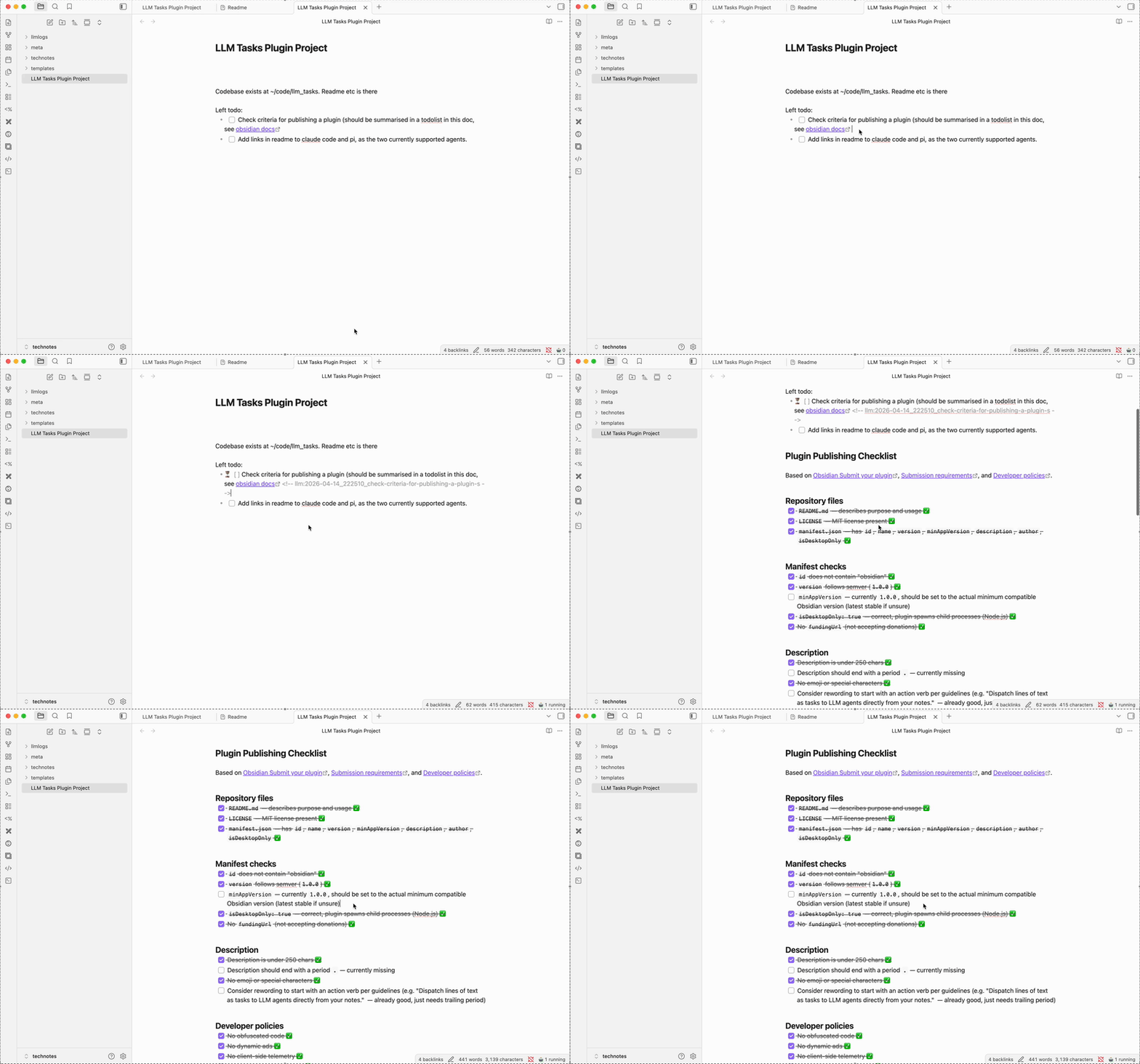
An Obsidian plugin that dispatches lines of text to LLM agents. Cursor on a line, hotkey, done. The agent runs in the background. Your note updates when it finishes.
No streaming UI, no chat panels, no embedded AI. Just a line of text → a background process → a status update.
Platform: macOS and Linux only (desktop). This plugin requires a Unix shell and command-line AI agents (such as Claude Code or Pi) to be installed on your machine. Windows and mobile (iOS/Android) are not supported.
How It Works
Write a task on any line in a note:
Refactor the auth module to use dependency injection
Hit your hotkey. The line becomes:
- ⏳ Refactor the auth module to use dependency injection <!-- llm:2026-04-14_143022_refactor-the-auth-module session:a1b2c3d4-... -->
The <!-- ... --> comment is invisible in Obsidian reading mode. When the agent finishes:
- ✅ Refactor the auth module to use dependency injection <!-- llm:2026-04-14_143022_refactor-the-auth-module session:a1b2c3d4-... -->
Or if it failed: - ❌
Continuing a Conversation
Indent a follow-up line under a completed task and dispatch it:
- ✅ Refactor the auth module <!-- llm:... session:a1b2c3d4 -->
  - Now add tests for it
The plugin detects this is a continuation, finds the previous session ID, and resumes the conversation. The parent task's marker reflects the latest run:
- ⏳ Refactor the auth module <!-- llm:... session:a1b2c3d4 -->
  - Now add tests for it <!-- llm:... session:e5f6g7h8 -->
Multiple follow-ups stay at the same indent level — no deeper nesting:
- ✅ Refactor the auth module <!-- llm:... session:a1b2c3d4 -->
  - Now add tests for it <!-- llm:... session:e5f6g7h8 -->
  - Fix the failing test <!-- llm:... session:i9j0k1l2 -->
Supported Agents
The plugin works with any CLI agent that supports non-interactive mode. It ships with presets for Claude Code and Pi:
Claude Code
Default preset. Uses claude -p --dangerously-skip-permissions.
Why --dangerously-skip-permissions? In non-interactive (-p) mode, Claude can't prompt you for file write/edit permissions. Without this flag, tool calls are silently denied and the agent fails. Only use this in vaults/directories you trust.
Sessions are tracked via --session-id and continued with --resume.
Pi
Uses pi -p. Sessions are saved to pi's default session directory (~/.pi/agent/sessions/) using pi's native filename format. Resume finds the session file automatically by UUID.
Custom Agents
Select "Custom" from the agent preset dropdown and configure:
- Agent command — The full command prefix (e.g.
aider --message). The rendered prompt is appended as the final argument. - Session template — Args to set session identity on fresh runs. Use
{sessionId}placeholder. Leave empty for pi (uses default session dir) or if your agent doesn't support sessions. - Resume template — Args to resume a session on continuations. Use
{sessionId}placeholder. Leave empty for pi (resume is handled automatically).
Installation
From source
git clone https://github.com/jacrify/llm-tasks.git
cd llm-tasks
npm install
npm run build
Symlink into your vault:
mkdir -p /path/to/vault/.obsidian/plugins/llm-tasks
ln -sf $(pwd)/main.js /path/to/vault/.obsidian/plugins/llm-tasks/main.js
ln -sf $(pwd)/manifest.json /path/to/vault/.obsidian/plugins/llm-tasks/manifest.json
ln -sf $(pwd)/styles.css /path/to/vault/.obsidian/plugins/llm-tasks/styles.css
Enable LLM Tasks in Settings → Community Plugins. Assign a hotkey for "LLM Tasks: Dispatch task" in Settings → Hotkeys.
Shell Environment
The plugin spawns agents through your login shell (/bin/zsh -l -i -c '...') so they inherit your full environment — PATH, API keys, everything.
Your agent must work from a non-interactive login shell. Test it:
/bin/zsh -l -i -c 'claude -p "say hello"'
/bin/zsh -l -i -c 'pi -p "say hello"'
If that works, the plugin will work. If not, check that your shell profile (.zshrc, .zprofile) exports the necessary environment variables and adds agent binaries to PATH.
Commands
| Command | Description |
|---|---|
| Dispatch task | Send current line to the agent |
| Cancel task | Kill the agent process for the current line |
| Cancel all tasks | Kill every running agent |
No default hotkeys — assign them in Settings → Hotkeys.
Settings
Agent
| Setting | Description |
|---|---|
| Agent preset | Claude Code, Pi, or Custom. Sets sensible defaults for all fields below. |
| Agent command | Full command prefix. The prompt is appended as the final argument. |
| Session template | Args for fresh sessions. {sessionId} is replaced with a generated UUID. Leave empty for pi (uses default session dir). |
| Resume template | Args for continuations. {sessionId} is replaced with the previous session's UUID. Leave empty for pi (handled automatically). |
Prompt
| Setting | Description |
|---|---|
| Prompt template | System prompt sent to the agent. Supports {{task}}, {{sourceNoteName}}, {{noteContext}}, {{vaultPath}}, {{timestamp}} placeholders. |
| Include note context | Pass the full source note content via {{noteContext}}. |
| Context limit | Max characters of note context to include. |
Shell
| Setting | Description |
|---|---|
| Shell path | Shell used to run agent commands (default: /bin/zsh). |
| Extra PATH entries | Colon-separated paths prepended to PATH. Needed because Obsidian GUI apps have a minimal PATH. |
General
| Setting | Description |
|---|---|
| Poll interval | Seconds between checking for task completion (default: 5). |
| Max concurrent tasks | Limit simultaneous agents. 0 = unlimited. |
| Notify on completion | Show an Obsidian notice when a task finishes. |
Task Markers
| Setting | Default | Description |
|---|---|---|
| Pending marker | ⏳ | Shown while the agent is running |
| Done marker | ✅ | Shown when the agent exits successfully |
| Failed marker | ❌ | Shown when the agent exits with an error |
Agent Output
Agent stdout and stderr are captured to log files in your system's temp directory (/tmp/llm-tasks/ or equivalent). These are useful for debugging but are not surfaced in the UI.
How It Works (Technical)
-
Dispatch: The plugin spawns the agent as a detached child process via your login shell. Output is piped to a log file. The process PID is tracked.
-
Polling: A timer checks if each tracked PID is still alive. When a process exits, the plugin reads the exit code and updates the note.
-
Continuation: When dispatching an indented line, the plugin scans upward for sibling/parent lines with
session:tags. If found, it usesresumeTemplateinstead ofsessionTemplateto resume the previous session. For pi, the plugin finds the session file by UUID in pi's default session directory. -
Session IDs: A UUID is generated at dispatch time and passed to the agent via
sessionTemplate(or used to build a pi-native session path). This UUID is stored in the note's HTML comment and used for future continuations.
Disclosure
This plugin:
- Spawns external processes: Tasks are executed by spawning LLM agent CLI tools (e.g.
claude,pi) as child processes on your machine. These agents may make network requests to external APIs (e.g. Anthropic) depending on the agent you use. - May access files outside your vault: The spawned agents operate as general-purpose coding agents. Depending on the task you give them, they may read or modify files anywhere on your system that your user account has access to.
No data is sent to any service by the plugin itself — all network activity originates from the agent process you configure.
Development
npm install
npm run build    # build main.js
npm test         # run tests
Tests use vitest with a mock of the Obsidian API. Core logic is unit-tested without Obsidian. Integration tests spawn real processes.
Releasing
Once the plugin is listed in the Obsidian community plugin directory, users receive updates automatically when you publish a new GitHub release. Here's the process for each release:
1. Bump the version
Update the version field in both files to the new semver version:
manifest.jsonpackage.json
# Example: bumping to 1.1.0
sed -i '' 's/"version": ".*"/"version": "1.1.0"/' manifest.json package.json
Also update minAppVersion in manifest.json if the plugin now requires a newer Obsidian version.
2. Build and test
npm run build
npm test
Verify that main.js is freshly built and reflects your changes.
3. Commit and tag
git add manifest.json package.json main.js
git commit -m "Release 1.1.0"
git tag 1.1.0
git push origin main --tags
The tag must exactly match the version in manifest.json (e.g. 1.1.0, not v1.1.0).
4. Create the GitHub release
Go to Releases → Draft a new release on GitHub (or use the gh CLI):
gh release create 1.1.0 \
  main.js \
  manifest.json \
  styles.css \
  --title "1.1.0" \
  --notes "Release notes here"
The release must have these three files attached as assets:
| Asset | Description |
|---|---|
main.js | Compiled plugin code |
manifest.json | Plugin metadata (version must match the tag) |
styles.css | Plugin styles |
Obsidian's plugin infrastructure fetches these assets from the GitHub release, so all three are required even if styles.css is minimal.
5. Verify
- Check the release page on GitHub — confirm the tag and all three assets are present.
- In Obsidian, go to Settings → Community Plugins → Check for updates to confirm the new version appears.
Notes
- No PR needed for updates. The initial community-plugins.json PR was a one-time submission. Subsequent releases are picked up automatically from GitHub releases.
- Tag format matters. Obsidian expects bare semver tags (
1.1.0), not prefixed ones (v1.1.0). versions.jsonis optional. If you need to declare differentminAppVersionvalues for different plugin versions, create aversions.jsonmapping versions to minimum Obsidian versions. Not needed ifminAppVersionstays the same.
For plugin developers
Search results and similarity scores are powered by semantic analysis of your plugin's README. If your plugin isn't appearing for searches you'd expect, try updating your README to clearly describe your plugin's purpose, features, and use cases.