TaskLens
unlistedby Nightaqua
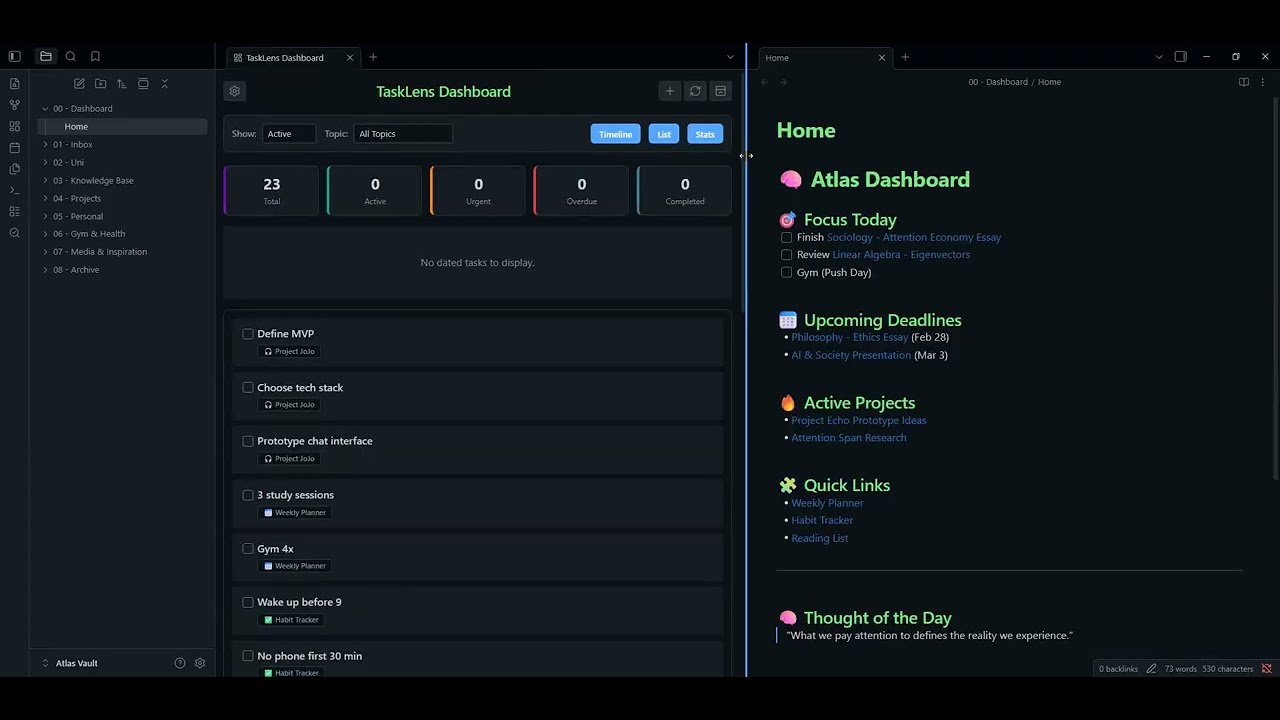
Your personal command center. Widget-based dashboard for task and timelines visualization and goal tracking.
TaskLens for Obsidian
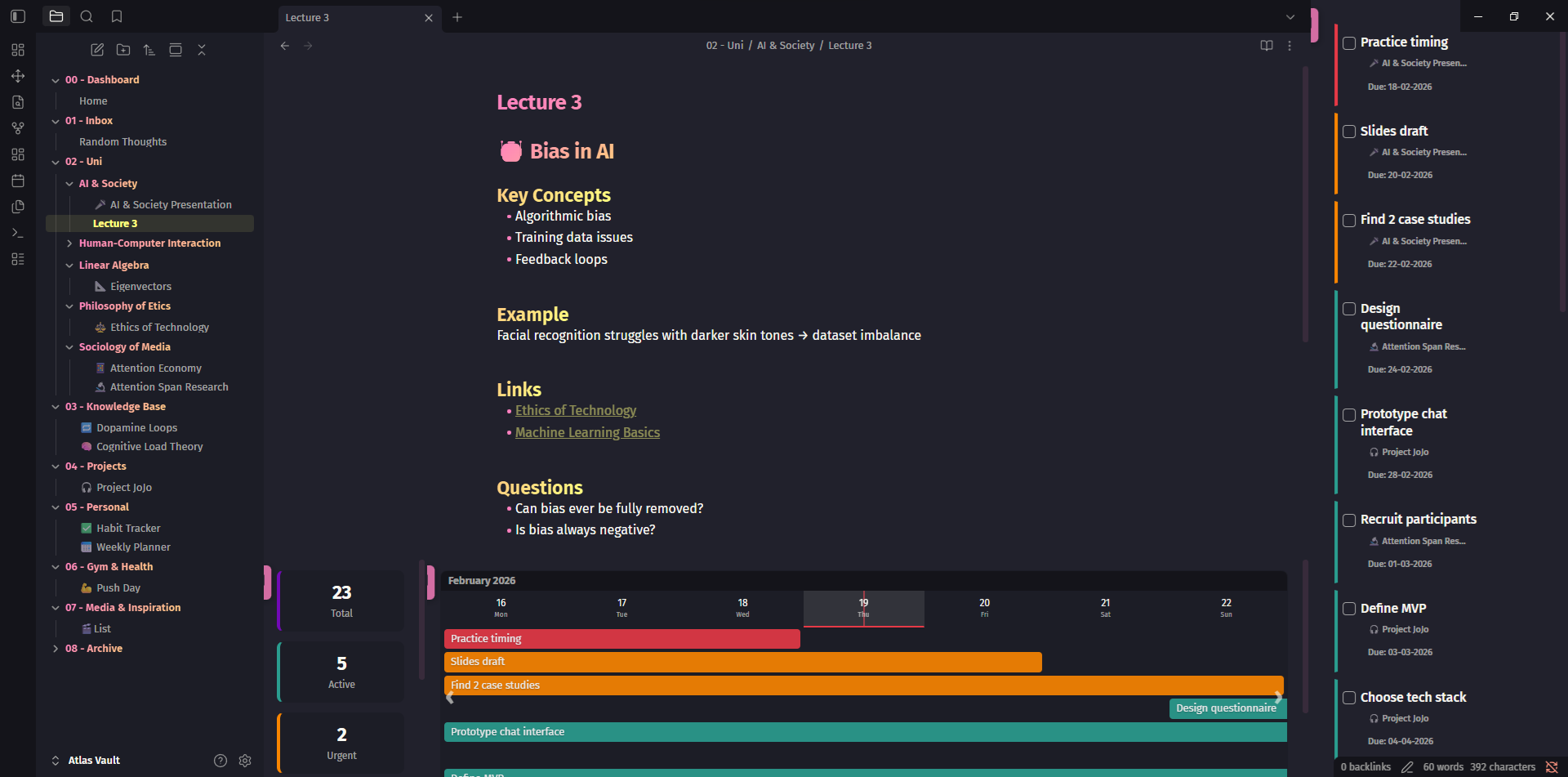
TaskLens is a native, widget-based dashboard that turns Obsidian into a powerful task command center. Visualize deadlines, manage tasks, and track project progress without leaving your vault or changing how you write.
Key Features
- The Dashboard: A unified, customizable workspace combining an interactive Timeline, Task List, Kanban Board, and Statistics — all in one view
- Smart Timeline: Tasks dynamically span multiple days from start to finish. Features a sticky month header, vertical month dividers, rich hover tooltips, and click-to-open behavior
- Kanban Board View: Group tasks into status columns (Active, Upcoming, Urgent, Overdue, Completed). Drag cards between columns to reschedule tasks — changes are written straight back to your Markdown files
- Task Actions: Inline edit and delete buttons on each task card let you update any task without leaving the dashboard. Enable them in Settings
- Dynamic Topic Colors: Assign unique colors to different projects or folders. TaskLens automatically color-codes your entire dashboard based on your custom palette
- Focus Mode: Instantly hide all TaskLens widgets and collapse your sidebars to focus purely on writing. Click again to restore your exact window layout perfectly
- Quick Add & Edit: The Quick Add modal lets you inject a new task at the cursor or into any file in your vault — with start date, due date, and a recurrence dropdown. The same modal opens pre-populated when editing an existing task
Task Format
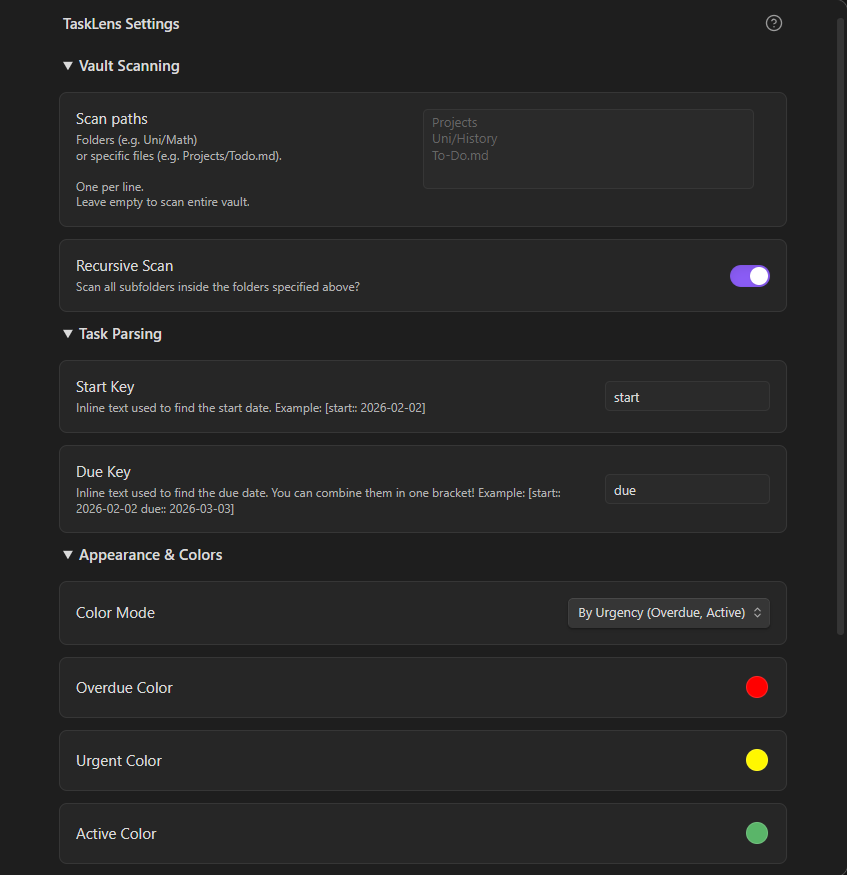
TaskLens uses standard markdown checkboxes. It scans for inline dates, supporting both YYYY-MM-DD and DD-MM-YYYY formats. You can customize the start and due keys in settings.
- [ ] Read Chapter 4 (due:: 2024-05-15)
- [ ] Submit assignment [start:: 10-05-2024 due:: 15-05-2024]
- [ ] Call mom 📅 2024-05-20
- [ ] Write intro [due:: 2024-05-20] [notes:: Check outline from last week]
Optional [notes:: ...] metadata appears beneath the task in the list view.
Usage
TaskLens operates entirely from a single, unified Ribbon Icon (the magnifying glass checkmark):
- Open Dashboard: Spawns the main widgets (splits intelligently so it doesn't overwrite your active note)
- Quick Add Task: Opens the quick-entry modal
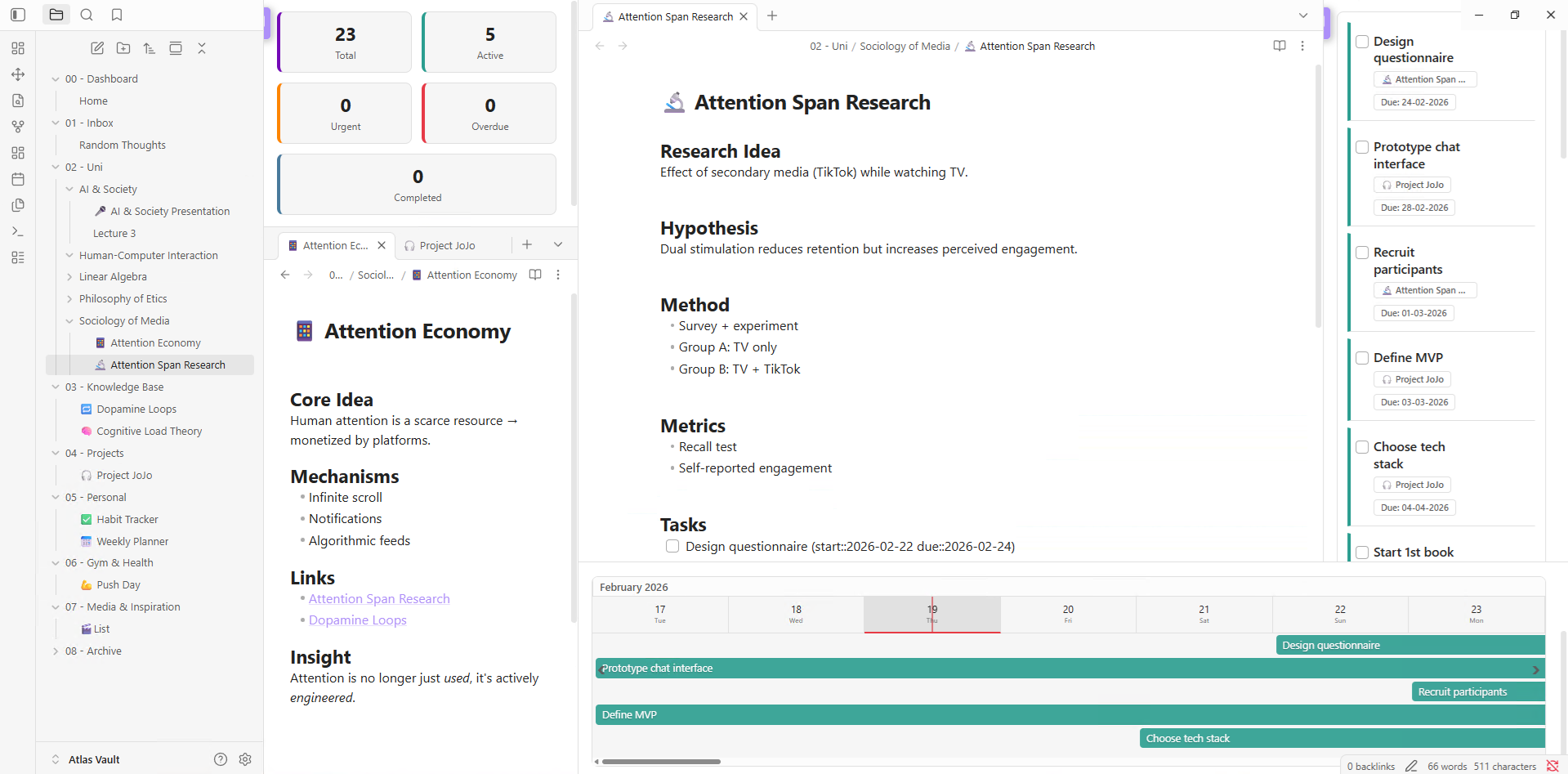
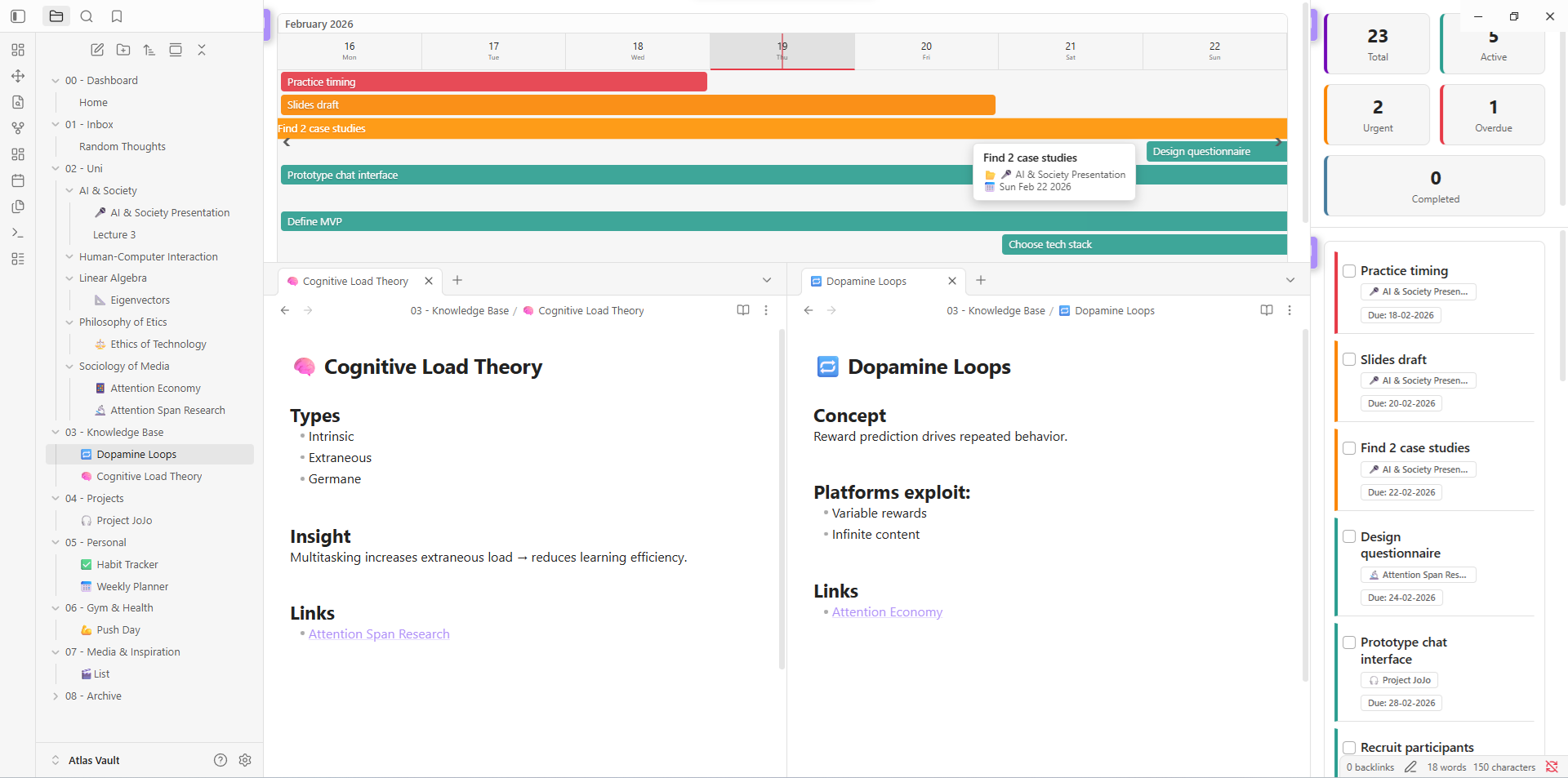
- Lock/Unlock Layout: Toggle this to drag and drop widgets around your screen. Lock it to hide the tabs for a clean look. Customize and place the windows however you like and whatever size!
- Enter Focus Mode: Temporarily hides all widgets so you can write
Create your own version of the TaskLens dashboard by each widget to your liking.
Gallery

📸 Open Gallery / See More
Layout Variant
Alternative Layout Variation
TaskLens Settings Preview
Demo Video
Installation
Install via BRAT (Quick Start)
- Install BRAT: Settings → Community Plugins → Browse → search for "BRAT" → Install and Enable.
- Add TaskLens: Open BRAT settings → Add Beta Plugin → paste the repository link:
https://github.com/nightaqua/TaskLensand click Add Plugin. - Enable: Go to Settings → Community Plugins → scroll to "TaskLens" → toggle on.
Manual Installation
- Go to the Releases page of this repository
- Download
main.js,manifest.json, andstyles.cssfrom the latest release - Place them in your vault's plugins folder:
YourVault/.obsidian/plugins/tasklens/ - Restart Obsidian and enable TaskLens in Community Plugins
Want to know more? Check out Contributing for more information on about the development process.
Support
If you enjoy TaskLens and it helps you stay organized, consider supporting its development!

For plugin developers
Search results and similarity scores are powered by semantic analysis of your plugin's README. If your plugin isn't appearing for searches you'd expect, try updating your README to clearly describe your plugin's purpose, features, and use cases.