OpenVault AI
unlistedby Or Shemtov
AI assistant for note-aware chat, editable conversations, custom agents, and flexible model providers.
OpenVault AI
OpenVault AI is an Obsidian assistant for talking to your notes, organizing context, and building repeatable workflows with markdown-defined agents, skills, and commands.




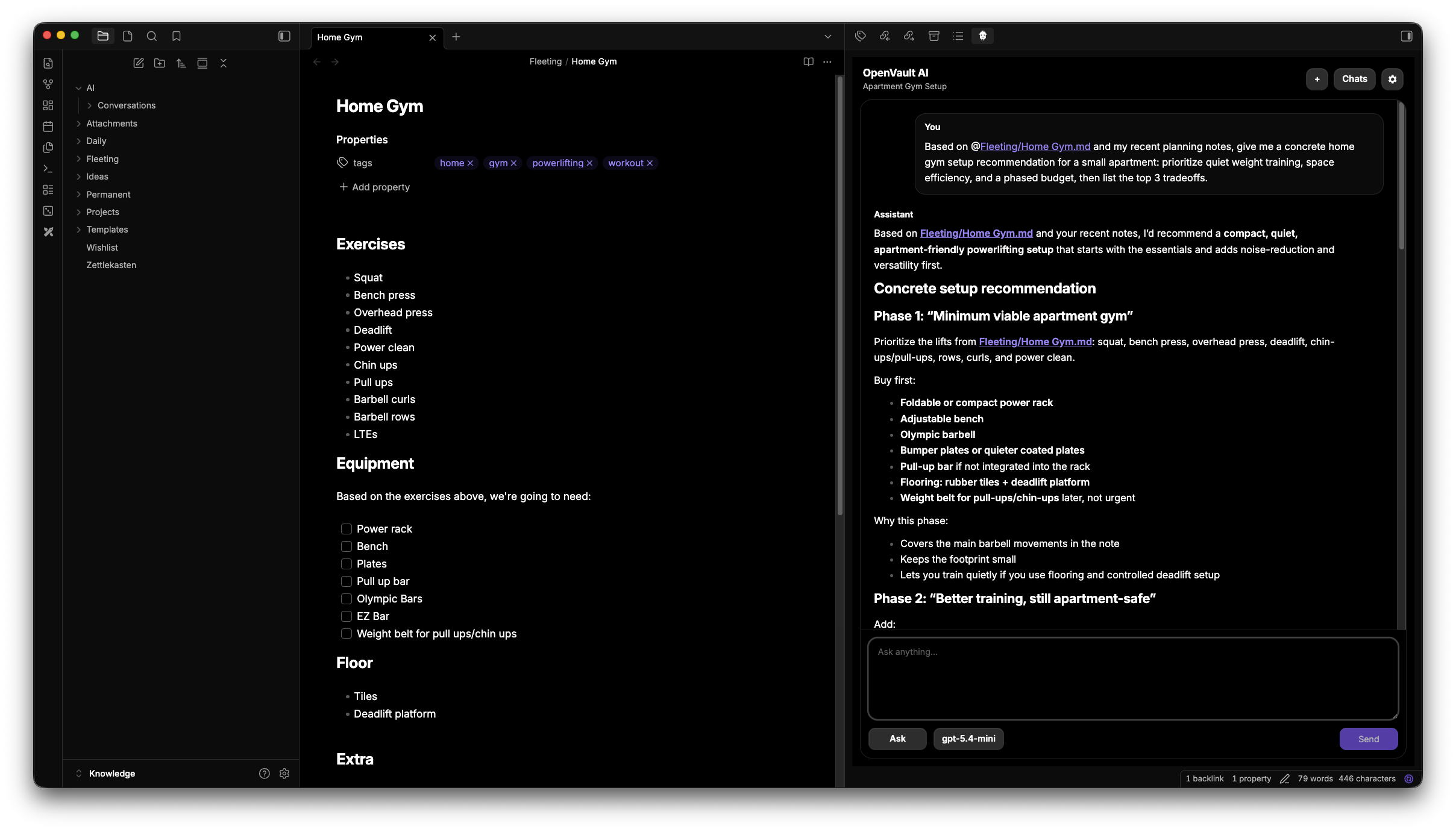
Features
- Chat with a single note, a folder, selected notes, or the whole vault
- Reference notes and folders directly with
@mentions - Run slash commands from markdown-defined command files
- Switch between built-in agents like
askandedit - Add your own agents in
AI/Agents/<agent-name>/AGENT.md - Add reusable skills in
AI/Skills/<skill-name>/SKILL.md - Persist conversations in the vault as markdown files
- Store long-term memory entries in the vault for preferences, facts, and lessons
- Switch between
Ollama,OpenRouter,OpenAI, andAnthropicfrom the plugin UI - Review tool usage and assistant context directly in the UI
How It Works
OpenVault AI keeps the assistant close to your vault instead of hiding behavior behind a remote service.
- Notes stay addressable as files and folders
- Agents, skills, and commands are editable markdown files in the vault
- Conversations are saved as markdown notes
- Long-term memory is stored as markdown entries in the vault
- Provider settings live in the plugin settings for the current vault
Memory
OpenVault AI supports two kinds of memory:
- Conversation memory: active chats and previous conversations stored in the vault
- Long-term memory: saved preferences, facts, and lessons that the assistant can reuse later
This makes it possible to keep context across sessions while still keeping the data visible and editable.
Agents, Skills, And Commands
The plugin supports built-in behavior plus vault-defined extensions.
Agents
Built-in agents:
askedit
Vault-defined content is loaded from the AI/ prefix by default.
Custom agents live in:
AI/Agents/<agent-name>/AGENT.md
Skills
Custom skills live in:
AI/Skills/<skill-name>/SKILL.md
Commands
Custom slash commands live in:
AI/Commands/<command-name>.md
Installation
Community plugins
Once approved in the Obsidian marketplace:
- Open Obsidian
- Go to
Settings -> Community plugins - Search for
OpenVault AI - Install the plugin
- Enable it
Manual installation
- Download
main.js,manifest.json, andstyles.cssfrom a GitHub release - Create this folder inside your vault:
<vault>/.obsidian/plugins/openvault-ai/
- Copy the release files into that folder
- Reload Obsidian and enable the plugin
Usage
Open the assistant
Use one of these commands from the command palette:
Open assistantToggle assistant
Configure a provider
The settings tab lets you configure:
Ollamabase URLOpenRouterbase URL and API keyOpenAIbase URL and API keyAnthropicbase URL and API key
Ask about notes
Inside the assistant you can reference vault content directly in the prompt.
Examples:
@Daily/2026-04-24.md summarize this note@Projects/Roadmap/ what are the open decisions here?@all compare the main themes across my recent planning notes
Privacy And Data Handling
Ollamarequests stay on your local machine unless your Ollama server is remoteOpenRouter,OpenAI, andAnthropicsend request data to external services you configure- Prompts may include note content that you explicitly reference or that the plugin retrieves for the active request
- API keys are stored in the plugin's local Obsidian data file for the current vault
- This plugin does not include telemetry or analytics collection
You are responsible for choosing which provider to use for a given vault and what content you send to external APIs.
Contributing
Development setup, local workflows, and contributor checks live in CONTRIBUTION.md.
License
MIT
For plugin developers
Search results and similarity scores are powered by semantic analysis of your plugin's README. If your plugin isn't appearing for searches you'd expect, try updating your README to clearly describe your plugin's purpose, features, and use cases.