Publish to Telegram
unlistedby pan4ratte
Allows you to post notes directly to Telegram channels and groups with different presets.
Publish to Telegram plugin
English | Русский
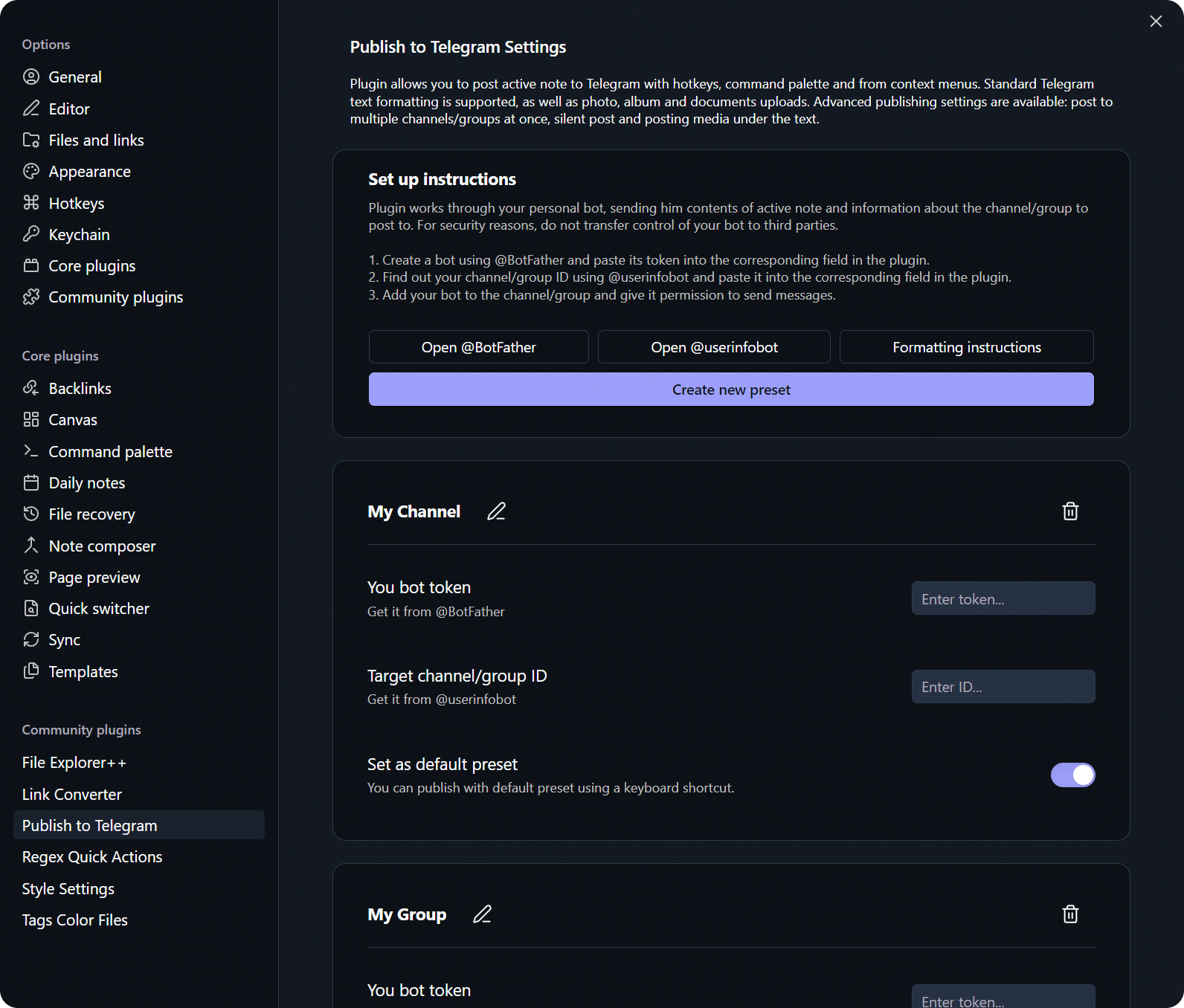
This plugin allows you to post notes directly to Telegram channels and groups with different presets. The plugin works through your personal bot, sending to it contents of an active note and information about the channel/group to post to. All standard Telegram formatting options are supported, as well as photo, album and document uploads, plus some advanced publishing settings are available.
Features
-
Create multiple presets to post to different channels and groups.
-
Post in different ways: with hotkeys, command palette and context menus.
-
Attach photos, videos, albums and documents to your posts.
-
Use advanced publishing settings to:
- Post to multiple channels/groups at once.
- Post without sound.
- Post with attached media under the text.
- Edit already existing post.
-
Attach pre-written commentaries to your posts that will be displayed in the post's discussion after its publication.
-
Set a default preset to post quickly with it from command palette or with hotkey.
-
Optionally enable automatic link to the post saving in the note's properties after publishing.
-
Open usage instructions either from the plugin's settings or from the command palette.
Installation Instructions
Before plugin appears in the official Obsidian store, the easiest way to install it is through the BRAT plugin:
-
Install the
BRATplugin from the official Obsidian plugin store. -
In the
BRATsettings, find the “Beta plugin list” section and click on the “Add beta plugin” button. -
In the window that appears, paste the link to the
Publish to Telegramplugin repository: https://github.com/pan4ratte/obsidian-publish-to-telegram -
Under “Select a version” choose “Latest version” and click the “Add plugin” button.
Done! The plugin will automatically install and will be ready to use.
Usage
Presets
To publish notes to Telegram, you need to configure a preset.
-
Use the official Telegram tool @BotFather to create your own bot, following the instructions in the app. If you plan to post to group or make pre-written commentaries for posts, in the bot settings go to the "Bot Settings" menu, find the section "Groups and Channels" and turn of the "Group Privacy" option.
-
Copy your bot's API key in the app and paste this token into the corresponding field in the plugin settings.
-
Use the @userinfobot tool to get the ID of the channel/group where you plan to post. You can also get your account ID if you want to use the preset to send messages to yourself (the bot will send you messages to you personally — do not forget to start a conversation with the bot first).
-
Copy the ID of the target channel/group and paste it into the corresponding field in the plugin settings. Alternatively, if you will post to the public channel, you can paste to that field the link to the channel in the format
@channel_name. -
While in Telegram, add the bot you created to the target channel/group and assign it the role of administrator. Give the bot permission to only publish messages.
Now you can publish notes in Telegram using your preset name via the command palette or the note's context menu.
Formatting
All standard Telegram formatting elements are supported as well as some additional:
| Obsidian Input | Telegram Result |
|---|---|
**Bold** | Bold |
*Italic* | Italic |
<u>Underline</u> | Underline |
~~Strikethrough~~ | |
<span class="tg-spoiler">Spoiler</span> | Spoiler |
`Inline code` | Inline code |
[Link](url) | Link |
> Quote | Quote |
| ``` Code block ``` | |
- List |
|
# Heading | Heading |
--- or *** or ___ | ─── |
In addition to the formatting that will be reflected in the Telegram post, you can use the comment syntax <!-- hidden text --> or %% hidden text %% to add information to your notes that will not be included in the post content when it is published.
Attachments
Media, album (groups of media) and document attachments are supported. To attach a file to your post, use any of the standard Obsidian embed syntax options:
![[some-book-file.pdf]]

!(some-video-file.mp4)[]
You can also embed files with external web-link embeds:

Currently supported formats:
| Extension | Attachment type |
|---|---|
.jpg, .jpeg, .png, .webp | Photo / Album |
.gif | Animation |
.mp4, .mov, .avi, .mkv, .webm | Video / Album |
.pdf | Document |
Commentaries
You can pre-write one or more comments for your post that will appear in its discussion right after the publication. To use that feature:
-
In the plugin settings turn on the option "Treat .md embeds as post comments".
-
If a comment on a post is published in a channel, the channel must have a discussion chat linked to it, and the bot must be added to this chat with administrator rights. If a comment on a post is published in a group, it will appear as a regular reply to a message.
-
To prepare a comment for a post, use the
![[comment-file]]embed syntax. Only files with the .md extension are treated comments.
Note that all comments are published with a slight delay.
Advanced publishing settings
You can call an advanced publishing settings window with command palette (Ctrl + P) by typing "Publish to Telegram: Publish with advanced settings". In that settings window you can choose to:
- Post to multiple channels/groups at once.
- Post without sound.
- Post with attached media under the text.
- Edit already existing post. Links to the posts are stored in the
telegram_linksproperty, which is filled automatically if the corresponding option is enabled in the settings. You can also create it and fill manually.
Limits
Standard Telegram posting limits apply to limits of characters per post, limits of attached media size per post, etc. More about that: https://limits.tginfo.me/
About the Author
My name is Mark Ingram (Ingrem), I am a Religious Studies scholar. Apart from my main area of study (Protestant Political Theology in Russia), I teach the subject "Information Technologies in Scientific Research", a unique course that I developed myself from scratch. This plugin helps me in my studies and I use it in my teaching, as well as other plugins that I develop and that you can find on my GitHub profile.
Hello to every student that came across this page!
Huge thanks to Egor Gvozdikov, who wrote the first lines of code for this project and made numerous valuable commits.
For plugin developers
Search results and similarity scores are powered by semantic analysis of your plugin's README. If your plugin isn't appearing for searches you'd expect, try updating your README to clearly describe your plugin's purpose, features, and use cases.