Apex Dashboard
unlistedby PandoraReads
Your personal command center — memos, todos, and projects in one stunning glassmorphism dashboard.
Apex Dashboard
Stop switching between Obsidian notes. One page. Everything you need. Memo your thoughts, crush your todos, track your projects — and make it look incredible doing it. 【中文版】
Screenshot

Features
🗒️ Memo
Capture thoughts instantly with a built-in memo pad. Each memo card has a writable textarea — jot down ideas, meeting notes, or daily reflections without leaving your dashboard. Supports [[wikilinks]] that render as clickable links.
✅ Todo
Manage tasks with interactive checklists. Add, reorder, drag-and-drop, and check off tasks. A progress bar shows completion percentage at a glance. Todo items also support [[wikilinks]] for cross-referencing notes.
📁 Projects
Organize your vault documents into project cards. Each card links to related notes, displays a cover image (supports both local vault images and web URLs), and supports inline document search to add new files quickly. Manage multiple file types including Markdown notes, PDFs, images, audio, and video.
📝 Notes
A compact, list-style section for organizing reference documents and quick-access files. Displays up to 5 cards per row without cover images for maximum density.
⚡ Quick Actions
Pin your most-used shortcuts to the sidebar. Supports two action types: File links to open any document, and Command shortcuts to trigger any Obsidian command. Includes built-in presets for New Journal and New Note.
🎨 Banner
A customizable banner with an inspirational quote and optional background image. Supports both local vault images and web URLs. Double-click to edit.
🔄 Drag & Drop
Drag cards between sections to reorganize your workspace. Drag task items within Todo cards to reorder. Drag document links between project/note cards.
🧩 Custom Sections
Create sections with 4 built-in types — Memo, Todo, Projects, and Notes — each with its own layout and behavior. Mix and match to fit your workflow.
🕐 Recent Documents
The sidebar shows recently edited files with relative timestamps, so you can jump back into your latest work.
Themes
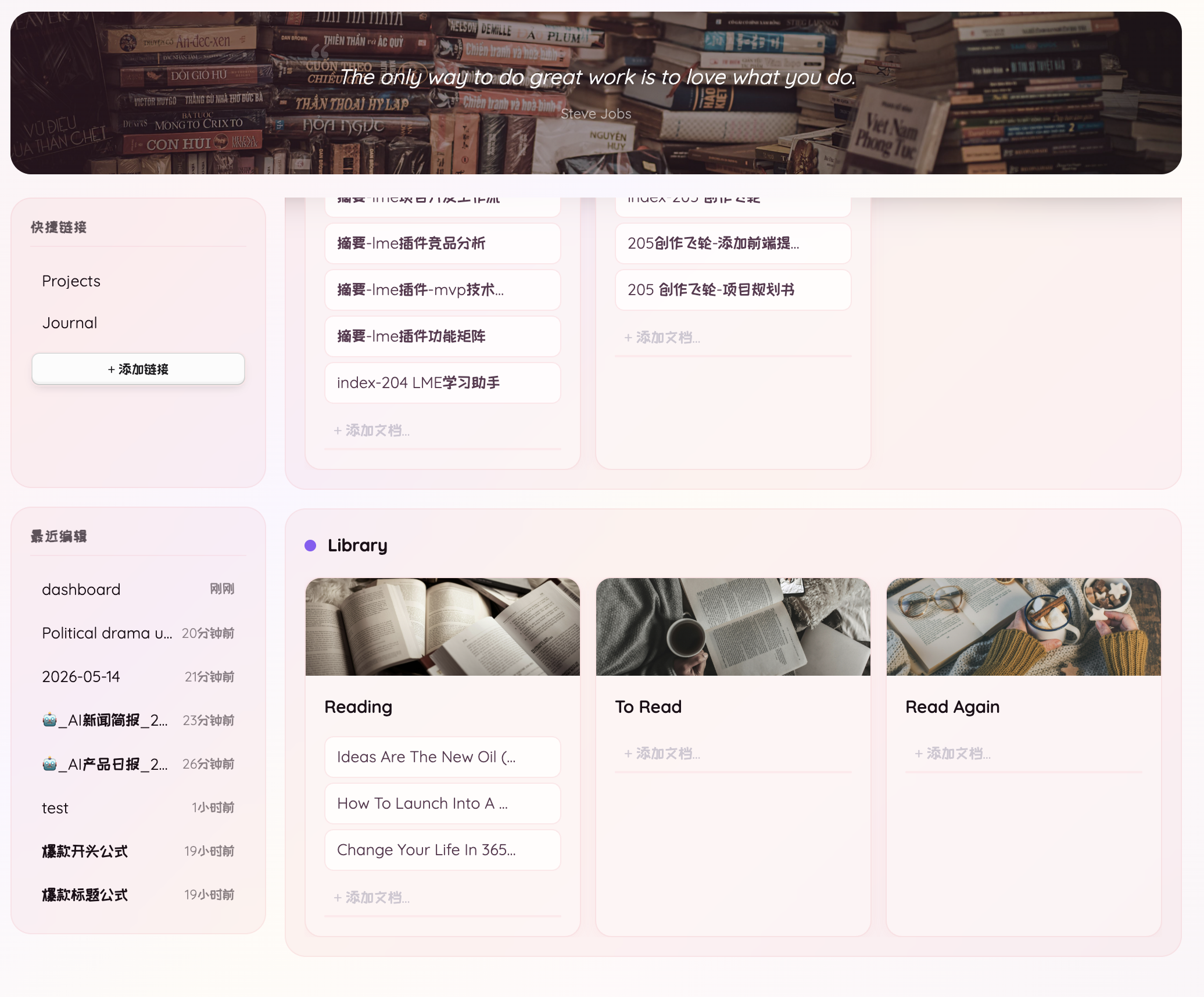
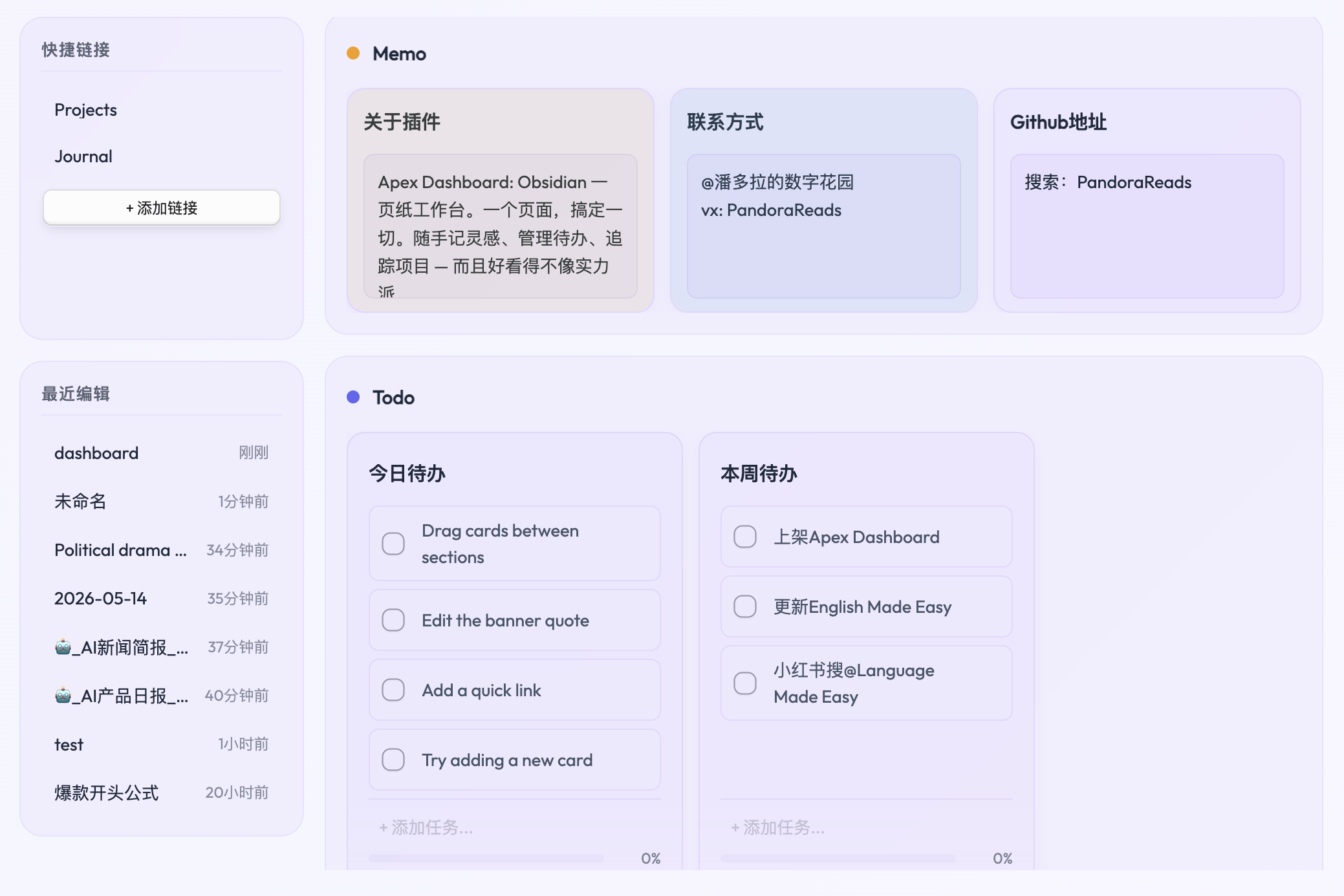
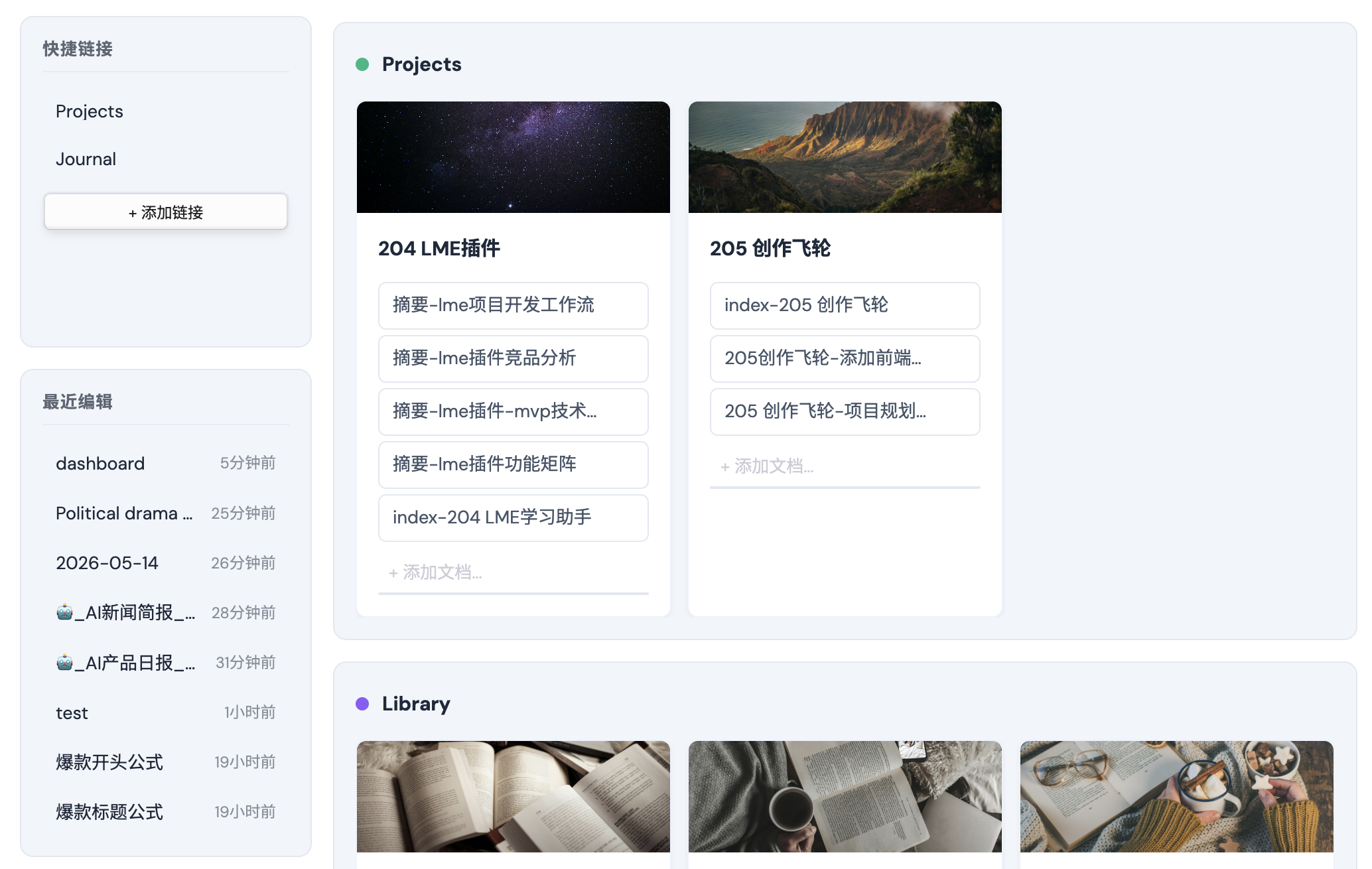
11 handcrafted themes, each with distinct visual identity:
| Theme | Style |
|---|---|
| Earth | Warm organic tones, parchment textures |
| Nordic | Clean minimal with blue accents |
| Aurora | Frosted glass with animated aurora gradient |
| Spring | Rose glass with warm glow |
| Island | Animal Crossing pastels, forest green and ocean blue |
| Tundra | Cold gray + avocado green aurora, sage glass cards |
| Blossom | Rose glass glow, transparent sections |
| Haze | Smoky white-to-blue mist, extreme glass transparency |
| Ember | Warm campfire smoke gradient, amber glow |
| Dusk | Purple twilight mist, cloud-soft rounded |
| Jade | Green bamboo mist, crisp jade-cut edges |
All themes support both Obsidian light and dark modes.
Settings
- Dashboard file — customize the file path for your dashboard data
- Style — choose from 11 visual themes
- Language — English or Chinese interface
- Recent documents count — control how many recent files appear
Installation
From Obsidian Community Plugins (coming soon)
- Open Settings > Community Plugins
- Search for "Apex Dashboard"
- Click Install, then Enable
Manual Installation
- Download the latest release from GitHub Releases
- Extract into your vault's
.obsidian/plugins/apex-dashboard/folder - Open Settings > Community Plugins and enable "Apex Dashboard"
Usage
- Open the dashboard via the ribbon icon (home icon) or command palette:
Apex Dashboard: Open dashboard - A
dashboard.mdfile is automatically created in your vault root - All changes are saved directly to the file — it's your data, in plain text
Note: Deleting, renaming, or reordering sections must be done by editing the
dashboard.mdfile directly. Any changes made to the note will take effect in the dashboard view immediately.
What's New
v1.0.7
- Task reminders — Set per-task reminders with a calendar popup. Click the bell icon on any task to pick a date and time
- Calendar picker — Visual month calendar with navigation, day selection, and hour/minute dropdowns (no manual date typing)
- Overdue indicator — Overdue task bell icon turns red with a pulse animation
- Obsidian notifications — 60-second periodic checker triggers an Obsidian Notice when a task is due
- Inline markdown storage — Reminders stored as
⏰ YYYY-MM-DD HH:MMin task text, fully readable and editable in the markdown file - Island theme — New Animal Crossing-inspired pastel theme with forest green sections and ocean blue accents
- i18n — Reminder UI supports both English and Chinese
- Resizable section cards — Drag to resize any card within a section, with min/max width constraints and persistent sizing
- Collapsible sidebar — Left sidebar is now resizable; click the pin button to fix it in place
- 6 new themes — Tundra (sage green aurora), Blossom (rose glass, transparent sections), Haze (smoky blue mist, glass transparency), Ember (warm campfire smoke), Dusk (purple twilight mist), Jade (green bamboo mist)
- Transparent sections — Tundra, Blossom, Haze, Ember, Dusk, and Jade feature borderless transparent sections with floating cards
- Banner overlay removed — Banner images no longer covered by a dark overlay filter
- Faster banner rotation — Quotes rotate every 1 hour, images every 30 minutes
v1.0.6
- Multi-quote banner — Store multiple quotes in the banner, each with its own author. Add, edit, and delete quotes in the edit modal
- Banner image rotation — Add multiple background images that rotate every 2 hours with a smooth fade transition
- Quote auto-rotation — Quotes rotate every 2 hours (offset 1 hour from image rotation so they never swap simultaneously)
- Double-click rename sections — Double-click any section title to rename it inline (Enter to save, Escape to cancel)
- Collapsible sections — Click the triangle indicator on section headers to collapse/expand sections. Collapse state persists across sessions
- Cross-card drag & drop — Drag document links between project/note cards, and drag task items between todo cards
- Card reordering fix — Fixed card drag-and-drop positioning in all sections (Todo, Projects, Notes). Cards now land exactly where you drop them instead of always moving to the first position
- Empty card interaction — Cards with all items removed can now receive new items via drag-and-drop or the add input
- Mobile improvements — Memo color picker button hidden on mobile, mobile drawer uses solid background for all themes, taller quick actions list
v1.0.5
- Distinct toggle colors — Each section type (Memo, Todo, Projects, Notes) has its own triangle indicator color
- Banner modal button sizing — "Add quote" and "Add image" buttons in the banner edit modal now use fit-content width instead of stretching full width
- Projects card default width — Fixed new project cards stretching across the entire section; cards now have a proper default width (280px)
- Section type robustness — Three-layer defense for section type preservation: frontmatter
type:field, name-based heuristics, and card type distribution analysis. Section types survive manual file edits, heading renames, and position swaps - Project card type persistence —
type: projectis now written to the file and preserved across save/reload cycles, preventing cards from reverting to generic type - Default template fix — Projects and Library sections now include
sectionTypein the default template and column definitions
v1.0.4
- Quick Actions — Quick Links upgraded to Quick Actions, supporting both file links and Obsidian command shortcuts
- Add Action modal — Two tabs (File / Command) for adding custom actions, with built-in presets for New Journal and New Note
- 4 Section types — Memo, Todo, Projects, and Notes, each with its own layout and behavior
- Multi-format document support — Manage Markdown, PDF, images (PNG, JPG, GIF, SVG, WebP), audio (MP3, M4A), and video (MP4, MOV) in project cards
- Bidirectional links — Memo and Todo cards render
[[wikilinks]]as clickable links with basename fallback - Journal path setting — Configure where new diary entries are saved
- UI polish — Vertical scrollbars hidden on desktop, theme-colored horizontal scrollbar, notes section layout optimization
- Bug fixes — Fixed wiki link clicks in memo cards, quick link rename race condition, rename listener cleanup on plugin unload
v1.0.3
- Wikilink support — Memo and Todo cards now render
[[wikilinks]]as clickable links - Section type selector — Choose section type when creating new sections
- Mobile sidebar drawer — Slide-in animation for mobile navigation
- Section creation UX — Confirm button for mobile section creation, 'Add new section' command shortcut
- Bug fixes — Card drag restricted to header/cover area, mobile banner edit button, drawer alignment
v1.0.2
- Section management — Manual section deletion, section type selector
- Mobile improvements — Better card scrolling and mobile layout
- Bug fixes — Respect body section order, form reset prevention
Compatibility
- Obsidian v0.15.0+
- Desktop and mobile
- All themes work in both light and dark Obsidian modes
License
0BSD
For plugin developers
Search results and similarity scores are powered by semantic analysis of your plugin's README. If your plugin isn't appearing for searches you'd expect, try updating your README to clearly describe your plugin's purpose, features, and use cases.