Secure-Smart-Sync
unlistedby Sen
Sync your Obsidian vault to Cloudflare R2 with client-side encryption.

Secure Smart Sync
Not affiliated with Obsidian Sync. SSS runs entirely on your own Cloudflare R2 bucket. You own the storage, the keys, and the data.
Smart Move : Secure-Smart-Sync has been tested across multiple devices and typical workflows. As with any sync system, edge cases can occur in complex scenarios — offline conflicts, unusual file structures, or interrupted syncs. Keeping a local backup of your vault is always a smart habit.
Overview

Features in breif:
- Private Cloud Storage: Syncs notes across all devices via your personal storage, keeping third parties out.
- Total Privacy: Locks your files with a password before they leave your device, making them completely unreadable to outsiders.
- Smart Automation: Quietly saves your work in the background a few seconds after you stop typing or open the app.
- Quick Device Linking: Connects new phones or computers instantly using a short, temporary pairing code.
- Conflict Protection: Safely preserves both versions if you edit the exact same note on two devices simultaneously.
- Distraction-Free: Runs silently using a tiny visual indicator instead of annoying pop-up alerts.
- Settings Backup: Syncs your custom themes, layouts, and plugins alongside your regular writing.
- Selective Syncing: Lets you easily ignore specific folders or skip massive files to save storage space.
- Safe Deletion: Sends deleted notes directly to your system trash so you can easily recover accidental mistakes. +more
Getting Started
Note : Read the Usage Guidelines for a complete and comprehensive setup guide, including:
- Installation & Setup
- Settings-Configuration
- Critical Security Information

Prefer a visual guide? Visit our official site Secure Smart Sync or Scan the QR code from your phone to get started in 5-minute walkthrough along with comprehensive documentations and token calculations.
Quick-Start
Before you start!
[!NOTE] It is highly recommended you either refer to the Usage Guidelines or visit our official site Secure Smart Sync for proper one-time setup. This Quick-start covers only the bare-bones setup version and excludes technical caveats and details, especially for beginners.
Prequisites
- Cloudflare account + billing method for activating R2 Subscription.(Free)
NOTE: Adding a billing method is strictly an industry-standard measure by Cloudflare to prevent bot abuse and spam. It actually costs $0.00 to set up. You will not be charged to activate R2, You'll only be charged if you exceed free tier, which majority of users will never hit. Read more about R2_free_tier
Set-up
- In the Cloudflare dashboard, navigate to R2 > Overview in the left sidebar.
- Click the Create bucket button.
- Choose a unique name for your bucket (e.g.,
my-obsidian-vault-sync). Note: Bucket names must be globally unique across Cloudflare. - Leave the location hint as "Automatic" for the best global performance.
- Click Create bucket.
Generating API Credentials
Secure-Smart-Sync needs permission to talk to your new bucket. You will generate an API token specifically for this purpose.
- In the Cloudflare dashboard, go back to the R2 > Overview page.
- Look for the "Manage R2 API Tokens" link on the right side of the screen and click it.
- Click Create API token.
- Give your token a recognizable name (e.g., "Obsidian Sync Key").
- Under Permissions, select Object Read & Write.
- Under Specify bucket(s), select Apply to specific buckets only and choose the bucket you just created.
- Click Create API Token.
NOTE: The next screen will show your Secret Access Key. This will only be shown once. Do not close the window until you have copied these credentials into the plugin.
Entering Credentials in Obsidian
Open your Obsidian settings and navigate to the Secure-Smart-Sync plugin options. The plugin requires the following four pieces of information, all visible on the Cloudflare token page you just generated:
- Endpoint: The URL formatted as
https://<your-account-id>.r2.cloudflarestorage.com. - Bucket Name: The exact name of the bucket you created in Step 4.
- Access Key ID: Copied from your Cloudflare API token page.
- Secret Access Key: Copied from your Cloudflare API token page.
NOTE: All of these credentials are saved locally on your device in plain text at .obsidian/plugins/secure-smart-sync/data.json. They are never transmitted anywhere except directly to Cloudflare.
You can click the Test button at the bottom of this section to verify that the plugin can successfully connect to your bucket.
Encryption (Highly Recommended)
Without a password, your files will be uploaded directly to Cloudflare. While Cloudflare is secure, to maintain true zero-knowledge privacy where only you can read your data, you must set an encryption password.
Device Pairing
Entering long API keys and passwords on a mobile device is frustrating. We have built an encrypted relay mechanism to make this seamless.
- Scroll to the Pair Devices section in the SSS settings.
- Click Generate Code. This will package your R2 credentials and encryption settings into a secure, temporary code.
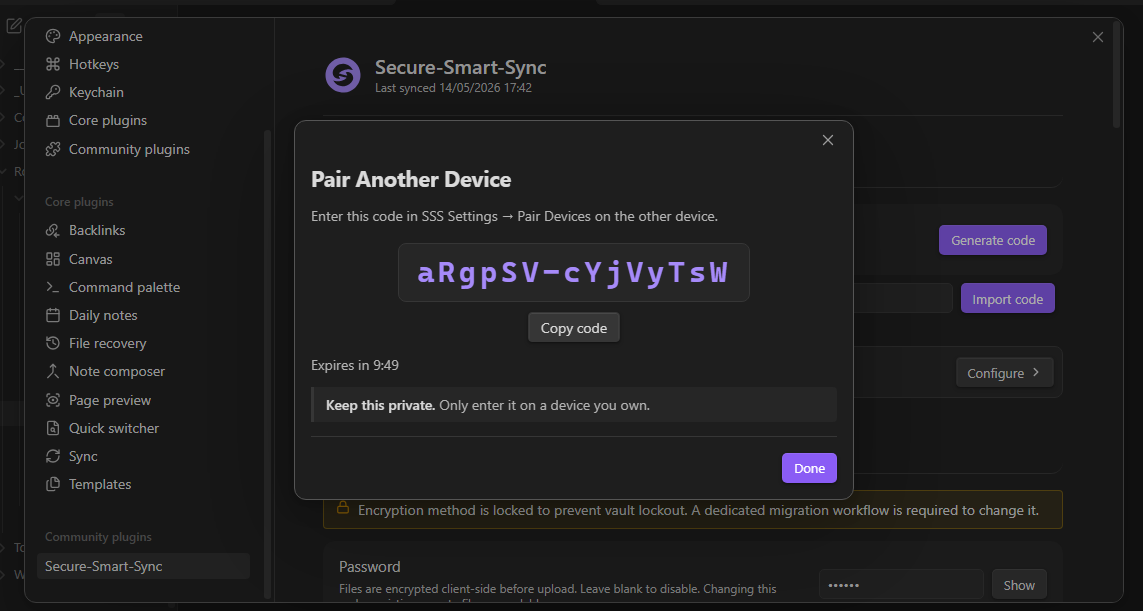
On your Secondary Device (Mobile/Laptop):
- Install the SSS plugin using the manual steps from Section 1.
- Open the SSS settings and scroll to Pair Devices.
- Enter the code generated by your primary device and click Import Code.
- Test the connection.
Note: Pairing codes are single-use and expire after 10 minutes. If you are setting up three devices, you must generate a fresh code on the primary device for each new setup.
Architecture
Zero-Knowledge EncryptionEvery file is encrypted on your device before it is uploaded. Choose between:
Your password never leaves your device — storage providers only see ciphertext. |
Three-Way Diff EngineCompares:
ETags prevent unnecessary uploads. |
Smart SyncA few seconds after you stop typing:
No manual triggering. |
Instant Device PairingGenerate a short pairing code on one device. Enter it on another device to securely transfer:
Transferred through AES-GCM encrypted relay. |
Resources
| Official Website | Visual set-up and beginner's guide and Documentations |
| Token calculator | Calculate your R2 Monthly usage |
| Usage Guidelines | Initial setup, configuration reference, and day-to-day usage |
| Core Architecture | Architectural outline |
| Core philosophy | Guiding principles of the project |
| Troubleshooting | Common errors and troubleshooting guide |
| Security | Cryptographic methods, architecture, and threat model |
| R2 Usage & Limits | Free-tier op analysis across vault sizes and device counts |
| Contributing | Bug reports, pull requests, and documentation |
| About | About Secure Smart Sync |
Security
SSS ships with no analytics, telemetry, or tracking. Encryption keys are generated and stored locally and are never transmitted. The ephemeral pairing relay is open-source, uses AES-GCM end-to-end encryption, and stores nothing after the payload is consumed.
Full cryptographic detail is in SECURITY.md.
The relay source is at Secure-Smart-Sync-relay. You can self-host it if you prefer not to use the default instance.
Credits
Remotely Save provided an early reference for S3-compatible storage that helped accelerate the initial prototyping phase. SSS has since been independently rewritten into a different architecture. The portions of Remotely Save that informed this project are licensed under Apache 2.0.
License
Code is released under the MIT License — see LICENSE.
The Secure-Smart-Sync name, logos, icons, embedded SVG branding elements, and overall visual identity remain the intellectual property of © Sen and are not covered under the MIT License.
These branding elements are included in the source code solely for functional product use. Public forks, redistributions, or derivative projects must remove or replace original branding unless explicit permission is granted.
see — LICENSE_BRANDING
Support

If the plugin has helped you and saved your time,
consider supporting the developer.
Contact & help
Have a question or a suggestion? Here is how to get in touch:
- Bug Reports: Please open an issue on GitHub so we can track and fix it.
- General Inquiries: For all other genuine inquiries, feel free to email us at securesmartsync@gmail.com
We aim to respond to all non-technical messages within 48 hours.
For plugin developers
Search results and similarity scores are powered by semantic analysis of your plugin's README. If your plugin isn't appearing for searches you'd expect, try updating your README to clearly describe your plugin's purpose, features, and use cases.