Remote SSH
unlistedby souta shimozono
Edit remote vaults over SSH/SFTP — VS Code Remote-SSH style.
Remote SSH for Obsidian











A VS Code Remote-SSH-style experience for Obsidian. Open a vault that lives on a remote SSH host, edit it from a real Obsidian window. Files, attachments, search, and live updates — all served from the remote, transparently.
Status: 1.0 released — daemon binaries cosign-signed, end-to-end tested against Linux + macOS remotes. Community-store listing pending review (obsidianmd/obsidian-releases#12390); install via BRAT or manual release until it lands.
📦 Installing? Grab the latest from the Releases page (stable artefacts, signed binaries) — or jump to the Install section below for BRAT / manual instructions. The repo's default view tracks the integration branch (
next); themainbranch holds the latest stable cut.
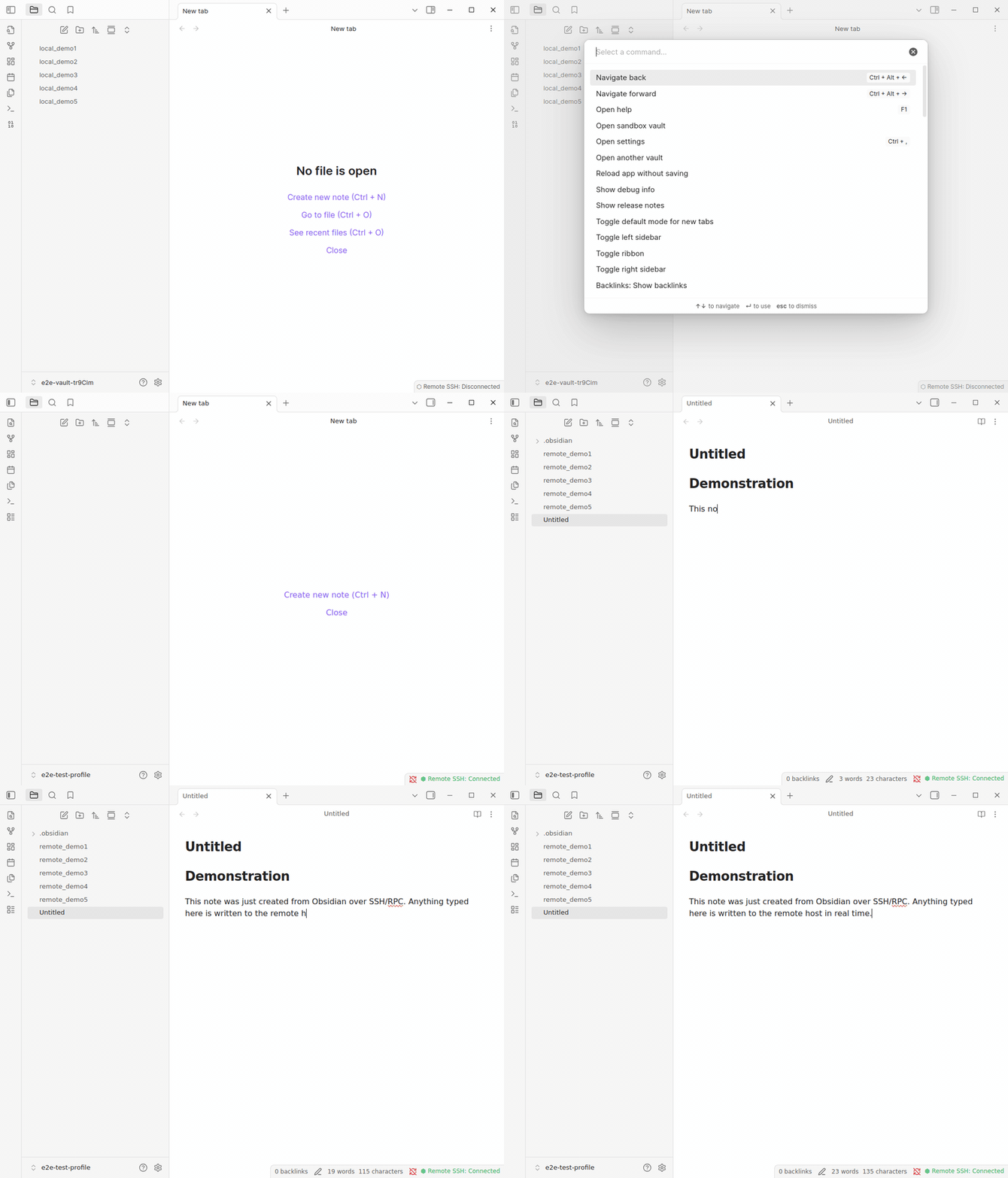
Recorded in CI by demo-capture.yml — re-run on demand.
What you can do
- Edit a remote vault as if it were local. SSH in to your home server,
cloud VPS, or work box. The vault stays on the remote; you get the full
Obsidian editor experience locally — no manual
rsync, no Dropbox dance. - Use the plugins you already love. Dataview, Templater, Excalidraw, Tasks, and most plugins that go through Obsidian's vault API work unchanged. (Compatibility matrix: docs/en/user-guide/plugin-compatibility.md.)
- Edit from multiple machines. Live updates push between connected
clients via
fs.watch; conflicting saves trigger a 3-way merge UI with ancestor / mine / theirs panes. - Survive flaky networks. Disconnects spool writes into an offline queue; reconnect drains them automatically. The status bar shows the pending count.
- Bring your own SSH setup. Password, private key, agent forwarding,
jump host (
ProxyJump) — all use the same~/.ssh/configyour terminal does.
Why this plugin (vs the alternatives)
Most "edit my vault from anywhere" tooling for Obsidian falls into one of three buckets. Each is a great fit for its own use case; this plugin sits in a different niche.
Obsidian Sync (official, paid)
Obsidian's first-party sync service. End-to-end encrypted, zero-config, official support, version history. Lives on Obsidian's servers — the vault is replicated to every device that has Sync enabled.
Use it when you want managed sync, are happy with the subscription, and don't need the vault on a specific machine you control.
File-sync tools (Syncthing, Dropbox, iCloud, OneDrive, …)
The vault is a folder on disk; some external sync tool replicates that folder across machines. Each Obsidian instance opens a local copy.
Use it when you already run such a tool and the vault fits naturally into your existing sync setup.
obsidian-git (community plugin)
Treats the vault as a git repo and runs git pull / commit / push
against it. The repo lives on your local disk; the remote is GitHub or
a self-hosted git server.
Use it when you want git history per save and are comfortable resolving merge conflicts in a terminal.
obsidian-remote-ssh (this plugin) — the niche
The vault only ever lives on a remote SSH host you control. There is no second copy. Reads and writes go through a small Go daemon the plugin auto-deploys on first connect; your local Obsidian opens a "shadow" window showing a real-time view of the remote files.
Use it when:
- The vault is bigger than you want to replicate to every laptop or phone (a 50 k-file research vault, a media-attachment-heavy vault).
- The remote is the source of truth and other tools (cron jobs,
scripts, an LLM pipeline, the user's own
git) operate on it directly. Local sync would race those writers. - You don't want a third party to ever hold the vault — managed sync is off the table for legal, privacy, or compliance reasons.
- You want remote-side tooling (the integrated terminal pane,
Templater scripts that shell out, plugins that import
.enexvia a local script) to act on the actual canonical files, not a synced copy.
If your needs match any of the alternatives' use-cases, those are simpler choices. This plugin is built for the case where "the vault lives over there, full stop" is the actual requirement.
Install
⚠️ The plugin is not yet in the Obsidian community plugin browser. Install via BRAT (recommended for testers — auto-updates) or manually from a GitHub Release.
Option A — BRAT (Beta Reviewers Auto-update Tool)
BRAT is itself a community plugin that auto-installs and auto-updates beta releases of other plugins.
- Install Obsidian42 - BRAT from Settings → Community plugins → Browse.
- Open BRAT's settings → click "Add Beta plugin" (not "...with frozen version").
- Paste
sotashimozono/obsidian-remote-ssh. Leave version blank. - BRAT downloads
main.js+manifest-beta.json+styles.cssfrom the most recent release on this repo and installs them under<vault>/.obsidian/plugins/remote-ssh/. - Toggle Remote SSH on under Community plugins.
You still have to drop a daemon binary for your remote OS/arch into
<vault>/.obsidian/plugins/remote-ssh/server-bin/ — see
Verifying the daemon below.
BRAT only handles the plugin itself.
Two release channels. This repo follows a
next(integration) +main(stable) branching model. Every merge tonextadvances both manifests in lockstep, so BRAT's--betamode (which fetchesmanifest-beta.jsonfrom the repo's default branch) gives testers early access to in-flight changes. Stable releases happen via periodic promotion PRs that fast-forwardmaintonext. The stable channel currently leads on1.0.x; thenextchannel runs a small lead of patch / pre-release versions ahead of stable.
Option B — Manual install
1 — Download the latest release
Go to the Releases page, find the most recent tag, and download:
main.jsmanifest.jsonstyles.css- one daemon binary matching your remote OS + architecture:
obsidian-remote-server-linux-amd64obsidian-remote-server-linux-arm64obsidian-remote-server-darwin-amd64obsidian-remote-server-darwin-arm64
The daemon binary is what the plugin auto-uploads to your remote on first connect. The OS/arch picks the binary that runs on the remote, not on the machine where Obsidian is installed.
2 — Drop the files into your vault
Create the plugin folder and place the files like this:
<your-vault>/
  .obsidian/
    plugins/
      remote-ssh/
        main.js
        manifest.json
        styles.css
        server-bin/
          obsidian-remote-server-linux-amd64    ← rename / pick yours
3 — Enable in Obsidian
Settings → Community plugins → "Installed plugins" → toggle Remote SSH on. Reload the vault if Obsidian doesn't pick it up immediately.
Verifying the daemon (optional but recommended)
Daemon binaries are signed with Sigstore cosign
keyless OIDC. Verify any release binary independently before trusting it on
your remote — see SECURITY.md for
the one-line cosign verify-blob command.
The plugin also runs a sha256 round-trip check on every deploy and refuses to start a daemon that doesn't match.
Quickstart
About 3 minutes if you already have an SSH host.
- Add a profile. Settings → Remote SSH → "+ Add". Fill in host, port,
username, auth method (
privateKey/password/agent), transport (RPCrecommended), and the remote vault path (relative paths resolve under$HOME—notes/main→~/notes/main). - Click Connect on the profile row, or run Remote SSH: Connect to remote vault from the command palette.
- A new Obsidian window appears. That window is your "shadow vault" — the same UI you know, but every file you see lives on the remote. Start editing.
To leave: close the shadow window, or run Remote SSH: Disconnect from remote vault inside it. The original window is never touched.
Features
| Feature | Notes |
|---|---|
| 🪟 Shadow vault opens in a new Obsidian window | The window you started from is untouched; the remote vault is its own first-class window with its own File Explorer, search, command palette. |
| ⚡ Sub-second cold-open even for 10k-file vaults | Single fs.walk RPC fetches the whole tree in one round-trip. Falls back to per-folder fs.list for SFTP transport or older daemons. |
| 🖼️ Image / PDF / video rendering via ResourceBridge | Local HTTP server (random localhost port + bearer token) serves binary content to the Obsidian webview. Image extensions go through fs.thumbnail with a 200 MB on-disk LRU cache. |
| 🔁 Live multi-client sync | fs.watch notifies every connected client when another writer changes a file; the file explorer + open editors update within ~1 s. |
| 🪢 3-way conflict resolution | If the remote mtime moved under your edit, the plugin opens a ThreeWayMergeModal with ancestor / mine / theirs panes. Plain text only; binary falls back to a 2-choice modal. |
| 📥 Offline write queue | Writes during a disconnect spool to a JSONL queue under <vault>/.obsidian/plugins/remote-ssh/queue/; reconnect drains them automatically. Status bar shows the pending count. |
| 🔐 Cosign-signed daemon binaries | Every release binary ships with a Sigstore bundle (.bundle). Verify provenance via cosign verify-blob; the plugin also runs a sha256 round-trip check on every deploy. |
| 🩹 Automatic reconnect with backoff | SSH drops trigger a retry loop (default 5 attempts, exponential backoff up to 30 s). Reads served from the in-memory cache during the retry; writes spool to the offline queue. |
| 🪪 Per-client subtree (PathMapper) | UI-state files (workspace.json, cache/, graph.json, etc) are routed to a per-device subtree on the remote so two machines don't clobber each other's tab layout. |
🔌 Jump host / ProxyJump support | Multi-hop SSH through bastion hosts. Works with the same ~/.ssh/config your terminal already uses. |
Settings
| Setting | Default | What it does |
|---|---|---|
Client ID | sanitized OS hostname | Per-device subtree on the remote (.obsidian/user/<id>/). Holds workspace + UI state — anything not safe to share between machines. |
User name | OS username | Cosmetic — surfaces in the connect notice as <user>@<host>. |
Reconnect attempts | 5 | How many times to retry before giving up. Exponential backoff up to 30 s. 0 disables auto-reconnect. |
Debug logging | false | Adds debug-level lines to the JSONL log file (see Troubleshooting). |
Plugin compatibility
The shadow vault patches app.vault.adapter so plugins that go through
Obsidian's vault API work transparently. Plugins that bypass the
adapter — typically by importing Node fs directly, joining paths against
app.vault.adapter.basePath, or using internal Obsidian APIs we don't
intercept — read or write the local empty shadow directory instead and
effectively don't see your remote vault.
The full matrix is in docs/en/user-guide/plugin-compatibility.md. Short summary:
- ✅ Most read-side plugins — Dataview, Tasks, Calendar, Outliner, …
- ✅ Most write-side plugins — Templater, Daily Notes, Quick Switcher++, …
- ✅ Image-rendering plugins — Excalidraw, Image Toolkit (RPC transport only).
- ⚠️ fs-direct plugins — Omnisearch (uses Node
fsfor indexing), some media-importer plugins. These read the empty local shadow dir.
Troubleshooting
The console log is the first thing to check. Path:
<shadow-vault>/.obsidian/plugins/remote-ssh/console.log
For a shadow vault, that's typically:
~/.obsidian-remote/vaults/<profile-id>/.obsidian/plugins/remote-ssh/console.log
It's JSONL (one event per line). Pipe through jq for fast triage:
# Just the errors
jq 'select(.level == "error")' console.log

# Everything from a particular subsystem
jq 'select(.fields.category == "auth")' console.log

# Last 20 lines, one-line per
tail -20 console.log | jq -c '{ts, level, msg}'
Common issues:
- "daemon binary not staged" — the binary file inside
server-bin/is missing or doesn't match your remote OS / arch. Re-download from the release that matches your installed plugin version. - No new window opens after Connect — the shadow vault wasn't
registered with Obsidian. Look for an
ObsidianRegistrywrite error in the source-window console log (commonly a permissions issue on the Obsidian config dir). Reopen Settings and click Connect again. - Shadow window opens but File Explorer is empty — the auto-connect
failed. Open the shadow window's console log; look for
BulkWalkerorpopulateVaultFromRemoteerrors. Try Remote SSH: Reconnect to remote from the command palette inside the shadow window. - Reconnect spins forever then fails —
Reconnect attemptsis set too high or the remote really is down. Set it lower (or0for fail-fast). - Images / PDFs don't render — ResourceBridge needs
RPCtransport. Check the active profile's transport setting. N pending offline editswon't go away — the replay is hitting a conflict on every entry. Click the status-bar indicator to open the pending-edits modal and inspect; discard if appropriate.
Security
Daemon binaries are signed with Sigstore cosign keyless OIDC; the plugin verifies the upload with sha256 round-trip on every deploy.
To report a vulnerability, please use a private GitHub Security Advisory — full policy in SECURITY.md. Do not open a public issue for security bugs.
Contributing
Contributions welcome. Dev setup, branch + commit conventions, version-bump mechanic, and how to run the full test suite are in CONTRIBUTING.md.
Issues for bug reports + feature requests are at github.com/sotashimozono/obsidian-remote-ssh/issues.
How it works (technical)
flowchart LR
subgraph Original["Original window (any local vault)"]
U[User clicks Connect on profile P] --> M[ShadowVaultManager]
end
M --> B["ShadowVaultBootstrap<br/>materialise ~/.obsidian-remote/vaults/<P-id>/<br/>per-file install of plugin<br/>seed data.json with autoConnectProfileId=P"]
B --> R["ObsidianRegistry<br/>register vault path in obsidian.json"]
R --> W["WindowSpawner<br/>obsidian://open?path=…"]
subgraph Shadow["Shadow window (new Obsidian window)"]
L[onLayoutReady reads autoConnectProfileId] --> C[Connect to remote profile]
C --> P[Patch app.vault.adapter to remote FS client]
P --> WK[BulkWalker: fs.walk RPC<br/>or per-folder fs.list fallback]
WK --> V[VaultModelBuilder.build<br/>insert TFile / TFolder into vault.fileMap<br/>fire vault.trigger 'create']
V --> X[File Explorer renders the remote tree]
end
W -.spawn new window.-> L
subgraph Transport["SSH transport (in the shadow window)"]
P -. fs ops .-> RPC[RpcRemoteFsClient]
P -. or .-> SFTP[SftpRemoteFsClient]
RPC --> SD[ServerDeployer auto-uploads<br/>obsidian-remote-server to ~/.obsidian-remote/]
SD --> D[(Go daemon<br/>JSON-RPC over framed unix-socket stream)]
SFTP --> SSH[(ssh2 SFTP)]
D --> FS[(Remote vault files)]
SSH --> FS
end
Two transports per profile:
RPC(recommended). The plugin uploads a small Go daemon (obsidian-remote-server) to~/.obsidian-remote/on the remote and starts it vianohup. A local Duplex stream is forwarded to the daemon's unix socket; vault FS ops flow as length-framed JSON-RPC. Required for the ResourceBridge (image / PDF / video rendering),fs.walk(sub-second cold-open),fs.thumbnail(image cache), andfs.watch(live updates from other clients).SFTP. Direct SFTP overssh2, no daemon. Works without any remote-side install but loses the daemon-only features above.
Why a separate window: Obsidian doesn't expose a public path to "rebuild the vault model from a different adapter mid-session." The shadow window's vault is constructed from the remote tree at startup, so every plugin in that window sees a normal-looking vault from frame zero. The full design and the smoke evidence behind it are in docs/en/architecture/shadow-vault.md.
The performance machinery (BulkWalker, fs.thumbnail cache) is
documented in docs/en/architecture/perf.md;
the conflict + offline-queue design is in
docs/en/architecture/collab.md; the test
strategy is in docs/en/contributing/testing-strategy.md.
Acknowledgements
Inspired by VS Code's Remote-SSH model. The wire format is an LSP-style framed JSON-RPC over a unix-socket-forwarded stream — the same shape language servers use, just for filesystem ops.
For plugin developers
Search results and similarity scores are powered by semantic analysis of your plugin's README. If your plugin isn't appearing for searches you'd expect, try updating your README to clearly describe your plugin's purpose, features, and use cases.