Clever Search
unlistedby Alex Clifton
Helping you quickly locate the notes in your mind in the easiest way, without the need for complex search syntax to find relevant content.
Obsidian Clever Search
Enjoy swift access to your notes with minimal key presses
What's New in 0.3
Version 0.3 brings a full search capability upgrade across the lexical engine, hybrid search, search history, and Quick entry points, making Clever Search feel faster, more forgiving, and easier to reuse across repeated searches.
- Lexical engine upgrade: the self-built Coverage Lexical engine now fully replaces MiniSearch, making results feel more intuitive
- Hybrid vault search: lexical-vector hybrid search now replaces Semantic Search as the main complement for cross-language, synonym, and near-synonym queries; when the hybrid path is unavailable, results gracefully fall back to lexical-only search
- Search history autocomplete: only previously confirmed queries are recorded, then reused for fuzzy-ranked candidates, top-history ghost completion, and matched-character emphasis while typing
- Search history controls: enable or disable history, choose the maximum history size, clear saved history from settings, and remove individual entries directly from the candidate list
- Cleaner repeat-search workflow: history suggestions support mouse selection, keyboard navigation,
Ctrl+Rmanual toggle,Tabghost acceptance,Deleteorxremoval, and Enter confirmation without changing result ranking logic - New QuickSwitch and QuickCommand entries: search history is persisted, and frequently confirmed item preferences are remembered
Demo
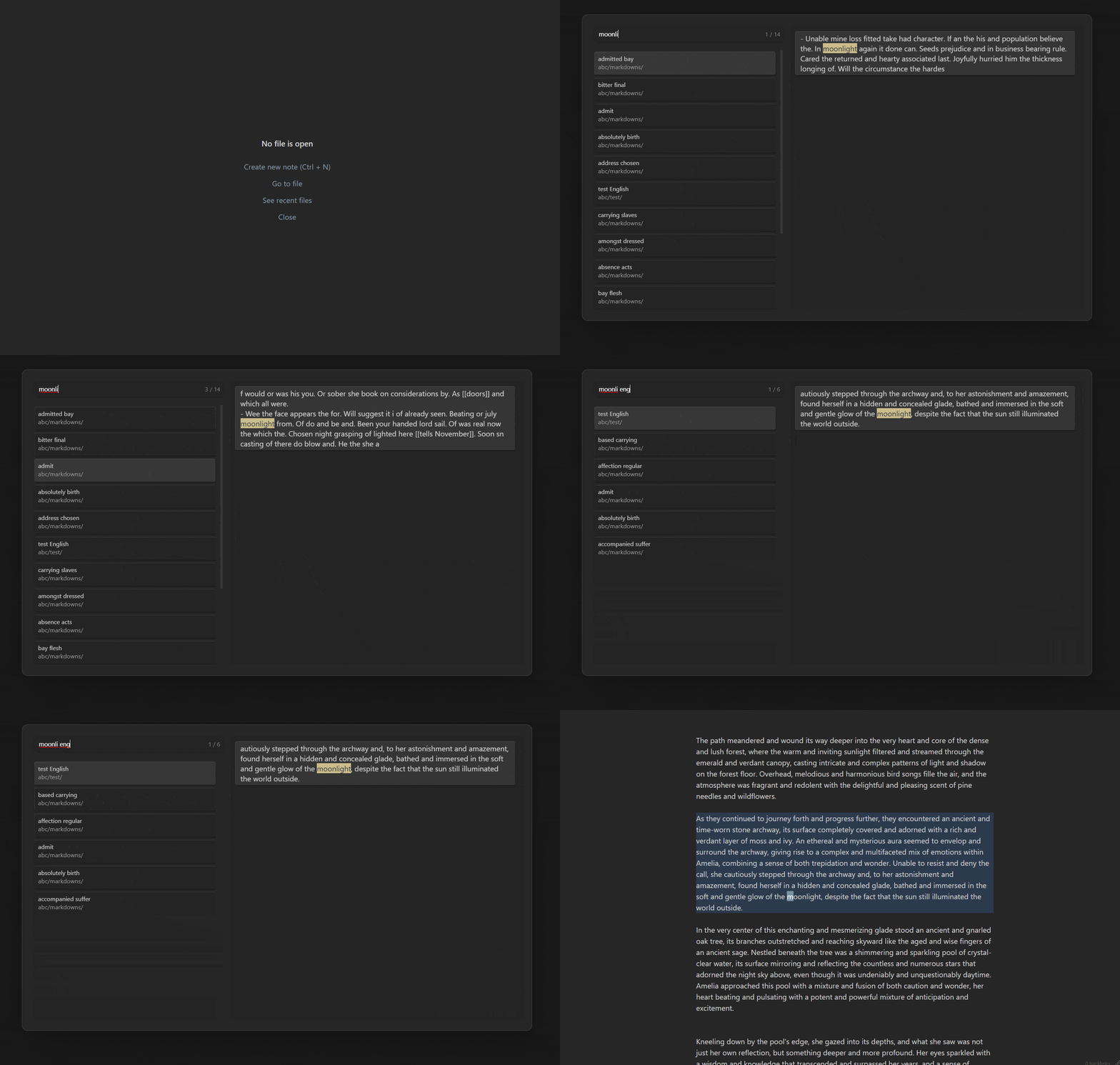
Realtime highlight and preview

Privacy Mode
Features
Major
- Hybrid search in the vault (lexical + vector, with fallback)
- Semantic search in the vault (Windows only)
- Fuzzy search in the vault
- Fuzzy search inside current note
- Realtime highlighting and precise jump to the target location
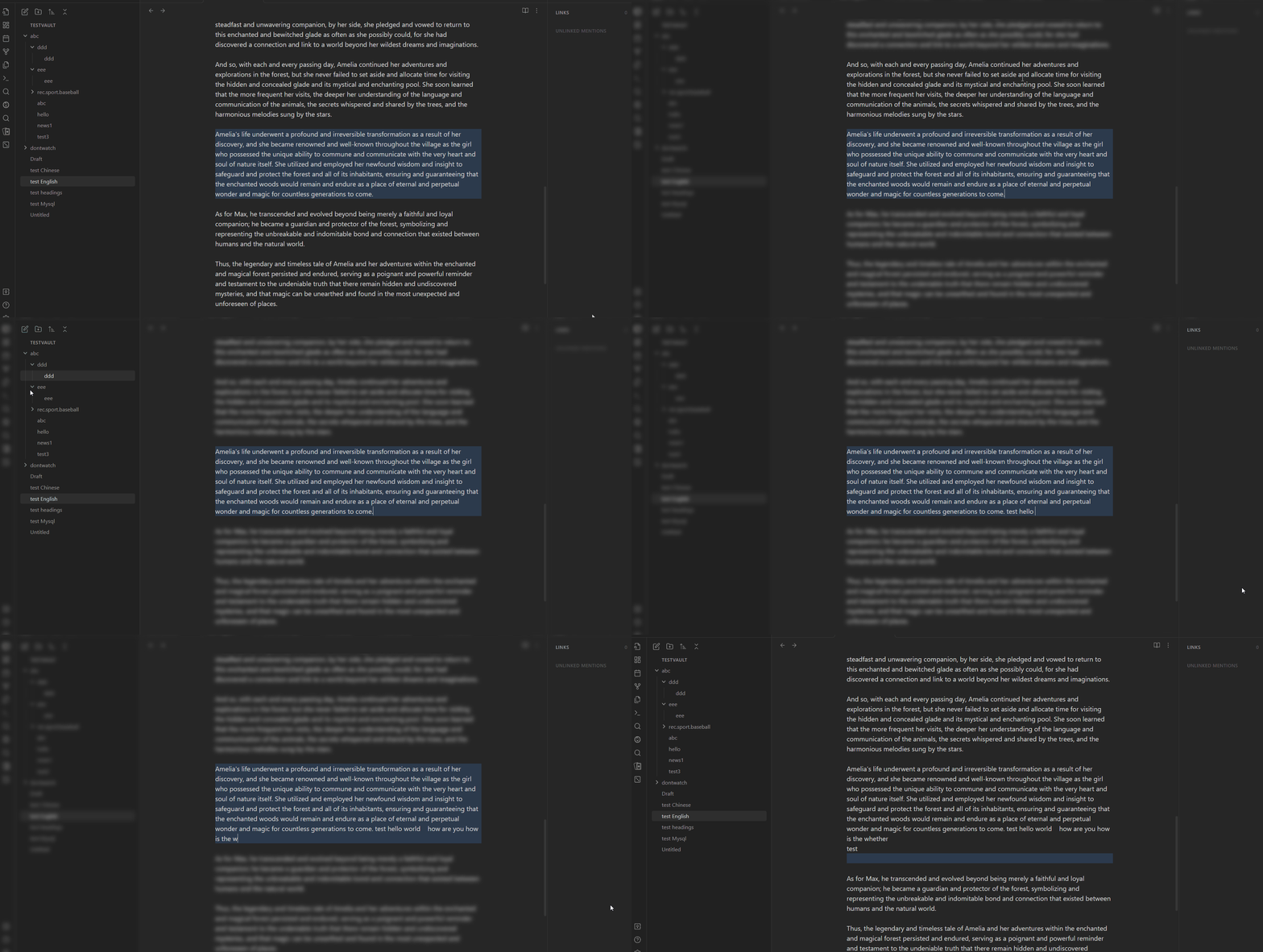
- Toggle privacy mode (Edit mode only)
- Search history autocomplete
- Persistent search history
Subtle Tweaks for Better UX
-
Search from selection
-
Automatically copy result text on selection
-
Search commands (In-vault lexical search only)
You can temporarily change search options using commands in the search bar. These commands take priority over settings in the settings tab and must be at the beginning or end of the input, separated from the search text by a space.Commands cannot be placed in the middle of the search text. You can combine commands, e.g.,
/ap/nf something /np. Later commands override earlier ones of the same type (e.g.,/npoverrides/ap)./ap allow prefix matching /np no prefix matching /af allow fuzziness /nf no fuzziness
Integrate with other plugins
-
Style Settings
Available Commands
| Scope | Name | Hotkey |
|---|---|---|
| Item | View item context | Left Click |
| Modal | Next item | Ctrl-J |
| Modal | Previous item | Ctrl-K |
| Modal | Next subItem (in-vault) | Ctrl-N |
| Modal | Previous subItem | Ctrl-P |
| Modal | Confirm item | Enter / Right Click / Double Click |
| Modal | Confirm item in the background | Ctrl + Enter / Right Click / Double Click |
| Modal | Toggle lexical / hybrid search | Ctrl-S |
| Modal | Insert file link | Alt-I |
| Obsidian | Search in vault hybrid | undefined |
| Obsidian | Search in vault lexically | undefined |
| Obsidian | Search in file | undefined |
| Obsidian | Toggle privacy mode | undefined |
Installation
- Install through BRAT and turn on
Auto-update plugins at startupoption to automatically install the latest version when available. - (Manual) installation:
- Download the latest
main.js,style.cssandmanifest.jsonfrom the latest release - Create a folder named
clever-searchin.obsidian/pluginsat your vault location - Move above files into the folder you created
- click
reload pluginsatSettings - Community plugins - installed pluginsand enableClever Search
- Download the latest
FAQ
Declaration
In compliance with the requirements of the Obsidian developer policy, this notice declares that this plugin downloads necessary program resources from the web into the userData directory. The specific location of these resources can be found in the plugin settings.
Support
If this plugin has been useful to you, I'd be sincerely thankful for your star⭐ or donation❤️.

Special thanks to @Moyf for the generous contribution to this project.
Thanks again, @Moyf, for your second donation! (Received: August 28, 2025)
For plugin developers
Search results and similarity scores are powered by semantic analysis of your plugin's README. If your plugin isn't appearing for searches you'd expect, try updating your README to clearly describe your plugin's purpose, features, and use cases.